ArcGIS AllSource takes disparate data and makes sense of it, many times through visualizing data. In this release, the AllSource team focused on enhancing visualization of temporal data in Timelines. Additionally, Military Overlay now includes the standards: MIL-STD-2525B and MIL-STD-2525E.
To learn more about other enhanced and added tools, read What’s new in ArcGIS AllSource 1.5
Timeline Enhancements
Often, data containing time attributes is best understood when seen. So, in 1.5, the timeline saw updates to its ribbon, symbology, and swimlane controls.

Using the Expand All, Collapse All, and Stack Timespan/Cascade Timespan, swimlanes can be adjusted. Often, when dealing with time-based data, events can take place over a period as opposed to a single moment in time; this is known as a timespan. Timespans can overlap, making the features on a timeline hard to see. One of the best ways to deal with timespan overlap is to create swimlanes on the timeline.
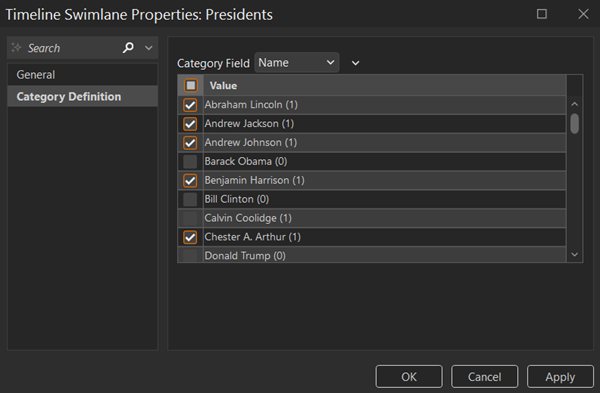
After creating a timeline, but before inspecting it, try out the new Category Definition tool. Using this tool, the timeline’s displayed category and the values can be selected to split the timeline into swimlanes.

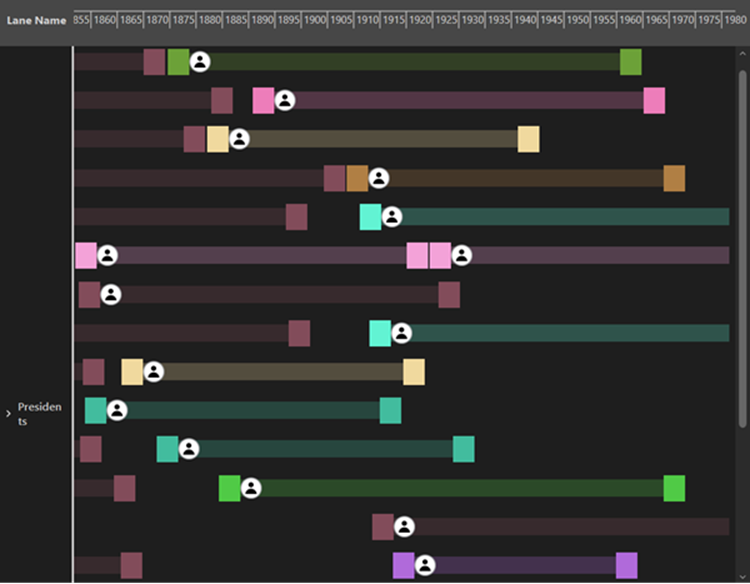
Using Stack Timespan, the features are set in a single timeline; however, when dealing with many features, some visibility issues occur as features and timespans begin to overlap. To help alleviate how busy the timeline appears, let’s cascade our timespans in this lane.
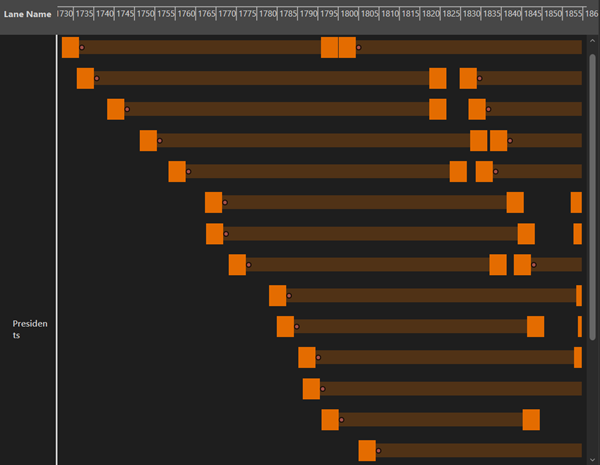
Cascade Timespan separates overlapping timespans for enhanced visibility of the data. Let’s look at how data appears when the timeline is expanded.
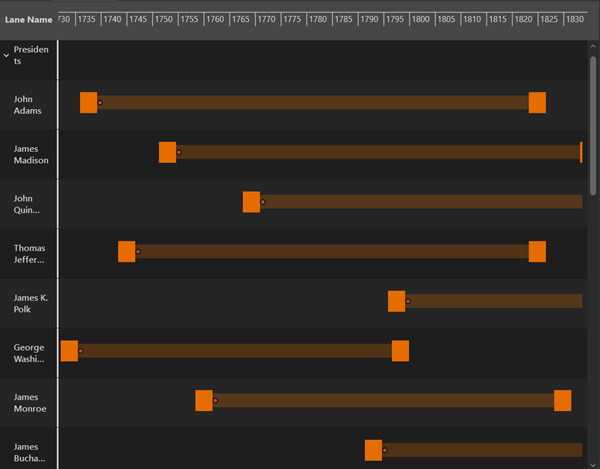
By using Expand All, the timeline is split based on chosen values so that timespans can be viewed in their respective categories. Once a swimlane has been expanded, the data becomes easier to read, however the timeline can always collapse back into a single-lane view.

Collapse All, Expand All, and Stack/Cascade Timespan were designed to aid users in visualizing and categorizing their data. However, when it comes to visualization, symbology is always key.
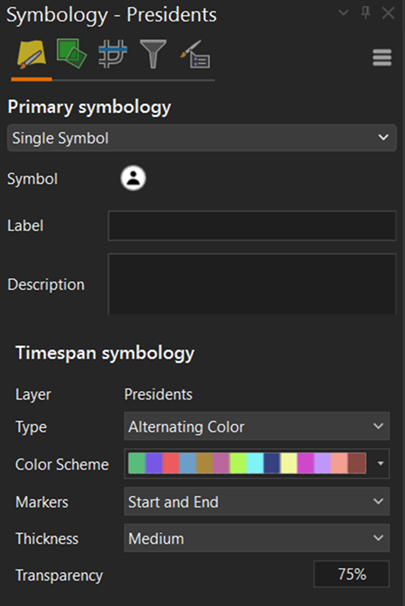
Using Timespan symbology, a user can customize how timespans are symbolized on a timeline. Choosing appropriate colors and symbology further complements the timeline and time-based data.
To learn more, read the help for Timelines.

Commenting is not enabled for this article.