
You’ve built a great app in ArcGIS Experience Builder, ArcGIS Dashboards, ArcGIS StoryMaps, ArcGIS Instant Apps or another ArcGIS application. Now you want visitors to discover and use it from your ArcGIS Hub site.
A common mistake is to simply paste a link to the app and send visitors away from your Hub site. While this works, it can create a disconnected experience and reduce opportunities for people to discover related content.
A better approach is to make the app part of a seamless, in-place Hub experience.
Think of your Hub site as the front door to your organization’s geospatial ecosystem and a central destination for content discovery. It’s where people find trusted apps, maps, data, documents, and tools. Rather than treating your apps as separate links, Hub helps bring them together into a connected experience.
When applications are integrated into your catalog and site experience, visitors can more easily discover related content, stay engaged, and understand how individual resources fit into the broader story you’re telling.
The goal: one connected experience
ArcGIS Hub helps bring people, apps, and content together in a single destination while leaving backend complexity behind the scenes. Whether you’re sharing a parcel viewer, engagement story, community dashboard, recreation finder, or emergency map, the goal is the same: keep visitors connected to the broader experience.
Fortunately, creating that connected experience is easier than you might think. Whether you link to an app, embed it on a page, or feature it in your site navigation, a few simple best practices can transform an app from a stand-alone destination into a discoverable part of your geospatial ecosystem.
Before adding an app to your site, share it with one of the groups used by your site catalog. This makes the app available across catalog-powered search, galleries, navigation, and other discovery experiences.
Three great ways to feature an app in your Hub site
Once your application is shared to your catalog, you have three strong options for featuring it. Choose the approach that best supports the visitor’s task and the role the app plays in your site.
Option 1: Link to the app
Add a featured gallery, button, call to action, or featured link that opens the application.
This approach works well when the application is intended to be a dedicated destination. Visitors get quick access to the app while still benefiting from the context, branding, and discoverability your Hub site provides.
Customer example: Cobb County, Georgia uses ArcGIS Hub to connect people, processes, and technology in support of a smart county. Browse the site’s Maps & Apps gallery and notice how apps open within the Hub experience, making it easy for visitors to discover related content while remaining within the site.
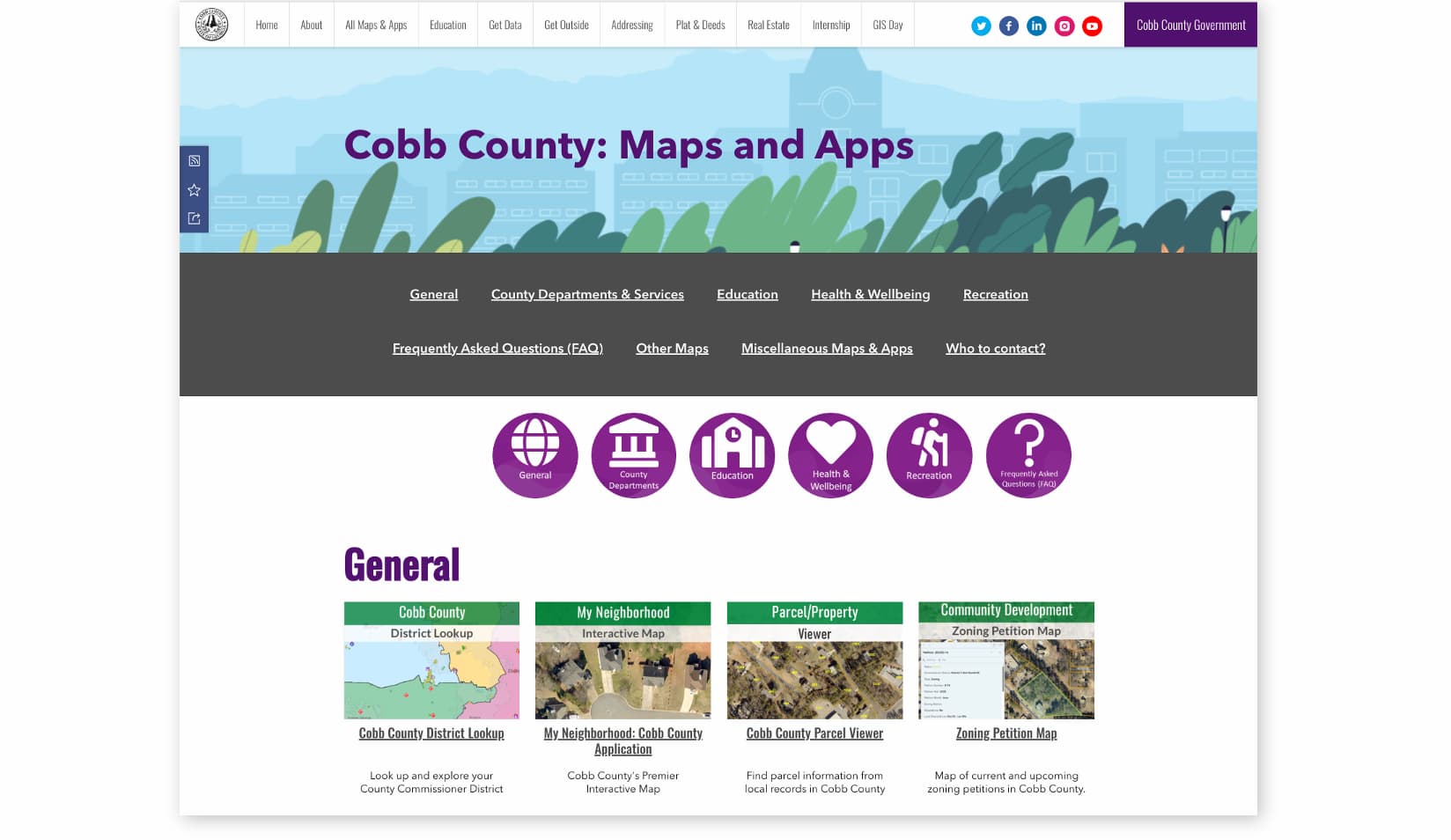
When sharing your application, share the Hub URL rather than the app’s stand-alone ArcGIS URL. After adding the app to your catalog, promote the Hub-generated URL https://<your-site>/apps/<item-id> to preserve your site’s branding and navigation while making related content easier to discover.
Option 2: Embed the app on a page
Embed the application directly within a Hub page by adding an Application card in the layout editor.
This approach is especially effective when the app supports a larger story, workflow, or collection of content. Visitors can use the app alongside instructions, narrative, supporting data, or related resources without leaving the page.
Customer example: Audubon Great Lakes uses ArcGIS Hub to help people explore bird migration patterns across the Great Lakes region. Notice how the site combines narrative content, maps, and applications into a single experience, allowing visitors to learn, explore, and take action without navigating between separate destinations. Explore the site at Audubon Great Lakes Bird Migration Explorer.
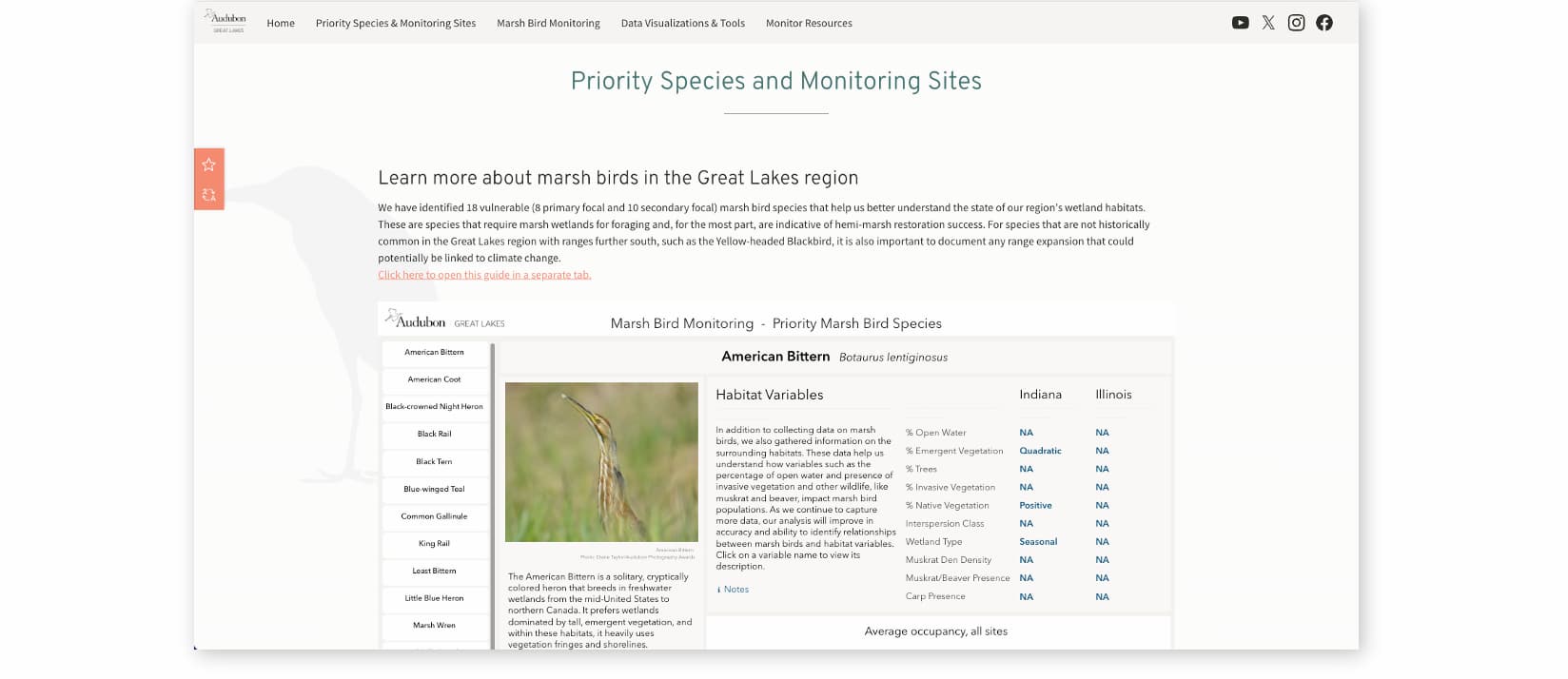
Pair an embedded app with a short introduction and a clear next step. A small amount of context can help visitors understand what the app does and what they should do with it.
Option 3: Add the app to your Hub site menu navigation
For a high-value application, add it to your site’s header menu by selecting it from the existing content in your catalog.
This approach works best for applications that visitors may need to access from anywhere on your site, such as community dashboards, map viewers, service locators, and other frequently used tools. Because the menu navigation appears throughout the site, visitors can reach the app from anywhere.
When configured through Hub, the app opens within the context of your site, preserving the site URL, branding, and navigation. Hub also provides a friendly, site-based URL that you can use when promoting the app through email, social media, or other websites.
In the site layout editor, go to Header > Menu > Add link to existing content. Select the application and save. A link is added to the menu, and you can edit the menu link name by selecting the gear icon. Alternatively, directly add a URL to link, remembering to use the Hub-generated URL https://<your-site>/apps/<item-id>.
Customer example: Matthaei Botanical Gardens & Nichols Arboretum uses ArcGIS Hub to connect visitors with maps, guides, and other resources that support exploration of its gardens, natural areas, and collections. Notice how navigation links provide persistent access to key experiences from anywhere on the site, helping visitors quickly find the information and tools they need. Explore the site at Matthaei Botanical Gardens & Nichols Arboretum.
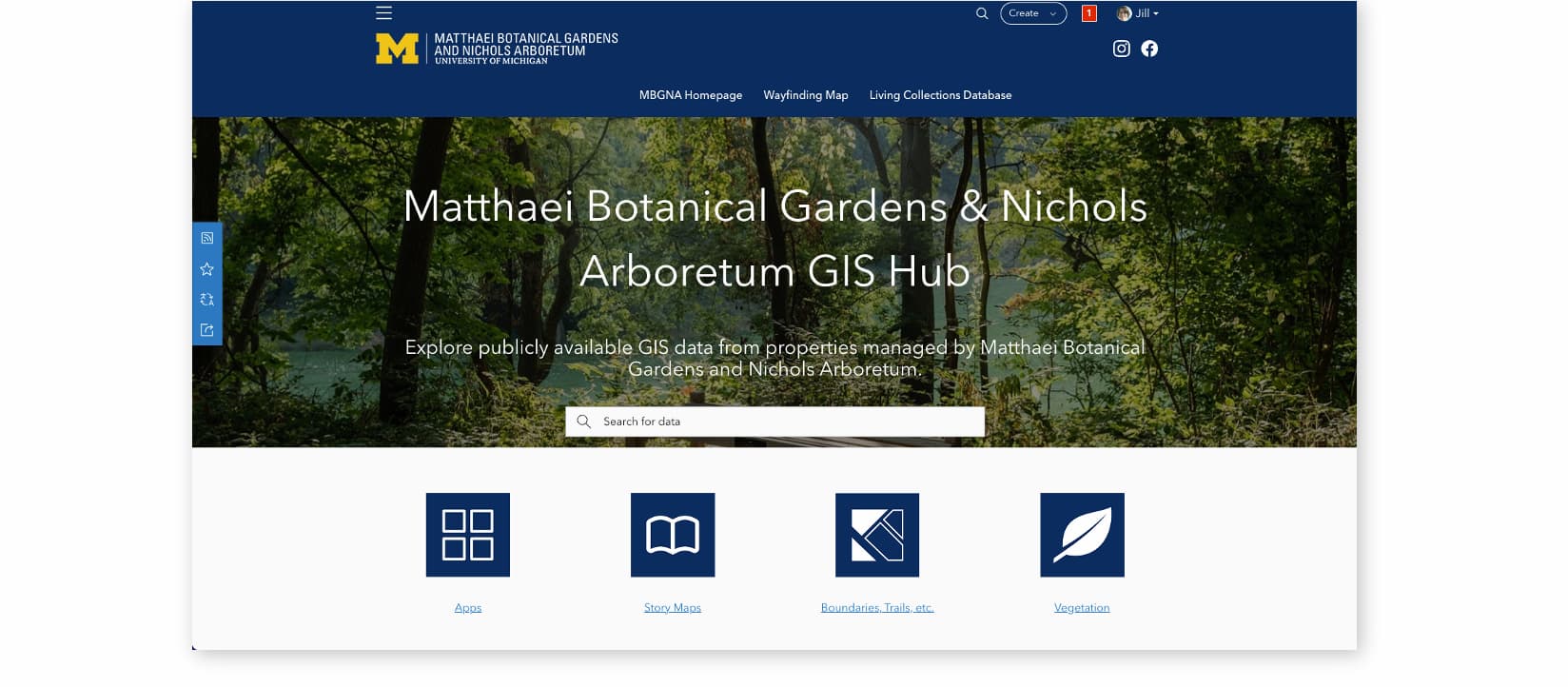
Reserve menu navigation for your most important destinations. One or two well-chosen apps can provide fast access without overwhelming visitors with too many choices.
Note that menu links are always visible for publicly shared applications. For privately shared applications, the menu link to existing content is visible only to authorized individuals.
Three settings every Hub creator should check
No matter which placement option you choose, these three settings help the app behave like part of your ecosystem rather than a disconnected destination.
1. Add the app to your site catalog
This is the most important step.
Displaying or linking to an app on a page does not automatically add it to the site’s catalog. Share the app with one of the groups used by your catalog so Hub can index and present it as part of the site’s content. Learn more
Once added, the app can be:
- Found in your site’s search results
- Included in catalog-powered galleries and categories
- Selected when adding catalog content to site navigation
- Opened through a friendly URL associated with your Hub site

Think of your catalog as the source of truth for the site. If an app is not in the catalog, visitors may have difficulty discovering it beyond the single place where you linked or embedded it.
2. Enable Embedded Apps
In the site layout editor, go to Settings > Interactions and enable Embedded Apps.
This setting controls how applications open when visitors select them from configured Gallery cards, Application cards, or search results. When enabled, apps can open within the context of your site’s header and global navigation instead of launching as a separate external experience.
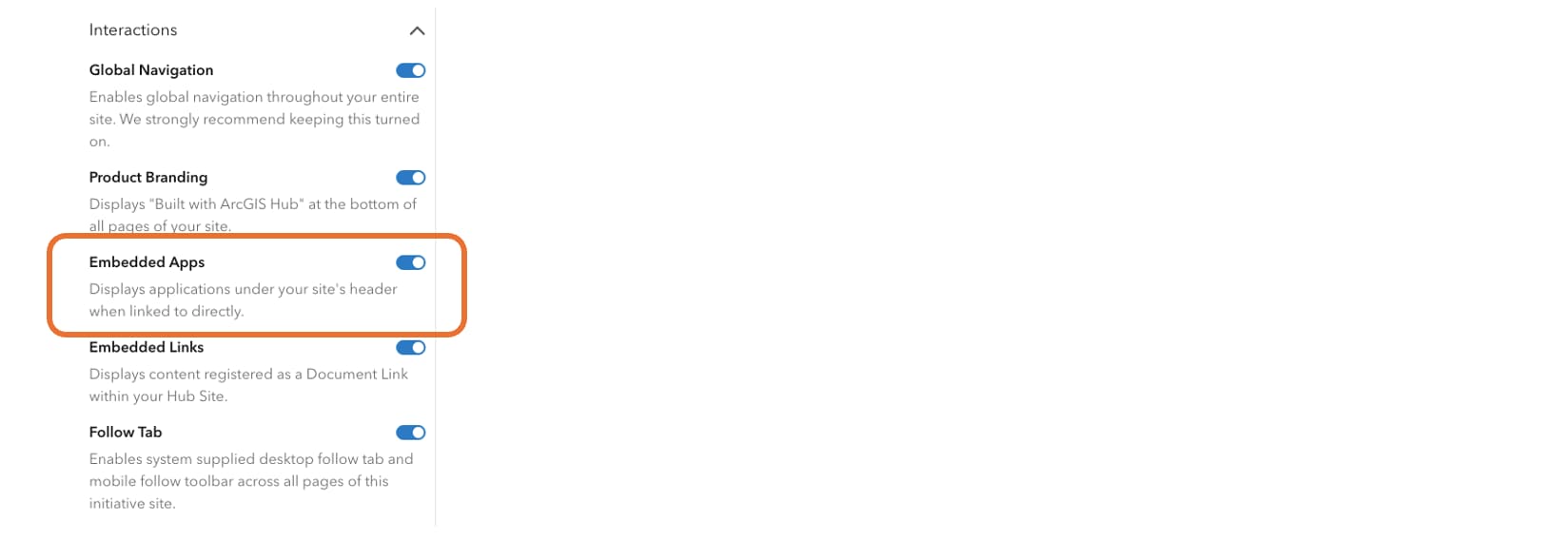
Check this setting early in site configuration. It is a small, site-wide choice that can improve the experience for apps opened from multiple supported entry points.
3. Collapse the Content Side Panel for Apps
Under Settings > Interactions > Content Side Panel, configure Apps to open with the panel collapsed.
This gives the application more room on screen while keeping content information available when visitors need it. It is a small adjustment that can make a full-featured map, dashboard, or Experience Builder app feel more at home in your site.

Large maps and interactive apps benefit from every available pixel. Starting with the side panel collapsed keeps the focus on the app while leaving item details one selection away.
Why this matters
Connecting apps to your Hub experience makes it easier for visitors to discover related content and stay engaged.
Create a seamless user journey
Every extra browser tab, navigation change, or context switch creates friction. When apps feel integrated, visitors spend less time figuring out where they are and more time accomplishing what they came to do.
Navigation remains familiar, your branding stays consistent, and moving between content becomes easier.
Test the journey as a first-time visitor. Open the app from each place it appears, then confirm that it is obvious how to return to related site content.
Help people discover more content
Visitors rarely arrive looking for just one thing. Someone exploring a dashboard may also benefit from related datasets, maps, documents, or stories. When apps are part of your Hub catalog, they become easier to discover through search, galleries, categories, and other content-driven experiences.
This is one of the reasons organizations use ArcGIS Hub as a central hub for content discovery. Hubs connect people to content into a cohesive experience rather than a collection of separate destinations.
Feature applications in a Gallery card alongside related maps, data, documents, and stories. This helps visitors discover connected content and encourages deeper exploration of your site.
Gain better insight into engagement
A connected experience can also give you a more coherent view of how visitors engage with your site. When people continue their journey through Hub, site analytics can better reflect how pages and content contribute to overall engagement.
Use a consistent Hub entry point when promoting the app across campaigns and channels. This creates a clearer path for reviewing how audiences arrive at and continue through the site experience.
Improve SEO and AI discoverability
Search engines and AI-powered discovery systems rely on context. A stand-alone application may provide limited information about why it exists, who it serves, and how it relates to other resources.
When an application is integrated into a Hub site and catalog, it benefits from the surrounding ecosystem of page content, item metadata, titles, summaries, related resources, and navigation. Hub also provides site-level metadata controls that can help optimize how the site and its pages appear in search results.
Embedding an app does not automatically guarantee a higher search ranking. The SEO benefit comes from placing the app within a well-structured, descriptive, and internally connected site, then maintaining strong metadata for the site, app item, pages, and related content.
Write item titles and summaries for people who do not already know your program. Add thumbnail images and clearly explain what the app provides, the placename or topic it covers, who it is for, or the task it helps visitors complete.
The takeaway
Apps are often among the most valuable resources an organization publishes. But their value increases when they’re connected to the maps, data, documents, stories, and other content that provide context.
ArcGIS Hub helps bring those experiences together.
Whether you link to an app, embed it on a page, or feature it in your site navigation, a few simple best practices can transform a stand-alone application into a discoverable part of your geospatial ecosystem.
Make your apps feel at home in ArcGIS Hub, and your visitors will feel more at home there too.
Sites featured in this story were submitted to the ArcGIS Hub gallery. Visit the gallery to explore more examples from the community.



Commenting is not enabled for this article.