Forms are an excellent way to optimize attribute editing workflows across the ArcGIS Online platform. Now there’s a new tool (or rather, a new input type) in your toolkit to dynamically generate choices in a drop-down. No need to create coded value domains or maintain a static list of options, just write an ArcGIS Arcade expression to handle it for you! Read on to learn about:
- What a dynamic choice input is and how it works
- How to configure your own dynamic choice input
- Building a choice expression & common examples to get started
What is dynamic choice and how does it work?
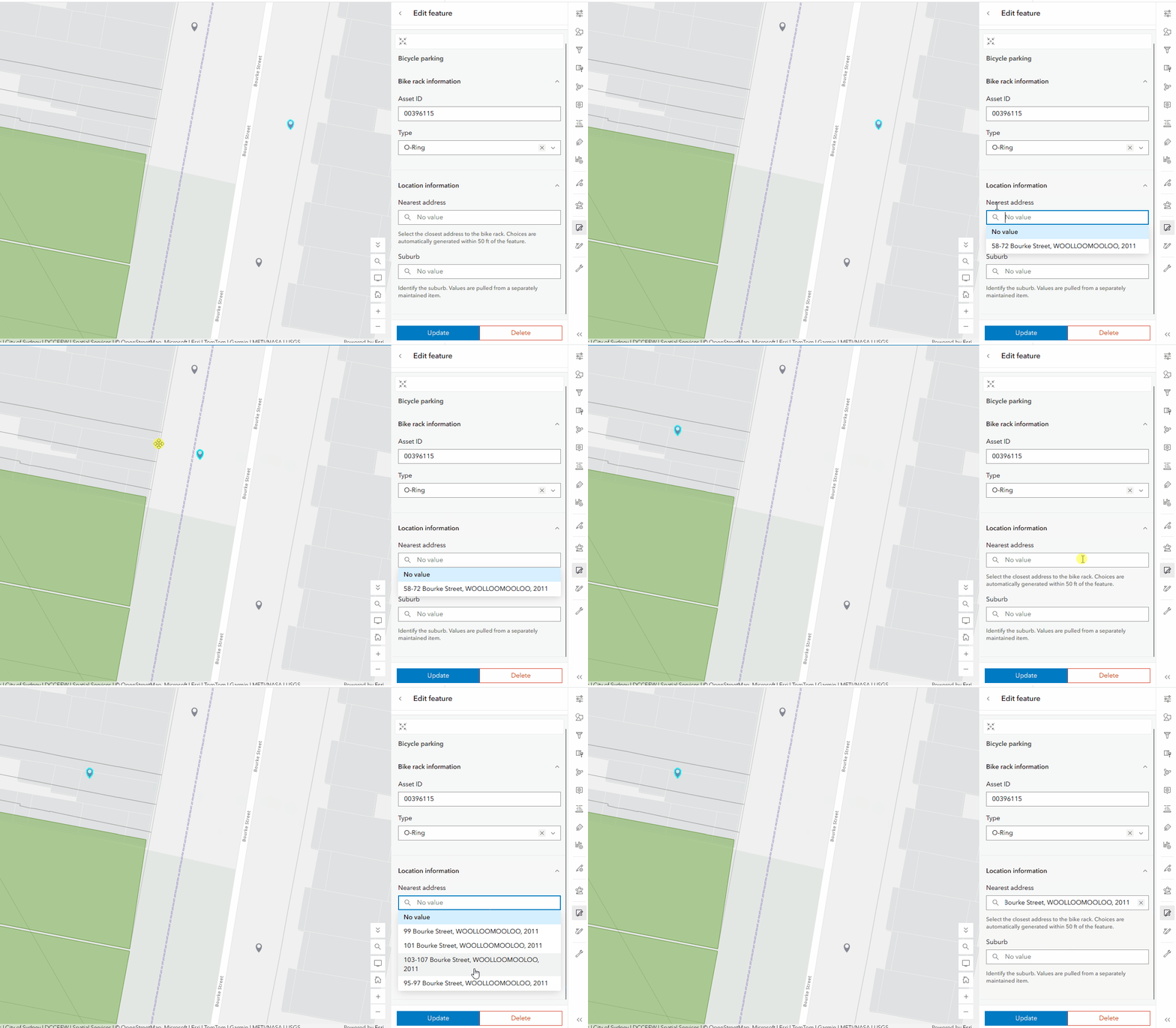
Forms have multiple ways to show a list of options, whether it is a combo box, radio buttons, or a multiple-choice input. Dynamic choice is a new input type that allows form authors to generate a focused list of choices for users that is powered by an Arcade expression. The expression defines the logic for the list and can draw values from a variety of sources, including another layer or table. This means that users find the correct value quickly and edit data more accurately.
Dynamic choice works similarly to a combo box or a generic drop-down, where a list of options is presented to the user. The choice expression determines the available options and runs each time the drop-down opens, provided the field is editable. As form values or source data change the expression can return a different list, meaning that the editor has the most up to date values to pick from. Choice expressions can also reduce the need for schema changes by filtering out irrelevant or retired domains from the drop-down, without removing them on the layer itself.
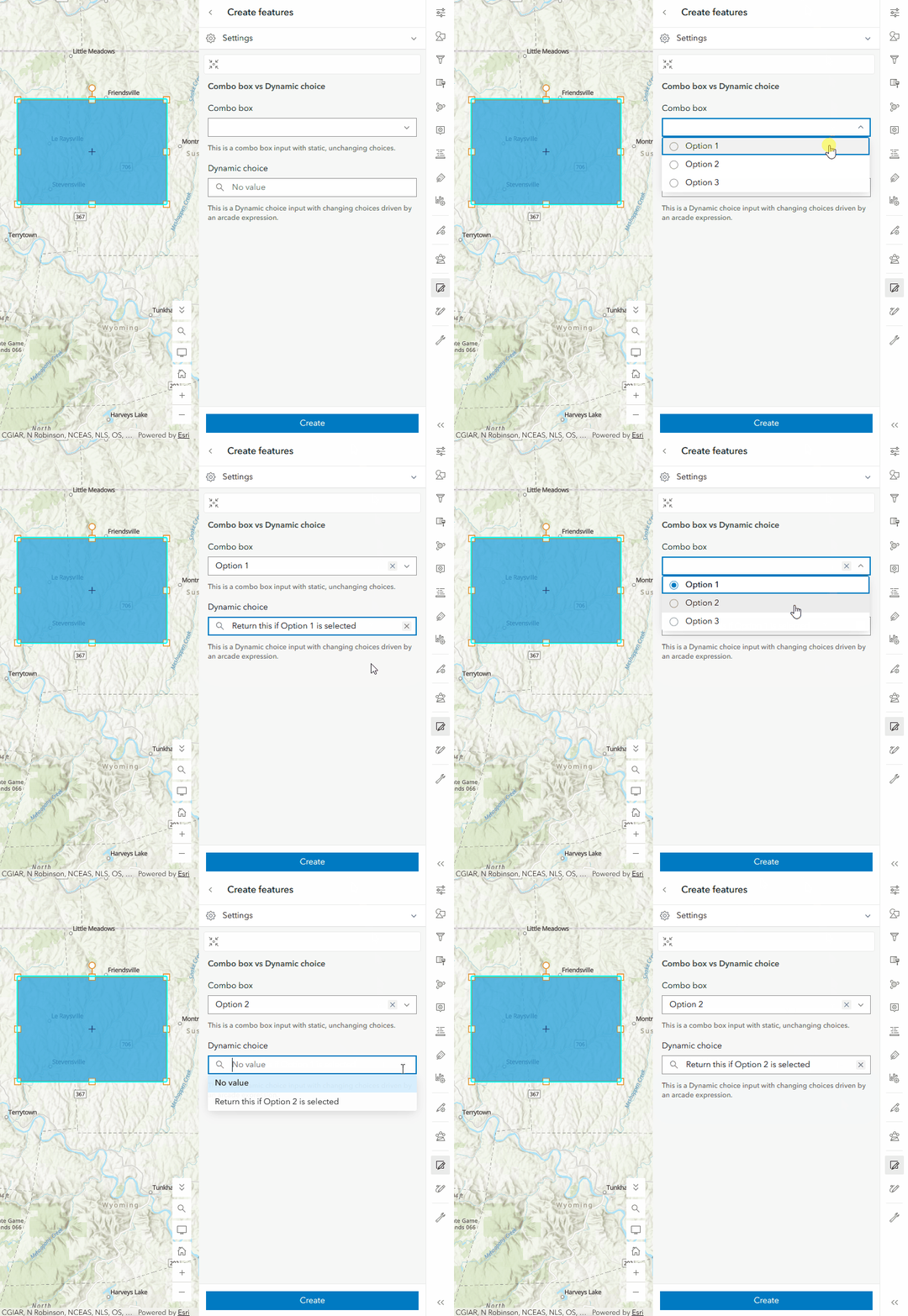
You might be curious what happens if an existing choice is no longer in the drop-down list due to a change in the choice expressions evaluation. Rather than removing a previously applied value, it will remain unchanged until the user selects a different choice or chooses No Value. When editing multiple features, the dynamic choice input displays only choices available for all selected features. Selecting a value applies it to every selected feature.
How to configure your own dynamic choice input type
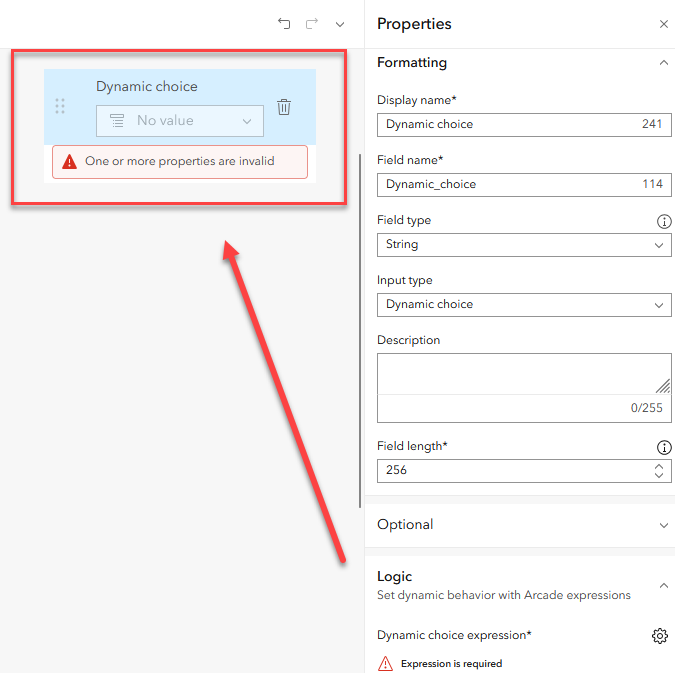
Setting up a dynamic choice input is a breeze! Open the Forms builder in either Map Viewer or Field Maps Web Designer, then drag the Dynamic choice option from the choice list under Form elements onto the form. You can also convert an existing field (see the list of supported field types under Notes to consider) by choosing the input type of the field’s Properties panel.
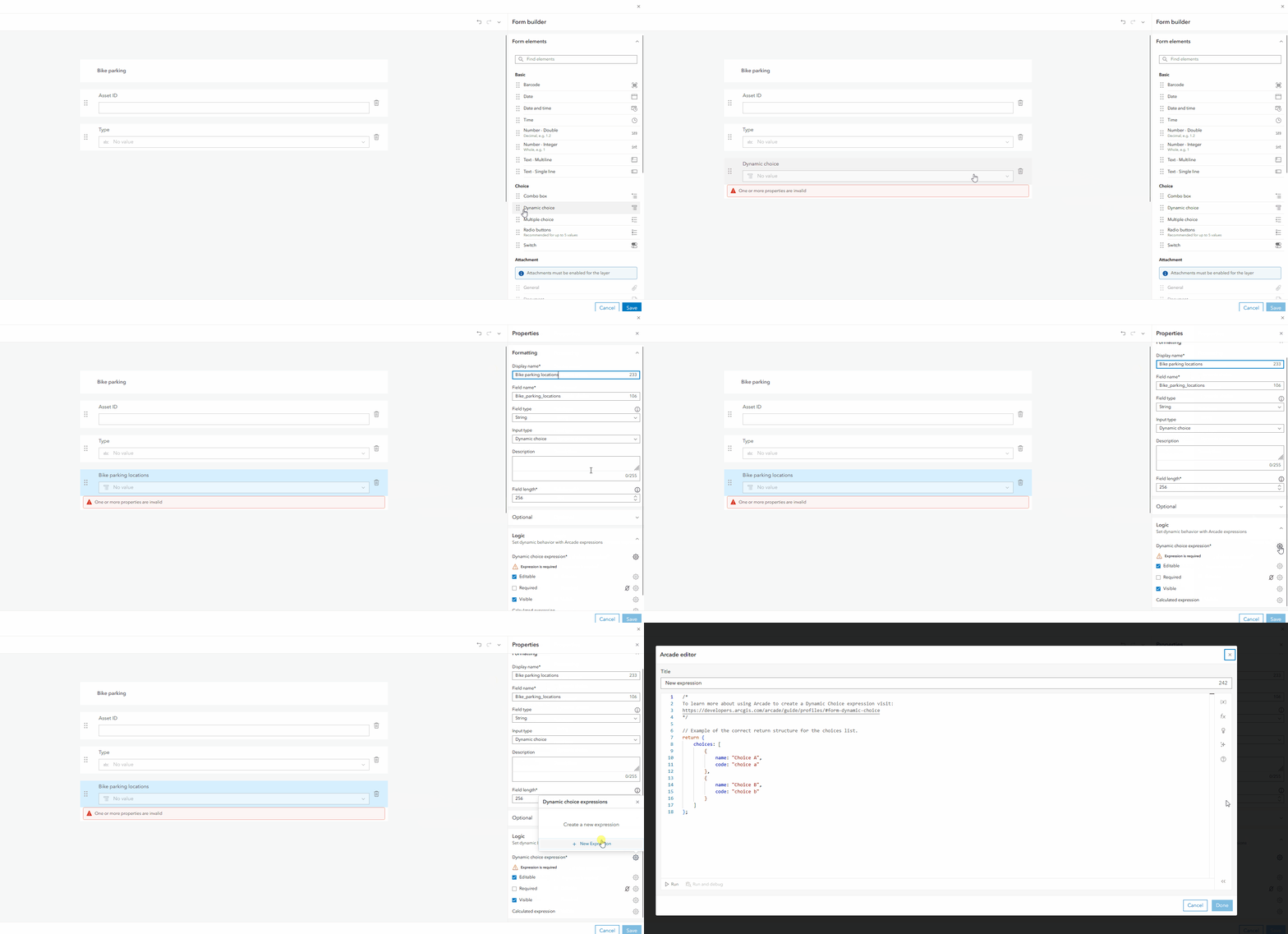
To finish configuring the dynamic choice input, you will need to author an Arcade expression. Find the Logic section on the Properties panel and click the gear icon to launch the Arcade editor.
Building a dynamic choice expression
To author a dynamic choice expression in the Arcade editor, form authors must use the new Form Dynamic Choice profile. This profile supports the dictionary return type (a collection of key-value pairs) that is required to provide choices in a dynamic choice expression.
A dynamic choice expression must return a dictionary with a choices property containing a list of choices. Each choice includes a name, which is what will appear in the picker, and a code, which is stored in the field when the choice is selected. Let’s take a look at how this is structured in a simple example below:
Creating a choice list
As the form author, there are a few things you will want to keep in mind to ensure your expressions run smoothly and return the correct choices.
- Make sure each code is unique, matches the field’s data type, and meets the field’s requirements (such as the maximum length of a String field).
- If the field has a coded value domain, the form will only return choices that have matching code values (including case sensitivity).
- As the expression author, you are also responsible for sorting choices when needed and handling queries that may exceed the service’s record limit.
Common choice expression examples
As you have seen, dynamic choice expressions are extremely customizable. Let’s walk through a few examples that might inspire you to use choice expressions in your own forms!
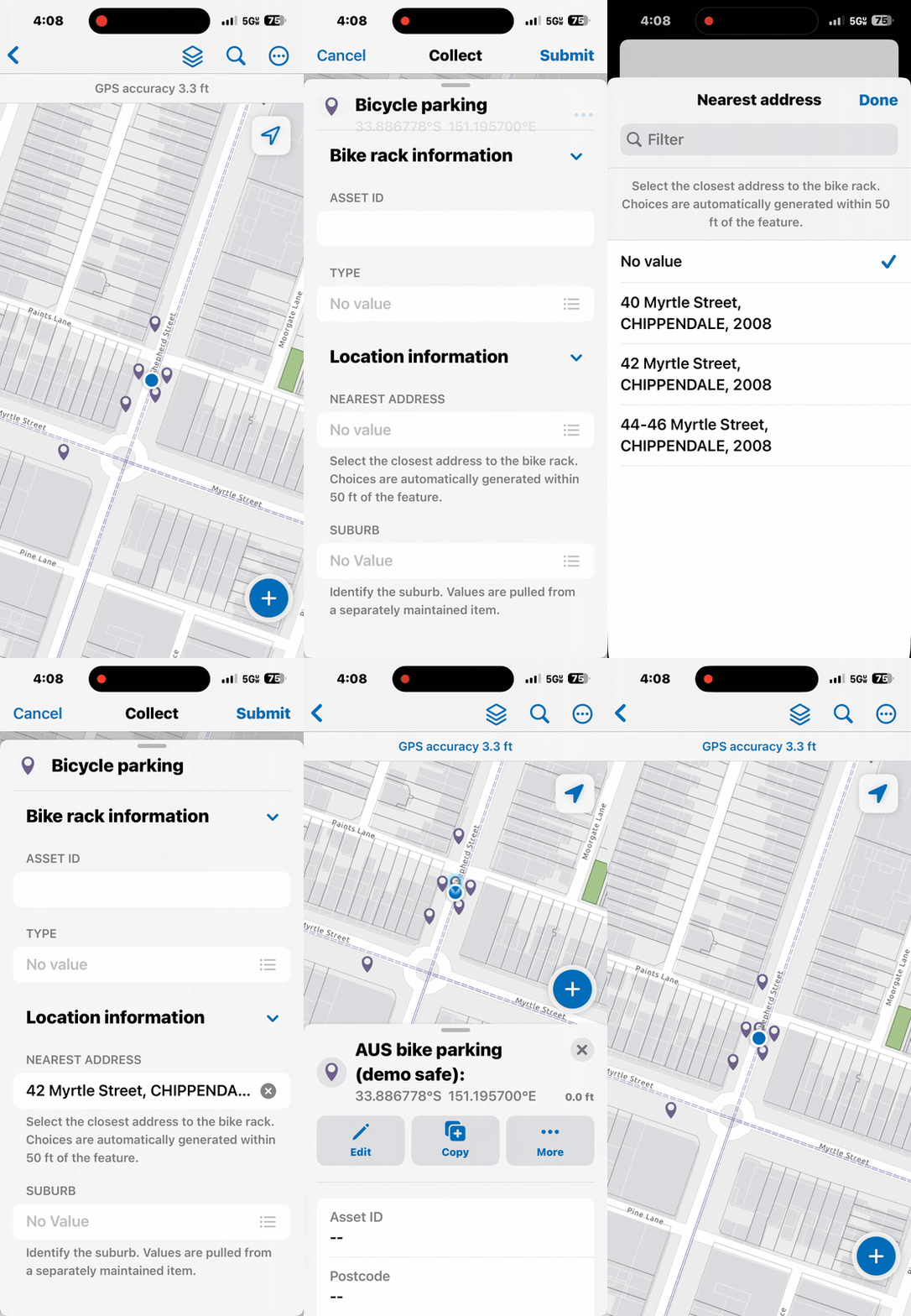
Using data from City of Sydney, we have a map containing bike parking locations across urban areas in Australia. Editors currently enter values such as the bike rack type, nearest associated address, and suburb manually. This has led to inconsistent values, confusion, and additional time reviewing data after it has been entered. We will create multiple dynamic choice expressions to intelligently return options for editors, starting with the bike rack type. The form’s “Type” field already has a domain, and the expression below shows how to return its domain values as choices.
Returning coded-value domains as choices
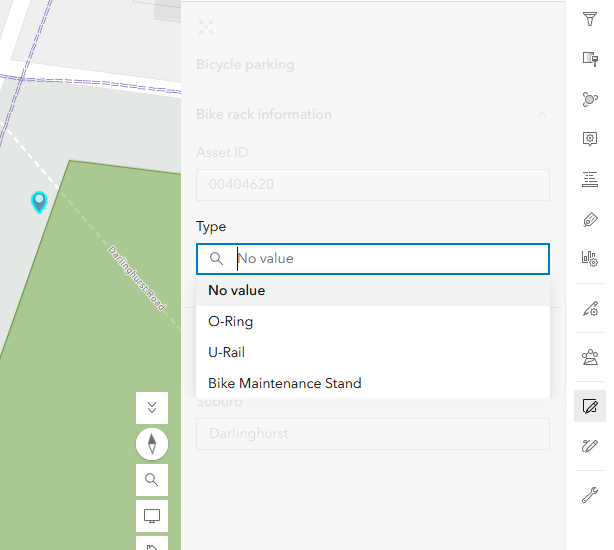
This simple expression is returning all of the coded-value domains on the “Type” field, but you could add or remove values by adjusting the expression without making changes to the domain schema.
Next, we want to write an expression for the “Nearest address” field in the form so that it pulls in all the addresses within 50 ft of a placed point. The addresses are tracked via a “Name” field on a different layer of property boundaries in the web map. The example below lays out how we can leverage dynamic choice to create a list of spatially relevant attributes.
Return choices from a different layer in your web map
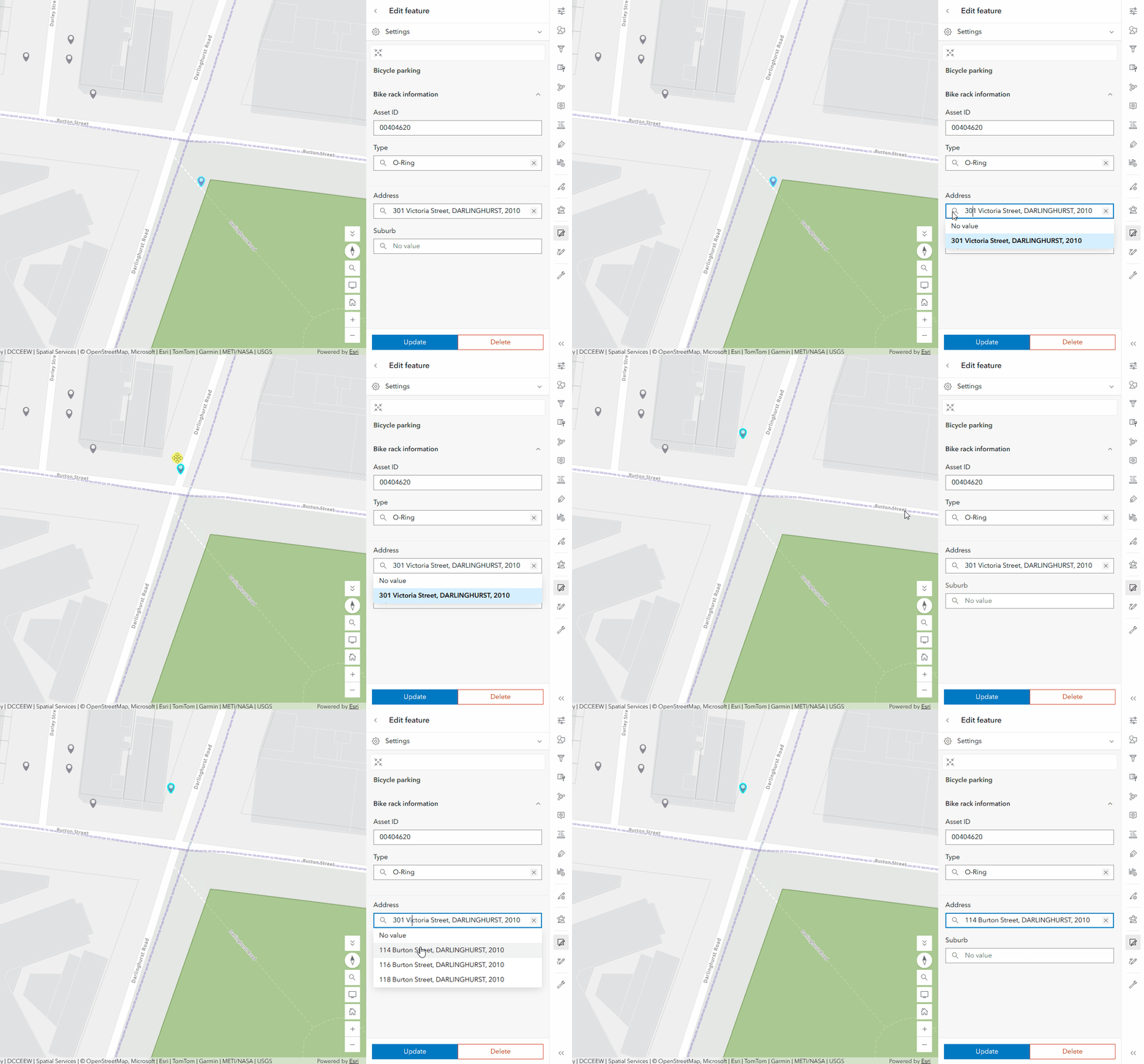
Before dynamic choice input was introduced, you could only return one intersecting feature at a time via a calculated expression. Now, following the example above you can return a list of features that change dynamically based on your feature’s geometry!
Finally, let’s explore one more example of how to build a dynamic choice expression that references a table (or feature layer) outside of the web map. There is a separately maintained table that contains all the relevant suburbs around Sydney, and we would like to use those values to drive the choices returned in the dynamic choice input. Follow along to see how we can achieve this.
Return choices from an external layer
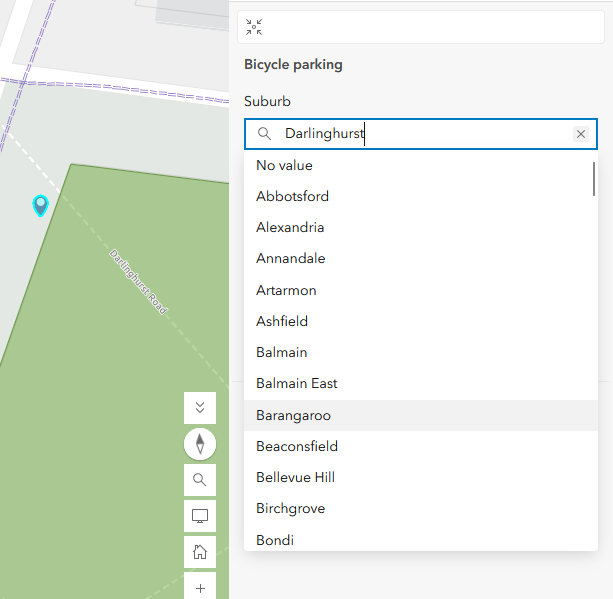
By referencing values in an item to determine what appears in the choice list, you no longer need to maintain schema changes to coded values domains. If a value is added or removed from the referenced item, it will reflect accordingly in the dynamic choice input.
Conclusion
The dynamic choice input is a powerful new addition to Forms. Whether you want to pull in values from a layer or table outside of the web map, reduce the need for schema changes, or simplify the editing experience for your users, dynamic choice expressions allow you to customize the form to your needs.

Article Discussion: