With the February 2026 ArcGIS Online update, Map Viewer added support for time-based layer visibility, allowing you to control the display of a layer so that it only shows during a specific time period. This enhancement allows you more control over the time-based display of different types of data in Map Viewer.
Traditionally you have been able to use the time slider configuration to control the display of different features in Map Viewer, but with this enhancement you can use it to control visibility at the layer level. For example, you might have separate layers containing crime data for each month of a year, or you may have different imagery layers each representing a different year taken over a decade. With time-based layer visibility you will be able to animate these layers over time using the time slider. You can also use it to enhance your time-based visualizations by applying it to layers that have traditionally not been able to be visualized by time, in Map Viewer such as Sketch or Group layers. This new functionality matches the layer visibility period option already available in Scene Viewer.
Accessing this new setting in Map Viewer
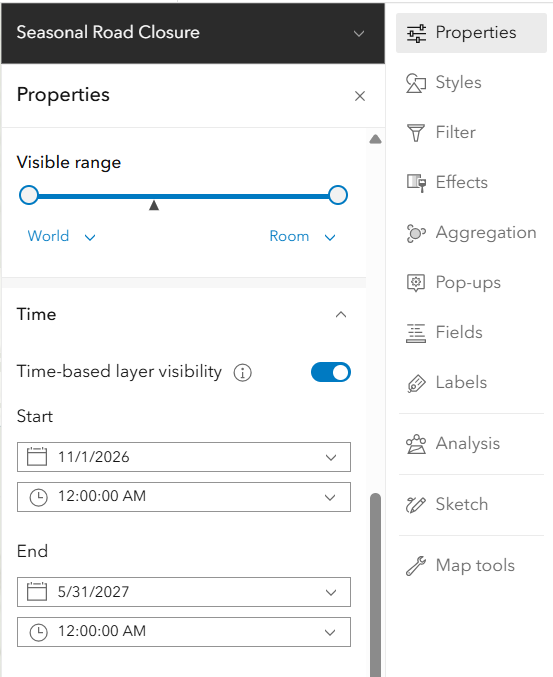
To access the setting, open the Properties pane for any layer in Map Viewer and scroll down to the Time section. Toggle on time-based layer visibility and set a start and end date for when you would like your layer to be visible on the map.
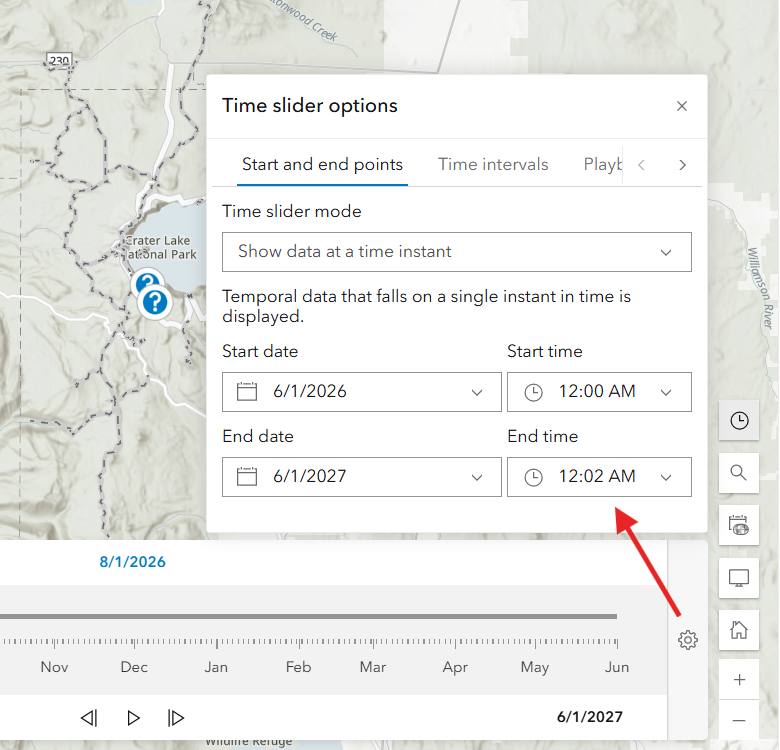
If you are setting this up for the first time and have no other time-enabled layers in your map, the time slider will open automatically configured with the start and end dates you defined for your layer. You can change the start and end times for the time slider by opening the time slider options. As you set up more layers with time-based visibility, or add other time-enabled layers to your map, you will have to adjust the time slider configuration manually to suit your map.
Time-based layer visibility in action!
In this example I have a map featuring multiple layers related to amenities in Crater Lake National Park. In the winter many trails, roads and other amenities are closed so I am taking advantage of the time-based layer visibility setting to adjust the time period that they are visible on the map. As the time slider is played, the layers turn on and off according to the start and end times defined for them on the Properties pane.
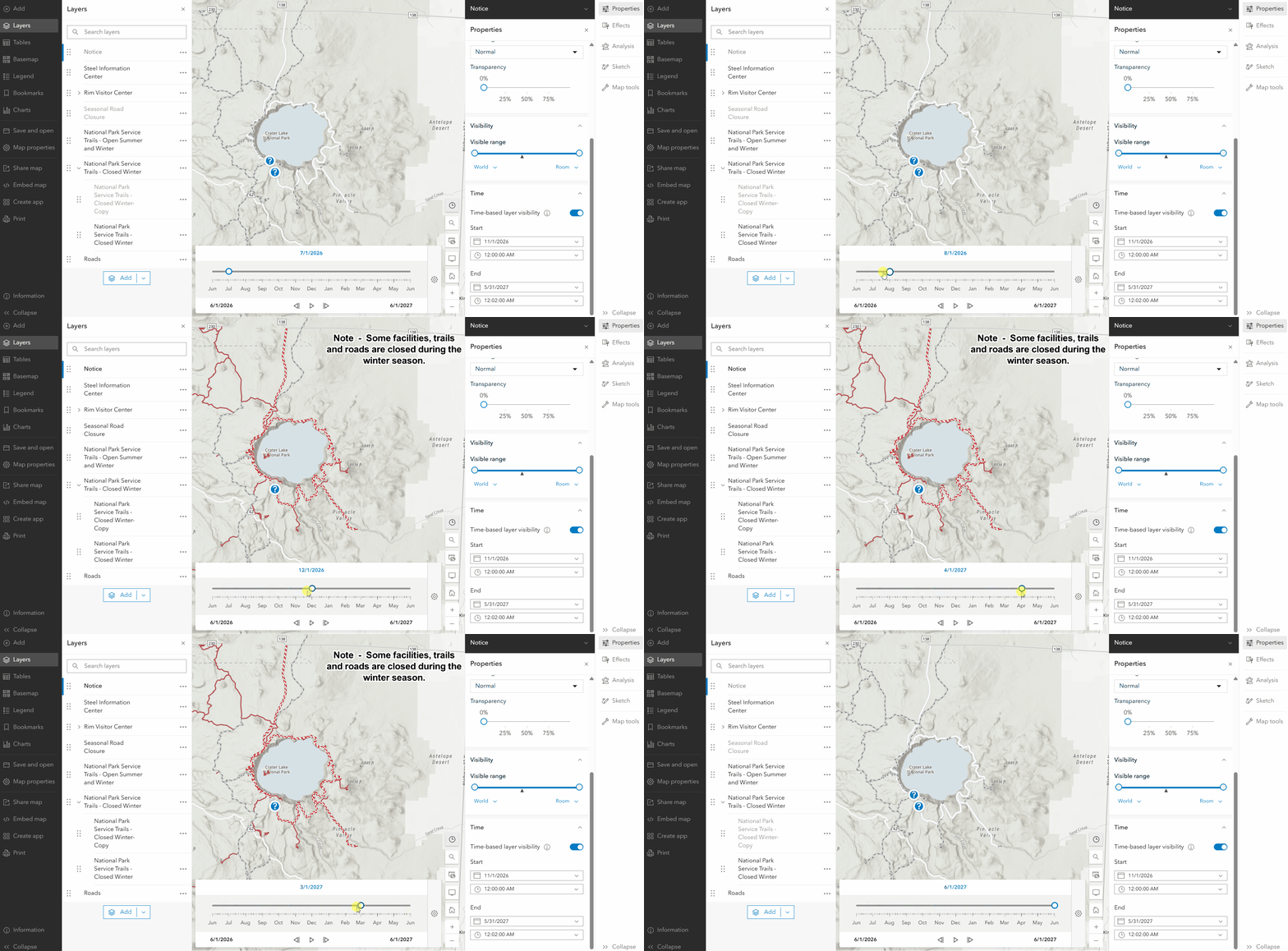
In this web map I applied the setting to mostly feature layers, but I also added a Sketch layer (the note describing that some amenities are closed in the winter months) and was able to apply time-based layer visibility to it as well. You will also notice in the Layers pane that the layers filtered out by the time slider are greyed out while not visible on the map. This matches the behavior for scale-based layer visibility.
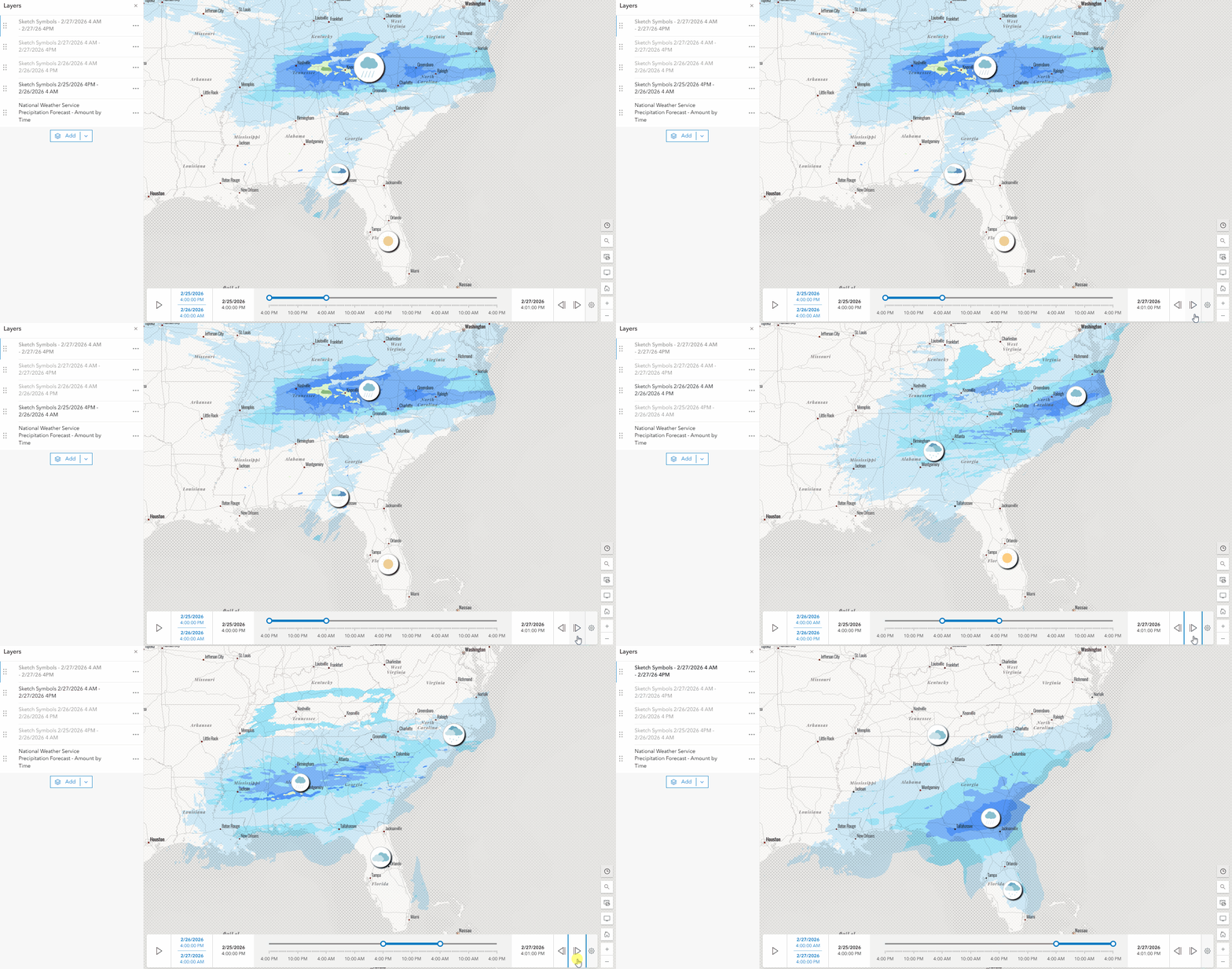
One last thing to remember – you can also combine layers with time-based layer visibility in the same map as traditional time-enabled layers. They will all be controlled by the same map level time slider configuration. The example below illustrates this by combining a time-enabled precipitation forecast layer with additional sketch weather icons that have time-based layer visibility applied.
What’s next?
Enhancements to time workflows continues to be an active area of development for Map Viewer and we look forward to sharing more updates with you later this year.

Commenting is not enabled for this article.