This blog article was originally published on August 26, 2016, and has been updated. The last previous update was January 7, 2025.
When styling point symbols, you’ll find many different symbol styles to choose from. The built-in symbols are organized into categories that organize them for easy browsing and selection.
In addition to the built-in symbols, you can upload and use any PNG, GIF, or JPG image to add custom symbols to your maps, delivering a unique look-and-feel. These are part of the “uploaded symbols” category that can differentiate your work from others, or provide focus and impact to the content you want to present.
The symbols can also include animated GIFs, offering yet another way to make your map experience different and compelling.
Open the sample web map to follow along with the steps below. You can also use an existing web map with a point feature layer.
Use a custom image
To use an image as a symbol, follow these steps.
Step 1 — Open the sample web map. You can Sign In to save the map, or just follow along. You can also use your own web map with a point feature layer.
Step 2 — Make sure you have a suitable image to use on your local drives. For best results, use a square image 120 x 120 pixels or less. Larger images will be adjusted to fit.
Tip: Use a PNG or GIF with a transparent background if your symbol does not fill the square to avoid unwanted white space. For best overall results, use a PNG file.
In this example, the following custom symbols can be used. One is a static PNG, the other is an animated GIF. Click the image you want to use below to view it.


Right-click to save the image to your local drive. Options you see will depend on your browser. Shown below are the options when using Chrome.
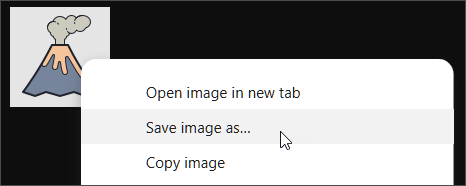
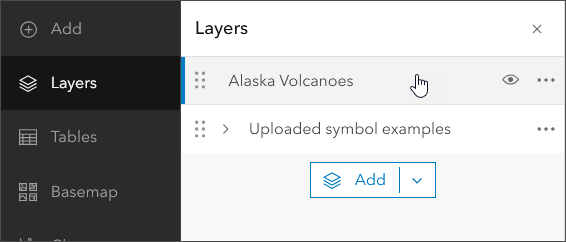
Step 3 — Open the Layers pane from the Contents (dark) toolbar. Ensure that the Alaska Volcanoes layer is selected.
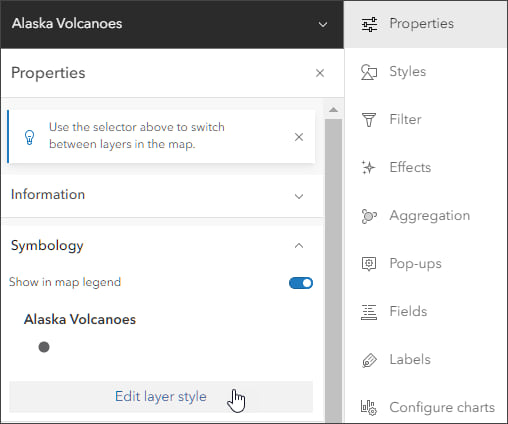
Step 4 — In the Settings (light) toolbar, open the Properties pane and click Edit layer style.
You can also open the Styles pane from the Settings toolbar to advance to Step 5.
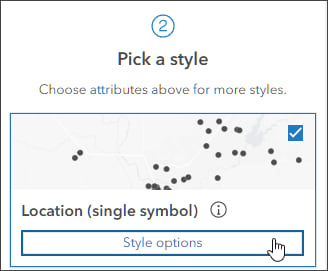
Step 5 — The layer is symbolized using a single symbol. Click Style options in the second section to continue.
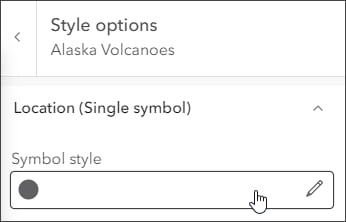
Step 6 — Click to edit the current symbol style.
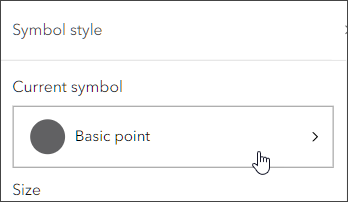
Step 7 — The current symbol is of type Basic point. Click to change it.
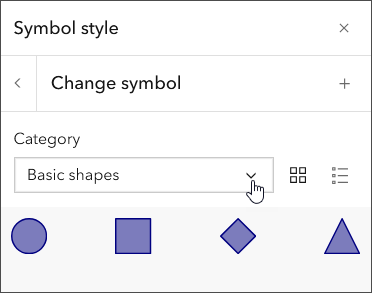
Step 8 — Click the Category drop-down.
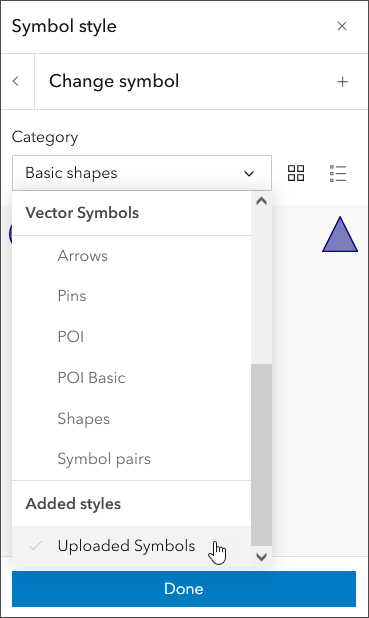
Step 9 — Scroll to the bottom and choose Uploaded Symbols.
Step 10 — Drag and drop your image, or click Browse to select it.
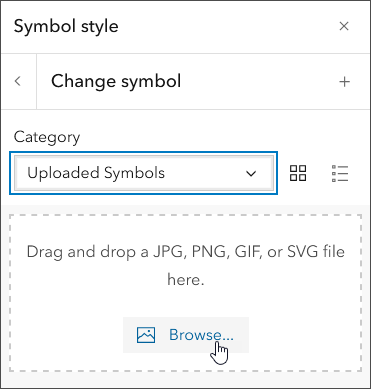
Note: Uploaded symbols will persist until you clear browser cache, so you can go back and reuse them. Uploaded symbols cannot currently be saved for other members of your organization to use, members must add them from local files as described above.
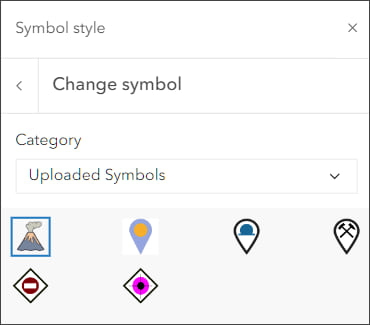
Once added, any uploaded symbols can be sized, rotated, and have effects applied like any other symbol.
Create your own symbol
You can create your own image to use as an uploaded symbol. Symbols can be authored using any graphics program. Use a PNG or GIF for a transparent background. PNG provides the best overall results.
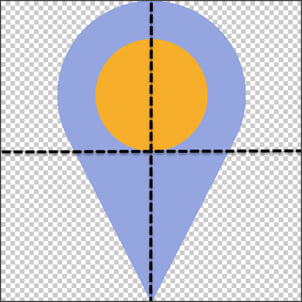
Something to consider is that the center of the image is placed on the x,y point location. For example, the symbol below will be placed with its center (where the dashed lines cross) on the x,y location of the point on the map.
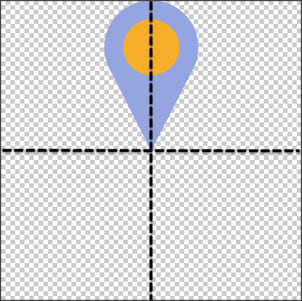
To place the bottom tip of the symbol on the x,y location, create a symbol as shown below, placing the tip of the “tail” at the center of the image.
Publish a web style using ArcGIS Pro
You can create custom symbols for use in Map Viewer by creating an ArcGIS Pro style and publishing it as a web style for use in your organization. For more information about styles in ArcGIS Pro, see the Styles topic in ArcGIS Pro help.
To share a web style using ArcGIS Pro, follow these steps.
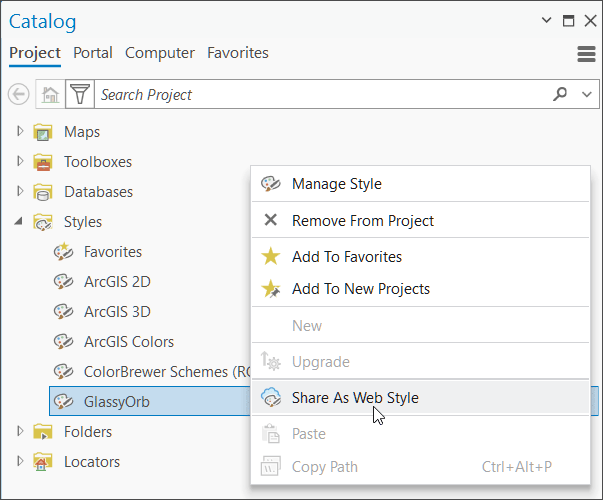
Step 1 — Right click the style and choose Share As Web Style.
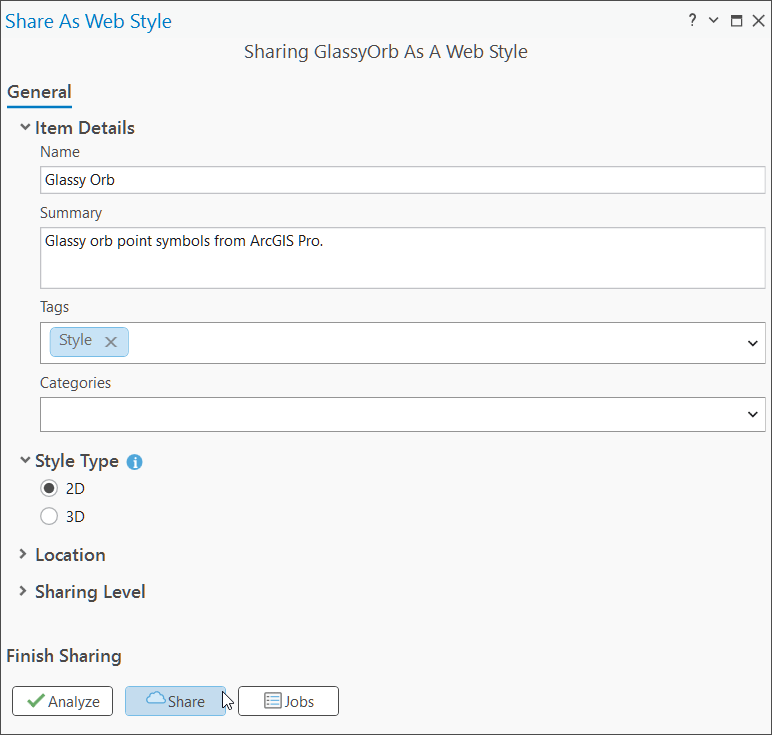
Step 2 — Complete the style item details and click Share.
Step 3 — To use the style in Map Viewer, follow steps 1 through 7 in the Use a custom image section at the top of this blog article.
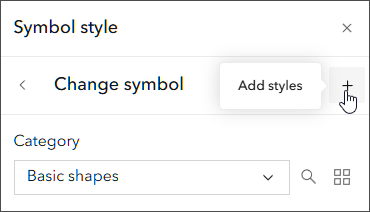
Step 4 — In the Symbol style pane, click + to add a style.
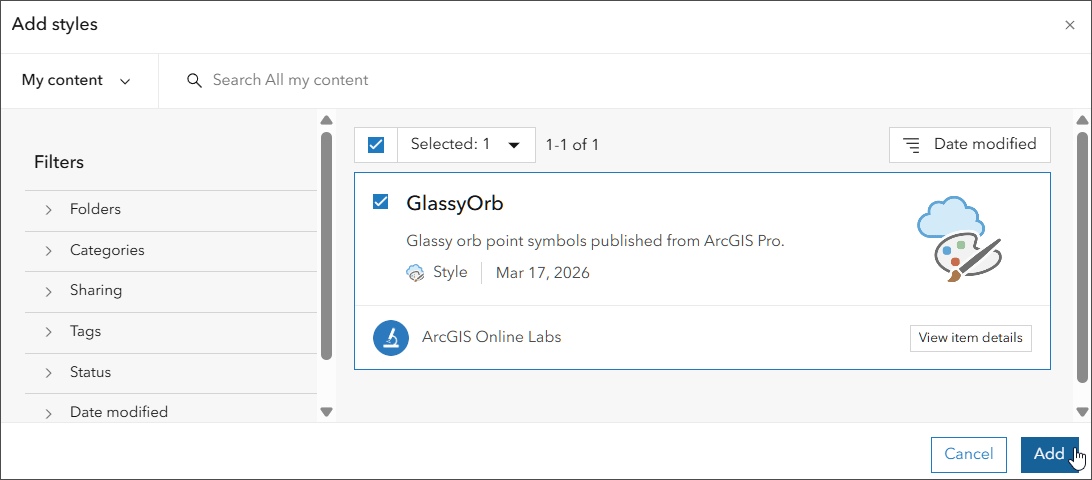
Step 5 — Locate and select the style by checking the box in the upper left corner, then click Add.
Step 6 — Once the style has been added, select a symbol, then click Done to apply it to the layer.
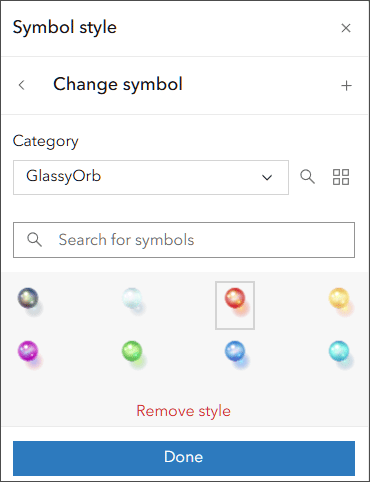
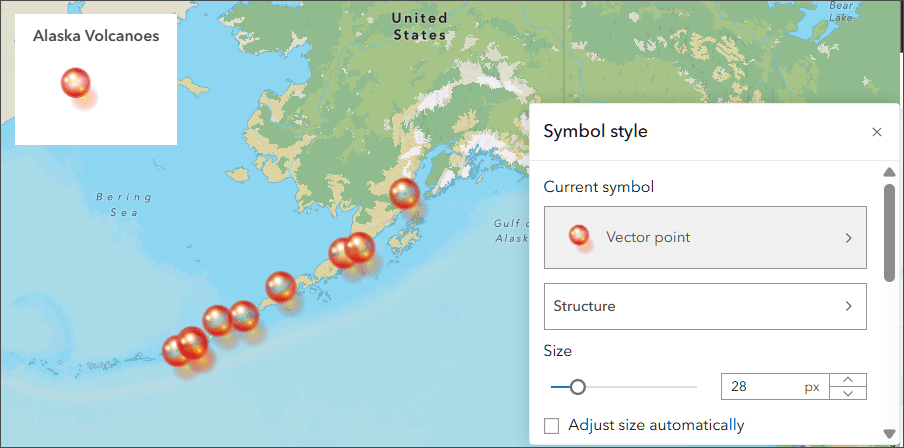
You can adjust the size, rotation, and other properties just like any other symbol.
More information
The GlassyOrb style can be found in ArcGIS Living Atlas, as can other styles that include fills and line styles in addition to point styles. Add these styles to ArcGIS Pro, then follow the steps above to share them as web styles for use in ArcGIS Online or ArcGIS Enterprise.
For more information, see Use style options (Help).
Commenting is not enabled for this article.