(This blog has been updated on multiple occasions, most recently September 30, 2026 to reflect updated capabilities.)
Throughout the first half of the 2020, the geodatabase team was busy at work building new network capabilities with the traditional geometric network community in mind.
The trace network, provides a simple yet comprehensive network s solution for connectivity modeling and tracing to our non-utility users in ArcGIS Pro and ArcGIS Enterprise.
Since its introduction, the trace network has continued to evolve and, as of ArcGIS Pro 3.7, the Trace Network supports enterprise deployments, named trace configuration network diagrams, and a variety of tracing enhancements that extend the capabilities available in the original release.
What is a trace network?
A trace network is a controller dataset that models simple connectivity between line and point features in your geodatabase. Unlike the utility network, it has no predefined information model. You get a flexible schema and a blank canvas, to model the network the way your organization already thinks about it.
One of the common questions we receive is whether that makes it a lightweight utility network or something else entirely. It is a valid question, and it is best answered through a comparison of the two datasets. While similarities exist, there are key pieces of functionality that differentiate the utility network from the trace network. Let’s take a look:
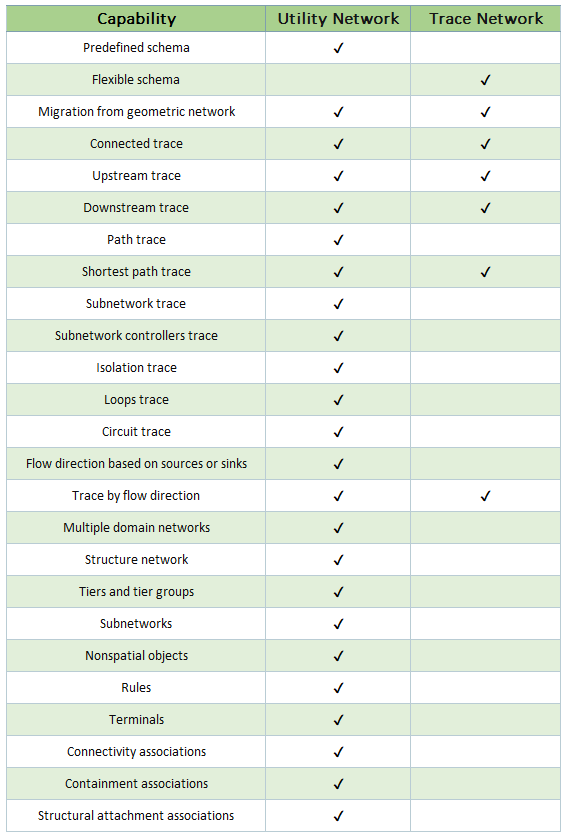
The utility network best serves the needs of the modern utility due to its robust information model and the use of rules that govern connectivity across the various domain and structure networks. Conversely, the trace network provides a general network type for use across various nonutility disciplines such as transportation, trail systems, hydrologic networks, stormwater networks, and environmental monitoring systems.
Choosing between a utility network and a trace network depends on the complexity of your network management requirements. Organizations that need connectivity modeling and tracing but do not require utility-specific capabilities such as subnetwork or circuit management; terminals; associations; containment; rule-based connectivity, and advanced tracing may find the trace network a better fit. Organizations that require access to these advanced utility workflows should consider the utility network.
The two datasets differ in what they can model but share a common framework. The trace network gets the same advanced analytic functionality and data validation capabilities as the utility network (more on that below).
Migrate your network management workflows to ArcGIS Pro
If you are new to network modeling outside of ArcMap, the trace network and ArcGIS Pro provide a flexible and intuitive interface to get started.
If you are comfortable with the geometric network, you’ll feel at home with the trace network as it was designed with existing users of the geometric network in mind. You’ll find similarities along with many new capabilities that leverage ArcGIS Pro to take your network management to the next level. There is even a simple path to convert your existing geometric networks, so migration really could not be easier!
For those making the move to ArcGIS Pro, some concepts and features may seem unfamiliar at first, but you will find that they improve your network management experience and reduce the effort associated with data integrity and quality assurance.
The information below will help you become familiar with some of the concepts of the trace network such as network attributes, network topology, and dirty areas and error features.
Network attributes
If you have worked with network weights in the past, this concept has been improved with network attributes.
You create Network attributes based on fields already in your data. These can be used to model the cost of tracing paths and to control the traversability of features in the network. These take advantage of the network topology to improve performance by removing the need to query items in the map’s feature space when performing analysis such as tracing. In a hydrologic network such as shown in the video below, this means promoting a field like stream order to a network attribute, then running a trace that only follows features at or above the order you care about. The trace never has to open the feature class to derive this information.
Check out the following video to learn more about some of the ways network attributes can be used in the trace network:
Network topology
The network topology in the trace network allows you to maintain a robust and responsive network solution. Just as you store information about features, such as network attributes in the network topology, you also store information about the connectivity between features in the topology. This allows analytic functions such as traces to read and process information about the network more efficiently (as opposed to retrieving information directly from the features themselves).
The trace network is built using a simplified connectivity model based on geometric coincidence (x,y,z) with no rules or restrictions to govern connectivity. As a result, editing a trace network follows the same approach used throughout ArcGIS Pro with a few additional bells and whistles provided with the network topology.
Dirty areas and error features
Once enabled, the network topology tracks edits made to the network and provides access to network analysis operations such as tracing and network diagram creation. When editing a trace network with an enabled network topology, you’ll notice features displayed with purple translucent polygons as edits are made to network features. These are known as dirty areas. Dirty areas provide a mechanism to track the edits made to the geometry or network attributes of features in your network. Every insert, update, and delete you make creates one, marking the extent the topology has not caught up with, which means that traces which traverse features with dirty areas may return unexpected or unreliable results. The Dirty Areas table includes descriptive information about the feature source and edit type associated with a dirty area, making it easier to understand the changes that require validation and support troubleshooting workflows.
The Validate Network Topology tool allows you to clean these dirty areas and update the network topology with the changes you make. Validation also discovers any errors that may have introduced due to invalid geometry in the network. When issues are identified, error features are created with which can be inspected and fixed by editing the feature geometry for evaluation the next time the network topology is validated. Validation is your friend and is a cheap option when done throughout the editing process. Use it regularly to keep the network up to date. This ensures the accuracy and reliability of your trace results and diagram operations.
Check out the following video to learn more about working with the network topology and dirty areas in the trace network:
Tracing your network
Finally, let’s talk about tracing; it’s in the name after all. Don’t let the simple connectivity model fool you. The trace network includes a suite of tools and numerous options to perform robust network analysis.
There are four trace types available with the trace network.
- Connected
- Upstream
- Downstream
- Shortest Path
In simple networks, these four trace types enable you to answer most of might ask. For example, in a stream network, the connected trace returns everything with geometric connectivity to your starting point. Upstream traces can return the features above a gauge to help identify the source of a spill, and downstream traces return stream segments which could be impacted by such an event. The shortest path trace does just what it says and returns the shortest path between two points on the network using a cost, or weight to determine the best path.
Flow direction, network attributes, and other advanced options work in conjunction with barriers to control the traversability of features in the network. Trace network workflows leverage the digitized direction of lines with a Flow direction network attribute to support upstream and downstream analysis. Functions can be used to perform calculations and generate additional information from a trace. To control what is returned, output conditions can be specified using network attributes which act as a query on the results.
Check out the following video to learn more and explore the various trace operations and associated concepts in the trace network.
Ready to try this out for yourself? In ArcGIS Pro, start with the Create Trace Network tool, add your point and line feature classes, and enable the network topology to begin exploring. See Create a trace network to learn more.
We hope you are as excited about these capabilities as we are. How are you planning to use the Trace Network? What would you like to see? We welcome your feedback as we continue to improve this solution. Join us in the Esri Community here to continue the conversation!




Commenting is not enabled for this article.