
Prepare branch versioned data for publishing
Let us start by creating a new feature class in an enterprise geodatabase and registering it as branch versioned, then publish it as a feature service.
I’ll be using an enterprise geodatabase on Microsoft SQL Server 2022 and ArcGIS Pro 3.5 and ArcGIS Enterprise 11.5 as the ArcGIS clients.
Note: This workflow can completed with any version of ArcGIS Pro and ArcGIS Enterprise.
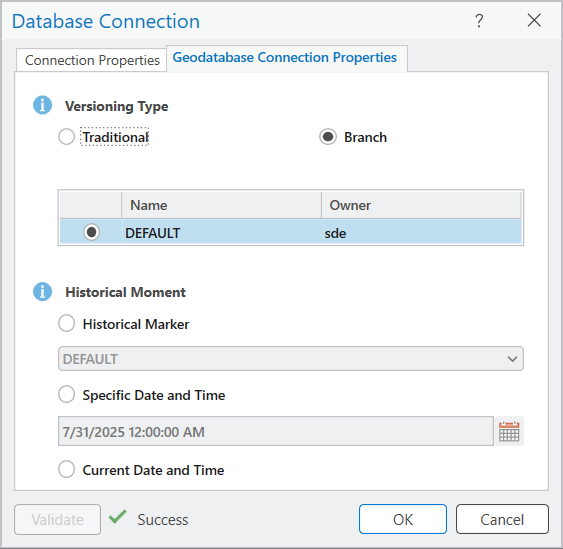
Using a database user that can load data, I create a new database connection to my enterprise geodatabase and choose Branch as the Versioning Type.
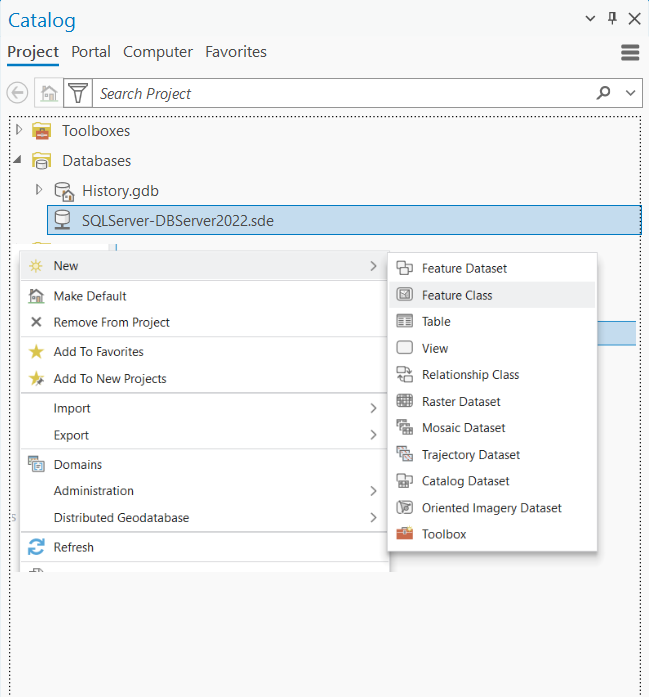
Then we create a new feature class, called “Polygonclass” using the default options.
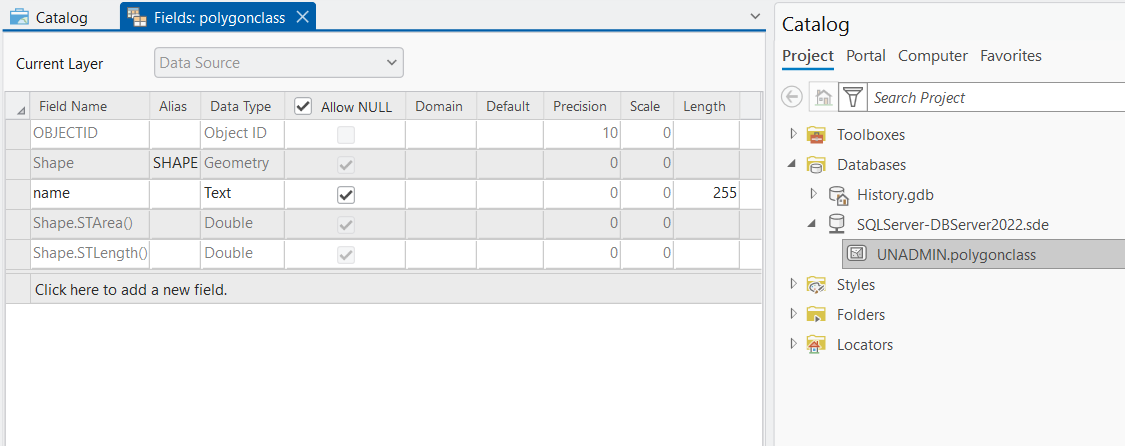
We also add a new text field that we will call “Name”.
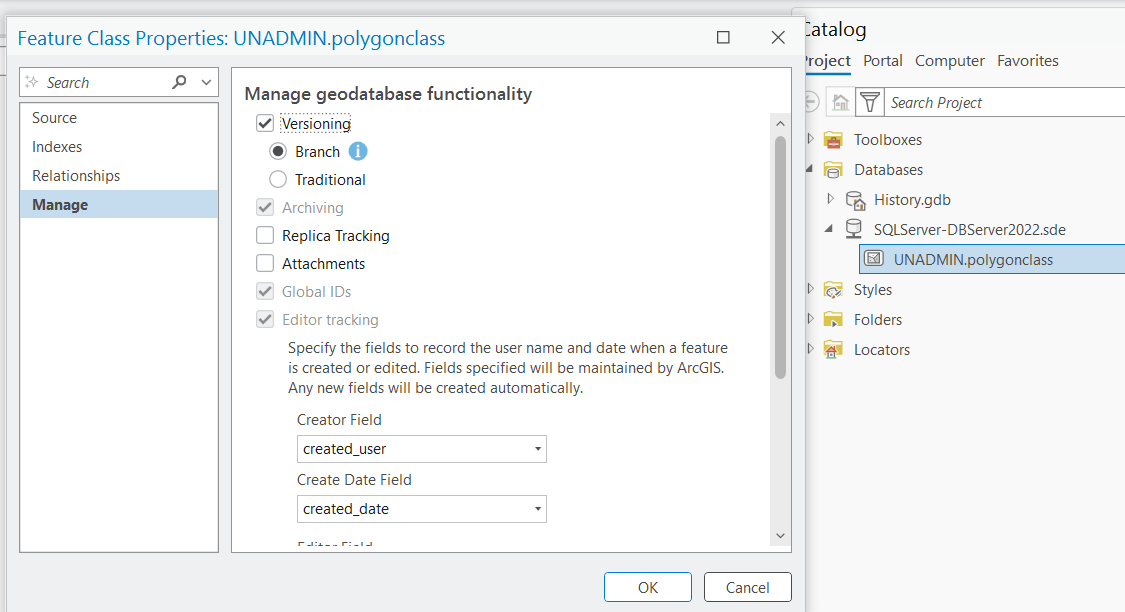
Next, we will register the feature class as branch versioned.
Right-click on the newly created feature class and select ‘Manage.’ On the Manage dialog, enable branch versioning on the class. This action registers the feature class as branch versioned.
Add the feature class to a new map and name the map ‘Client Server’. The layer in this map points directly to the enterprise geodatabase.
Next, we are going to publish the Polygonclass data as a referenced feature service.
First, connect to your organization ArcGIS Enterprise portal as a portal user that has at least publishing privileges.
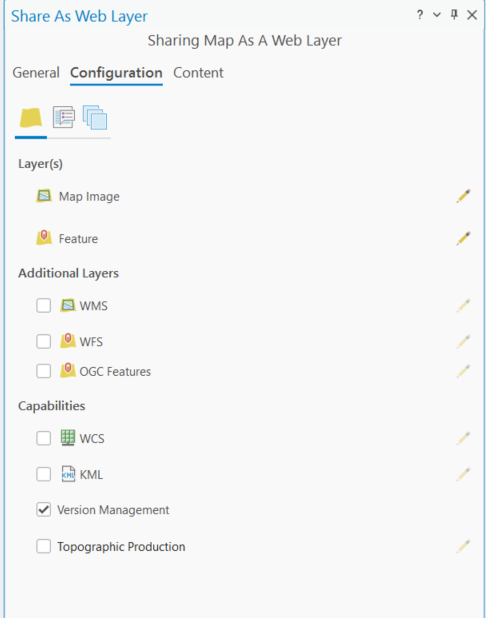
On the ribbon click on the Share tab and select the Web Layer option. In the Share as a web layer pane, fill in the parameters as follows:
- Fill in the item details, such as the name, summary, and tags.
- Confirm that Map Image is selected under Reference registered data and check the Feature check box to publish the data as a reference web feature layer.
- Confirm the Version Management capability is checked under the Configuration tab.
When done, click Analyze and Run.
Note: For more details on how to prepare and publish branch versioned data check out this guided tutorial.
Make edits to the feature service
Once the web feature service has successfully published, in the Catalog pane, under the Portal tab, locate the newly published web feature layer and add it to a new map. Name the new map “Polygon Service”. This web layer points to our feature service service directly to the DEFAULT version.
Now let us create a polygon feature.
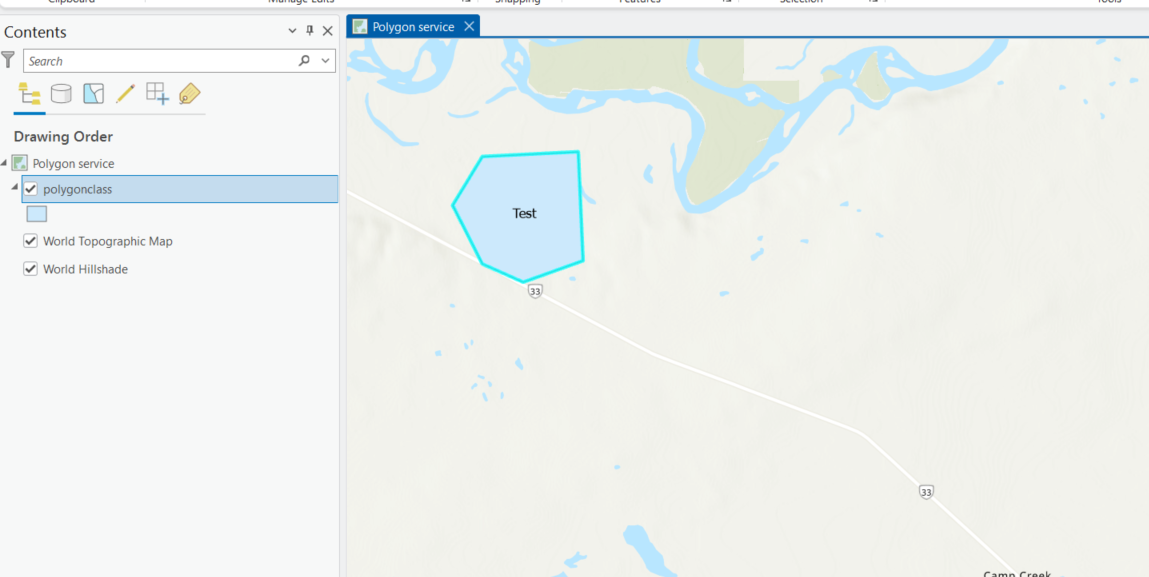
Use the Move tool from the Edit tab on the ribbon and change the location of the feature three times. Feel free to do other geometry changes.
Note that since we are editing directly into the DEFAULT version, the edits are auto saved.
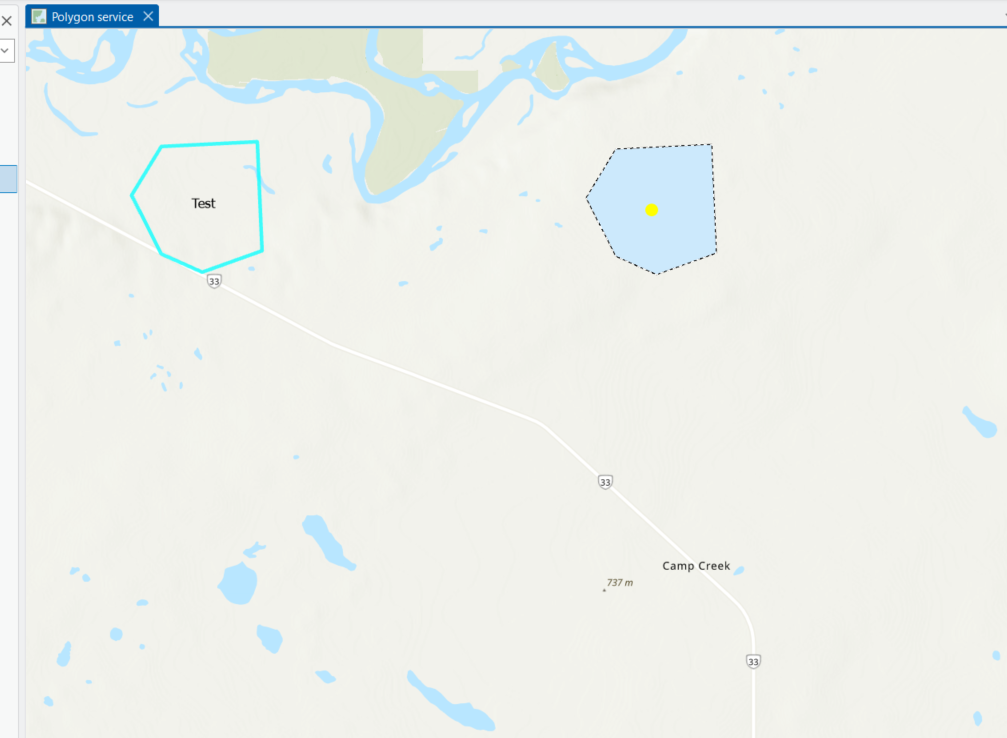
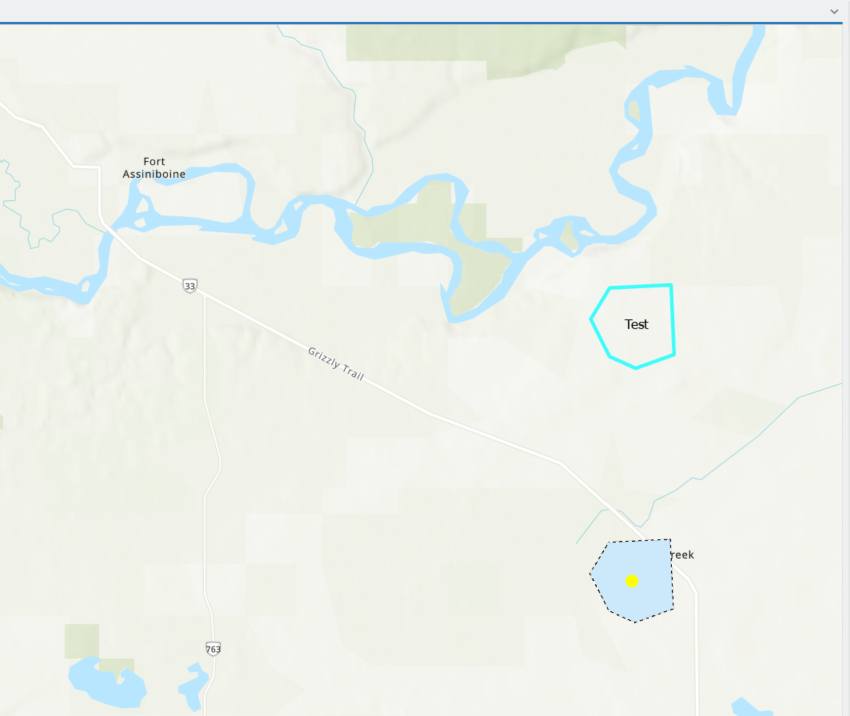
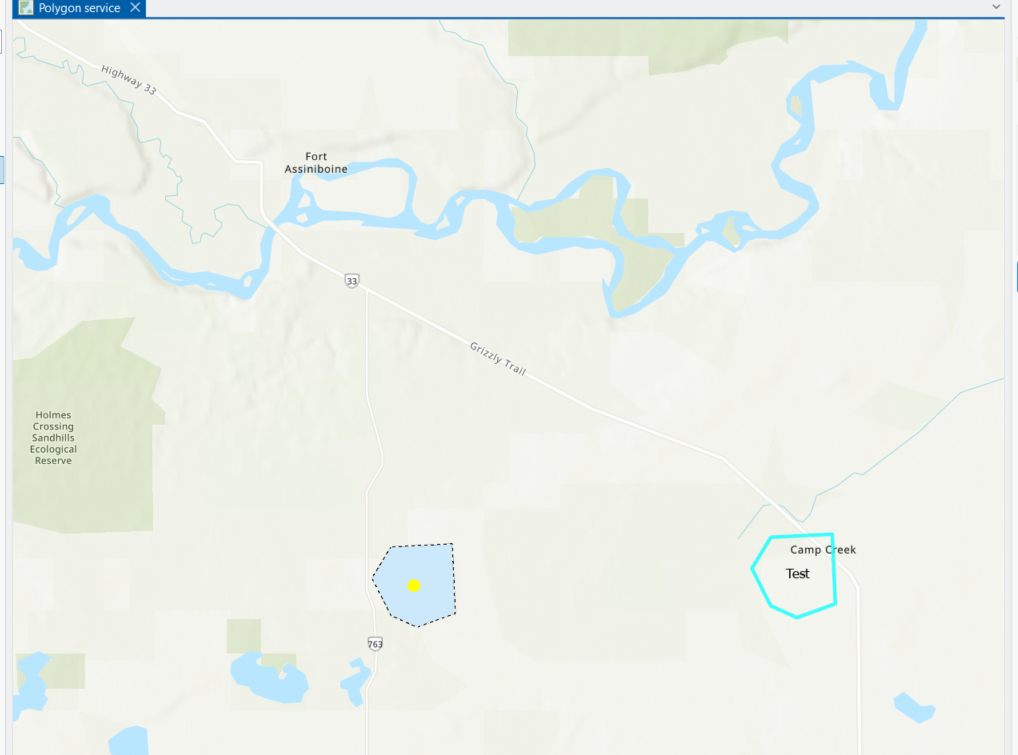
Now lets see how these edits have been recorded in the archive class.
Interact with the archive class
Every edit made to that polygon feature is recorded in the archive class table. To view all the edits we need to open the archive class.
For that open the Client Server map. This map displays the Polygonclass feature class that is pointing to the enterprise geodatabase. In the Content pane select the polygon layer, then on the ribbon click on the Data tab and select Add Archive. Note that the archive points to the DEFAULT version so only active and historical edits made to DEFAULT will be displayed.
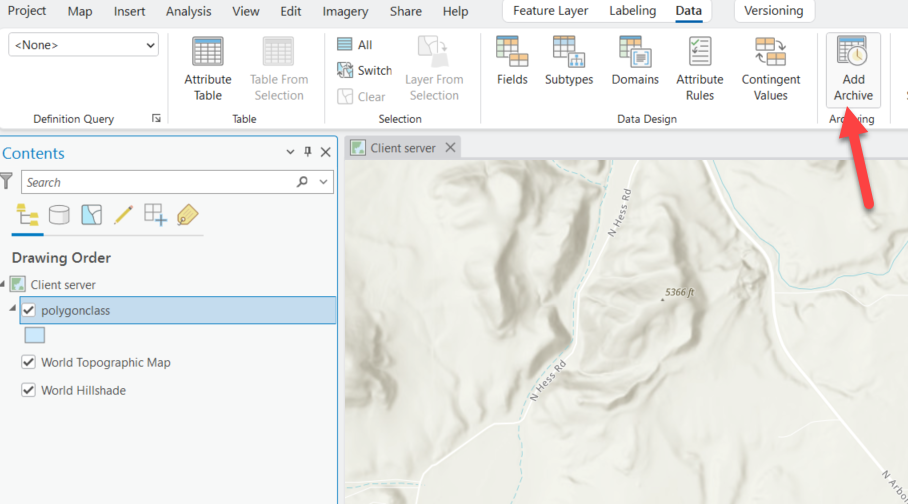
A new layer named Polygonclass Archive has been added to the map.
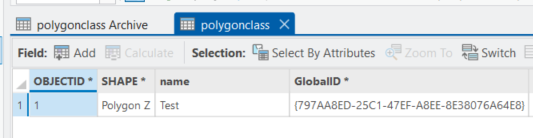
Before we review the archive class, open the Polygonclass attribute table to confirm that we have only one feature.
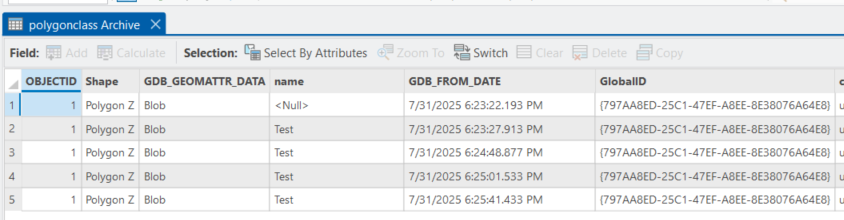
Now open the Polygonclass archive table. Notice that you have 5 records:
- one for when we inserted the row
- one for when we updated the name attributes
- three for each update we made to the geometry
All these records are dated with the GDB_FROM_DATE field.
Next we are going to restore the feature’s geometry by publishing the archive class as a feature service.
Publish the archive class
Now that we reviewed the records in the archive class and we have all the edits we made to the feature, we want to publish it so we can consume it through a feature service. We will then use it side by side to copy attributes from an older representations of the row and update our latest feature. This is how we will perform the restore geometry.
In Client Server map, remove the Polygonclass feature layer from the map and only keep the Polygonclass archive layer. Then publish it as a web feature layer. Name the web layer PolygonHistory.
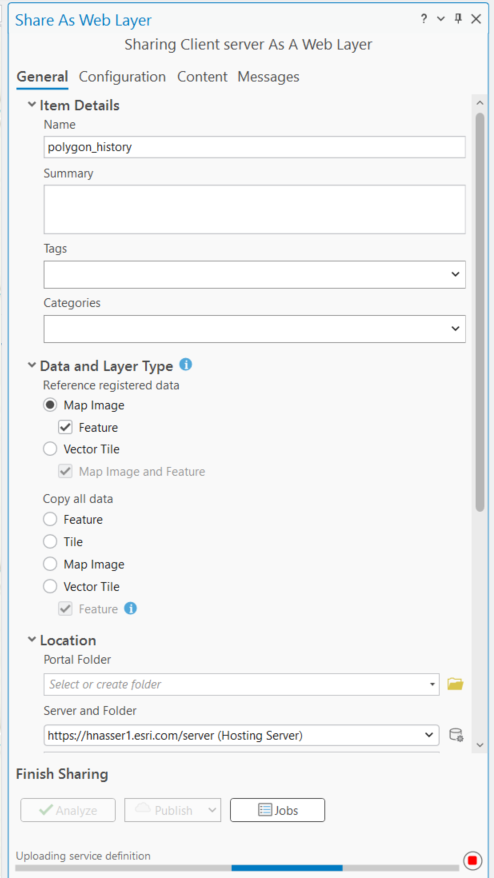
When done your map should look something like this and should have the two web feature layers. The Polygonclass Archive that is pointing to the PolygonHistory service and the Polygonclass that is pointing to the feature service that we published at the beginning of the blog.
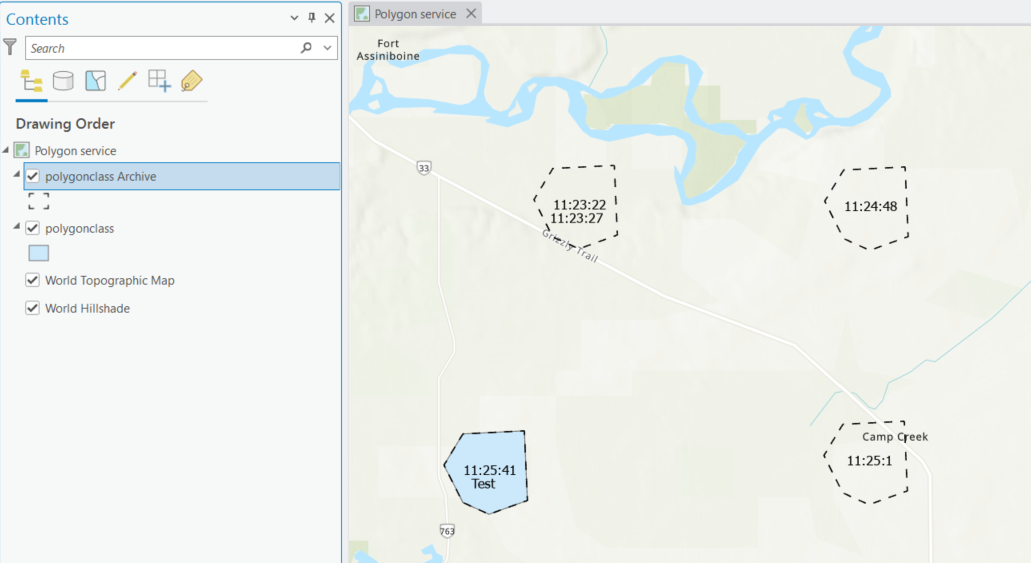
Apply geometry edit from a historical moment
Let us say we want to set the polygon geometry back to the way it was at 11:24:48. To do that, we will use ArcGIS Pro’s copy attributes capability.
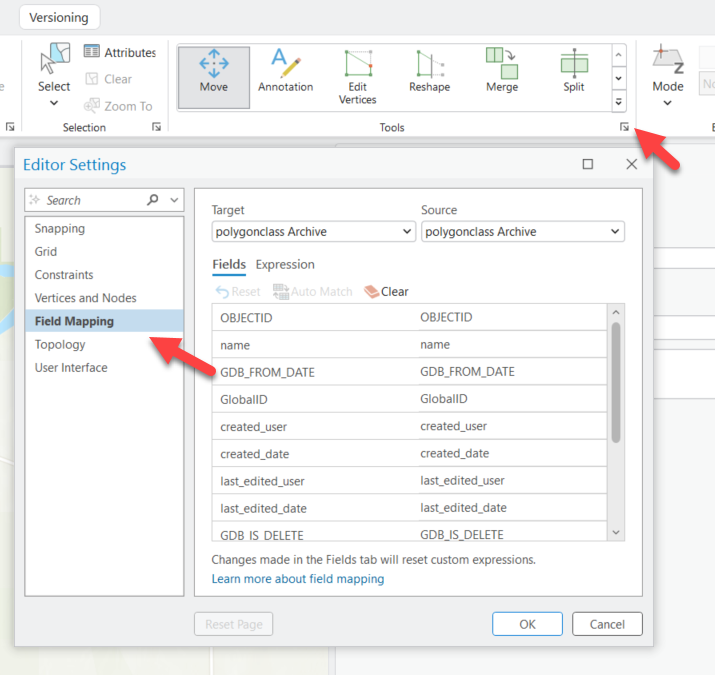
To open the Field Mapping click on the Edit tab on the ribbon and expand the Tools group using the lower right icon. Field mapping is the process of matching attribute fields on a source feature layer to attribute fields on a target feature layer with the purpose of transferring attribute data between features. Field mapping is available on the Editor Settings dialog box on the Field Mapping side tab.
Note: To learn more about Field Mapping check out this resource here.
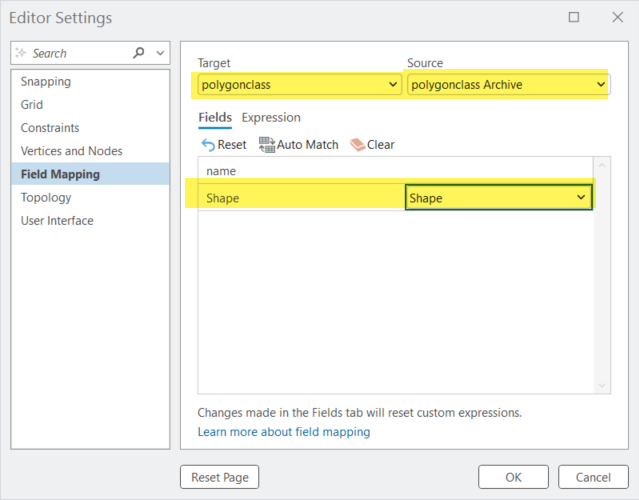
Keep the Polygonclass Archive as the source layer from which we want to copy the attributes. Then set the Polygonclass as the target layer. Since we only want to copy the geometry, select ‘Shape’ as the mapping. Then click OK to apply the changes.
Now we want to select the current feature from the Polygonclass to which we want to apply the geometry. We also want to select the feature from the Polygonclass Archive from which we want to restore the geometry.
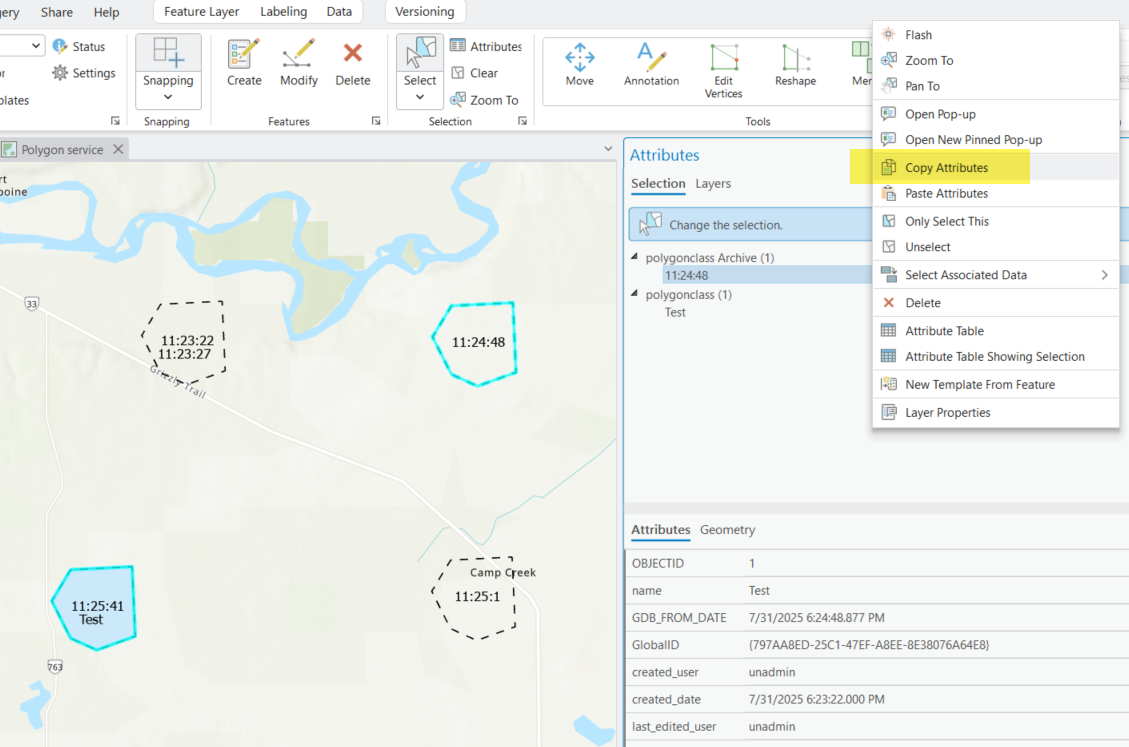
Open the Attributes pane. Right-click on the archived feature from which you want to copy the geometry and click ‘Copy Attributes’.
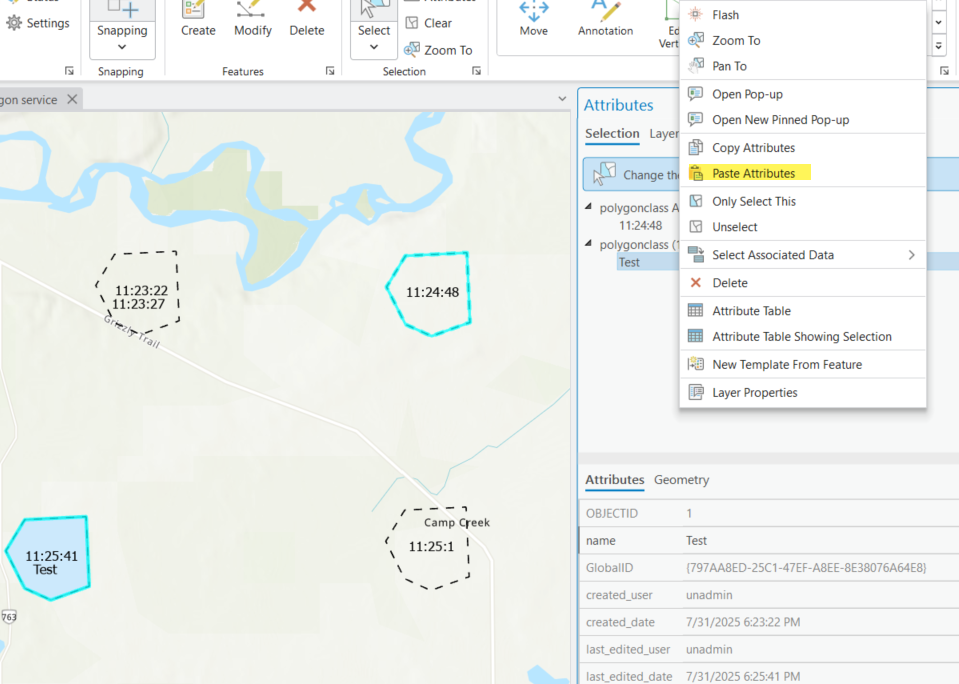
Next, right-click on the Polygonclass layer where your active feature is located and select ‘Paste Attributes.’ This action will apply the geometry change to your feature, effectively creating a new edit.
Click Apply in the Attributes pane to finalize the edit.
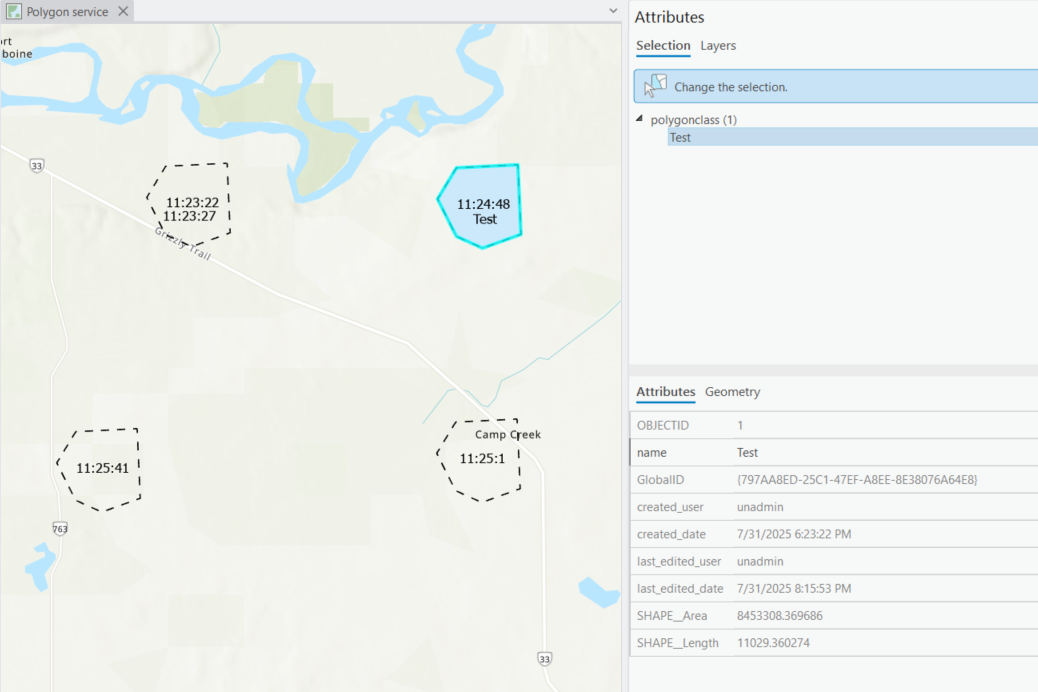
Just like that, you have restored the geometry of your feature from an older representation.
The same can be done to copy certain attributes or both the geometry and attributes; it all depends on what fields you set in the Field Mapping.
One note to consider is that the archive class is based on the state of the features from the DEFAULT version. Therefore, changes made on the versions may not be visible in the archive class. In this blog, we applied the changes from a historical state in DEFAULT version back to the DEFAULT version. However, you could also apply the changes to a named version, for example, to QA/QC the edit before posting it to the DEFAULT version. The most important thing to understand here is that we are simply making a new edit; the edit just happened to be copied from an old row.
For more resources on data management topics check out the Geodatabase Resources Hub.


Commenting is not enabled for this article.