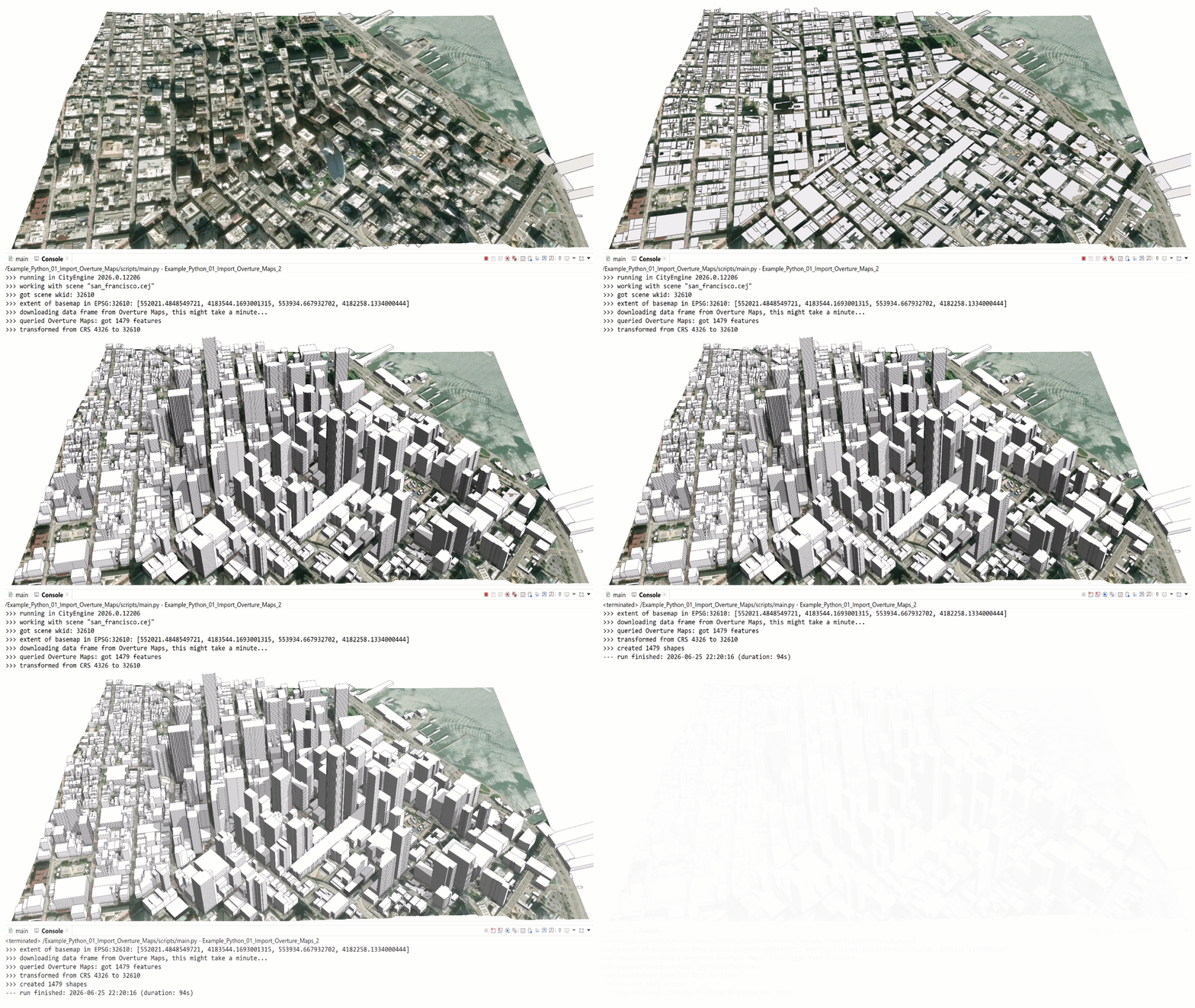
ArcGIS CityEngine 2026.0 introduces a new Python 3 API and corresponding Python environment management. This means you can now run Python 3 code in the CityEngine Python editor and interactive console to access the full CityEngine API functionality. In addition, combine the new “cityengine” package with other packages in the vast Python ecosystem like PyPI.org or Anaconda.org.
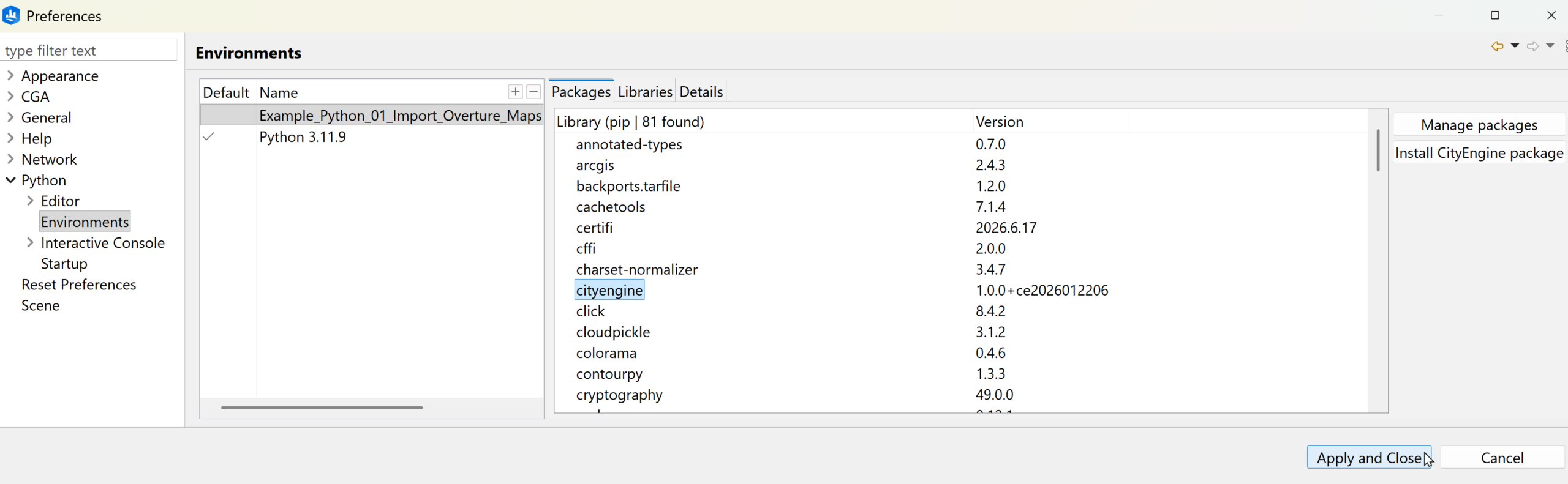
Conveniently switch between Python 3 and Jython per project. Environments and their required packages are also automatically installed when you import a project making sharing and collaboration on Python scripts easy!
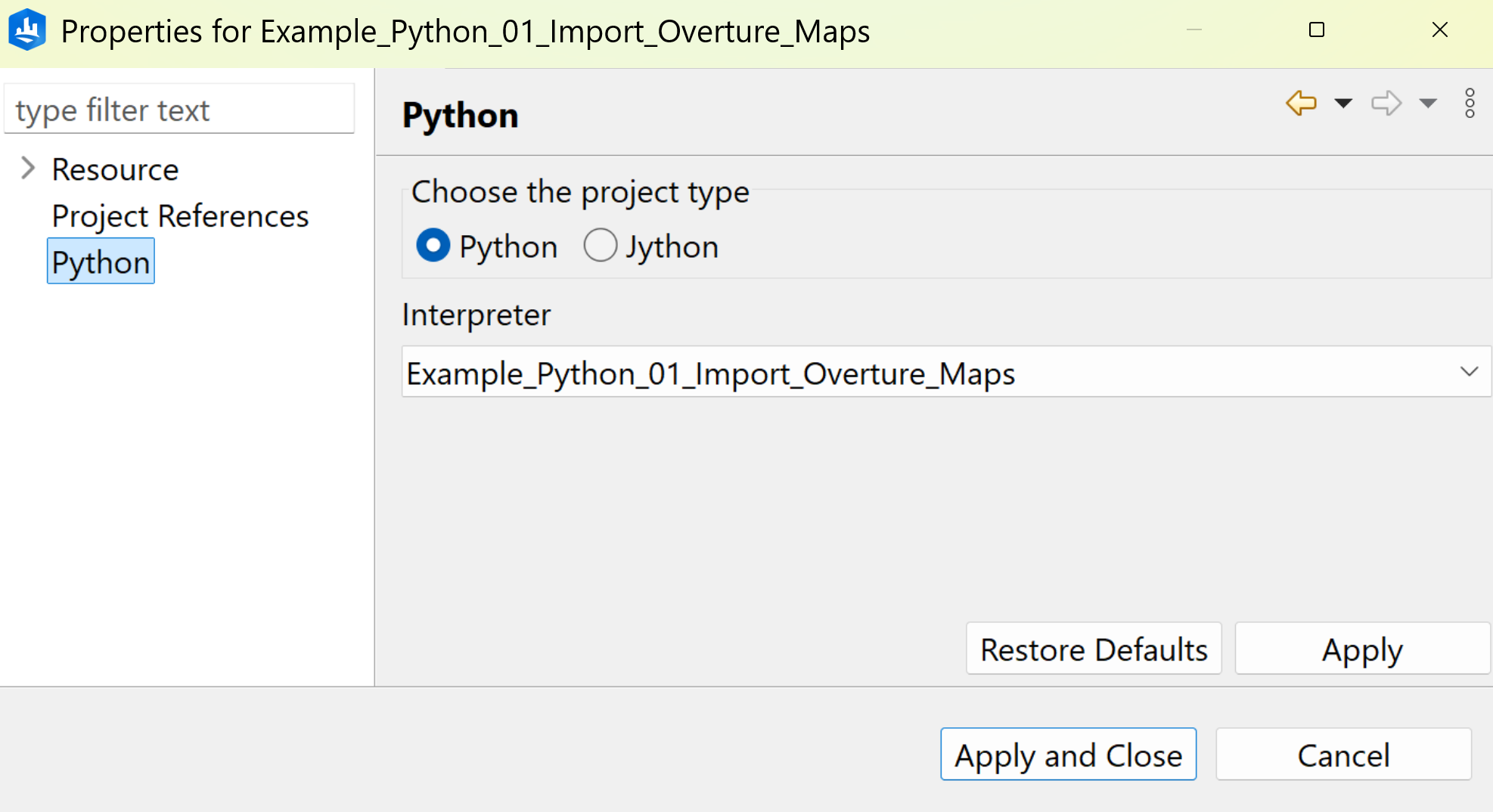
The Python 3 API is 1:1 compatible with the existing Jython API and updating your older scripts requires just three steps:
- Switching the script’s project from Jython to Python in the project properties, typically to the built-in “Python 3.x.y” environment.
- Switching the API import statement from “import scripting” to “import cityengine”.
- Performing standard Python 2to3 upgrades (either manually or automated).
About Overture Maps
Overture maps is an open data mapping initiative funded by organizations including Amazon, Microsoft, Meta, TomTom. It is also supported by Esri.
The goal of Overture Maps is to provide high-quality, reliable open map data like buildings, places, transportation and other geographic features. This data comes from OpenStreetMap, governmental agencies and contributions from participating organizations. It is available in GeoParquet format which is an Open Geospatial Consortium standard that works with modern geospatial tools and cloud platforms.
Running the Overture Maps import example
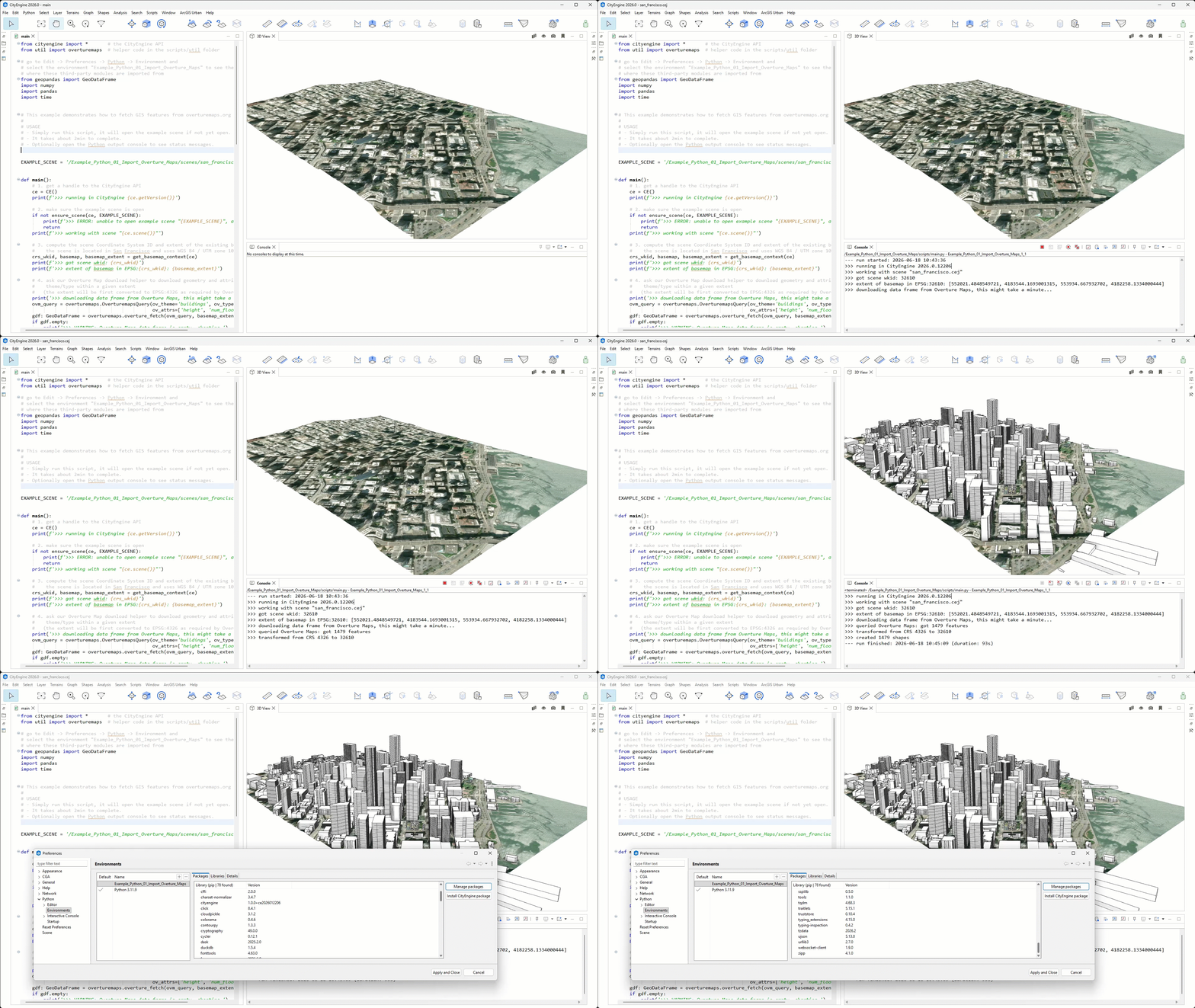
- Start CityEngine 2026.0, call the menu item “Help → Download Tutorials and Examples…” and download the project “Example Python 01 Import Overture Maps”
- Open the script “scripts/main.py” and hit F9 (or menu item “Python → Run Script”) to run it
- Optionally, use “Window → Console” to view the progress in the Python output console.
The vast Python geospatial eco-system
Our Python 3 support makes use of the standard CPython distribution, making it compatible with many popular Python libraries such as Pandas and GeoPandas.
For example, this code uses GeoPandas to convert Overture Maps features from WGS84 coordinates to the projected coordinate system of the current CityEngine scene:
Similar to GeoPandas, DuckDB also makes it easy to work with Overture Maps data. It can read GeoParquet files directly as well as extensions for Amazon S3 and spatial SQL. This allows you to process large datasets in just a few lines of code:


Commenting is not enabled for this article.