Whether you are updating data on a regular cadence or making occasional bulk edits, Update data is the standard way to make large updates to a hosted feature service in ArcGIS Online. Prior to the February 2026 update of ArcGIS Online, the update source (which contains the new or updated data) needed to be one of the supported file types. Now, you can use any hosted feature service within your organization’s content. This means you no longer need to export data to a compatible file type if it already exists in an organizational feature service.
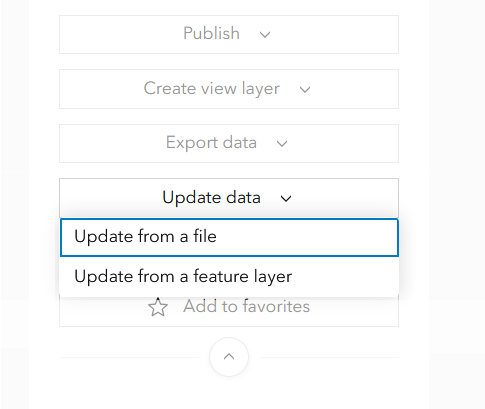
Anywhere that Update data is available, you will now see a new option to Update from a feature layer. Like the file-based workflow, you will first be presented with different data update options: adding new features, updating existing features, or performing both simultaneously. The option to overwrite your data is still restricted to the Update from a file workflow only.
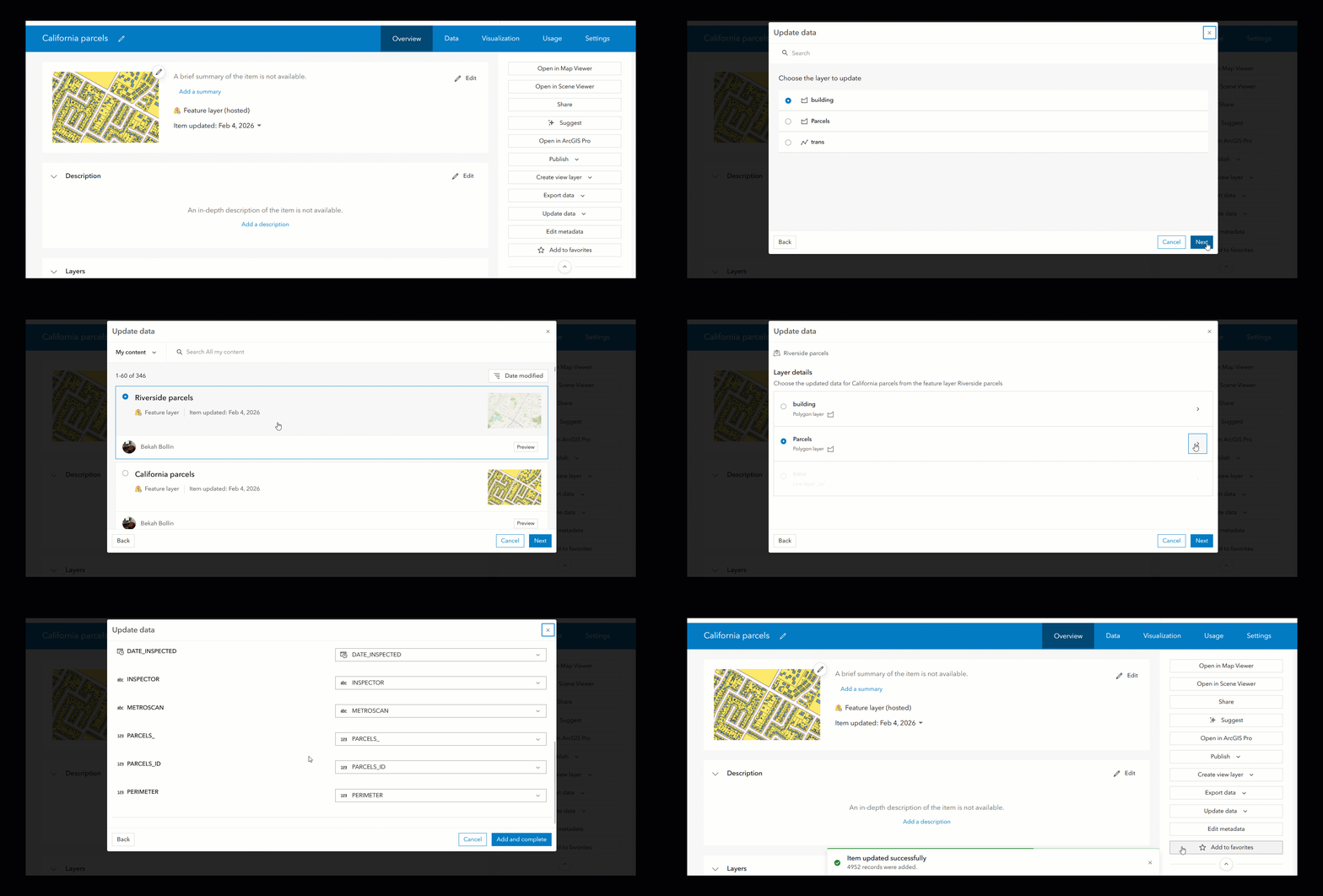
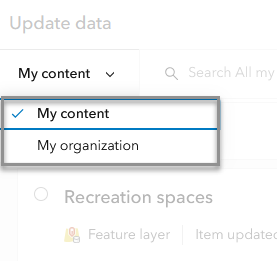
After you’ve selected the update type, you’ll be presented with a list of feature layers that can be used as the source for your update. By default, it will display a list of your content, filtered to hosted feature layers only. You may also choose to select an update source owned by another user in your organization instead, as long as it is appropriately shared.
Limitations & considerations
While updating from an existing feature layer is almost identical to the update from file workflow, there are some details about the new experience worth mentioning.
First and foremost, the source feature layer must be hosted in the same organization as the destination layer for it to appear as an option in the update dialog. This means that you can’t just select any publicly shared layer from ArcGIS Online as the source of your update.
Unlike the file-based workflow, updating from an existing feature service will never ask you to specify the updated data’s time zone since all values from the update source are already stored in the backing database in GMT/UTC. In short, you shouldn’t observe any differences between the date values in the destination and source feature layer.
If attachments are enabled for the both hosted feature layers used in the update (source and destination) then an option to Include attachments will appear. If toggled on, any new attachments from the selected update source, including their keywords and metadata (if present), will be included in the update. To learn more about updating data with attachments, you can check out this blog.
Update data your way
Update data now supports two methods for accessing your source data: from a file and from a feature service. We hope that updating using an existing feature service is one more tool you can add to your data management toolbox to make bulk updates to your hosted services easier than ever.



Commenting is not enabled for this article.