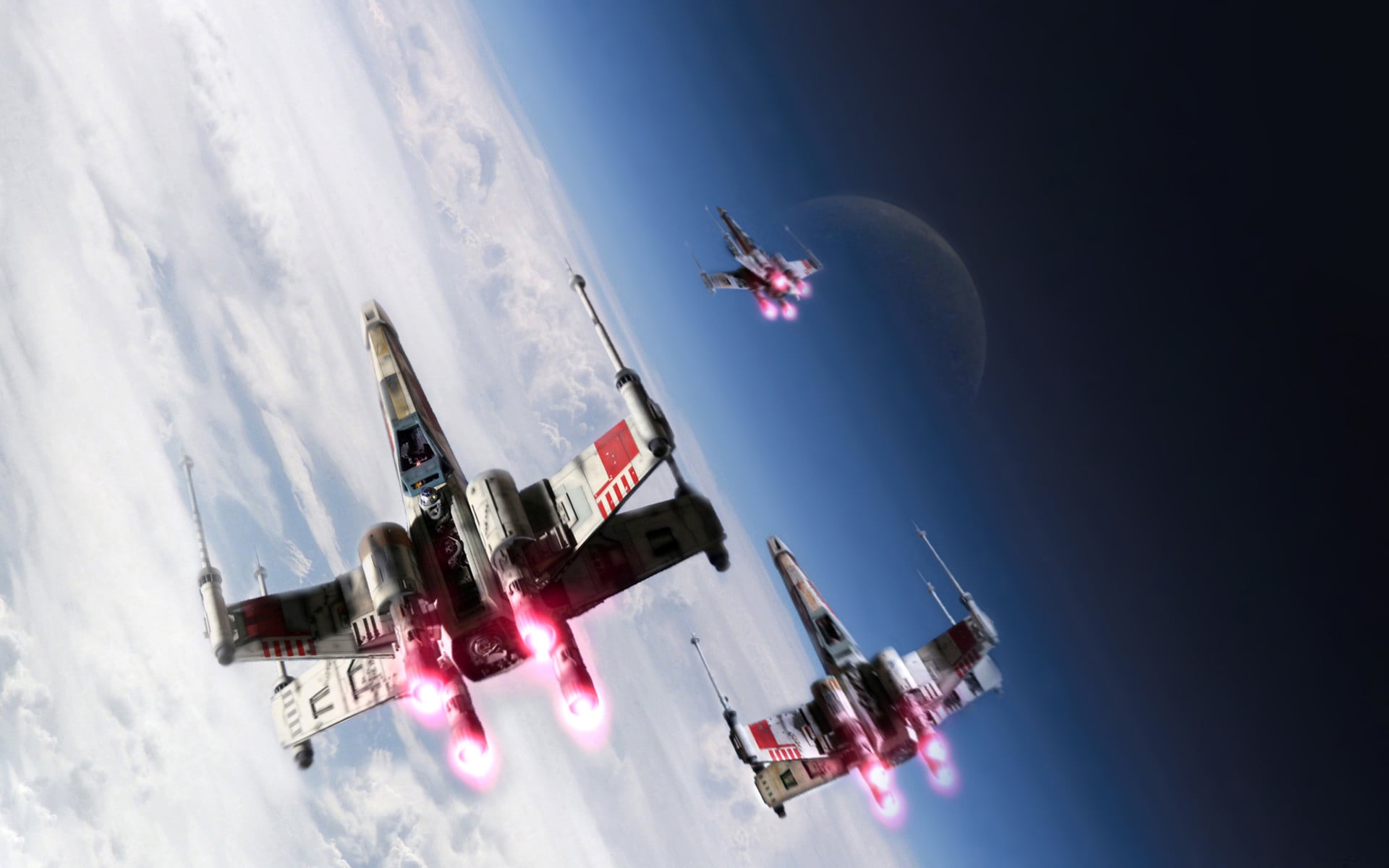
DM Image
Dynamic Media Image
Cards editorial with DM image authored
Documentation:
Anytime those components are on the webpage, the asset folder and assets associated with the components above need to be configured for Dynamic Media.
Here's how to configure the asset folder and assets for Dynamic Media:
Common issues you will run into if assets do not have the necessary DM configuration:
Troubleshooting:
Join thousands of your colleagues and enjoy awesome entertainment, beautiful museums, and fun activities for the whole family.
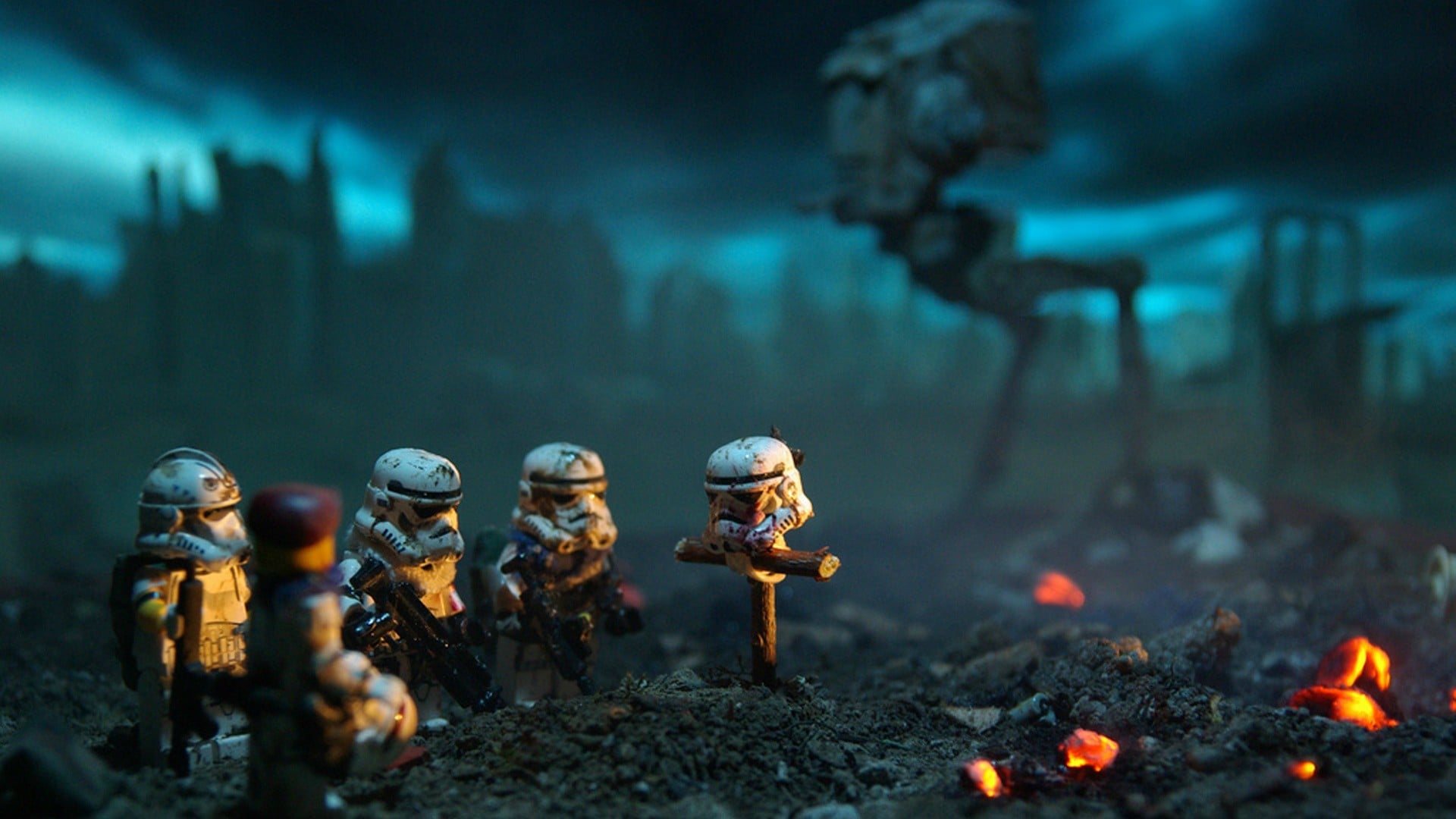
Although Esri does not offer child care, our trusted partner provides a program for children from newborn through aged 12.
Details and hours coming soon.

Dynamic Media - with Hero Card
Cards editorial with DM image authored
Cards editorial with DM image authored

Cards editorial with DM image authored
Description for CCV3
Content/dam Asset
Video Card
DM Asset
Video Card
Content/dam Asset
Context 1
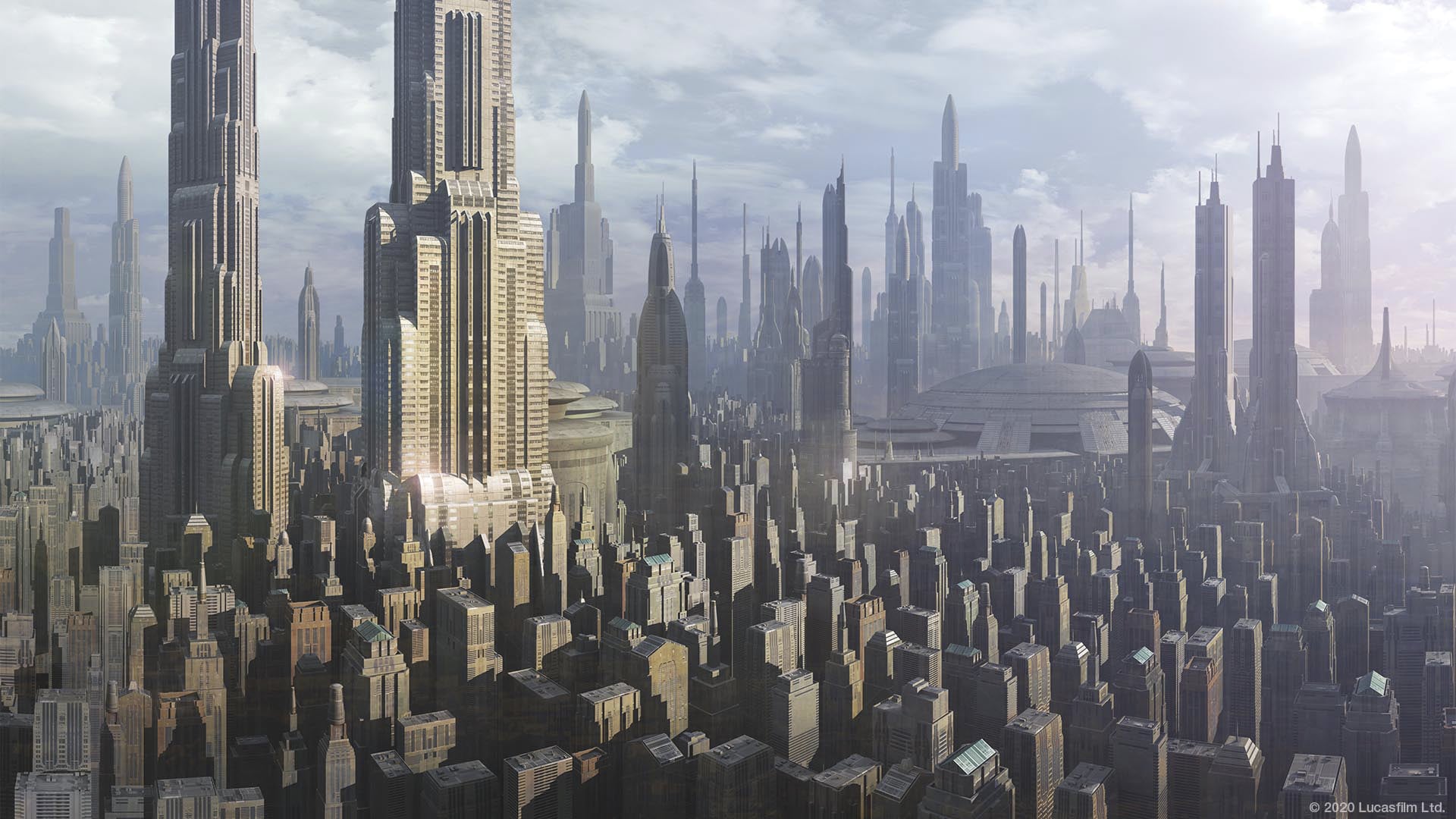
Content/dam Asset
Context 1
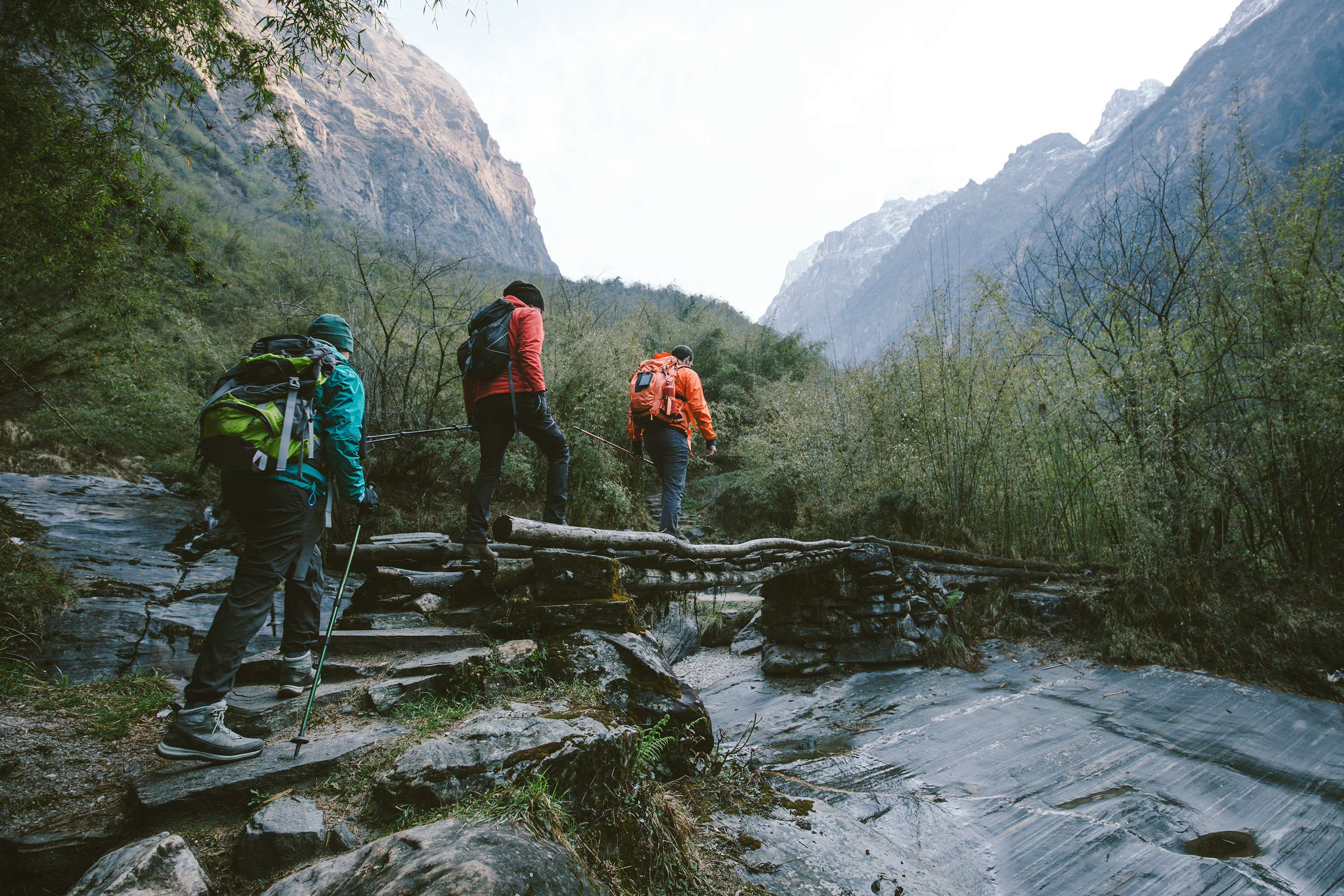
DM Asset
Context 1
Case Study Hero
Inspect image - this should show an image tag
Case Study Hero
Description goes here
Case Study Hero
Description goes here
Image should be in Dynamic Media

Image should be pointing to content/dam

DM Asset - Description for Large Horizontal Card

Case Study - Category
DM Test - using 3000x1700 image
Case Study - Category
DM Test - using content/dam
Dynamic Media Testing
Images are from Dynamic Media


Dynamic Media Testing
Content/Dam Images

Body text (required) has a 225 character max and in plain text only. If Mega-Title is used, the title and body text are omitted. This option is shown with an image background for the right two thirds and in dark text variant.

Body text for a tile has a 175 character max and is in plain text. The button icon is dependent by the link URL (video, document, link, ext.)
Body text for a tile has a 175 character max and is in plain text. The button icon is dependent by the link URL (video, document, link, ext.)
Body text for a tile has a 175 character max and is in plain text. The button icon is dependent by the link URL (video, document, link, ext.)

Just an image test