Many common GIS workflows involve boundaries. The boundaries themselves are often not the main focus of the map or the analysis, but are foundational content for GIS analysts, second only to basemaps.
Here are some of the common workflows in which boundaries take on this supportive role:
- Using boundaries for supporting symbology
- Joining tabular data to boundaries
- Using boundaries as a clipping layer
- Using boundaries in the Summarize Within tool
Fortunately, ArcGIS Living Atlas of the World—which all ArcGIS users have access to—provides curated, high-quality boundaries to support your work.
Using Boundaries for Supporting Symbology
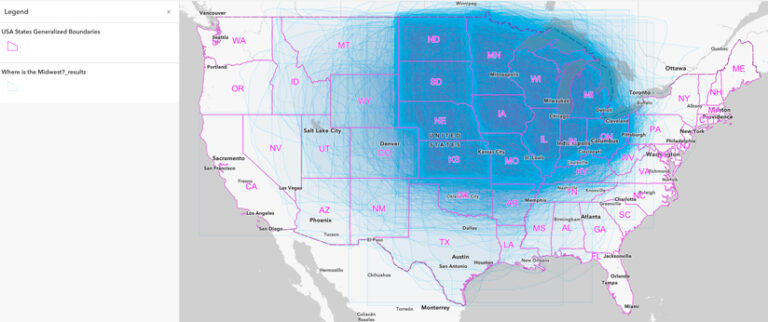
For the map above, a survey asked respondents about the location of the Midwest region of the United States, with the polygons indicating survey responses in blue.
A state boundaries layer labels each state with its abbreviated name in a highly contrasting color. The polygon fill is set to hollow (no fill), and the state outlines are set to a bright pink. The labels for the state names are styled in the same pink.
Not only does this create a cohesive aesthetic, it also helps orient people reading and interpreting this map. Here, the polygons do not represent the only vital information being conveyed—the relationship between the data collected through the survey and the state boundaries is critical to answering the map’s central question: Where is the Midwest? Without the high degree of contrast between the data and the boundary layer, this information is likely to be obscured.
Joining Tabular Data to Boundaries
Many thematic maps start off as data in spreadsheets. Boundaries for areas such as countries, states or provinces, or postal codes are just rows in the data table. To map that data, the table must be joined to boundaries first. To perform a join by attribute (a column in a table), or to join features in ArcGIS Online, you need a table of data as well as a target layer of boundaries. Many turn to the boundaries category in ArcGIS Living Atlas for their target layer.
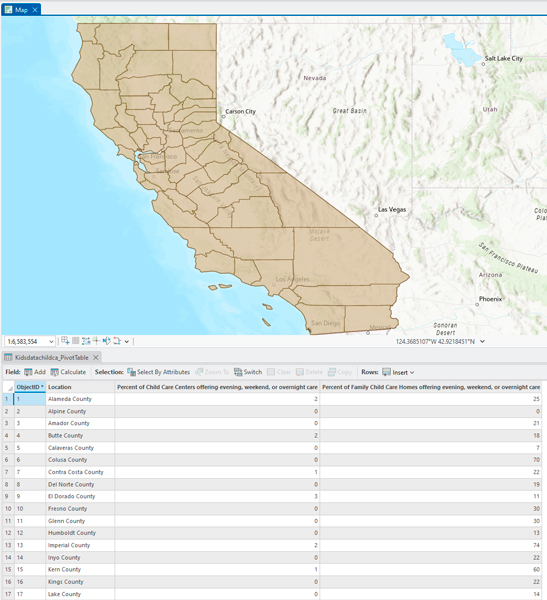
For instance, see the table above showing the percentage of licensed California childcare providers that offer care during nontraditional hours by county. To display that information, you need a target layer of counties to use in your join. ArcGIS Living Atlas has a USA Counties Generalized Boundaries layer to add to the map.
Real data is often messy. There is almost always a big tabular data transformation task to do first. Additionally, you may need to apply a filter or definition query to the target layer, or adjust the parameters in your join to get expected results. In this example, the original table downloaded from kidsdata.org needed to be pivoted from long to wide, and then the USA Counties layer needed to be set to just counties in California.
Once you perform the join, you are ready to symbolize your map.
Using Boundaries as a Clipping Layer
A common GIS workflow of extracting global or national data to a specific study area involves using the Clip tool. This enables you to set the larger dataset based on a clip feature. If your area of interest is a standard geography such as a country, state/province, or other popular designated area, check ArcGIS Living Atlas for a boundary layer you can use. Both feature layers and imagery layers can be clipped.
You can learn more about clipping through ArcGIS tutorials such as Clip a Layer in Map Viewer for ArcGIS Online and Clip Features to a Region for ArcGIS Pro.
Using Boundaries with the Summarize Within Tool
Many times, data starts off as dots on a map, such as crowdsourced data with photos and locations of graffiti, potholes, or wildlife sightings. To aggregate or summarize these points up to familiar geography levels (such as ZIP codes or census tracts), you first need a layer of these types of boundaries.
You can use boundary layers from ArcGIS Living Atlas in addition to your own data in the Summarize Within tool in either ArcGIS Pro or ArcGIS Online. This will yield counts (and maximum, minimum, average, and other summary stats) of your data.
Potential questions you can answer with this tool include:
- How many dialysis centers are there in my ZIP code? (Summarize points by ZIP code to get the count.)
- How many miles of bike lanes are there in San Diego County? (Summarize data from a line layer showing the ratio of bike lanes to counties.)
- Which state has the most sightings of garden snails? (Summarize the observations by state and sort from highest to lowest.)
Both Generalized and Detailed
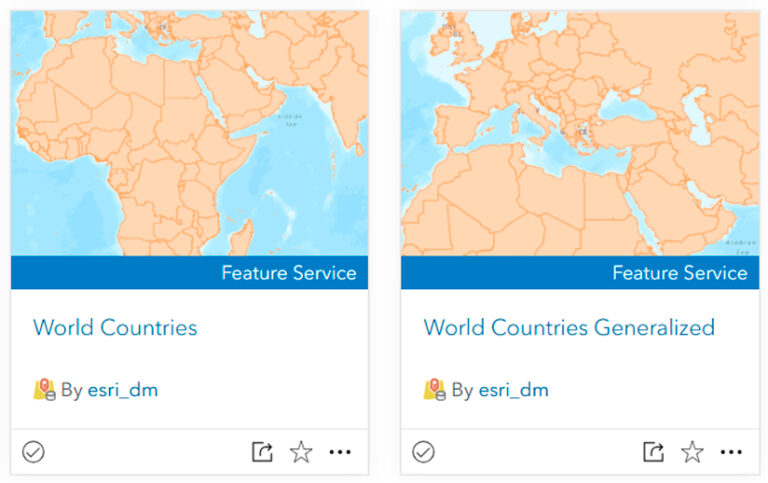
The most popular items in ArcGIS Living Atlas, including boundaries, have both a generalized version and a detailed version to support multiple needs. Using the generalized one is often advantageous since it is much less detailed. Fewer vertices mean faster performance.
You might need to use the detailed (non-generalized) version if having the detail on a coastline, river, or border is important to your visualization or analysis. If you are interested in a city-scale version of New Orleans, for example, you may be willing to deal with the slightly slower or heavier layer if it means having the detail you need in your map or in your analysis.
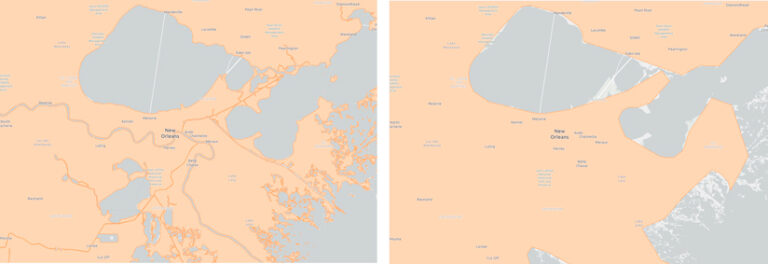
The Item Details page on the generalized layer has notes about the scale at which this layer is fit for use.
The Item Details page on the non-generalized layer has notes about using the fields Land_Type and Land_Rank, which separate polygons based on their size (1 = very small island, all the way to 5 = primary land). If you still want the detailed coastlines on the primary land but you don’t need all the miniscule islands, filter out those with land rank values of 1 and 2, depending on your needs.
To find boundary layers in Map Viewer, open the Layers pane and click Browse Layers. Select From Living Atlas in the drop-down options, and search away. Items are updated regularly to ensure that you have the best available geographic information. Check the Item Details pages for item-specific information on the update cadence.
Here are some of the most frequently requested boundaries available today:
- World Administrative Divisions (commonly known as “Admin level 1”)
- World Countries (both generalized and detailed)
- World Regions
- World Continents
- USA Zip Codes
- USA Telephone Area Codes
- USA Counties
About the author