
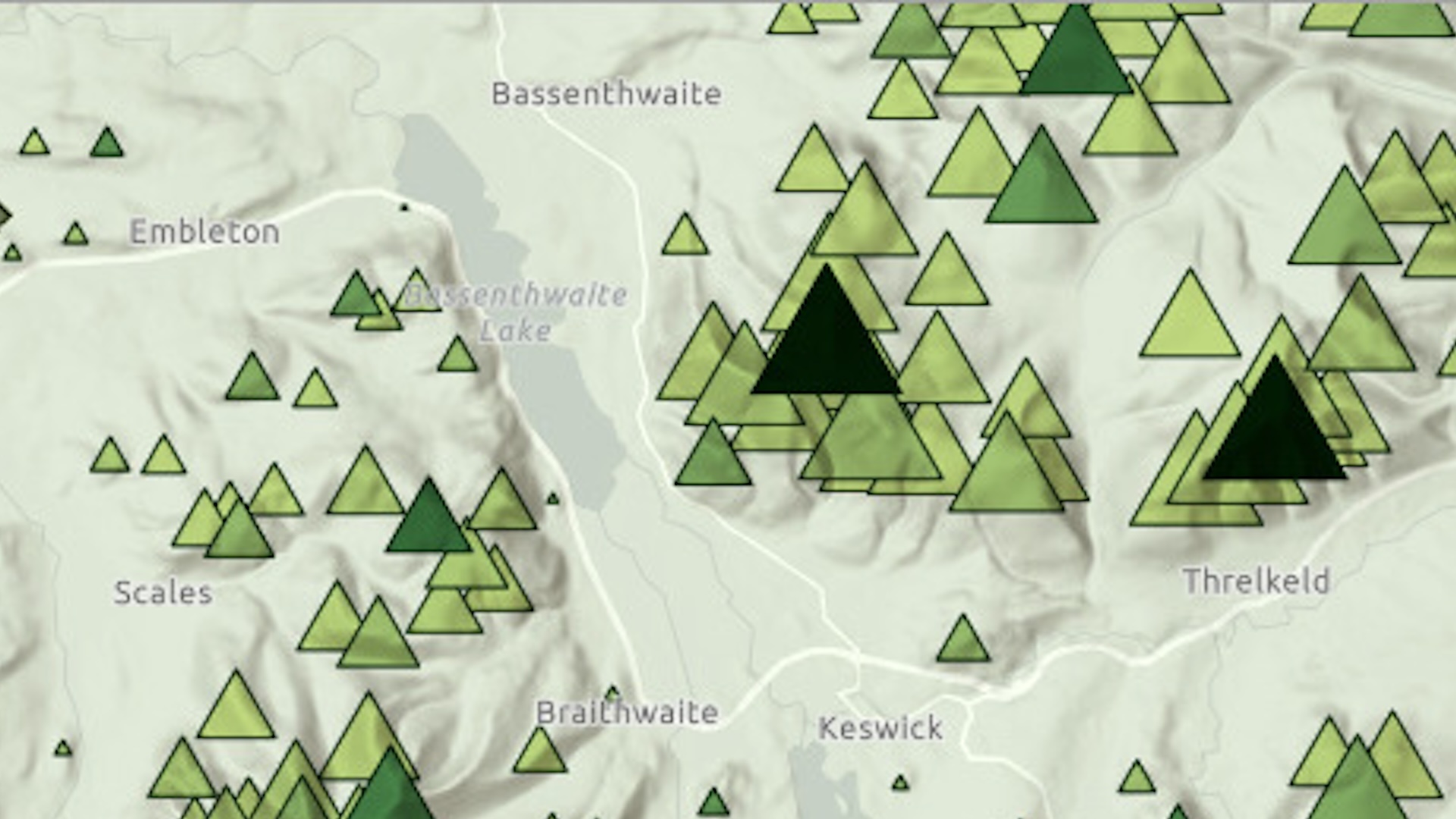
Customizing basemaps is one of the most effective ways to enhance a map. A well-designed basemap provides contextual information for the map’s theme without distracting from it.
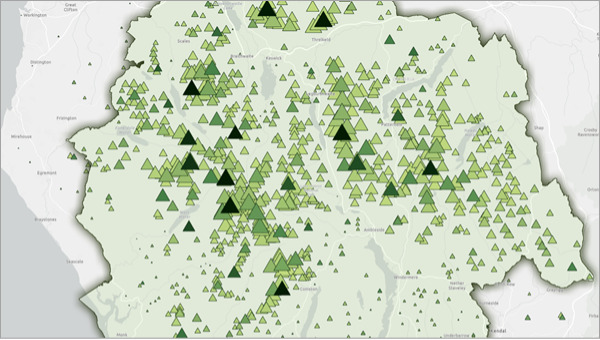
The following Lake District National Park 2 web map uses the Light Gray Canvas basemap and depicts the mountains of the Lake District National Park in England. Its simple design and neutral colors allow it to support thematic data without distracting from it. However, while it provides information about towns and roads, it does not depict terrain—the primary focus of this map.
In this tip, you’ll learn how to add a hillshade layer to an existing basemap and modify its appearance using blend modes to help show the shape of the landscape.
Requirements: To complete this tutorial, you must have a User, Publisher, or Administrator role in an ArcGIS Online organization (See options for software access.).
1. Open the Lake District National Park 2 web map.
Please note: The point symbols on the parks layer are scale dependent, meaning they only appear on the map at certain scales. If trees don’t appear, zoom in using the plus sign in the lower right corner.
2. If needed, click Sign In to log in with your ArcGIS account.
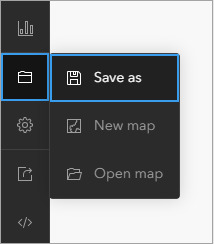
3. On the Contents (dark) toolbar, select the Save and open button, then click Save as. Optional: To change the title, type the new name in the Title field. Then click Save.
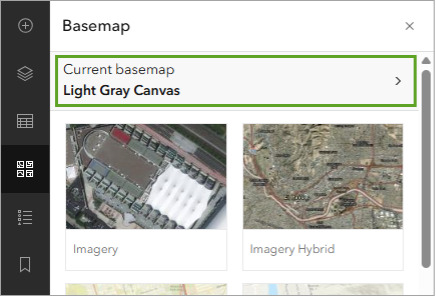
4. On the Contents (dark) toolbar, click the Basemap button to open the Basemap pane.
5. At the top of the pane, choose Current basemap: Light Gray Canvas.
Many basemaps are made of multiple layers. In this pane, you will see the layers that make up the basemap and remove, reorder, or modify them.
6. Move the mouse to Light Gray Reference and click the visibility button to turn this layer off. The labels will disappear from the map.
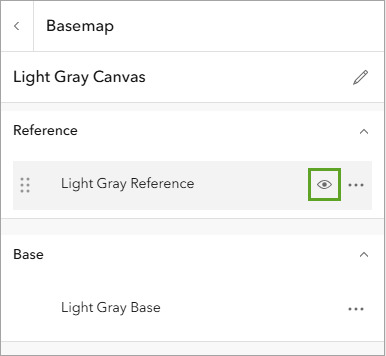
7. Turn the Light Gray Reference layer back on.
This layer is in the Reference category, which means it draws on top of all the other layers in the map. The Light Gray Base layer is in the Base category, which means it draws beneath the other layers.
8. Click Add.
9. Click My content and choose Living Atlas. Type “world hillshade” in the search bar.
10. In the search results, on the World Hillshade card, click Add.
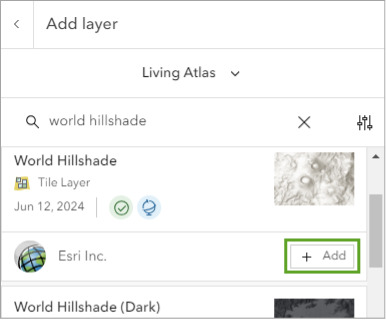
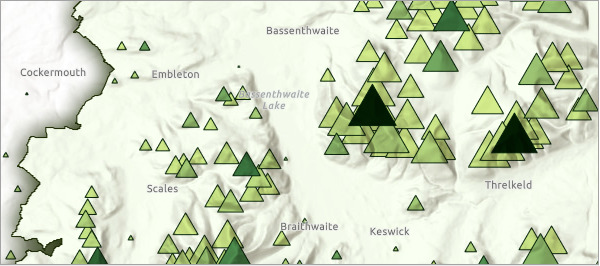
The hillshade appears on the map.
11. At the top of the Add layer pane, click the Back (arrow) button.
In the Basemap pane, the World Hillshade layer has been added to the Base category. It is placed above the Light Gray Base layer.
On the map, the hillshade layer hides the Light Gray Base layer, so you can no longer see roads or lakes. You’ll change the blending property of the hillshade to allow the rest of the basemap to show through.
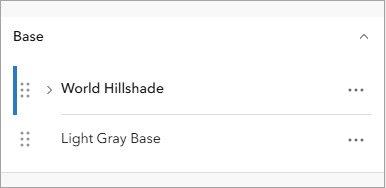
12. In the Basemap pane, ensure that World Hillshade is the selected layer. The selected layer will have a blue bar on the left side.
13. The Properties pane should be open on the right. If it is not open, click the Properties button on the Settings (light) toolbar.
14. Under Appearance, change Blending from Normal to Mulitply. You can type “multiply” in the Filter results bar to find it. Close the Blending menu by clicking the X in the upper right corner.
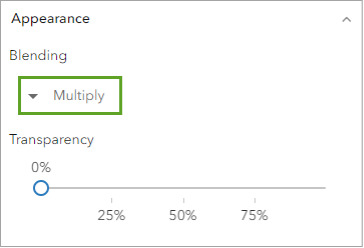
Blend modes determine how a layer interacts visually with the layers underneath it. The Multiply blend mode acts similarly to layer transparency, but it allows both the affected layer and the layer underneath to remain equally visible.
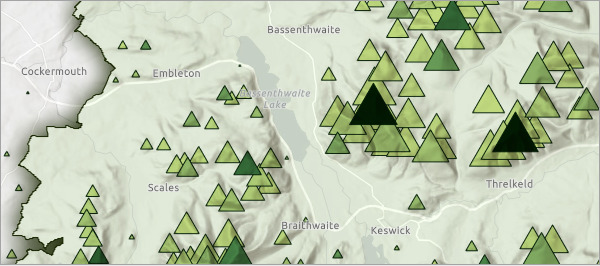
On the map, the roads and lakes are now visible as well as the hillshade.
15. On the Contents (dark) toolbar, select the Save and open button and click Save.
In this tip, you learned how to modify a basemap by adding a hillshade layer. You also learned how to change the blend mode of a basemap layer to allow the layers underneath it to remain visible.
This tip was adapted from the tutorial “Cartographic creations with web maps—Customize a basemap,” part of a five-part tutorial series. Try the full tutorial and the series to learn more techniques for adapting basemaps to your needs.
Acknowledgments
- The layer was adapted from The Database of British and Irish Hills v18.
- The National Parks (England) layer is from Natural England and the Department for Environment, Food & Rural Affairs. Natural England copyright. Contains Ordnance Survey data. Crown copyright and database right 2024.
- The Lake District National Park layer is a filtered view of the National Parks (England) layer described above.
- The Light Gray Canvas basemap is from Esri and has the following sources: Esri, TomTom, Garmin, FAO, NOAA, USGS, © OpenStreetMap contributors, and the GIS User Community.
- The World Hillshade layer is from Esri and has the following sources: Esri, Maxar, Airbus DS, USGS, NGA, NASA, CGIAR, N Robinson, NCEAS, NLS, OS, NMA, Geodatastyrelsen, Rijkswaterstaat, GSA, Geoland, FEMA, Intermap, and the GIS user community.
Visit the Esri tutorial gallery to explore additional topics and find other step-by-step workflows on a variety of products.