

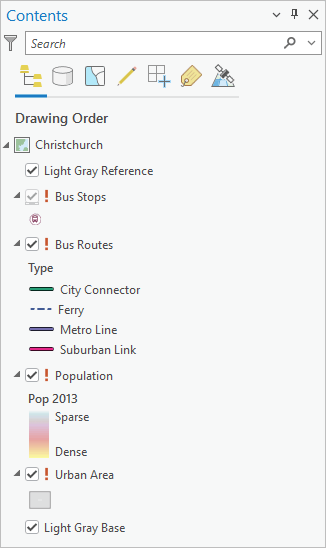
When working in an ArcGIS Pro project that includes a map or scene, you’ll sometimes hit a speed bump: A small, red exclamation point (!) appears next to a layer. This means you’ve got some fixes to make before you can complete your work.
Here’s how to make the exclamation point(s) disappear with just a few clicks.
Why It Happens
ArcGIS Pro looks for the data referenced by each layer in a map or scene. When a layer’s data source can’t be found, that layer doesn’t draw or display. This is flagged as a broken data source, and a red exclamation point pops up.
A layer can be broken if its data source in a geodatabase or service has been moved, renamed, or deleted, or if it’s inaccessible for another reason such as a server becoming unavailable.
How to Fix a Broken Layer
Follow these steps to find and discard or repair your broken layers and remove those exclamation points.
1. Show only broken layers
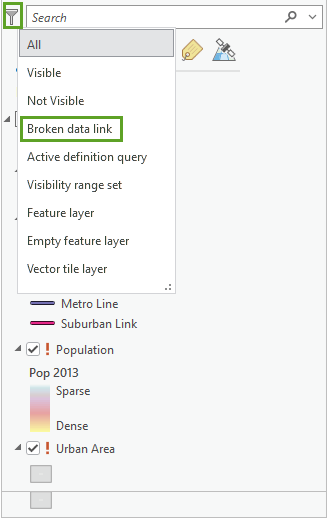
In the Contents pane, click on the Filter button. Then, click Broken data link in the drop-down menu. This option filters the pane display to only layers with missing data sources.
Note: The filter option is helpful if you have a lot of broken layers.
2. Remove broken layers
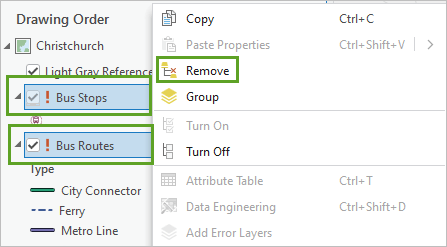
In the Contents pane, select the layer or layers you no longer need. Then right-click and choose Remove.
Note: Removing broken layers when they aren’t needed can improve the performance of your ArcGIS Pro project.
3. Repair a single broken layer
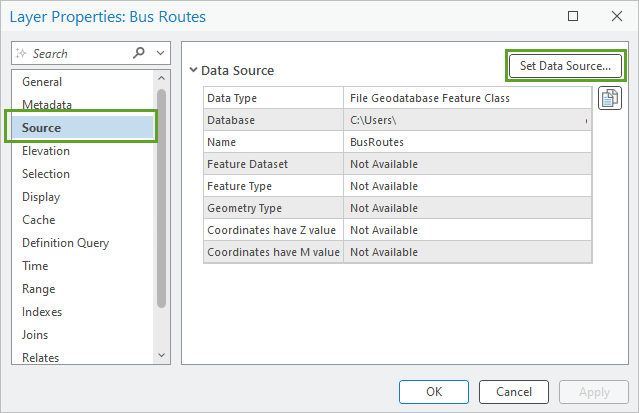
In the Contents pane, double-click a layer with a broken link to open its Layer Properties window. Go to the Source tab and click on the Set Data Source button to browse for the correct source.
Note: Repairing a single layer works well when there’s only one or two broken layers.
4. Repair multiple links from the same data source
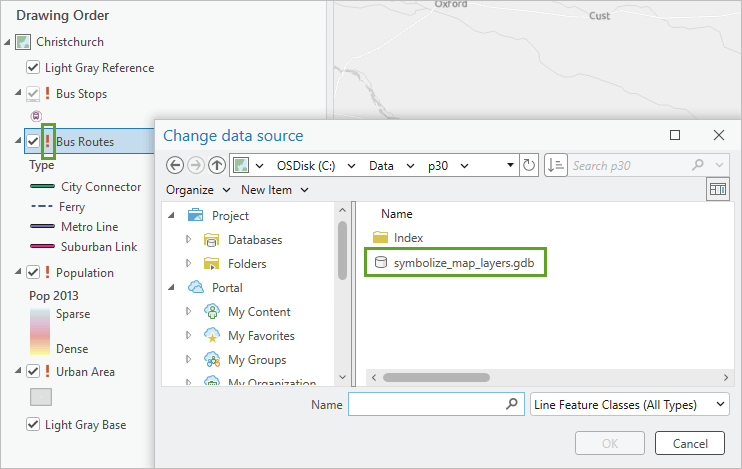
In the Contents pane, click on a layer’s red exclamation point to open the Change data source dialog box. Browse to find the correct source and then select it. When you change the source, ArcGIS Pro will find and update all layers that reference the original source.
Note: Repairing multiple layers is helpful when a source dataset for many layers has been moved to a new location.
5. Repair web layers
A web layer’s source is a service published from a server or ArcGIS Online. Repairing one is a bit different than repairing a layer that doesn’t reference a service.
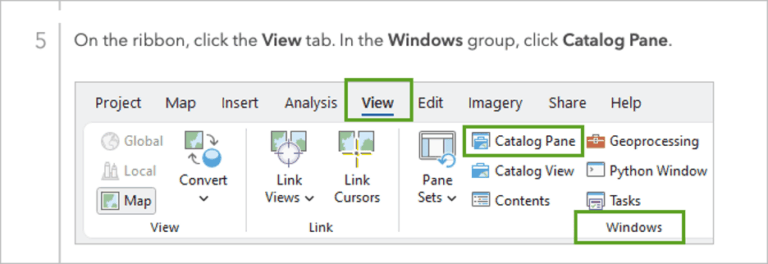
Follow the steps in #2 to remove the broken web layer. Then, go to the View tab and click on Catalog Pane. In the Catalog Pane, click the Portal tab to search for a replacement from your content, your organization, or another source, including ArcGIS Enterprise, ArcGIS Online, or ArcGIS Living Atlas of the World.
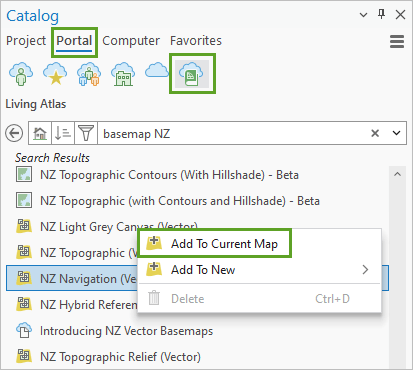
Once you find a replacement, right-click it and choose Add To Current Map.
The following example illustrates finding the web layer replacement in ArcGIS Living Atlas.
Bonus Tip: How to Update Data Sources Using a Catalog View
You can manage one or all the data sources referenced in a project in a catalog view.
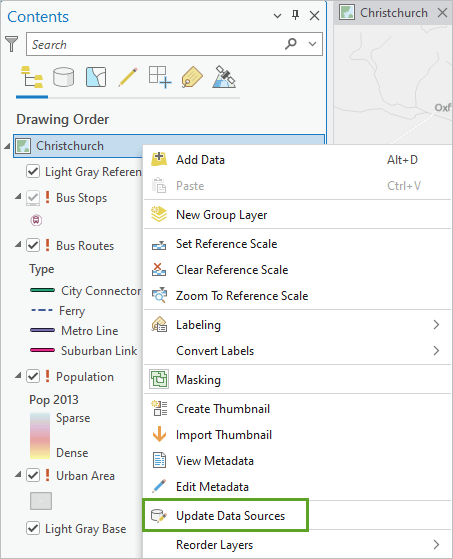
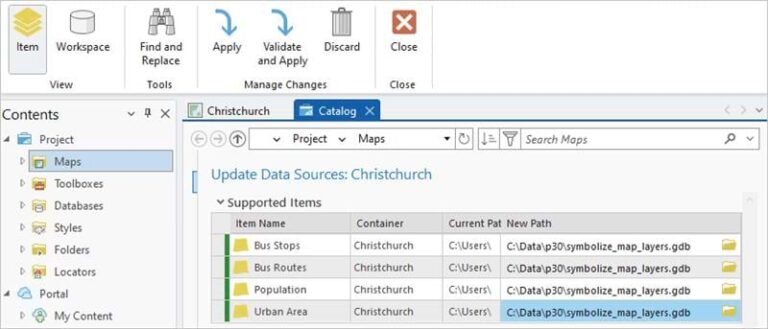
In the Contents pane, right-click the map name, and choose Update Data Sources to open a catalog view.
In the view that opens, you can type in or search for new paths and use tools including Find and Replace. The catalog view lists all items available for source updates and provides additional management tools.
For more information about updating data sources in a catalog view, check out the documentation for updating data sources.
By following these tips, you’ll fix your broken layers quickly and be back to work in no time. For more information on working in ArcGIS Pro, visit the documentation gallery.