
ArcGIS Business Analyst Web App includes an AI assistant—Business Analyst assistant (preview)—to help you with map-based analytical workflows. The assistant can create complete maps based on a text prompt or be embedded in longer workflows to increase productivity, making it useful for new and experienced users alike.
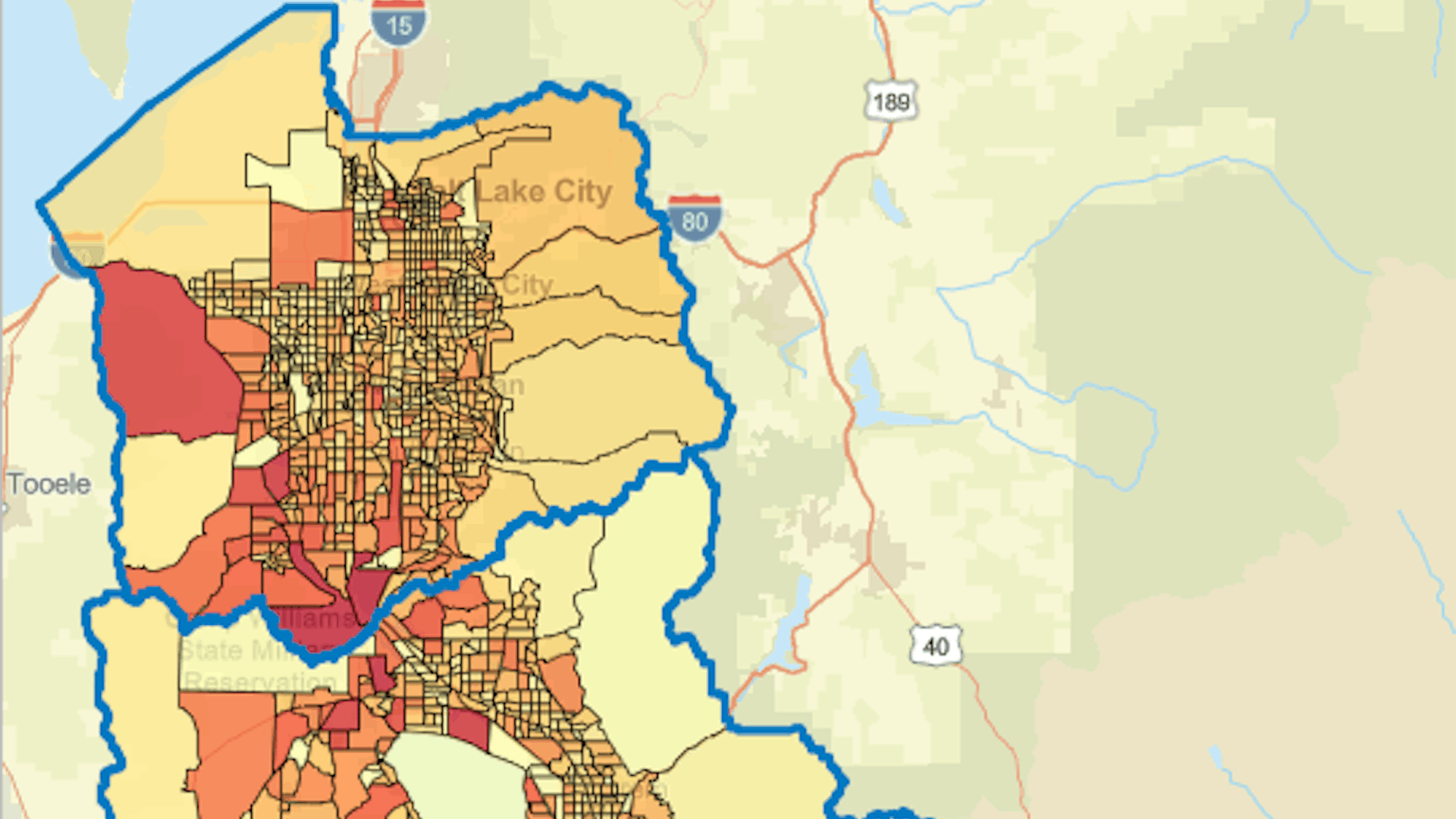
In this tutorial, you are interested in expanding a business that sells equipment for pickleball, the fastest-growing sport in the United States. Using the AI assistant, you’ll generate a color-coded map that shows pickleball activity to help you decide where your next target market is. You’ll also learn how the assistant can provide tips to improve your map.
Requirements
- ArcGIS organizational account with a publisher, facilitator, or administrator role (see options for software access)
- Business Analyst Web App
Create a Project
To start, you’ll enable the assistant and create a project in Business Analyst Web App.
1. Go to the Business Analyst Web App page.
2. Sign in with your ArcGIS organizational account.
Note: Your account must be licensed to use Business Analyst Web App. If you are the administrator of your organization, you can assign yourself a license. Otherwise, contact your administrator for permission.
3. If necessary, close the Welcome or What’s new in Business Analyst window.
4. On the ribbon, point to (don’t click) the Business Analyst assistant (preview) button. This will ensure that Business Analyst assistant (preview) is enabled.

If the assistant is available, a tooltip appears that reads Business Analyst assistant (preview). If it’s unavailable, a tooltip appears instructing you to contact your ArcGIS organization administrator to enable the assistant.
Once you confirm that the assistant is enabled, you can create a project.
5. On the ribbon, confirm that the Home tab is selected.

6. Click New project.
7. In the Create project window, type “Pickleball Market Research” for Project name and add your name or initials.
Note: Two projects with the same name can’t exist in the same ArcGIS organization. Adding your name or initials to the project name ensures that your project is unique.
8. Click Create.
A message appears, explaining that the project is being created. When it finishes, a confirmation message appears.
9. In the confirmation message, check Open new projects as soon as they are created and click OK. The project appears.
Before you continue, you’ll confirm that you’re using a data source appropriate for your area of interest, which is in the United States.
10. On the ribbon, confirm that Data source is set to USA (Esri 2025) or, if available, a more recent year.

There is data available for 170 countries. While this tutorial will use data from the United States, the assistant can also generate maps using data from other countries.
Generate a Map
Next, you’ll explore the demand for pickleball by using Business Analyst assistant (preview). The assistant uses a large language model (LLM) to recommend workflows such as creating maps, locating points of interest, and generating reports by interpreting text prompts.
1. On the ribbon, click the Business Analyst assistant (preview) button.

The Assistant (preview) window appears.
Business Analyst assistant (preview) helps new users learn how to use Business Analyst Web App and guides experienced users to increase their productivity.
Note: Learn more about the assistant by reading the Business Analyst assistant (preview) overview, which includes information about data security, privacy, and limitations.
2. In the Assistant (preview) window, click the suggested prompt Map income in….
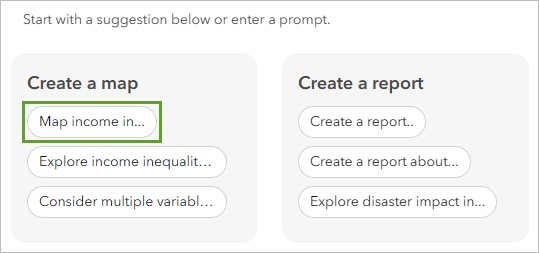
A suggested prompt, Create a map of income in California, appears with key text highlighted in green. You’ll change the key text to prompt the assistant to produce a map of pickleball activities within your area of interest, such as your own city or county. For this tutorial, your area of interest is Salt Lake County, Utah.
Note: If your area of interest is outside the United States, you’ll receive better results if you change your data source to the appropriate country.
3. In the generated example prompt, replace the word income with “pickleball” and replace California with “Salt Lake County.”
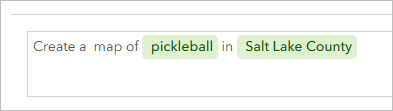
The prompt is complete. You’re ready to create the map.
4. Click Generate.
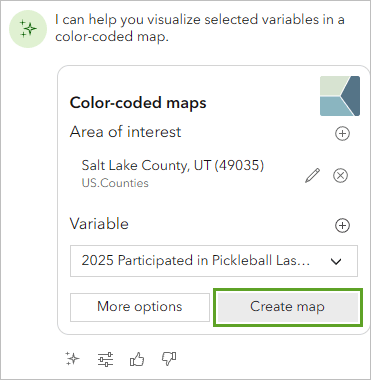
The Assistant (preview) pane appears. It suggests creating a color-coded map of the variable Participated in Pickleball Last 12 Mo for Salt Lake County, UT. This suggestion is appropriate to your interests because it will show where people have frequently played pickleball over the past year.
5. In the Assistant (preview) pane, for the suggested color-coded map, click Create map.
The color-coded map of Salt Lake County is generated.
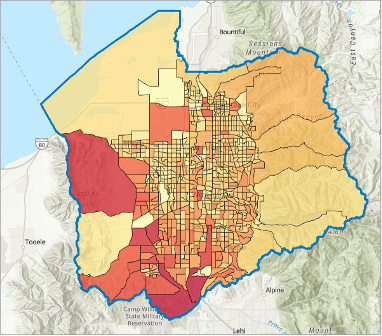
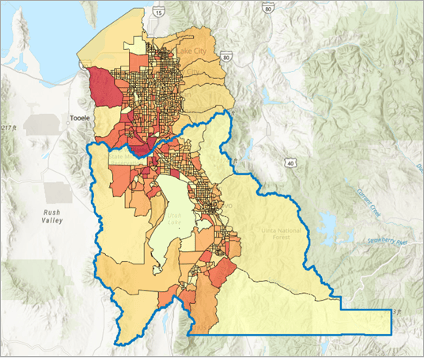
On the map, areas with darker colors have had more pickleball activity over the past 12 months than other areas.
Change the Area of Interest
The generated map includes census block groups in Salt Lake County. This map is useful, but you can also use the assistant to adjust or refine your results. For example, if you’ve decided you want to consider expanding to a neighboring county, the assistant can change the extent of the mapped data.
1. In the Assistant (preview) pane, under Tips, click How do I change the area of interest?
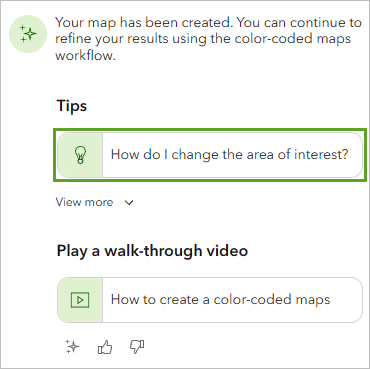
The Area of interest section in the Color-coded maps pane is highlighted and a tip appears.
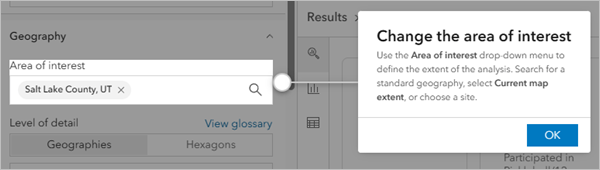
Using the option highlighted by the tip, you’ll add another area of interest.
2. In the Change the area of interest tip window, click OK.
3. For Area of interest, click the search button.
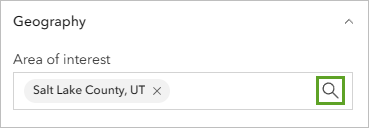
4. In the search box, type “Utah County”. In the list of results, click Utah County, UT.
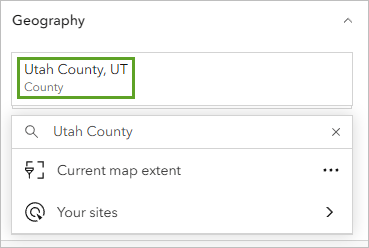
Utah County, Utah, is added to the area of interest and the map automatically updates. Now, it shows pickleball data for two counties.
Change the Map Colors
Lastly, you’ll use the assistant to learn how to change the colors in the map.
1. In the Assistant (preview) pane, under Tips, click View more and then choose How do I change the map colors?
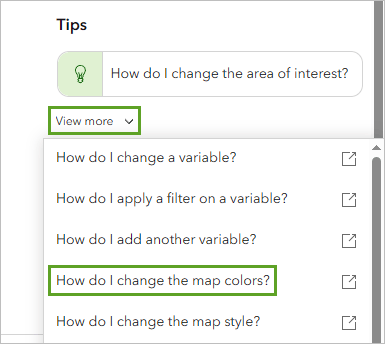
The tip highlights the Show style options button under Style in the Color-coded maps pane.
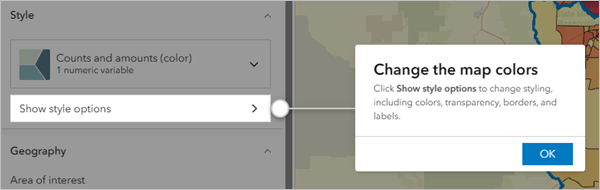
2. Click the Show style options button.
3. In the Style options pane, choose the green-to-blue color ramp under Color ramp.
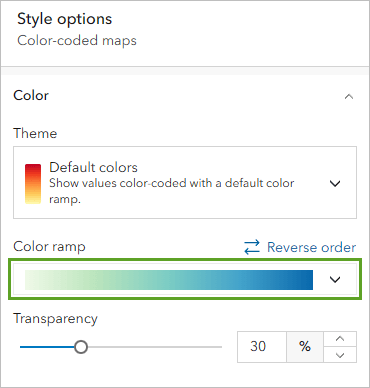
The colors used on the map change.
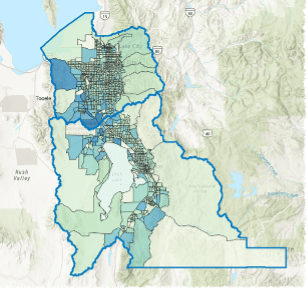
In this tutorial, you learned how to search for points of interest and generate a map of pickleball activity using Business Analyst assistant (preview). You also learned how to make changes to your map, such as by adjusting the area of interest and using different colors.
These are just a few of the things the assistant can help you do. With the large international datasets available in ArcGIS Business Analyst, there is almost no limit to the number of maps you can create. Try using the assistant to make a map showing something of interest to where you live.
To learn how to incorporate Business Analyst assistant (preview) into a longer workflow, try the tutorial Choose candidate areas for a convenience store.
Acknowledgements
- This tutorial workflow is based on the demonstration of ArcGIS Business Analyst during the 2024 Esri User Conference Plenary Session, presented by Jess Altamira and developed with support from Helen Thompson, Chris Alvarez, Donna Buhr, Garry Burgess, and Leann Kurias.
- Topographic Basemap: Esri, HERE, Garmin, Intermap, Increment P Corp., GEBCO, USGS, FAO, NPS, NRCAN, GeoBase, IGN, Kadaster NL, Ordnance Survey, Esri Japan, METI, Esri China (Hong Kong), OpenStreetMap contributors, and the GIS user community.
Visit the Esri tutorial gallery to explore additional topics and find other step-by-step workflows on a variety of products.