In ArcGIS Enterprise 11.3, we introduced a workflow for one-way feature service-to-feature service sync, allowing users to efficiently synchronize edits between two feature services. This provides a workflow comparable to geodatabase replication, allowing you to keep production and publication geodatabases in sync, but using feature services as the mechanism.
With the latest release of ArcGIS Enterprise 12.1, we are expanding these capabilities to support two-way synchronization between feature services.
This enhancement enables bidirectional data exchange, allowing edits to flow between two services that are backed by separate data sources—unlocking new collaboration and data management workflows.
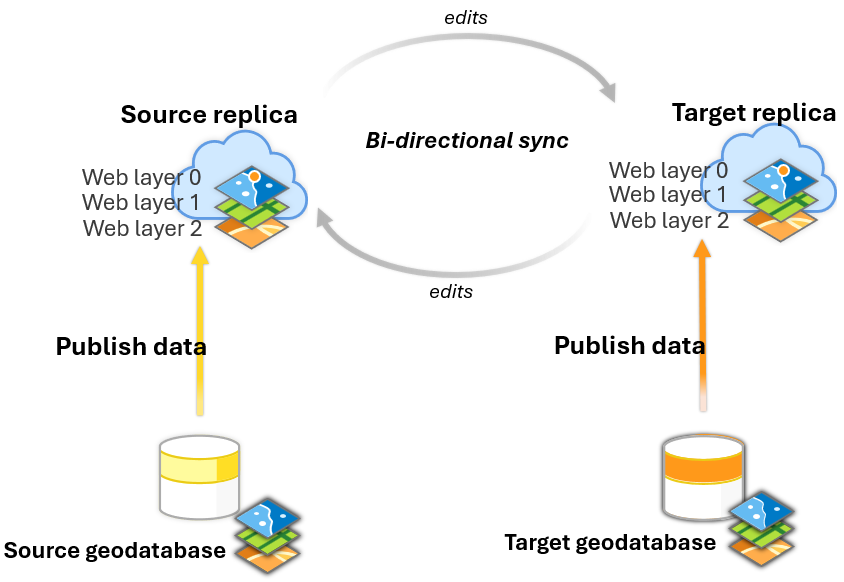
Data preparation and requirements
Before you create replicas and synchronize edits, confirm your services meet the supported requirements below.
This workflow supports the following data registration types and feature service types, where any can be either the source or the target feature service:
- Feature services that reference branch-versioned datasets or feature services that reference nonversioned datasets with archiving enabled
- Hosted feature services to ArcGIS Enterprise
- Mixed workflows between referenced and hosted feature services
Referenced feature service requirements
The following requirements apply when using referenced feature services backed by enterprise geodatabases:
| Requirement | Details |
| Data model | Same copy of the data using the simple features model |
| Global IDs | Matching Global IDs between source and target |
| Replica tracking | Must be enabled for each dataset before publishing |
| Registration type | Branch versioned OR non-versioned with archiving enabled |
| Sync capability | Sync capability enabled on the feature service |
| Layer configuration | Matching layer IDs |
Note: Traditional versioning is not a supported registration type with this workflow.
Hosted feature service requirements
The following requirements apply when using hosted feature services in ArcGIS Enterprise:
| Requirement | Details |
| Data model | Same copy of the data using the simple features model |
| Global IDs | Matching Global IDs between source and target |
| Sync capability | Sync capability enabled on the feature service |
| Layer configuration | Matching layer IDs |
Insider tip: Support for hosted feature services in ArcGIS Online is planned for a future software release.
Two-way sync relies on the replication framework to synchronize changes across two services. That means the following are required:
- Global IDs must be present and aligned such that the same real-world feature can be recognized across both sides.
- Layer IDs must match between services (for example, layer 0 in the source corresponds to layer 0 in the target service).
Once the feature services have been published with all the data requirements, the feature service will have the “supportsBiDirectionalSyncForServer” property set to True. This confirms the service supports the two-way feature service-to-feature service sync workflow.
If either of those don’t line up, you’ll typically see replica creation failures, or sync responses that don’t apply cleanly.
Workflow overview (Python example)
Next, let’s go over the workflow steps. In this example, we’ll follow a Python script example to create and synchronize replicas between two already published feature services that represent pole inspection data.
- The source feature service is referenced (published by referencing a registered data store).
- The target feature service is hosted (published with the option to copy all data).
The complete workflow is shown in the video below.
If you want to follow along using your own data, access the sample script here.
Before we dive into the details, here’s the synchronization pattern used in the script:
- Download (from the source) → prepares a delta file with edits based on what the target has already received
- Bidirectional (on the target) → applies incoming edits and packages outgoing edits
- Upload (to the source) → applies the target’s edits back to the source
Step 1 — Create the replica pair (one on each service)
The script starts by calling the ArcGIS REST API to connect to the existing, already published feature services that act as the source and target services in this workflow. So, the first things you need are as follows:
- The REST URLs to both FeatureServer endpoints
- A valid token
In the sample script:
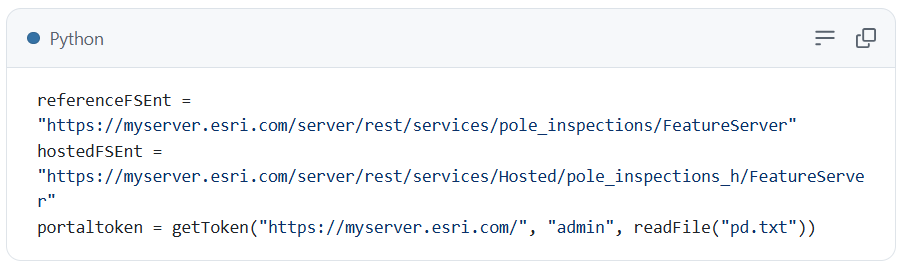
Then, it creates the replica pair as follows:
- Creates a replica on the first service.
- Creates a corresponding replica on the second service, referencing the first replica id.
Create the replica on the source (referenced) service
The script calls the createReplica function on the referenced service with the following parameters:
-
- targetType = server (server-to-server style)
- syncDirection = bidirectional
- syncModel = perLayer (in this example the data is non-versioned with archiving enabled)
- a geometry envelope for the replica extent
- The serverGen parameter defines the starting point for synchronizing edits. It is a Unix epoch timestamp in milliseconds that marks the replica creation time and tells the server from which point to send changes. Before running the script, generate a Unix epoch timestamp (in milliseconds) representing the moment you want synchronization to begin, such as by using an online epoch timestamp converter. It is important to choose a time when the source and target services contained identical data, as this establishes the baseline for change tracking.
Key parameters in the sample:
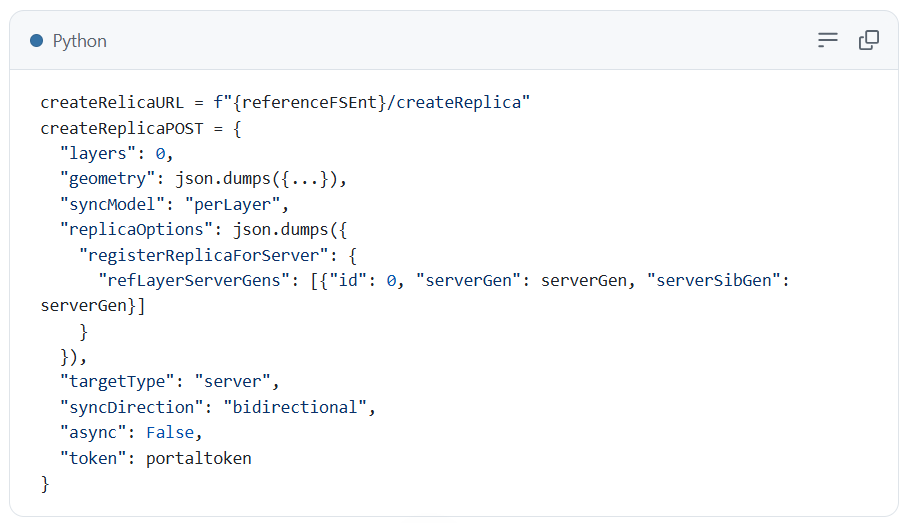
Note: If you are familiar with the one-way feature service sync workflow, you will notice the key difference is that the syncDirection parameter is now set to bidirectional.
After creation, the response contains a URL you can query to retrieve the newly created replicaID.
Create the replica on the target (hosted) service
Once you have the replicaID from the source, you create a replica on the hosted service using refReplicaID allowing both replicas to align and participate in the same replica pair.
In the sample:
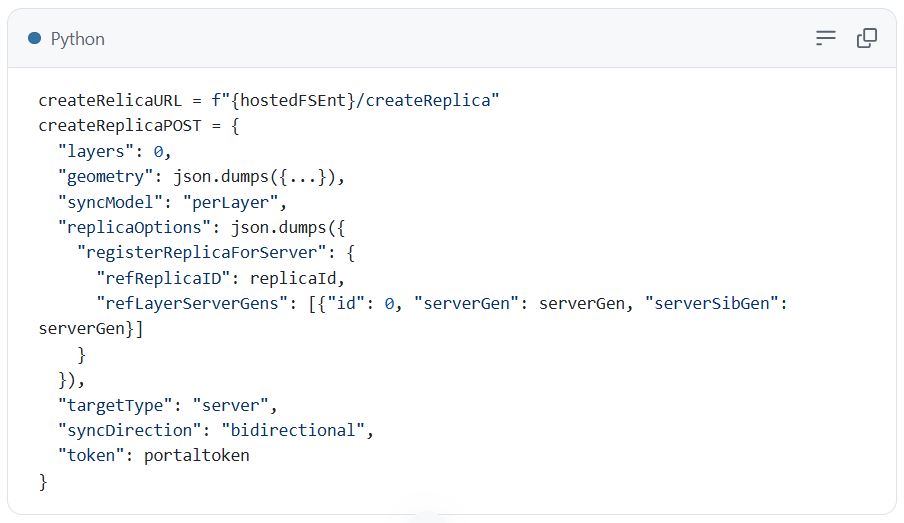
At this point, you have a paired replica setup: source ↔ target.
Step 2 — Make edits to the web layers
In a real workflow, once replicas exist, you can make edits to both the source and target feature service using any of the following:
- web apps
- ArcGIS Pro
- through the REST API applyEdits endpoint
- through field apps (depending on your service configuration)
In this example, attribute edits are made to both the source and the target feature services by changing the pole heights.
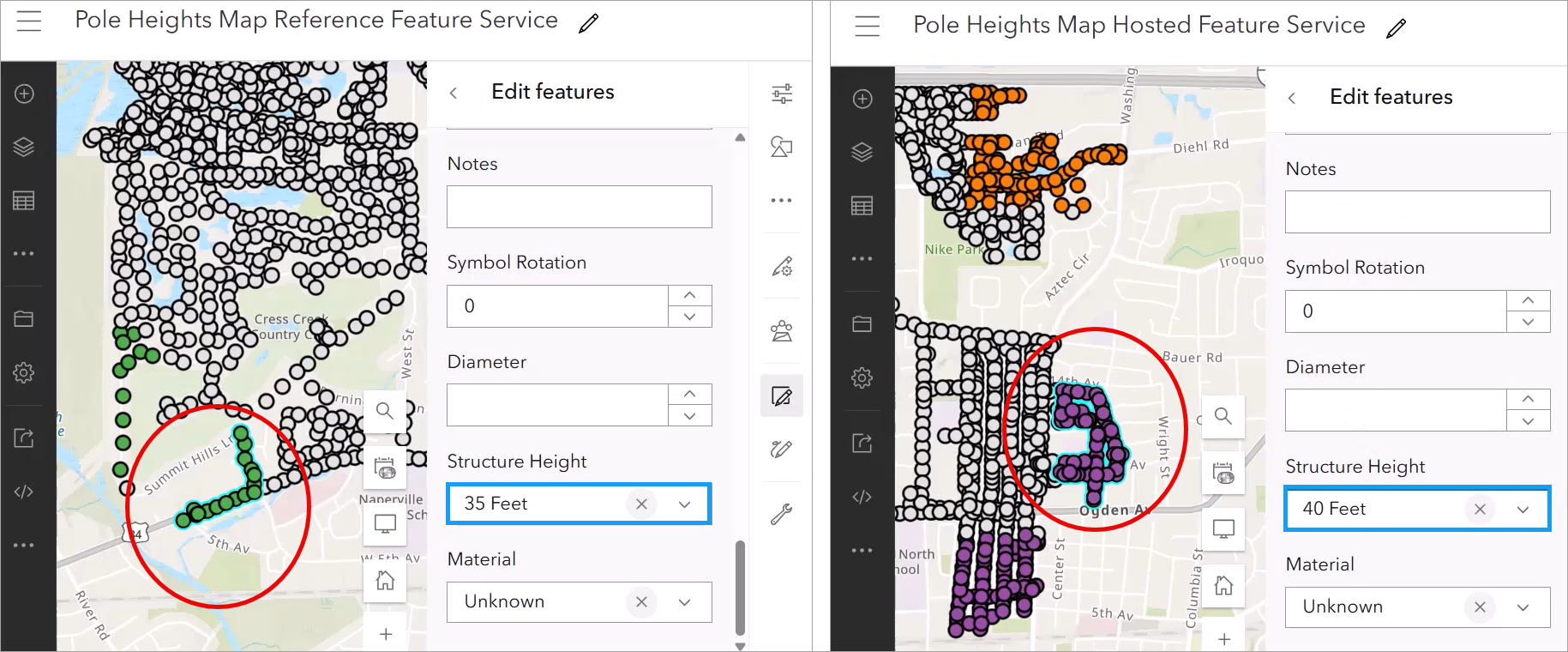
Step 3 — Synchronize the changes
A. Sync download from the source (pull edits made on the source)
To start the two-way synchronization, the script performs a download on the source feature service (in this case, the referenced service). This download is performed based on the last edits received by the target feature service, so the source only packages what the target still needs.
Read the target replica state
The script queries the target’s replica metadata to get the “last received edits” generation number.
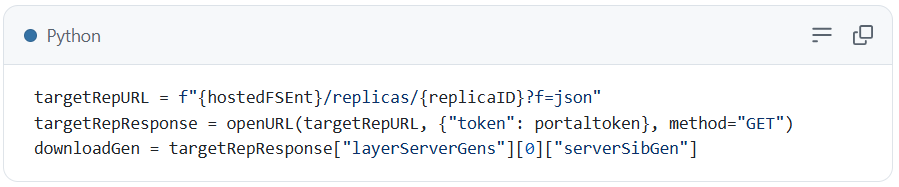
Call the synchronizeReplica function with syncDirection=download
Then it calls synchronizeReplica on the source service with syncDirection=download, passing serverGen based on the generation retrieved above.
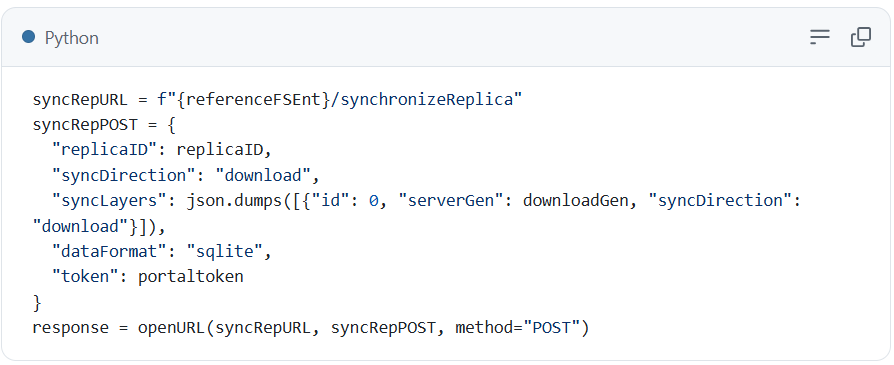
If there are edits to download, the response provides a delta file URL (in SQLite format) that can be passed along to the target service in the next stage.
B. Sync bidirectional on the target (apply incoming edits + package outgoing edits)
This is the “pivot” step in the sample: the target service receives the edits, and it determines whether it has edits to send back.
Upload the delta file to the target feature service
If the referenced-service download produced a delta file, the script uploads it to the hosted service using the service’s /uploads/upload endpoint:
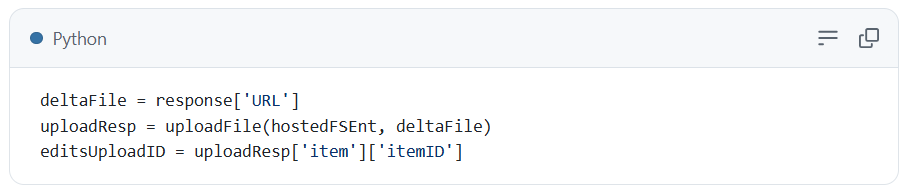
Read the source replica state
Before calling bidirectional sync on the hosted service, the script checks the source replica generations (so the target side knows what the source has already received):
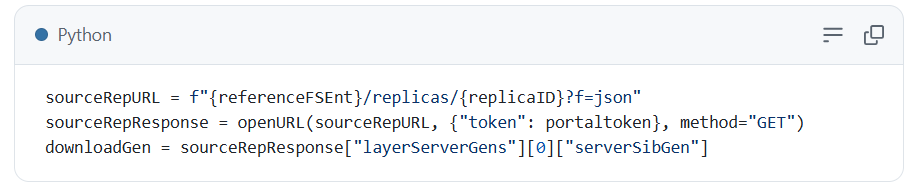
Call synchronizeReplica with syncDirection=bidirectional
Now the target service synchronizes bidirectionally.
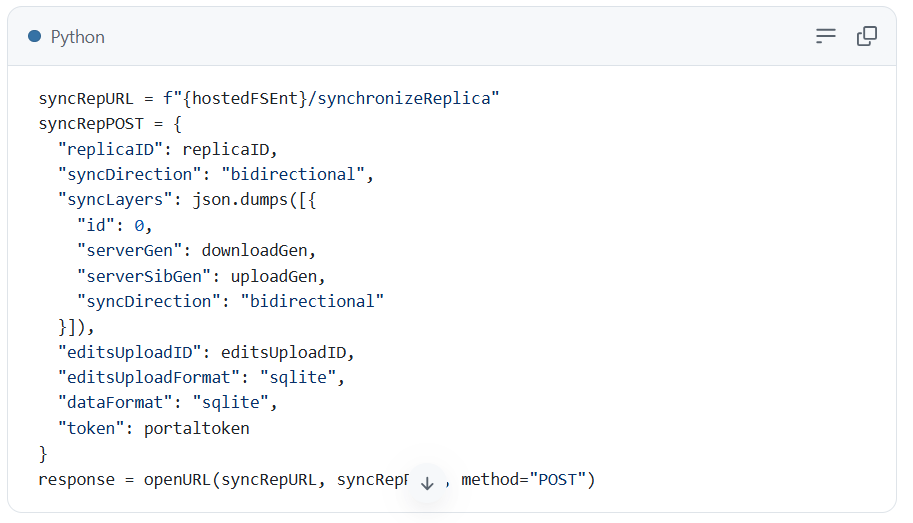
If the target service has no edits to return, it will respond with a “no edits” response type and the workflow ends.
C. Sync upload back to the source (push edits from the target back to the source feature service)
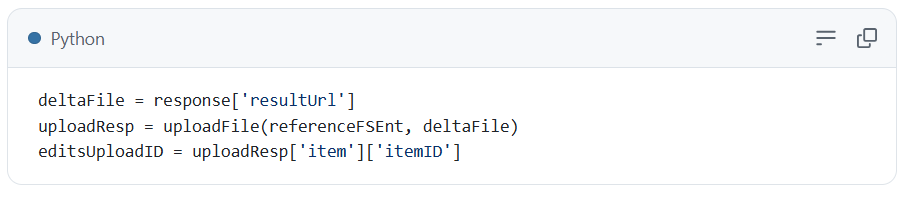
If the bidirectional step produced edits to send back, the target service returns a delta file (in the sample as resultUrl).
Upload the delta file to the source feature service
Upload the delta file that contains the edits from the target to the source feature service.
Call synchronizeReplica on the referenced service with syncDirection=upload
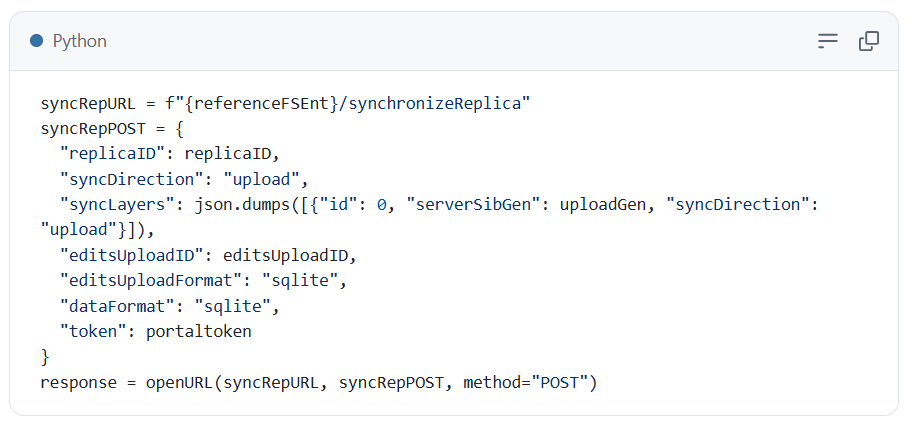
At this point, edits have been exchanged in both directions, and both services are in sync.
Two-way feature service-to-feature service sync in ArcGIS Enterprise 12.1 expands the one-way workflow introduced in an earlier release by enabling bidirectional edit exchange between two services backed by separate data sources. By creating paired replicas and using synchronizeReplica with the appropriate direction (download → bidirectional → upload), you can support collaborative editing patterns that previously required more complex replication or custom workflows.
The script can be run any time you want to sync edits between the two services. To make the most of this workflow, you can run the sample script on a schedule (for example, with Task Scheduler) to keep both services synchronized automatically.
It is also important to remember that the sample script is intended to serve as a starting point. This workflow allows for additional flexibility that can be incorporated into more advanced ones. For example, you can do the following:
- Use async=true for longer-running synchronization jobs
- Apply filters such as where clauses during replica creation to limit the data being synchronized
- Customize synchronization intervals
- Extend the workflow into larger automation pipelines and integrations
For more content on ways to distribute your data in ArcGIS, check out the Geodatabase Resources Hub.

Commenting is not enabled for this article.