Enhancing Search
Search functionalities in ArcGIS for Teams have always been an important aspect of the ArcGIS user experience in Microsoft Teams. You can stay connected to public ArcGIS Online content or your own private ArcGIS organizational content, and search for your content in a Chat, Team, or Meeting where they have access to their ArcGIS content.
One of the challenges has been that the user workflow for searching content can involves numerous clicks to sort and find the ArcGIS content you want to share. With the introduction of Conversational AI, we are enhancing the search functionality in ArcGIS for Teams to provide users a personal workflow with Esri’s AI assistant in ArcGIS for Teams.
What is Conversational AI in ArcGIS for Teams?
Conversational AI in ArcGIS for Teams enables you to search for ArcGIS content using natural language within Microsoft Teams. The way you begin your search can vastly differ from how another person might begin their search for ArcGIS content. Here’s an example of a search with a direct statement:
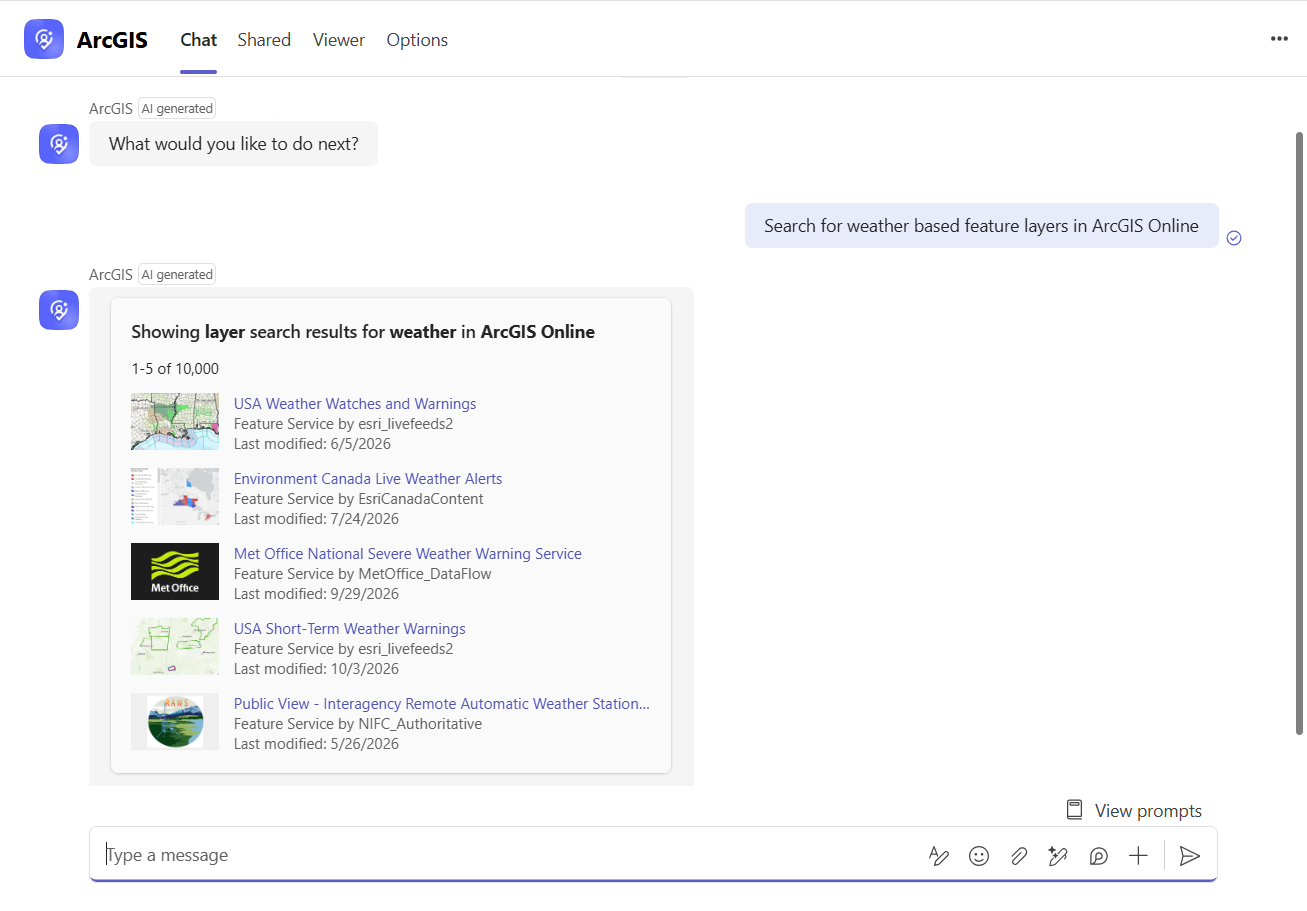
If you provide a direct statement, you can expect a direct response regarding your original statement, and that’s because the AI Assistant is strictly working within the ArcGIS for Teams ecosystem to sort through and provide you with your ArcGIS content.
AI Assistance in ArcGIS for Teams
The search functionality workflow will remain the same as it has always been, where you can search for your ArcGIS content in the ArcGIS for Teams search window. Conversational AI is simply an enhancement to the existing Search functionality, allowing you to streamline your search and have a more human-like interaction with the AI assistant in the Microsoft Teams chat.
So, what does the AI assistant provide you with when searching for information?
For example, if you ask “What can ArcGIS for Teams do?” you may receive responses such as:
“ArcGIS for Teams is an integration that allows you to access ArcGIS content and capabilities directly within Microsoft Teams. It enables users to search for maps, layers, and other geographic information system (GIS) content, collaborate on projects, and share insights with team members. You can also use it to view and interact with maps, perform spatial analysis, and access location-based data without leaving the Teams environment. If you have any specific questions or need help with searching ArcGIS items, feel free to ask!”
Specifically in ArcGIS for Teams, you can:
1. Search and View Content: Access maps, layers, and other ArcGIS content directly within Microsoft Teams.
2. Collaborate: Share maps and data with team members and collaborate on ArcGIS content.
3. Spatial Analysis: Perform spatial analysis and view results within the Teams environment.
4. Access Location-Based Data: Utilize location-based data to gain insights and make informed decisions.
5. Integration: Seamlessly integrate ArcGIS capabilities into your team’s workflow without leaving Microsoft Teams.
By framing your questions around the content you are searching for, you enable the AI Assistant to better identify and expand on relevant ArcGIS items, resulting in more effective searches in ArcGIS for Teams.
I’m having trouble understanding your request…
If the AI Assistant cannot understand your statement or it does not connect the specific content to your question, you will get one of the following results:
- It provides the closest related ArcGIS content in your current conversation
- It lets you know that the AI assistant does not directly understand your input. This way the AI assistant lets you know that it needs more specific conversational input to properly return ArcGIS related content.
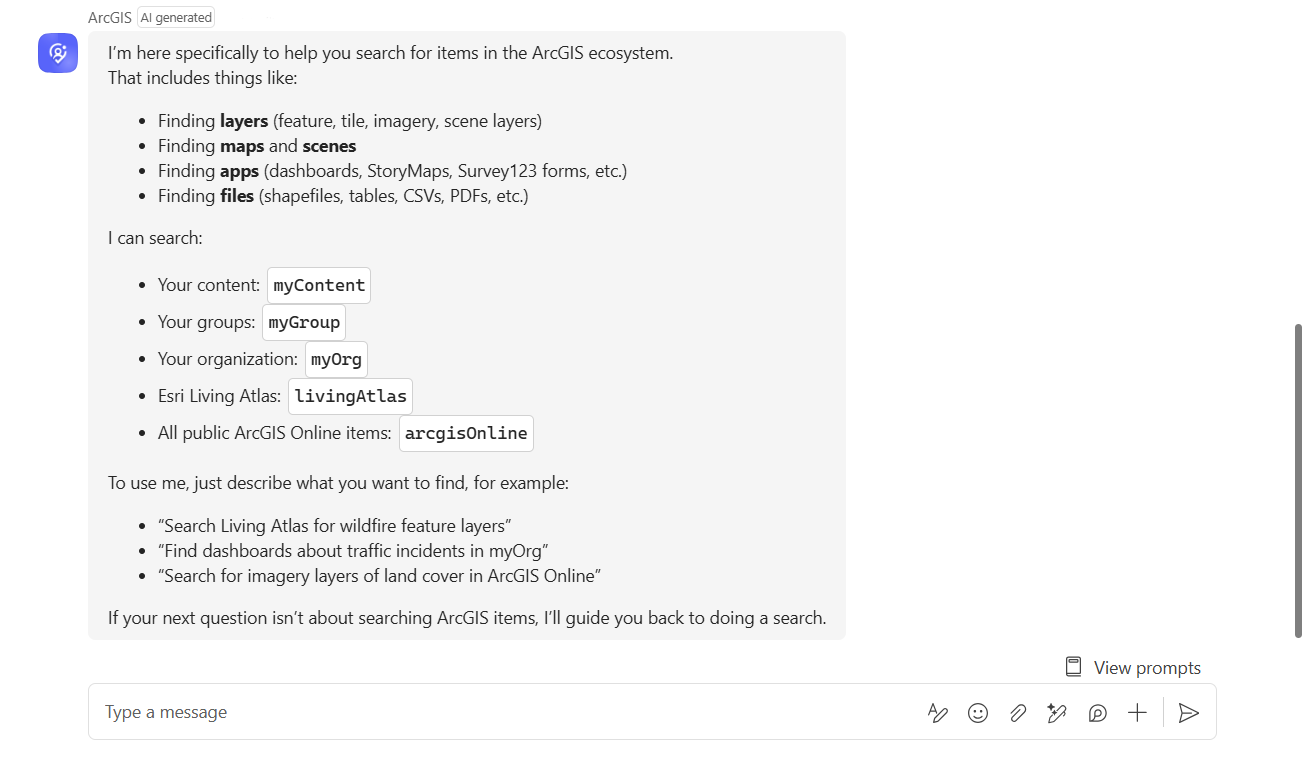
Like all human-like interactions, not every conversational input can be perfectly understood. There can be misunderstandings during conversations, and if there isn’t a resolution to an input that is continually requested, then the AI assistant will revert to the existing Search functionality.
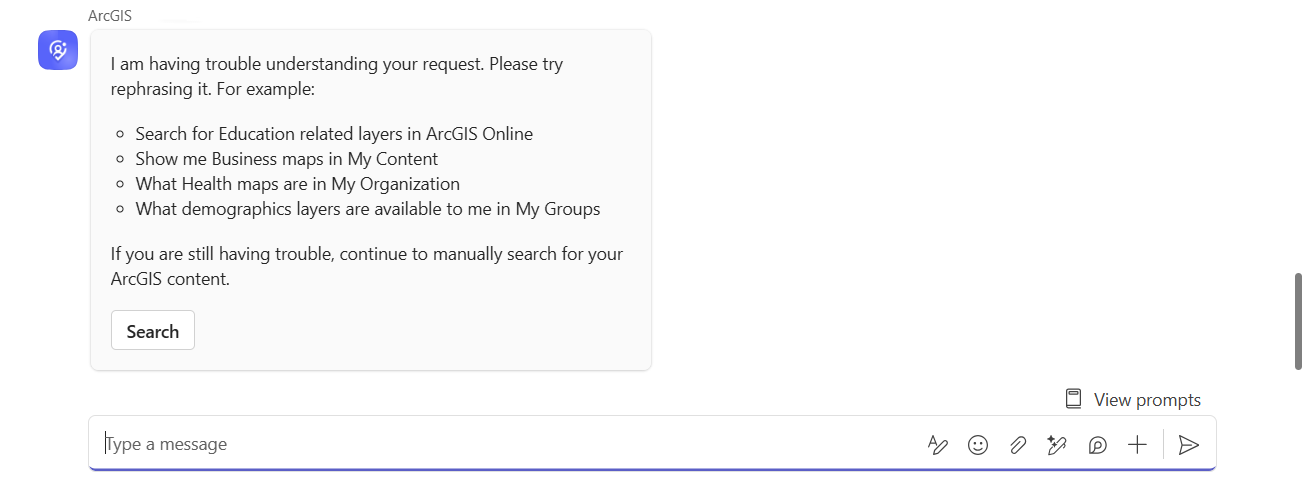
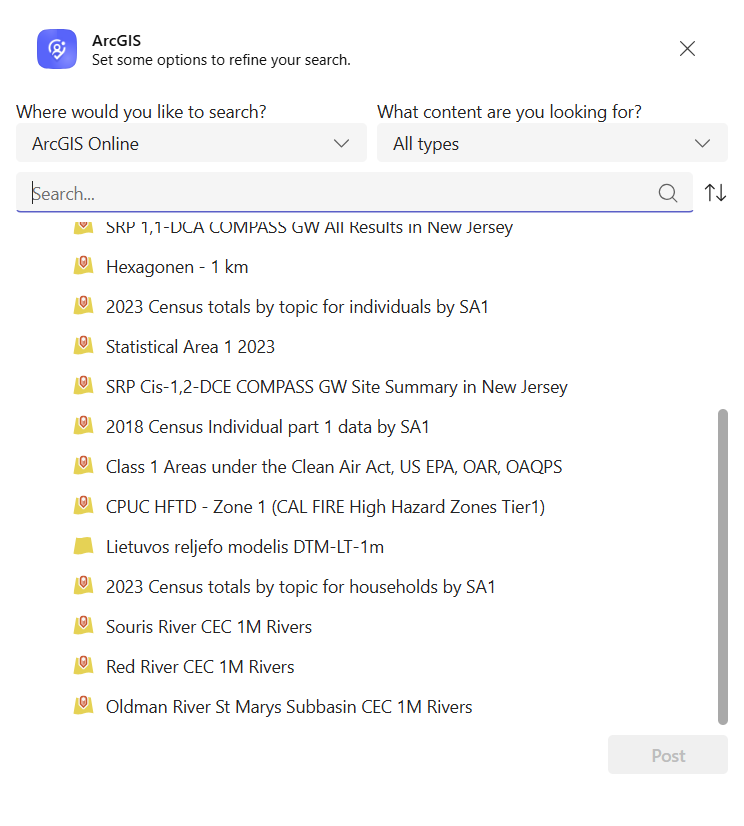
When the AI assistant has hit the limit of requests that are not being met, it will respond with a similar message to the image above. This allows you to continue with your search experience by selecting the standard Search functionality to continue working with your ArcGIS content.
ArcGIS for Teams provides details on how you can begin your Search experience. In ArcGIS for Teams, you can search for a variety of items including maps, layers, files, scenes, and apps. You can filter these searches by specific subtypes such as feature layers, ArcGIS StoryMaps, ArcGIS Dashboards, and so on. Additionally, you can specify the source of your search, such as your own (my) content, (my) groups, (my) organization, Living Atlas, or all public items in ArcGIS Online.
For example, you can say, “Search for feature layers about earthquakes in my organization,” or “Find ArcGIS StoryMaps related to climate change in ArcGIS Living Atlas.” This will help you streamline the search for items within the ArcGIS ecosystem.
Here are some example prompts that you can use to search for your content:
- “Search for feature layers about population in my content.”
- “Find ArcGIS StoryMaps related to urban planning in ArcGIS Living Atlas.”
- “Look for .csv files on wildlife data in my organization.”
- “Search for dashboards on traffic analysis in ArcGIS Online.”
- “Find imagery layers of satellite data in my groups.”
These prompts help specify the type, subtype, and source for your search in ArcGIS. You can also type in action verb prompts such as Search, Help, and Reset to get additional context, assistance, or start a new conversation in ArcGIS for Teams.
Activating your ArcGIS for Teams AI Assistant
If you are not seeing this functionality, you may need to follow some additional steps to enable the AI assistant in ArcGIS for Teams.
- Click and Open the Options Tab in ArcGIS for Teams to sign in to your ArcGIS account.
- Ensure that Enable AI assistant (beta) is switched on to enable generated AI responses
Note: Minimum named user (Viewer) account is required to access the AI assistant
- In your ArcGIS Online Organizational account settings, specifically AI Assistants enable “Allow use of AI assistants by members of your organization”.
- In the Security section under Apps, disable “Block Esri apps and capabilities while they are in beta”.
- If you are not seeing these settings in your ArcGIS Online organization, please reach out to your ArcGIS Online administrator to open the permissions for the listed settings.
Conclusion
ArcGIS for Teams has enhanced the standard Search experience to a modern workflow that will now allow you to have natural language processes based on your ArcGIS content and related requests. Start experiencing the ArcGIS AI assistant by typing to your search queries. You can leverage this workflow to expand on your searching, sharing, and collaborating with ArcGIS content throughout Microsoft Teams. As for the AI Assistant, this is just the beginning of how you can leverage AI throughout ArcGIS for Teams.
Resources
https://appsource.microsoft.com/en-us/product/office/wa200002859?tab=overview
https://teams.microsoft.com/l/app/ba4eda44-cd55-4e15-855c-0debafb0490b?source=share-app-dialog
https://doc.arcgis.com/en/microsoft-365/latest/teams/get-started-with-arcgis-for-teams.htm
https://community.esri.com/t5/arcgis-for-teams/ct-p/arcgis-for-teams

Article Discussion: