Workspaces is the new site management experience in ArcGIS Enterprise Sites. Join this short excursion, especially if you are a site owner, data manager, or an editor in Enterprise Sites. You will find a more modern and streamlined interface, additional configuration options, and more efficient patterns of navigation.
Workspaces are the places where you go to get things done. Manage content, capabilities, and preferences in workspaces, which replaces classic edit mode. You can edit information and manage certain settings for sites, pages, content, and other items in the relevant workspace.
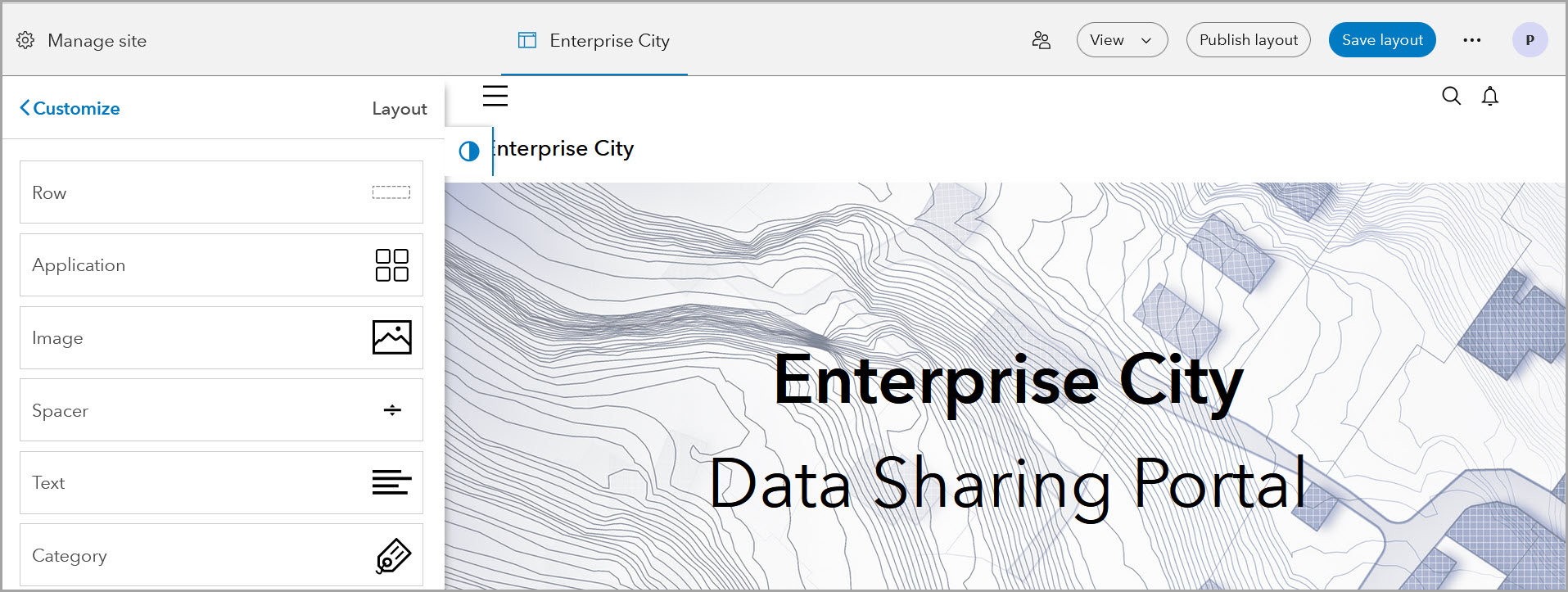
The live site view still shows global navigation (when enabled) and header content, such as your site’s title, logo and navigation menu. Continue to use the layout editor to design your sites and pages with a variety of drag-and-drop layout cards.
Explore the user workspace
After signing in to Enterprise Sites, open your user workspace from your user profile by selecting View workspace. Each user has a workspace to access key workflows, relevant settings, content, and groups. This workspace is your home base and starting place.
What you can access and create in the user workspace depends on your account privileges. On the Content pane, you can browse and search items. Select the name of an item to view it.
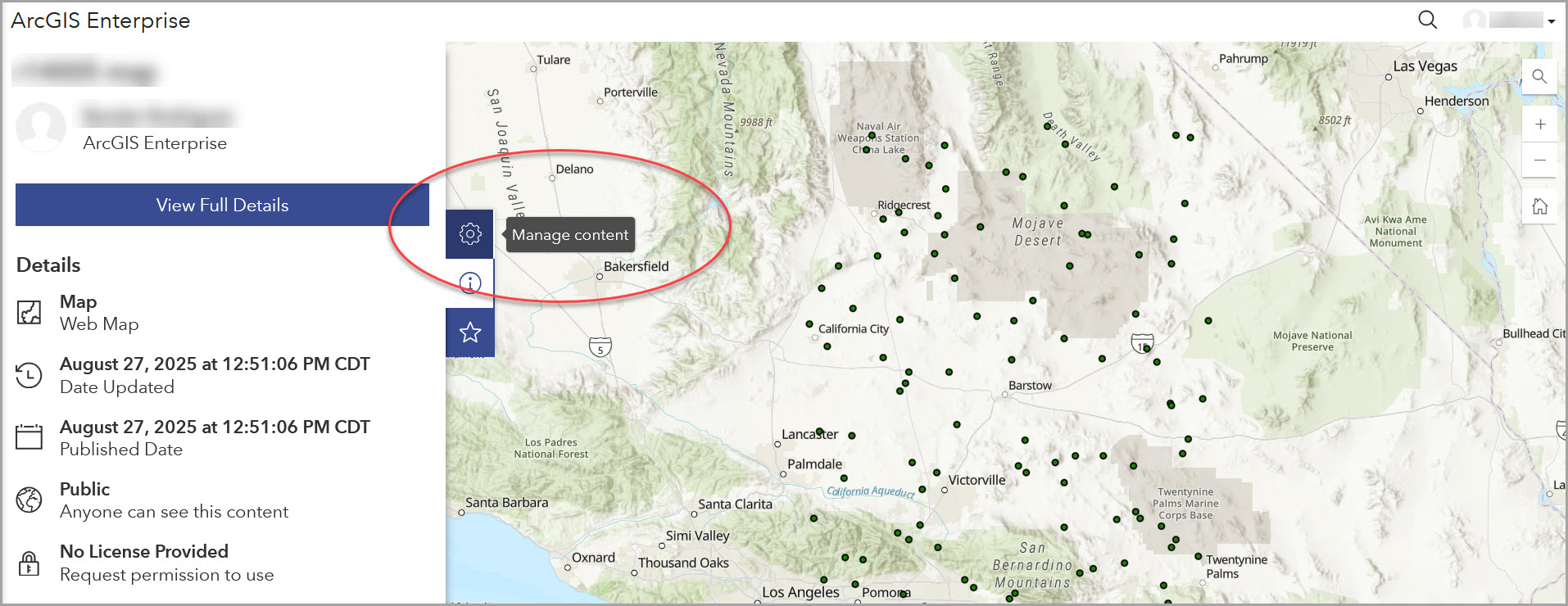
If you have edit permissions, you can use the Manage button to open the item’s workspace. When viewing an item, select the Manage content button on the sidebar to open it’s workspace.
On the Groups pane, you can access your Enterprise groups and Enterprise Sites teams used previously. Select a group name to view it. For groups that you can edit, select the Manage button to go to the group’s workspace.
Venture into the group workspace
With the transition from teams to groups, you can use any Enterprise group to collaborate and no longer need to manage teams in Enterprise Sites.
In the group workspace, you can manage the content and membership of migrated teams and other groups. Edit information such as title, summary, and thumbnail on the Details pane. Go to the Members pane to browse, search, and add members to a group.
Leverage a more consistent interface
The workspace interface is standardized across various items with a few specialized details and settings, depending on the item. For instance, sites, pages, groups, and content all have the following panes:
- Details pane- title, summary, thumbnail, location, etc.
- Settings > General pane- deletion settings
- Settings > Sharing pane- sharing level, adding groups to view or edit the item
Discover the Create button
It’s easy to create items using the Create button that is always available on the global navigation header. This button allows you to create a site, page, group, and other content. Options for the Create button depend on your privileges, and the context of what you are viewing.
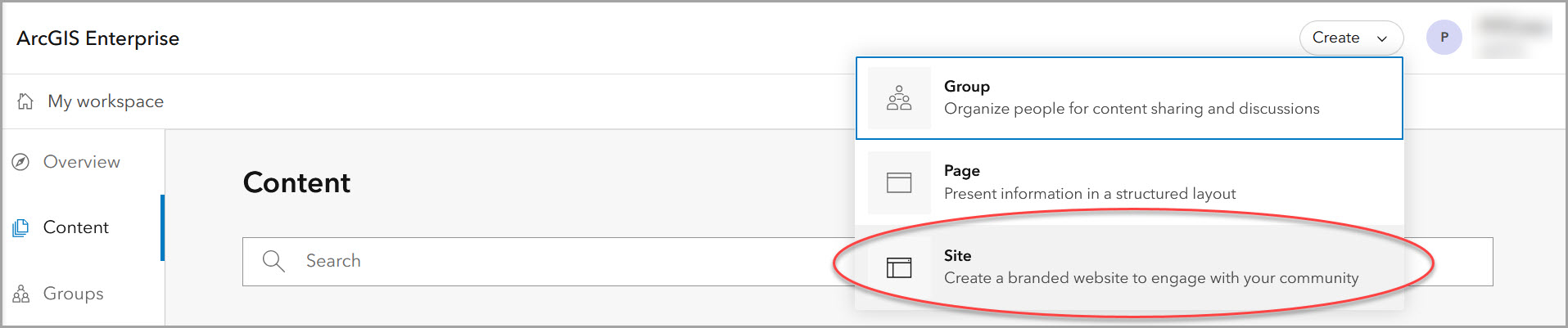
When you create a site in workspaces, you can choose a catalog type:
- Blank catalog
- Quick start catalog with a new group
- Start catalog with existing group
You can also share the site with groups of people to view or edit it. If a site is shared with a shared update group (edit group), group members can edit the site layout and workspace information. Add a view only group (view group) from your organization so that group members can search and view the site, if it is not shared with the public.
Tour the site workspace
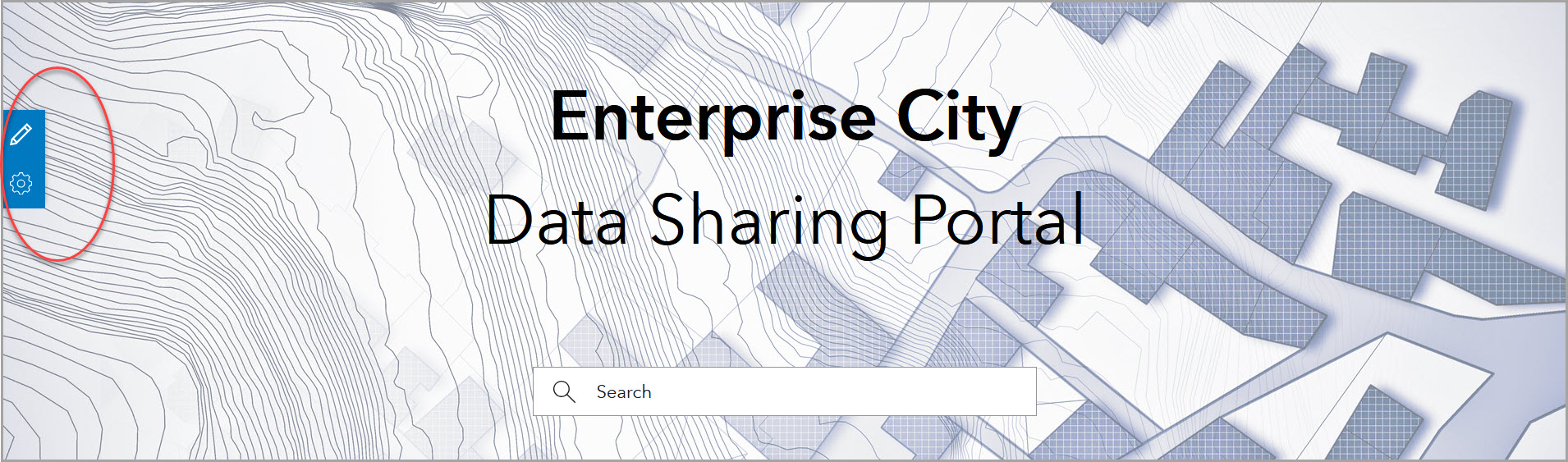
From your user workspace (Content pane) open a site by selecting the title. This takes you to a live view of the site. Site editors can then open the site layout editor and other settings (select the Edit button) or the site workspace (select the Manage site button).
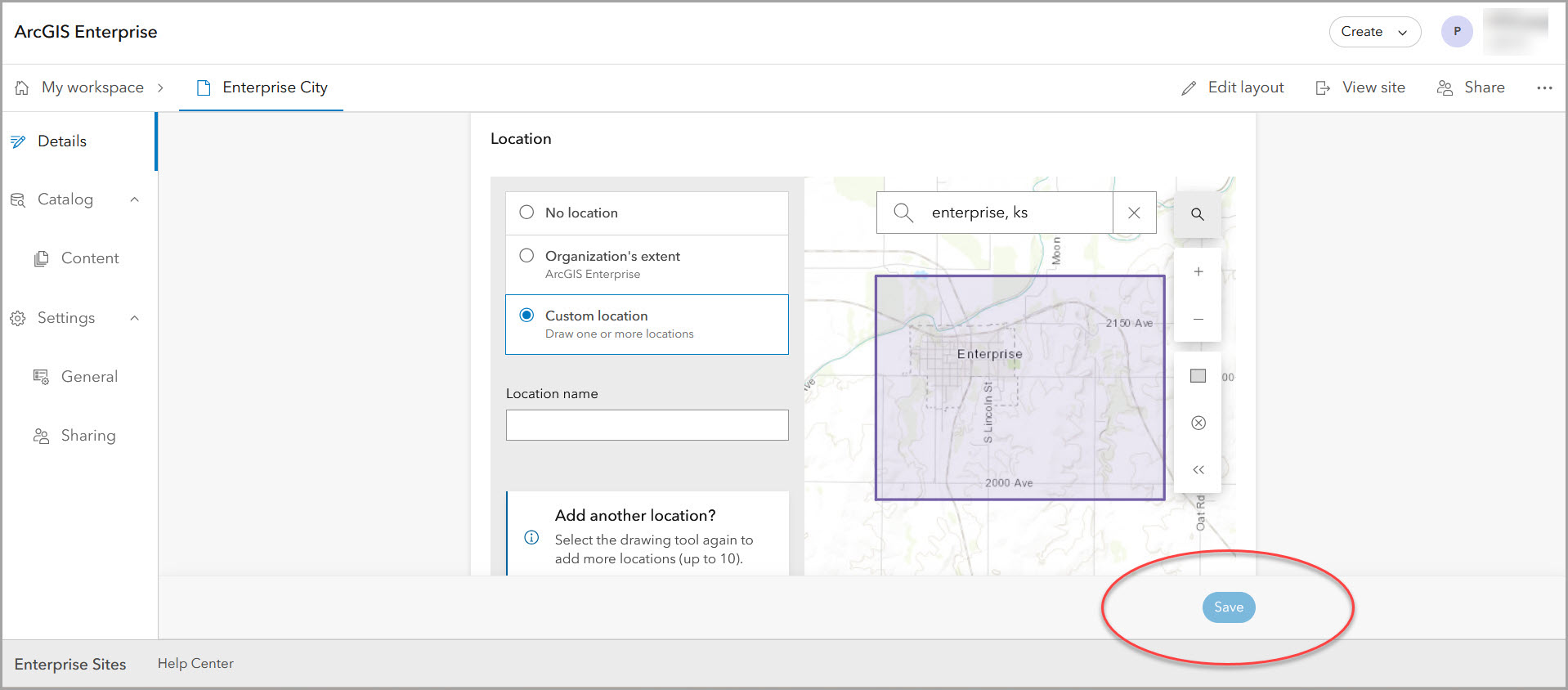
On the Details pane, you can add or edit site information such as title, summary, or description to appear in the site view. Add tags and categories to optimize discovery of the site. If you make changes on any pane, save your edits before navigating away (this applies to all workspaces).
Configure a site catalog
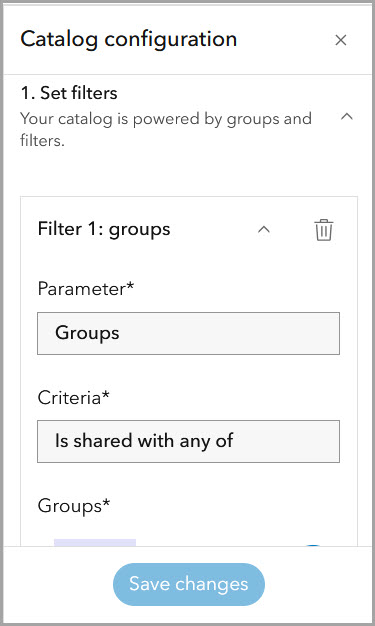
Sharing authoritative content is a core capability of Enterprise Sites. Site catalogs, powered by groups and collections, allow visitors with the appropriate permissions to search and view your shared documents, data, maps, and more. Workspaces make it easier to manage those groups and share your curated data and other content.
Configure the site catalog on the Catalog > Content pane in the site workspace. Find detailed steps for setting up your site catalog. To add additional content to your site catalog, share that content with groups connected to the site.
Set up site access and sharing
Find previously linked teams such as the core team and content group in the site workspace. Set the sharing level to just your organization, make the site fully public, or keep it private. Here, you can also share the site with groups for viewing or editing.
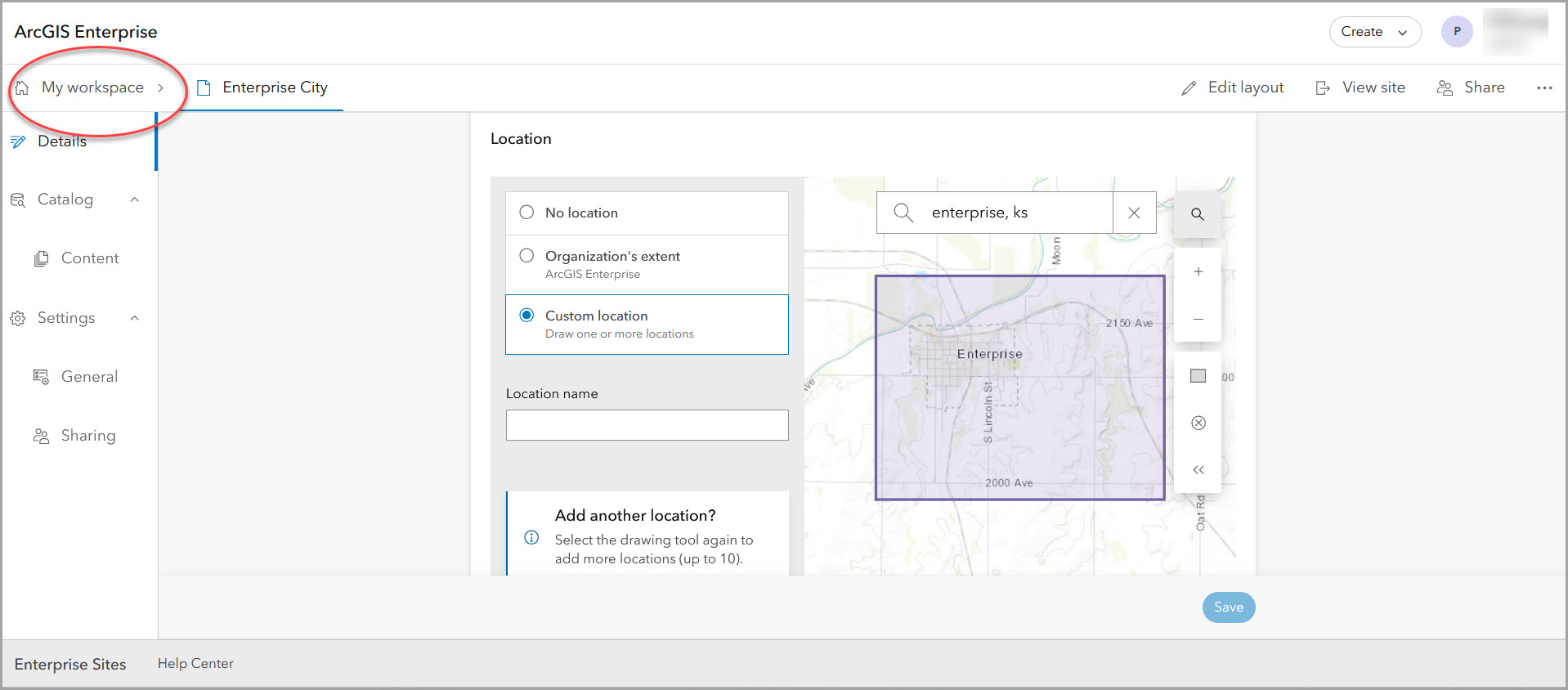
Note: From the workspace of any item, select My workspace to return to your user workspace.
From the site workspace, select View site to view your changes. From there, you can select Edit (edit pencil) to begin designing and editing the site layout. Or, select Manage site to return to the site workspace.
Thank you for joining this exclusive daytrip into workspaces, the new editing experience for Enterprise Sites. As you use workspaces, post your questions and ideas to our Community page.
Learn more about workspaces
- Consult the ArcGIS Enterprise Sites documentation:
- Get started– overview, sign in, system requirements, what’s new
- Sites– create sites and pages, edit layouts, manage sites and pages in the workspace
- Content– manage content items, configure catalogs, explore data, download settings
- Collaboration– use groups to collaborate and share content, roles and privileges
- Sign up for the ArcGIS Enterprise newsletter.
- Inspire others by submitting your sites to the Gallery.




Article Discussion: