ArcGIS Indoors enables your organization to build an indoor geographic information system (GIS) and makes the power of indoor mapping, space planning, and navigation available to everyone. Key patterns of use include asset management, space management, safety and security, and occupant and visitor experiences.
Discover the latest, including the redesigned Indoors Mobile, enhanced focused Indoors web apps, and Indoors Pro enhancements in the recent releases of ArcGIS Indoors.
Note: ArcGIS Indoors releases are across ArcGIS Online, ArcGIS Enterprise (Windows/Linux and Kubernetes), and ArcGIS Pro.
Features Included in ArcGIS Online October 2025 and ArcGIS Enterprise 12.0
ArcGIS Indoors includes web applications for occupant experience, space planning, and for easily creating new floor plans and keeping them up to date.
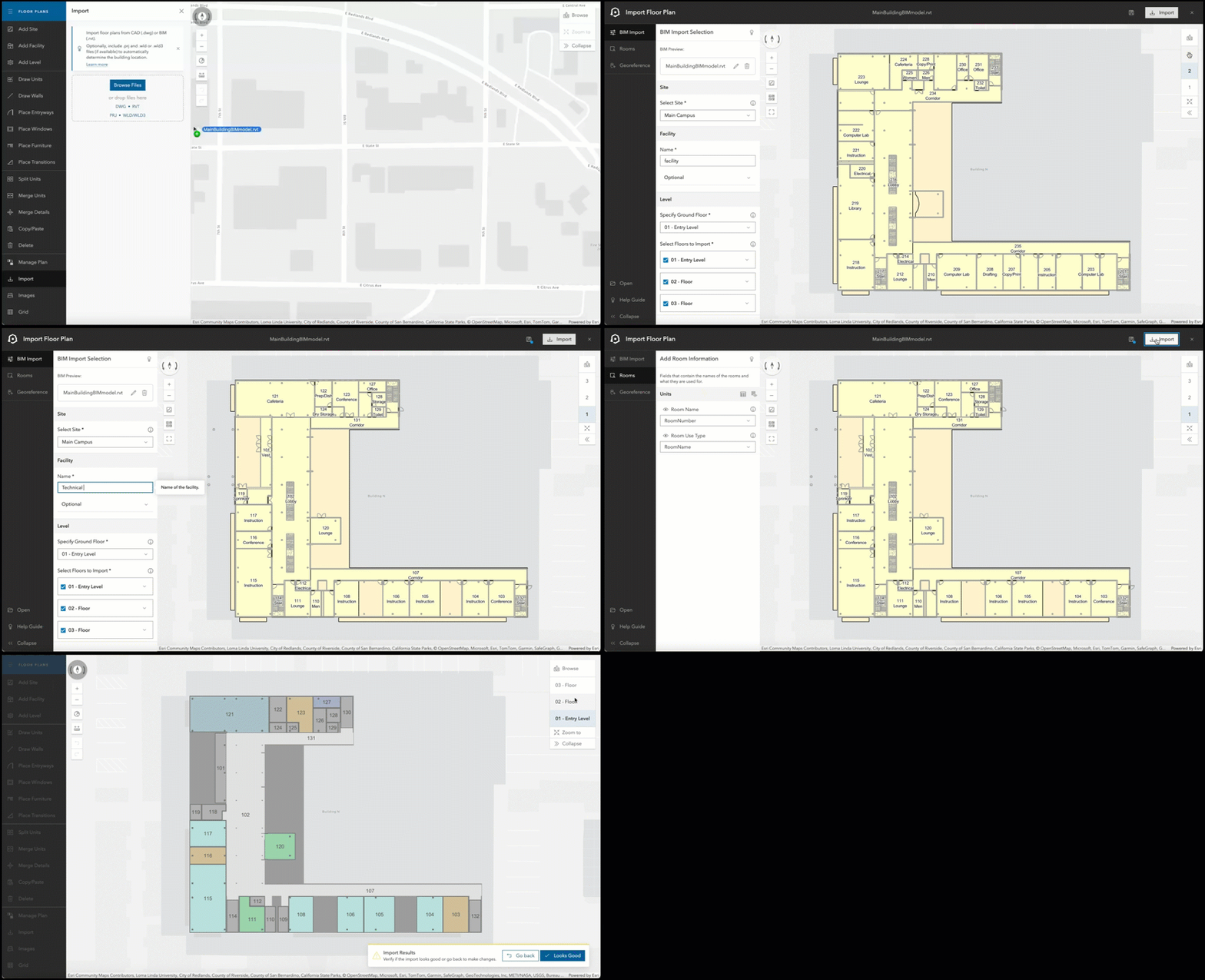
Import floor plans from BIM (Revit in 2D)
Earlier this year, we introduced importing floor plans directly from CAD drawings in Floor Plan Editor to make it easy for non-GIS professionals to create floor-aware maps directly in the web. Importing floor plans also saves time which would otherwise be spent tracing floor plans from an image.
In the ArcGIS Online October 2025 update and ArcGIS Enterprise 12.0, we have added support for importing 2D floor plans from Building Information Model (BIM) created in Autodesk Revit, a software widely used to design, model and document buildings in 3D. All floors of a building get imported at once with a few clicks.
Georeference data in CAD and BIM files
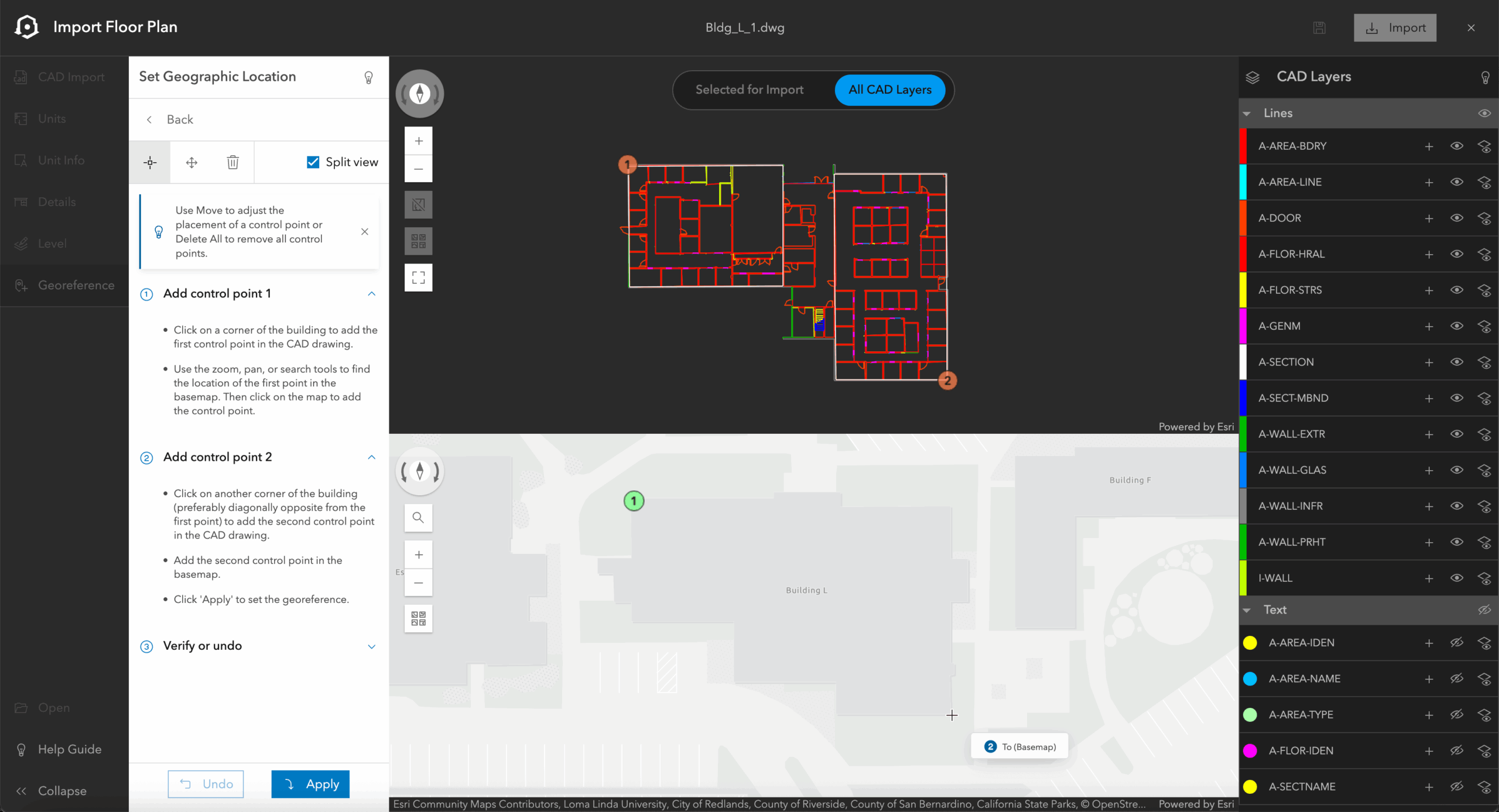
CAD drawings and BIM models for buildings are mainly created for design and construction. When importing the floor plans to a floor-aware map, it is important to georeference the data, so it appears in the exact location on a map. Georeferencing of CAD and BIM files is done in ArcGIS Pro or even in AutoCAD for CAD drawings. Now, ArcGIS Enterprise 12.0 and ArcGIS Online October 2025 releases of ArcGIS Indoors include the ability to georeference before importing the floor plans in Floor Plan Editor. This is useful for non-GIS staff as they do not need to depend on or wait for trained professionals to do it for them.
Enhancements to Business Unit Planning
The Space Planner web application in ArcGIS Indoors helps organizations plan and optimize the utilization of spaces like offices and conference rooms through drag and drop assignments. It also enables workspace reservation through office hotels.
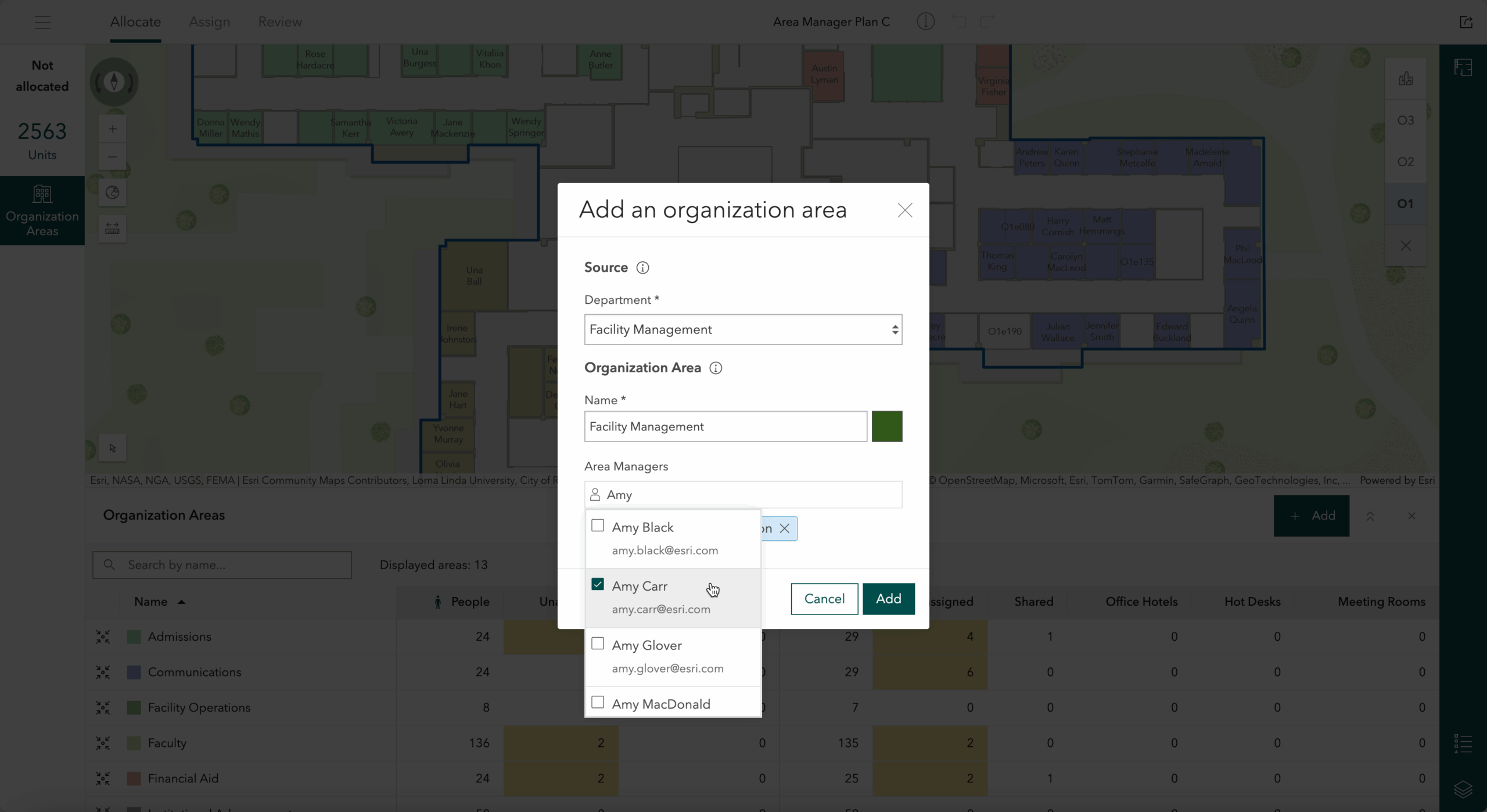
Last year, we introduced support for business unit planning through Organization Areas. Organizations are made up of different business units such as School of Engineering or School of Arts at an institution for higher education, Administration or Accounting for state and local government offices, and each of them have their specific needs. Organization Areas can be used to plan and review space allocations to various business units and further facilitate workspace area planning by giving space planners insight into which units are available for assignment.
We have been adding several enhancements to business unit planning since the first release. with the latest being support for allocating spaces to a specific business unit for organization planners that belong to a pre-configured group. Additionally, you can now also specify Area Managers to limit space planning within their assigned business unit. This way, you can ensure only the designated staff within your organization perform space planning activities and keep assignments limited their own business units.
Other notable enhancements
Indoors Viewer has a few notable enhancements based on customer feedback and needs. The app can now show GPS/GNSS location when used on Android device browsers. Additionally, multiple mobile map packages can be associated with the Indoors Viewer app to share configurations for workspace reservation, and you can also choose whether to launch Indoors Classic mobile app or the new redesigned Indoors Mobile app when scanning QR codes from Indoors Viewer.
Indoors Mobile 2.1
Indoors Mobile brings indoor maps in the palm of your hand when it matters the most – when you are on the go or out and about. In addition to being able to view different floors of the building through indoor maps, Indoors Mobile enables you to get directions inside and between buildings and always know your location with the power of indoor positioning, find the nearest amenities like restrooms and safety assets like emergency exits and fire extinguishers and even reserve workspaces like meeting rooms and office hotels located close to the people you collaborate with while at work. A new, completely redesigned Indoors mobile 2.0 was released earlier this year in March, and so the first version of the mobile app is now named Indoors (Classic).
The 2.0 release included brand new features like viewing immersive 360° photos and indoor navigation that auto-progresses with audible turn-by-turn directions along with redesigned experiences for exploring the indoor map and making workspace reservations. The latest update, 2.1, brings more exciting new capabilities and additions for feature equivalency with Indoors (Classic) app based on early adopter community feedback.
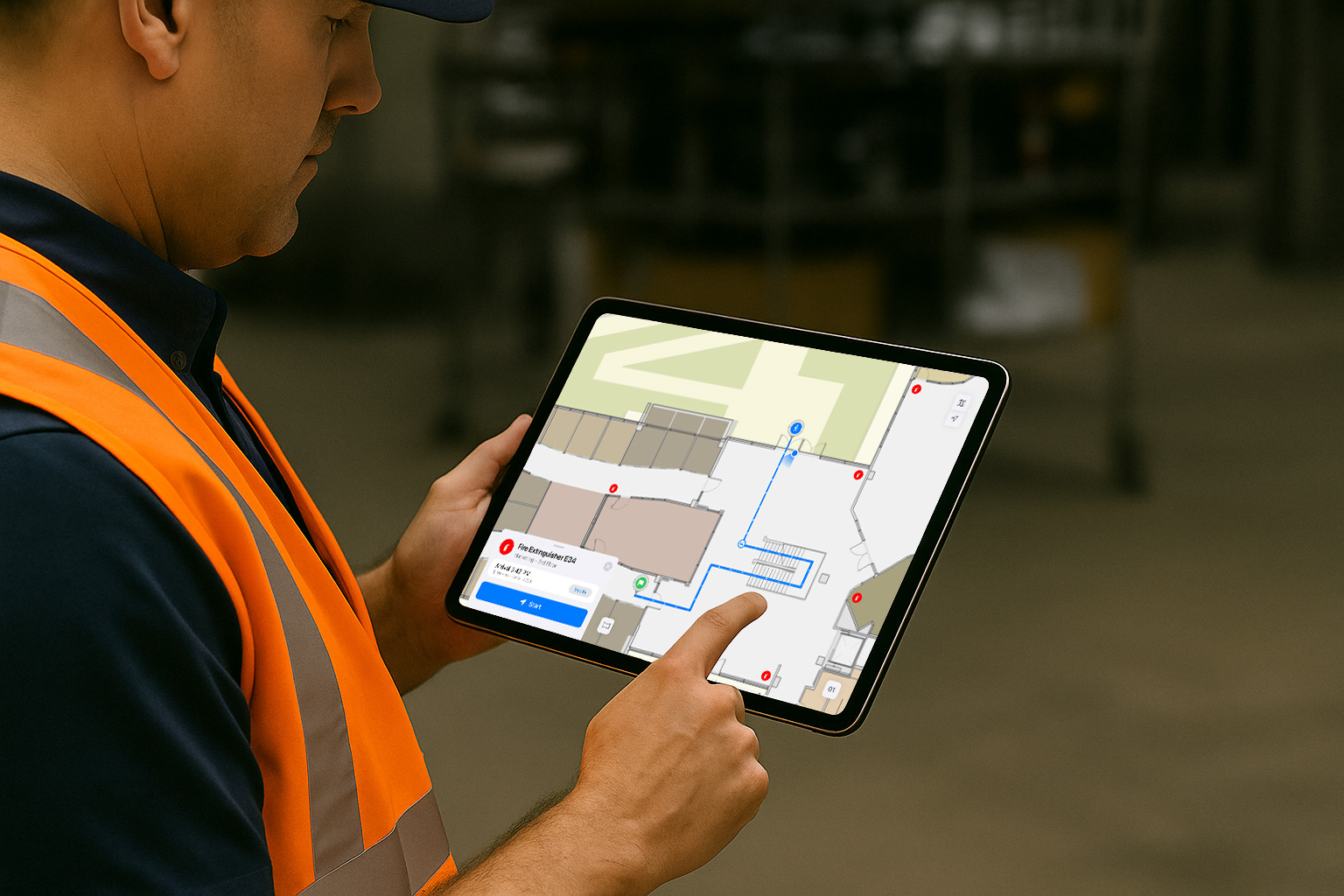
Indoors for iPad
Indoors mobile is now available for iPad. It is carefully designed to support different form factors of various iPad models and take full advantage of the additional screen real estate, which is useful for workflows related to staff in facilities and operations. The user interface is designed for both portrait and landscape orientation, and it is especially productive when used in split-screen mode along with apps like ArcGIS Survey123 and ArcGIS Field Maps, or any other workorder management apps used by the organization.
Custom Travel Modes
Apart from the default Walking and Wheelchair travel modes, Indoors mobile now supports custom travel modes defined in the routable network. Customers create custom travel modes depending on their various needs. For example, for facility workers where the route takes service elevators and access through doors which are otherwise restricted for others or routes for students across campus that include bike lanes or even shuttles. The additional travel modes appear with a unique icon if they are created with specific names.
Route Barriers
In a busy organization campus, there’s always that one main door or elevator in a building that is out of order or that one section in your preferred parking lot that is temporarily closed due to ongoing repairs. Then there’s also the rush hours of lunch time at the café. Barriers can be used along with the routable network to ensure users get routed around these incidents to save time, keep them safe and informed, and avoid frustration. There are two types of barriers:
- Restriction: For cases like a fallen tree in the parking lot or an elevator that is out of order. The directions displayed in Indoors mobile will completely avoid and route around them.
- Cost: For cases like rush hours at the café or a security checkpoint. The directions remain the same but with increased travel time.
Barriers can be added or removed at any time and appropriate symbols and labels can be used to show them clearly on the map. Barriers can also be time-based. For example, a barrier that is only in effect from 12pm to 2pm every day.
Other notable enhancements
Indoors Mobile has a few other notable enhancements based on early adopter community feedback.
Show matching floors across all building – This is useful when there are several buildings that are connected to each other. Users can see floor plan of the corresponding floor of the connected building especially when navigating between them, so the map displays what they see in the real world.
Indoor positioning enhancements – This release includes ArcGIS Maps SDKs 200.7 that brings improvements to indoor positioning. The blue dot location remains in the same position or has minimal movement when user is standing still.
Features Included in ArcGIS Pro 3.6
The latest release of ArcGIS Indoors Pro includes new and enhanced tools for creating floor-aware features and simplified mapping workflows.
Extract floor plans from PDF
For those who don’t have CAD, BIM, or the resources to scan their buildings, we’ve added a new tool to extract floor plans from PDF. The Extract Floor Plans From PDF tool creates polylines and identifies doors from a PDF. The initial release supports PDFs with simple linework, with support for more complex linework and symbology available in future releases.
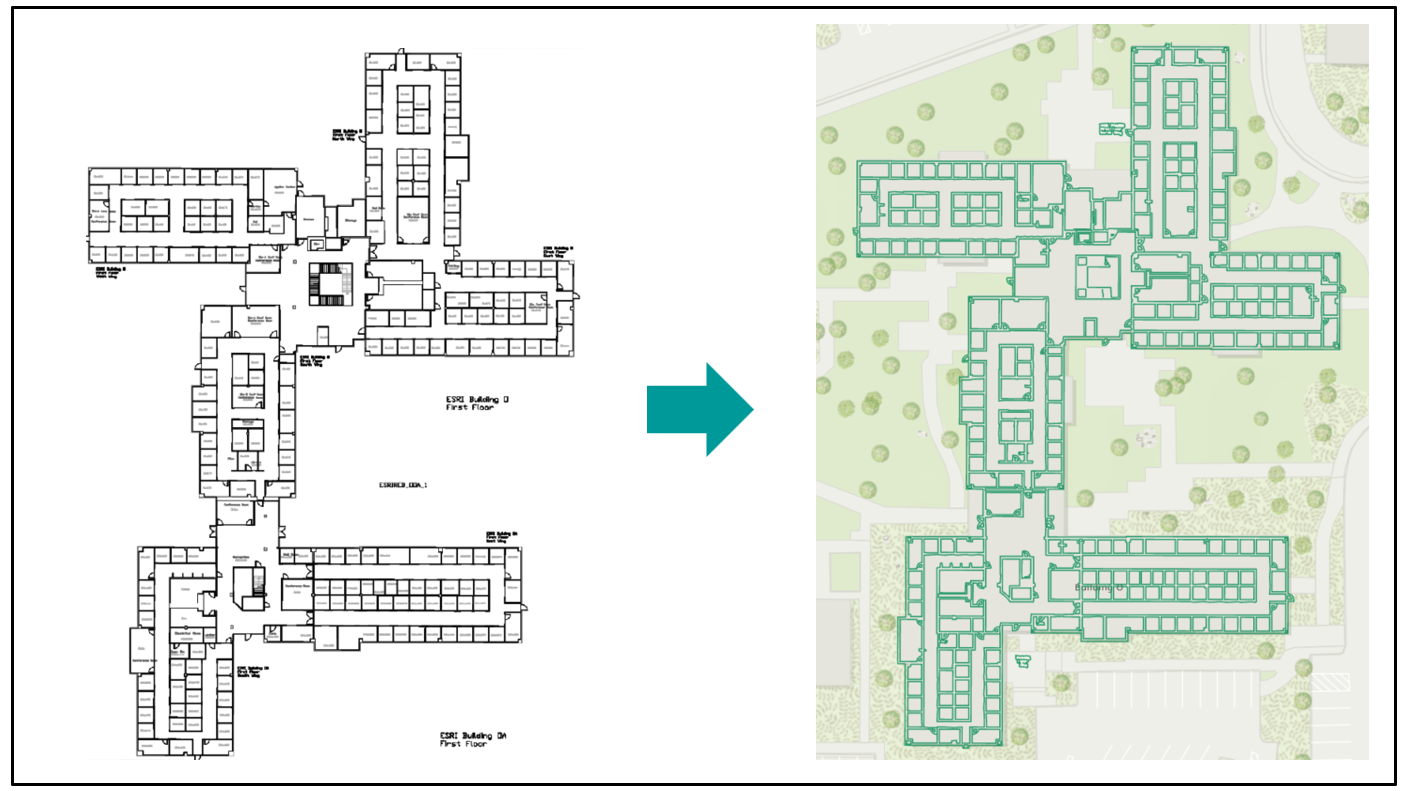
Once any desired edits are completed on the polylines you can use the Import Features To Indoor Dataset tool to create features in an Indoors Model based on these polylines. This tool includes new options to set the level’s elevation and close doors identified in the input polylines to help minimize extraneous geometry editing after features are created.
Extract 360° photos from 360° video
ArcGIS Pro 3.6 introduces a new capability that makes it easier than ever to create immersive, photo-realistic indoor experiences. The new 360 Video To Oriented Imagery geoprocessing tool converts 360° video from affordable consumer-grade devices (available for around $500) into oriented imagery suitable for ArcGIS Indoors, ArcGIS Pro, and other ArcGIS products that support immersive photo exploration.
Simplified floor awareness configuration
In previous versions of ArcGIS Pro, configuring floor awareness for a map required you to first set the Sites, Facilities, and Levels layers in the Map Properties and set the Floors field in the Layer Properties for each layer you wanted to set as floor aware. You can now do all of this directly from the Map Properties pane, significantly simplifying the process of configuring a floor aware map. Additionally, if a layer you choose to configure as floor aware contains a field named LEVEL_ID, it will automatically be set as the Floors field, further minimizing the number of selections required to create a floor-aware map.
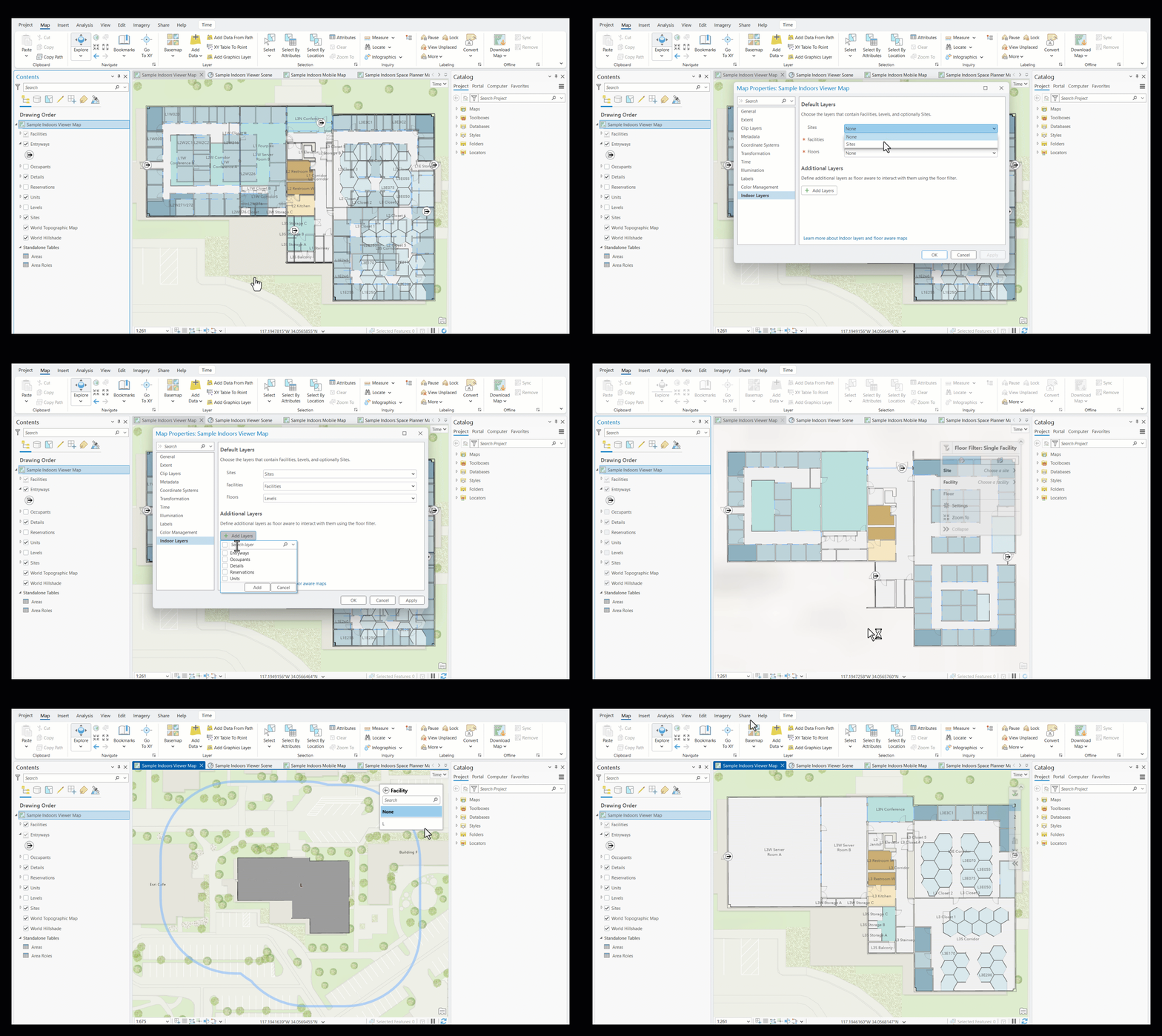
The ArcGIS Pro AI Assistant, currently available in beta, includes a new skill to configure floor awareness. Simply ask the assistant to configure floor awareness or add the floor filter and it will set the Indoors Layers as well as attempt to set the Floors layer for the remaining layers in the map or scene, allowing you to configure your floor a map with just a few short words.
New Floor Filter options for 3D scenes
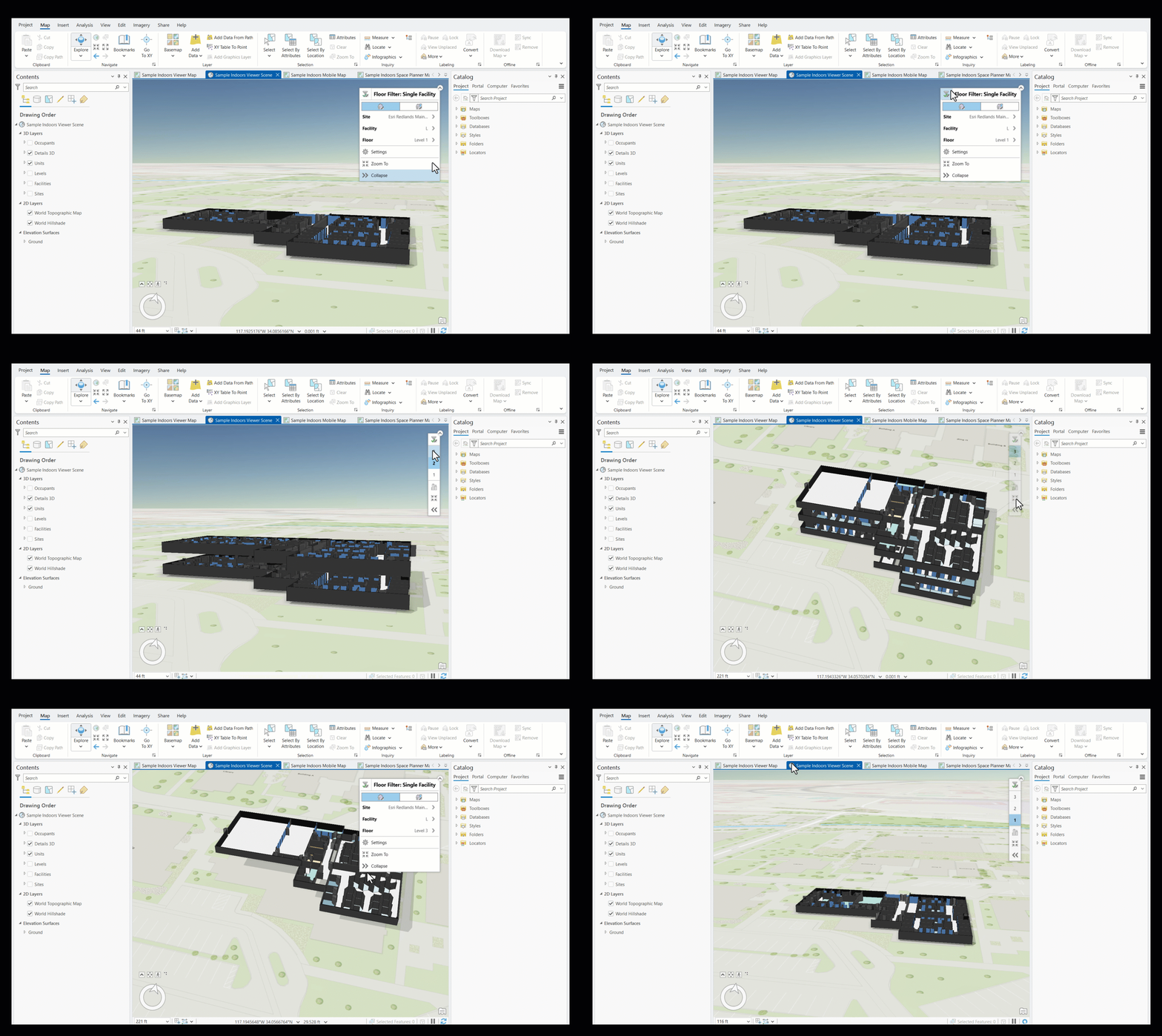
To get additional context in floor-aware scenes, the floor filter includes a new default option to display the floors below the selected floor, allowing you to better visualize a level in the context of the entire building. This option is available in both single facility and multiple facility mode, meaning you can visualize this context across an entire site at once.
The option to visualize only the selected level is still available to support scenarios, such as editing, where an isolated view is helpful.
In summary, the latest release of ArcGIS Indoors includes enhancements to the mobile and web apps, new tools for importing and georeferencing floor plans, business unit planning enhancements, custom travel modes, route barriers, ability to extract floor plans from PDFs as well as extract 360° photos from 360° video, simplified floor awareness configuration, and new floor filter options, all aimed at streamlining workflows and improving user experience.
Happy indoors-ing!


Article Discussion: