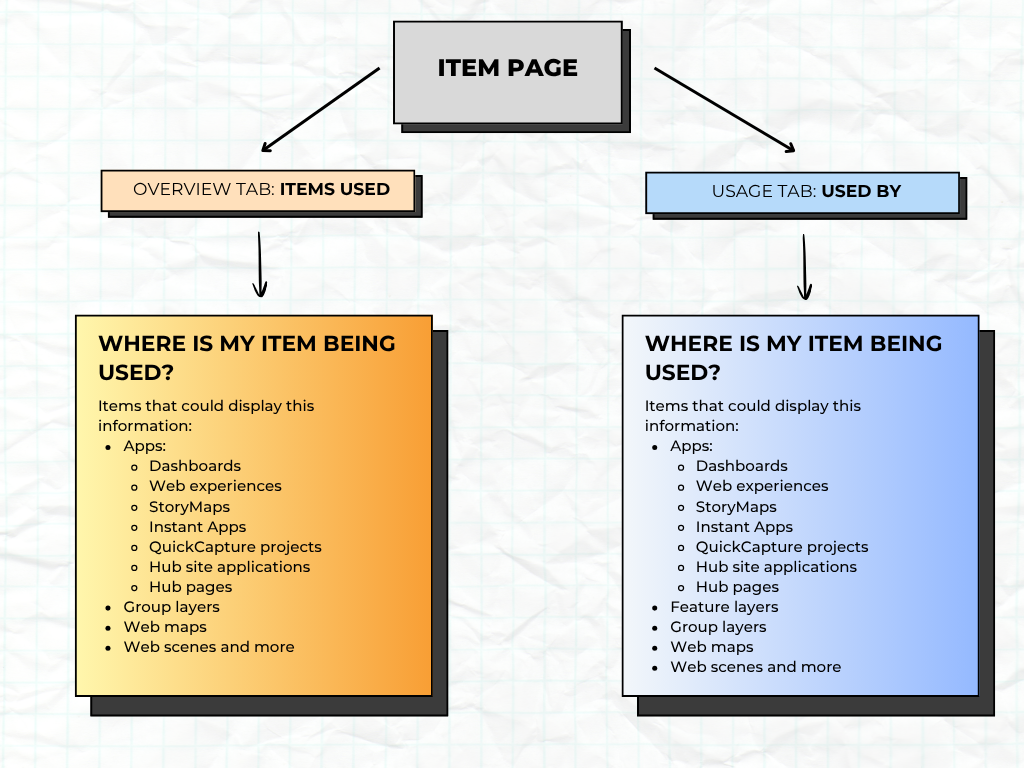
Layers, scenes, maps, and apps are often used in ways that involve dependencies on one another. These complex connections have not always been visible. The latest update to the item page now provides a clearer view of these connections, allowing for the quick identification of underlying and supporting items. For example, a single layer might feed multiple web maps, web scenes, or other applications. Likewise, a web application could rely on several services, each with its own unique data sources. Without visibility into these relationships, it can be difficult to understand how a change to one item might affect other content across your organization.
This new feature introduces an Items used section and a Used by section on item pages for web maps, web scenes, certain app items, and feature layers, making it easier to track dependencies and see how items are linked. Whether you are updating data, transferring ownership, or deprecating and deleting outdated content, having this insight helps you anticipate impact, reduce downtime, and maintain the integrity of your items.
Why item connections matter
When working with items in ArcGIS Online, data and items are curated and authored with an intended audience in mind. It is important to think about who needs access, what content they will see, and how the content is built. In ArcGIS Online, items and members form the backbone of how information is organized and shared. Sharing plays a central role in the model, with different levels of sharing, like groups, organizations and public. One item can be used to create another, which may then be referenced in multiple places. These chains of connected content mean that any change to one item can ripple through others.
For instance, say you have a public dashboard that has a web map and layers, then at one point, the web map and layers are suddenly made private. Removing the web map or layer that powers a dashboard could break the dashboard for its users.
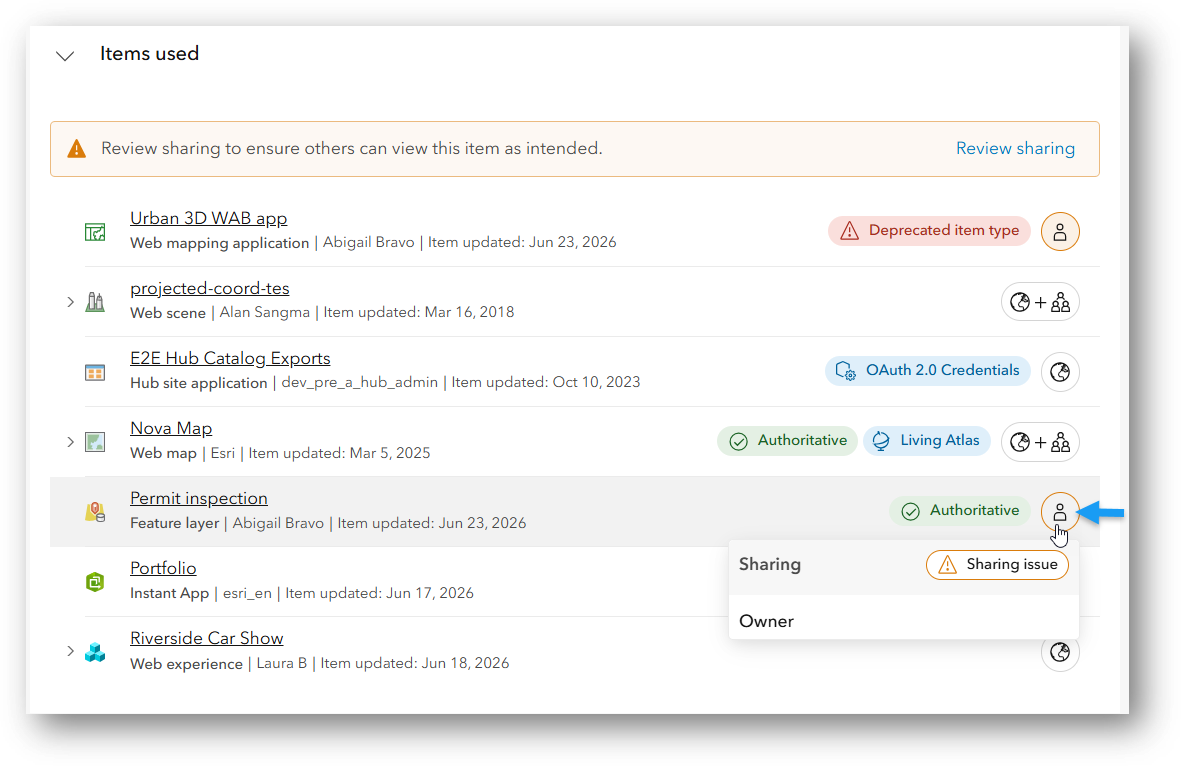
Knowing where your items are being used, what they depend on, and what depends on them is essential. This awareness helps you anticipate the impact of actions such as sharing, transferring item ownership, or deleting items. By understanding the connections, you can make informed decisions, avoid disruptions, and maintain the integrity of your content and workflows.
Discovering item connections
With the June 2026 update, ArcGIS Online introduced powerful tools to visualize and manage connections between your content. For supported items, the item page includes Items used and Used by sections that display related content and connections. In the next sections, we’ll explore the supported item types and where to find details about what an item uses and where other content use it.
Feature layers
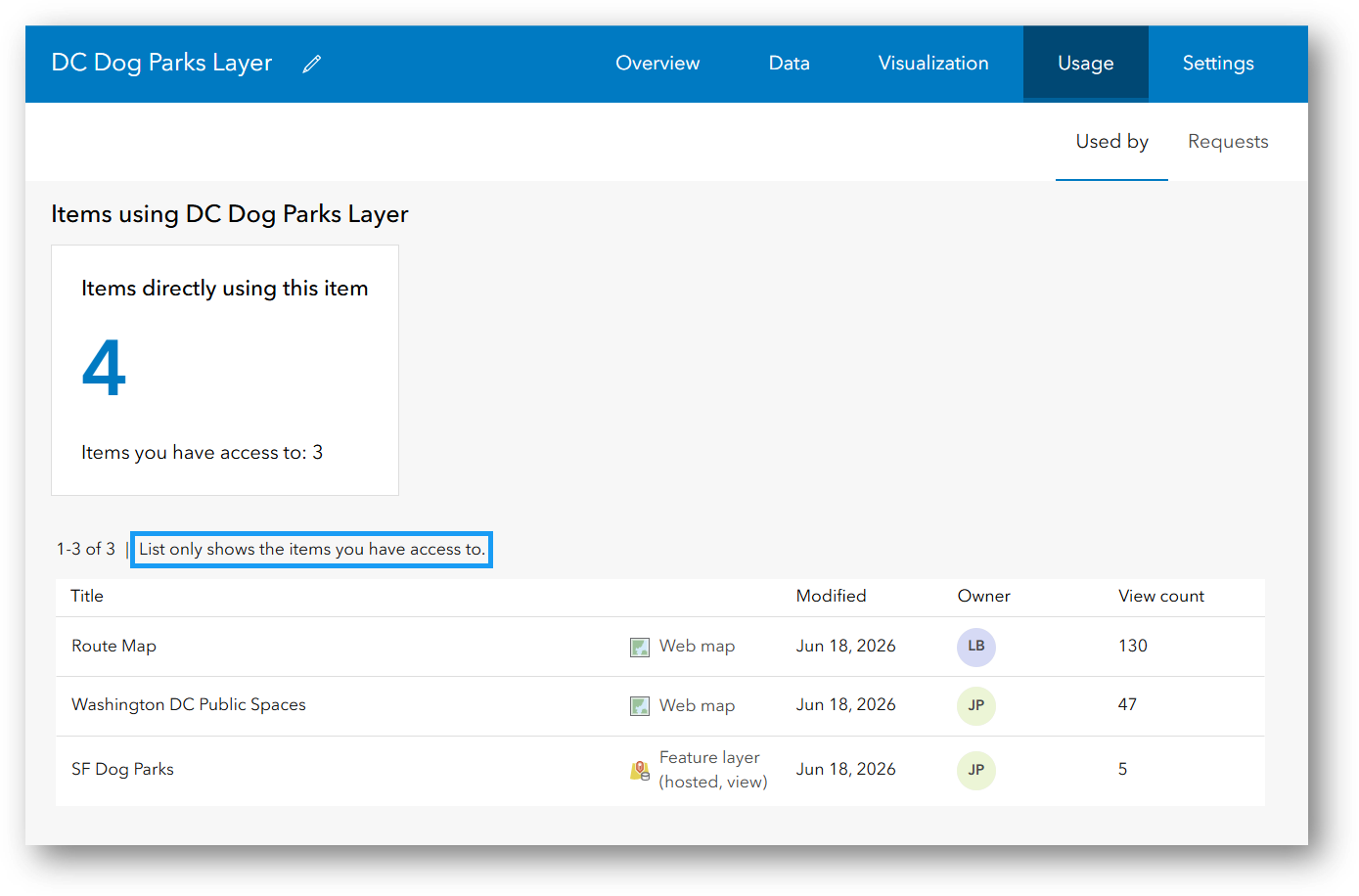
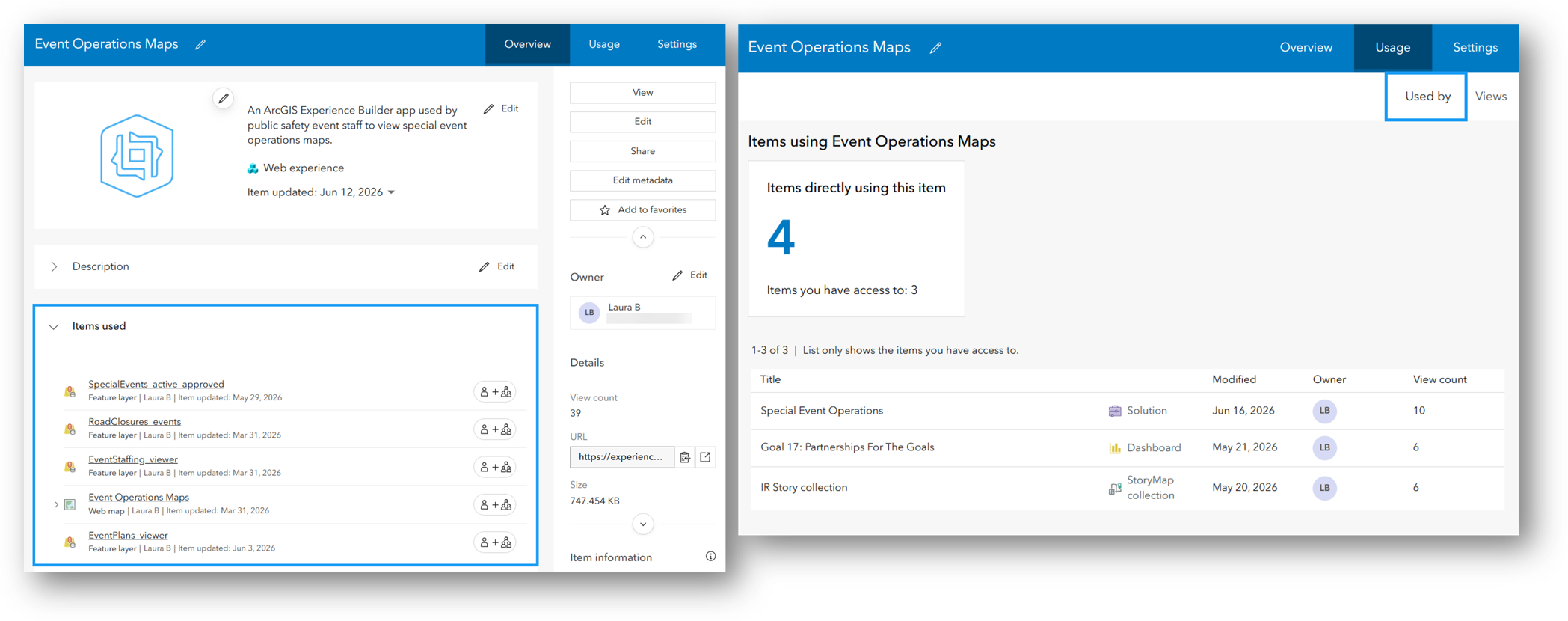
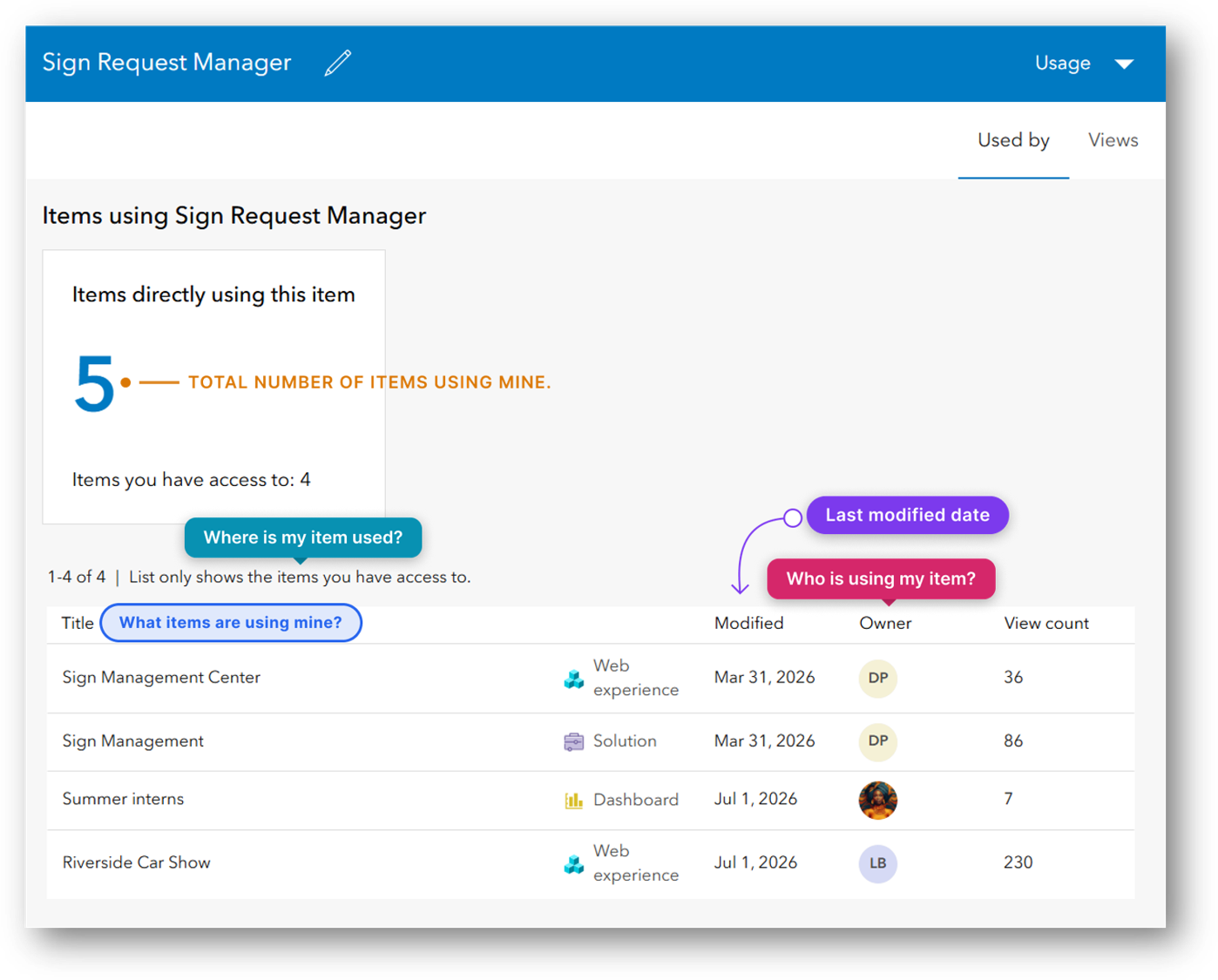
Feature layers can be used to create web maps, applications, and other item types. Item connections for the selected feature layer can be viewed on the item’s page. In the Usage tab, we now have a Used by section to view items that directly reference the respective feature layer. The Used by section displays a summary of connected items along with details such as item title, type, last modified date, owner, and view count. This information helps you understand where a feature layer is being used across your organization, allowing you to assess the impact of potential changes.
Each item listed in the Used by section is clickable. Selecting an item opens the corresponding item page, allowing you to further explore its properties, usage, sharing settings, and dependencies.
Web maps and scenes
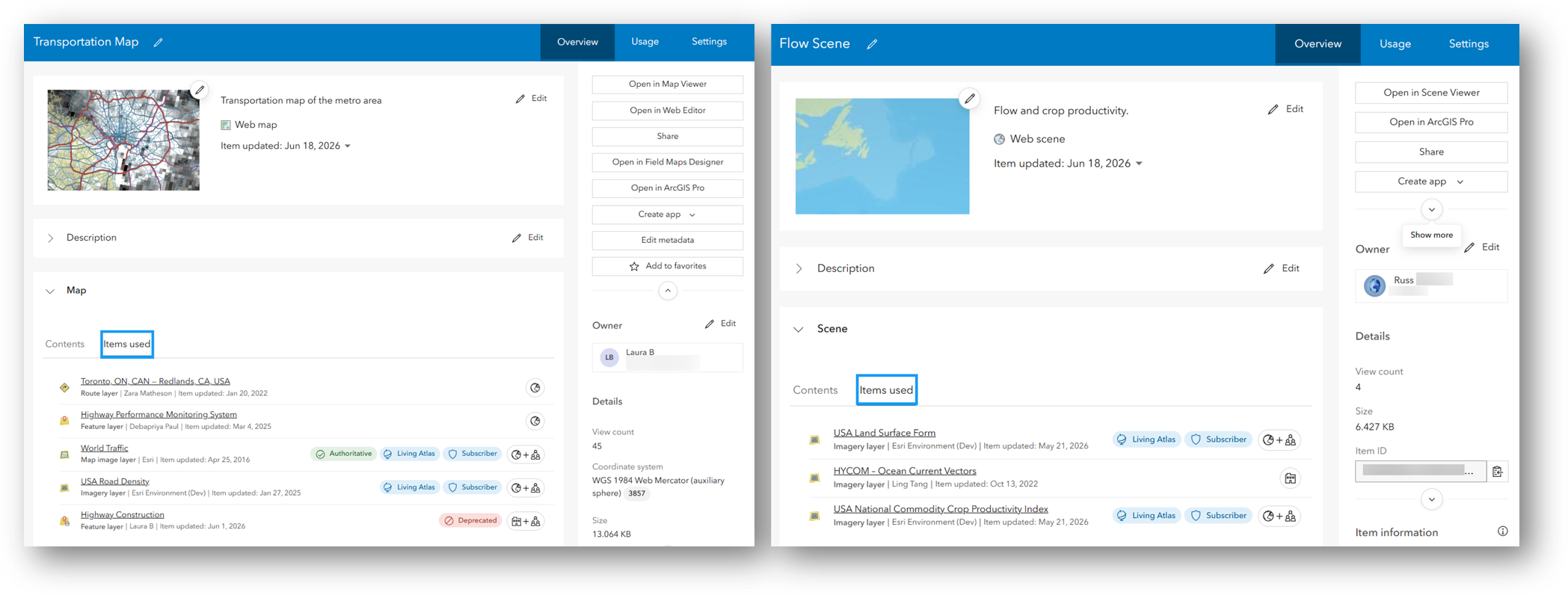
Web maps and scenes can reference various items, such as feature layers, tile layers, imagery layers, OGC layers, basemaps, and more. Item connection information reveals the data sources a map or scene depends on. This insight enables you to manage content effectively, troubleshoot issues quickly, and evaluate how changes to underlying layers may impact the map or scene.
Item connections for the selected web map or scene can be viewed by navigating to the item page. From the Overview tab, navigate to Map/Scene > Items used to view all items that directly reference the selected web map or scene. The Items used list summarizes the items used and displays key details such as item title, type, owner, last modified date, status, and sharing level.
Each item on the list is clickable. Selecting an item opens its item page, where you can examine its properties, usage, sharing settings, and dependencies in greater depth.
Apps
ArcGIS apps integrate multiple items such as maps, scenes, images, documents, and other applications, to deliver complete user experiences.
In this update, item connections are available for the following ArcGIS app types:
- StoryMaps
- Dashboards
- Web experiences
- Instant Apps
- QuickCapture
- Hub
To view item connections for a selected app, go to Overview > Items used. Similarly, the Items used section lists all items used by the app and displays key details, including item title, type, owner, last modified date, status, and sharing level. The Items used section also presents a hierarchical view of all content the app references.
On the Items used section you can:
- Expand or collapse items to explore nested connections and dependencies.
- Click an item title to open its item details page.
- Navigate through multiple levels of content relationships.
- Discover how different items such as layers, applications, maps, media, and documents are connected.
This structured view helps you trace an app’s content dependencies, understand how its resources are organized, and evaluate the potential impact of changes.
Best practices
Many items serve as foundations for other items. This means you’ll need to maintain proper access and visibility for individual items, and their dependent or related items. As you manage your content, actively consider each item’s lifecycle, from creation and usage to ownership transfer and deletion. To foster seamless collaboration and limit disruptions, verify access requirements and share items appropriately. Before you transfer ownership or delete an item, review its relationships and usage to assess any potential impact. When you maintain these connected items, you equip yourself for informed, effective decision-making.
To facilitate better content management, frequently audit your items to see what stale items may be used and what items are used frequently. After assessing the impact of making changes to your items, you can make informed decisions about your content. Consider the following, to maximize the value and integrity of your content and visibility over item relationships:
- Regularly review connections for high-use content.
- Review the items used and what may need to be modified.
- Communicate changes to dependent content owners.
- Deprecate unused items after checking downstream dependencies.
- Only delete items after thorough evaluation of their impact, ensuring all related dependencies are considered.
FAQs
Do all items display items used and those using my items?
No. This feature is only available for feature layers, web maps, web scenes, and apps.
Can anyone view the list of items using my item?
No. Only the item owner and administrator can view the usage details of your item, under the Used by section of the Usage tab.
Can I tell where my item is being used?
If your item is supported for this feature, you can view the number of items using your item. If the item using yours is accessible to you, you can also view additional information in the list of items.
Can I discover all items using my item?
You can view the total number of items using your item and view the list of items you have access to.
What happens if an item used is sent to the recycle bin?
The item will no longer be listed under the Items used and Used by sections of the item page.

The big picture
The new item page features empower you to easily discover how your layers, scenes, maps, and apps connect. By offering visibility into dependencies, the item page enables you to manage your GIS content with greater confidence and precision. Whether you’re updating data, transferring ownership, or removing outdated items, understanding these relationships helps you anticipate impacts, minimize disruptions, and preserve the integrity of your items.
As you adopt this feature, make it a habit to regularly review item connections, especially for high-use content. Additionally, communicate changes to owners of dependent items, and deprecate unused items after checking for downstream effects. Always evaluate the impact of deleting any item, ensuring you consider all related dependencies. With these best practices, you can maximize the value of your content, support seamless collaboration, and maintain robust, reliable GIS data.


Article Discussion: