Have you ever been stuck authoring an Arcade expression? Maybe you just can’t figure out where in the script you’ve gone wrong? We’ve all been there. Before you know it, your script is filled with Console() statements and early returns to try and help you troubleshoot what’s happening. Well, we have some news for you. With the recent update of ArcGIS Online, a built-in debugger experience is now available in the Arcade editor to help save you time (and frustration) when authoring Arcade. Keep reading to learn more about how this debugging experience works and how you can leverage it to be more successful while writing Arcade in your maps and apps in ArcGIS Online.
First things first, what is a debugger? Some of you may already be familiar with this concept but let’s make sure we’re all on the same page and quickly review. A debugger is a means of testing and troubleshooting your script. It allows you to determine and track variable states at set points within your script. In a nutshell, it’s a tool to help you find issues (aka “bugs”) in your logic – hence the name.
Launching the debugger
So now that we know what a debugger is, I’m sure the next question you’re asking is: how do I use it? When you open the Arcade editor in Map Viewer (or elsewhere in ArcGIS Online) you will now see a Run and Debug button on the bottom action bar. The button is how you open the debugger, but it will be disabled until you have placed at least one breakpoint within your script.
Setting breakpoints
Breakpoints indicate where in the script to pause so you can determine the current state of variables and other script elements. You cannot access the debugger without at least one breakpoint present.
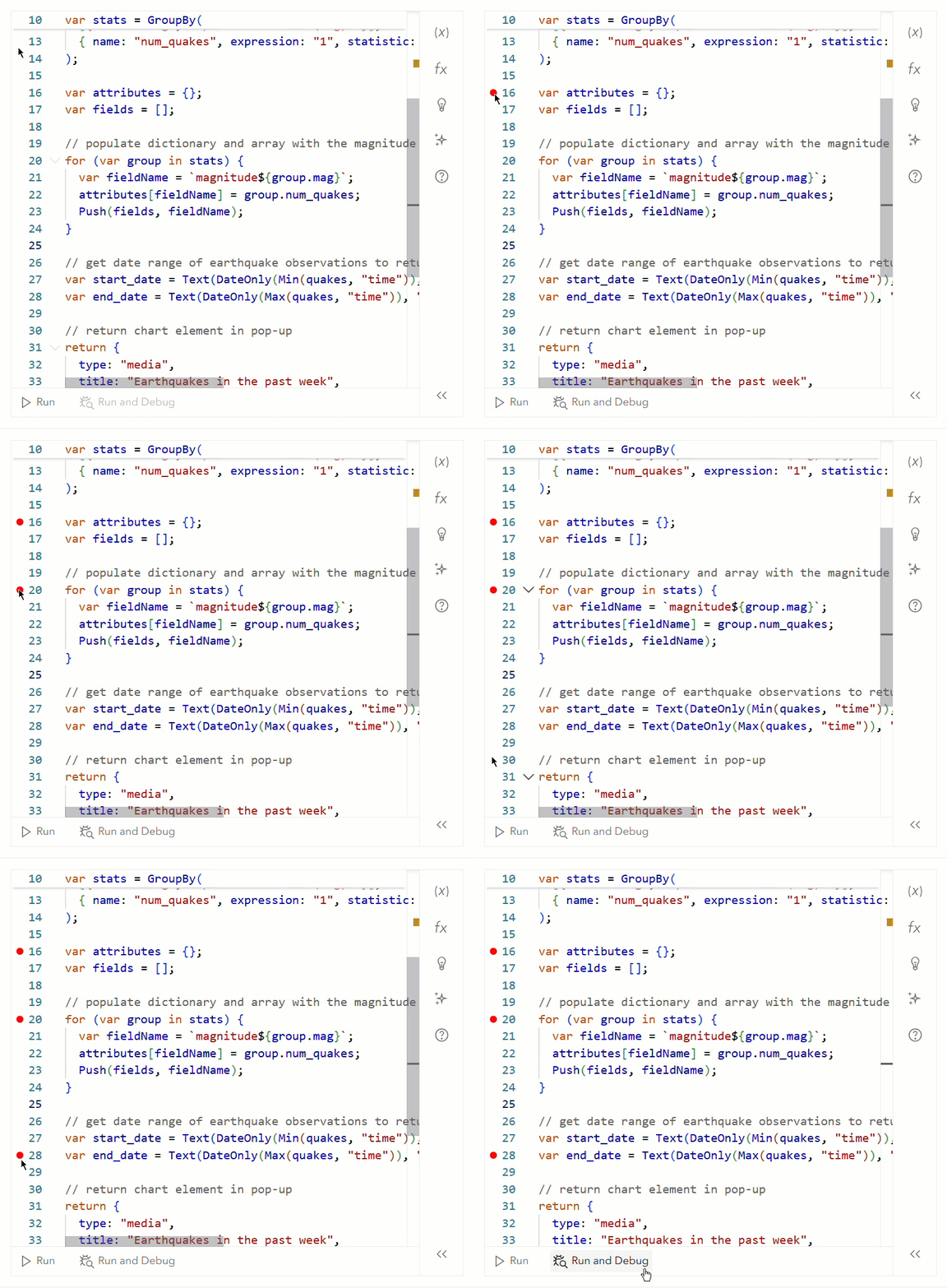
Script breakpoints are indicated by a red circle and can be set on specific lines of code by clicking to the left of the corresponding line number. To remove an existing breakpoint, simply click on it again. The placement of your breakpoint(s) also matters, so be intentional. For example, a breakpoint set on an empty line or a line with a comment will be ignored by the debugger. Likewise, if you set a breakpoint in a loop, it will pause there on every iteration until the loop is completed.
Anatomy of the debugger
Once you select Run and Debug, the debug console will open, and the script will run and pause when a breakpoint is encountered. The current breakpoint will be indicated in multiple ways: the icon will change from red to blue, the line will be highlighted in the editor window, and a preview of the code will be displayed at the top of the debug console. A summary of all script breakpoints is also visible from the dropdown menu to the side of the breakpoint preview.
When actively debugging, controls to navigate through the script will replace the Run and Run and Debug buttons:
- Continue – Resume execution of the script until another breakpoint is encountered or the script exits. When the script exits the editor will switch to the
Outputwindow automatically. - Reset – Stop the current execution and restart from the beginning of the script.
- Stop – Exit the debugger and stop the script. The debugger navigation controls will disappear and be replaced with the
RunandRun and Debugbuttons.
Breakpoints can be added or removed while actively debugging, but these edits will not be active until you restart the script execution via the Stop or Reset action.
Expression scope
Under the navigation controls and breakpoint preview, the current scope of the script is shown. Scope is separated into three different levels: local, global, and profile. Let’s break down what each of those sections contains.
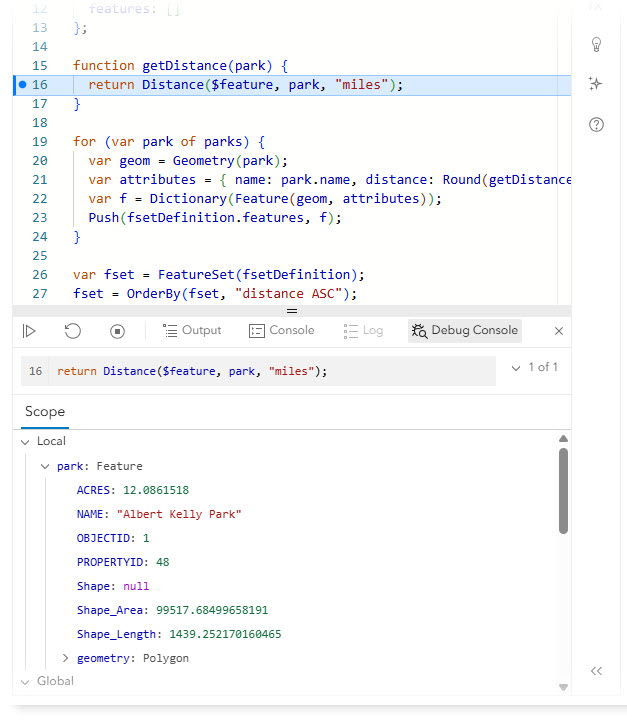
Local scope will display variables declared within the current function and function arguments when paused in a user-defined function body. Global scope includes all variables and functions declared outside of user-defined functions in your script.
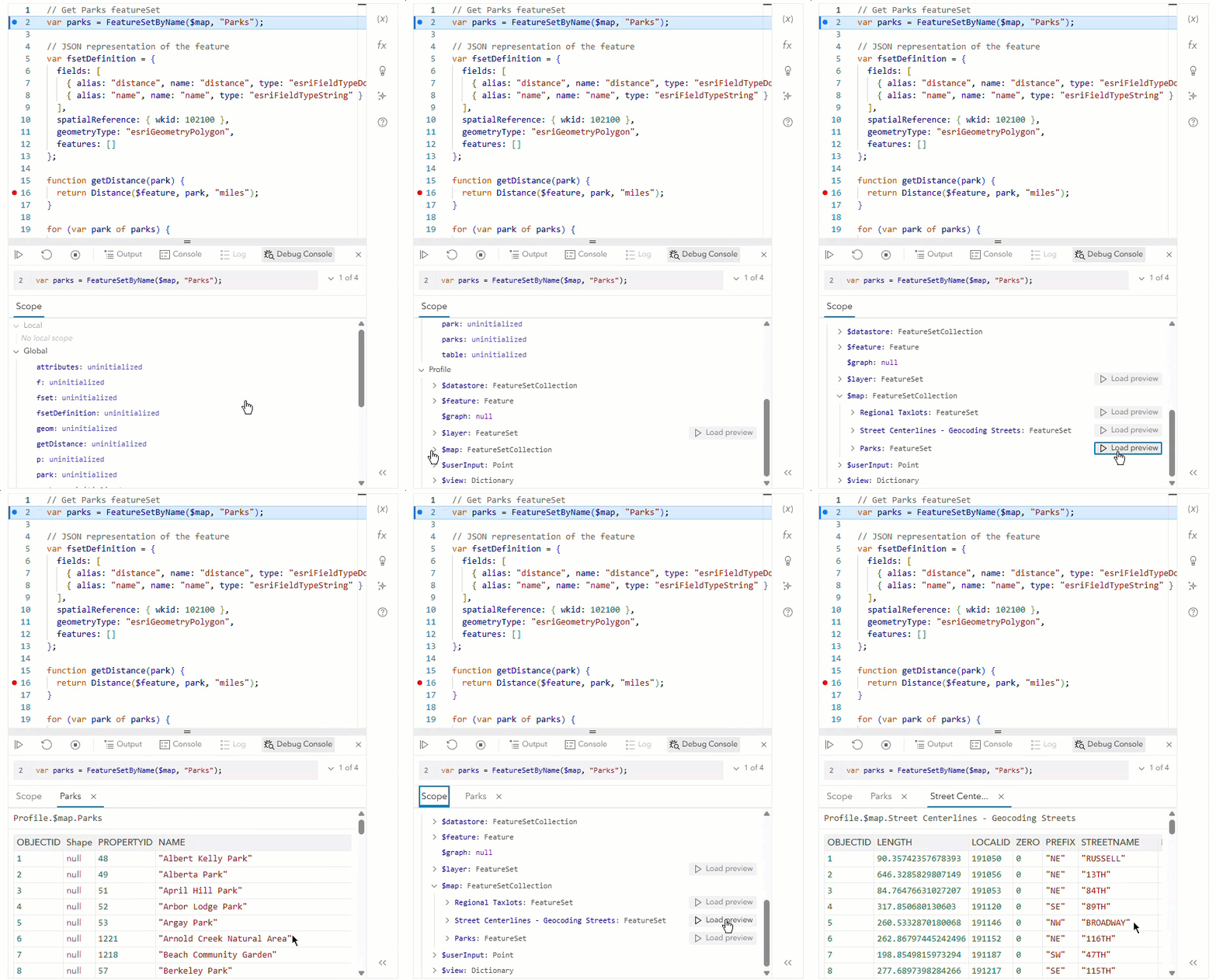
Personally, I think one of the most exciting features of the debugger is the ability to view the profile scope. Here you can view a list of the available profile variables and preview their data values without having to return or even reference them in your script! This is particularly useful when you’re working with profiles that can leverage multiple layers or services, like the popup profile. For example, you may be trying to join two layers based on their attributes. Before, you would have had to drill into the $map profile variable or temporarily return a FeatureSet to confirm the field name or specific attribute value you needed. Now, you can just open the debugger and preview the data via the Load preview action. So much easier, right?
What’s next?
Having tools to debug Arcade scripts has been a long-time ask, and we are delighted to be able to deliver this much-requested functionality to everyone. The debugger should now be available anywhere the Arcade editor is used in ArcGIS Online (except for ArcGIS Velocity and ArcGIS QuickCapture which will have this functionality in a future update). Keep an eye out for changes to the debugger as we continue to finetune the experience. And of course, we want to hear from you! As you use the debugger, let us know what you like (or don’t like) about it on Esri Community so we can continue to improve.

Article Discussion: