Take your imagery layer pop-ups to the next level with the latest update of ArcGIS Arcade (v1.35) and ArcGIS Online. With the addition of two new profiles – Imagery popup and Imagery popup element – you are now able to use pixel values and image attributes to create and drive pop-up content for hosted imagery.
Just like the experience for hosted feature layers, when you add an imagery layer (tiled or dynamic) to Map Viewer you will now see the option to author Arcade content elements and attribute expressions in the pop-up configuration panel. These new profiles include the following profile variables to work specifically with imagery layers: $pixel and $imageCollectionItem.
Introducing the profile variables
The $pixel profile variable is available for all image services, although the number of attributes it contains will vary depending on the image service and how it was configured. This profile variable represents the selected pixel and other pixel-dependent information for the imagery layer in view.
The $imageCollectionItem profile variable is only populated for dynamic imagery layers that are backed by an image collection. This profile variable contains the various image attributes from the image containing the associated pixel. If the imagery layer is not backed by an image collection, $imageCollectionItem will be null.
Now, let’s look at how you can leverage these profiles to bring your imagery layer pop-ups to the next level through the lens of some examples.
Example 1: Temperature conversion
The Sea Surface Temperature (SST) layer contains data which represents sea temperature in Celsius. Using a single Arcade element in our pop-up, we can convert the pixel value representing Celsius to Fahrenheit and display these values alongside the formatted image collection date. Because we are using a content element, we are also able to style the text via HTML in the return statement.
// get date of image collection and format
var d = $pixel["Raster.Dim.StdTime"];
d = Text(d, "ddd MMM DD, Y");

// convert from celsius to fahrenheit
var celsius = Round($pixel["Raster.ServicePixelValue.Raw"][0], 2);
var f = Round(celsius * 9 / 5 + 32, 2);

// return content element with HTML in pop-up
return {
  type: "text",
  text:
    `<p style="text-align:center; font-size: 18px">Average temperature on ${d}: <br><br><b> ${celsius} °C | ${f} °F</b></p>`
};
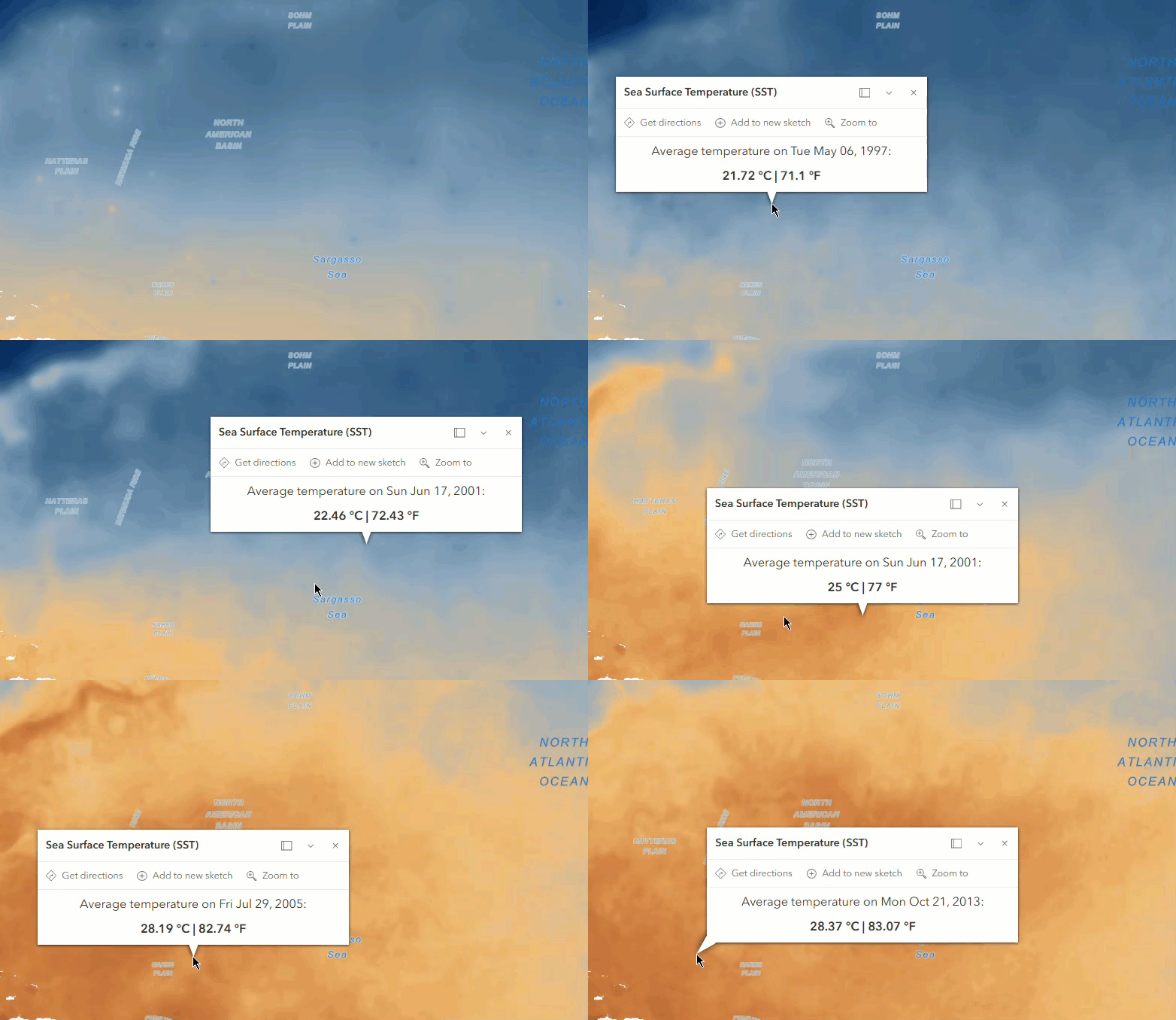
Example 2: Classifying pixel values using When
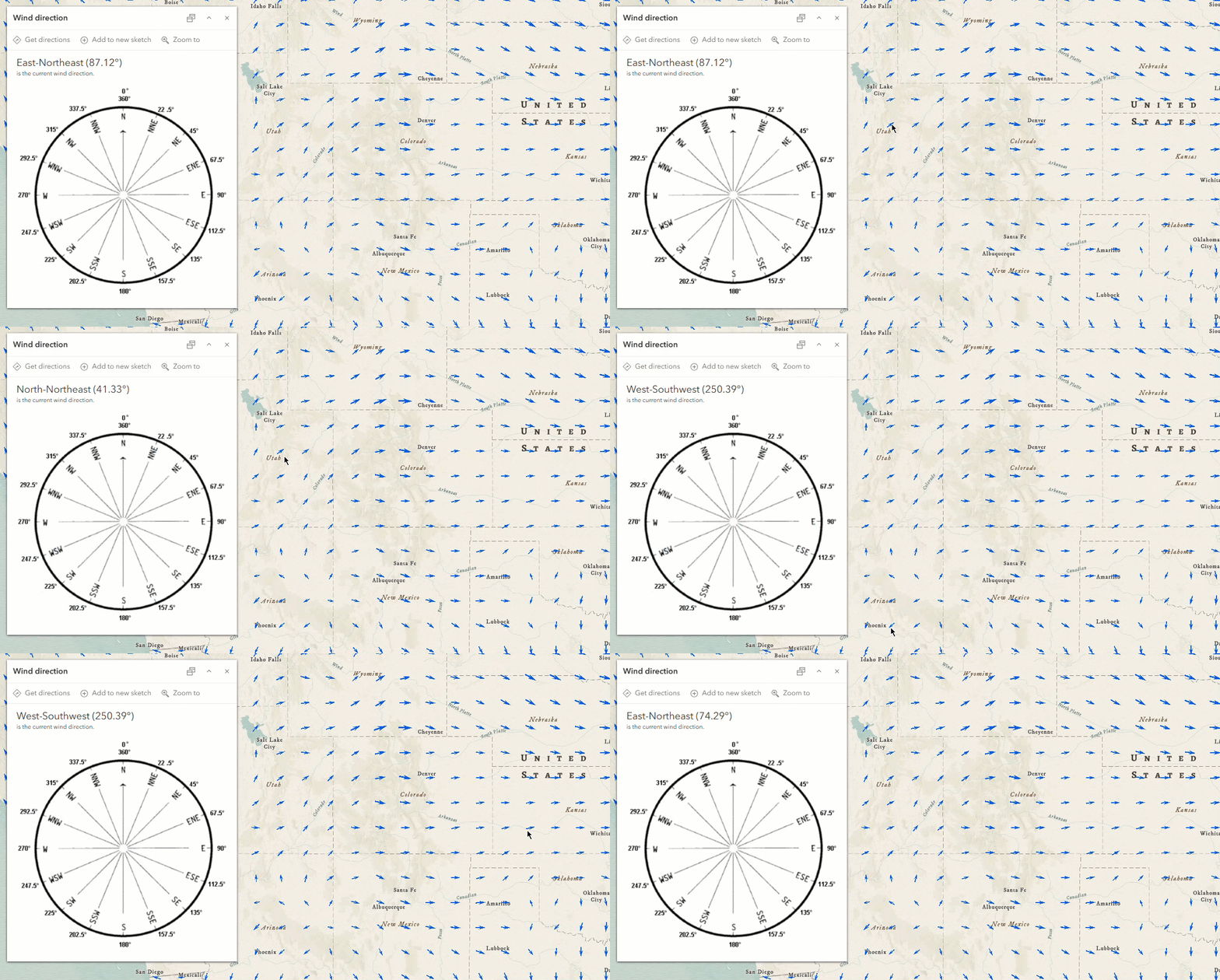
The North American Land Data Assimilation System (NLDAS) tiled imagery layer contains data that represents the forecasted wind direction (in degrees) in 2011 across the contiguous United States. While it is informative to have the wind direction in a numeric value like degrees, map consumers may also find it helpful to have information surfaced instead as the well-known directions we are familiar with on a compass (e.g., North, South, etc.). This can be accomplished with a single Arcade attribute expression leveraging the When function.
In the example below, the direction in degrees is classified into text values that represent the directional points on a compass. The expression is then inserted into a media element in the pop-up alongside the actual value in degrees and an informative image.
// Round pixel direction attribute to 1 decimal
var d = Round($pixel["Raster.Direction"], 1);

// Classify the direction
When(
  d >= 0 && d < 22.5,
  "North",
  d >= 22.5 && d < 45,
  "North-Northeast",
  d >= 45 && d < 67.5,
  "Northeast",
  d >= 67.5 && d < 90,
  "East-Northeast",
  d >= 90 && d < 112.5,
  "East",
  d >= 112.5 && d < 135,
  "East-Southeast",
  d >= 135 && d < 157.5,
  "Southeast",
  d >= 157.5 && d < 180,
  "South-Southeast",
  d >= 180 && d < 202.5,
  "South",
  d >= 202.5 && d < 225,
  "South-Southwest",
  d >= 225 && d < 247.5,
  "Southwest",
  d >= 247.5 && d < 270,
  "West-Southwest",
  d >= 270 && d < 292.5,
  "West",
  d >= 292.5 && d < 315,
  "West-Northwest",
  d >= 315 && d < 337.5,
  "Northwest",
  d >= 337.5 && d <= 360,
  "North",
  "Direction unknown"
);
Example 3: Matching pop-up text color to the renderer
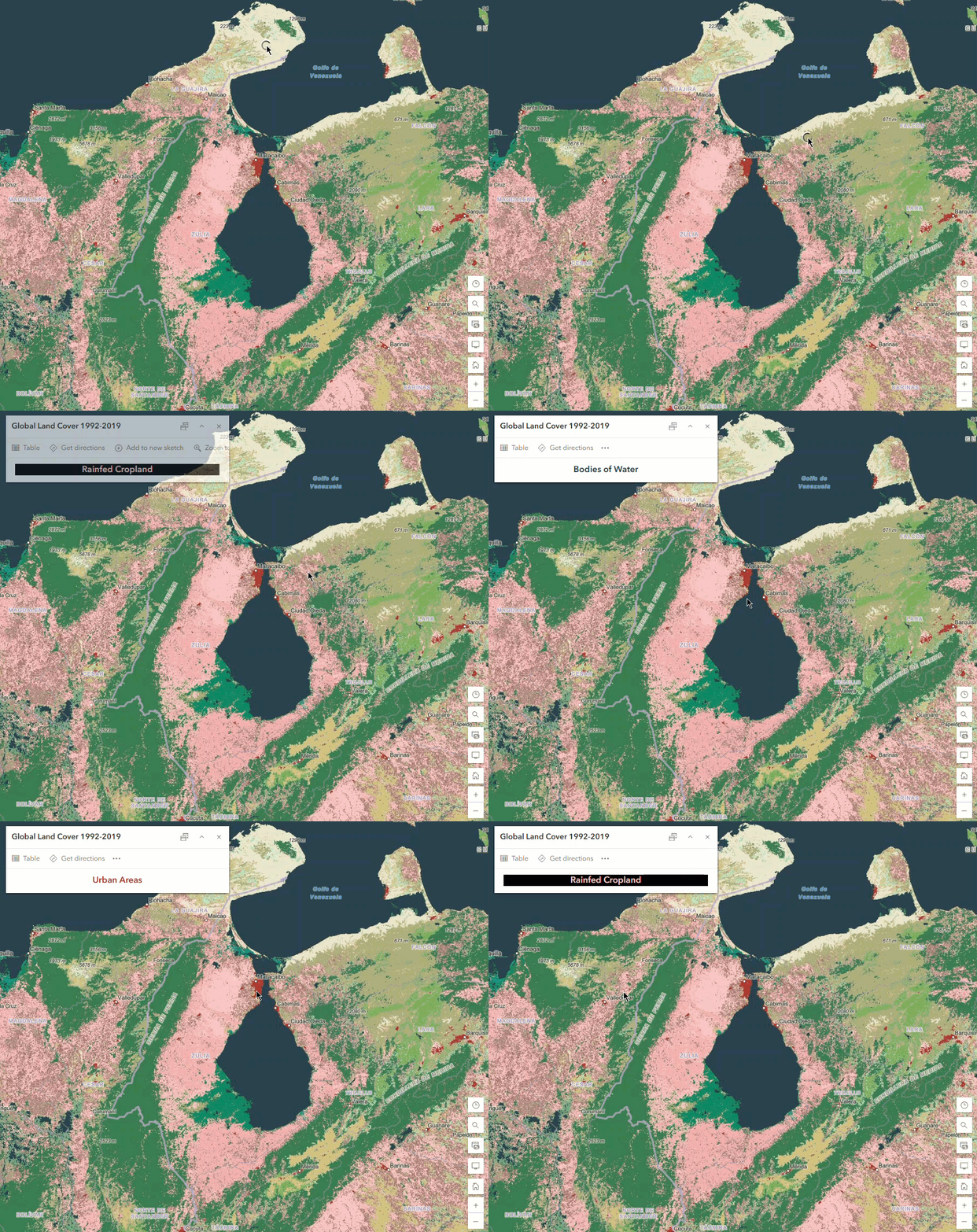
The Global Land Cover 1992-2020 layer exposes the corresponding RGB values used to render the cells via the $pixel variable. Because of this we can leverage these attributes directly to dynamically color our pop-up text to match the layer’s renderer – all without any hardcoding of colors!
In this example, the expression that returns the calculated color is applied using the data-driven font color option in the rich text editor. If you aren’t familiar with this workflow, check out the data-driven font color section in this blog. The background color for the text is also driven by an Arcade expression (not shown) which looks at the text color generated from the RGB values and determines if a white or black background is appropriate to maintain sufficient contrast.
// Grab the RGB values from the pixel
var r = $pixel["Raster.Red"];
var g = $pixel["Raster.Green"];
var b = $pixel["Raster.Blue"];

// if RGB values are present from pixel
if (!IsEmpty(r) && !IsEmpty(g) && !IsEmpty(b)) {
  // return that color
  return `rgb(${r}, ${g}, ${b})`;
} else {
  // otherwise, return the color black
  return `rgb(0, 0, 0);`;
}
Example 4: Displaying dynamic HTML in the pop-up
The Coral Bleaching Alert layer uses pixel values to represent the max level of stress experienced over the past week. Currently, the pop-up surfaces the level of alert as a simple text string in the pop-up. By using an Arcade content element, we can really take this pop-up to the next level. In the example below, we dynamically color both the pop-up text and background color to match the renderer while also accounting for the user selecting an area with null or NoData values.
// get pixel value that represents bleaching level
var level = $pixel["Raster.ServicePixelValue.Raw"][0];

// classify based on pixel value
var r = Decode(
  level,
  "0",
  "No stress",
  "1",
  "Bleaching Watch",
  "2",
  "Bleaching Warning",
  "3",
  "Bleaching Alert Level 1",
  "4",
  "Bleaching Alert Level 2",
  "N/A"
);

// use level to determine hex code for color
var r_color = When(
  level == "0",
  "#d3ffbe",
  level == "1",
  "#ffffbe",
  level == "2",
  "#ffd37f",
  level == "3",
  "#ff7f7f",
  level == "4",
  "#de0a26",
  "#ffffff"
);

// set background depending on text color for sufficient contrast
if (
  r_color == "#d3ffbe" ||
  r_color == "#ffffbe" ||
  r_color == "#ffd37f" ||
  r_color == "#ffffff"
) {
  var b_color = "#808080";
} else {
  b_color = "#E8E8E8";
}

var html =
  `<br><p style="text-align:center;"><span style="color:${r_color}; background-color:${b_color}; font-size:28px; font-family:Lucida Console; padding: 10px; border: 1px solid black;"><b>${r}</b></span></p><br>`;

return { type: "text", text: `${html}` };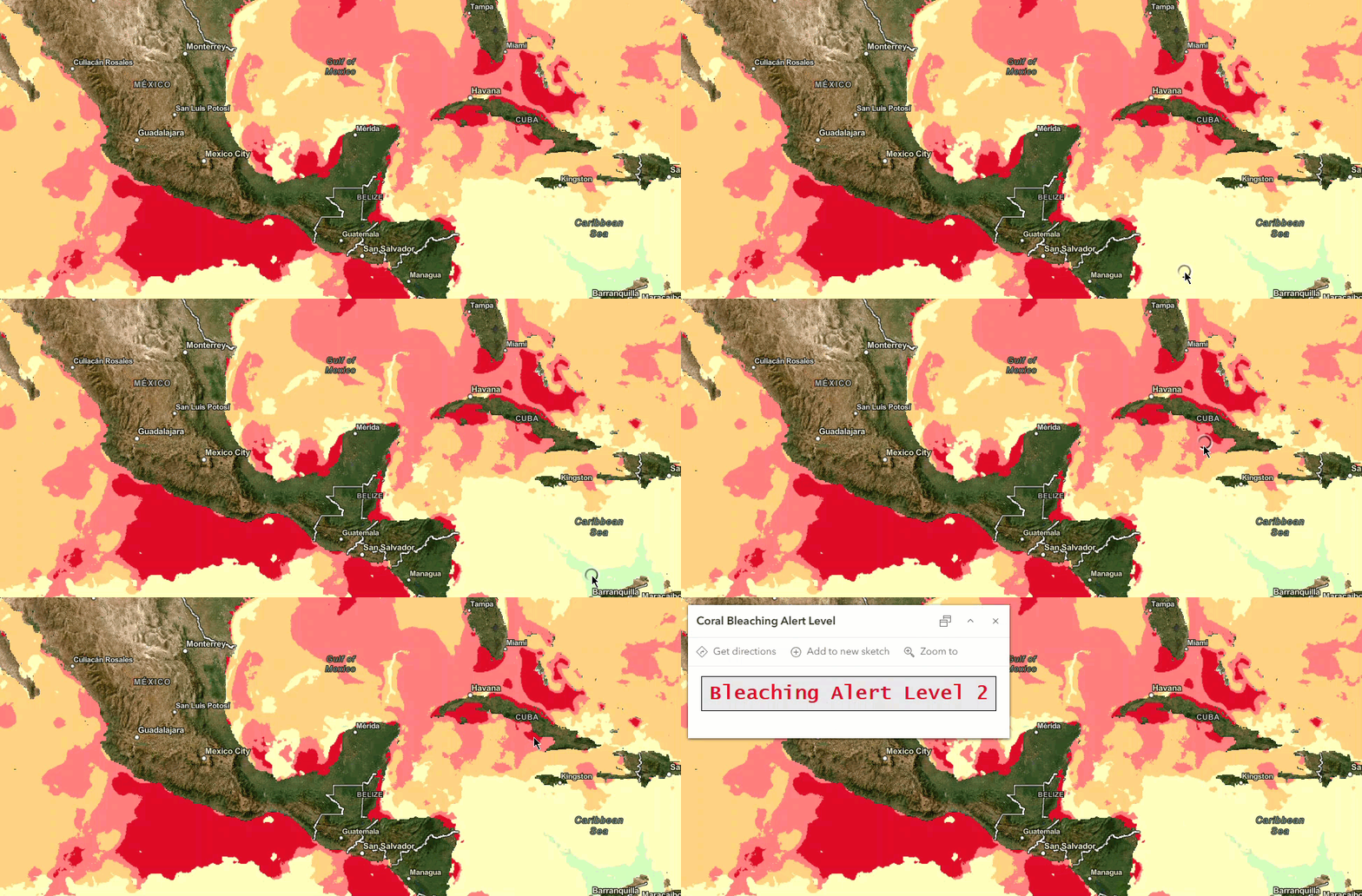
Example 5: Formatting text and accounting for null values
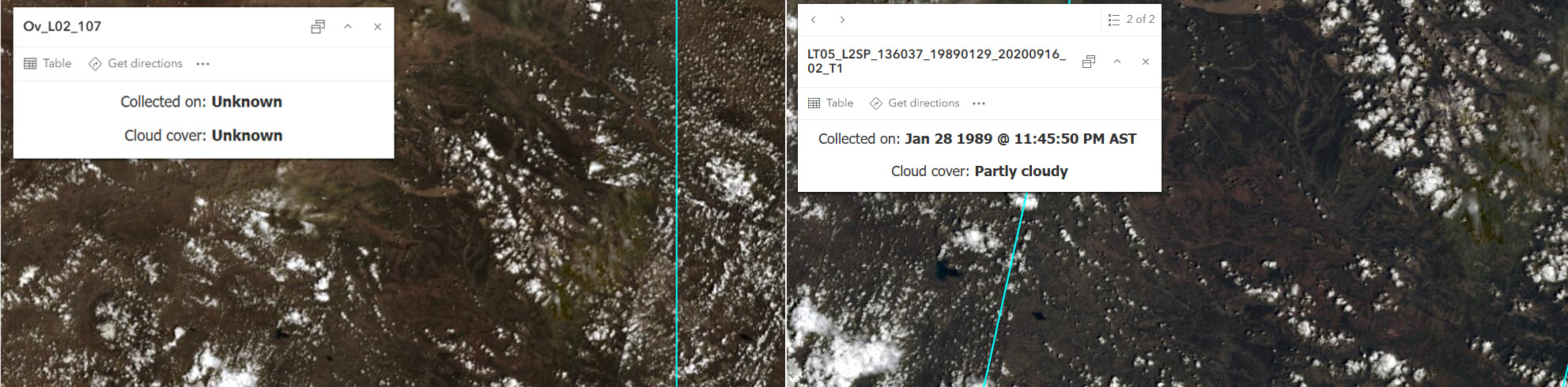
The Landsat Level-2 layer displays global imagery over a range of time. By default, the pop-up will display a standard list of fields. However, in some images certain attributes may be null. Rather than displaying an empty value in the list of fields, we can use attribute expressions to create a pop-up that shows key information about the image cloud cover and collection date while simultaneously handling the case when the attributes are null.
In the example below, logical statements are used to check whether the attributes (cloud cover & collection date) are null. If they are, we return the generic string of ‘Unknown’. If the cloud cover attribute for the image is not null, the When function is used to classify the numeric value to a more understandable string. Likewise, if the collection date for the image is not null it is formatted using the Text function (expression not shown).
// Get variable representing image cloud cover
var cc = $imageCollectionItem.cloudcover;

// check if cc attribute is null or not
if (IsEmpty(cc)) {
  return "Unknown";
} else {
  // if cc attribute is not null
  // classify image cloud cover into three categories: Clear, Partly cloudy, Cloudy
  When(
    cc <= 0.3,
    "Clear",
    cc > 0.3 && cc <= 0.7,
    "Partly cloudy",
    cc > 0.7,
    "Cloudy",
    "N/A"
  );
}
I hope that this blog has given you some ideas on how you can start leveraging Arcade in your imagery layer pop-ups. In the above examples, I outlined how the $pixel and $imageCollectionItem profile variables and their attributes can be leveraged in both attribute expressions and standalone content elements to format your rich text and perform on the fly calculations, but this is really only a glimpse of what is possible.
What’s Next?
This is only the beginning of Arcade support for imagery layers. Keep an eye out for future releases of Arcade as we work towards:
- The ability to access imagery layer attributes from other hosted feature and imagery layers
- More functions for working with the Pixel data type
And of course, if there’s something you want to see in Arcade, let us know via the ArcGIS Arcade group on Esri Community!

Great blog post, this is very helpful for understanding the new Pixel data type and how it can be implemented with real-world examples. I’m curious if there is a release date in mind for the feature you mention on the road map: “ability to access imagery layer attributes from other hosted feature and imagery layers”? Would this give users the ability to, for example, determine the average RGB of imagery pixels within an intersecting polygon feature?