When a city introduces a new public space—whether it’s a restored park, a shared-use trail, or a green corridor—community feedback is more than just welcomed; it’s essential. Yet collecting this feedback in a structured, actionable way requires thoughtful applications on both ends: one that empowers the public to contribute meaningfully, and another that equips planners, decision makers or any GIS staff to review and respond efficiently.
To resolve this problem, Reporter and Manager Instant Apps can be configured in parallel, each fulfilling a unique role while drawing from the same shared layer. While both apps are versatile, Reporter is used here to gather public suggestions, and Manager supports review and follow-up. This setup ensures consistency across the workflow while allowing each app to focus on its strengths.
To demonstrate how this setup works in practice, a sample scenario focuses on collecting neighborhood improvement suggestions.
The Reporter Instant App enables residents to share ideas—such as adding benches, improving lighting, or installing bike racks—by placing a point on the map and completing a location-based form. In this setup, the scenario focuses on adding new benches in the neighborhood. Three key interactions are demonstrated:
- Adding a location.
- Editing the location during submission.
- Interacting with submitted reports.
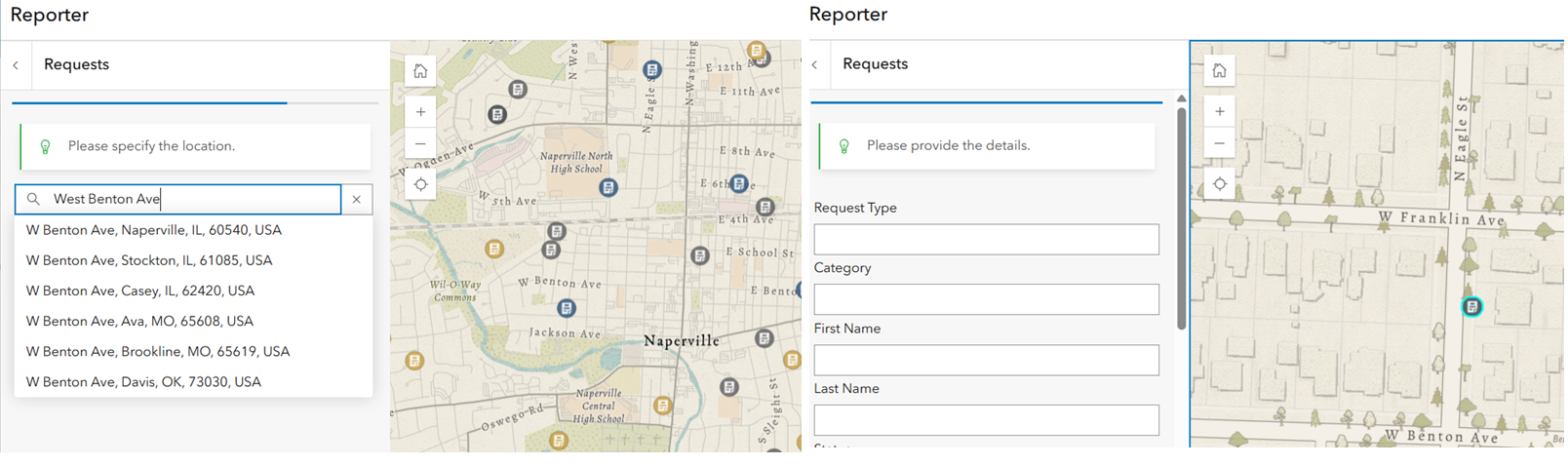
Residents start by clicking the Report Incident button (configurable), then search for an address using the search bar. This places a point at the selected location on the map, using either the default World Geocoding Service or a custom locator defined by the app author. Alternatively, a point can be added by clicking directly on the map.
The image shows an address being typed, and upon selecting the suggested result, a matching location is added to the map and highlighted in cyan.
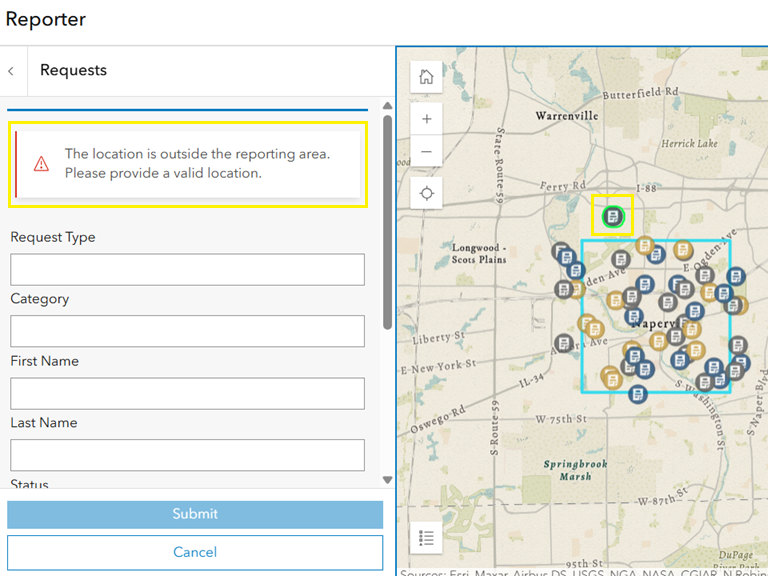
Consider a scenario where suggestions for new benches are only accepted within city-owned public spaces or a specific region in the neighborhood. To support this, the app can be configured with the Set report boundary setting, which uses an uneditable polygon layer added to the web map to define where reports are allowed. If someone selects a location outside this area, the app displays a warning message and disables the submit button until the location is adjusted.
In the image below, the blue rectangle represents the report boundary. When a report’s location falls outside this boundary (highlighted in yellow), a warning message appears on the panel, and the submission is disabled until the location is corrected.
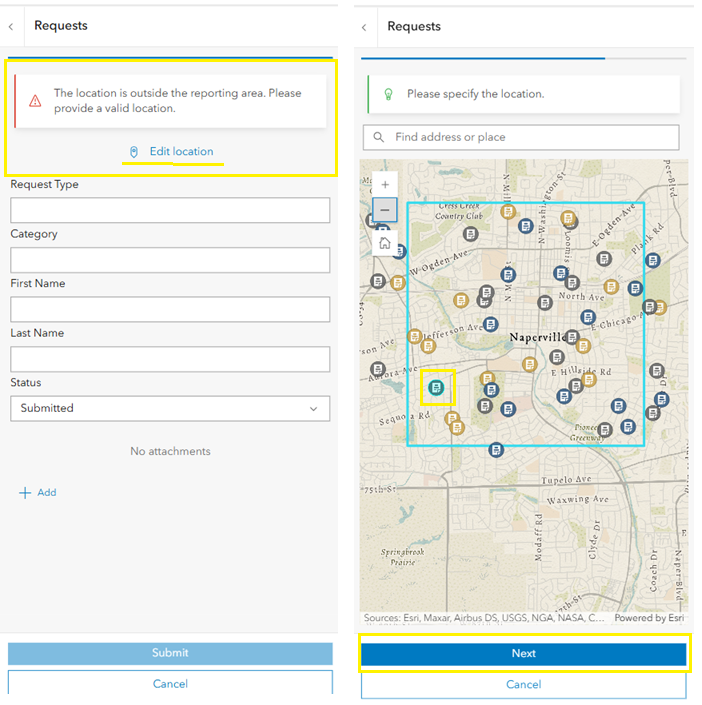
Location can be adjusted during the report submission workflow, whether on desktop or mobile, and regardless of whether a report boundary is enabled:
- On desktop, drag the point to refine the location.
- On mobile, tap Edit location to open a map interface and reposition the pin.
In the image below, the mobile workflow is illustrated, showing the Edit location option used to adjust the pin. When the location falls within the boundary, the Next button is enabled.
The next step is to fill out the submission details and add any attachments, if supported. Smart forms can be used to configure the fields in each report, helping ensure the input is clear and consistent.
Once submitted, the report appears at the top of the list in the report panel, making it easy to spot recent entries. Reports can be sorted and filtered for different viewing preferences. Additionally, users can interact with each report through configurable options such as:
- Adding comments for each feature to share feedback or context.
- Voting on reports using Like or Dislike options.
When planners are done collecting reports, the Reporting capability can be turned off in the app configuration. The app can continue to be used to gather feedback through comments or voting.
Note: To allow new submissions, the feature layer must have the Add capability enabled; otherwise, the Report button will be disabled.
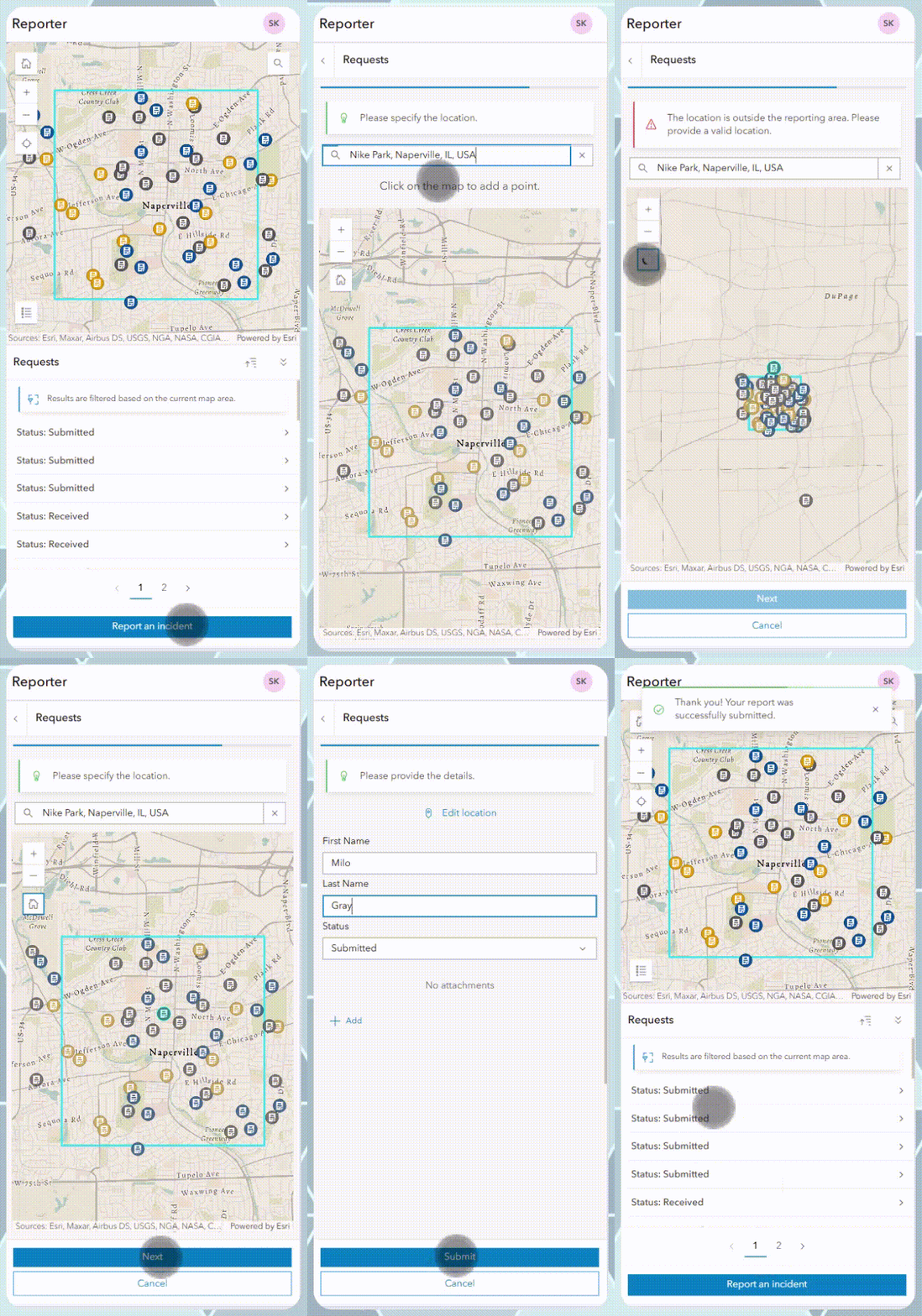
The walkthrough below shows how residents can submit reports using the Reporter Instant App.
After gathering suggestions through Reporter, the workflow continues with Manager—used to triage, manage, and respond to those submissions efficiently.
Once new bench suggestions are submitted through the Reporter app, the same data is accessed through the Manager Instant App—used here by planners to review, update, and follow up on submissions. While Manager is a flexible application that can support a wide range of workflows, in this scenario, it’s configured to streamline review and decision-making.
In this scenario, the goal is to update the Status field from Submitted to In Progress. Here’s how that process works in context.
In this setup, the following submission management tasks are demonstrated:
- Viewing and selecting submissions on the map, table, and from the pop-up.
- Editing attributes directly in the table (one record at a time).
- Bulk attribute editing.
- Reviewing related records, such as comments and images associated with features.
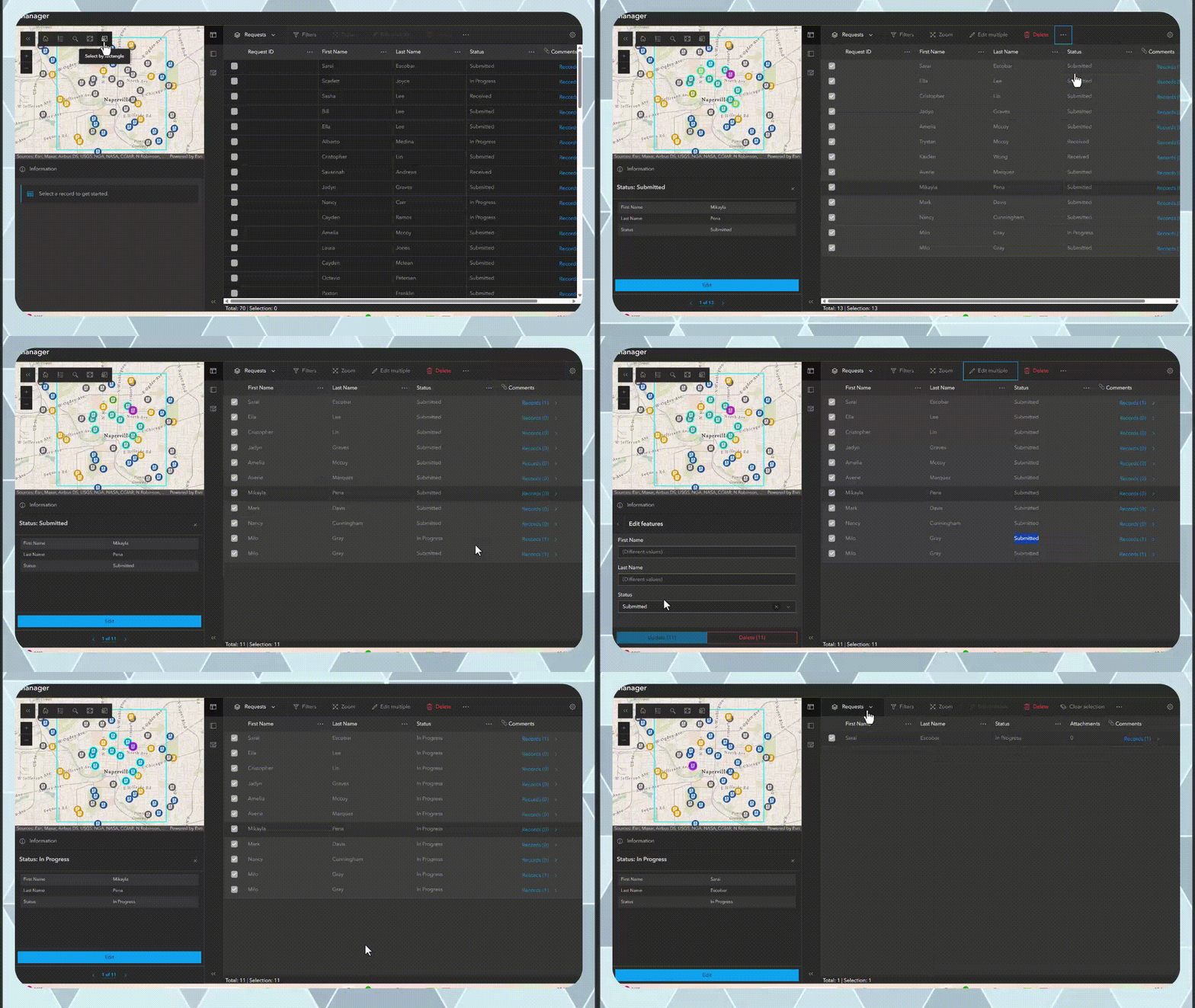
To focus on requests in a specific part of the map, the Select by rectangle tool can be used to quickly draw a box over the region of interest and capture all relevant features.
In the image below, Select by rectangle tool is used to draw an area on the map (not shown), and the selected features are highlighted in cyan.
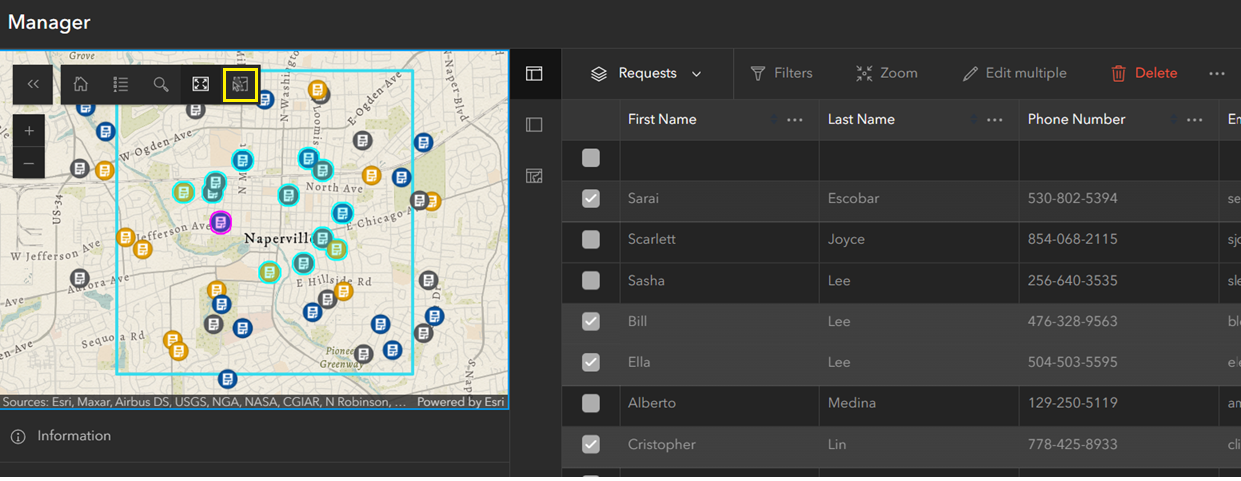
The selected features appear on the map, and their corresponding rows in the table are marked with a check to indicate selection.
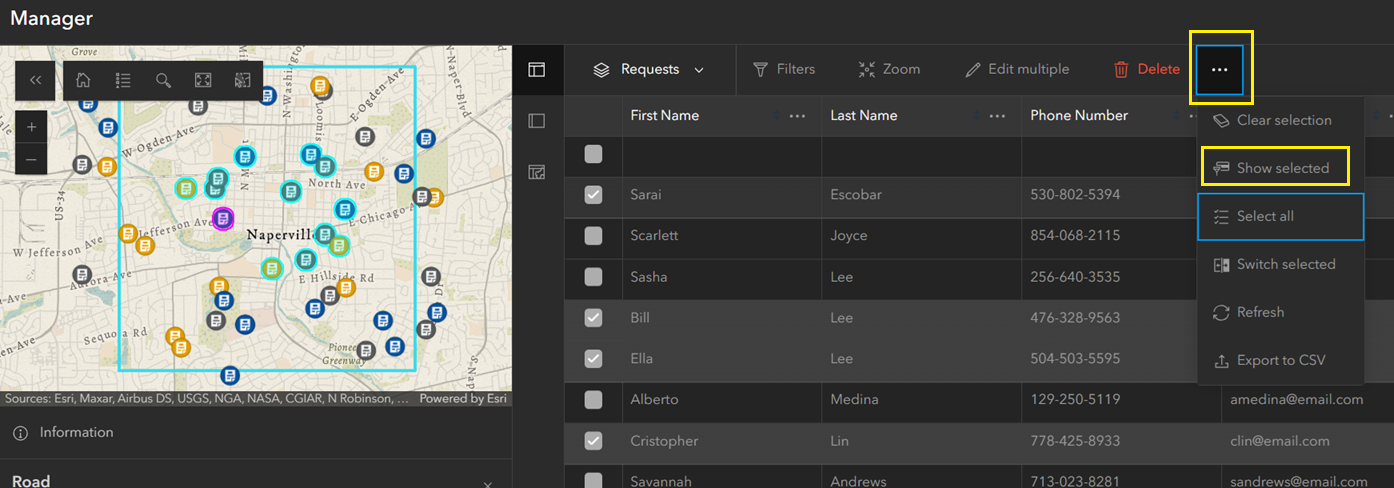
As shown in the image below, selecting Show selected from the ellipsis menu filters the table to display only the selected reports.
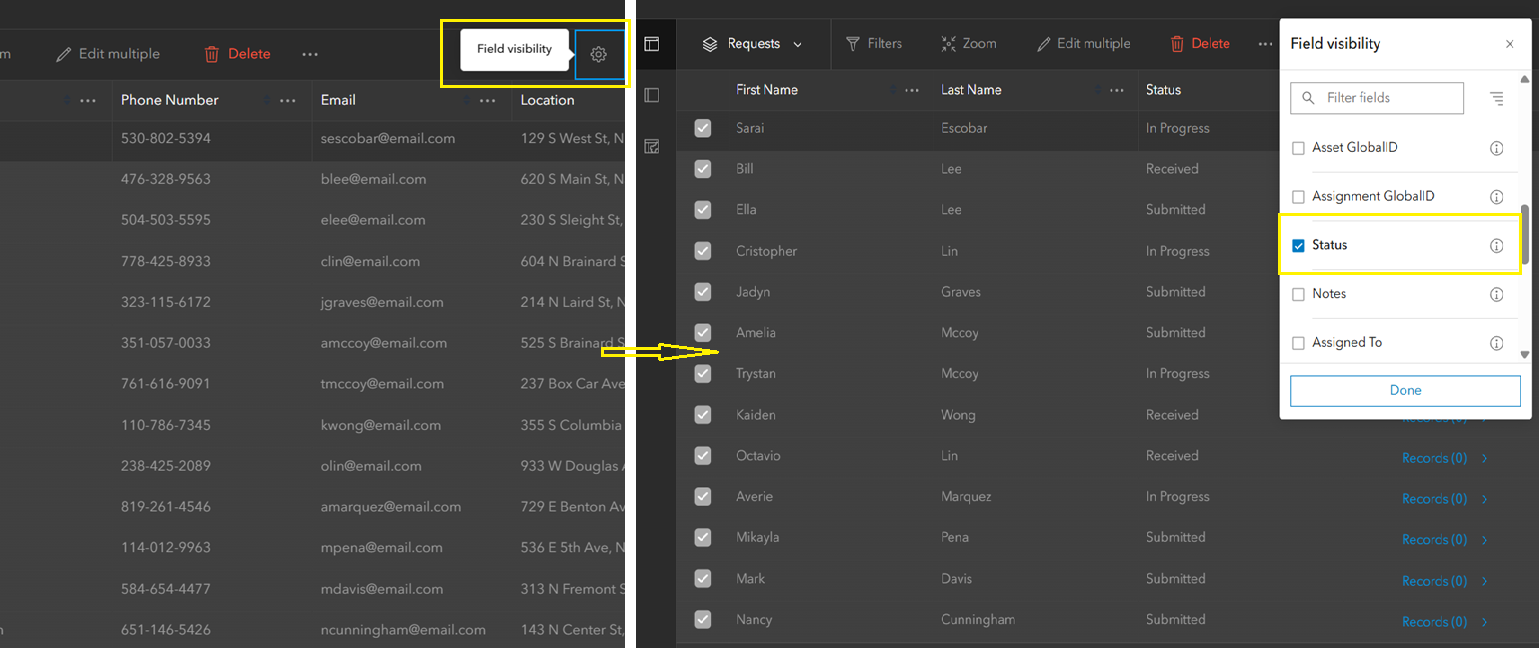
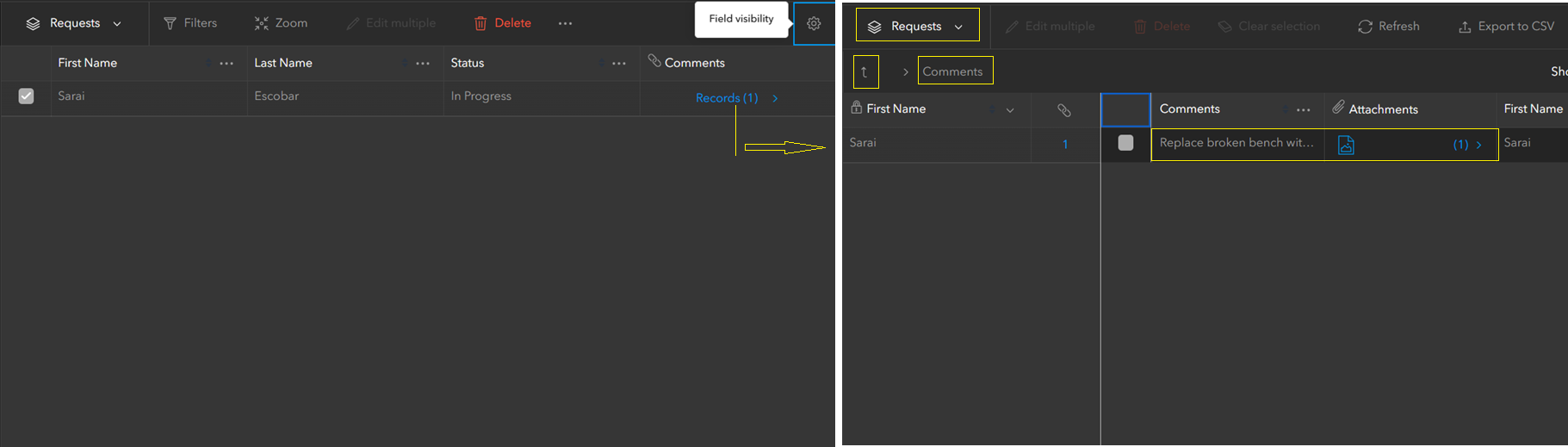
To simplify the view and show only important fields, the Field visibility button (gear icon shown in the image) is used. In this case, First Name, Last Name, Status, and Related Record are selected.
The selected features have mixed values in the Status field and are further narrowed down by deselecting records, keeping only those marked as Submitted. Once the records are filtered, the status can be updated using one of two methods:
- Edit in table
- Edit multiple
When Edit in table is enabled in the configuration, individual records can be updated directly within the table, powered by the FeatureTable widget from the ArcGIS Maps SDK for JavaScript. This method supports editing one record at a time, typically by double-clicking the cell to make changes.
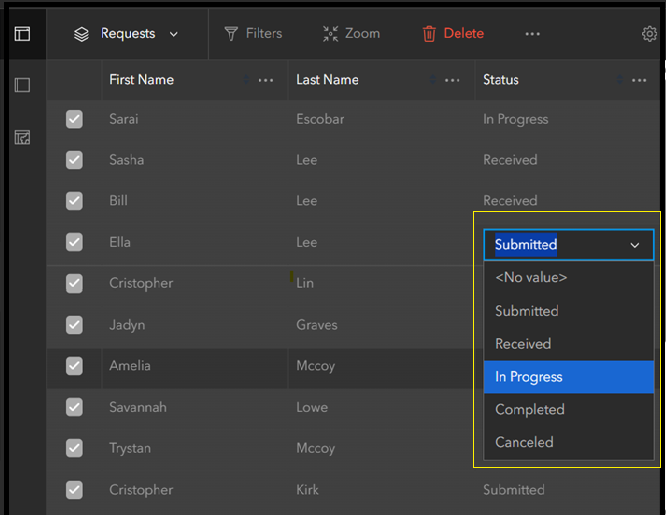
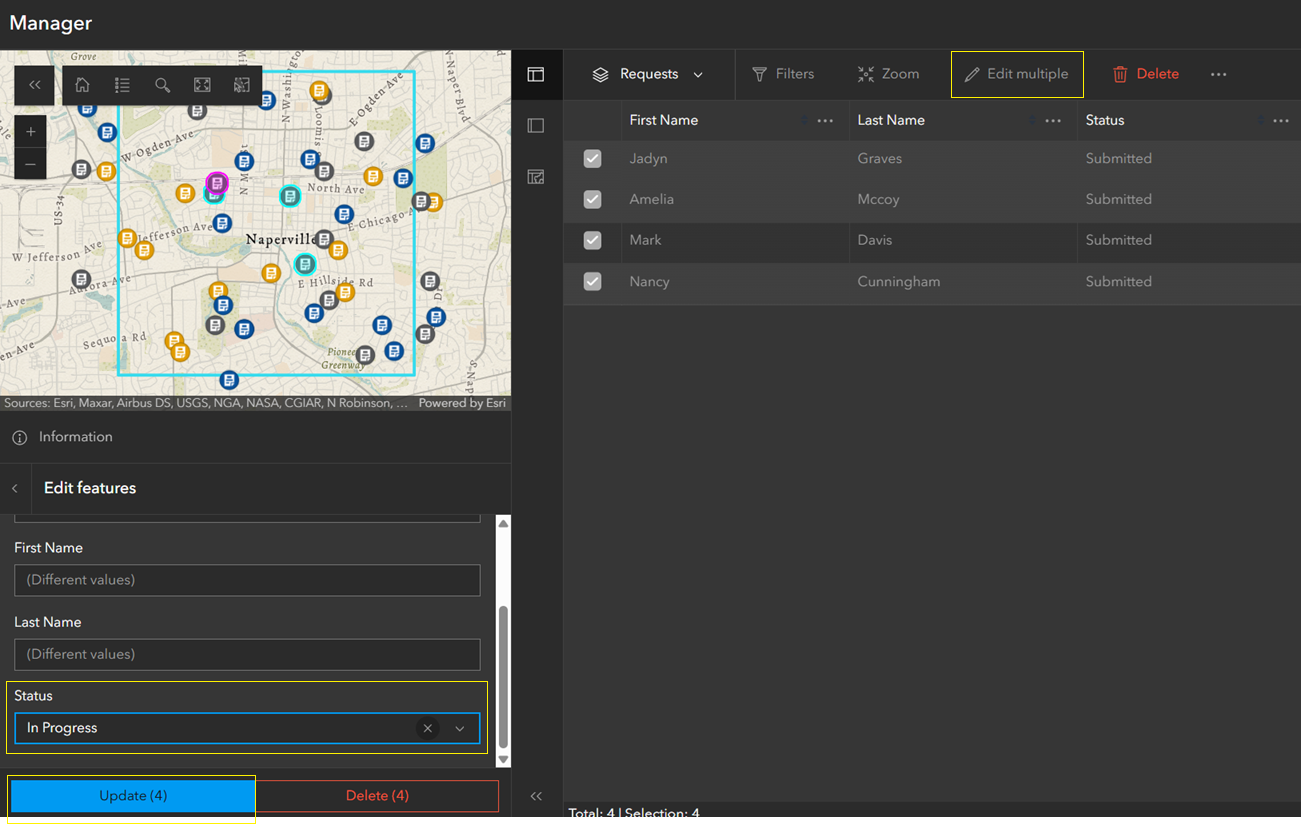
To enable Edit multiple, the feature selection mode must be set to Multiple under Interactivity > Modify in the app configuration panel. This allows multiple features to be updated simultaneously using the Edit multiple button in the pop-up panel.
In the image below, selecting Edit multiple opens a popup panel in the bottom-left corner. The Status field is updated from Submitted to In Progress, and the Update (4) button is clicked—where the number in parentheses reflects the count of selected records. The panel also provides an option to delete multiple selected features.
To explore additional details, planners can view comments or images linked to a specific bench request. These are stored in a related table associated with each request and submitted through the Reporter app.
As shown below, clicking the Related records button (with a number showing how many records are linked) opens a side panel. For clarity, the top of the panel shows the name of the current feature layer (Requests), while the related table (Comments) appears below. The table displays the fields and, if supported, any attachments. The view can be closed using the Exit related records (up arrow) button.
The walkthrough below shows how submissions are reviewed, updated, and managed through the Manager Instant App.
Reporter and Manager work in tandem to close the feedback loop—from submission to resolution—bridging public input and responsive action through map-powered workflows.
Discover how these apps can elevate your next project with focused, map-driven workflows. Questions or feedback? We’d love to hear from you.

Article Discussion: