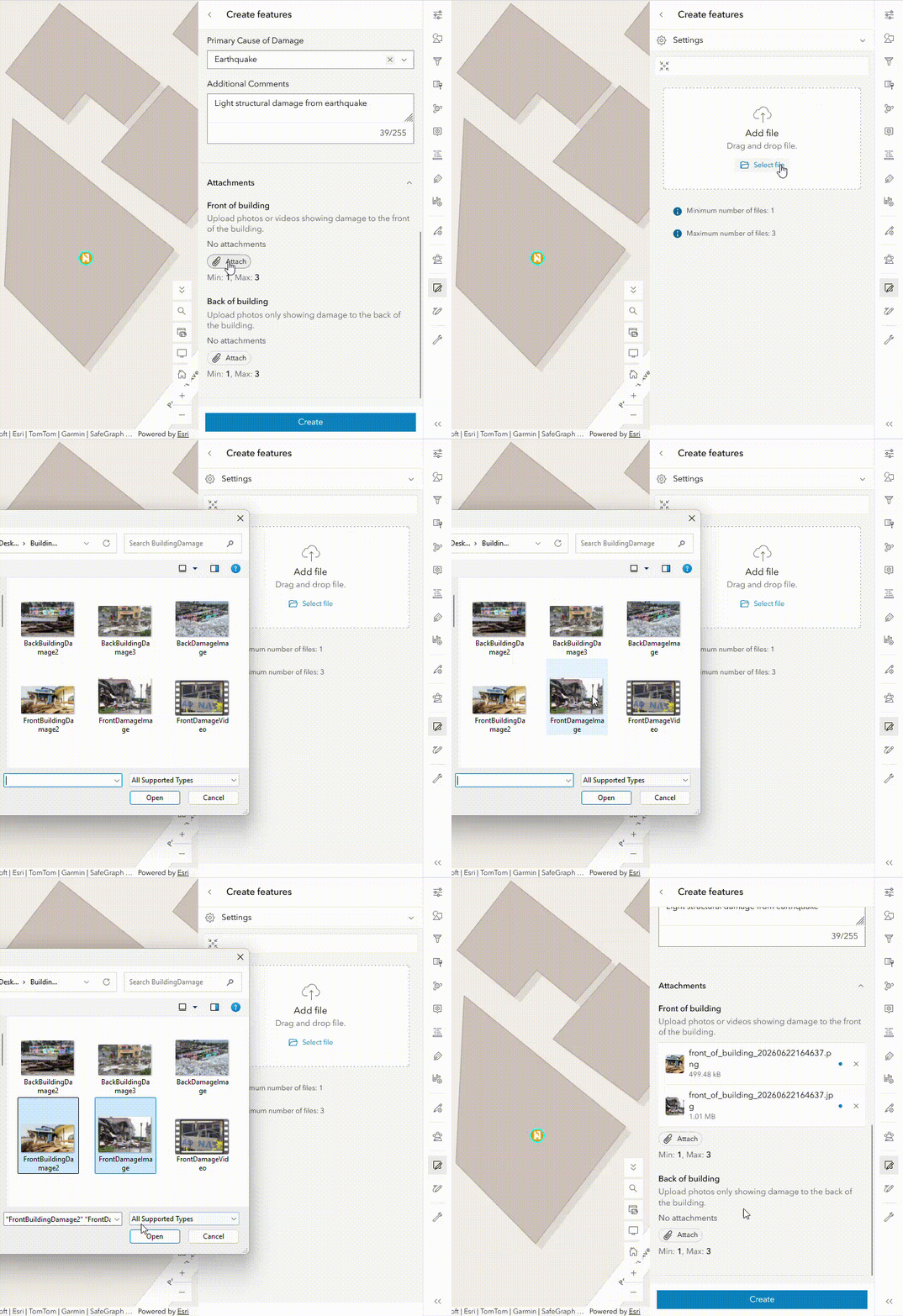
Attachments are a widely used data collection method to enhance information about geospatial records or features. For example, a layer containing building inspection points might have photos of structural damage and a PDF of the inspection report. The June 2026 update introduces a new way to tailor your attachment editing experience when building forms. This blog will cover how to set up an attachment element in the form to enhance your data collection workflows and reduce QA/QC time.
Configuring an attachment element
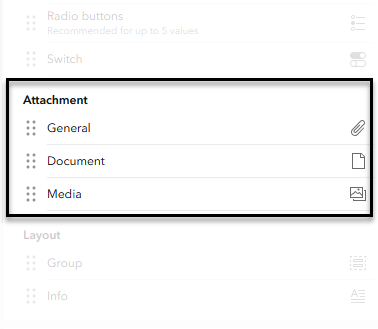
To get started, grab a layer that has attachments enabled and open the Forms builder. You will now see a new Attachment section with three choices to choose from: General, Document, and Media. Not sure what option to choose? Let’s break it down.
General attachment element
General attachment elements are a catch-all for any supported attachment file types. By default, all file types and input methods are accepted. The general attachment element can also include any pre-existing attachments associated with the feature (read on below to learn more).
Document attachment element
Document attachment elements exclusively allow uploading digital records such as text files, Word documents, or Excel tables. This is particularly useful if you only want to collect tabular or written information.
Media attachment element
Media attachment elements allow you to upload and capture photos, videos, or audio.
Now that you have a good idea of what attachment element is a good fit for your workflow (maybe you use all three at once!), you can start to configure the element’s properties.
Formatting
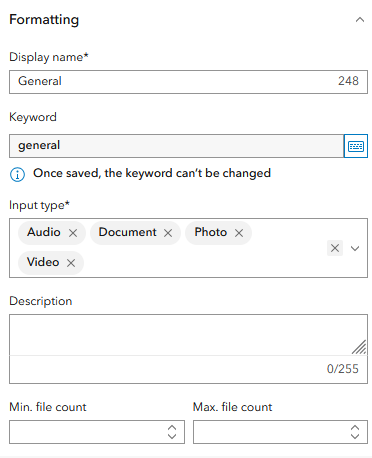
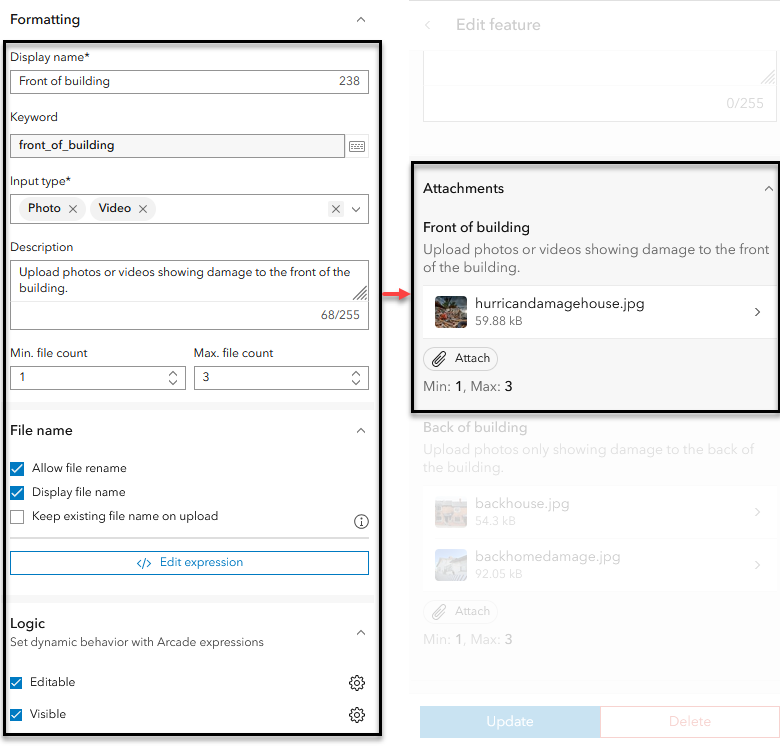
Display name & description
Customize what the editor will see on the form and add a helpful description.
Keyword
Keywords are a data collection concept that automatically tag attachments with a string when submitted. For attachment elements, the keyword will default to the Display name and cannot be changed once your form is saved.
Input types
As previously mentioned, each element accepts different types of attachments: audio, document, photo, or video. For General and Media elements, you can further restrict the input types to tailor it for your workflows.
Minimum & maximum file counts
Optionally, set a minimum and maximum number of attachments per feature.
Maximum attachment size / length
Document and Media elements allow you to define a maximum file size or length, depending on what input type you have selected.
File name
Allow file rename
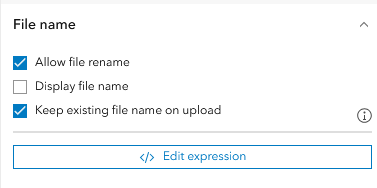
When disabled, the editor cannot change the file name of the attachment.
Display file name
When disabled, the file name is hidden on the list overview. The file name will still be visible in the detailed view of the attachment.
Keep existing file name on upload
You can now author Arcade expressions to automatically generate a file name for attachments. When “keep existing file name on upload” is unchecked, the arcade expression will run on uploaded attachments.
Logic
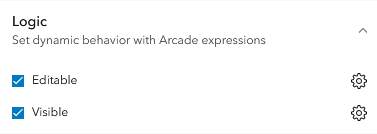
Editable & visibility expressions
Attachment elements support conditional Arcade expressions to determine if the attachments can be seen and/or edited. To learn how to set up logic expressions, see Use Arcade in Field Maps Designer.
What about existing attachments?
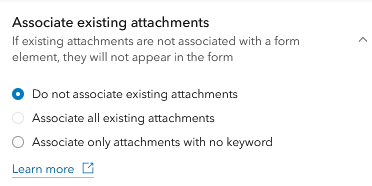
You might be wondering how the new attachment elements impacts datasets with pre-exisiting attachments (prior to the June 2026 update). The General element provides three options to handle existing attachment associations:
- Do not associate existing attachments
- Associate all existing attachments
- Associate only attachments with no keyword
When you drag a new General element onto the form, the default behavior is to not include existing attachments, and they will be hidden (assuming there is not a matching keyword) from the form. To pull in attachments prior to the June 2026 update of ArcGIS Online choose to associate all attachments regardless of keywords, or only associate attachments without a keyword.
Viewing, replacing, or deleting attachments
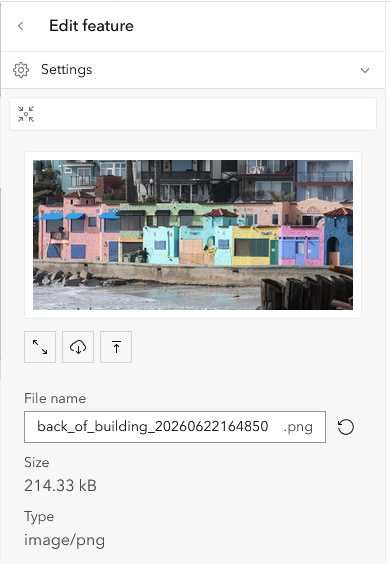
Once a feature or record has attachments, you can see them displayed in a preview list. Click on an existing attachment to view its properties such as the file name, size, and type. Additionally, you can maximize an image for easier viewing, download the file, or replace it altogether.
Attachments are a vital part of many data collection workflows and provide contextual information to the associated feature or record. By using the new attachment element, you can customize the editing experience to fit your workflow needs and reduce time cleaning up data entry.

Commenting is not enabled for this article.