Hosted feature layers are the foundation of nearly everything you do in ArcGIS Online—whether you’re building a web map, reviewing data in the office, collecting it in the field, or running analysis across your organization. They power your apps, dashboards, and mobile workflows. In many real-world scenarios, your data isn’t a simple flat table. A feature might have dozens of related records, inspections, notes, observations, all combining to add important context that helps tell the full story and improve decision-making.
Relationship classes in ArcGIS Online are a powerful solution to keep related records connected. They support cleaner data models, smarter editing workflows, and richer insight across web maps and apps.
This blog breaks down what relationship classes are, how to create them in ArcGIS Pro, how to publish a hosted feature layer with relationship classes and how to use them effectively in ArcGIS Online, along with the key workflow differences you’ll encounter between ArcGIS Pro and the web.
What Are Relationship Classes, and Key Considerations When Setting Them Up
Relationship classes define how records in one dataset are connected to records in another. There are two sides to the relationship, the origin and destination datasets; both can be a spatial layer or a nonspatial table. The origin dataset is where the relationship begins, and the destination contains the related features/records. It’s also important to note that relationship classes can only be created in a geodatabase, and both the origin and destination datasets must reside in the same geodatabase.
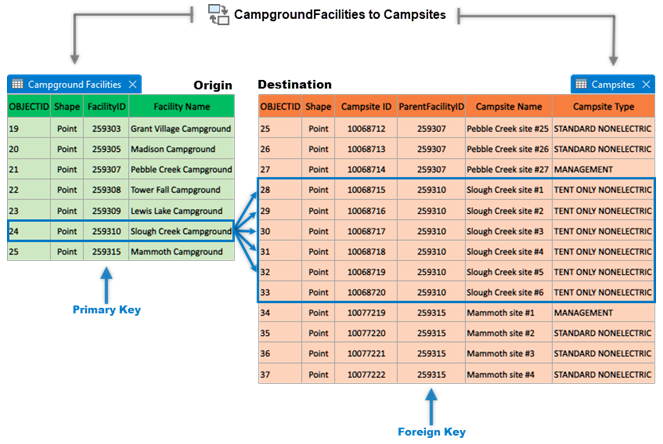
Before creating a relationship class, it’s important to think through a few key design choices to ensure it supports your workflow correctly. Decisions around the relationship type and cardinality directly affect how features connect and behave.
Primary and Foreign Keys
To create a relationship between features in different tables, there must be a way to match records across those datasets. This is done using fields that contain corresponding values in the origin and destination tables—known as the primary key and foreign key.
- Primary keys – are unique identifiers for each record in a table. They ensure that every feature or row can be referenced reliably.
- Foreign keys – are fields in the related table that store the primary key values from the origin table, creating the link that identifies which records are related.
Types
The type of relationship (Simple or Composite) defines the dependency of the related features. Choosing the correct type is important for maintaining data integrity and supporting your workflow.
- Simple relationship classes – Both datasets remain independent. Neither feature requires the other to exist, and deleting a feature in the origin dataset does not delete any related records.
- Composite relationship classes – The destination features depend on the origin feature. If you delete a feature in the origin table, all related features in the destination dataset are also deleted.
Note: When a composite relationship class (1:1 or 1:M) is published to ArcGIS Online a field index requiring unique values is automatically created on the primary key to enforce uniqueness.
Cardinality
When you create a relationship class, the cardinality defines how many features in one dataset should be related to features in another. There are three different options:
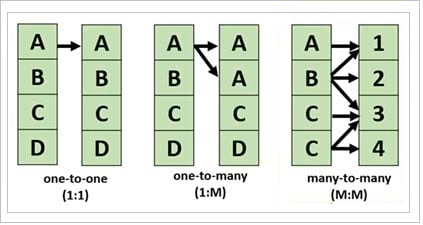
- One-to-One (1:1) – Each feature in the origin dataset relates to no more than one feature in the destination, and vice versa.
- One-to-Many (1:M) – A single origin feature can relate to multiple destination features.
- Many-to-Many (M:N) – Features in each dataset can relate to multiple features in the other. To support this type of relationship, the geodatabase automatically creates an intermediate table that stores the keys linking each pair of related records.
Note: In ArcGIS Online, managing a many‑to‑many relationship class currently requires manually adding records to the relationship class table and entering the appropriate keys to create each relationship. If the relationship class is composite, it will not cascade the deletion to related features in the destination table.
Additional Resources
For more information on the fundamentals of relationship classes and how to create them in ArcGIS Pro see:
Publishing Your Data with Relationship Classes
Currently, the only way to use relationship classes in ArcGIS Online is to create them within a geodatabase and then publish the participating datasets as a hosted feature layer. Publishing data with relationship classes preserves the connections between your tables and feature layers, ensuring that your related records behave as expected in web maps, apps, and analysis workflows.
To publish, use the Publish Web Layer or Publish Web Map option on the Share tab in ArcGIS Pro. Analyze your map, resolve any errors, and then publish your data.
Requirements To Publish a Hosted Feature Layer with Relationship Classes
- Include all related datasets – both the origin and destination tables or feature classes must be added to the map before publishing.
- Include the relationship table – if you are using a Many-to-Many or an attributed (1:1, 1:M) relationship class, the relationship table must be added to the map before publishing.
- Additional considerations – Add a GlobalID field to each dataset if you’re taking data offline and enable editor tracking on all participating datasets to track all edits.
Working with Relationship Classes in ArcGIS Online
Now that your data is published in ArcGIS Online, let’s explore how to work with your relationship classes to improve your workflow.
Navigating Related Records in the Attribute Table
Attribute tables in ArcGIS Online allow you to quickly see the number of related records and navigate through multiple levels of a relationship tree. To learn more: Introducing Related Records to the Table
Setting up the Pop-ups to View Related Records
Pop-ups are the primary way you can explore and understand relationships between features. The option to view related records is not automatically enabled in the default pop-up settings. To learn more: Rolling Out Related Records in Map Viewer
Configure Editing Forms and Editing Related Records
Related features can be added, edited, and deleted through the editing form for the related dataset, making it easy to manage related records. When a new related feature is created through the edit form, the destination key is automatically populated to establish the relationship. Like pop-ups, the option to view and edit related records is not enabled by default when a feature layer is added to a map. To learn more: Configure Forms for Attribute Editing
Once the editing form has been enabled to support editing related records, it provides an intuitive way for you to navigate and edit related features. When you add, update, or delete related features, the system automatically maintains the relationship by populating the appropriate keys behind the scenes. To learn more: Introducing Related Record Editing in Map Viewer
Reviewing Relationship Class Parameters in ArcGIS Online
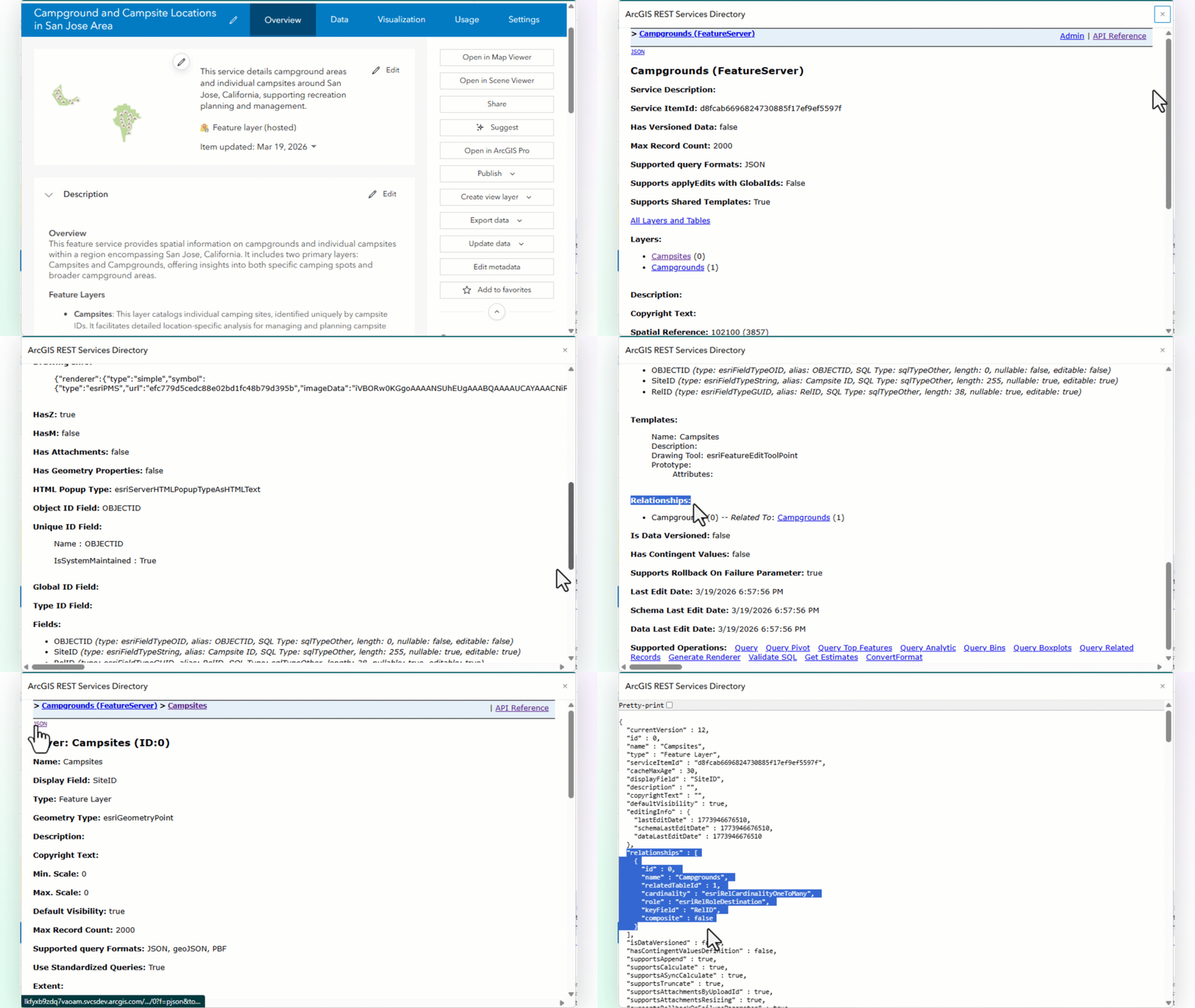
ArcGIS Online does not expose the properties of relationship classes in hosted feature layers. To view the relationship class parameters, you must use the REST endpoint or bring the layer into ArcGIS Pro and review the layer properties.
REST endpoint
- Go to the layer’s item page in ArcGIS Online.
- Click the Overview tab.
- On the right side of the page, under Details locate the URL.
- On the right side of the URL click on the View icon.
- This opens the layer’s REST endpoint.
- Click on one of the layers that participates in the relationship class. At the bottom of the page, you will see all the related datasets.
- If you want to see the parameters on the relationship class, click on the json link and search for relationships to find the details.
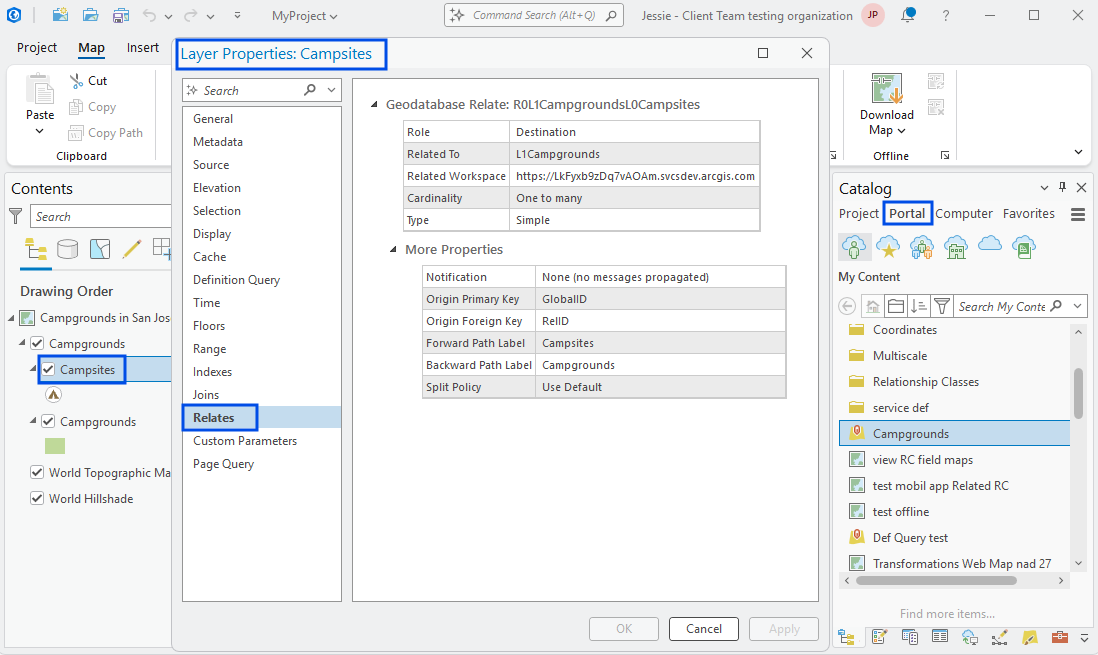
ArcGIS Pro
- Open a map in ArcGIS Pro.
- Connect to your instance of ArcGIS Online.
- Add the hosted feature layer to the map through the portal connection or using the feature layer’s URL (Add Data > From Path).
- In the Content pane, right-click on one of the datasets that is participating in the relationship class.
- Select Properties.
- Go to the Relates tab and there will be a summary of the details of the class relationship parameters.
Limitations in ArcGIS Online
Not all relationship class capabilities available in the geodatabase are supported once the data is published as a hosted feature layer in ArcGIS Online. It’s important to understand these differences as you design and plan your workflows.
- Split Policies – In a geodatabase, you can apply a split policy on the origin feature class to control how related records behave when an origin feature is split, including the option to duplicate related features. This behavior is not supported once the data is published to ArcGIS Online.
- Relationship Class Rules – Minimum and maximum cardinality rules, which restrict how many features can be related are not enforced in ArcGIS Online. These rules function only within a geodatabase environment.
- Many-to-Many Relationship Classes – Many-to-many relationships can be published, and ArcGIS Online supports navigating related features. However, the editing experience is limited: the editing form does not support adding or updating related records directly. To edit related records in ArcGIS Online, you must manually add entries to the relationship class table and populate the appropriate foreign keys.
Best Practices
- Enable related records in pop-ups so you can easily view and navigate between related features.
- Add related records to the editing form to allow editors to create, update, and manage related features directly in the web map.
- Use the attribute table to navigate and review related records.
- Use a GlobalID as the primary key to ensure each origin feature has a stable, unique identifier. When using GlobalIDs, make sure the related table includes a GUID field as the foreign key.
- If using a user-managed ID field as the primary key, enforce uniqueness by creating a field index with a unique value requirement to ensure primary key values are not duplicated. To learn more: Add a Unique Constraint to a Field
- Do not use the ObjectID as the primary key. ObjectIDs are unique within the table, but can change during data loading, append, or republishing operations.
- For editable data hide the foreign key field in the pop up and editor form to prevent editors from viewing or modifying these values, which can accidentally break relationships.
- Do not use hosted feature layer views to hide primary or foreign keys, views will block the ability to create related records. Instead, ensure these fields remain hidden directly in the pop up and editing form so the system can manage them automatically when related records are created.

Excellent blog post. If you want to add relationships to an existing Feature Service you can use the ArcGIS API for Python: https://youtu.be/xsGCFNwEaMc?is=J1GQw-zaeeEXtodE
On this part
Simple relationship classes – Both datasets remain independent. Neither feature requires the other to exist, and deleting a feature in the origin dataset does not delete any related records.
Does a simple relate in AGOL turn the child keys to Null when deleting a parent? It does do that in a Enterprise GDB which shocks a lot of people. I would really like for it to be truly unmanaged and not do that. If AGOL does do this I would suggest updating this article as it got us bad a few times. I forget now if AGOL does it or not.
Note to get around this issue a cool trick is to set the Key to something like the word Delete first, then delete the parent. Then it finds nothing to null. Note this only works if you are not using the globalid in the relate – which I highly recommend doing. GlobalId is a bad choice if you ever move the data also. Plus the lowercase vs uppercase globalid issue that has been out there for 5-6 year now will get you.
thanks a lot
Hi Doug,
If you have a simple relationship class in ArcGIS Online, the foreign key in the destination layer of the relationship is not set to Null when deleting the related feature in the origin.
Your link at the end of this paragraph appears to be broken. Setting up the Pop-ups to View Related Records
Pop-ups are the primary way you can explore and understand relationships between features. The option to view related records is not automatically enabled in the default pop-up settings. To learn more: Rolling Out Related Records in Map Viewer