This blog article was originally published on Feb 24, 2018. The last previous update was July 20, 2025.
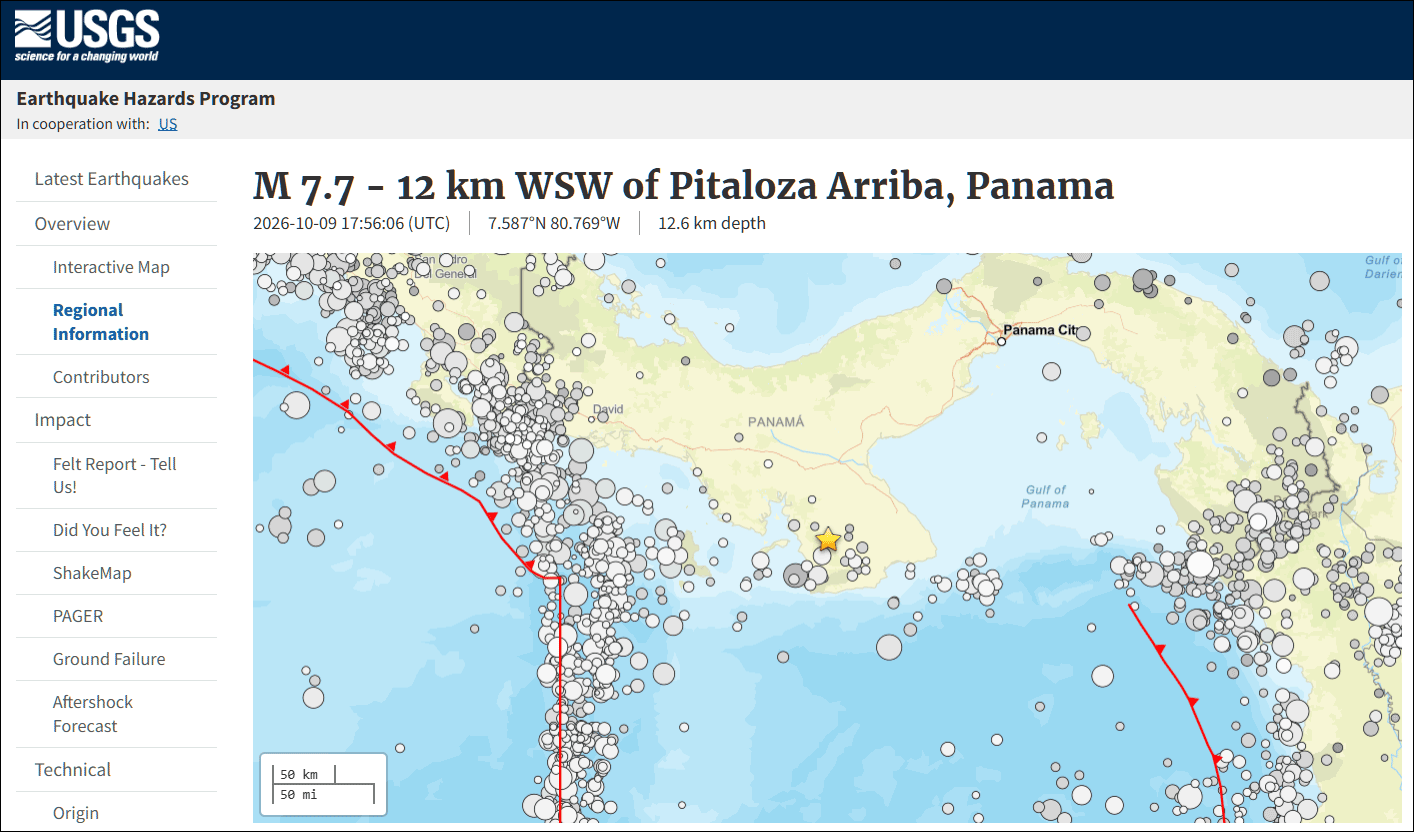
In the news: Panama has declared a state of emergency after magnitude 7.7 and 6.6 earthquakes struck, causing buildings to fall and prompting evacuations. The U.S. Geological Survey (USGS) reported the epicenter was near Pitaloza Arriba in the province of Herrara, with more than 100 aftershocks recorded.
According to the USGS, millions of earthquakes occur worldwide every year, though many are too small or remote to feel. The USGS locates roughly 20,000 earthquakes per year (about 50 per day), and millions of smaller micro-quakes are recorded by global networks.
Make an earthquake map
ArcGIS Living Atlas of the World includes authoritative live feeds and other content that helps you learn more about earthquakes, faults, and what was experienced. Follow these steps to make your own earthquake map in a minute, maybe less. The workflow is as follows:
- Make an ArcGIS Online map using the ArcGIS Living Atlas Recent Earthquakes live feed.
- Apply filters to display only the most recent quakes.
- Refine and finalize the map by changing the basemap and adjusting layer styles (optional).
You can also use ready-to-use apps like the Esri Disaster Response Program (DRP) Earthquake Public Information Map.
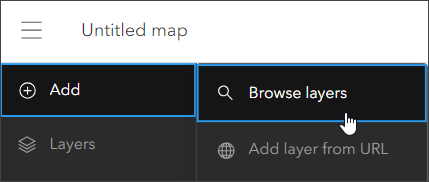
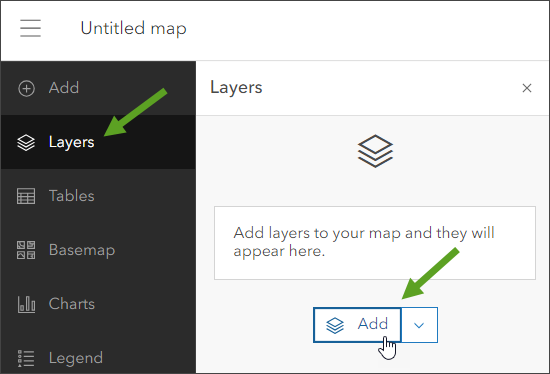
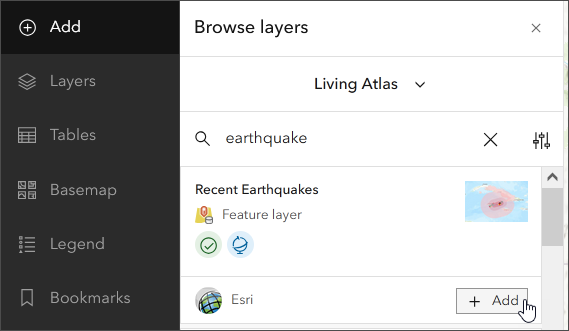
Step 1 — Sign in to your ArcGIS account and open Map Viewer. There are two ways to add layers from the Contents (dark) toolbar:
(1) Click Add, then Browse layers.
(2) Click Layers, then Add.
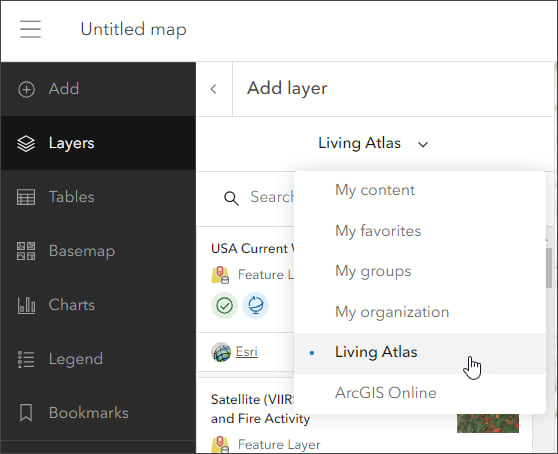
Step 2 — Choose Living Atlas from the Add layer drop-down.
Step 3 — Enter “earthquake” in search to locate the Recent Earthquakes layer. Click [+ Add] to add it to the map.
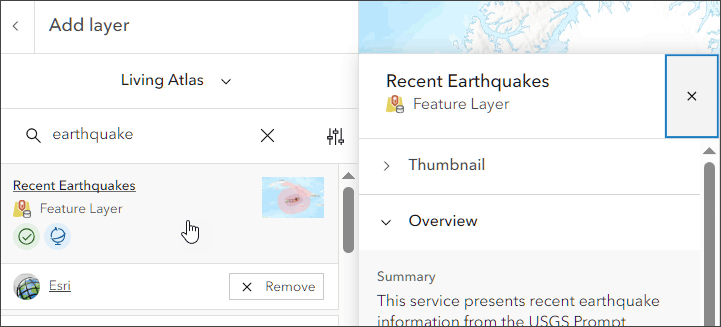
Step 4 — View the layer information to learn more.
Click the layer card to view the item information pane, providing quick access to the overview, description, details, and more.
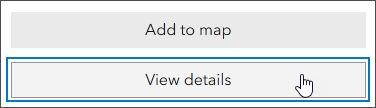
To open the full item pages, click View item details at the bottom of the pane.
From the Recent Earthquakes item details we learn that quakes are displayed by magnitude along with impact. Events are updated as frequently as every 5 minutes and are available up to 30 days, except for events of magnitude less than 3.0 (retained 3 days) and events of magnitude less than 4.5 (retained 7 days). Labeled quakes are those with a PAGER alert, a measure of the scope and impact of the event.
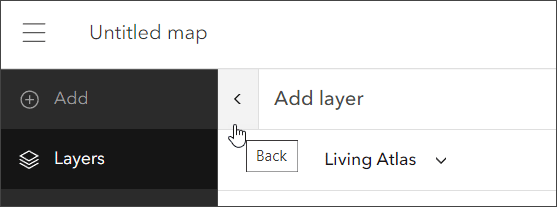
Step 5 — Click the left arrow to return to the Layers pane in the Contents (dark) toolbar.
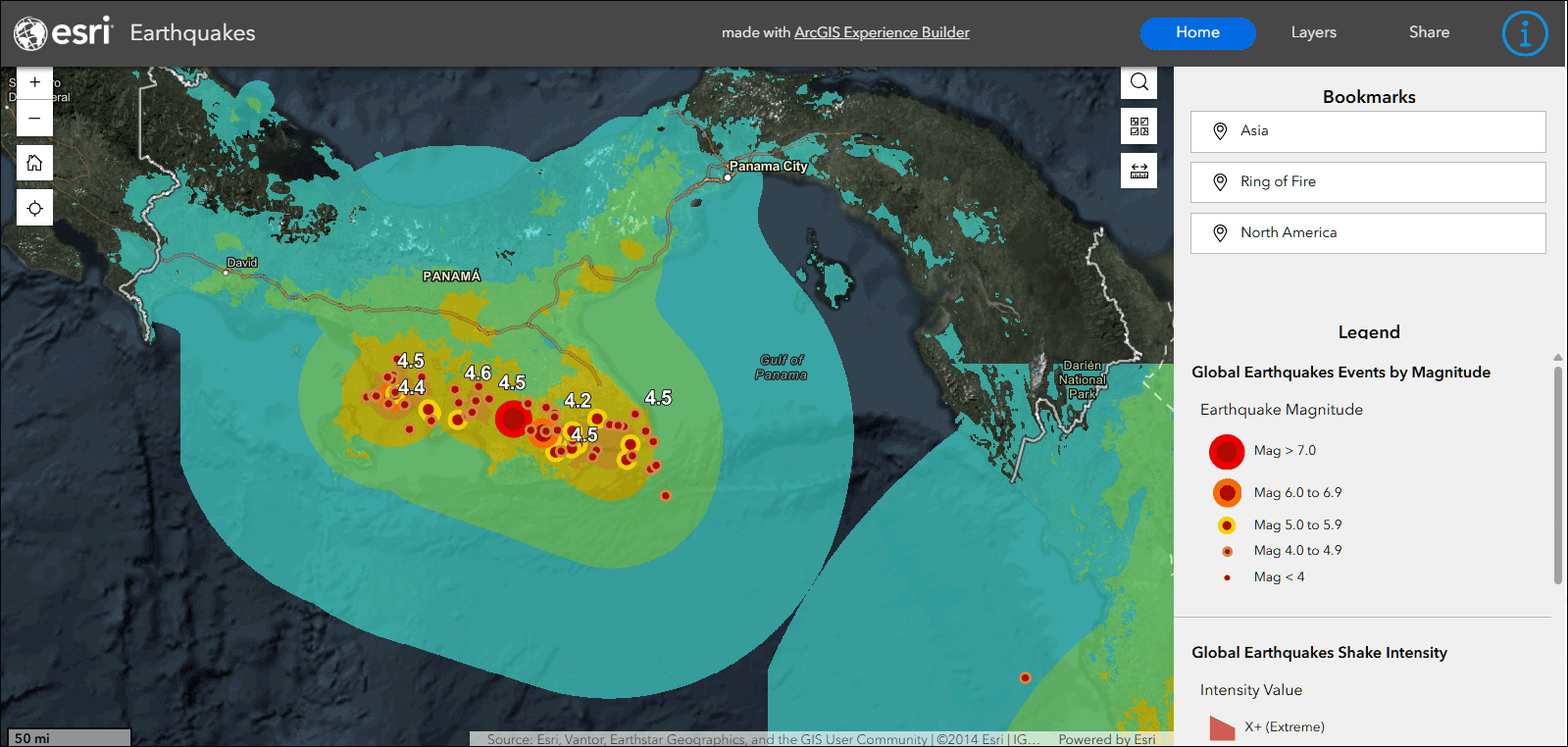
Shown below using the default World Topographic basemap, the map displays all earthquake events. Zooming to Panama, the quakes are shown along with the shake intensity.
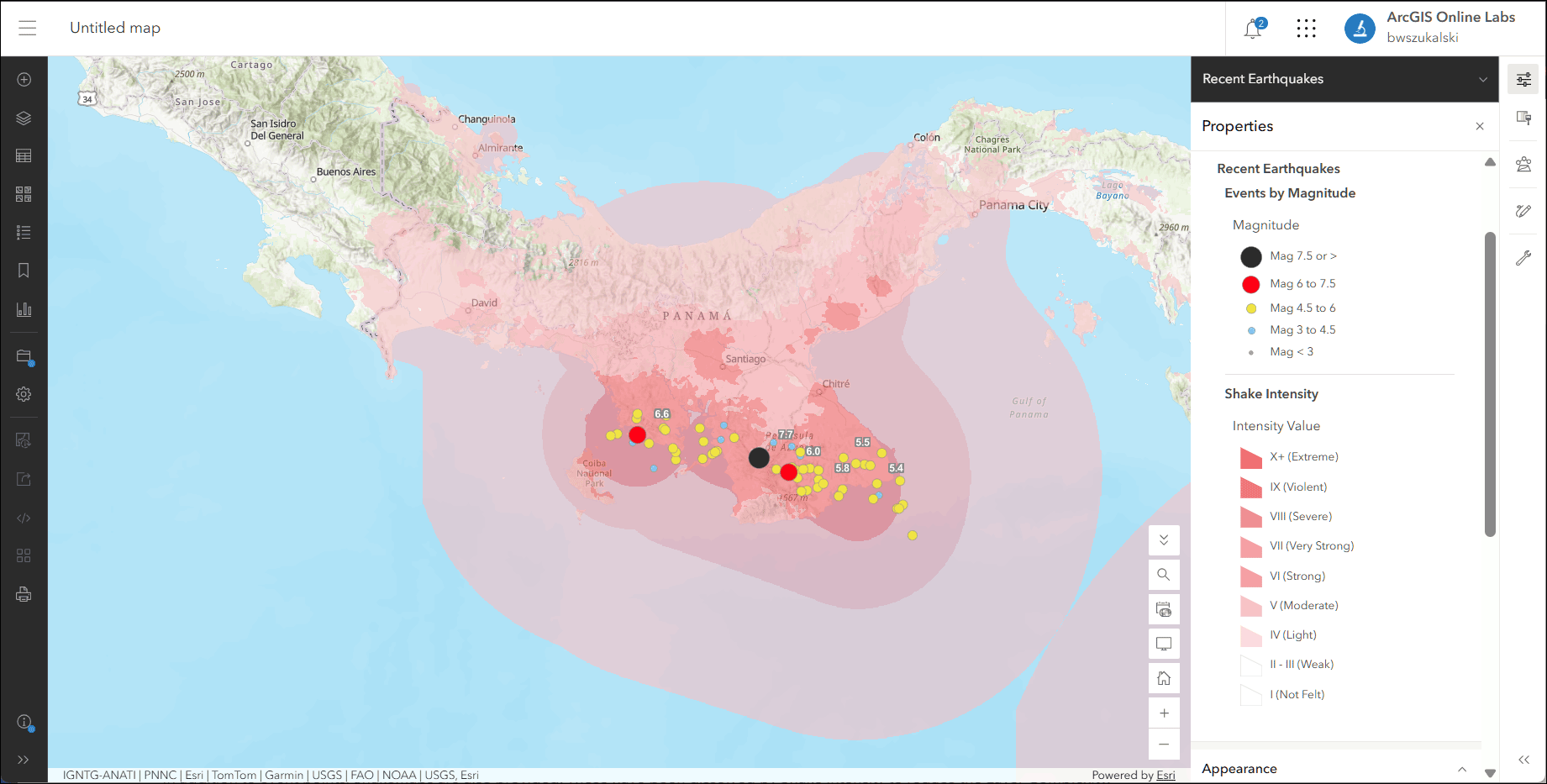
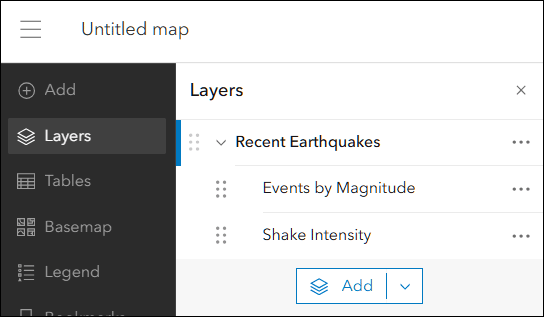
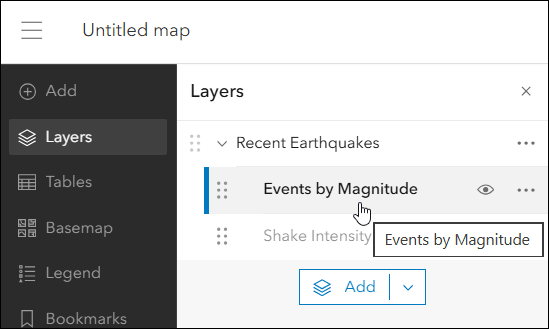
Step 6 — Recent Earthquakes is a group layer with two sublayers that you can view: Events by Magnitude and Shake Intensity.
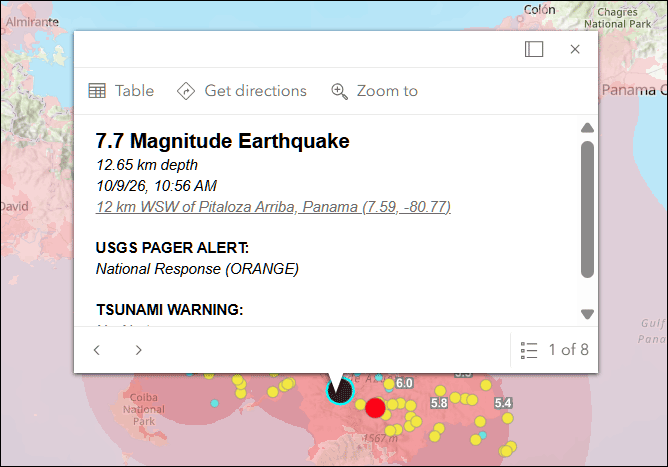
Click features on the map to view the layer pop-ups. When there are multiple features or layers found, you can cycle through the pop-ups using the arrows or feature pagination found at the bottom of the pop-up pane, or at the top of the pop-up when docked.
Shake Intensity is configured with a scale dependency and will display when zoomed in. The Events by Magnitude pop-up displays the magnitude, depth, date, time, PAGER alert status, and includes a link to the USGS event details.
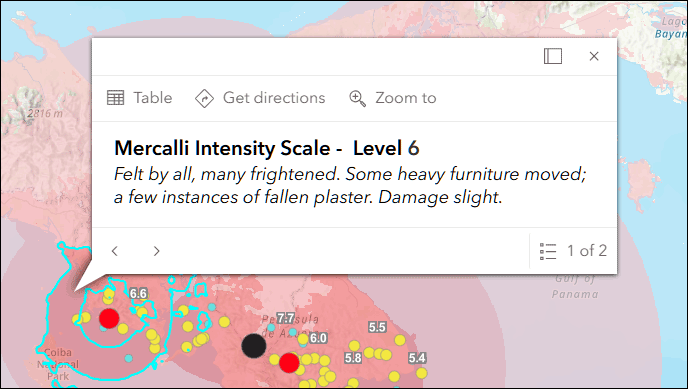
The Shake Intensity pop-up displays the Mercalli Scale intensity and a description of what was felt and any expected damage.
You’ve now made an earthquake map in a minute (or less) using ArcGIS Online and ArcGIS Living Atlas.
Doing more: Apply filters to find quakes of a specific magnitude
You can use filters to present a focused view of a layer in a map. The Recent Earthquakes layer shows events of all magnitudes. The next steps will filter for only those earthquakes having a magnitude of 5 or greater.
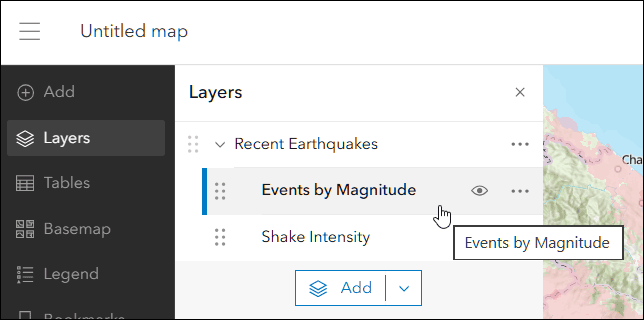
Step 7 — Open the Layers pane and select Events by Magnitude.
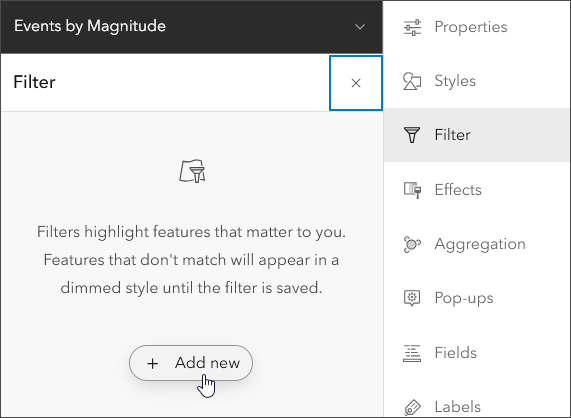
Step 8 — In the Settings (light) toolbar, click Filter. In the Filter pane, click Add new.
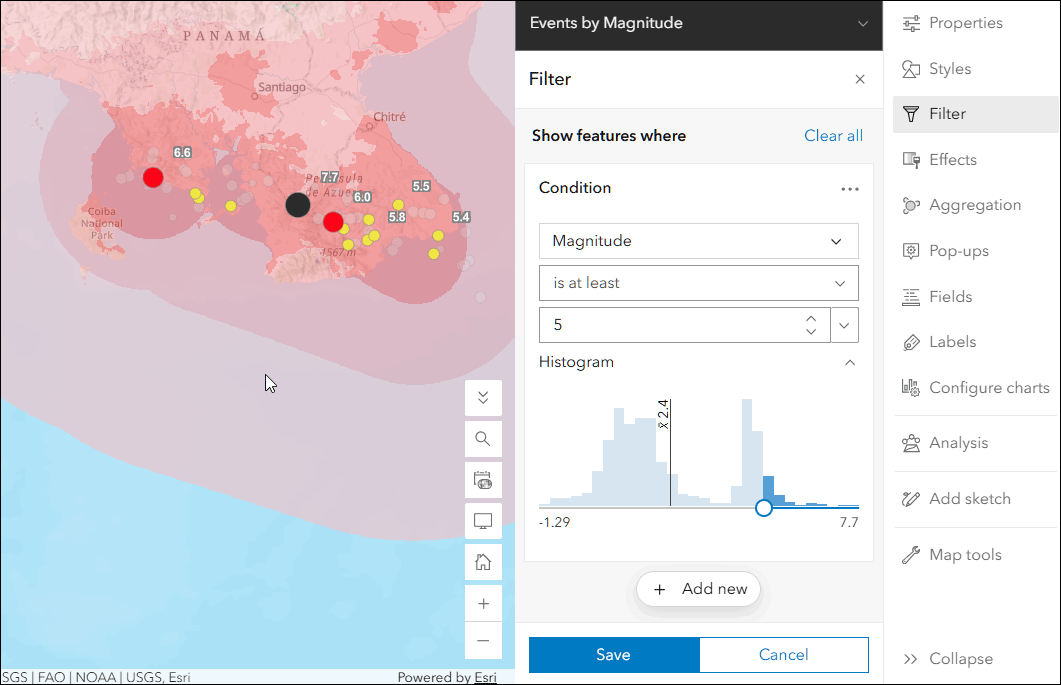
Step 9 — Create the filter expression.
Expressions use the general form of <field name> <operator> <value>. Use the drop-down menus to create the desired filter, in this case to find the quakes that are 4 or greater in magnitude.
Click the field selector and choose Magnitude. Click the operator selector and choose is at least. Use the histogram slider or value selector to choose 4.
When finished, click Save in the bottom left of the Filter pane.
Other filters you can try are:
- Magnitude is greater than 6
- Event Time in the last 1 week
To sync the display of the the two layers (Events by Magnitude and Shake Intensity), apply the same filter to both. Note that some of the field names will differ. Multiple filters and filter sets can be applied. For more information, see Apply filters.
Improve the map
World Topographic is the Esri default basemap and was used in the map authored above. The basemap seems busy, competing with the Recent Earthquakes layer, and labels are also hidden beneath the layers. A better map can be easily created with a few simple changes.
Choose a different basemap
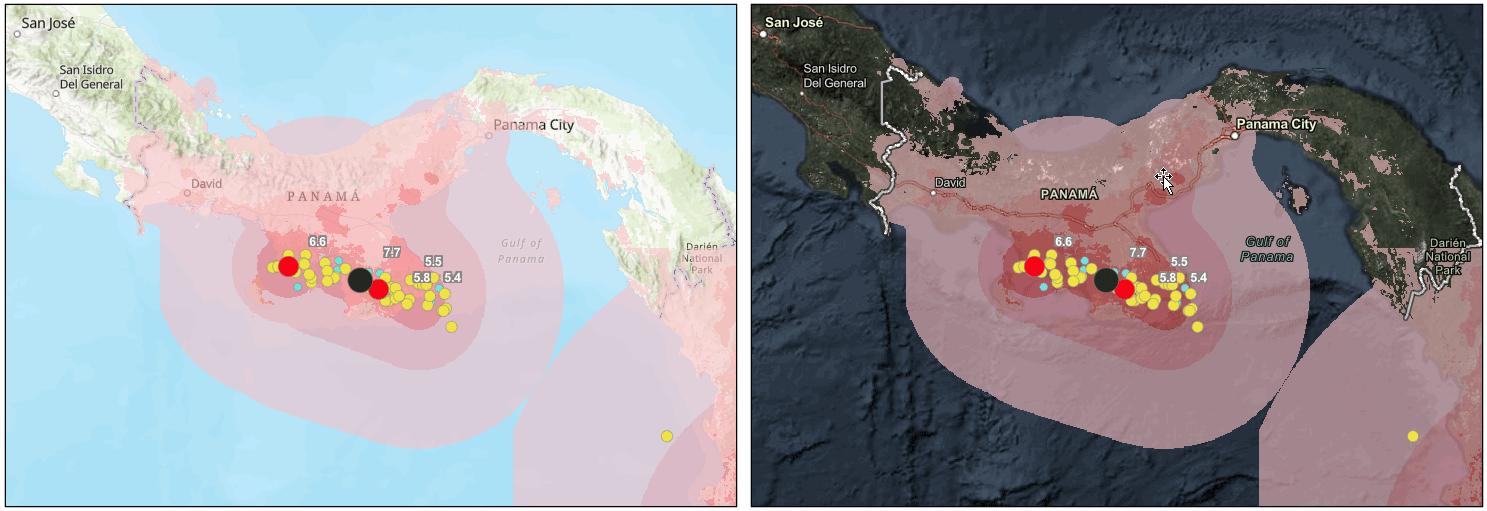
A quick and easy improvement can be made by choosing a different basemap. Below on the left is the default Word Topographic basemap, on the right is the World Imagery (Firefly) basemap. The darker colors in the Firefly basemap help make the layers pop.
Change layer styles
Recent Earthquakes is a group with two feature layers: Events by Magnitude and Shake Intensity. You can apply your own styling to highlight what you want and change the overall appearance. By changing symbol styles. you can emphasize and order earthquakes by magnitude.
Step 1 — Select Events by Magnitude from the Layers pane in the Cotents (dark) toolbar.
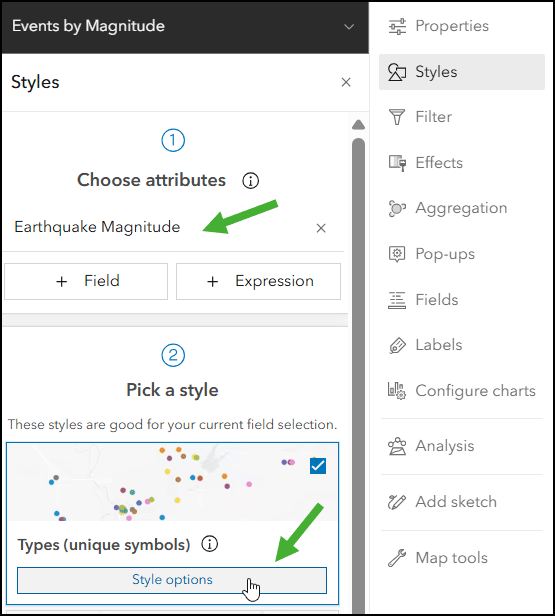
Step 2 — We want to group earthquakes by magnitude for symbolization and labeling in the legend. to accomplish this, an Arcade expression will be created that groups earthquakes by their magnitude. To open the Arcade Editor, from the Settings (light) toolbar, click Styles then click + Expression.
Step 3 — Construct an Arcade expression that groups earthquakes by magnitude. The variable Mag will be used for symbolization.
// Earthquake Magnitude
// Used to symbolize earthquakes by magnitude

var Mag = $feature.mag

When (Mag >= 7, "Mag > 7.0",
Mag >= 6, "Mag 6.0 to 6.9",
Mag >= 5, "Mag 5.0 to 5.9",
Mag >= 4, "Mag 4.0 to 4.9",
"Mag < 4")
Step 4 — Choose Types (unique symbols) as the style. Note that the Earthquake Magnitude expression is the attribute for the unique symbols, meaning the returned Mag value will govern the style.
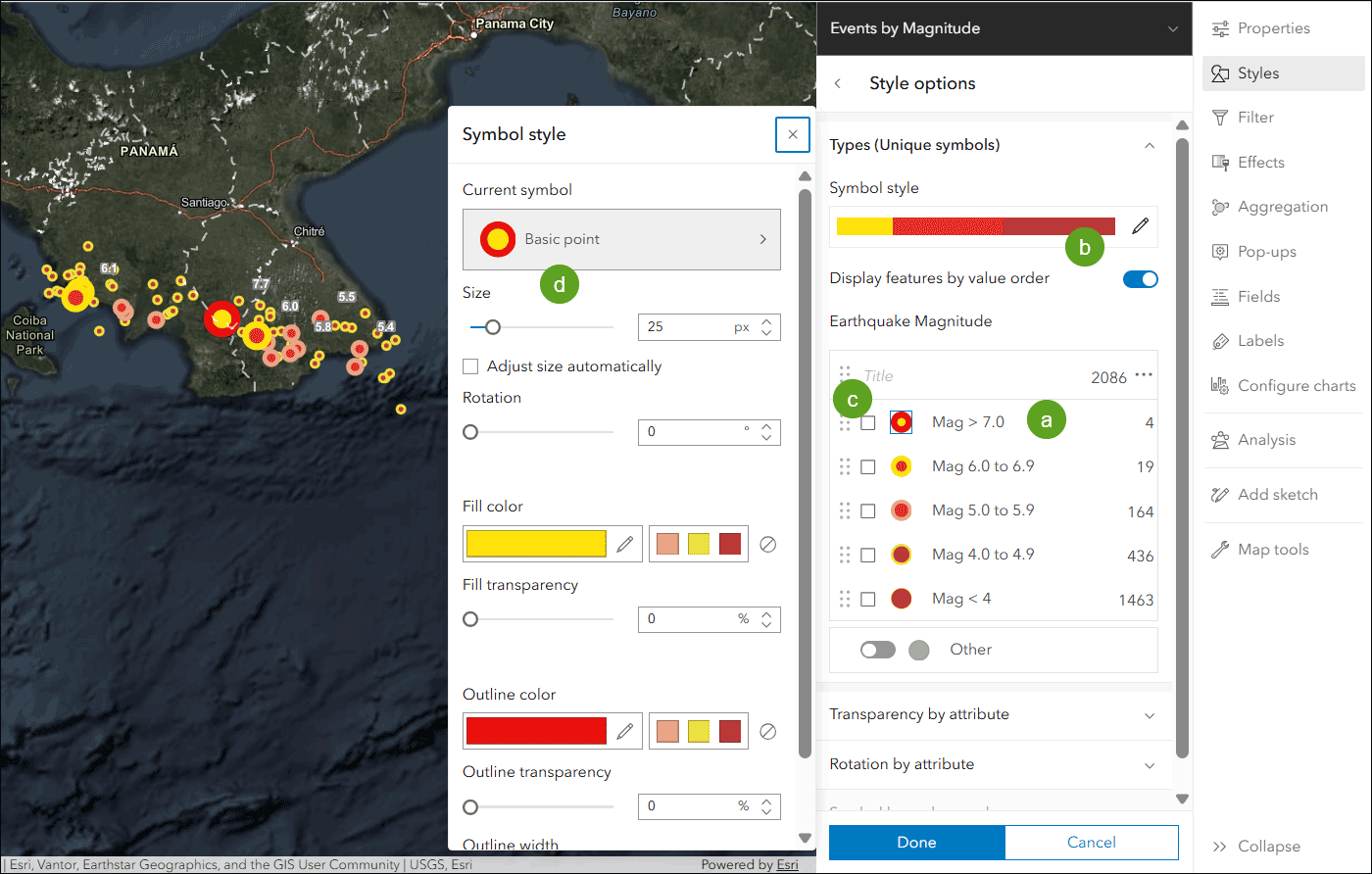
Step 5 — Make the following changes in the Style options:
a – Order the symbols by their Earthquake Magnitude from high to low.
b – Toggle on Display features by value order, ensuring that the higher magnitude quakes are always on top in the map.
c – Click each point symbols to open the Symbol style pane.
d – Change fill and outline color and size to your liking.
Add additional layers
You can add other layers, such as fault lines, to provide additional context. For the final map, the following changes were made:
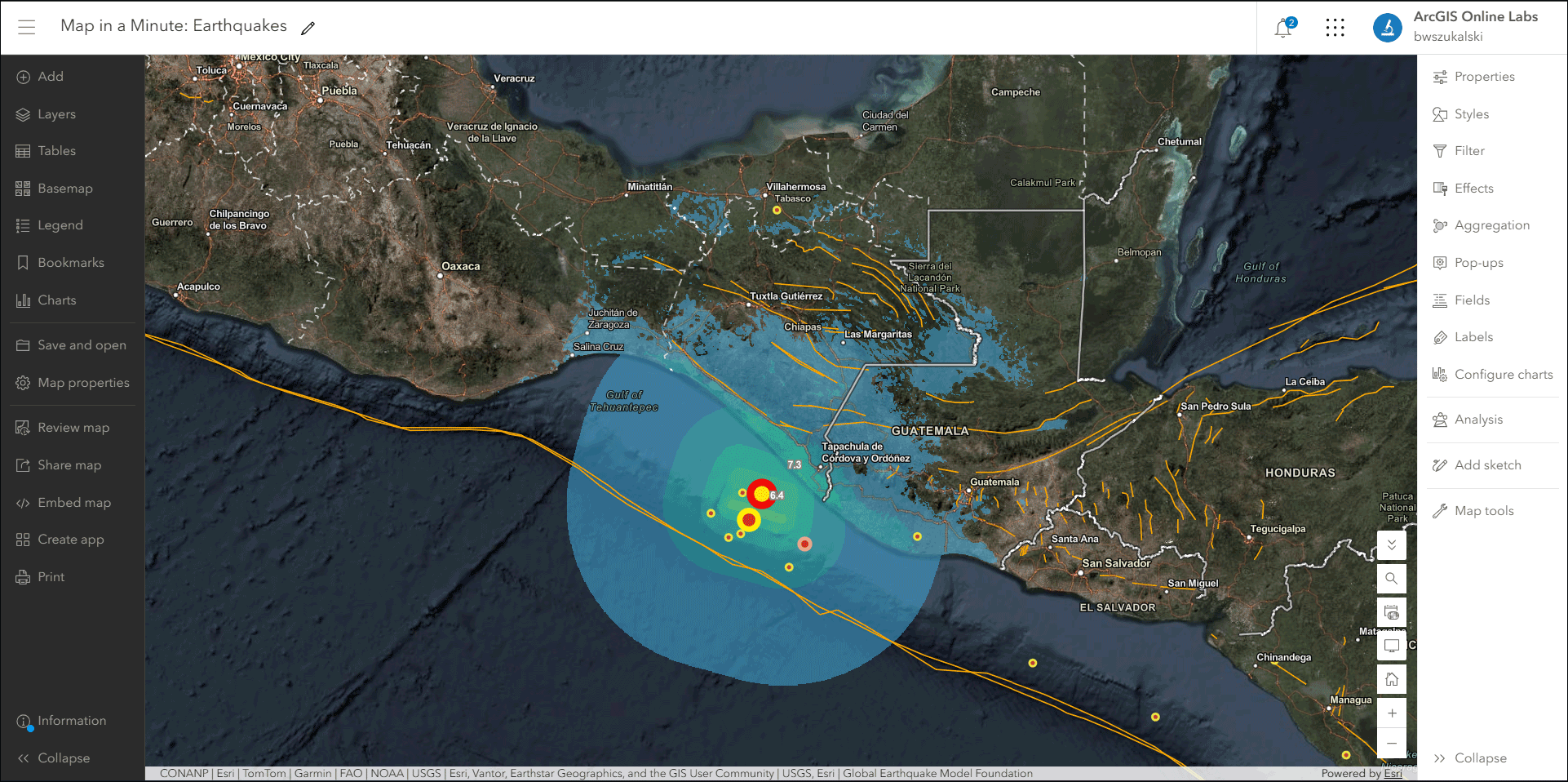
- Global Active Earthquake Faults was added and dragged and dropped between Events by Magnitude and Shake Intensity so the faults will always draw on top of the intensity polygons. Transparency was adjusted to 50%.
- A filter was applied to Global Active Earthquake Faults to show only those that have a name.
- Colors were changed for Shake Intensity.
- Shake Intensity was filters for only those whose intensity is greater than 3.
View the final Map in a Minute: Earthquakes map to see how it was constructed. Save it as your own and experiment with other variations.
Earthquake Public Information Map
The Earthquake Public Information Map is built and maintained by the Esri Disaster Response Program (DRP) using the Recent Earthquakes live feed and other layers described above. To use the app, follow these steps.
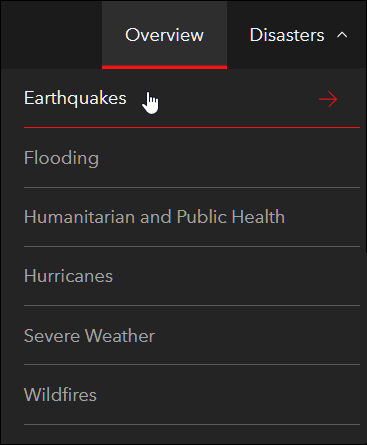
Step 1 — Locate the app on the Esri Disaster Response Program website. Open the Disasters tab, then choose Earthquakes.
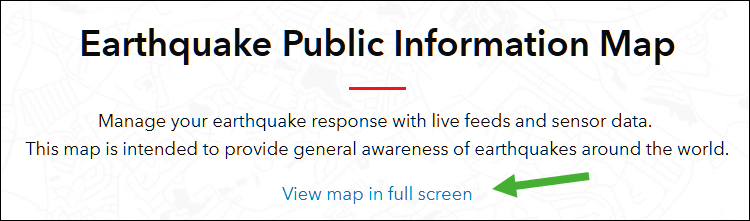
Step 2 — From the Earthquakes page click View map in full screen to open the app.
Step 3 — Explore the map using by zooming to areas of interest, or use the bookmarks to change location. Click any feature to learn more about it.
More information
For more information see:
- Browse Living Atlas layers (Help)
- Feature layers (Help)
- Change style (Help)
- Choose a basemap (Help)
- Set the feature display order (Help)
- Set transparency and visible range (Help)

Commenting is not enabled for this article.