Sure, there’s a glorious drop shadow effect in the ever-more-capable ArcGIS Online Map Viewer to give features a sweet glow, BUT there’s no inner glow effect. How do we cast that beautiful glow inward? I’ll admit that I’ve been stumped by this one for longer than I care to admit, but then it just hit me! I can composite two copies of my layer to get an inner glow! Even better, though, I can get an inner glow with complex patterns and stuff. All of life is a hack, my friends.
What, too busy to watch the video? I understand. Here’s the sequence:
-
Two versions of your polygon layer
-
Bottom layer has desired fill
-
Top layer has no fill and thickest outline possible
-
Top layer gets Destination-In blend, to mask the fill layer beneath
-
Group the two layers to isolate this masking
-
Give top, outline, layer a blur effect
-
Profit
Love, John
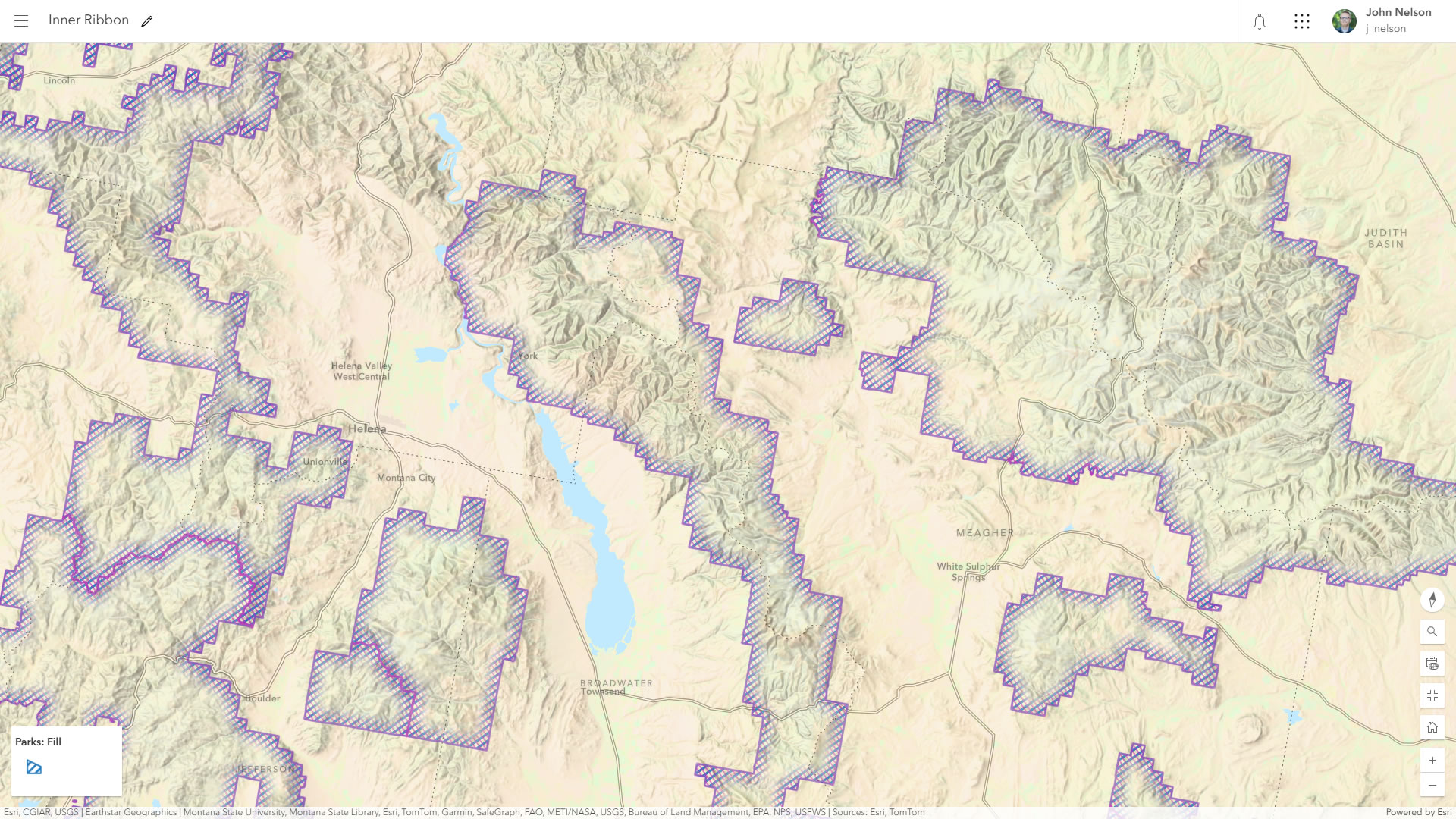
P.S. Here’s the ArcGIS Online web map if you want to take a look at it in realz life. And here are some quick examples…
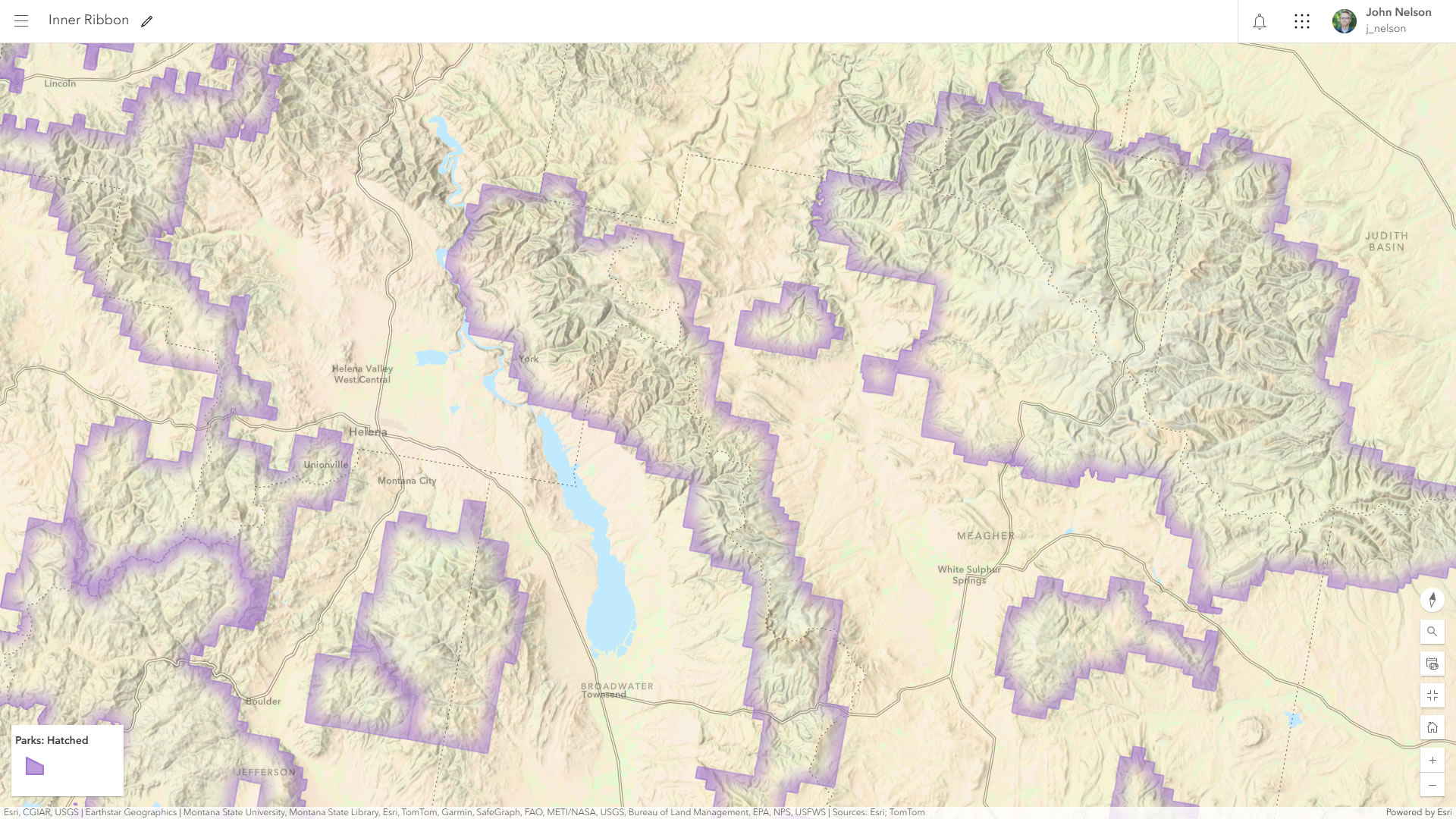
Basic semi-transparent purple fill:
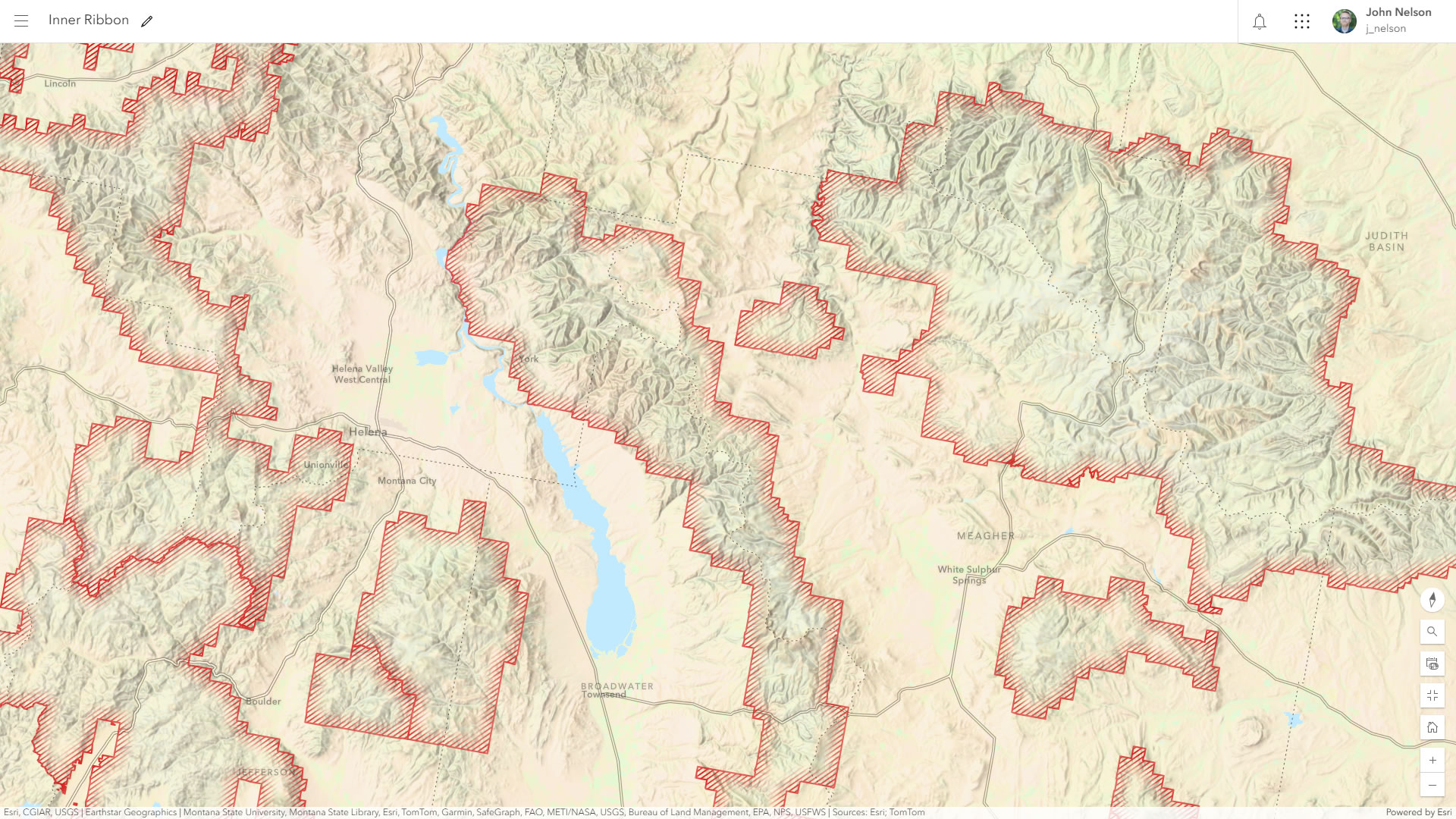
Red hatched fill:
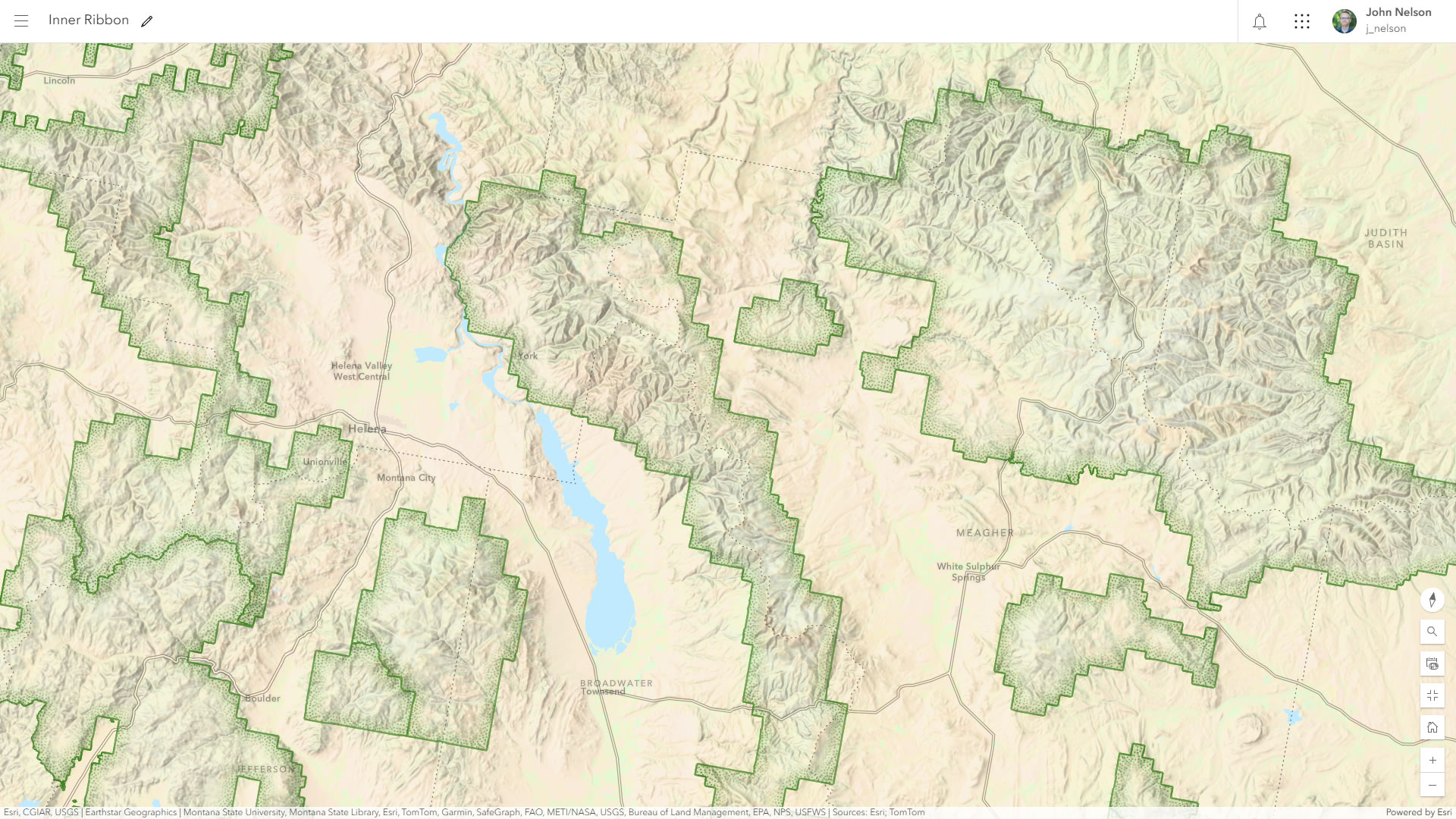
A stippled “cropland” fill pattern from the “landscape” category of fill types…
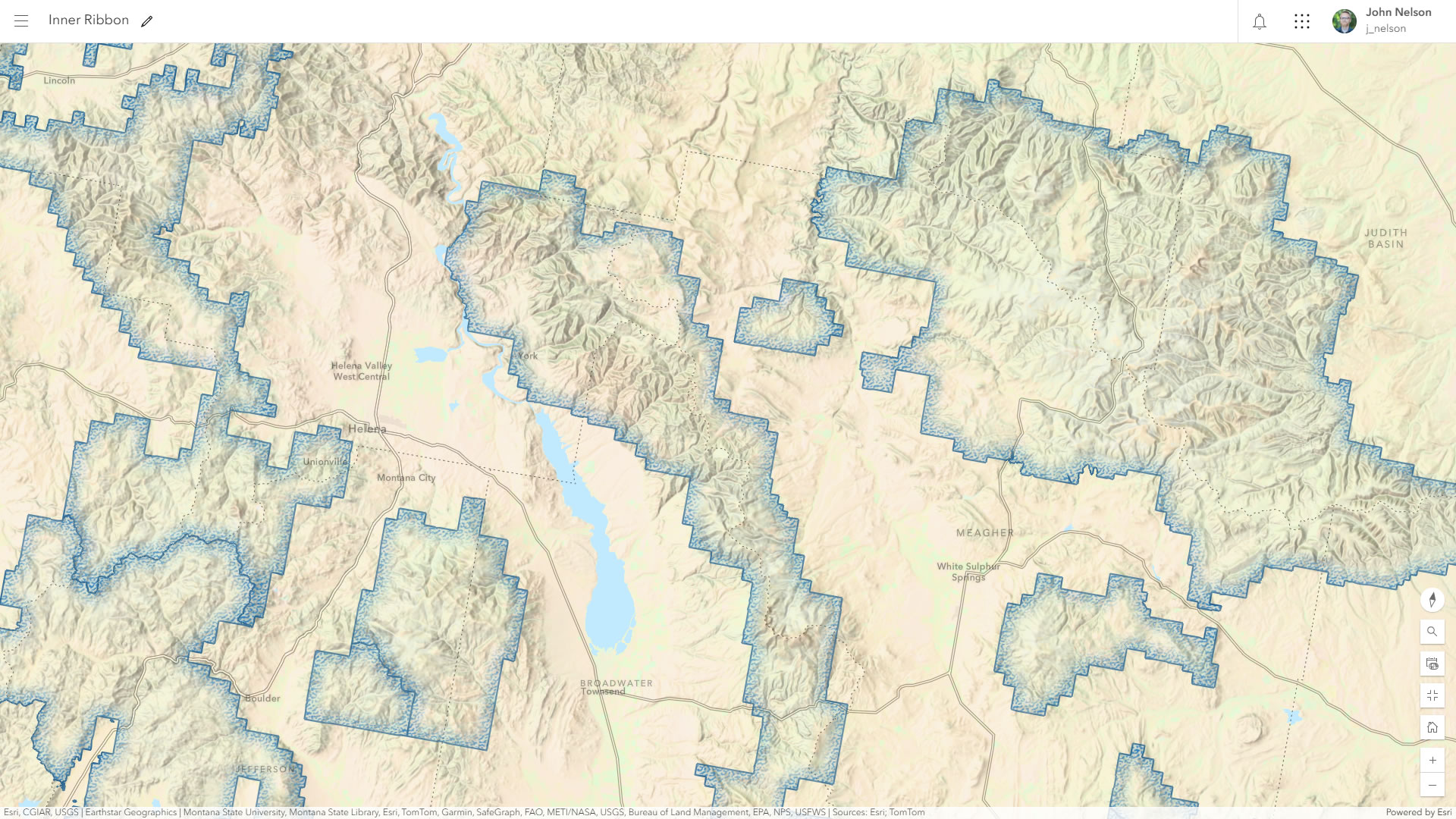
The “glacier” fill pattern from the “landscape” category of fill types…
Two hatched fills with different orientations. Could be useful for categorical maps where there are overlapping polygons…
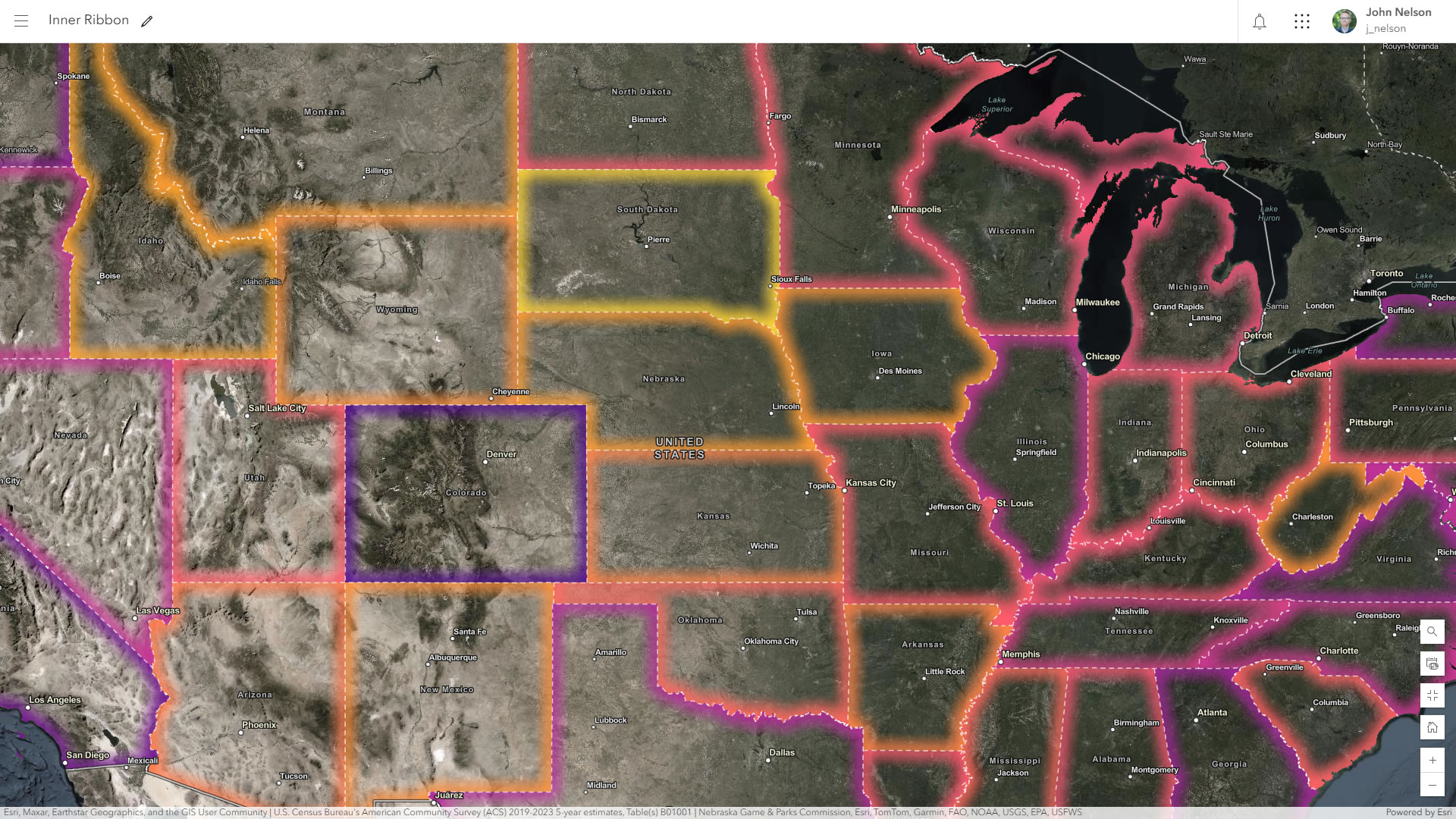
This compositing effect works with any polygon layer, so, yes, you could apply it to your thematic map…

Hi John, great advise (as always) but I found myself wondering how to achieve the same effect in ArcPro? I know there is the “donut” effect to limit say the hatching but I do not know how to additionally get that rather cool fading out effect you show in your video. By the way I always watch your videos to the end! 🙂
thanks Duncan! yes, you’re on the right track with Pro’s donut effect. the trick i use is to make the hatched fill semitransparent and then have several copies of that symbol layer, each with a thicker donute effect. it’s hacky but works. i just today saw this old technique from Spiros Staridas, which is way better! https://x.com/StaridasGeo/status/1483069922116841474
Thanks for the pointers, each approach has its pros and cons, I just tried Spiros method, nice and simple and because you can set the extent option under the gradient fill, is scales nicely as you zoom in/out. In my mind the con is that you have to create a group layer and maintain multiple versions of the layer. Your approach I think has much finer control, it’s one layer you are fiddling around with but the con is as you zoom out the donut fill, fills in the whole polygon. But key issue here is the clever use of progressively adding slightly different fills on top of each other in a single symbol. I always forget you can take this nifty approach.
Anyway it’s been a good use of my Friday afternoon!
I did everything as instructed, but when I go to put in hatched fill, it fills the entire polygon anyways instead of the outline. What happened?
hi Benjamin! thanks for trying this out. i just checked, wondering if a new release had changed something about the process, but it still works. whew! i recommend checking over your layers and making sure they’re the same as in the video. here’s a short list of what to check:
-create a group (no effects or blend modes on the group itself).
-top layer in group has only the outline (thick and blurred) it has a “destination in” blend mode.
-bottom layer in the group has whatever fill type you want.
Hello! This is amazing, thank you!
Do you have any suggestions for what to do for the legend?