This blog article was originally published on September 11, 2019. The last previous update was Augutst 28, 2022.
ArcGIS Living Atlas of the World is an evolving collection of authoritative, curated, ready-to-use global geographic information from Esri, and the GIS user community. It includes imagery, basemaps, demographics and lifestyle, landscape, boundaries and places, transportation, earth observations, urban systems, oceans, and historical maps that can be combined with your own data to create maps, scenes, and apps, and to perform analysis.
One of the most used types of Living Atlas content are basemaps. When you create a new map or scene, you can choose which basemap you want from the basemap gallery in the Map Viewer. By default, the basemap gallery for your organization is a pre-configured collection from Esri using the Living Atlas.
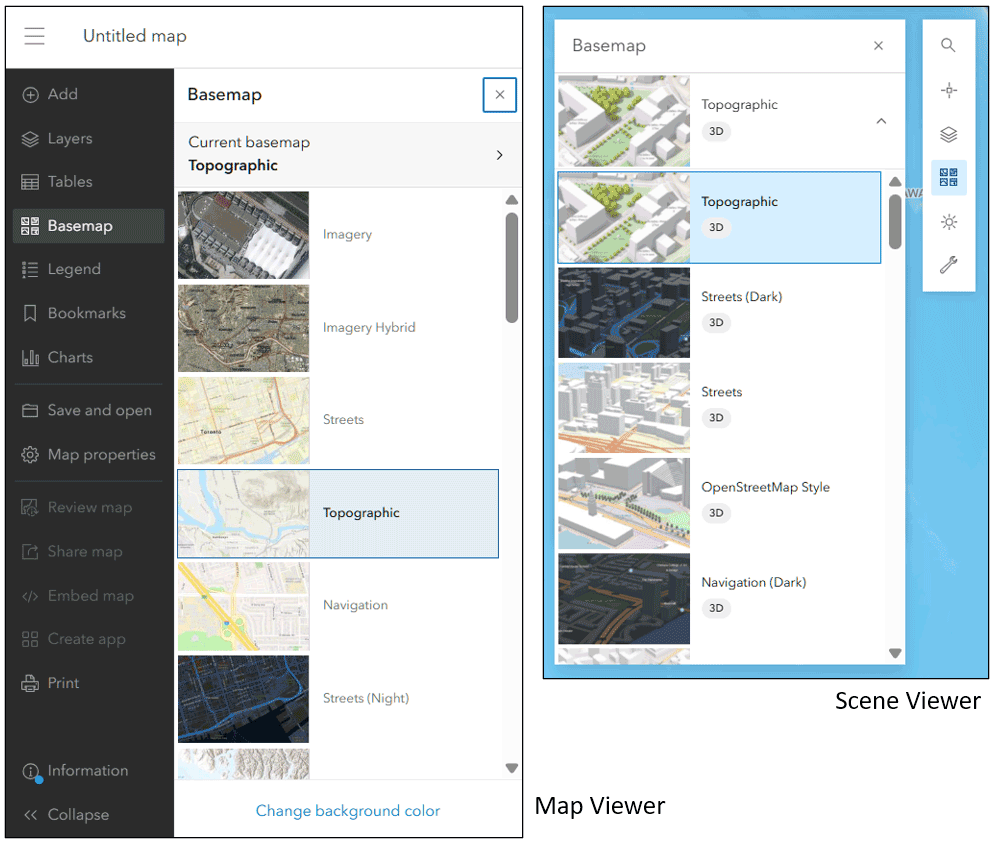
There are many more Living Atlas basemaps to choose from and you can create your own custom basemap gallery with the ones you like. Here’s how.
Create a custom basemap gallery
An administrator, or those with sufficient privileges, can change which basemaps your organization uses by creating a custom basemap gallery. The custom gallery can include a combination of your own basemaps, plus Living Atlas basemaps.
The steps to create a custom Basemap Gallery are:
- Create a group for your custom basemap gallery.
- Add maps you want to use as basemaps to the group.
- Set the group as your organization’s basemap gallery.
Create a group for your basemaps
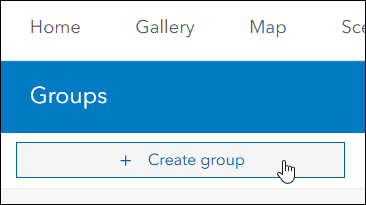
Create a group that will contain the maps you want to use in your custom basemap gallery. The contents of this group will be shown in the basemap gallery for Map Viewer or Scene Viewer. Click Create Group from the Groups tab.
For more details on this step, see Create groups and Create a custom basemap gallery for your organization.
Add Living Atlas basemaps to the group
An easy way to find Living Atlas maps for your custom gallery is by browsing from the ArcGIS Living Atlas of the World website. If you have not done so already, Sign In at the top right of the website.

Open the Browse tab.

Follow these steps to add Living Atlas basemaps to your group.
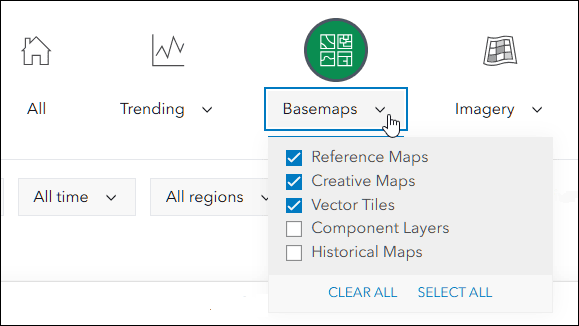
Step 1 – Click the Basemaps category, and check Reference Maps, Creative Maps, and Vector Tiles from the drop-down list.
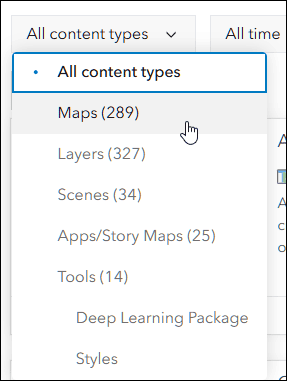
Step 2 – Choose Maps from the content type filter drop-down list.
Step 3 – Check the boxes for Esri-only content and Authoritative-only content.
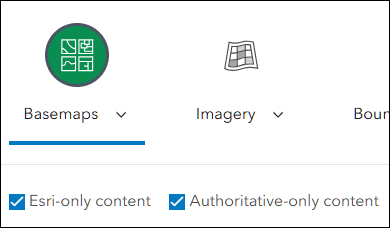
The above selections will present the Living Atlas maps that you can choose from to include in your gallery. This shortcut link will make the above settings.
Step 4 – Share a map into your group.
Browse the results, and when you find something of interest, click the title to learn more about the map and open its item overview.
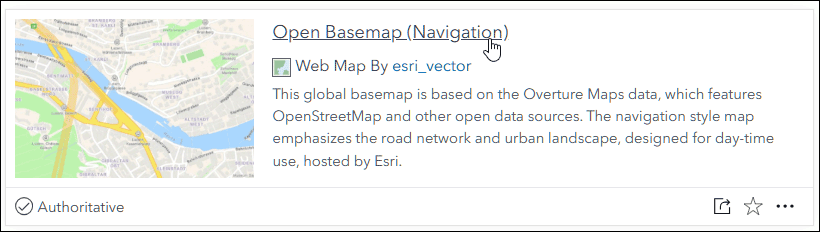
Step 5 – Share the map into your organization gallery group.
Review the item overview to learn more about the map and open the map to view it. To add it to your gallery group click Share.
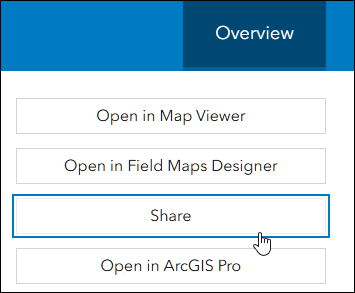
Step 6 – Click Edit group sharing.
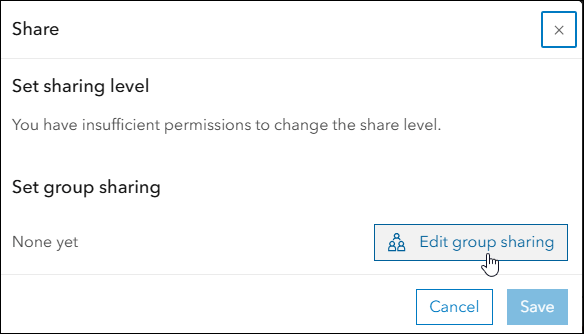
Step 7 – Select your organization’s custom basemap group.
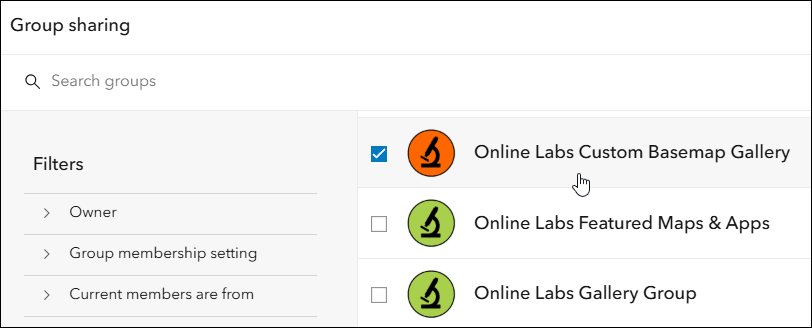
Step 8 – Click Apply to add the map to your custom basemap gallery group. Repeat the above steps as desired.
Other Living Atlas basemaps
Living Atlas basemaps can also be discovered in other ways. The following are a selection of groups containing additional Living Atlas map sources.
The link applies a filter for maps within each group. Look for the the green Authoritative badge and the blue Living Atlas badge, and avoid using maps marked with the red Deprecated badge.
Use the new basemap gallery
Now that you’ve collected the Living Atlas maps you want to use in a group, you can set the group as the basemap gallery source for your organization.
Administrators can do this by going to the organization settings, opening the Map and scene side tab, and selecting your custom basemap group in the Basemap gallery for maps and scenes section.
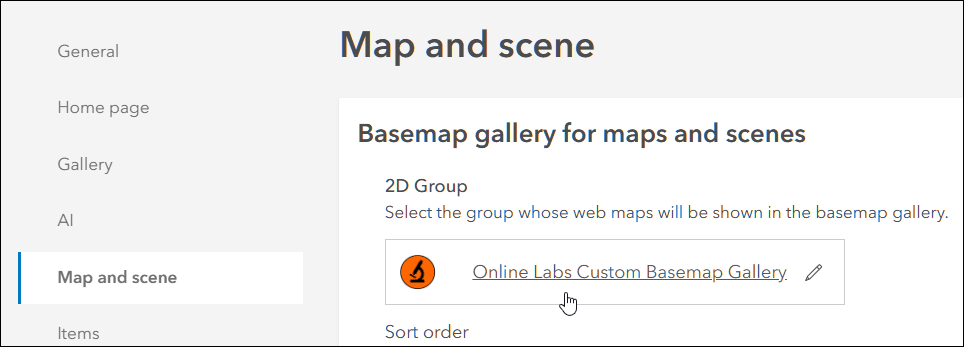
See Create a custom basemap gallery for your organization or Basemap gallery for maps and scenes for more details.
More information
For more information see the following.

Commenting is not enabled for this article.