This blog article was originally published on June 7, 2023, and has been updated. The last previous update was August 8, 2025.
In the news: Smoke from wildfires has spread across Canada and the U.S., triggering health advisories in many areas. Canada’s 2026 wildfire season has been fueled by a combination of lightning strikes, human activity, and unusually dry and hot conditions across several provinces. Over 3,500 wildfires have been reported this year, with many still active. As of this post, approximately 5.9 million acres have been burned.
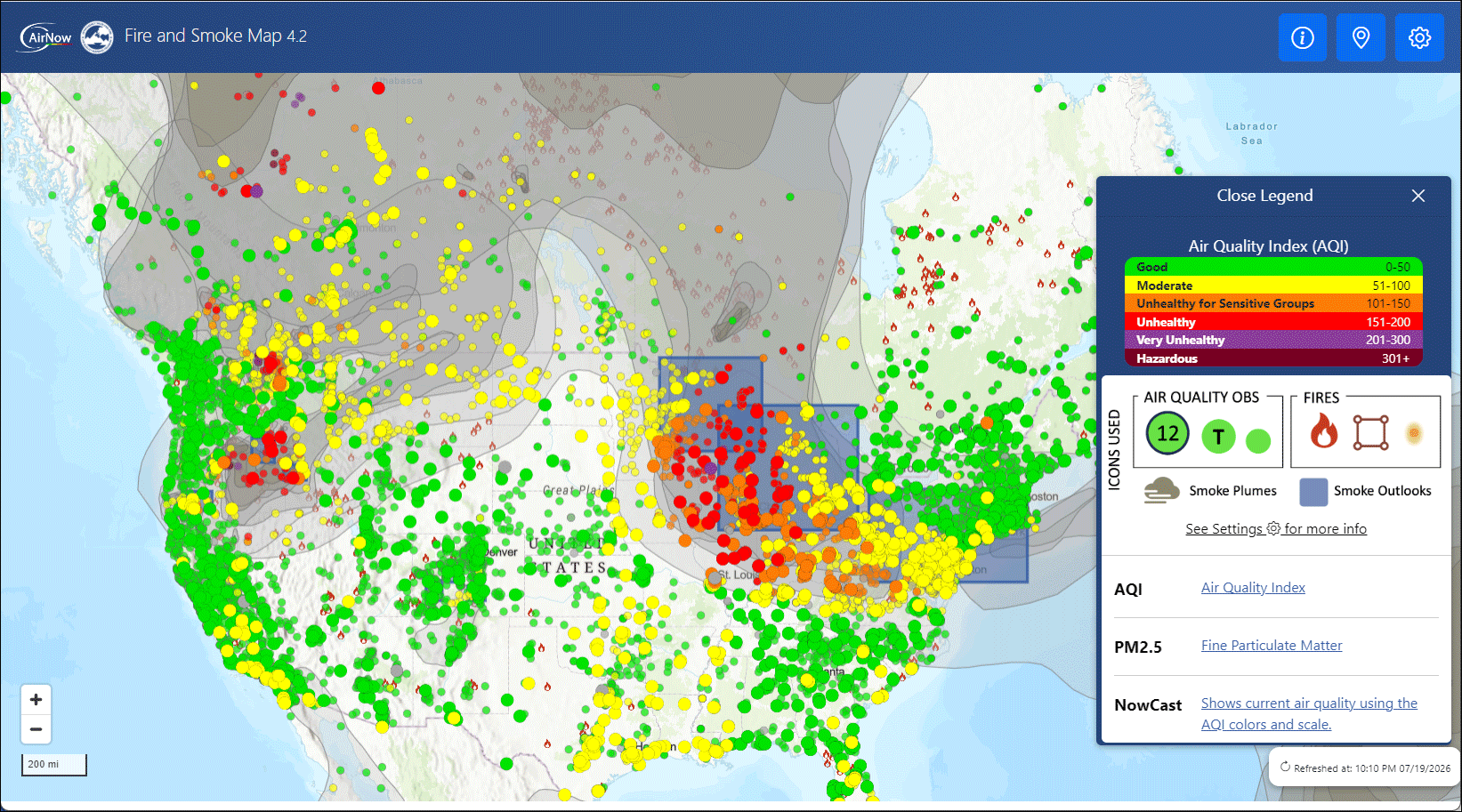
Make a wildfires smoke map
ArcGIS Living Atlas of the World includes authoritative content that helps you learn more about current and predicted smoke conditions and current air quality resulting from the Canadian fires. Follow these steps to make your own Canadian smoke, fire, and air quality map in a minute, maybe less.
You can view a similar blog article covering smoke and air quality using different Living Atlas content which is also applicable to the current Canadian fires. For more information, see Map in a minute: Map smoke and air quality using ArcGIS Online and ArcGIS Living Atlas.
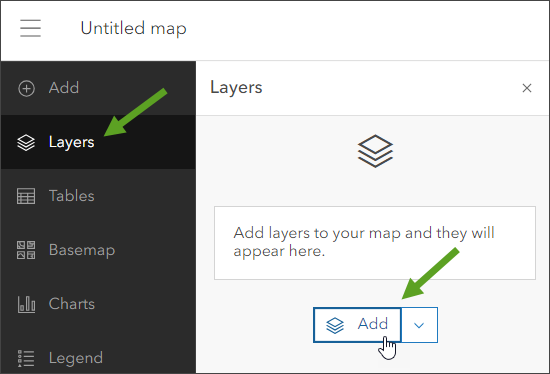
Step 1 — Sign in to your ArcGIS account and open Map Viewer. There are two ways to add layers from the Content (dark) toolbar:
(1) Click Add, then Browse layers.
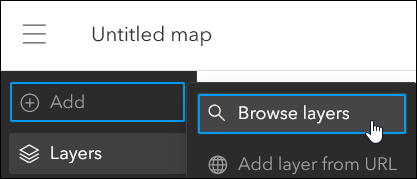
or (2) Click Layers, then Add.
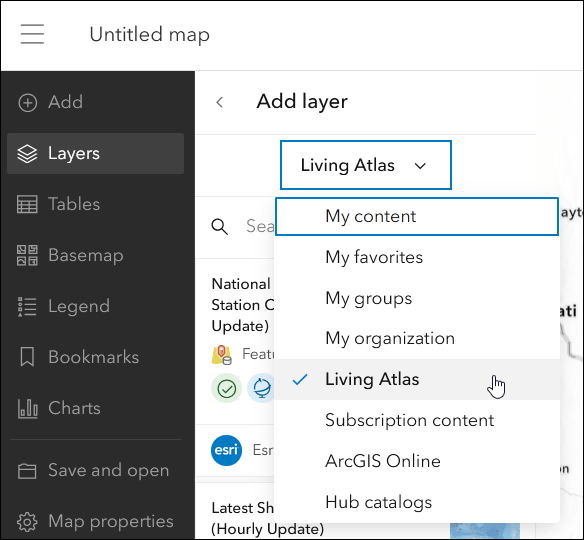
Step 2 — Choose Living Atlas from the Add layer drop-down.
Step 3 — Enter “smoke” in search to locate matching layers from the Living Atlas. Locate the National Weather Service Smoke Forecast layer and click [+ Add] to add it to the map.
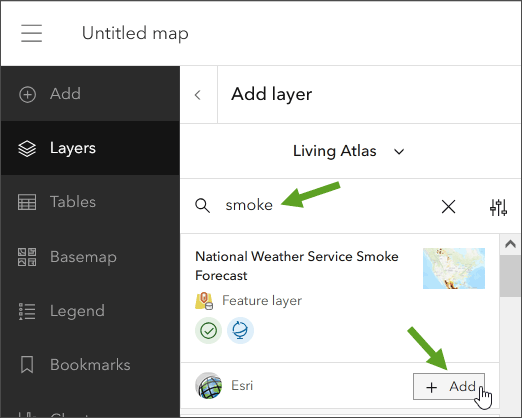
Tip: To learn more about any layer, click the layer card to view the item information, such as overview, description, and more. Click View details at the bottom to open the item pages.
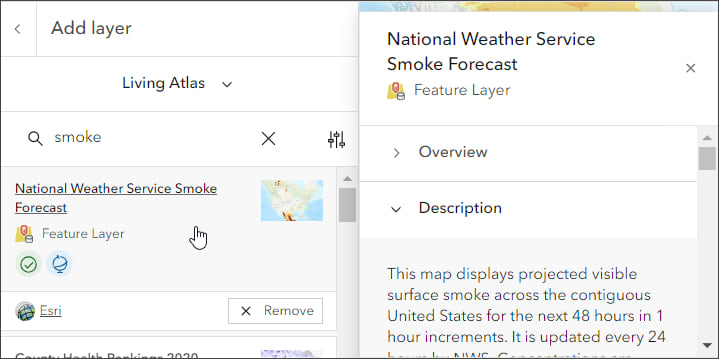
From the National Weather Service Smoke Forecast item details we learn that the layer displays projected visible surface smoke for the next 48 hours in 1 hour increments, and is updated every 24 hours by the National Weather Service.
The wildfires smoke map
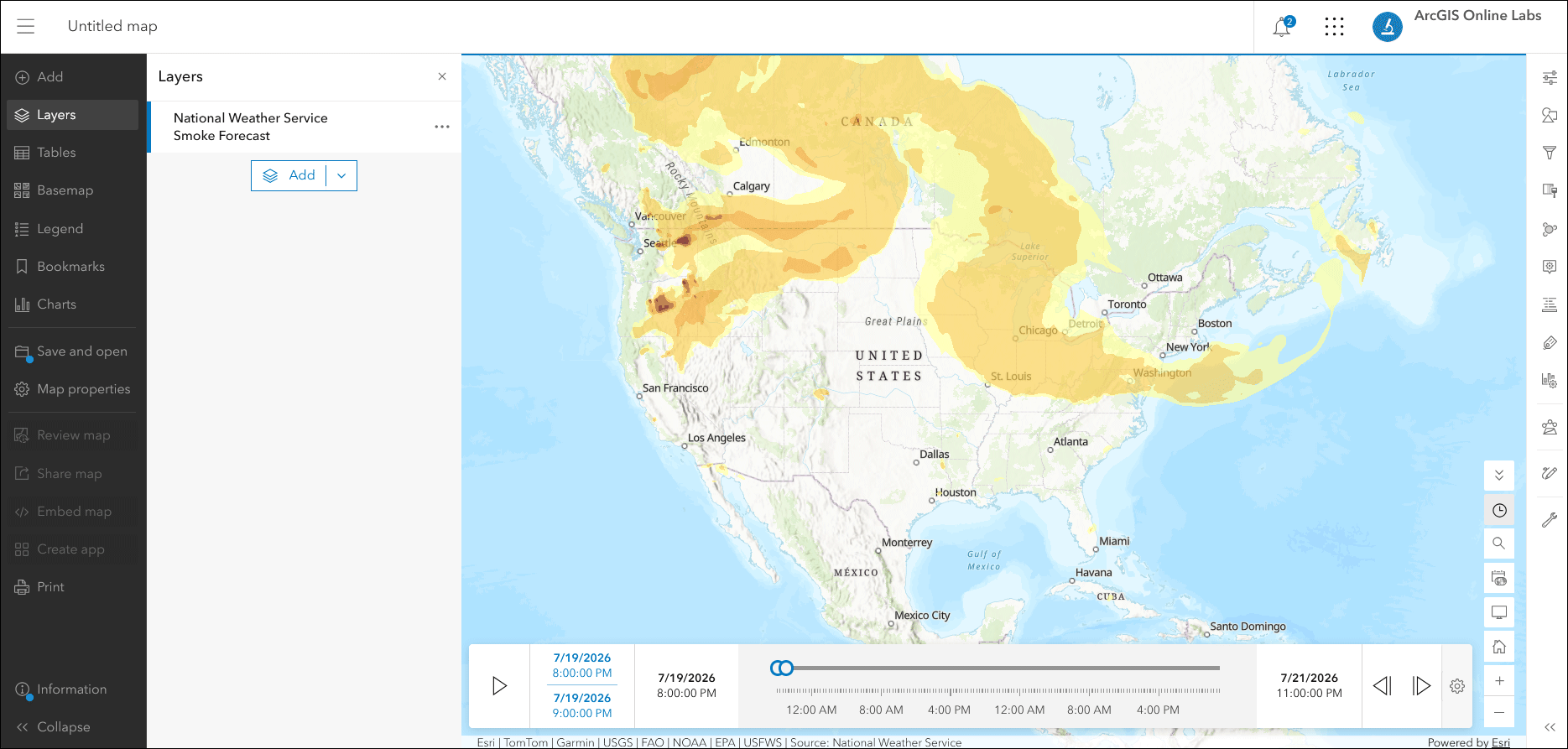
Technically, in well under a minute, we’ve created a map showing the spread of smoke from fires. Because the layer is time-enabled, a time slider automatically appears that allows us to play or step through the time intervals in the forecast.
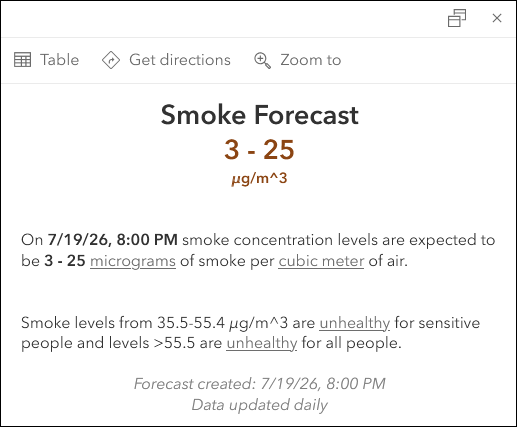
The pop-up delivers additional information about the smoke polygons.
Improve the map
With a few additional steps, the map can be improved using styles, effects, and additional layers to make it more expressive.
Experiment with different basemaps to see which you like best. You can alter layer transparency and symbols to emphasize the content you want. Use Effects to emphasize layers or alter their display.
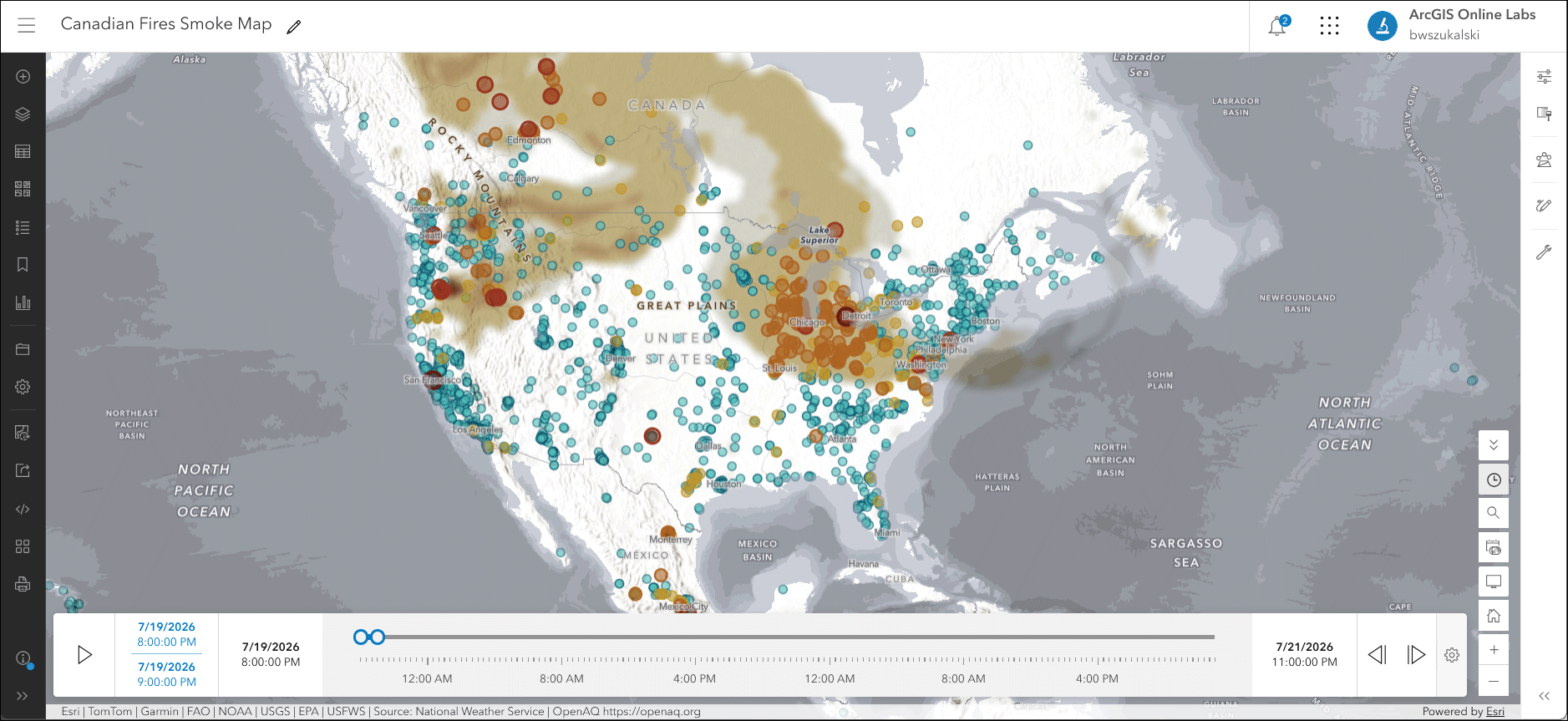
The map shown below uses the following:
This prototype basemap provides a detailed vector basemap with a monochromatic style and content adjusted to support physical geography information. While technically a prototype, I like this basemap and use it frequently. I’ve added it to my organization’s custom basemap gallery. For more information, see Use ArcGIS Living Atlas to create a custom basemap gallery.
Change style
My preference was to show smoke areas colored from gray (light smoke) to dark brown (heavy smoke). The unique symbols were adjusted to show a gray to brown color classification.
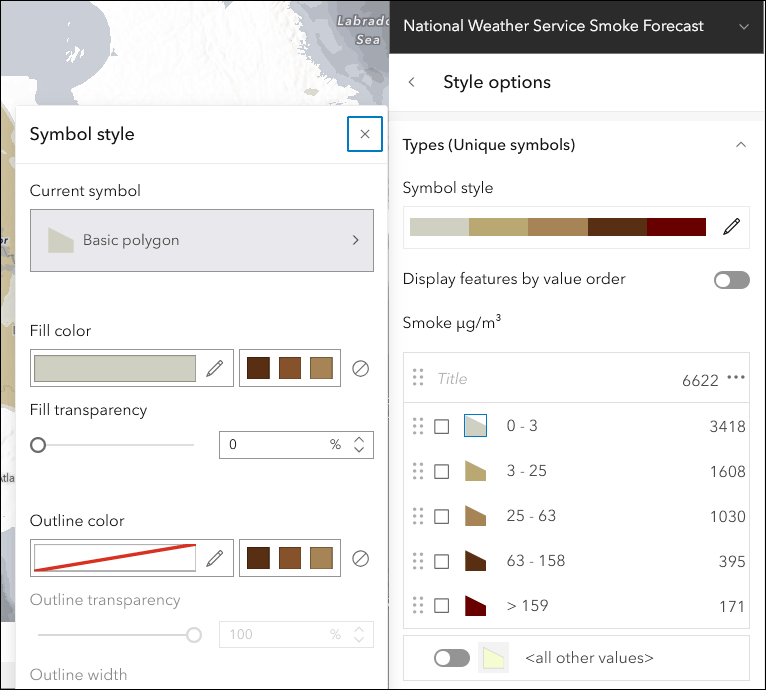
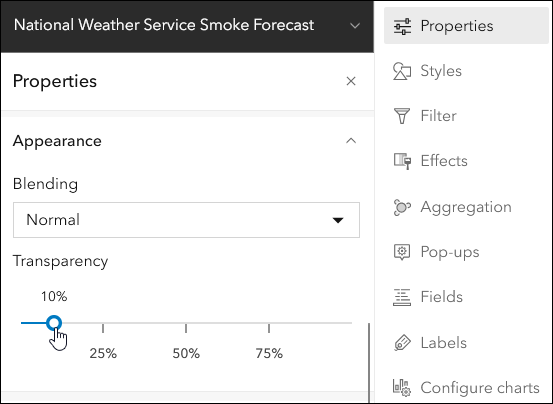
Transparency
Transparency, found in the Appearance section of layer Properties in the Settings (light toolbar) for the smoke layer, was adjusted to %10.
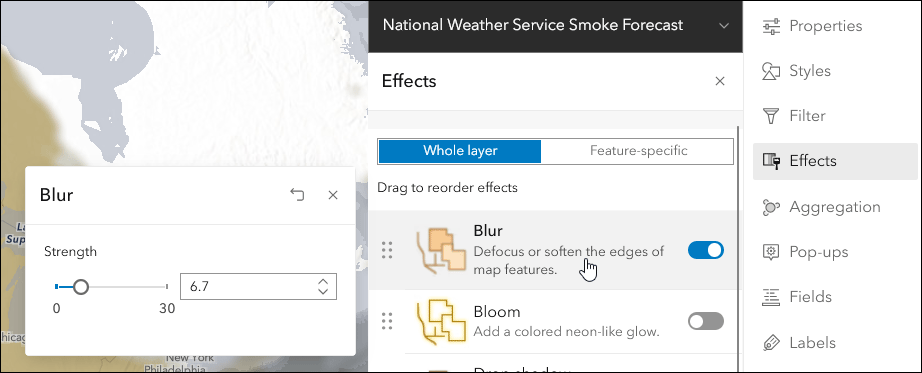
Blur
A blur effect was applied to the smoke layer since the polygons are only an approximation of the actual smokey areas. Click Effects on the Settings (light toolbar) to add a blur. Experiment with different settings to get the desired result.
Add other layers
Optionally, add additional layers such as USA Current Wildfires, Satellite (VIIRS) Thermal Hotspots and Fire Activity, or OpenAQ Recent Conditions in Air Quality to provide additional context. The map shown below uses the OpenAQ layer. Compare this to the original map authored above.
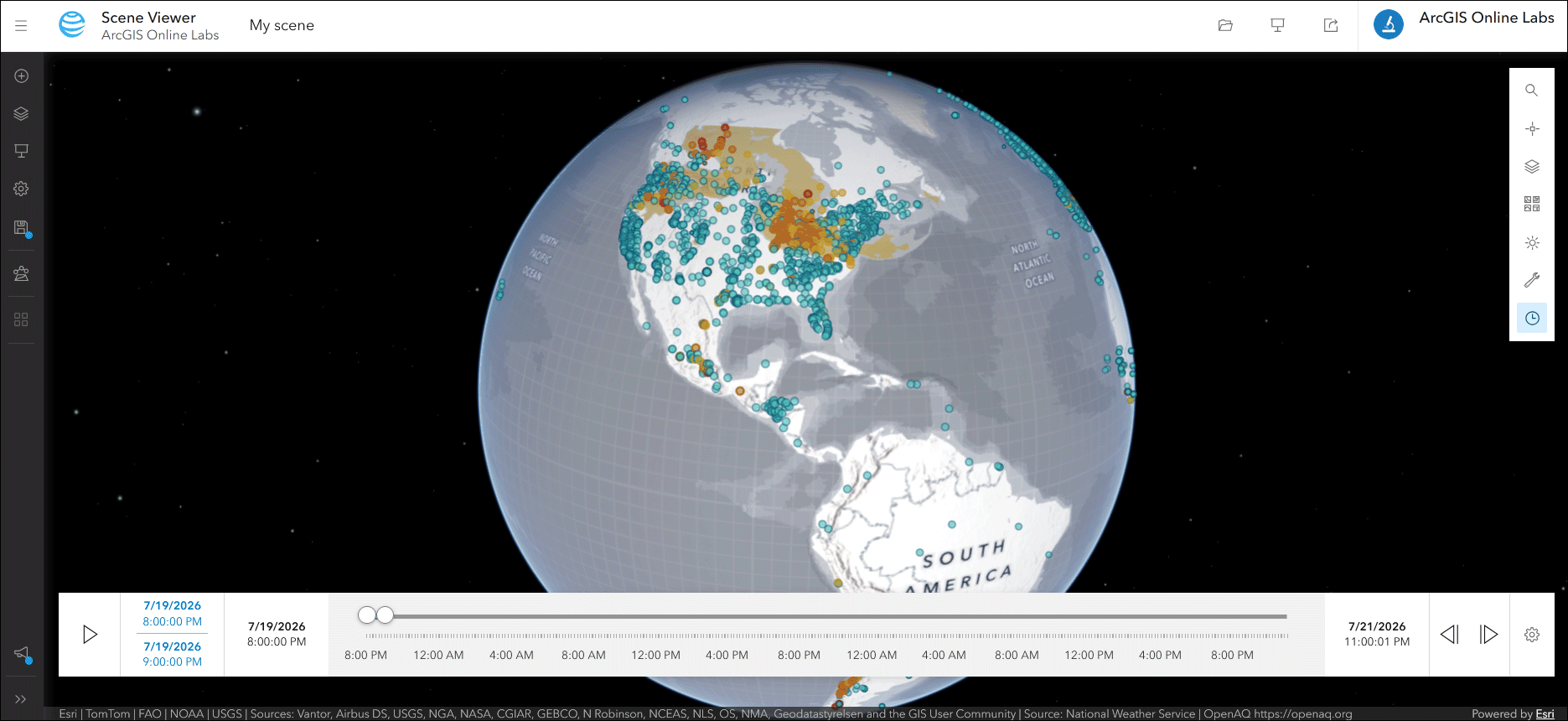
Author a 3D scene
Using Scene Viewer and following similar steps to those described above, you can create a scene showing smoke impacts.
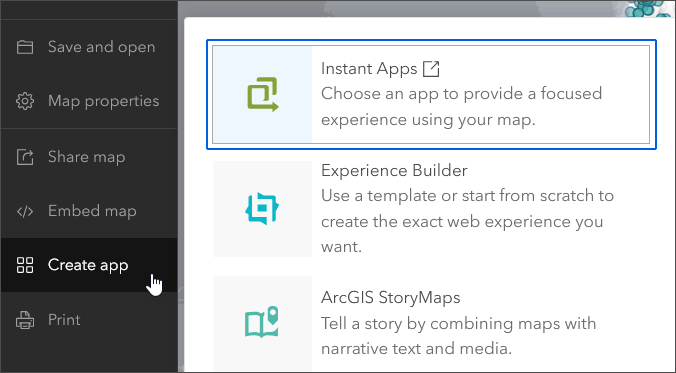
Make an app
Finally, use one of the ArcGIS Instant Apps to create an application that can be used by anyone with just a few more clicks. These can be created from maps or scenes.
Use Air Quality Aware
Air Quality Aware is a Living Atlas app intended to provide information about the current conditions of air quality in the United States and Canada, along with the potential human health impacts for the United States. Use the app to create an an air quality map for any location.
Click on a location in the U.S. to see the Air Quality Index (AQI), including ozone and particulate matter, for now, later today, and tomorrow. The National Weather Service’s 72-hour forecast for wind will also be displayed along with population data and key demographics.
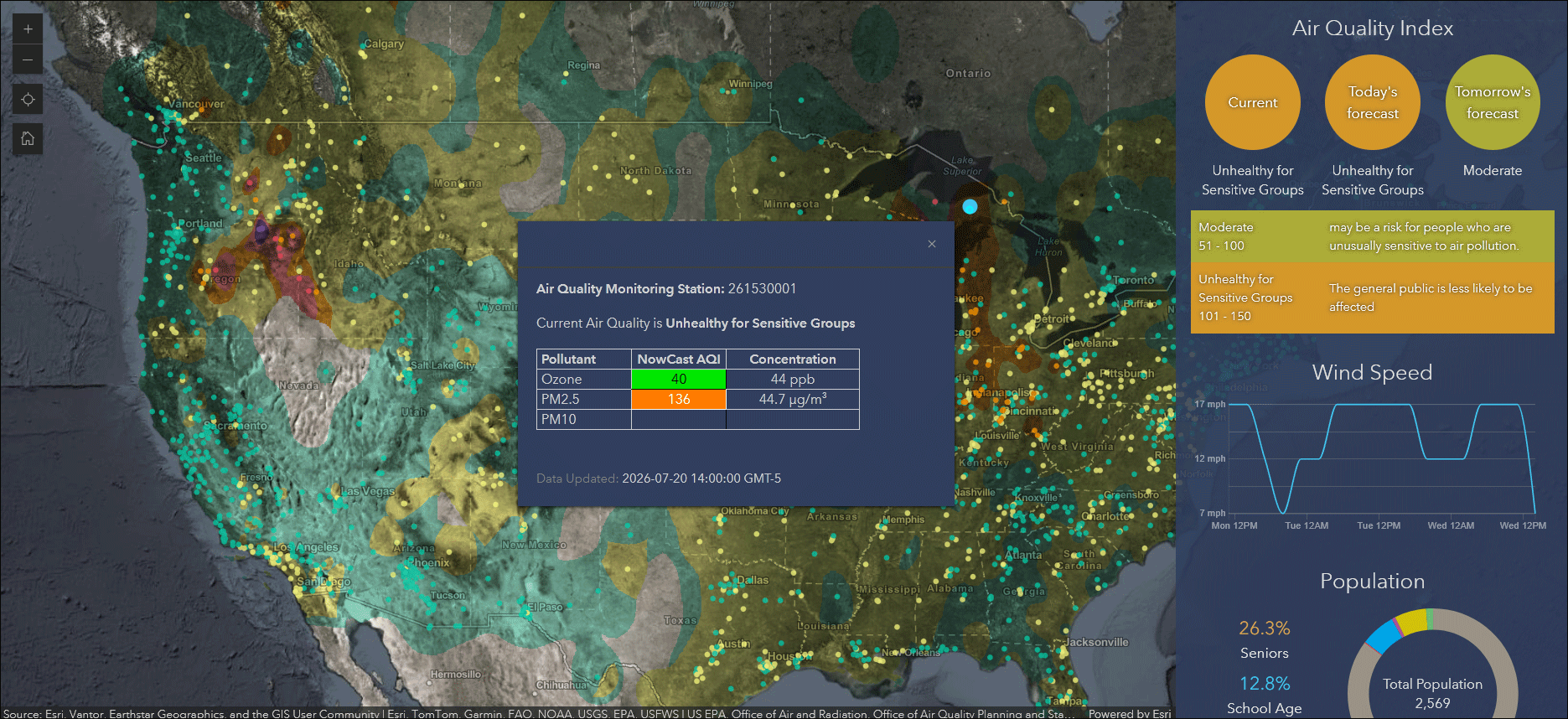
The app includes authoritative Living Atlas content from the EPA’s Air Now program for current and future air quality information, NOAA National Weather Service wind forecasts, and demographic data from the U.S. Census Bureau American Community Survey.
For more information, see Access the latest air quality and human impact information with Air Quality Aware.
More information
For more information, see the ArcGIS Living Atlas website.

Commenting is not enabled for this article.