See it first before diving in:
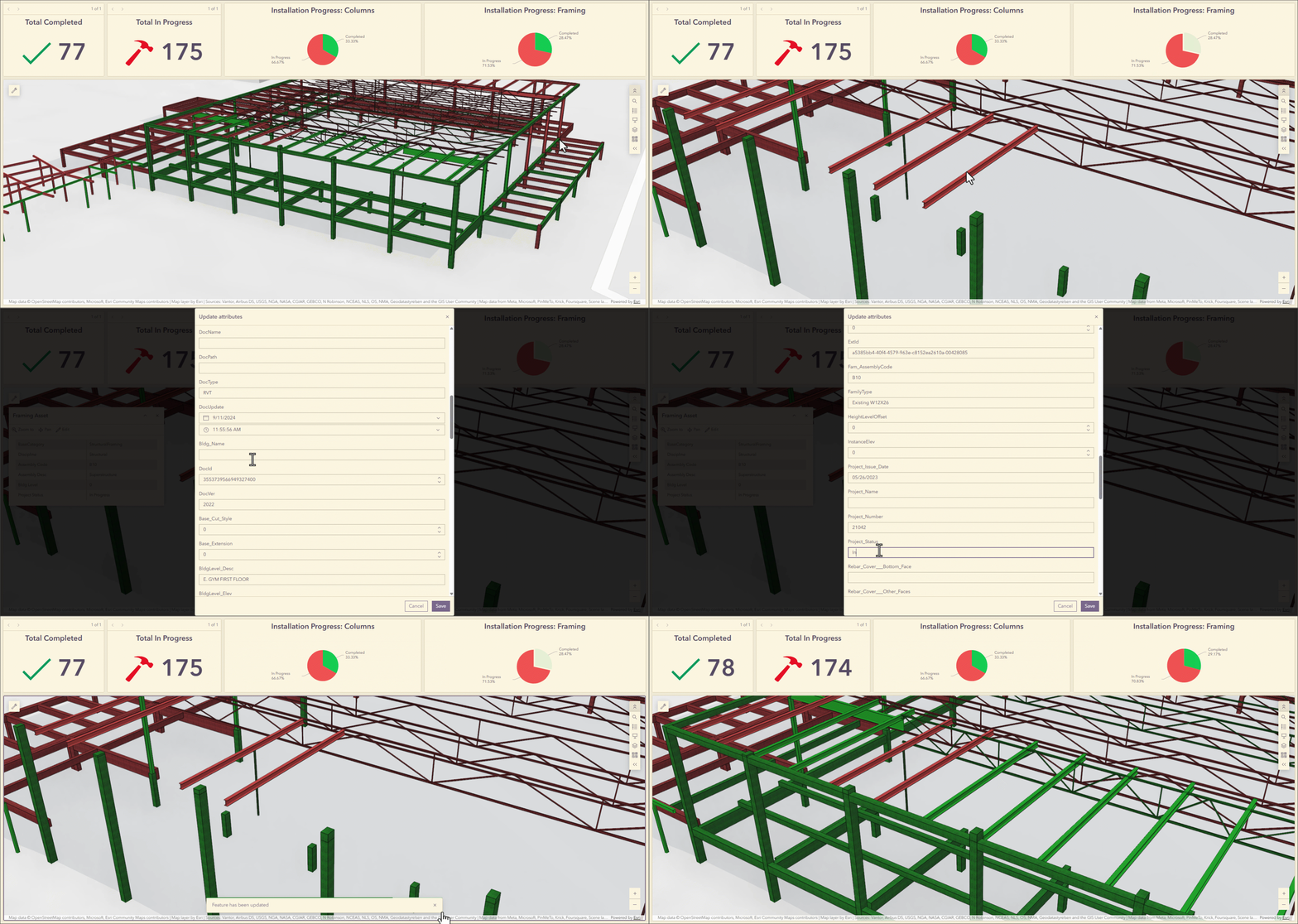
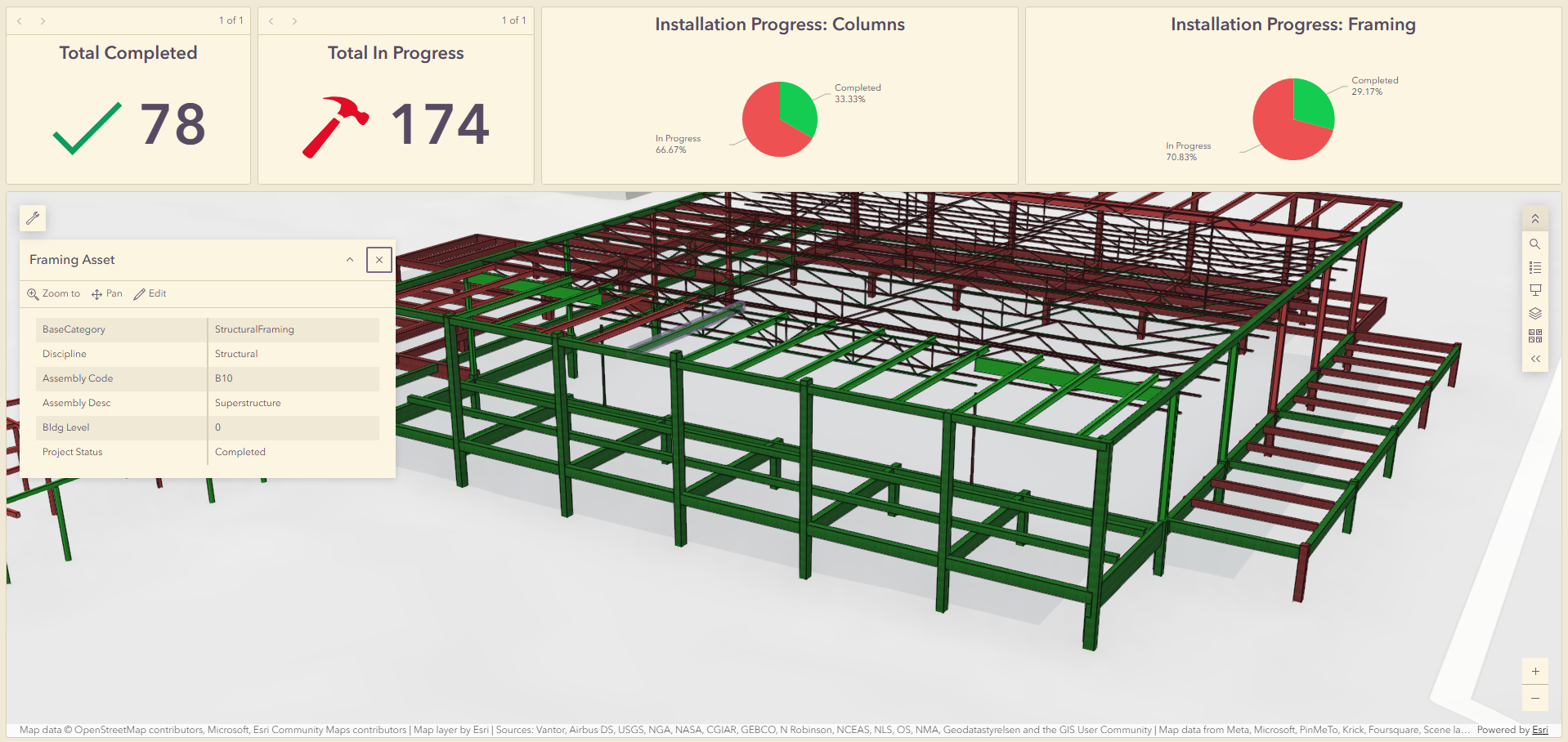
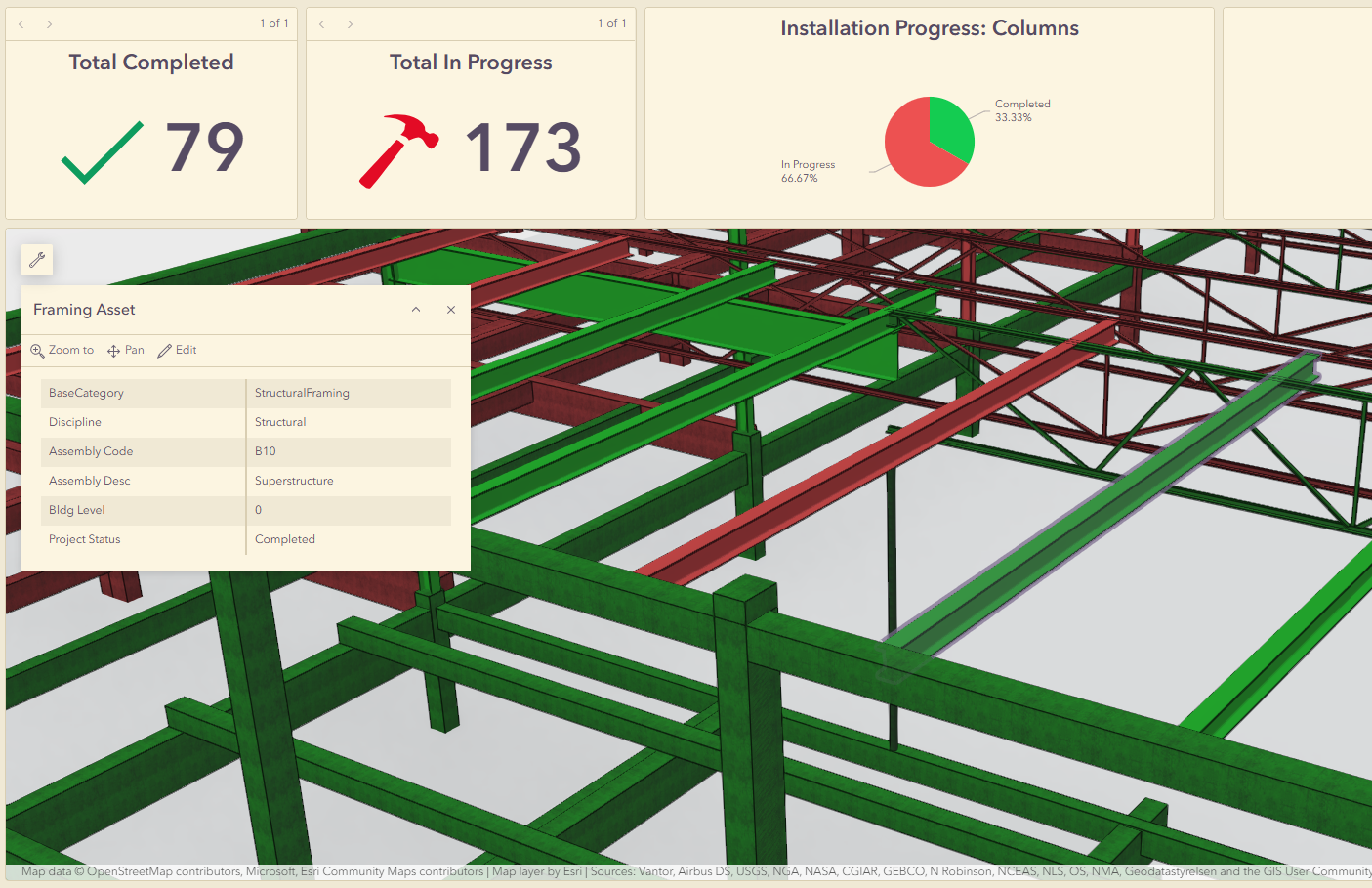
The GIF above shows a live, interactive construction progress dashboard built entirely within the ArcGIS platform. Structural elements from a Revit BIM model were published into ArcGIS, embedded in a 3D scene, and wired up with dynamic indicator widgets that calculate and display project progress in real time. Every element in this scene carries attribute data, which means it can be queried, filtered, symbolized by status, and edited directly from the browser.
This post walks through the complete workflow used to build it, including a few decisions along the way that aren’t obvious from the standard documentation and that make a significant difference in what the dashboard can actually do.
Problems worth solving
If you work in construction, you’ve probably lived some version of this scenario: a project is mid-build, a stakeholder wants a status update, and the answer is a slide deck assembled from a report that was already a week old when someone exported it. Meanwhile, the BIM team has the model in Revit, the GIS team has the site in a map, and the project manager has the schedule somewhere in a project management platform, and none of it is talking to the same audience at the same time.
This is one of the most persistent challenges in AEC, and it’s not really a people problem. “Teams in design, construction, and operations routinely work within separate systems, leading to outdated or incorrect data … a fragmentation that drives coordination challenges, misaligned project goals, cost overruns, and missed deadlines,” according to engineering and design firm Desapex.
The data exists. The problem is that it lives in silos, is communicated through static snapshots, and requires someone to manually assemble context every time a decision needs to be made.
The opportunity that a 3D construction dashboard creates isn’t about replacing any of those systems. The BIM stays in Revit, and the schedule stays where it is. What it adds is a shared visual layer that pulls project-centric data into a single, spatially organized view that anyone on the project team can understand and interact with. When a structural element changes status in the field, it changes in the dashboard. When an executive wants to know where the project stands, the answer is a URL, not a meeting invite.
This workflow is one practical, accessible step in that direction, built on tools that most ArcGIS organizations already have.
Where this applies
The following scenario uses structural elements as the tracked assets, but the pattern scales across a range of use cases. Construction progress tracking covers phase completion by floor, zone, or discipline, with color-coded 3D elements that update as work is marked complete.
Structural or systems inspection extends that further, making it possible to track inspection status for individual elements and know exactly which columns, beams, or connections are pending, in progress, or signed off.
For phased delivery milestones, project phases can be visualized in 3D space with attribute data tied to milestone completion dates, surfacing schedule risk before it becomes a change order.
Owner and executive reporting includes a comprehensive view of project health that doesn’t require navigating a project controls system. At a program level, the same framework can be adapted for multisite portfolio tracking, bringing consistent status reporting across multiple projects into a single dashboard pattern.
The workflow is tool-forward, but the use cases are people-forward. It’s about putting the right picture in front of the right decision-maker at the right moment.
How it was built
The full stack for this workflow is ArcGIS Pro, ArcGIS Online Scene Viewer, and ArcGIS Dashboards. It does not require GeoBIM or additional licenses beyond a standard ArcGIS Online organization. The data originates from a Revit model and ends up as a live, editable, 3D dashboard. The path between those two points involves a few decisions you must understand before you start.
Add the BIM data to ArcGIS Pro
The starting point is a Revit (.rvt) or IFC file, both of which ArcGIS Pro reads natively. There’s no need for FME, no intermediate format export, and no loss of attributes in the conversion. The BIM workspace surfaces directly in the Catalog pane, where you can browse disciplines, inspect feature classes, and review attribute structure before doing anything else. The quality of what comes out of this workflow is directly tied to the quality of what goes in, so missing georeferencing, unset survey points, or inconsistent attribute naming in the source model will create friction downstream.
You can add the file to ArcGIS Pro using one of two ways:
The first is a straightforward local file approach: download the model from wherever it is stored (Autodesk Construction Cloud, Procore, or a shared file location) and point ArcGIS Pro to it.
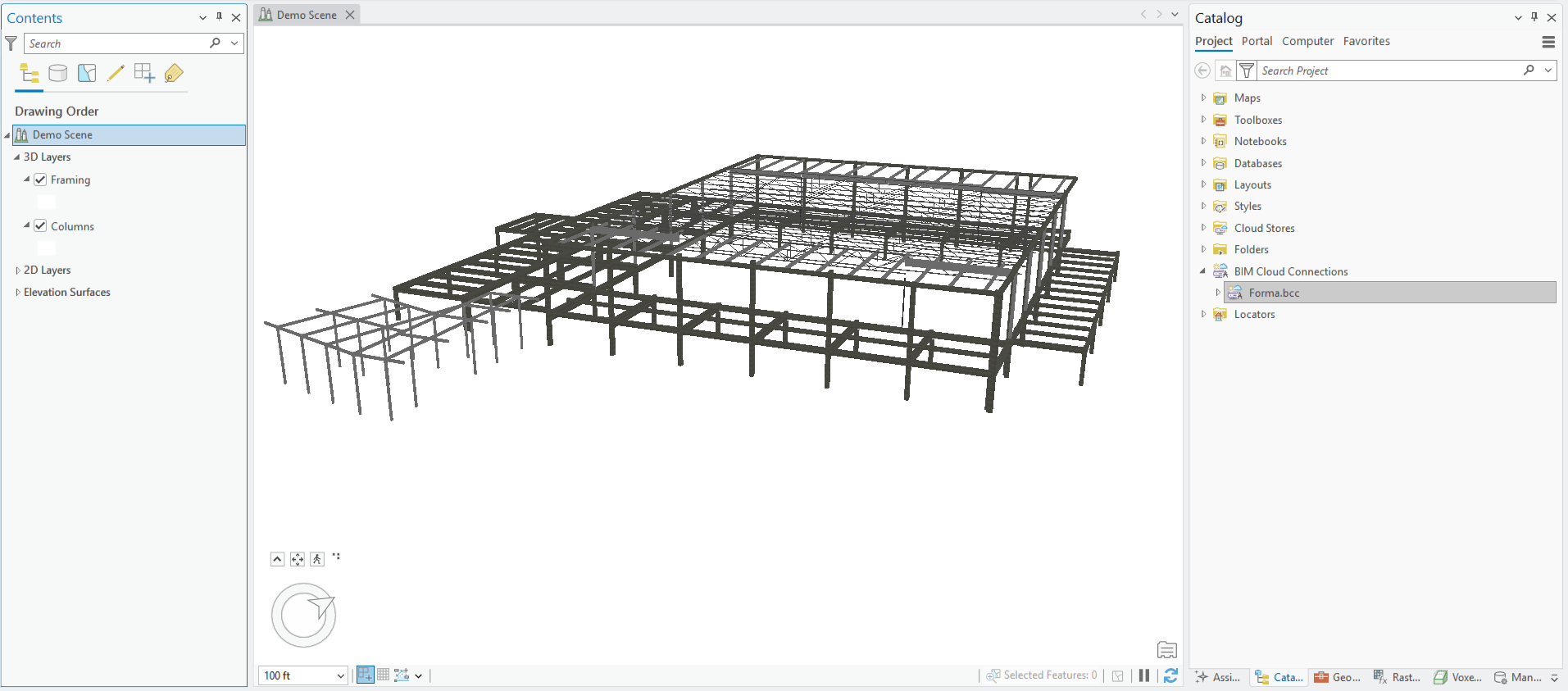
The second option is a connection to Autodesk Forma from the Catalog pane. This keeps the source of record intact and ensures that what you’re working with reflects the current state of the model.
Choose to publish data as a 3D object scene layer or a building scene layer
When it comes to publish BIM data from ArcGIS Pro to ArcGIS Online, there are two primary paths, and the one you choose has downstream consequences for what your dashboard can do.
The default path, and the one most Esri tutorials use, is the building scene layer. It preserves the full BIM discipline hierarchy (architectural, structural, mechanical, and so on), supports discipline-level filtering in Scene Viewer, and produces a visually rich, well-organized layer. It is recommended for visualization and design review workflows.
However, building scene layers currently cannot be read through a dashboard. For a construction progress dashboard in which the value proposition is that you can update an element’s status as work gets done, a read-only layer doesn’t get you there.
The second path, demonstrated in the following workflow, is the 3D object scene layer. Publishing as a 3D object scene layer allows you to edit and update hosted features directly through the dashboard. Symbology can be driven by live attribute values, and elements can be filtered and queried as you would any other hosted feature layer in ArcGIS Online. The tradeoff is that the built-in BIM discipline hierarchy doesn’t carry over, so layer organization and filtering must be managed manually. For a progress tracking use case, you may consider that a reasonable and worthwhile trade.
It’s also worth understanding how the publishing process differs between these two paths. A building scene layer is created using the Create Building Scene Layer Content geoprocessing tool in ArcGIS Pro, which generates a scene layer package (.slpk) on disk that can then be shared directly to ArcGIS Online or ArcGIS Enterprise using the Share Package tool.
The 3D object path works differently. Rather than going through a packaging step, a BIM discipline such as a structural family can be added directly to a scene from the BIM workspace in the Catalog pane and then published using the Share as Web Layer workflow in ArcGIS Pro. Critically, during that publishing step, you must enable editing under the Configuration settings, allowing Add, Delete, and Update operations with the Attributes and geometry option checked. This is what creates the underlying 3D object feature layer that makes the edit workflow possible.
Without it, the scene layer may look right, but it can’t be updated. When you have successfully published, you will have three items in your ArcGIS Online portal: a 3D object scene layer, a 3D object feature layer, and a service definition. The object scene layer and feature layer allow both fast visualization and live editing capability in a single layer.
Learn the fundamentals of BIM and GIS
Set up the web scene in ArcGIS Online
With the 3D object scene layer published to ArcGIS Online, the next step is configuring the web scene in Scene Viewer before bringing it into the dashboard.
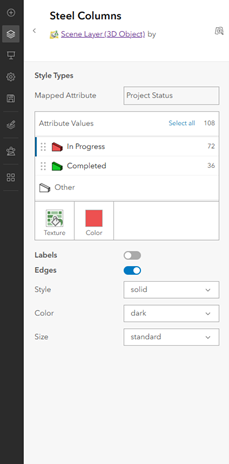
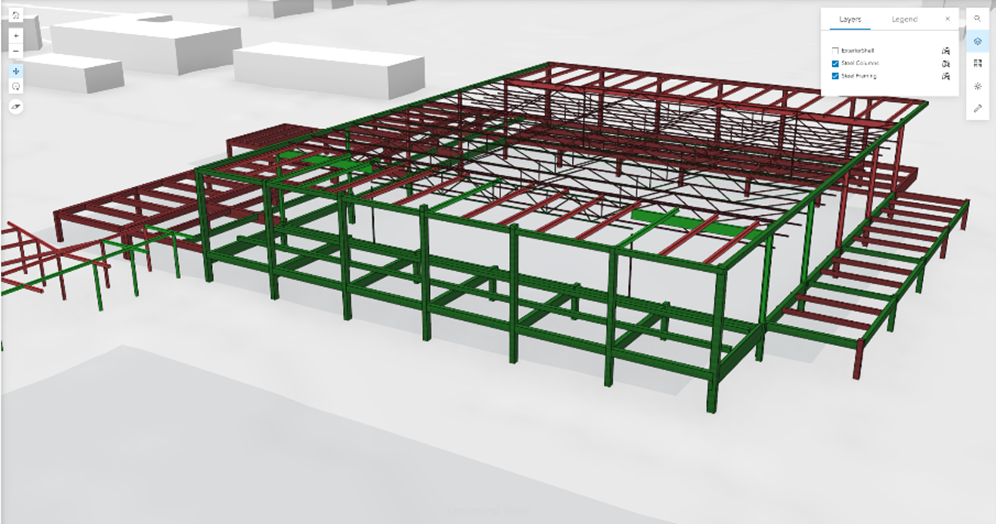
First, you must set symbology by status. Configuring unique value symbology driven by the Project_Status field—such as green for Completed, yellow for In Progress, and red for Not Started—establishes the visual language that dashboard users will read at a glance. The more intuitive and consistent that color scheme is, the less explanation the dashboard requires when it is viewed by a non-GIS audience.
From there, clean up the pop-up configuration to surface the attributes that you will use for a progress review: element ID, status, responsible party, and completion date. BIM models carry a lot of attribute data, and most of it isn’t relevant to someone checking construction status, so it is recommended that you limit the pop-up to only essential information.
Finally, you can set up bookmarks before leaving Scene Viewer. Saved camera positions for an overall project overview, individual floor views, or specific structure zones carry directly into the dashboard’s embedded Scene Viewer, giving non-GIS users intuitive navigation without needing to figure out 3D controls on their own.
Build the dashboard
With the web scene configured, a new dashboard in ArcGIS Online brings everything together. The Scene Viewer is embedded as the primary panel, serving as the 3D anchor that orients every other element on the screen, and supporting widgets are built around it to surface the information various audiences need.
For this dashboard, indicator widgets show high-level progress counts and percentages, a serial chart or list widget shows a breakdown by discipline or zone, and a filter widget connects to the Scene Viewer so that selecting a status category highlights the corresponding elements in the 3D view. With this layout, a user can open the dashboard, understand where the project stands in under 30 seconds, and navigate to the level of detail they need without any training. For an executive or owner audience, that usually means fewer widgets and bigger numbers. A project manager or GIS team can add more detail.
Use an ArcGIS Arcade function
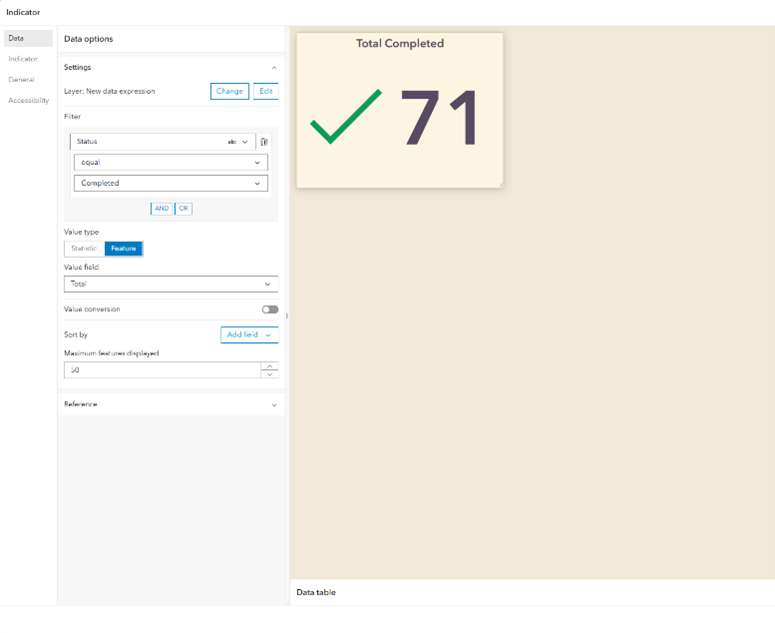
The indicator widget in ArcGIS Dashboards allows you to surface a single calculated value such as total elements complete, percent progress, or counts by status. But when project data is spread across multiple feature layers (structural elements published as separate layers by discipline, for example), aggregating those values into a single widget requires a data expression.
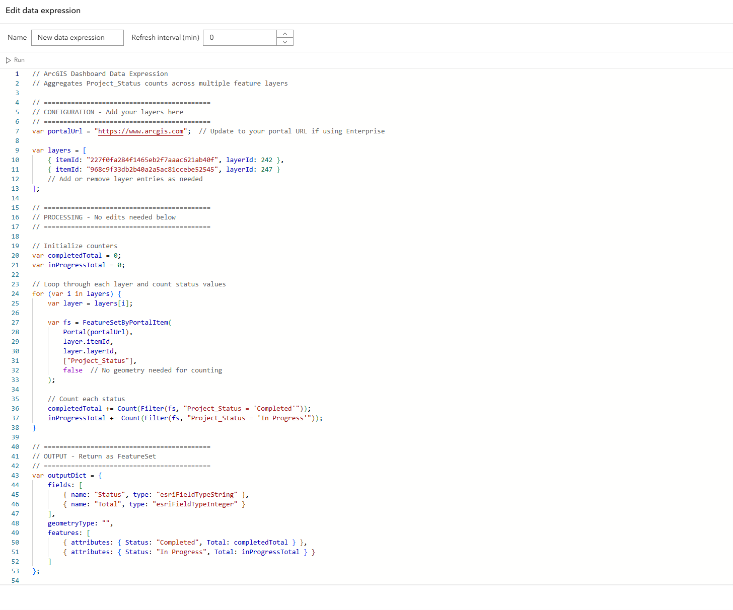
The natural approach is to write an Arcade data expression that references the layers loaded in the scene. The challenge is that within the dashboard Arcade editor, there are no profiles available that provide direct access to those scene layers by name the way you might expect in a map or Field Maps context. The workaround, and the key insight this workflow is built on, is FeatureSetByPortalItem(). This Arcade function retrieves a feature layer directly from your ArcGIS Online portal using its item ID and layer ID, bypassing the profile limitation entirely and allowing you to pull from as many layers as the project requires.
The following is the full data expression used in this dashboard:
// ArcGIS Dashboard Data Expression

// Aggregates Project_Status counts across multiple feature layers

// ===========================================

// CONFIGURATION - Add your layers here

// ===========================================

var portalUrl = "https://www.arcgis.com";  // Update for Enterprise

var layers = [

{ itemId: "ENTER ITEM ID", layerId: ENTER LAYER ID },

{ itemId: "ENTER ITEM ID", layerId: ENTER LAYER ID }

// Add or remove layer entries as needed

];

// ===========================================

// PROCESSING - No edits needed below

// ===========================================

var completedTotal = 0;

var inProgressTotal = 0;


for (var i in layers) {

var layer = layers[i]

var fs = FeatureSetByPortalItem(

Portal(portalUrl),

layer.itemId,

layer.layerId,

["Project_Status"],

false  // No geometry needed for counting

);

completedTotal += Count(Filter(fs, "Project_Status = 'Completed'"));

inProgressTotal += Count(Filter(fs, "Project_Status = 'In Progress'"));

}

// ===========================================

// OUTPUT - Return as FeatureSet

// ===========================================

var outputDict = {

fields: [

{ name: "Status", type: "esriFieldTypeString" },

{ name: "Total", type: "esriFieldTypeInteger" }

],

geometryType: "",

features: [

{ attributes: { Status: "Completed", Total: completedTotal } },

{ attributes: { Status: "In Progress", Total: inProgressTotal } }

]

};

return FeatureSet(Text(outputDict));
This expression includes the following elements:
- Configuration block—You define your portal URL and a list of layer entries, each with an Item ID and Layer ID. To add a new discipline or phase layer, add one line to the list.
- Processing block—The expression loops through each layer, pulls only the Project_Status field, and counts features matching each status value. Those counts accumulate across every layer in the list.
- Output block—This returns a feature set with Status and Total fields. The indicator widget reads this and displays your aggregated count or percentage.
As a result, the widget shows consolidated progress across every structural layer in your scene and is updated live, with no manual math required.
Edit 3D objects through the dashboard
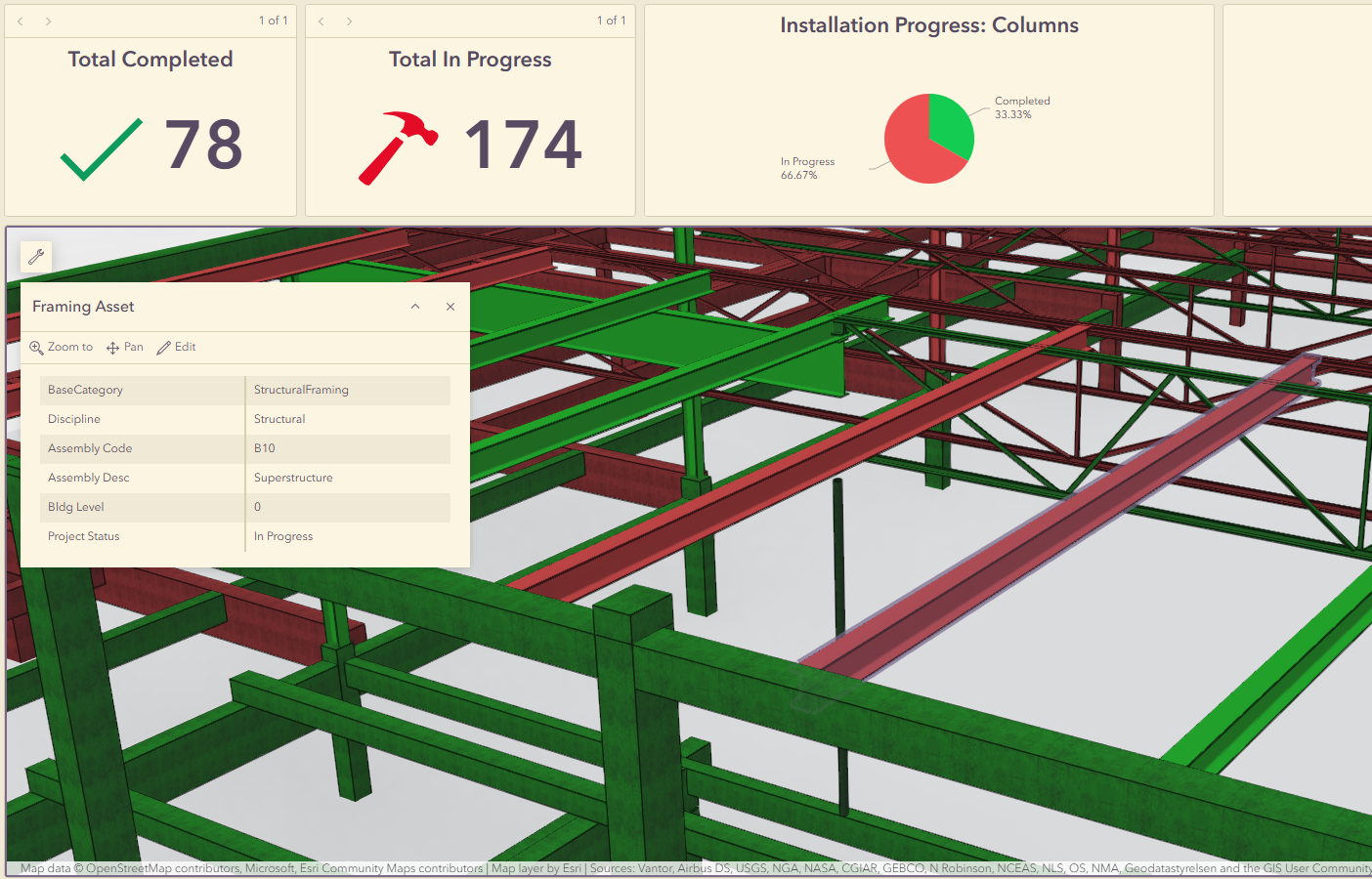
Because the BIM data was published as a 3D object scene layer rather than a building scene layer, the underlying feature data remains editable through the browser. A team member with appropriate permissions can click any structural element in the embedded Scene Viewer, open the pop-up, and update the Project_Status field directly from the dashboard. No desktop software, ArcGIS Pro session, or IT ticket is required. The change writes back to the hosted feature layer, the symbology updates to reflect the new status, and the Arcade data expression in the indicator widget re-evaluates automatically. The whole dashboard reflects the most current data within moments of a user making an update.
What this unlocks
The workflow described in this article is built entirely on standard ArcGIS Online capabilities, with no specialty extensions, no need to license and learn a focused integration, and no custom development required. What it produces isn’t a new system of record or a replacement for your project controls platform. It’s a communication and collaboration layer on top of the data your team is already generating, organized spatially and made accessible to anyone who needs to understand project status at a glance.
For AEC teams, navigating the gap between design-side BIM data and field-side reality requires this shared visual context. It gives project executives a real-time view of construction progress without requiring them to navigate a project management system. It gives owners transparency into the project they’re funding. And it gives the GIS or technology team a concrete, replicable workflow that can be adapted across projects, phases, and asset types, because once the pattern is established, adding a new layer or a new status category is a configuration change, not a rebuild.
The use case demonstrated here tracks structural elements, but the same framework applies to mechanical systems, civil infrastructure, inspection workflows, phased delivery milestones, and more. Wherever your project has discrete assets, attribute-driven status, and stakeholders who need to stay informed, this workflow has something to offer. If you’re exploring how ArcGIS can support your construction workflows and want to talk through how BIM-data dashboards might fit your organization, join the Esri Community or contact the team.


Article Discussion: