
Facility managers in both municipal and private sectors are increasingly requiring digital deliverables—particularly 3D building information models (BIM) as part of their workflows, where location is the common language between BIM and GIS. Location is not only a visualization detail, it’s a foundational infrastructure component. Without reliable location data, integration between the two systems breaks down.
This blog article uses the example of a railway transportation authority receiving the digital deliverables of the first section of a railway expansion, which contains 50 files. The GIS team is responsible for reviewing the files, performing quality control (QC) for the geolocation perspective, and reporting their findings to the project manager.
Requirements
Install pyproj
- From the ArcGIS Python Command Prompt:
pip install pyproj
- Or via the ArcGIS Pro Package Manager, search for pyproj and install it.
The GIS team can take one of two approaches to this.
Load each file in ArcGIS Pro and check its location
This is a valid approach, but it is time-consuming as each file must be loaded manually before it can be evaluated. With 50 files to review, this approach would take considerable time.
Use the QC tools
Using the QC toolbox, the GIS analyst can do a preliminary evaluation without loading the full model into ArcGIS Pro. To use this workflow, you must have ArcGIS Pro 3.5 or later with the ArcGIS quality control toolbox.
Complete the following steps:
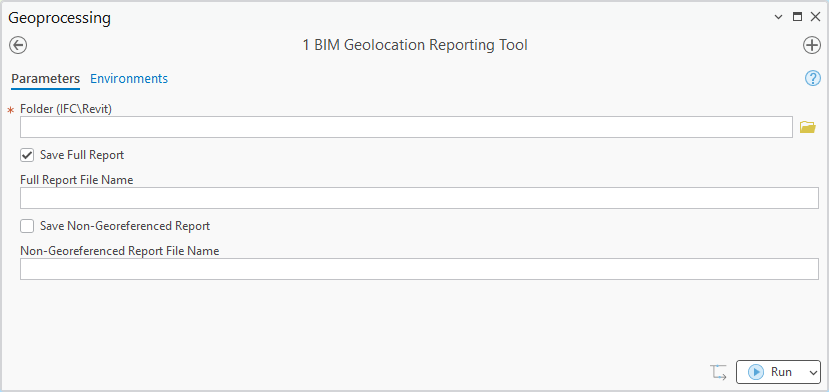
- Run the BIM Geolocation Reporting Tool geoprocessing tool.
- For Folder (IFC\Revit), select the folder containing the files.
- Check the Save Full Report check box to create a .txt file containing the report. Leave it unchecked to create only the console report.
- For Full Report File Name, type the file name for the report.
- Check the Save Non-Georeference Report check box to create a .txt file containing the report. Leave it unchecked to create only the console report.
- For Non-Georeferenced Report File Name, type the file name for the report.
NOTES:
- All the reports are created in the same folder that the files are located in.
- If the Full Report Name and Non-Georeferenced Report Name parameters are left empty, the reports will be named BIM_Report_{timestamp}.txt with the timestamp of report creation.
- The non-georeference report will only be created if files fall in that category.
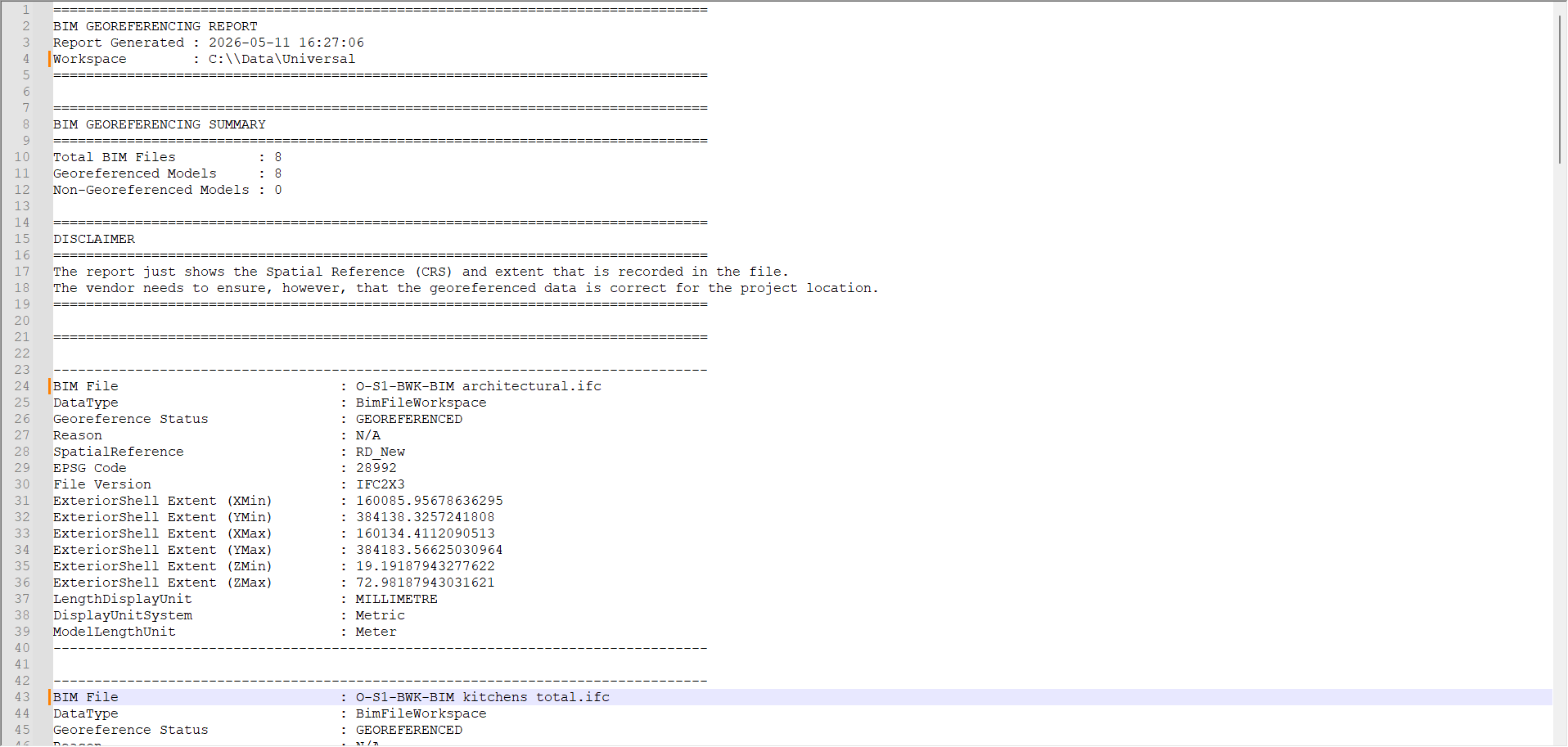
This tool can generate a report in a .txt file that contains the following information:
- BIM file name
- BIM data type (Revit/IFC)
- Georeferencing status (georeferenced or ungeoreferenced)
- Recorded spatial reference (CRS)
- EPSG code
- File version
- ExteriorShell model extents (X, Y, Z)
- Display unit system
- Length display unit
- Model length unit
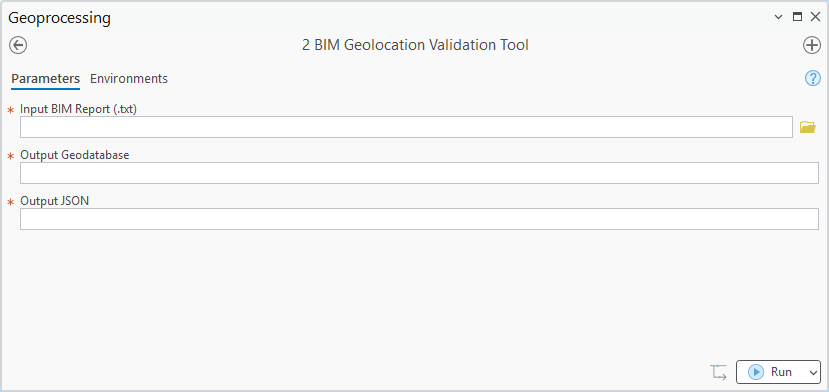
- Run the BIM Georeference Location Validation Tool geoprocessing tool.
- For Import BIM Report (.txt), select the report generated by the BIM Geolocation Reporting Tool geoprocessing tool.
- For Output Geodatabase, type a name for the geodatabase that will store the extent of each file evaluated and corresponding information.
- For Output JSON, type a name for the JSON report with of each file evaluated and corresponding information.
Notes:
The report and the geodatabase will be created in the same folder that the files are located in.
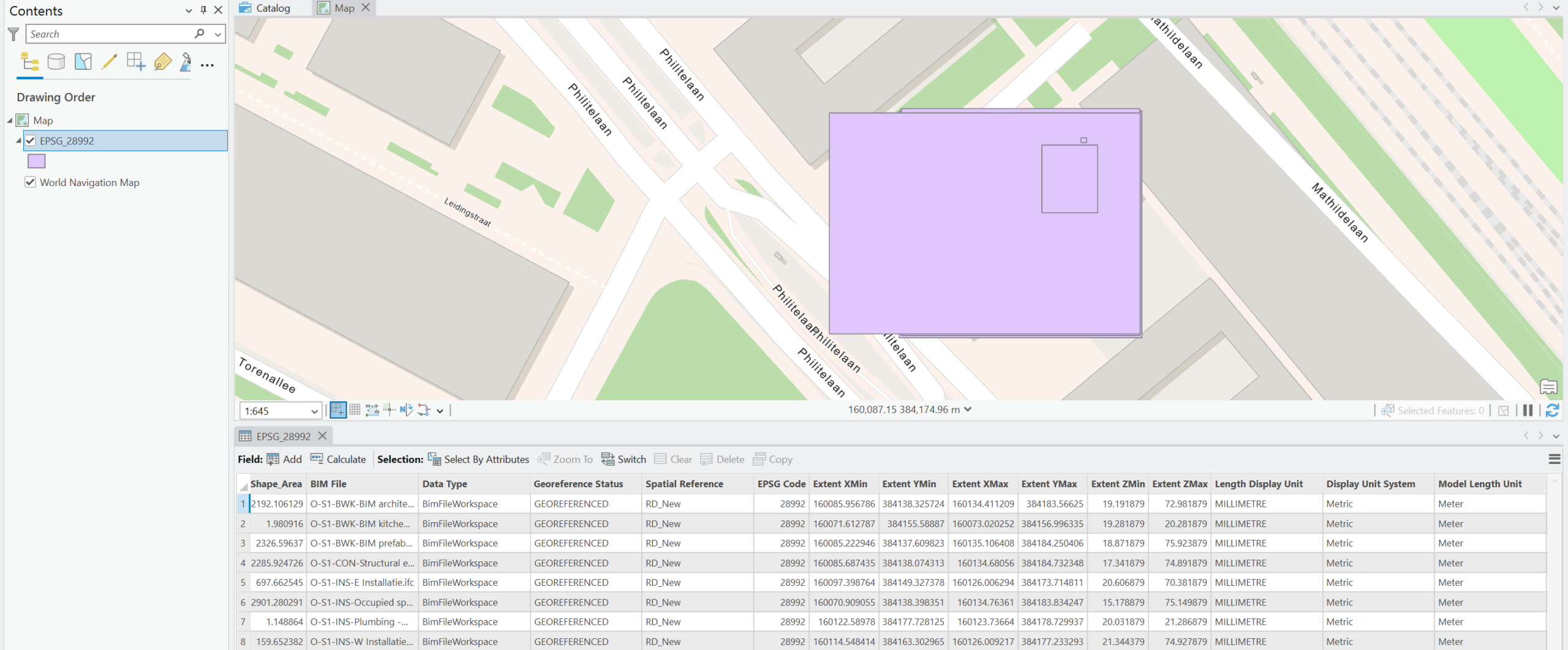
Example of the JSON validation report
{
    "total_files": 4,
    "bounds_summary": {
        "Inside": 4,
        "Outside": 0,
        "Unknown": 0
    },
    "records": [
        {
            "BIM_File": "O-S1-BWK-BIM architectural.ifc",
            "DataType": "BimFileWorkspace",
            "Geo_Status": "GEOREFERENCED",
            "Spatial_Ref": "RD_New",
            "EPSG_Code": 28992.0,
            "XMin": 160085.95678636295,
            "YMin": 384138.3257241808,
            "XMax": 160134.4112090513,
            "YMax": 384183.56625030964,
            "ZMin": 19.19187943277622,
            "ZMax": 72.98187943031621,
            "Length_Unit": "MILLIMETRE",
            "Unit_System": "Metric",
            "Model_Len_Unit": "Meter",
            "EPSG_Bounds": {
                "XMin": 646.3609077222354,
                "YMin": 308289.55733745237,
                "XMax": 284347.2501572968,
                "YMax": 637111.0244158027
            },
            "Bounds_Status": "Inside"
        },
        {
            "BIM_File": "O-S1-BWK-BIM kitchens total.ifc",
            "DataType": "BimFileWorkspace",
            "Geo_Status": "GEOREFERENCED",
            "Spatial_Ref": "RD_New",
            "EPSG_Code": 28992.0,
            "XMin": 160071.6127869347,
            "YMin": 384155.5888700172,
            "XMax": 160073.0202517795,
            "YMax": 384156.99633486196,
            "ZMin": 19.2818794327721,
            "ZMax": 20.281879432726367,
            "Length_Unit": "MILLIMETRE",
            "Unit_System": "Metric",
            "Model_Len_Unit": "Meter",
            "EPSG_Bounds": {
                "XMin": 646.3609077222354,
                "YMin": 308289.55733745237,
                "XMax": 284347.2501572968,
                "YMax": 637111.0244158027
            },
            "Bounds_Status": "Inside"
        },
        {
            "BIM_File": "O-S1-BWK-BIM prefab facade.ifc",
            "DataType": "BimFileWorkspace",
            "Geo_Status": "GEOREFERENCED",
            "Spatial_Ref": "RD_New",
            "EPSG_Code": 28992.0,
            "XMin": 160085.22294554894,
            "YMin": 384137.60982259474,
            "XMax": 160135.10640848082,
            "YMax": 384184.25040582323,
            "ZMin": 18.87187943239085,
            "ZMax": 75.92387943018167,
            "Length_Unit": "MILLIMETRE",
            "Unit_System": "Metric",
            "Model_Len_Unit": "Meter",
            "EPSG_Bounds": {
                "XMin": 646.3609077222354,
                "YMin": 308289.55733745237,
                "XMax": 284347.2501572968,
                "YMax": 637111.0244158027
            },
            "Bounds_Status": "Inside"
        },
        {
            "BIM_File": "O-S1-CON-Structural engineering.ifc",
            "DataType": "BimFileWorkspace",
            "Geo_Status": "GEOREFERENCED",
            "Spatial_Ref": "RD_New",
            "EPSG_Code": 28992.0,
            "XMin": 160085.68743538257,
            "YMin": 384138.07431253634,
            "XMax": 160134.6805597193,
            "YMax": 384184.7323480883,
            "ZMin": 17.341879432860825,
            "ZMax": 74.89187943022887,
            "Length_Unit": "MILLIMETRE",
            "Unit_System": "Metric",
            "Model_Len_Unit": "Meter",
            "EPSG_Bounds": {
                "XMin": 646.3609077222354,
                "YMin": 308289.55733745237,
                "XMax": 284347.2501572968,
                "YMax": 637111.0244158027
            },
            "Bounds_Status": "Inside"
        }
    ]
}
Summary
The GIS analyst can report the files that do not contain the coordinate system or that have an x,y outside of the reference system bounding box. This will help the digital deliverables move forward based on the geolocation requirements.
The report only displays the spatial reference and extent information recorded in the BIM file. It does not validate whether the georeferenced data aligns correctly with the intended real‑world project location. Ensuring correct georeferencing remains the responsibility of the data provider or vendor.
This tool performs metadata-level validation only.
- It does not verify real‑world spatial accuracy.
- CRS values may exist but be incorrectly assigned.
- Spatial extents may fall outside valid CRS bounds.
- IFC parsing depends on accessible text content.
⚠️ Results should always be validated against project control, survey data, and authoritative GIS references.
Do you have any questions about implementing this workflow? Drop a comment below.


Article Discussion: