Approximate Read Time: 7 Minutes
Calculate Field is a powerful geoprocessing tool used to batch calculate field values for multiple records at once. The tool uses expressions that can be simple, such as a single number or text, or complex multi-line scripts written in the language of your choice (Python, Arcade, SQL, or VBScript).
In ArcGIS Pro 3.6, there is a new way to calculate field values directly in the attribute table using the Calculate Field toolbar!
Find the Calculate Field toolbar
Open the attribute table of a map layer or table.
On the table toolbar, you may notice the Calculate button looks a little different. In ArcGIS Pro 3.6, clicking Calculate opens the Calculate Field toolbar within the table view, allowing you to maintain focus without launching a tool that covers the map and table view.
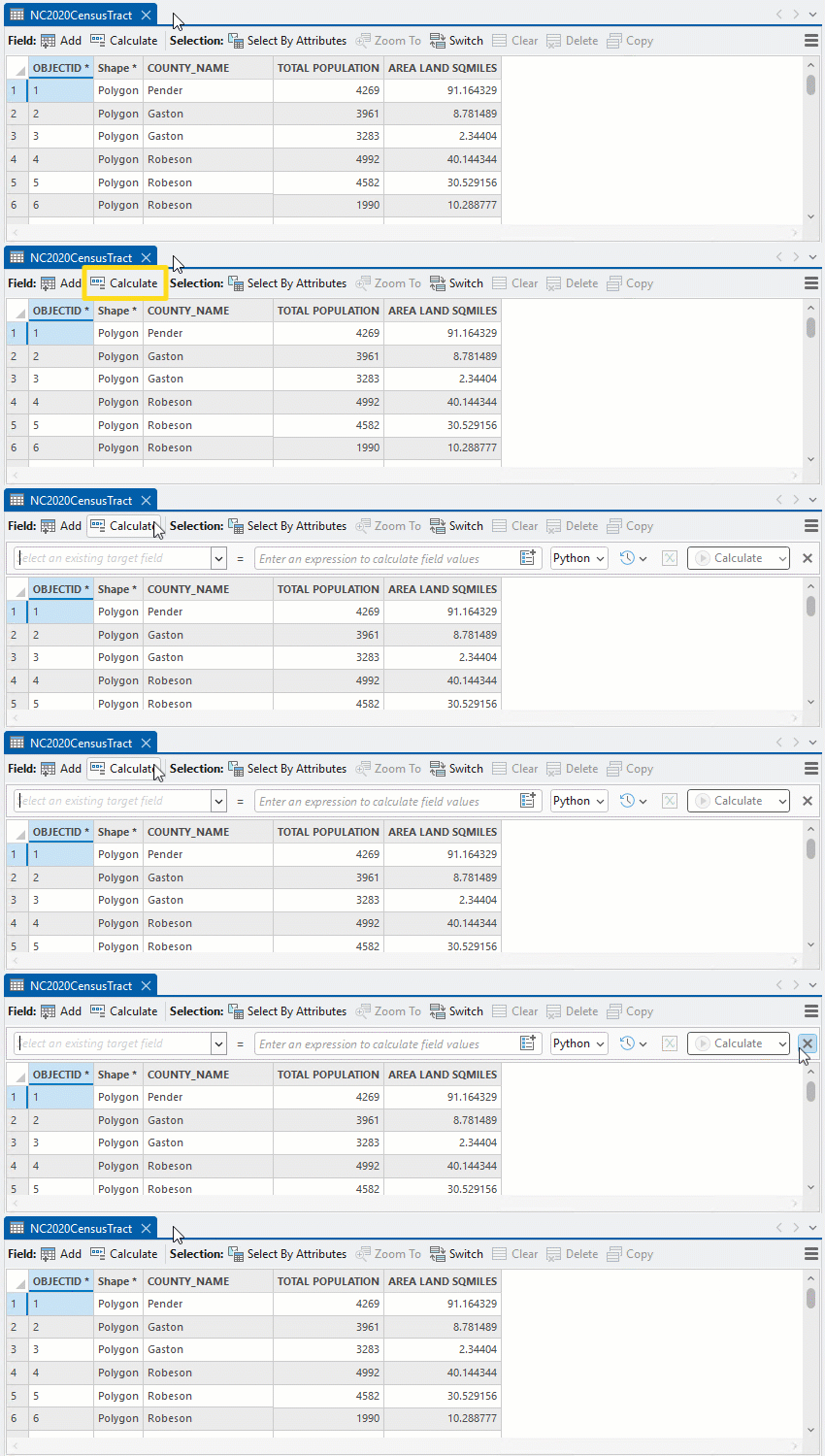
Miss the geoprocessing tool? Don’t worry! You can access the tool (and toolbar) from the Table ribbon tab as well as the right-click menu on a field header. You can also access the tool from the Geoprocessing pane.
How it works
Think of the toolbar as a streamlined version of the Calculate Field geoprocessing tool. Don’t be fooled by its smaller size, the toolbar shares many of the same options as the tool and even uses it to perform field calculations.
Toolbar Components
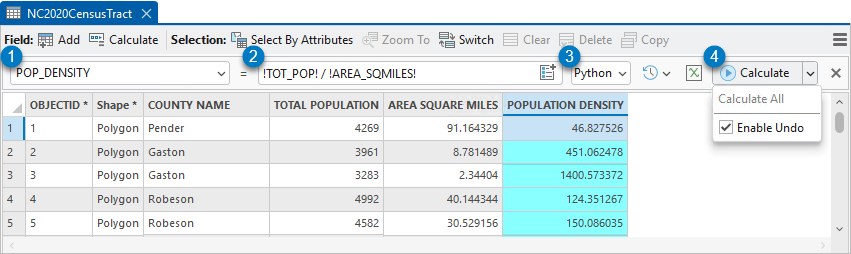
The Calculate Field toolbar includes the following components:
(1) Target Field—Choose an existing field to update with new values.
Tip: Click the column header of the field you want to edit in the table before opening the toolbar to automatically populate the Target Field.
(2) Expression—Type values and field names, or use the Add Fields to Expression button to build an expression.
(3) Language—Choose the language used by the expression.
Expressions can be written in Python, Arcade, or SQL.
Note: Expression syntax is different for each language. For example, field names are indicated differently for each language, and even text can be different (Python and Arcade use double quotes, whereas SQL uses single quotes).
(4) Calculate–Click to run Calculate Field.
Use the menu options for more control.
- Calculate All—This button is available when you have a selection, highlight or filter on the table. Click to calculate a field using all records while keeping the selection or filter intact.
- Enable Undo–Turn Enable Undo off or on to choose if the tool runs in an edit session. Enable Undo is on by default.
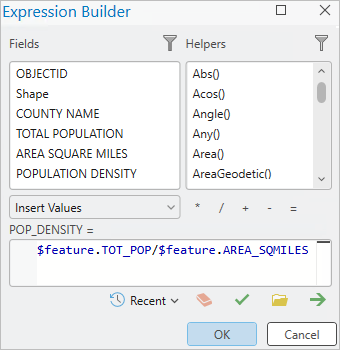
The toolbar includes two buttons to help you build your expressions:
- Recent Expressions
 —To set expressions faster, use this list to insert one of the ten most recently calculated, valid expressions into the expression textbox. The list is filtered by language and available across multiple tables and projects.
 - Expression Builder
 —The toolbar isn’t only for simple, one-line field calculations. Open the Expression Builder to get a list of fields and functions you can use in the expression. Here you can also access the Python Code Block and write multi-line scripts. If you need a little more help, new in Pro 3.6, the Arcade Expression Builder includes code completion and other formatting capabilities. Click OK to insert the expression back into the toolbar.
Run Calculate Field from the Toolbar
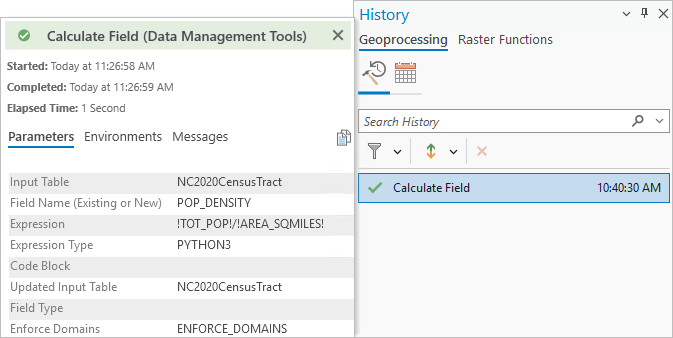
When you run the toolbar, the Calculate Field tool runs behind the scenes. So, if you open your project’s geoprocessing history, you’ll find all toolbar run instances logged as Calculate Field tool runs.
Example: Use the toolbar to calculate population density
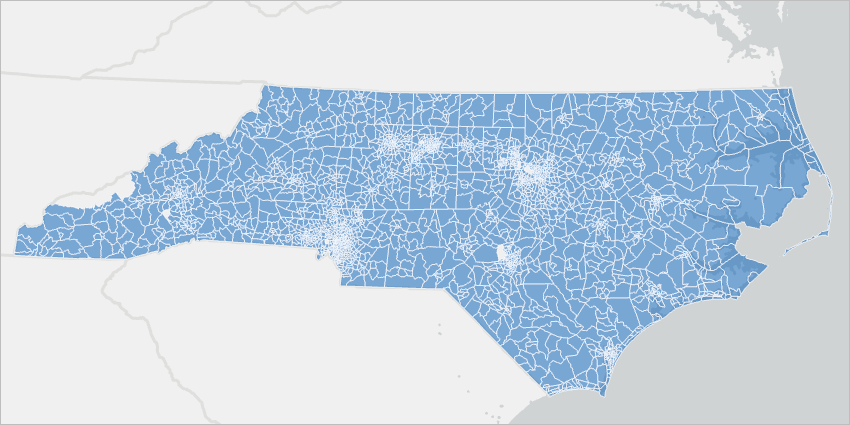
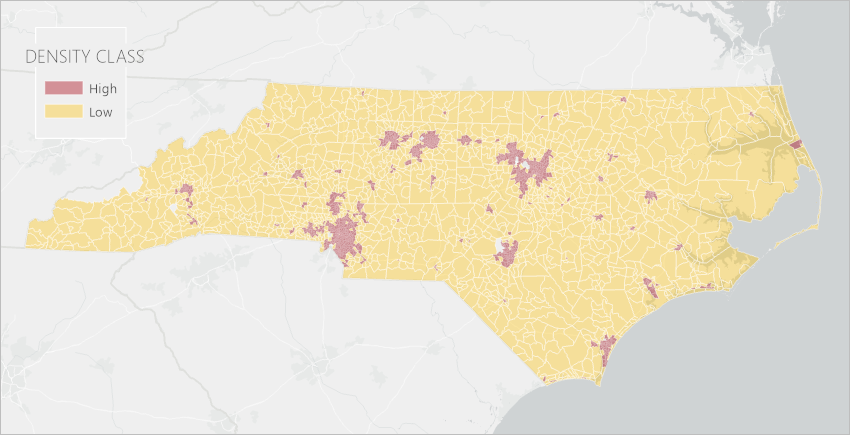
You are analyzing census tracts in North Carolina and want to classify each tract as low- or high-density based on the population per square mile. Your dataset includes the population in 2020 and the land area in sq miles.
| NC2020CensusTract | ||||
| OBJECTID | SHAPE | COUNTY_NAME | TOT_POP | AREA_SQMILES |
| 1 | Polygon | Pender | 4269 | 91.1643 |
| 2 | Polygon | Gaston | 3961 | 8.7815 |
| 3 | Polygon | Gaston | 3283 | 2.3440 |
| 4 | Polygon | Robeson | 4992 | 40.144 |
Step 1: Add new fields
Open the census tracts layer’s attribute table.
On the table toolbar, click Add  to open the fields view and add two new fields.
| Field Name | Alias | Type | Length | |
| POP_DENSITY | POPULATION DENSITY | Double | ||
| DENSITY_CLASS | DENSITY CLASS | Text | 5 |
Save the changes and close the fields view.
Step 2: Calculate field values
Calculate the population density and classify the low- and high-density areas using the Calculation Field toolbar.
Population Density
Follow the steps below to calculate the population density:
(1) In the table view, click the Population Density field header then click Calculate on the table toolbar. The Calculate Field toolbar opens with the Target Field set to POP_DENSITY.
(2) In the Calculate Filed toolbar, use the keyboard and Add Fields to Expression to set the following expression: !TOT_POP! / !AREA_SQMILES!
Note: Keep the Language set to Python. If you change the language after specifying the expression, the expression may no longer work.
(3) Click Calculate to run Calculate Field.
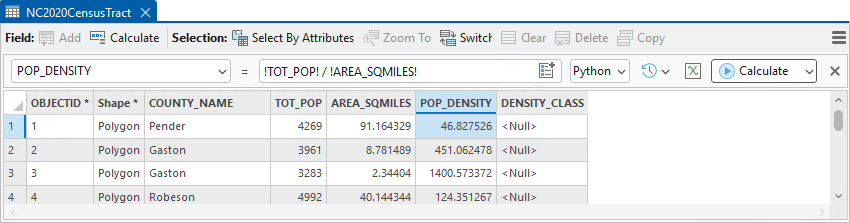
(4) Since the toolbar was run with Enable Undo on by default, the calculation occurred in an edit session. On the Edit ribbon tab, click Save to commit your changes.

Density Class
Follow the steps below to classify the low- and high-density census tracts:
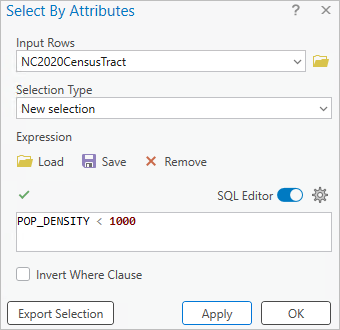
(1) On the table toolbar, click Select By Attributes. In the Select By Attributes tool, create a new selection where POP_DENSITY < 1000 then click Apply to run the tool without dismissing the tool dialog box.
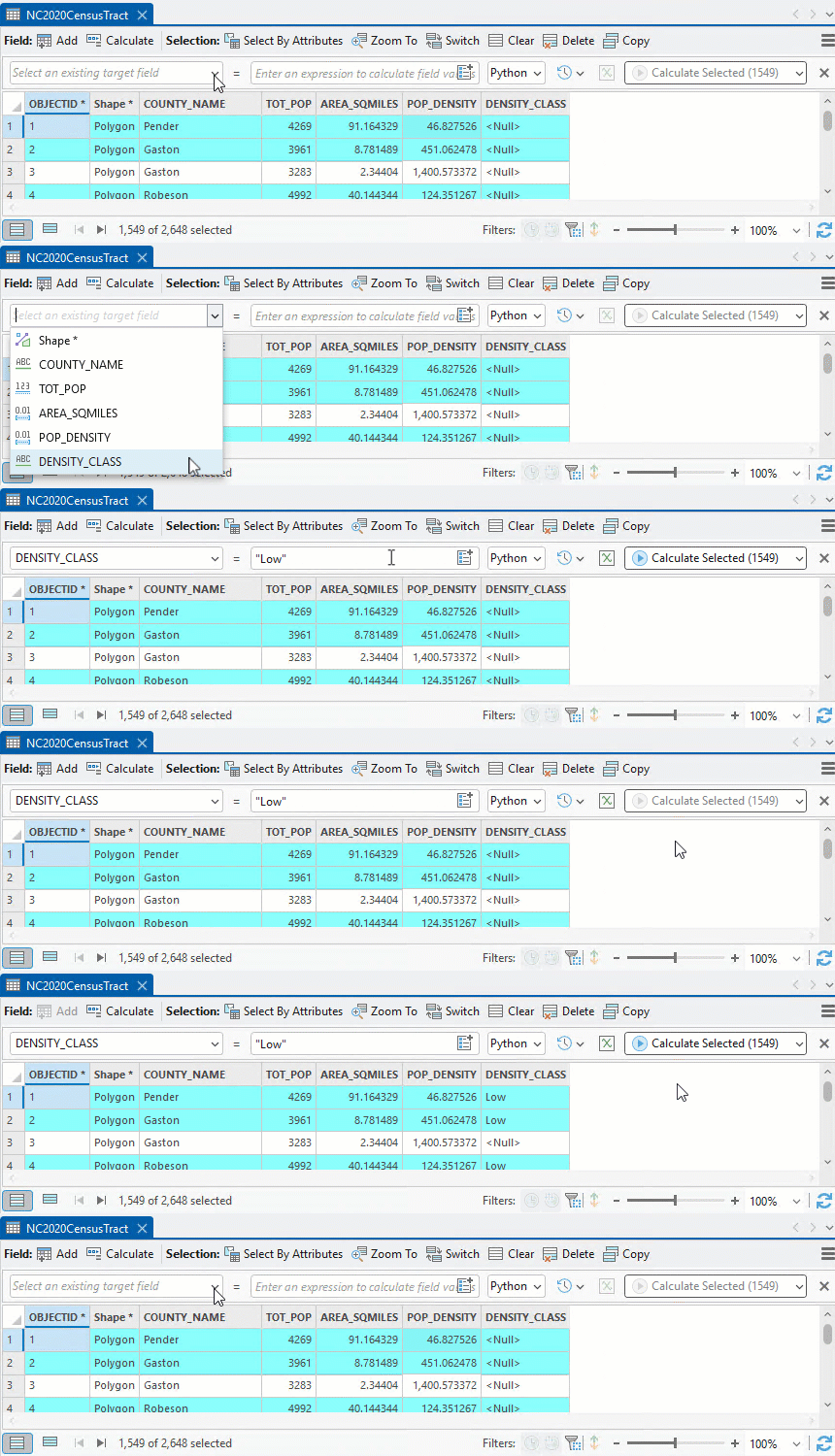
(2) In the Calculate Field toolbar, Set the Target Field to Density_Class
(3) In the Expression textbox, type “Low”
(4) Click Calculate Selected (1549) to run calculate field using only the selected records.
(5) Use the Select By Attributes tool to create a new selection: POP_DENSITY >= 1000 then click OK to run the tool.
(6) In the Calculate Field toolbar, type “High” in the Expression
(7) Click Calculate Selected (1099) to run the calculation.
(8) On the Edit ribbon tab, click Save to commit your changes.
Result: The Density_Class field will populate with new values representing the low- and high-density census tracts in North Carolina.
Summary
ArcGIS Pro 3.6 includes a new Calculate Field Toolbar for the attribute table. In the toolbar, you can select an existing field to calculate new values in, then type and use the Add Fields to expression button to specify a simple expression. Open the Expression Builder for a list of fields and helper functions to build more complex expressions. Run the tool using the selected or filtered records, or all records to complete the calculation.

Article Discussion: