Restricted is a new designation that you can use to assign locations that you want removed from a Suitability Modeler model because you know what is there and it should not be considered. Restricted is not NoData. NoData is assigned to locations that are not to be considered because you do not know what is there.
In the past, the only way to remove any location from consideration from a suitability model—whether you knew what was there or not—was to assign it to NoData directly or through the Analysis Mask. However, the distinction between the two can be critical in decision making.
There are three main reasons you may want to remove a location from consideration in a suitability model:
- You don’t know what is there.
- You know what is there and it should not be considered.
- The location contains a value that is beyond a critical threshold.
You do not know what is there – NoData
If you do not know what is at a location, it should be assigned NoData. What is actually there may or may not be favorable.
To assign locations to NoData, a mask is created outside the Suitability Modeler and set using the Analysis Environment in or outside the Suitability Modeler.
Alternatively, some locations may already be assigned NoData in the input base or transformed layers, and these locations will also not be considered in the final locations.
Prior to the support for Restricted, when you removed a location by assigning it NoData—whether you knew what was there or not—during model analysis, you did not know why the location was being removed.
You know what is there – Restricted
In its most basic form, you may want to restrict a location from consideration based on the features that are there. In a housing suitability model, you may want to restrict lakes from consideration since you cannot build on the water. But maybe you can?
Or, by law, you cannot build within a legal buffer of a wetland. But what if that buffer distance changes?
In both cases, these locations can now be assigned to Restricted. You know you removed them based on a self-imposed constraint. The interactive nature of this new Restricted option in the Suitability Modeler allows you to quickly see which areas are being restricted and you can easily modify the restriction condition without altering your input data.
Beyond a critical threshold – Restricted
Certain locations may be assigned Restricted because they are beyond a threshold and should not be considered. For example, in a ski resort model, a location might be too far to pump water to for snow making. Or the distance at a location is so far that building an access road to it exceeds the budget.
Often, locations are assigned Restricted when they really should be assigned to low preference. Restricted means do not consider the location, not it is not desired.
For example, there may be a case where a location is expensive to get electricity to, not that it is prohibited. In this situation, the location was incorrectly assigned to Restricted. It is possible that the location is favorable in all the other criteria but since it is assigned Restricted based on a perceived limitation, the location will not be considered. In fact, the location might be the most desired in the study area. An appropriate low suitability value should have been assigned to the location, not remove it from consideration.
This Restricted category is the most abused. When overused, the model leans toward being a binary, rather than a weighted suitability model.
How a location is assigned Restricted
Below is a simple suitability model to site condominiums for a resort community in a rural landscape. There are five criteria:
- Aspect: South-facing aspects are better.
- Dist_Roads: Not too close but not too far from roads is more preferred.
- Dist_Streams: Not too close but not too far from streams is favored.
- Dist_Buildings: The farther from existing buildings, the better.
- Landcover: More natural land use types are desired.
In addition, the town has implemented certain restrictions on new construction:
- You cannot build within a 50-meter buffer around wetlands.
- For visual quality, no construction can occur above 1,500 feet.
The criteria have been transformed. We now want to apply the buffer around wetlands and visual quality constraints that the town has enacted.
To do so, use the Restricted query builder on the Settings tab in the Suitability Modeler to assign the locations that should be removed from consideration. We enter the two restrictions.
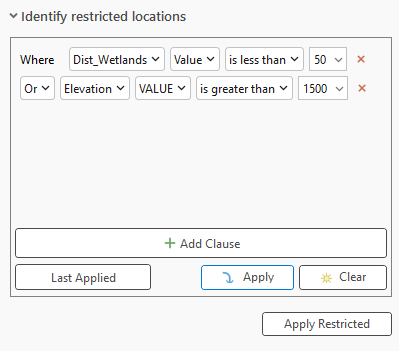
Once a clause or clauses are entered, click the Apply button to see the locations that will be assigned Restricted in the map. When you are satisfied with the restricted expressions, click the Apply Restricted button.
The locations are removed from the resulting suitability map. If you have already run the model, re-create the suitability map by clicking the Run button on the Suitability tab to remove the newly defined restricted locations and create a new full-resolution suitability map. Then, from the resulting suitability map, use the Locate tab to identify the location for the condominiums. In this case, 500 continuous acres is desired.
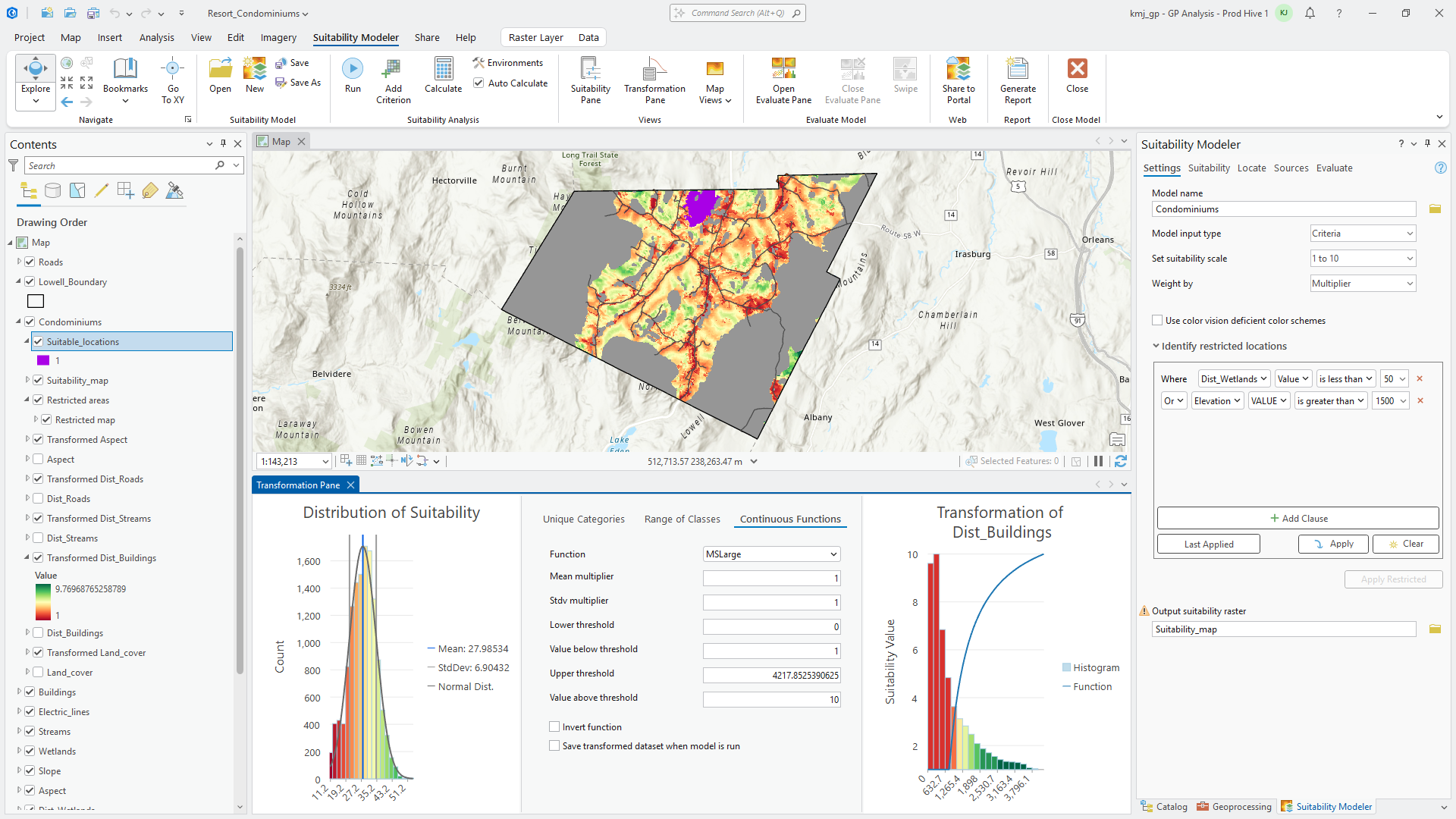
The locations assigned to Restricted are symbolized in gray, while the locations outside the study boundary are assigned NoData and have no color.
Explore restricted scenarios
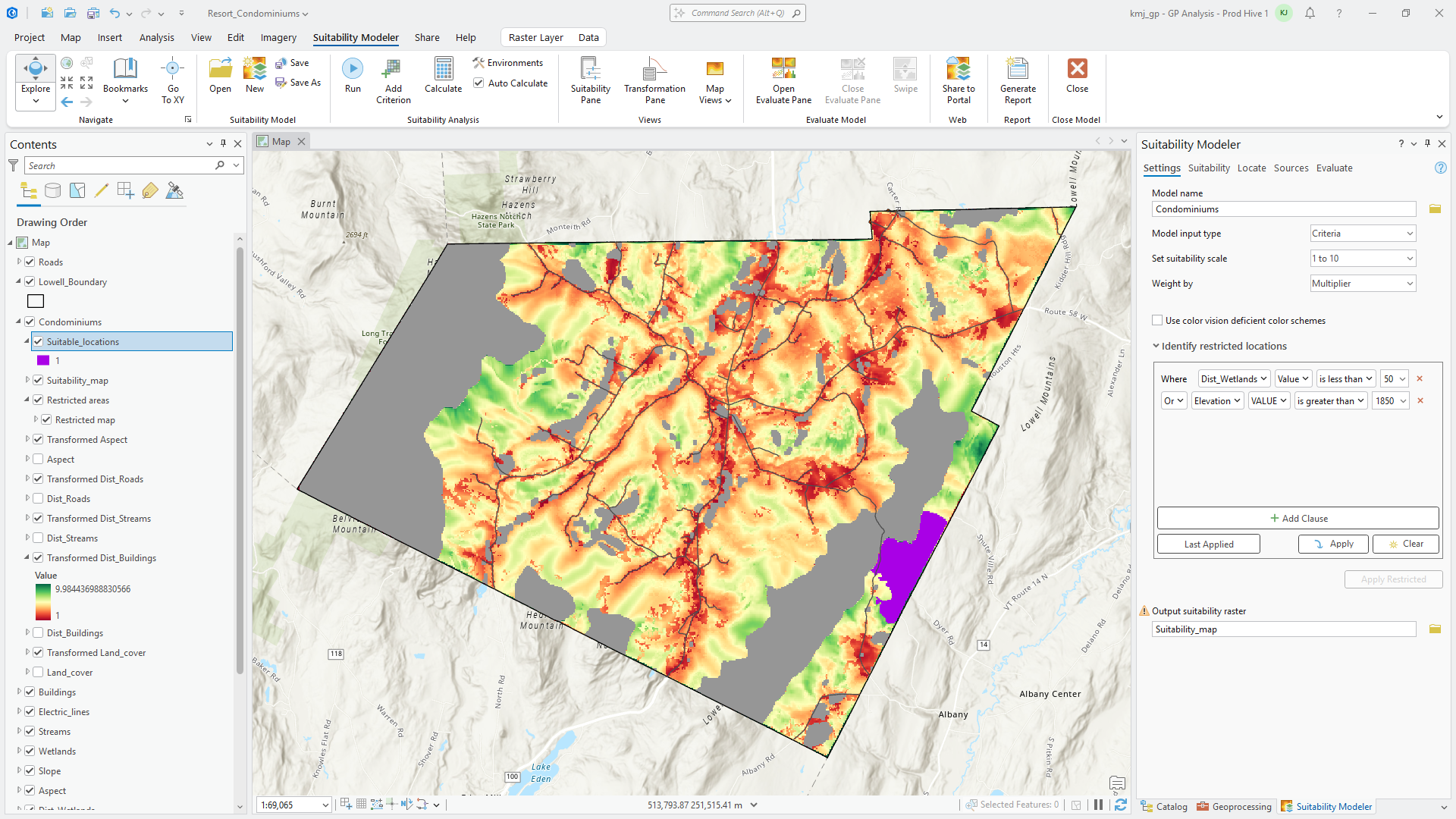
Town officials would like to investigate what will happen if they loosen the restriction for the visual quality from no building above 1,500 feet to no building above 1,850 feet. Will there be any impact on the resulting location?
Prior to the support for Restricted, to alter your restrictions, you needed to go outside the Suitability Modeler, adjust the mask raster, reapply it in the Analysis Environment, and rerun the model.
With the Restricted support, to alter the restricted locations, you simply adjust the Restricted query, and the suitability map will be updated.
Then town officials wanted to see the effects if the visual quality restriction was loosened to no building above 2,000 feet.
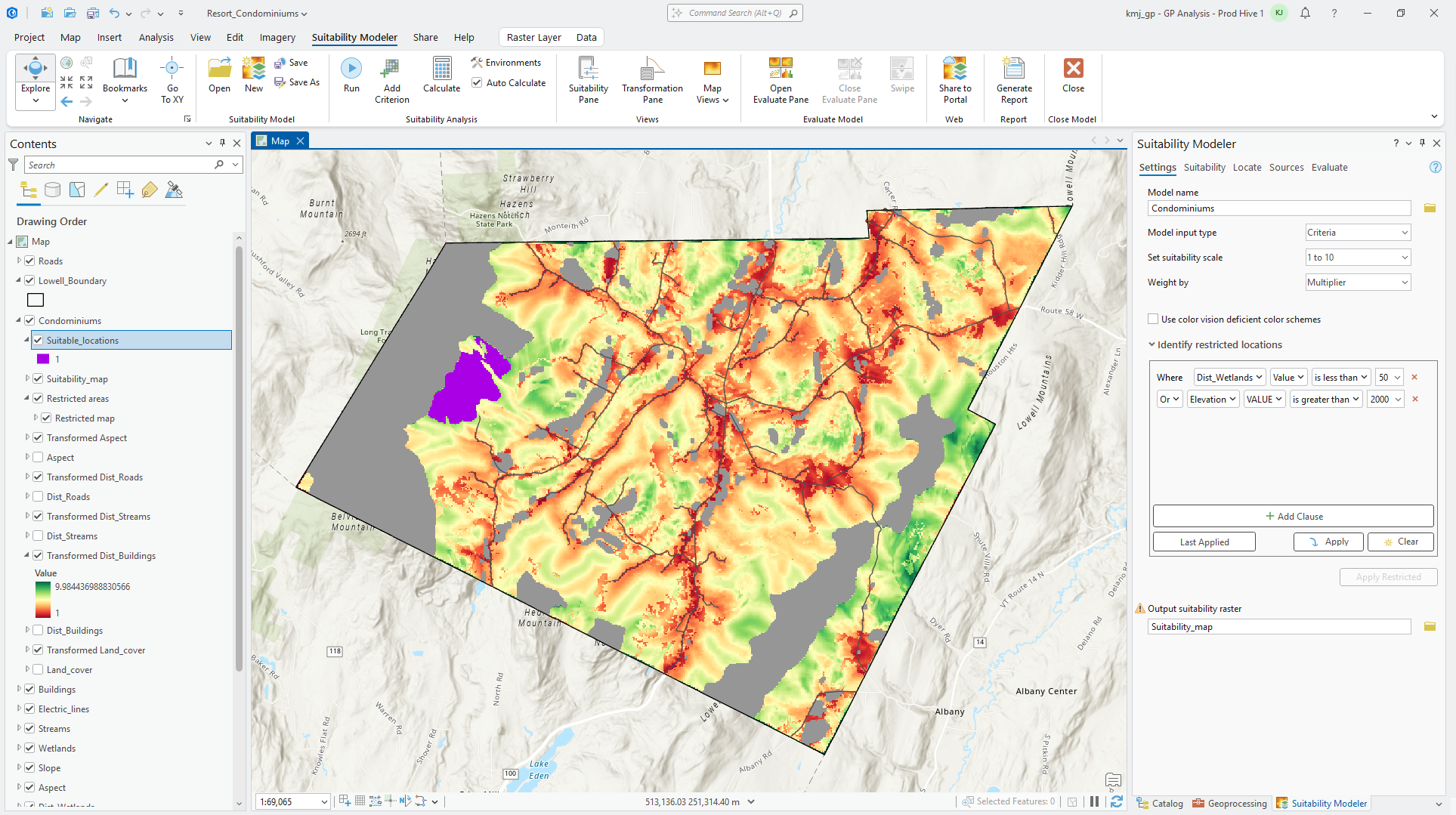
The shifting of the location is not necessarily a problem. However, town officials wanted to analyze the quality of the sites from Locate with the easing of the restrictions.
From the resulting statistics from Locate, the average suitability value for the cells within each location are as follows:
| Visual quality restriction | Average suitability |
| 1,500 feet | 35.979848 |
| 1,850 feet | 41.700828 |
| 2,000 feet | 42.59409 |
As can be seen from the above table, easing the visual quality restriction not only moved the location of the proposed condominiums, but the condominiums would also be located on more suitable sites.
Town officials now have more information. They need to determine whether the benefit from the superior sites offsets the easing of the visual quality objective. They can also explore whether they can meet the visual quality objectives for the superior sites through alternative approaches. Can the condominiums be strategically placed so they cannot be seen? Or can vegetation and earth mounds be used to conceal the structures? Can the buildings be painted certain colors to camouflage them?
With the new support for Restricted, you can easily and intuitively remove locations from consideration. And, you know why the locations are being removed; you know what is there and they should not be considered versus you do not know what is there.
Because of the flexibility of assigning Restricted, great insight can be gained into the impact of the applied restrictions. What-if scenarios can easily be explored altering the restrictions. As seen above, not only are you able to explore the spatial impact of the imposed restrictions, you can also analyze how altering the restrictions will affect the quality of the final locations.

Article Discussion: