With the Q2 2026 releases, we’re introducing an important change to how offline help works across installed desktop applications—ArcGIS Pro, ArcGIS AllSource, ArcGIS Drone2Map, and ArcGIS Reality Studio. Offline documentation is now delivered through a new desktop application: ArcGIS Documentation Center.
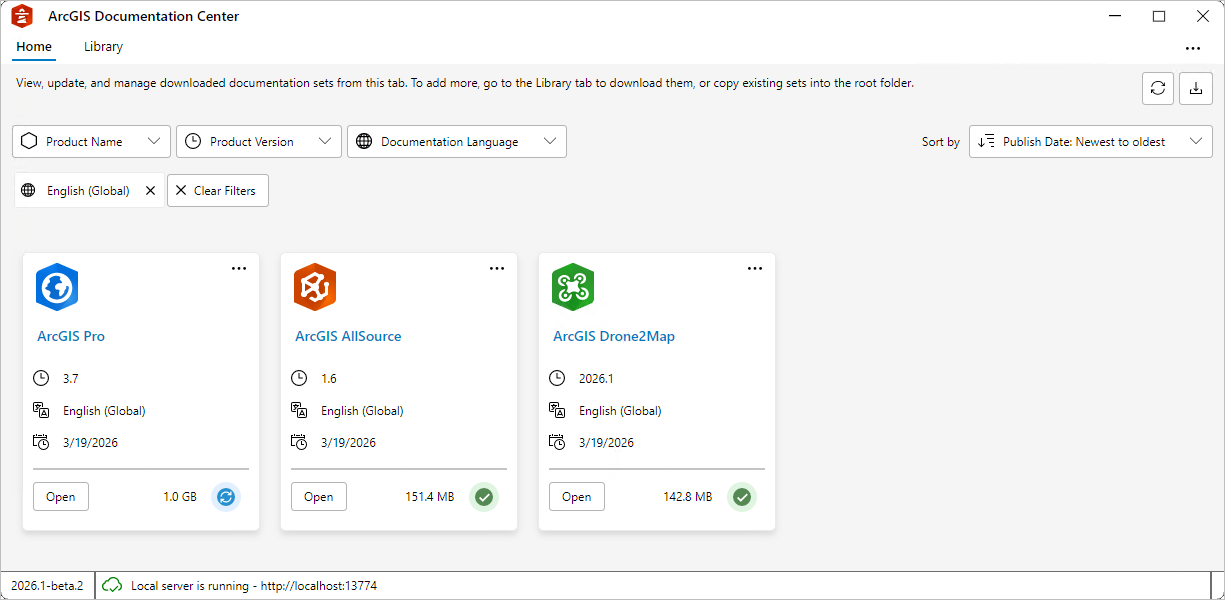
This is much more than an implementation detail. It’s a shift to a consistent, sustainable, and modern documentation experience, whether you’re occasionally offline or working in a fully disconnected environment.
Let’s take a look at what’s changing, why we’re making this move, and what you need to do to be ready.
Background: how offline help has traditionally worked
Historically, offline documentation was only available for Pro through a separate application that was tightly coupled to specific versions and language packs.
If you needed offline help, you installed a stand-alone help application. Each new release required uninstalling the old help system and installing a new one for each language needed. Documentation lived in different places for different products, and help was static throughout a release, not receiving periodic updates like the web help does.
This approach worked for a long time, but it had some downsides, especially for users managing multiple ArcGIS applications, administrators supporting disconnected environments, and anyone who wanted up-to-date documentation (wait—who doesn’t want up-to-date documentation?) without repeated installation cycles.
What’s changing?
Starting with the Q2 2026 releases, offline help is moving to ArcGIS Documentation Center (Doc Center), a single desktop application that manages offline documentation for multiple ArcGIS products: Pro, AllSource, Drone2Map, and Reality Studio.
With this change, offline help is no longer installed per product, per language, and per version. Instead, it is delivered as packages, called documentation sets, that you download and update as needed. If you use more than one desktop application, you’ll immediately benefit from having a single, shared offline help system.
Doc sets in non-English languages will still be available within a few months of each respective product release.
Benefits of the new experience
From a user perspective, this new approach delivers several important benefits:
- Install once—No more uninstalling and reinstalling help at every release.
- One place for all desktop help—Pro, AllSource, Drone2Map, and Reality Studio documentation… better together!
- Designed for disconnected workflows—Reliable access without an internet connection. Help topics open locally in a web browser and are served by a local web server running on your machine or network.
- Consistent experience—Web and offline help now share the same structure, appearance, and navigation. Help buttons, links, and F1 shortcuts automatically open the correct topics when offline help is enabled.
- Updates available—Documentation sets can be updated independently of product releases.
- Future‑proof—Documentation remains accessible even when products or versions are eventually retired.
What you need to do
If you are always connected to the internet and have never used offline help in your life, I’m surprised you’ve read this far. Thank you for your interest, but you can get back to work! If you rely on offline help today—or may use it in the future—you need to go get ArcGIS Documentation Center.
ArcGIS Documentation Center is available from My Esri:
- Sign in at https://my.esri.com
- Go to the Downloads tab
- Find ArcGIS Documentation Center
- Download and install the application
You install Doc Center once. After that, you download and update documentation sets for the products, versions, and languages you need using Doc Center.
As an individual user
For individual users, install Doc Center locally. Open the app and browse available documentation sets. Download the documentation sets you need; for example, ArcGIS Pro 3.7 in English.
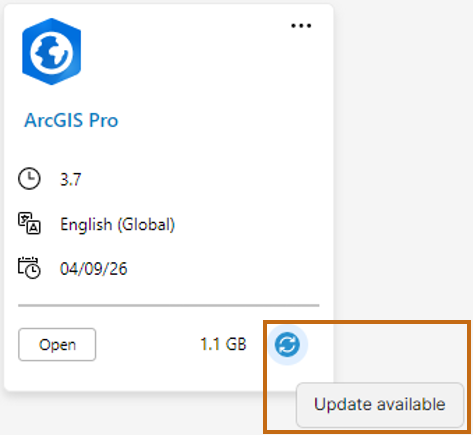
When a documentation update becomes available, you’ll see it in the Doc Center app and can download it with a single click.
For a disconnected or secure organization
Doc Center is especially powerful in disconnected, classified, or restricted environments.
An administrator can set up and manage documentation from one centralized folder on a network. All instances of Doc Center using the network folder as the root folder use any doc sets installed there. This means you can manage all your ArcGIS product documentation from one location, making maintenance and updates for a large group of users much easier.
Looking ahead
Offline help is changing—and if you rely on it today, this is an important shift to be aware of. With the move to ArcGIS Documentation Center, offline documentation is no longer tied to individual products or releases, and it’s no longer static once installed.
This change does require an adjustment for users accustomed to installing product-specific help. But in return, you gain a simpler setup, a single place to manage documentation across Pro, AllSource, Drone2Map, and Reality Studio, and the ability to get help updates throughout a release cycle.
As you move to the Q2 2026 releases, we encourage you to install ArcGIS Documentation Center, download the documentation sets you need, and explore this new approach. It’s a great step forward for users and organizations who work offline and we’re excited to see it support your future work!
All Adobe Stock images are © 2026 Adobe Stock. All rights reserved.

Article Discussion: