Improving everyday work
ArcGIS Pro offers hundreds of powerful commands and tools, and most of them live on the ribbon or in context menus. That works well for discoverability, but many users spend their day working inside a limited number of views—maps, attribute tables, layouts—and perform familiar tasks rather than exploring novel workflows.
When we talk with users who work in ArcGIS Pro for hours every day, it’s clear that while application performance is important, how easily you can get to the tools you need while staying focused on the task at hand is even more important to complete everyday workflows that often have an element of repetition.
That feedback has come through clearly in usability studies, support cases, and direct conversations: you want fewer context switches, less mouse travel, and fewer trips back to the ribbon.
Real user requests
Increased flexibility around accessing frequently used commands and how those interact with views has been requested through two specific ArcGIS Pro ideas:
Ability to customize the attribute table toolbar (add/remove tools from the toolbar)
Real multi-monitor support: include ribbon, QAT with floating views
And here are some quotes from real users like you:
“I love the toolbar in the attribute table—why can’t I customize it or have something similar in other views?”
“I don’t like having the Delete button right next to the Clear button. It scares me and I wish I could just remove it.”
“I often use the Related Data button and having to click on the hamburger menu to access it is quite cumbersome since it is at the far right of the table and also requires an unneeded extra click.”
“Moving the Fields View button to the table window makes sense to me.”
“Adding a “save” button to the Fields pane will simply remind the user that they may want to save before closing the window. Currently it is easy to be making edits to the fields and change which tab of the ribbon you are looking at, especially when using a floating pane for a table on a different monitor. You then must go back to the correct tab if you want to save it without closing the fields pane.”
Customize toolbars on views: new in ArcGIS Pro 3.7
ArcGIS Pro 3.7 introduces a new view-based toolbar experience that brings the flexibility you’ve been looking for. With the new experience, you can:
- Customize built-in system toolbars For supported system toolbars, you can add, remove, and rearrange commands to better match your workflow. Customizing the built-in attribute table toolbar was by far the most heavily requested, so we started with that. Customizing other built-in system toolbars will be added in upcoming versions.
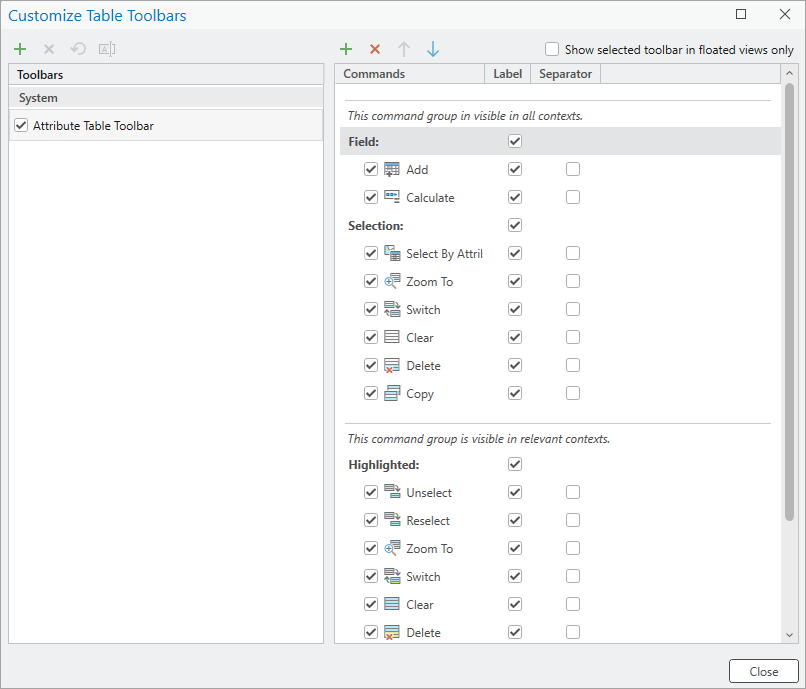
- Create your own custom toolbars for views Views like map views and layout views don’t have a system toolbar—but now you can create them. Add only the commands you care about and keep them visible while you work in that view.
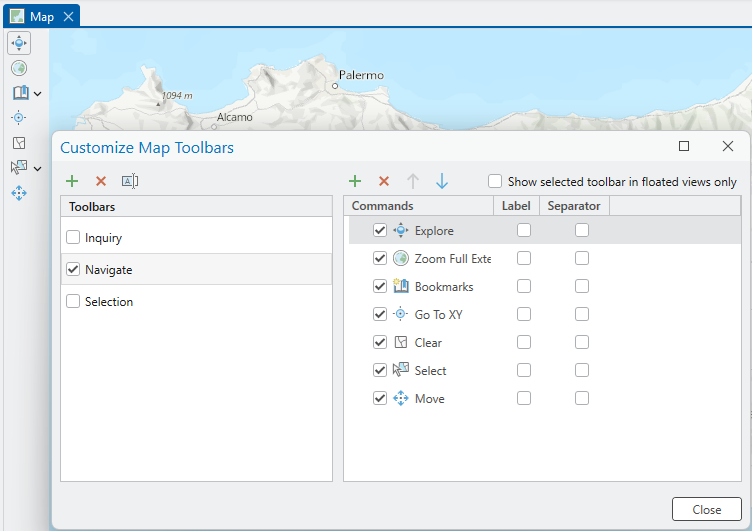
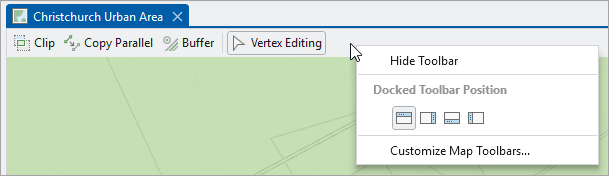
- Dock toolbars where you want them Custom toolbars can be docked to any edge of a view—top, bottom, left, or right. Set them up in a way that works best for you.
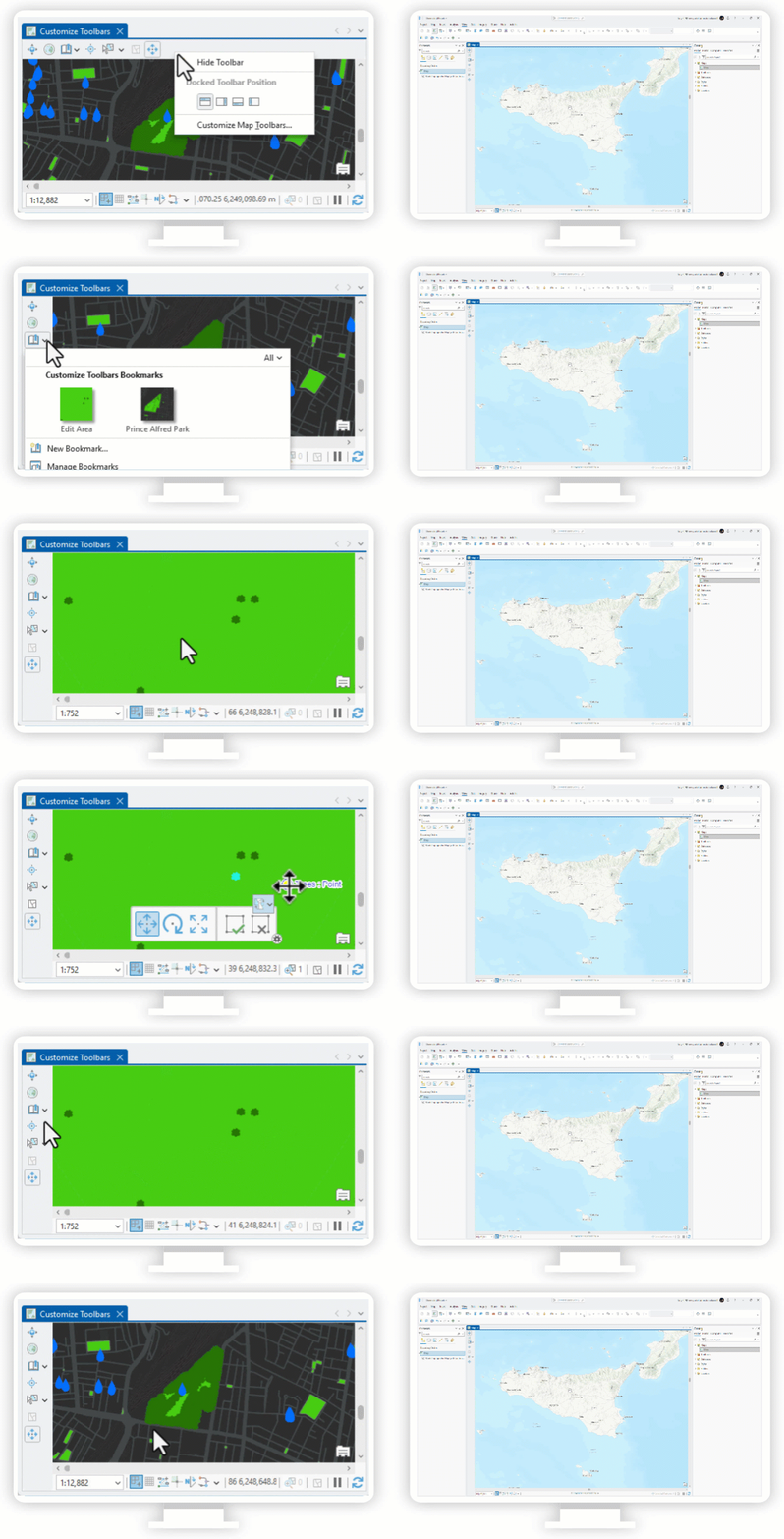
- Optimize for multi-monitor workflows When you float a view onto another monitor, toolbars move with that view. You can even configure toolbars to appear only when the view is floating.
Productivity benefits of customizable view toolbars
ArcGIS Pro 3.7 continues our focus on making the software more productive, efficient, and adaptable to your needs. Customizable view toolbars allow you to set up ArcGIS Pro’s UI to optimize your specific workflows. It means less tab switching, fewer clicks, and reduced mouse travel back and forth from where you’re working to the ribbon. And these new toolbars work great when you float views away from the main application onto another monitor.
Stay tuned: we’re currently working on global toolbars that are not tied to views.
All Adobe Stock images are © 2026 Adobe Stock. All rights reserved.

This is fantastic!! Thank you!
Thanks a lot!