Layouts often contain multiple map frames that need to show the same area but with different information highlighted in each. ArcGIS Pro 3.7 makes doing this significantly easier via the new ability to override layer visibility by map frame.
By default, layer visibility (i.e. turning layers on and off) is linked between your map and any map frames that point to it. This previously required you to create a new map each time you wanted to display a different combination of layers or highlight new information. Now, you can control which layers are visible independently for each map frame, all while working from a single source map.
Whether you are routinely building layouts for side-by-side comparisons, inset or extent maps, or reports that highlight different variables, this change makes the workflow much faster.
This video from the ArcGIS Pro Shorts series gives a quick overview of the new functionality.
How to override layer visibility
To override layer visibility for a map frame, you will need to locate and turn on the Layer Visibility button.

This can be done in three specific places throughout ArcGIS Pro, as follows:
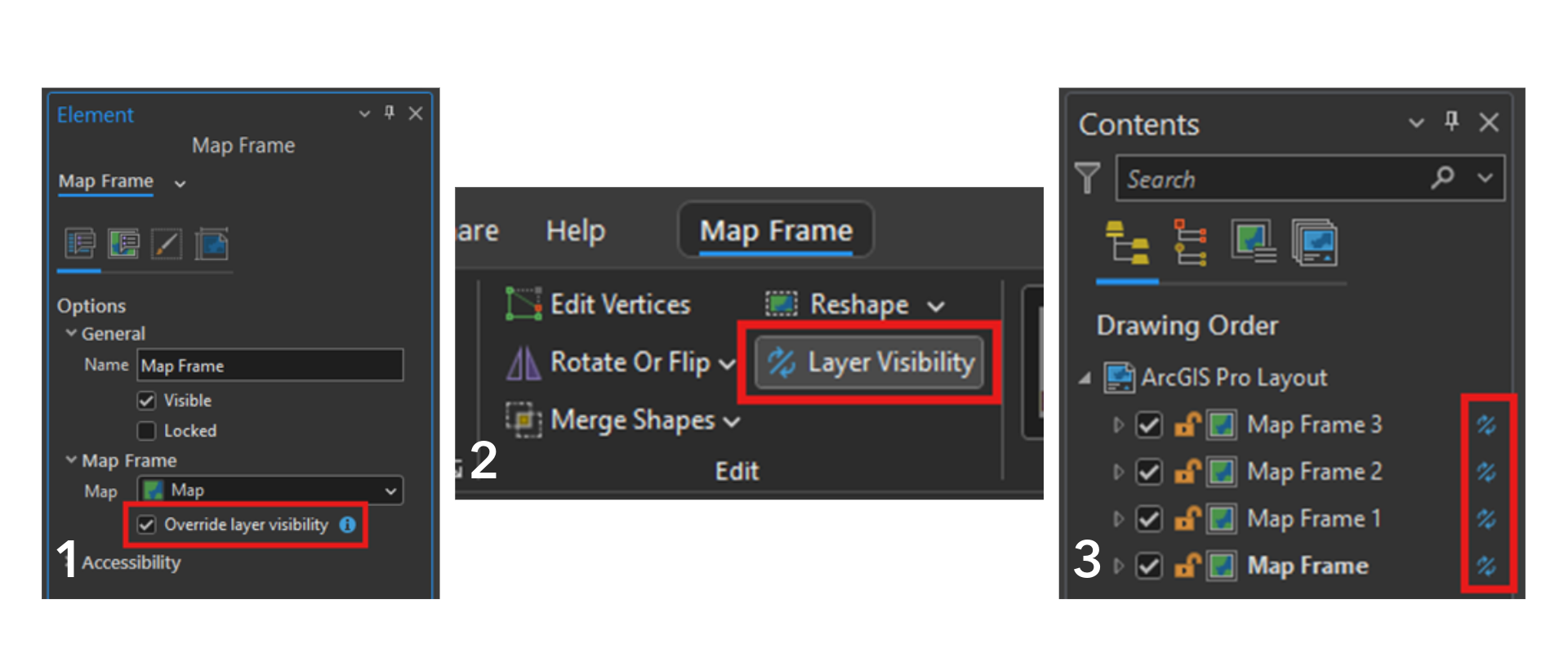
- In the Element pane for your map frame, you will now see a checkbox in the Map Frame dropdown.
- In the ribbon, when a map frame is selected, you will see the Map Frame tab and, in that tab, the button for layer visibility can be found within the Edit group.
- In the Contents Pane, Layer Visibility can be turned on by hovering over the space to the right of the map frame title and selecting the symbol. If it was enabled by one of the other methods just mentioned, that symbol will already be present as this is the primary indicator to tell if it is on.
Note. You will notice a warning message when activating a map frame that has override layer visibility turned on, reminding you it is on.
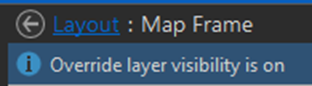
Once override layer visibility has been turned on, you can freely turn layers on and off in your map frame without worrying about affecting the other map frames. If you turn override layer visibility off, your map frame will revert to match what layers are currently shown in your source map.
Override layer visibility in action
Let’s walk through a quick example. Imagine you have a map of Toronto, Canada showing both zoning and major railroad data. This map stylized using John Nelson’s Firefly style is exactly that:
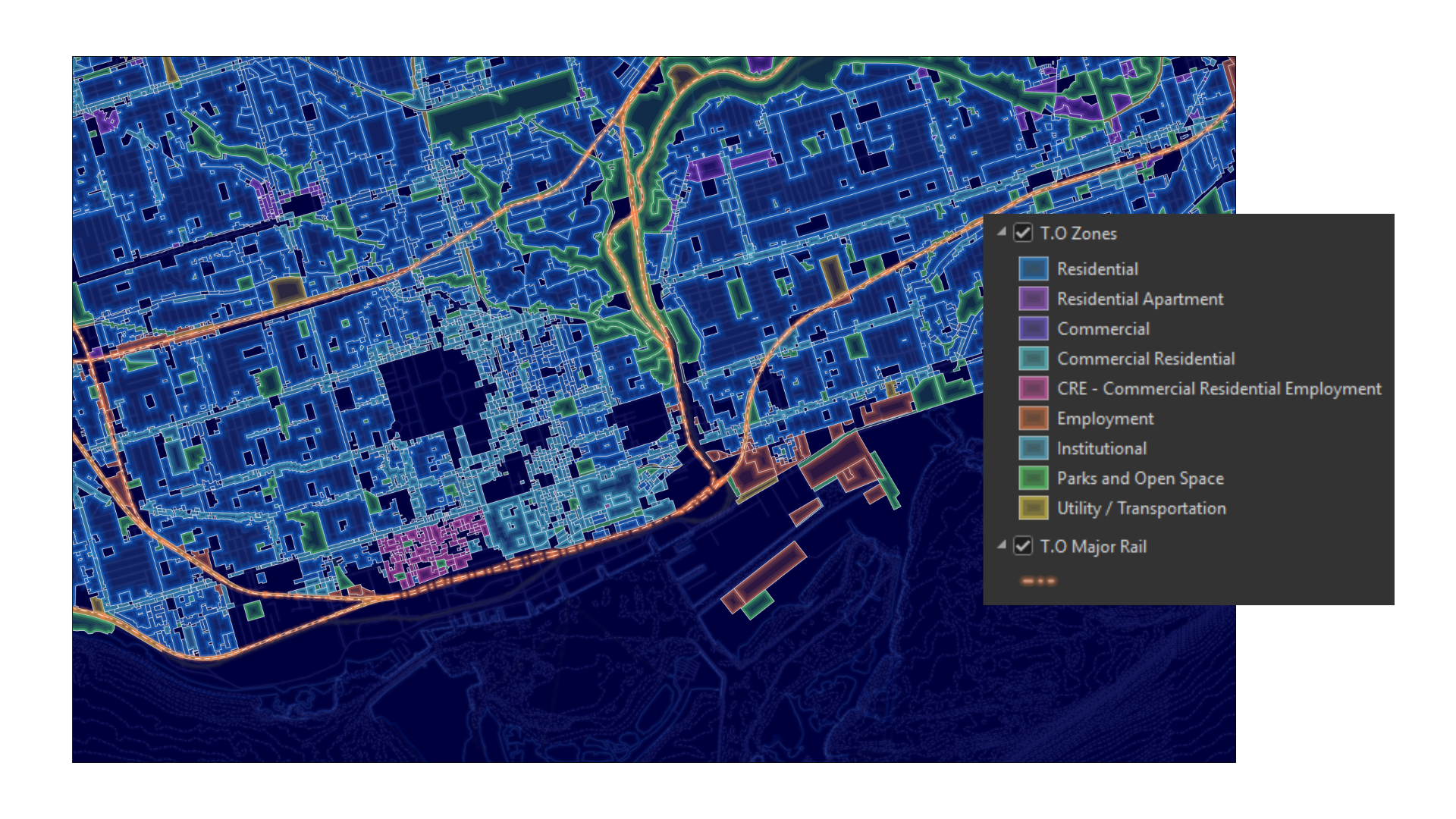
This makes it difficult to clearly see the major railroads because the zoning layer dominates the map. To address this, you can create a layout with two map frames that both point to the original map. With override layer visibility enabled on both frames, you can easily select which layers you want in each, without impacting the other frame.
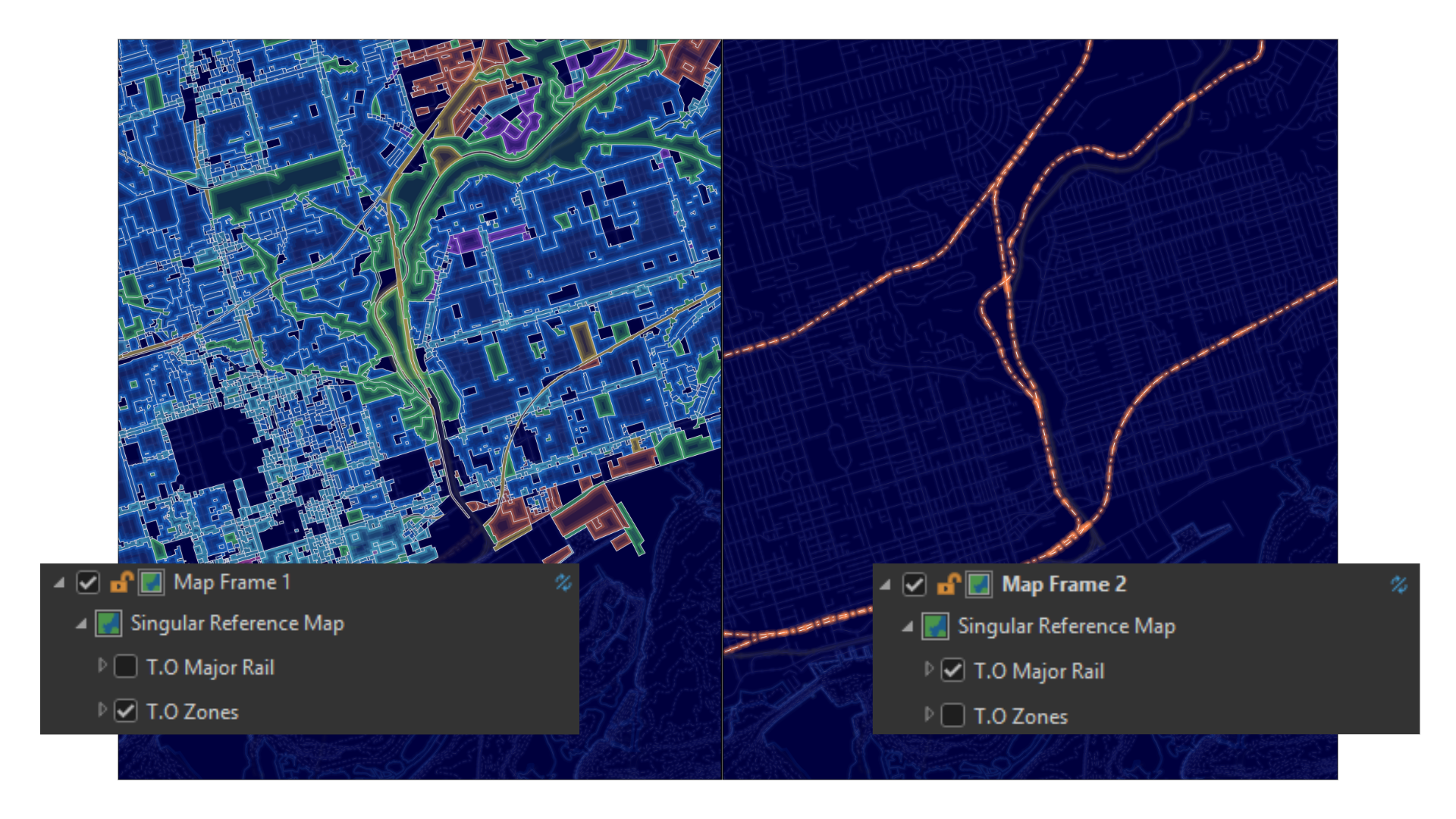
If you wanted to provide additional context, such as showing where the area fits within the city, you can do so without creating another map. Start by ensuring your source map includes a boundary layer. Then add a third map frame to the layout, enable override layer visibility, and turn on the boundary layer only in that frame.
To add an extent indicator, go to the Insert tab, find the Map Frames group, and select a map frame to reference from the Extent Indicator dropdown. To keep the third map frame clear, you can turn off layers that become distracting or do not read well at smaller scales.
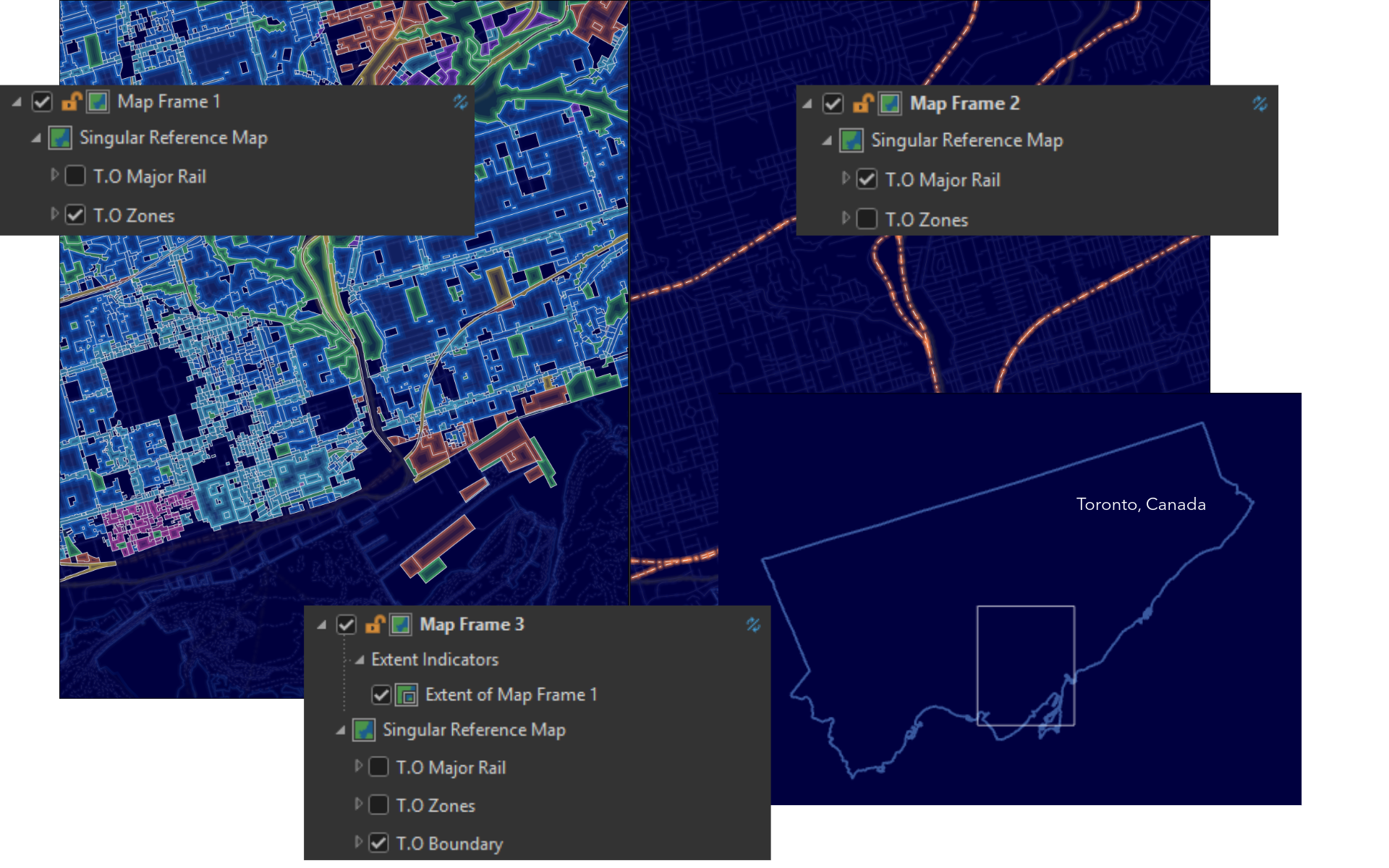
All of this is done without duplicating or managing multiple maps, since each map frame simply presents a different view of the same map. By using layer visibility overrides, you can control exactly what each frame shows while keeping your data centralized and your project easier to maintain.
To learn about the other enhancements made alongside the ability to override layer visibility in ArcGIS Pro 3.7, check out this blog or read the documentation.
Stay in the Know About ArcGIS Pro
- Subscribe to the ArcGIS Pro Newsletter to have the latest news delivered straight to your inbox.
- Visit the ArcGIS Pro Resources page to find a compilation of helpful resources.
- Connect with product experts, converse with fellow users, and find answers to your questions on ArcGIS Pro’s Esri Community Board.
- Beta testing for ArcGIS Pro 3.8 will begin in September–join our Early Adopter Community (EAC)for the chance to test what’s new and provide feedback on features before they are released.




Commenting is not enabled for this article.