
If you’ve worked with ArcGIS long enough, there’s a good chance you’ve come across data stored in a personal geodatabase (.mdb) that you need to use in ArcGIS Pro.
ArcGIS Pro has never supported personal geodatabases, and for years that meant maintaining long‑standing workflows with Microsoft Access databases or relying on ArcMap while also trying to move data forward.
As ArcGIS Pro evolved toward more modern, scalable data models and formats, ArcMap and personal geodatabases reached the end of their lifecycle, leaving a clear gap for anyone still working with .mdb files. Users weren’t just looking for another workaround, they asked for a more direct, reliable path forward in ArcGIS Pro.
A new path forward
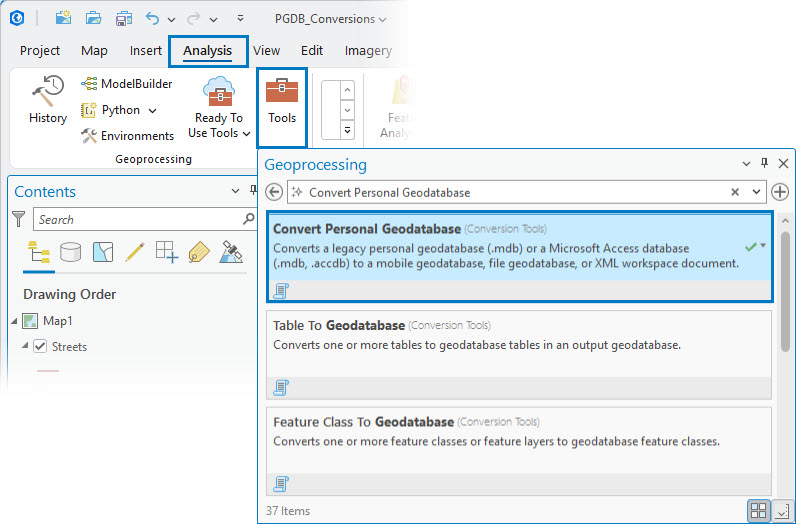
With the ArcGIS Pro 3.7 release, that path leads us to the new Convert Personal Geodatabase tool.
A wind turbine may look simple from a distance, however, it relies on a complex internal process to convert wind into reliable, usable energy that can be distributed where it is needed. In much the same way, the Convert Personal Geodatabase tool handles complex data processing behind the scenes, converting a single input database file into a modern, usable geodatabase that is ready to use in ArcGIS Pro or shared across your organization.
With this tool, you can migrate your data by converting a personal geodatabase or Microsoft Access database to a file, mobile, or enterprise geodatabase. It removes the need for ArcMap and provides a way to seamlessly move your data into supported, modern formats directly in ArcGIS Pro, without additional licensing.
Just open the tool, select your input database, choose an output format, and run it.
That’s it!
Watch this short video created in ArcGIS Pro 3.7 for a quick overview, or keep reading for more details.
Why this matters
For a long time, working with personal geodatabases in ArcGIS Pro meant stitching together indirect workflows, connecting through OLE DB, exporting data in pieces, or keeping ArcMap installed longer than planned.
Those approaches helped move things forward, but with ArcMap officially retired in March 2026, many of those old methods no longer work. What once served as a workaround has now become a roadblock.
The Convert Personal Geodatabase tool changes that by providing a direct, reliable way to bring your data into ArcGIS Pro without relying on legacy workflows. Before getting started, there are a few requirements to be aware of.
Prerequisites
Only personal geodatabases created with ArcGIS Desktop version 10.x and later are supported for use with the Convert Personal Geodatabase tool.
The tool requires the 64-bit version of the Microsoft Access database engine to read the .mdb or .accdb file. Many systems already include this driver, but if it’s missing, ArcGIS Pro will prompt you to install it when you run the tool.
The Usage section in the Convert Personal Geodatabase geoprocessing tool topic contains the complete list of usage notes when using this tool.
Learn how to check for and install drivers.
Use the Convert Personal Geodatabase tool
There are two main options to convert a personal geodatabase in ArcGIS Pro, depending on where you want your data to go.
- Convert an .mdb or .accdb file to a file or mobile geodatabase
- Convert an .mdb or .accdb file to an enterprise geodatabase (using the XML Workspace Document option)
Convert an .mdb or .accdb file to a file or mobile geodatabase
Use this option when you want to convert your personal geodatabase into a file or mobile geodatabase for continued use in ArcGIS Pro.
- Open the Convert Personal Geodatabase tool in ArcGIS Pro.
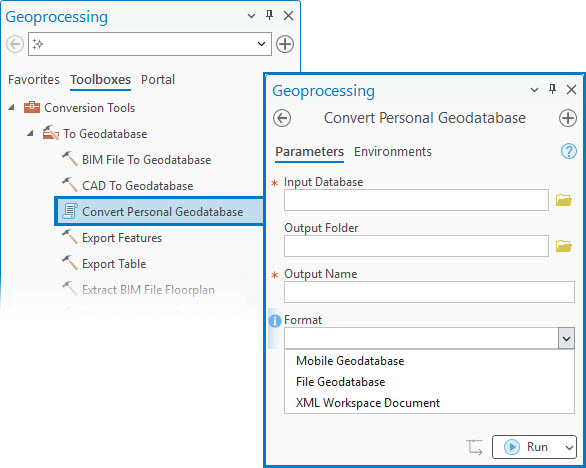
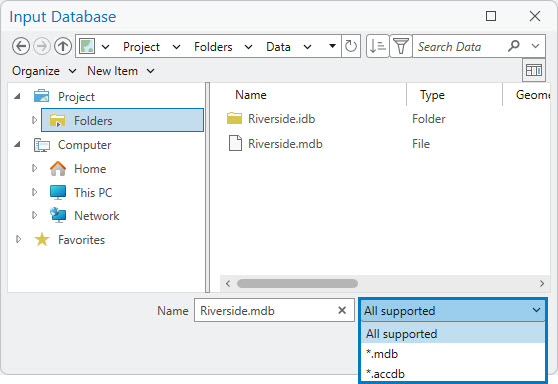
- For the Input Database parameter, browse to the
.mdbor.accdbfile.
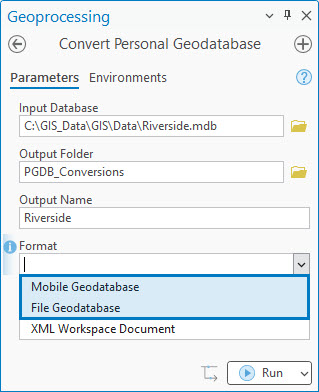
- For the Format parameter, choose Mobile Geodatabase or File Geodatabase as the output format and set the destination.
- Run the tool.
The tool converts your selected personal geodatabase (.mdb) or Microsoft Access database file (.accdb) into the specified output format. The converted data is immediately available and ready to use in ArcGIS Pro.
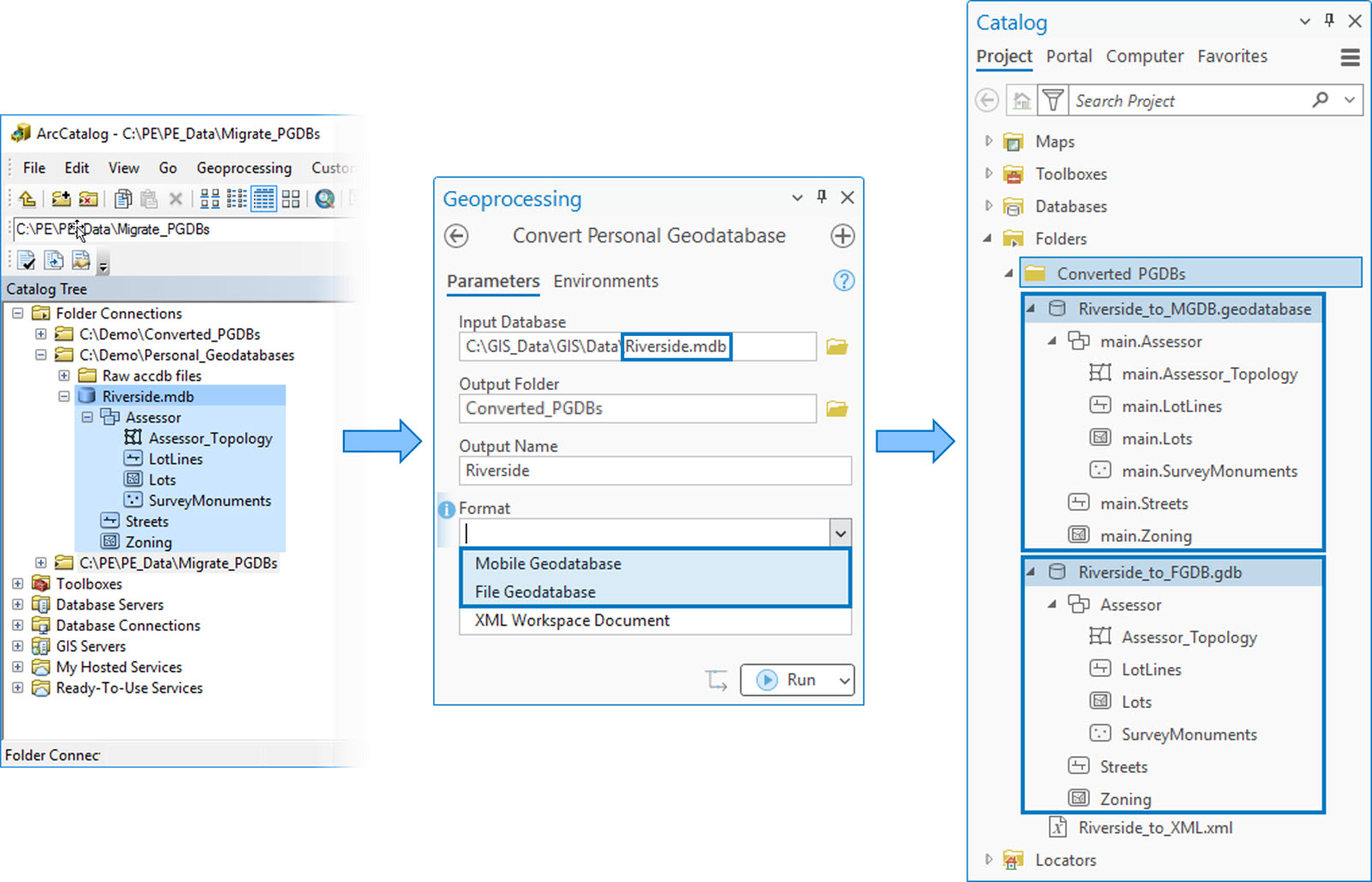
Convert an .mdb or .accdb file to an enterprise geodatabase
Use this option if you want to move your data into another geodatabase or an enterprise geodatabase using the XML Workspace Document option.
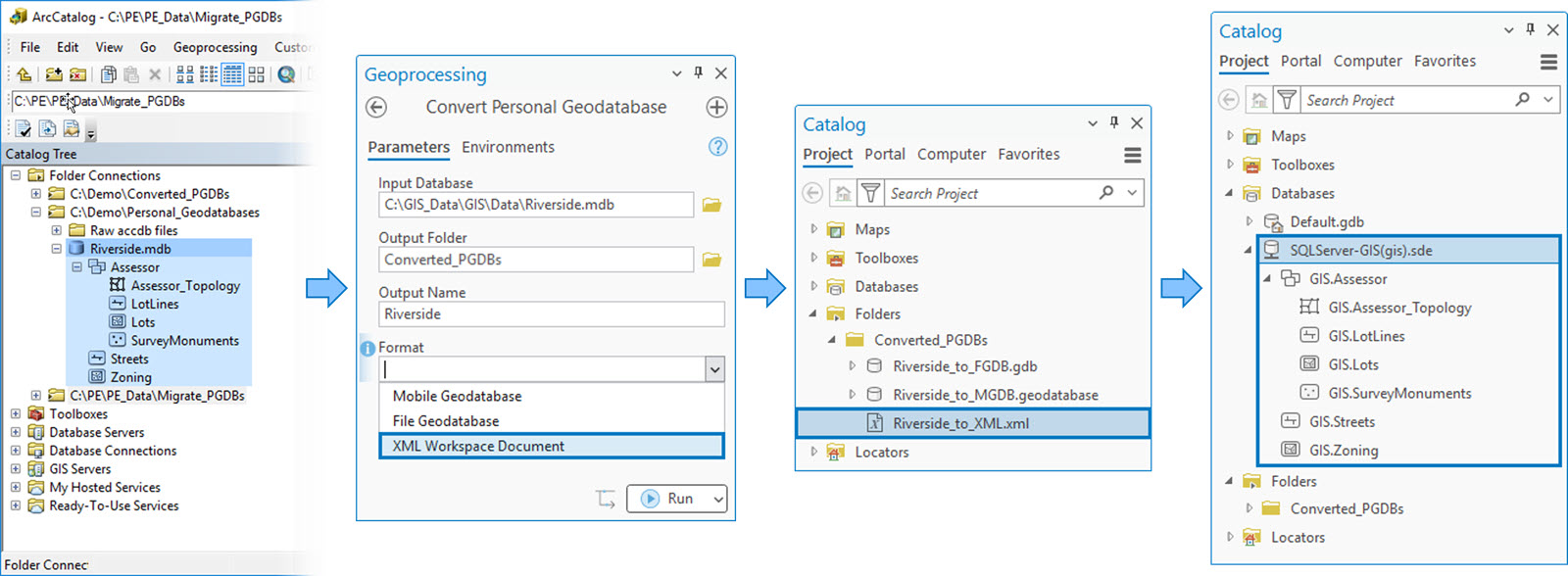
- Run the Convert Personal Geodatabase tool and choose XML Workspace Document as the output format.
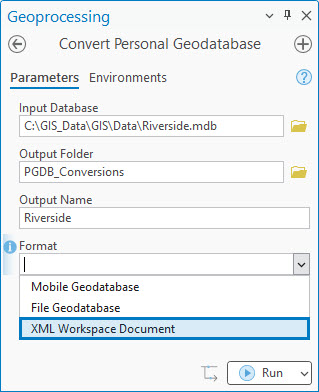
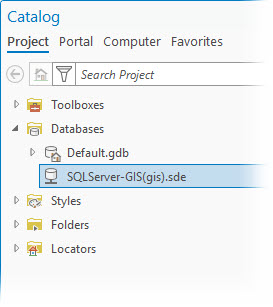
- Connect to your enterprise geodatabase in the Catalog pane as a user with privileges to create data in the database.
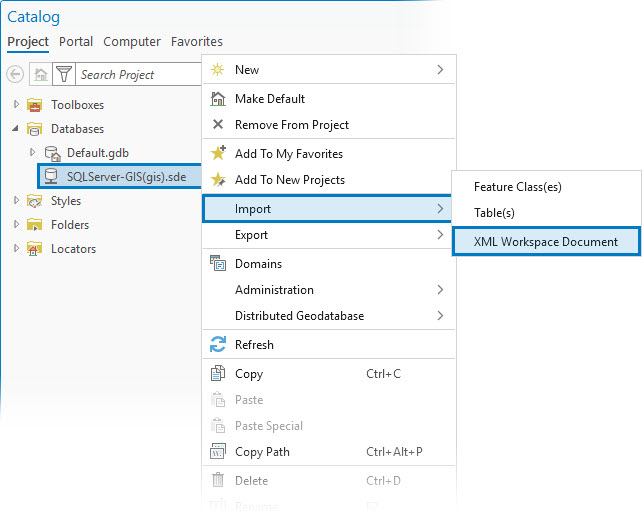
- Right-click the connection to your enterprise geodatabase, select Import, and select Import XML Workspace Document.
- From the Import XML Workspace Document Wizard, select Import data and schema or Import schema only, and click Finish.
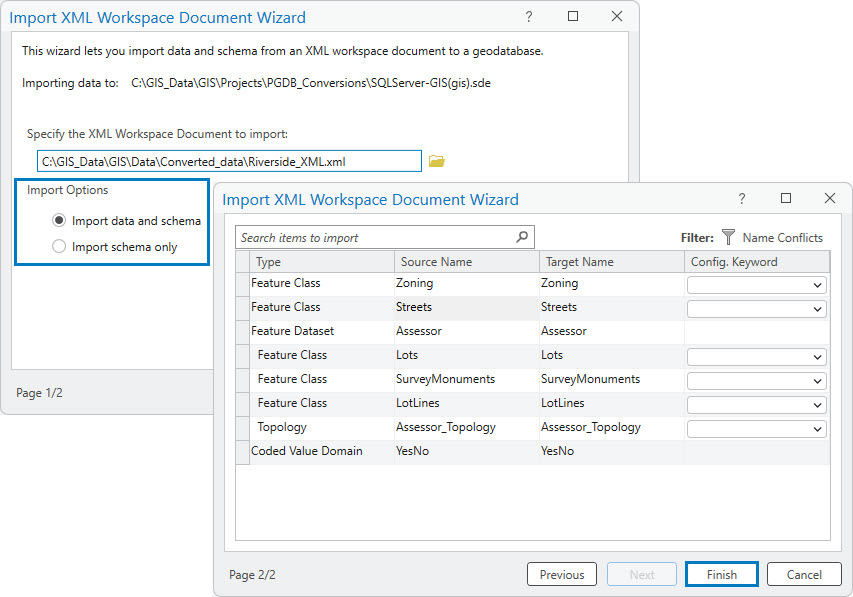
The Convert Personal Geodatabase tool allows you to convert your selected personal geodatabase (.mdb) or Microsoft Access database file (.accdb) into an XML workspace document. Then the Import XML Workspace Document Wizard imports the data from the .xml file into your enterprise geodatabase. Once the import finishes, the data is immediately available and ready to use in ArcGIS Pro.
This workflow takes one extra step by using XML as a bridge and provides a clean path to bring both the structure and the records into your enterprise geodatabase.
What you’ll see after conversion
In most cases, the feature classes, tables, relationships, domains, and subtypes are preserved and ready to use in the new geodatabase.
As with any format change, there may be a few differences to review. Each output format supports different capabilities, so some properties may adjust to align with the rules of the new geodatabase. If a dataset type or behavior cannot be converted directly, the tool completes the process and will provide a warning so you can review and make any necessary updates.
Try it for yourself
If you work with .mdb files, try the Convert Personal Geodatabase tool to bring your data into ArcGIS Pro and keep your workflows moving forward without relying on workarounds.
What’s next
This tool converts one personal geodatabase at a time. In an upcoming blog, we will show you how to automate the conversion of multiple personal geodatabases using Python so you can scale this workflow across larger projects.
Resources
To learn more, review the following documentation:







Commenting is not enabled for this article.