In the earlier installments of this blog series, you learned how to create a web map and the offline map areas prepared ahead of time before they can be downloaded in ArcGIS Pro. In this final blog article of the series, you will use these items and finish the download and synchronization workflow.
Taking offline the map areas prepared ahead of time does not perform a query on the backend of the database that is typically seen when taking other maps offline. Instead, it downloads prepackaged data. This download instead of a database query is what allows the scalability and efficiency of map areas prepared ahead of time when used by large workforces.
Once downloaded, the map and data can be accessed without internet connectivity. Editing capabilities for this data depend on the configuration of the individual layers as well as if the preplanned map area has been enabled with the packaged updates optimization.
Along with the file download, a replica is generated during this time that allows the use of synchronization to retrieve updates or upload edits that the user had made.
Complete the following steps to download, access, and update changes for others to see.
Download offline map areas
When downloading a map area prepared ahead of time, because the map areas are prepackaged, there may be updates that are not within the map area if a packaging schedule has been set. ArcGIS Pro takes this into account and performs a sync after the initial download to check if there are any additional data changes for the most up-to-date data.
To take map areas prepared ahead of time offline, complete the following steps:
1. In the Catalog pane, click the Portal tab.
2. Browse to or search for a web map or web scene in My Content or another portal collection.
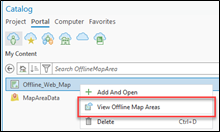
3. Right-click the web map and click View Offline Map Areas.
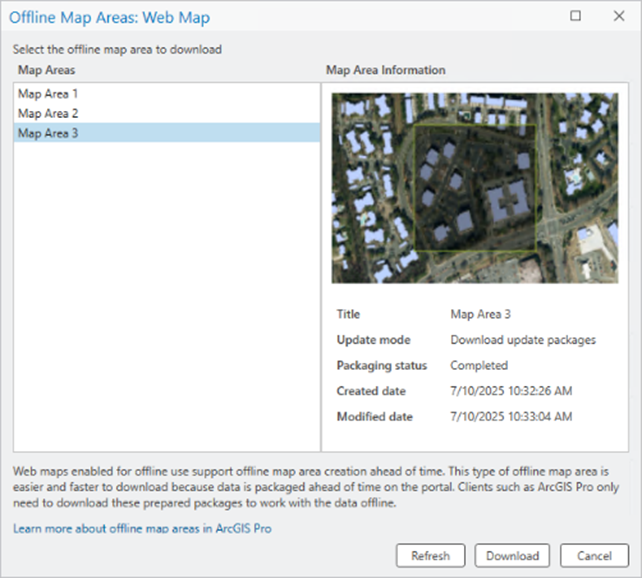
4. In the Offline Map Areas window, select the desired map area.
5. Click Download.
A progress bar appears while data for the web feature layers is taken offline. When the process is complete, a mobile geodatabase containing the offline data appears in the project’s home folder by default. The geodatabase download location can be specified using the ArcGIS Pro sharing and download options. (If multiple web feature layers are taken offline, there are multiple geodatabases.) The geodatabase is added to the project, and a new map is opened with feature layers that reference feature classes in the mobile geodatabase.
6. Save the project.
Access the offline map area
Once the project has been downloaded and saved, ArcGIS Pro is used to access the data. No internet or network connectivity is required at this point to read or edit. Editing capabilities are dependent on the offline map area data and configuration.
If the offline map area has not been configured with the Enabled packaged updates optimization and the underlying data has editing capabilities, users can add, update, or delete data. If the offline map area has been configured with the Enabled packaged updates optimization, editing will be disabled and the edit templates will not be available in ArcGIS Pro.
When editing with offline map areas prepared ahead of time, if you are using true curves for lines and polygons, see the section True curves with offline map areas prepared ahead of time in the Take a map offline document.
Synchronize updates
Once edits have been completed, or if there are updates to retrieve, the Sync button can be used when a network connection is available. The resulting action that follows depends on whether the offline map area has been configured with the Enabled packaged updates optimization.
If packaged updates have not been enabled, the Sync button will push and pull any data changes that have occurred within the data on the server or the local geodatabase. Keep in mind that the Features and attachments offline option still determines what data is pulled from the server to the local geodatabase.
If packaged updates have been enabled, the Sync button first checks if there are any packaged updates that have been generated based on the set packaging schedule. These packaged updates contain the changes to the data that have occurred since the last packaged update. If there are packaged updates available, they are downloaded and the data updates are applied to the local geodatabase.
It is important to keep in mind the packaging schedule when packaged updates are enabled. For each time that the packaging is run, an individual update package file is generated with subsequent changes that have occurred since the last scheduled run of the packaging. As these files are generated, the local geodatabase can become out of date if the packaged updates are not downloaded and applied after the scheduled packaging has occurred.
There are scenarios in which ArcGIS Pro redownloads the whole preplanned offline map area rather than the individual packaged updates. This can occur if there have been multiple scheduled packaged updates since the last time a sync has been performed and the local geodatabase has become too out of date with the data updates on the server. This can also occur if the size of the packaged updates exceeds 100 MB or the total size of the packaged offline map.
Remove map area data taken offline
If the local copy of the offline map area is no longer needed, click the Remove button. This will first perform a sync if there are any edits that need to uploaded. Once that is done, the mobile geodatabase that was created locally will be removed from the project and deleted from the project’s home folder. The map that was generated within ArcGIS Pro when the offline map was downloaded will also be removed.
Conclusion
Over this four-part blog series, you learned important details that will help you to customize this workflow for your work and your organization. With these capabilities tailored to your needs, you can improve scalability and reliability, especially when working in environments with little to no internet connectivity.
We encourage you to check out this approach and share your experience with us.
Happy Offline Mapping!
This article was originally published on September 6th, 2025, and was last updated on November 24th, 2025.
Article Discussion: