The Design
To make it easy to create a project and have all the necessary resources available for mapping, analysis and data management that you may do in that project, ArcGIS Pro automatically creates a home folder, a default geodatabase, and a default toolbox. There is a default location where the project and related files are created, and if users prefer locations and behavior other than the default, they can control the create projects options.
The Challenge
ArcGIS Pro 3.6 was released in November 2025 and we’re excited to share that we introduced a solution to a challenge that had been vexing users – stop recreating missing geodatabases.
Some users perform certain data management operations like renaming, moving or deleting file geodatabases, toolboxes or folders using Windows File Explorer rather than ArcGIS Pro. If the item happens to be a project’s default item (geodatabase, toolbox, or home folder), a new empty item is created in that location the next time the project is opened.
This happens because ArcGIS Pro projects require a home folder, a default geodatabase, and a default toolbox at all times. If the change was made deliberately by the user, the creation of that empty item, along with the reconstructed path to contain the item, can make you throw your arms up and cry “Bruh,” accompanied by an exasperated sigh.
Establishing a common vocabulary
For those who may be unfamiliar with the annoyance connotated by the term “bruh,” a quick AI overview generated by Googling “difference between bro, brah, and bruh” provides an entertaining summary:
Bro 😊
• Purpose: The most common and versatile of the three. Typically used as a neutral, friendly, or affectionate term of address for a male friend.
• Tone: Can convey a range of emotions, depending on the inflection. For example, “broooooo” can express disappointment or annoyance, while “Hey, bro!” is a standard greeting.
Brah 😎
• Purpose: Serves as a casual term of address, similar to dude.
• Tone: Often used to evoke a chill, laid-back persona. It is strongly associated with California surf culture and Hawaiian Pidgin.
Bruh 🙁
• Purpose: Most often used as an interjection to express a feeling or reaction, particularly frustration, annoyance, or disbelief.
• Tone: The exasperated sigh often accompanying the word is a key part of its meaning. It can also be used as a general exclamation for anything silly or ridiculous.
As the proud dad of two pre-teens, I’m constantly reminded of the proper use of brah and bruh in daily communication. Because I’m committed to being hip, I’ve started reinforcing this vocabulary when speaking to myself and my computer using the terms Pro, Prah, and Pruh.
Like when I sit with my morning tea to start the day and open ArcGIS Pro, I typically greet it with a casual, “’Sup, Pro?”
When I saw the new Compare Schema functionality added in ArcGIS Pro 3.6, I leaned back in amazement and was like, “Prah!”
And with the new experience of repairing default project items in ArcGIS Pro 3.6, we hope to change that annoyed Pruh!*&% to a mellow Prah!
Now that we have a shared vocabulary, let’s get into the new experience for repairing default project items.
Repair default project items
As stated above, every project must have a home folder, default geodatabase, and default toolbox. If you open a project in which one of these required items can’t be accessed, ArcGIS Pro can create a new default item for you. Alternatively, you can specify an existing item to be the default item or create a new default item yourself. You set your preferred option in the application General options under Repair Project Items. You can set different options for repairing the home folder, default geodatabase, and default toolbox.
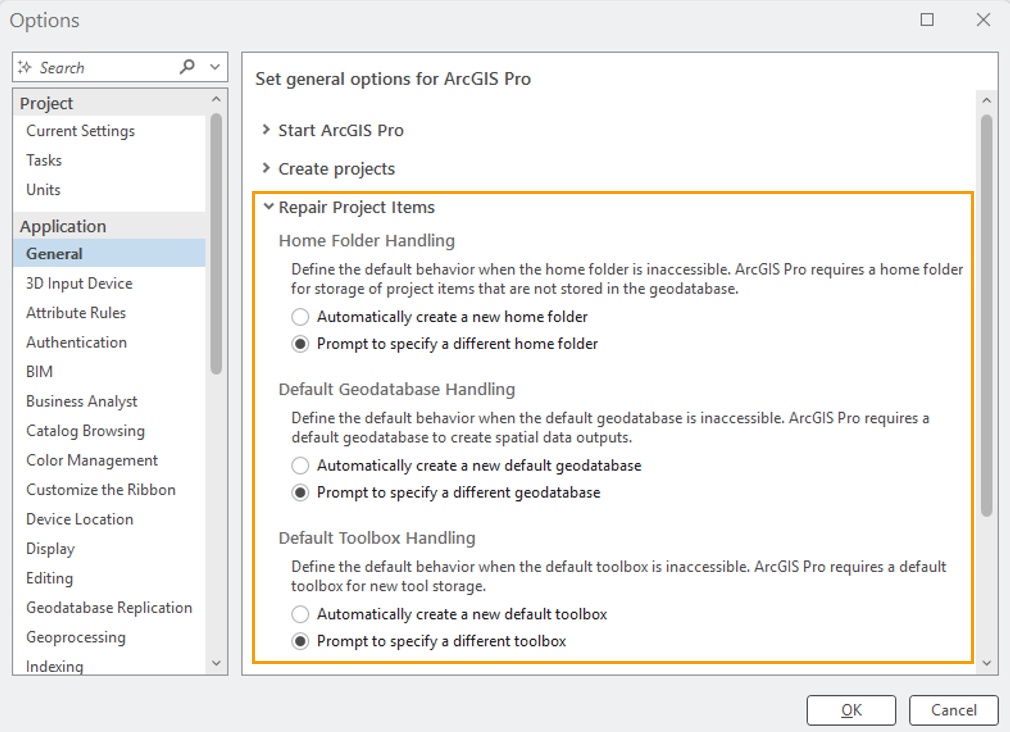
A default item may become inaccessible for various reasons. For example, it may be deleted, moved, or renamed, or its containing folder may be deleted, moved, or renamed. If the item is on a network share, the network may be unavailable.
Repair a default project item automatically
The default option is to repair default project items automatically. When this option is selected, ArcGIS Pro creates a new item with the same path previously stored for the item that is now inaccessible. It creates folders as needed to reconstruct this path. If the path cannot be reconstructed, a different path is used.
Example: Automatically repair a home folder
This example assumes that the Home Folder Handling option on the Options dialog box is set to Automatically create a new home folder. The default home folder is C:\ProProjectsHome and the project file is in a different location.
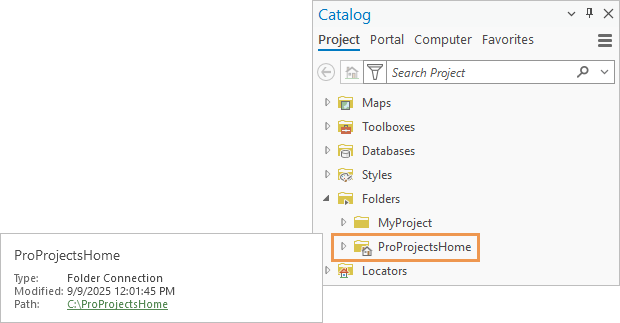
After the project is closed, suppose that the C:\ProProjectsHome folder is deleted (or renamed or moved) on the operating system. When you reopen the project, a message indicates that the home folder is inaccessible, and a new one has been created. The new folder location is the same as the previous home folder location.
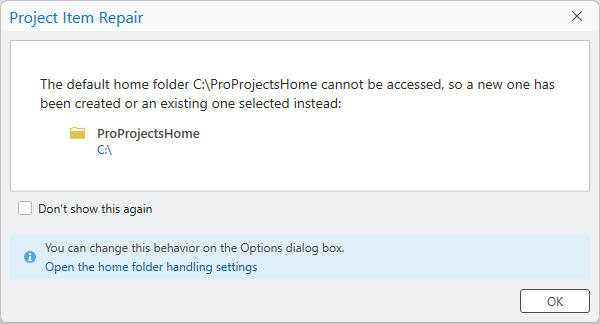
When you click OK on the message, the project opens with the new home folder. The new home folder is empty. Any content stored in the previous home folder may be lost if the folder was deleted from the operating system.
Repair a default project item by specifying a different item
If you don’t want ArcGIS Pro to manage default project item repair, you can set the item handling options to prompt you to select a different item. These options also allow you to create a new default item in a location you choose.
The option to select an existing item is useful when a default project item has been moved or renamed but is still available on your computer or a network share. You can browse to the item (if you know where to find it) and update its path in ArcGIS Pro to make it accessible again.
Example: Repair a default geodatabase by selecting an item
This example assumes that the Default Geodatabase Handling option on the Options dialog box is set to Prompt to specify a different geodatabase. The default geodatabase path is C:\Region\WarehouseImpact.gdb.
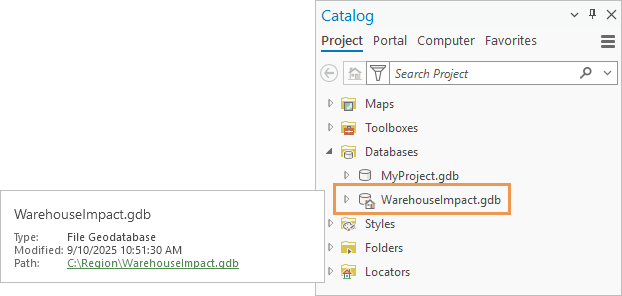
After the project is closed, suppose that the path to the default geodatabase is changed on the operating system. When you reopen the project, a message indicates that the geodatabase is inaccessible. A repair path is suggested by default—if you immediately click OK on the dialog box, ArcGIS Pro creates a new default geodatabase in that location. However, if you know that the folder containing the default geodatabase was moved to a new location, you can browse to it and select the geodatabase.
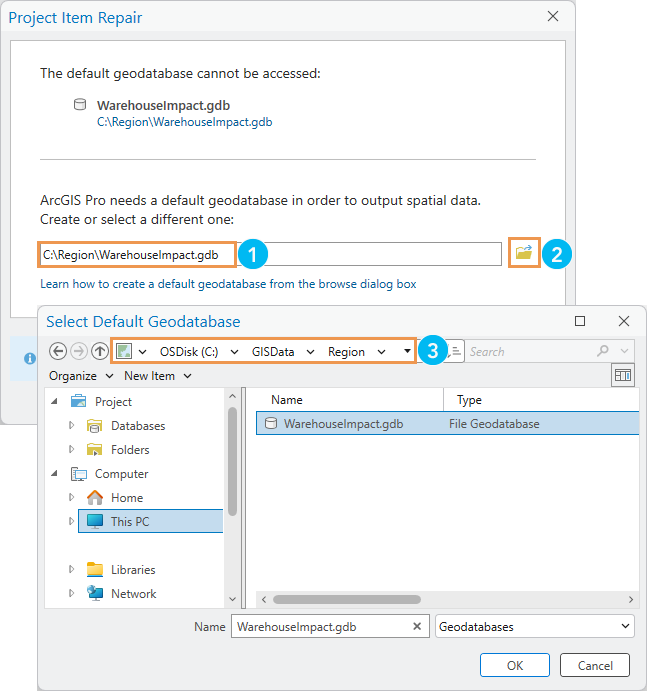
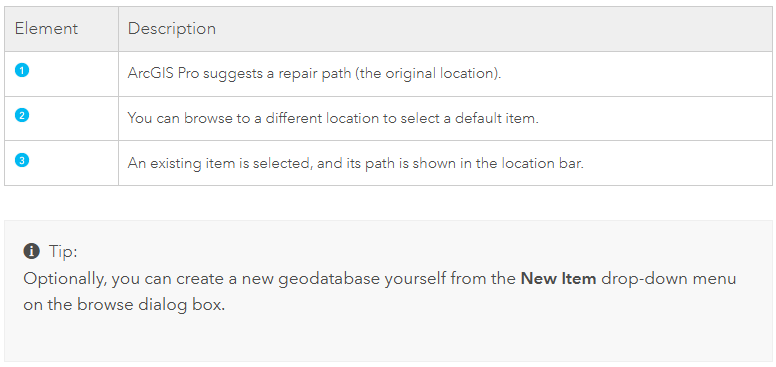
After you select the geodatabase and click OK, the project opens with the updated path to the item. The original (inaccessible) default geodatabase displays a broken path and can be removed from the project.
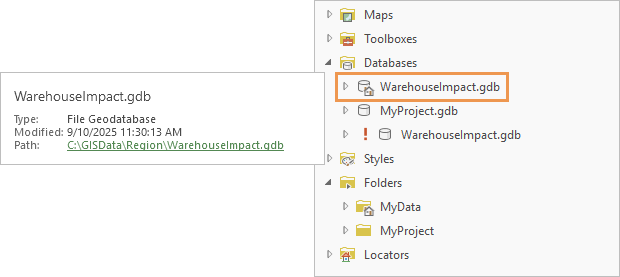
Helping with many scenarios
We actively track user ideas and comments about how we can make ArcGIS Pro better for you, and while this new functionality does not specifically resolve each individual request, we thought it might be helpful to surface the following as additional scenarios where the new “prompt to specify” settings can be used to your advantage.
Renaming ArcGIS Pro project with its APRX, file geodatabase and toolbox needs to be easy
It is now possible to rename the project and related project items in File Explorer and easily link the project to the renamed items via the repair dialogs.
When creating a new project, there should be an option to save the APRX in a different location than in the project folder and Combine System Folders in a Project
You can adjust your folder structure in File Explorer, for example, moving the geodatabase and toolbox into subfolders, or maintaining an organization standard set of subfolders. That can now be done and the project item paths can be repaired when needed using the workflows described in this blog.
Add Options on Create New Project Dialog
While not built in to the Create operation, if you were to delete a default geodatabase in File Explorer, with the “prompt to specify” option set, you will be prompted to choose a different default geodatabase when opening the project.
With the new repair capabilities, you can rename the default.gdb and default.atbx in File Explorer and you will be able to select the renamed items as part of the repair process.
Summary
Repair Project Items options are new in ArcGIS Pro 3.6 and allow users to define the default behavior when a project’s home folder, default geodatabase or default toolbox are inaccessible. The pre-3.6 behavior of automatically creating these items was not desirable for workflows where data is managed outside of ArcGIS Pro and we hope that these new options will take you from Pruh 🙁 to Prah 😎.
All Adobe Stock images are © 2025 Adobe Stock. All rights reserved.

This sounds like a useful new feature, but I could’ve done without odd tangent where you use teen slang and the subsequent paragraphs explaining the teen slang.
Great post. I loved the teen slang terms as I am a parent to a teen and pre-teen. I see you. 🙂