
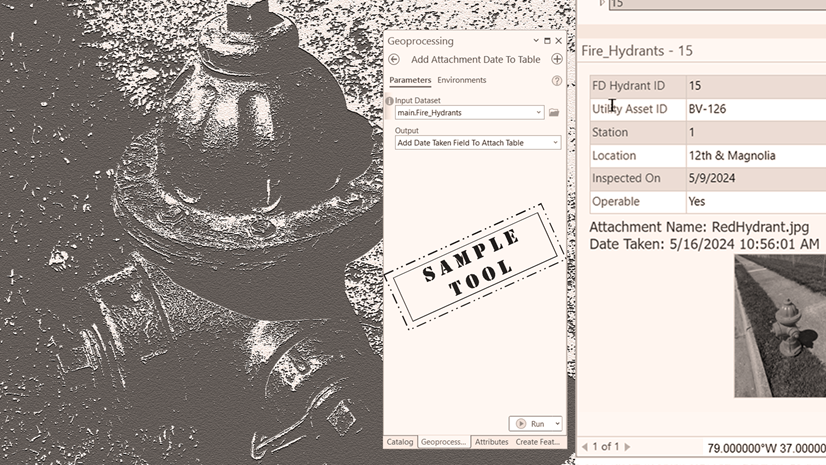
Download the sample tool and sample data, and use them to follow along with the steps below.
Attachments have been an integral part of ArcGIS for over a decade. Organizations use them to enrich their data by incorporating images and other media files. These files can convey information that is more impactful than limited descriptions in an attribute table.

I was recently made aware of two incidents where attachments suddenly disappeared from their enabled feature class. In fact, it recently happened to me with an older sample dataset. All the supporting data was still in place, but attachments no longer appeared in the pop-up window. The associated relationship class may still exist or is missing, but viewing, adding, or removing attachments is no longer available.
Why this happens
If you experience data corruption and loss, you may ask yourself the following questions:
1. How often does this happen? Hopefully, never. However, a single occurrence is significant. For organizations that invest countless hours managing their data, the impact of corruption is profound, especially if it reoccurs. It can happen at any time.
2. What is the cause? This is a complex question. So many variables impact data corruption that identifying a specific cause may be impossible.
3. Is there a solution? This blog article is an important reminder of best practices but also introduces a new sample tool designed to fix this problem for any organization that experiences this rare situation.
Reminder: Do not tamper with system tables or files
The key takeaway from this blog article is a crucial reminder for anyone working with geodatabases to never tamper with system tables or files. Doing so can lead to severe consequences, including the complete corruption of the geodatabase.
Additionally, it’s essential to have a strategic and tested backup plan in place. For many, a reliable backup can serve as a solution. However, if a backup is unavailable, you can use an available sample tool. Create a copy of the corrupted feature class and the original ATTACH table before using this new sample tool.
Repair attachments sample tool
The goal of this new sample tool is to repair attachment functionality without having to rebuild everything from scratch.
A feature class or table that has been enabled for attachments has three items:
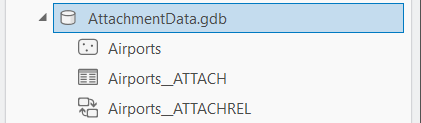
- Feature class or table
- An attach table (same name as the dataset with an appended __ATTACH)
- A relationship class (same name as the dataset with an appended __ATTACHREL)
Learn more about working with attachments in the geodatabase
Address the problem
To repair attachments, we must first understand the problem. In the above example, it appears that the relationship class between the dataset and the ATTACH table has become corrupted or is missing. The feature class continues to function properly. The ATTACH table, which stores all media files, contains all the data. Attempts to view attachments in a pop-up window yield no results. This suggests that the relationship class may no longer exist or the association with the data has been compromised.
Next, identify challenges to fixing the problem. As previously mentioned, modifying system tables or files to resolve this issue is not a viable option. Enabling the dataset for attachments (as this status has likely been disabled) and manually re-adding the attachments would be a time-consuming and expensive process.
To solve the problem, use the sample tool with the existing data in the orphaned ATTACH table. The tool re-establishes the correct associations with the features in the original dataset. The sample tool mitigates the cost of fixing this anomaly.
Understand the tool
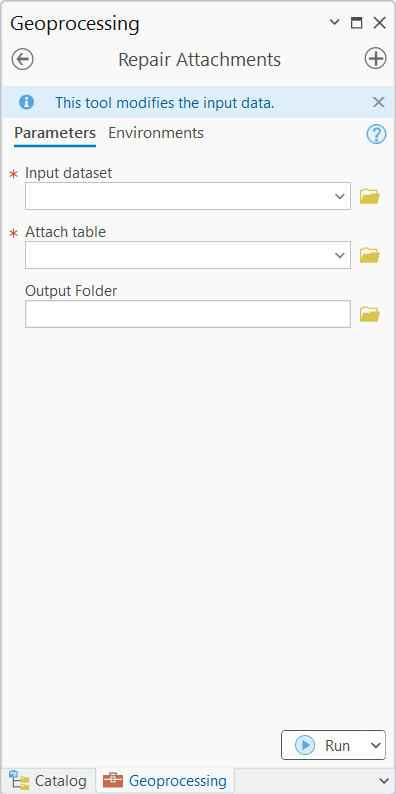
To repair attachments, using the tool does the following:
1. Verify original input data attachment status.
The tool will check whether the original feature class is no longer enabled for attachments. This typically happens with a missing relationship class. The tools design checks this situation, so you can proceed to the next step. NOTE: If you receive a message that the data is already enabled, disable attachments on the input dataset.
2. Rename the original ATTACH table.
The tool will append ORIG to the end of the original ATTACH table name. This step preserves the original table, allowing the tool to create a new ATTACH table in the next step without losing the original data.
3. Enable the feature class or table for attachments.
The tool will enable the input dataset for attachments. This action creates a new ATTACH table and establishes a new relationship class. If you are unfamiliar with attachments, note that this process also updates several system tables accordingly.
4. Set optional parameter to export attachments.
Specify a folder for downloading copies of the original attachments. If this optional parameter is left blank, the tool will default to a temporary location that will delete all media files from the temp folder after the process completes. Consider using the Export Attachments tool after using this sample tool for more options.
5. Create a new match table and add it to the existing geodatabase.
This table serves as a backup for future attachment management. You can delete or archive it as needed. It is essential for restoring attachments from the ATTACH table back to the enabled feature class or table.
6. Add attachments from the new match table.
Import attachments using entries from the new match table, which in this case are the files from the original ATTACH table.
7. Confirm that the original input dataset now has a new ATTACH table and relationship class.
Viewing, adding, and removing attachments works as before, and attachments are correctly associated with their respective features.
Use the sample tool and sample data

The sample data comprises only the original feature class and the ATTACH table, simulating a scenario in which data integrity may be compromised due to corruption or disconnection. In this situation, both the original data and the ATTACH table contain existing records; however, there is no established relationship class to link them. It is also possible that the relationship class was previously in place but has since become compromised, leading to a loss of association between the two data components.
First, test the tool with the available sample data using the following steps:
1. Download the sample data.
2. Extract the .zip file.
3. Connect to the extracted folder in ArcGIS Pro.
4. Download the sample tool.
5. Extract the .zip file.
6. Connect to the toolbox folder.
Next, fill in the parameters and run the tool.
7. Double-click the tool and fill in the parameters.
8. For the Input dataset parameter, select Airports.
9. For the Attach table parameter, select Airports__ATTACH.
10. Optionally, for the Output Folder parameter, if you chose to download all attachments during the repair, browse to a folder to save them. If you need more options for exporting attachments, leave this parameter blank and use the Export Attachments tool after the sample tool completes the repair.
11. Click Run.
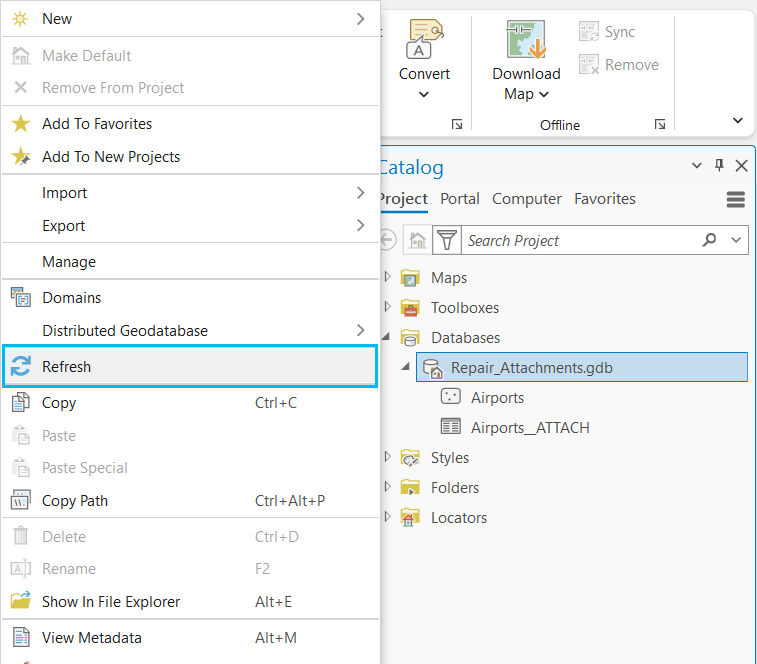
When the tool completes, a refresh shows the updated items in the geodatabase.

The tool renames the original ATTACH table, enables the feature class for attachments, and recreates both the ATTACH table and the relationship class. Following this, the tool creates a match table in the geodatabase to reload the data. Use the match table for future reference or delete it.
At this point, the repair of the attachments to the dataset is complete. The original attachment table (with ORIG appended) can now be deleted.
Verification

To verify the repair, you can load the data into a map and use the Explore tool to view the attachments in a pop-up window.
While this problem is rare and this tool is one that few will need to use, the tool provides a necessary fix for any organization that experiences it.
Summary
Keep the following information in mind about this sample tool:
- The tool checks to see if the existing input data (feature class or table – no feature service support) is already enabled for attachments. A missing relationship class will show the data as disabled. You can verify manually an enabled dataset by right clicking the feature class or table and selecting Manage from the Catalog pane.
- Designed and built in ArcGIS Pro 3.5.
- The tool has been successfully tested with file, mobile, and enterprise geodatabases. Enterprise users must be the data owner to run the tool.
Licensing
The tool works with any license: Basic, Standard, and Advanced.
Resources
For data management resources, visit the Geodatabase Resources hub.
Additionally, see the following resources for data management, Python, and custom script tools:
- Python for Everyone
- Creating Python Scripts for ArcGIS
- Managing Geospatial Data in ArcGIS
- Building Geoprocessing Tools with Python: Beyond the Basics
You can share your ideas on the Esri Community.

Commenting is not enabled for this article.