
While working on a case, I collaborated with product engineer Hussein Nasser and came across a workflow that utilized attribute rules to automate updates between related datasets. After the case, we agreed this was a valuable topic to explore further due to its relevance in real-world scenarios and everyday GIS workflows. The following scenarios outline three ways that you can use attribute rules to update your data automatically.
Requirements
The automation happens because of three things working together:
-
A parent–child relationship that links a main feature (parent) to related dependent records (child) through a relationship class.
- We will want to use the Create Relationship Class tool to do this.
-
Since the child record is being updated, the attribute rule must be placed on the child layer; otherwise, it will not run.
- The rule is configured to run on UPDATE
- You can set the rules to insert, delete, and update, but for these examples, we will just be focusing on the update trigger.
- The script returns an update payload that updates the parent. A payload is the data and information packaged together and sent as part of the request to update a feature.
Once those are in place, ArcGIS Pro can do the rest!
1st Scenario: Tracking Hydrant Inspections
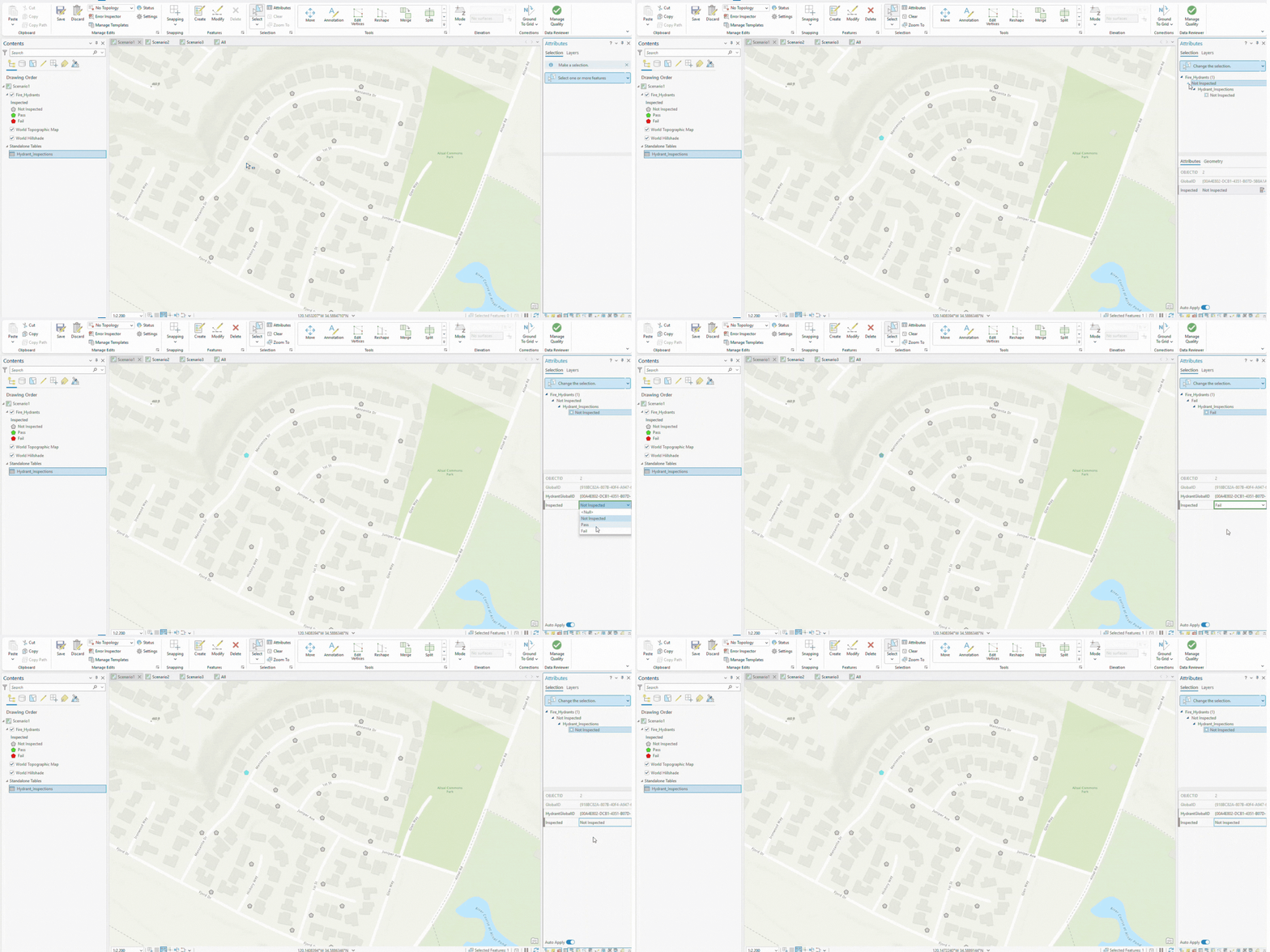
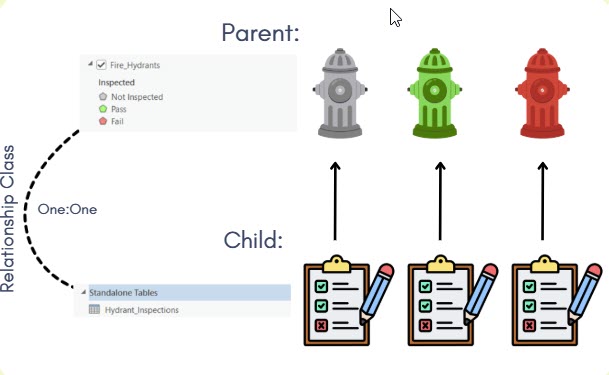
Firemen inspect fire hydrants across the city and record if each one is working properly. Each inspection is stored in a table, and the status of the parent hydrant is automatically updated to the feature class based on the latest inspection. This way, every hydrant always shows its current inspection status.
Data Structure
The Relationship Class
This workflow relies on a relationship between the hydrant feature class (parent) and the inspection table (child).

To create this relationship class the feature and table must contain the following:
Each inspection must be tied to the correct hydrant by a unique identifier:
• Parent: GlobalID
• Child: HydrantGlobalID
Create Relationship Class Tool Parameters
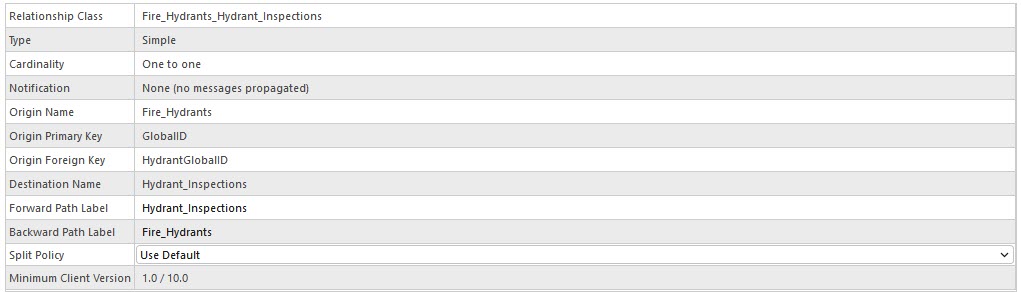
The child table contains the field where edits occur, while the parent feature class includes a corresponding field that is updated by the attribute rule.
• Parent: Inspected (current hydrant status)
• Child: Inspected (inspection result)
This relationship allows the rule to identify which hydrant should be updated.
The Update Payload:
Once a relationship class is established, you can begin building your Arcade attribute rule expression. While the logic can be customized to fit your project’s needs, it must include an update payload at the end.
This payload:
• Identifies the parent layer to update
• Targets the correct feature using the GlobalID
• Updates the specified field (Inspected)
• Returns the payload to apply the edit
The Attribute Rule Expression
// When a hydrant inspection is updated, update the Inspected status on the parent hydrant

// Initialize variables
var Inspected = 0;       // Temporary variable for the parent
var hydrant = null;      // Parent hydrant record
var fsHydrant;           // FeatureSet for querying hydrant
var payLoad = {};        // Payload for updating parent

// Only run this script on updates
if ($editContext.editType == "UPDATE") {

    // Get the parent hydrant GlobalID from Fire Hydrants
    var hguid = $feature.HydrantGlobalID;
    //  Get related Fire Hydrants via the GlobalID
    fsHydrant = Filter(
        FeatureSetByName($datastore, "Fire_Hydrants"),
        "globalid = @hguid"
    );
    hydrant = First(fsHydrant);

    // If parent hydrant not found, do nothing
    if (IsEmpty(hydrant)) {
        return;
    }

    // Get the child inspection via the relatipnship class
    var fsInspections = FeatureSetByRelationshipClass(
        hydrant,
        "Fire_Hydrants_Hydrant_Inspections"
    );
    var child = First(fsInspections); // Expecting only one inspection

    // Determine parent status from the child table inspection
    if (IsEmpty(child)) {
        Inspected = 0;  // Not inspected
    } else {
        Inspected = child.Inspected; // Copy child status
    }

    // Build payload to update the parent construction site
    payLoad = {
        "edit": [
            {
                "className": "Fire_Hydrants",
                "updates": [
                    {
                        "globalId": hydrant.globalid,
                        "attributes": {
                            "Inspected": Inspected
                        }
                    }
                ]
            }
        ]
    };

    // Return payload to execute update
    return payLoad;
}
How It Works
When an inspection is created or updated, the attribute rule:
• Finds the related hydrant using the GlobalID
• Retrieves the latest inspection record
• Updates the hydrant’s Inspected field
2nd Scenario: Monitoring Main Fuse Box Status
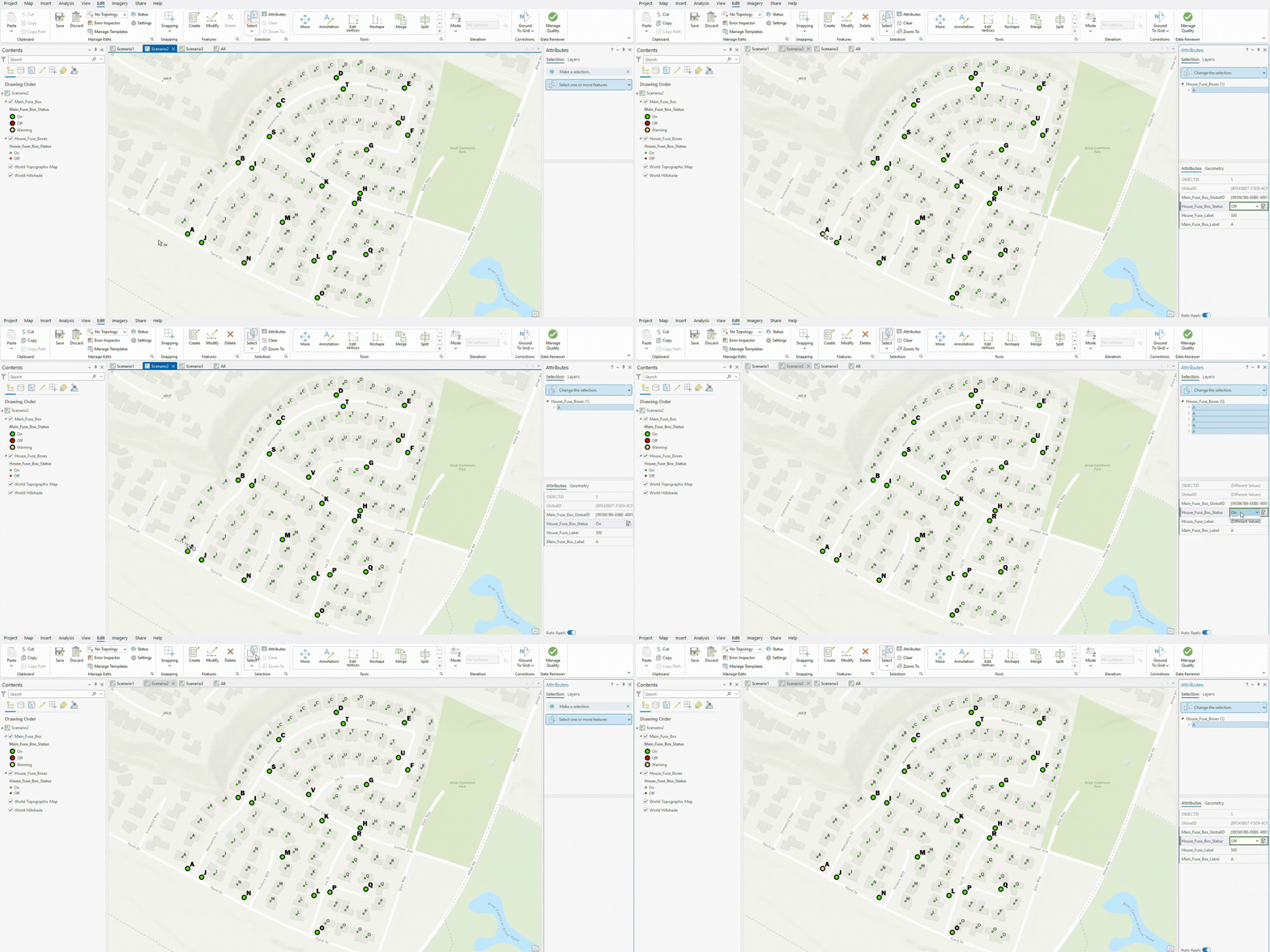
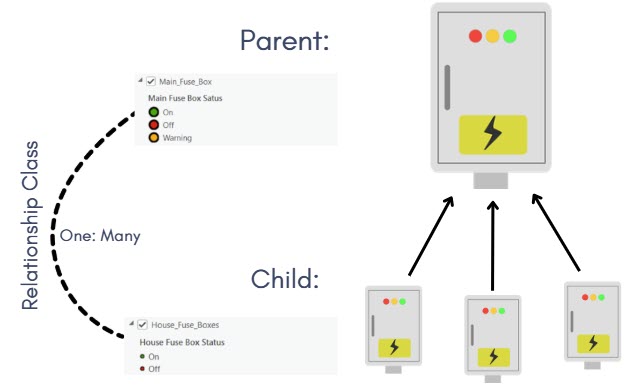
Electricians inspect the status of fuse boxes in a neighborhood. There are 3-5 house fuse boxes connected to a main fuse box on an electrical pole. The status of the main parent fuse box is automatically updated based on the latest inspections of all related house fuses.
Data Structure
The Relationship Class
This workflow relies on a relationship between the main fuse box feature class (parent) and the house fuse box feature class (child).

A unique identifier is also required to establish the relationship between the two datasets, ensuring that each house fuse record is correctly linked to its associated main fuse box.
- Parent GlobalID Field: GlobalID
- Child Parent-ID Field: Main_Fuse_Box_GlobalID
Create Relationship Class Tool Parameters
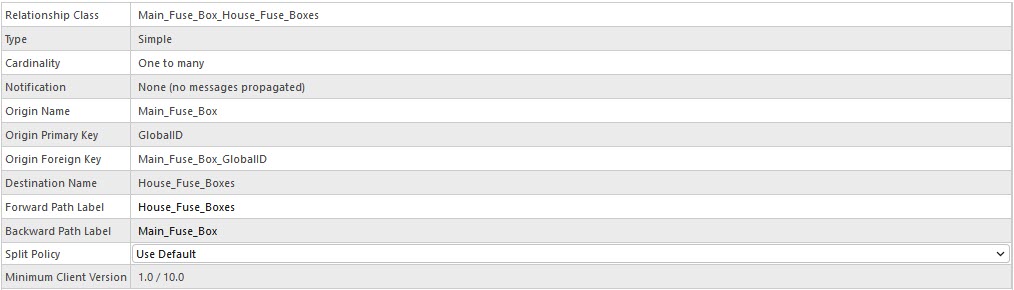
In this case, the parent feature includes a Main_Fuse_Box_Status field, while the child feature class contains a House_Fuse_Box_Status field to store the condition of each individual fuse.
- Parent Status Field: Main_Fuse_Box_Status
- Child Status Field: House_Fuse_Box_Status
The Update Payload
In this example, the rule evaluates the status of all related house fuse boxes and determines the correct value for the parent main fuse box. Then the expression ends with an update payload, which:
• Identifies the parent layer to update (Main_Fuse_Box)
• Targets the correct main fuse box using the GlobalID
• Updates the Main_Fuse_Box_Status field with the calculated value
• Returns the payload to apply the edit
The Attribute Rule Expression
// When a house fuse is updated, update the status on the main fuse box
var FuseBoxStatus = 0;  // Temporary variable to calculate parent status
var FuseBoxRecord = null;
var fsFuseBox;
var payLoad = {};
// Only run on updates
if ($editContext.editType == "UPDATE") {
    // Get the parent fuse box ID from the child house fuse
    var ParentFuseBoxGlobalID = $feature.Main_Fuse_Box_GlobalID;
    if (IsEmpty(ParentFuseBoxGlobalID)) {
        return;
    }
    // Get the parent fuse box record
    fsFuseBox = Filter(
        FeatureSetByName($datastore, "Main_Fuse_Box"),
        "GlobalID = @ParentFuseBoxGlobalID"
    );
    FuseBoxRecord = First(fsFuseBox);
    // If parent fuse box not found, do nothing
    if (IsEmpty(FuseBoxRecord)) {
        return;
    }
    // Get all related house fuses via the relationship class
    var fsHouseFuses = FeatureSetByRelationshipClass(
        FuseBoxRecord,
        "Main_Fuse_Box_House_Fuse_Boxes"
    );
    var allOn = true;
    var allOff = true;
    // Loop through each house fuse to check status
    for (var h in fsHouseFuses) {
        if (h.House_Fuse_Box_Status == 0) {
            allOff = false;
        }
        if (h.House_Fuse_Box_Status == 1) {
            allOn = false;
        }
    }
    // Decide the fuse box status
    if (allOn) {
        FuseBoxStatus = 0;      // On
    } else if (allOff) {
        FuseBoxStatus = 1;      // Off
    } else {
        FuseBoxStatus = 2;      // Warning
    }
    // Build the payload to update the parent fuse box
    payLoad = {
        edit: [{
            className: "Main_Fuse_Box",
            updates: [{
                globalId: FuseBoxRecord.GlobalID,
                attributes: {
                    Main_Fuse_Box_Status: FuseBoxStatus
                            }
                        }
                    ]
                }
            ]
        };

        return payLoad;
}
How It Works
A user updates the status of a house fuse in the House_Fuse_Boxes feature class.
- The script automatically runs whenever a record is updated.
- The script locates the corresponding Main_Fuse_Box using its GlobalID.
- The script then checks all related house fuses:
- If all are On, the parent fuse box is set to On (0).
- If all are Off, the parent fuse box is set to Off (1).
- If there’s a mix of On and Off fuses, the parent is set to Warning (2).
The values 0, 1, and 2 are coded domain values.
The parent feature is updated in real time, ensuring it always reflects the combined condition of its connected house fuses.
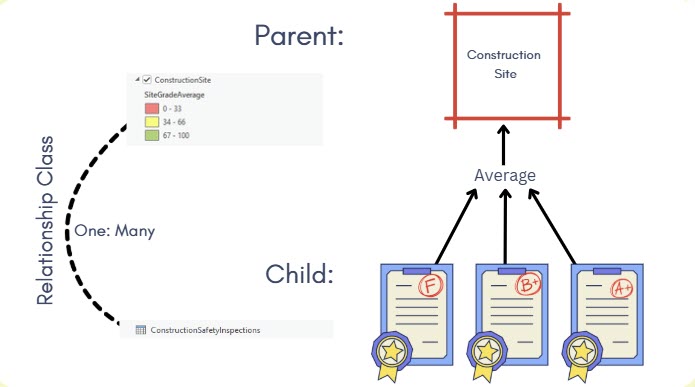
3rd Scenario: Average Score for Construction Safety Inspections
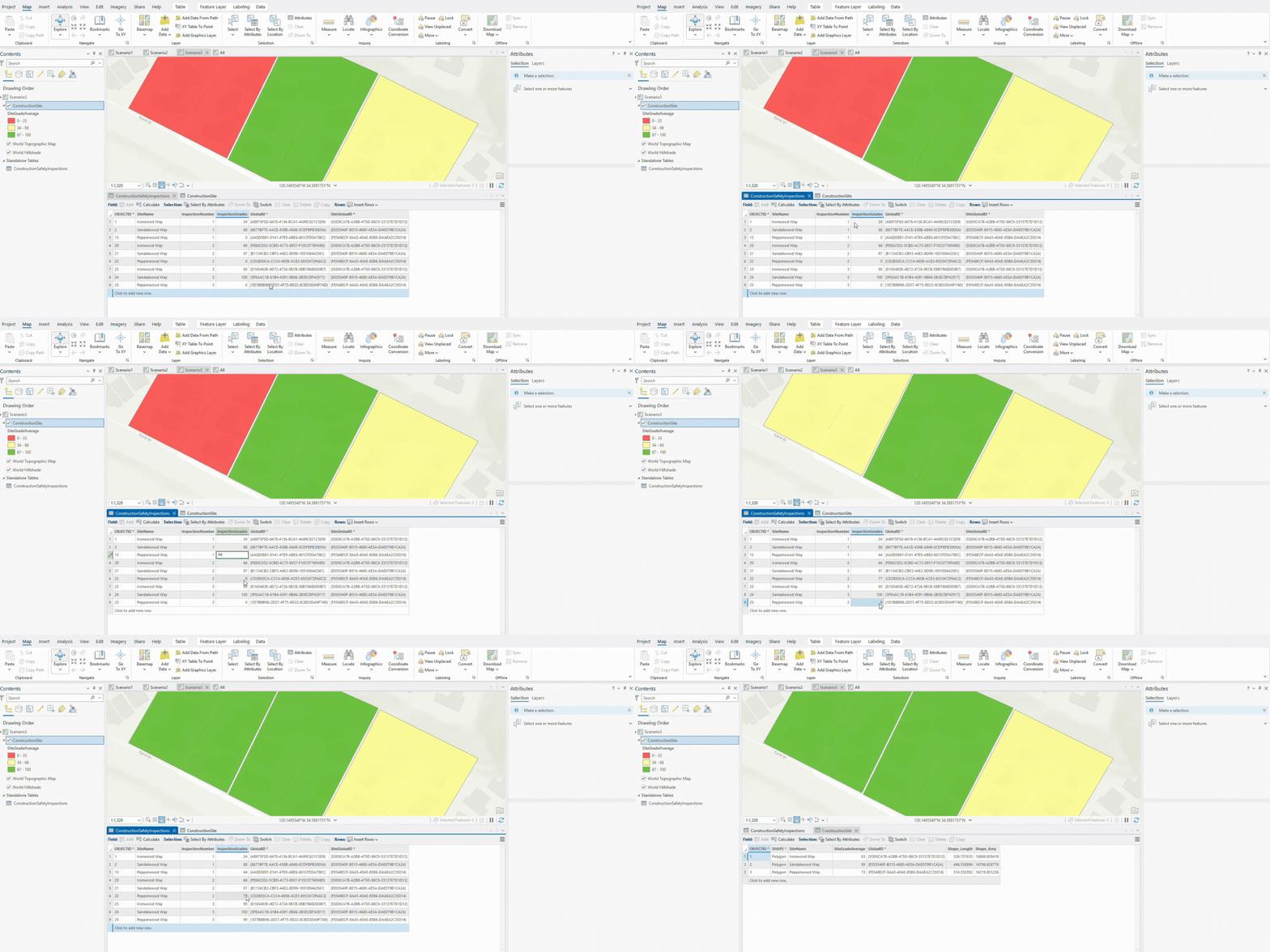
In a neighborhood, new construction sites are regularly inspected for safety throughout their projects. Each site receives multiple inspection grades over time. When a new inspection grade is added, the system automatically calculates the average grade of all inspections for that site.
The construction site is then color-coded based on its average grade:
-
- Red = 0 – 33 (Low Safety)
- Yellow = 34 – 66 (Moderate Safety)
- Green = 67 – 100 (High Safety)
This allows project managers to quickly see the overall safety status of each site without manually calculating averages, improving efficiency and ensuring safer construction practices.
Data Structure:
The Relationship Class
This workflow relies on a relationship between the construction site feature class (parent) and the construction safety inspections table (child).

A unique identifier is also required to maintain the relationship between the two datasets.
- Parent GlobalID Field: GlobalID
- Child Parent-ID Field: SiteGlobalID
Create Relationship Class Tool Parameters
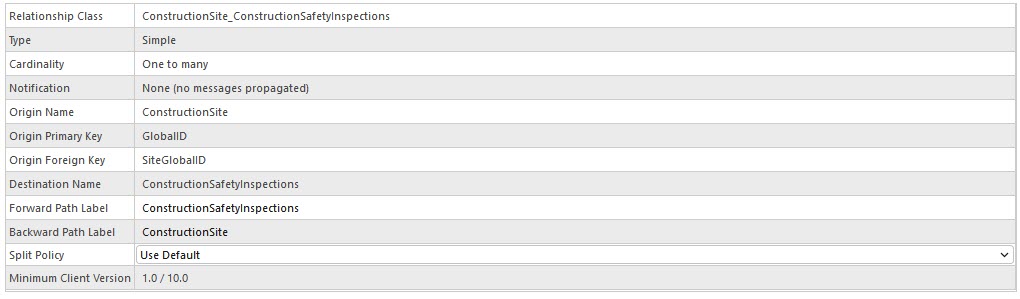
The parent feature stores the calculated value in a SiteGradeAverage field, while the child feature class contains an InspectionGrades field where individual inspection scores are recorded.
- Parent Average Field: SiteGradeAverage
- Child Grade Field: InspectionGrades
The Update Payload
In this example, the rule calculates the average of all related inspection grades and updates the parent construction site accordingly. The expression ends with an update payload, which:
• Identifies the parent layer to update (ConstructionSite)
• Targets the correct site using the GlobalID
• Updates the SiteGradeAverage field with the calculated average
• Returns the payload to apply the edit
The Attribute Rule Expression
// When an inspection grade is updated, update the average grade on the construction site
var SiteGradeAverage = 0;  // Temporary variable to calculate parent average
var SiteRecord = null;    // Parent Construction Site record
var fsSite;              // FeatureSet for querying the Construction Site
var payLoad = {};       // Payload for updating parent

// Only run this script on updates
if ($editContext.editType == "UPDATE") {

    // Get the parent site GlobalID from the inspection
    var ParentSiteGlobalID = $feature.SiteGlobalID;
    if (IsEmpty(ParentSiteGlobalID)) {
        return;
    }

    // Get the parent construction site feature
    fsSite = Filter(
        FeatureSetByName($datastore, "ConstructionSite"),
        "GlobalID = @ParentSiteGlobalID"
    );
    SiteRecord = First(fsSite);

    // If parent construction site not found, do nothing
    if (IsEmpty(SiteRecord)) {
        return;
    }

    // Get all related inspections for this site
    var fsInspections = Filter(
        FeatureSetByName(
            $datastore,
            "ConstructionSafetyInspections",
            ["SiteGlobalID", "InspectionGrades"],
            false
        ),
        "SiteGlobalID = @ParentSiteGlobalID"
    );

    // Calculate the average inspection grade
    var avg = Average(fsInspections, "InspectionGrades");

    if (IsEmpty(avg)) {
        SiteGradeAverage = 0;
    } else {
        SiteGradeAverage = avg;
    }

    // Build the payload to update the parent construction site
    payLoad = {
        edit: [{
            className: "ConstructionSite",
            updates: [{
                globalId: SiteRecord.GlobalID,
                attributes: {
                    SiteGradeAverage: SiteGradeAverage
                }
            }]
        }]
    };

    return payLoad;
}
How It Works
- A user updates an inspection grade in the ConstructionSafetyInspections feature class.
- The script automatically runs whenever a record is updated.
- The script retrieves the SiteGlobalID from the inspection record to identify its parent construction site.
- The script locates the corresponding ConstructionSite using its GlobalID.
- The script then retrieves all related inspection records associated with that site.
- The script calculates the average value of all InspectionGrades for that site.
- If related inspections exist, their average grade is calculated.
- The parent SiteGradeAverage field is updated in real-time to reflect the current average of all related inspection grades.
Overall
All three scenarios follow the same core workflow. The rule is attached to the child, triggered on update, and returns an update to the parent. The only thing that changes is the logic, whether it’s a direct value, a condition, or an average.
- The child record is updated.
- The script finds parent through its relationship class.
- The script then calculates new parent value.
- The script returns an update payload.
- ArcGIS Pro applies the parent update automatically.
While these examples use relationship classes to connect parent and child datasets, similar results can also be achieved without an explicit relationship. In those cases, you can use FeatureSetByName instead of FeatureSetByRelationshipClass.
Now that you have a foundation for how attribute rules work, you can customize them to support a wide range of workflows and automation needs.
You can download the example project and data here.
Special thanks to Hussein Nasser for collaborating on this case and contributing to this topic.

Article Discussion: