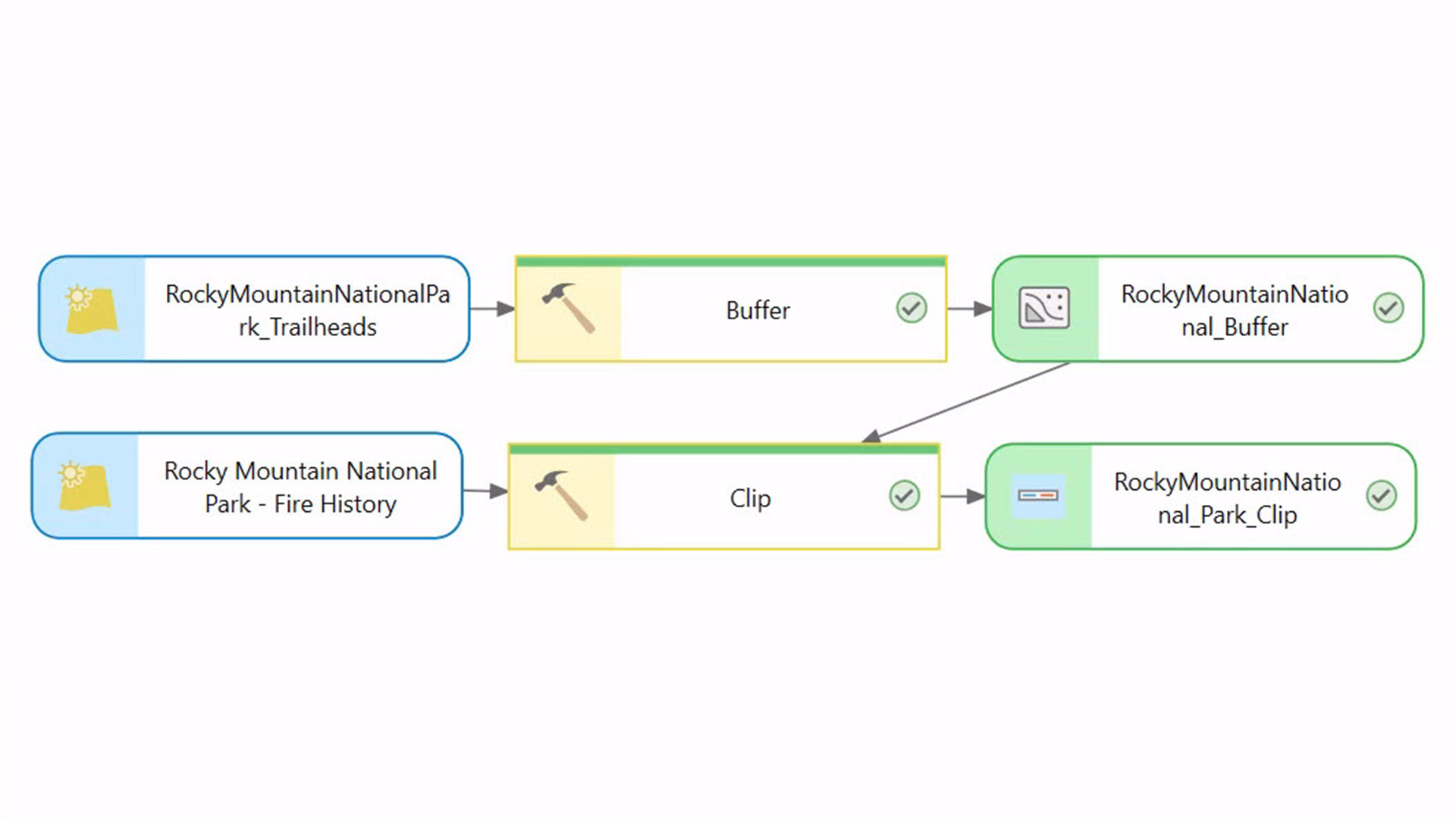
A model is a map of a workflow. Just like you can navigate a map in ArcGIS, you can navigate a model using ModelBuilder.
Models built in ModelBuilder have built-in directionality. Shape, color, text, and symbols are used in models to communicate information about processes and model status.
Models are invaluable for conducting sophisticated spatial analyses, and can reveal data relationships that spark ideas and collaboration. Also, models are workhorses: If built with reuse in mind, they can be your go-to shortcuts for getting lots of geoprocessing tasks done with less work.
If you have never worked with ModelBuilder in ArcGIS Pro, here is a simple five- (or six-) step approach to get you started.
1. Plan the Workflow
Before creating a model, know what you want it to do. List the data input, identify the required geoprocessing tools, and describe the desired output. If the workflow is simple, just think it through in your head. For more complicated workflows, you may want to sketch everything on paper or a whiteboard. If you are not sure which tool to use or what a tool’s required inputs are, check the ArcGIS Pro tool reference.
2. Create the Model Shell
In ArcGIS, a model must be stored inside a toolbox. In ArcGIS Pro, when you create a new project, a toolbox with the same name as the project is automatically created.
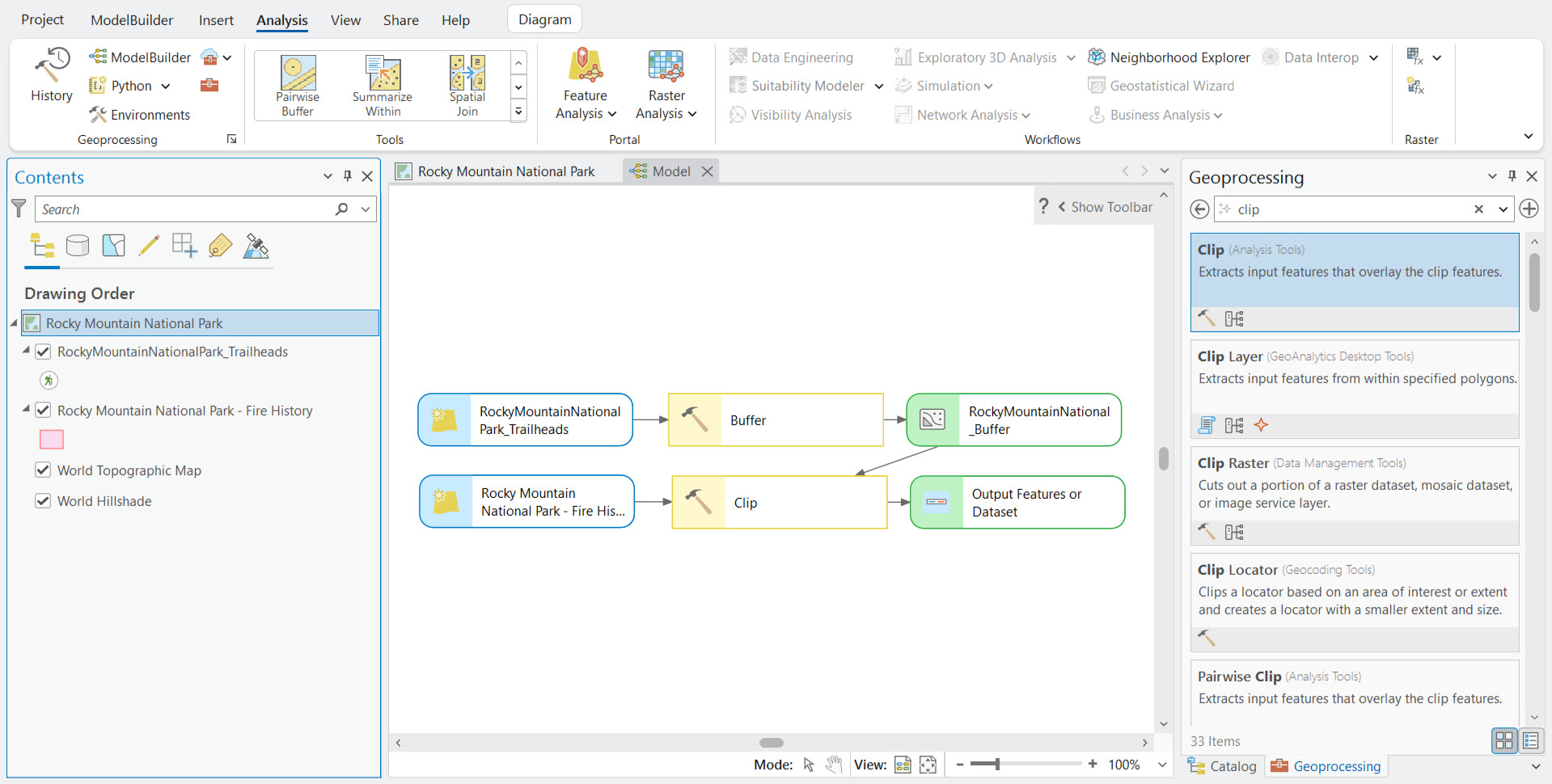
On the Analysis tab, click ModelBuilder. An empty model window opens.
Tip: You can also open a new model by right-clicking the toolbox folder in the Catalog pane and choosing New > Model.
Now set the model properties by clicking Properties on the ModelBuilder tab.
In the General tab, enable the option to Store tool with relative path. Relative paths are a good idea, because instead of storing the specific file location of the data on a specific computer, it will save the location of the data in relation to the project. This way, if you move your project later, your model will still work.
Set the following properties for the new model:
- Name – Type a file name that has no spaces.
- Label – Provide a plain name, which can include spaces.
Click OK.
3. Add Tools and Set Parameters
With the basic setup done, now comes the fun part. You cannot beat ModelBuilder for easy drag-and-drop building and tinkering. But first, you will need to understand some ModelBuilder vocabulary.
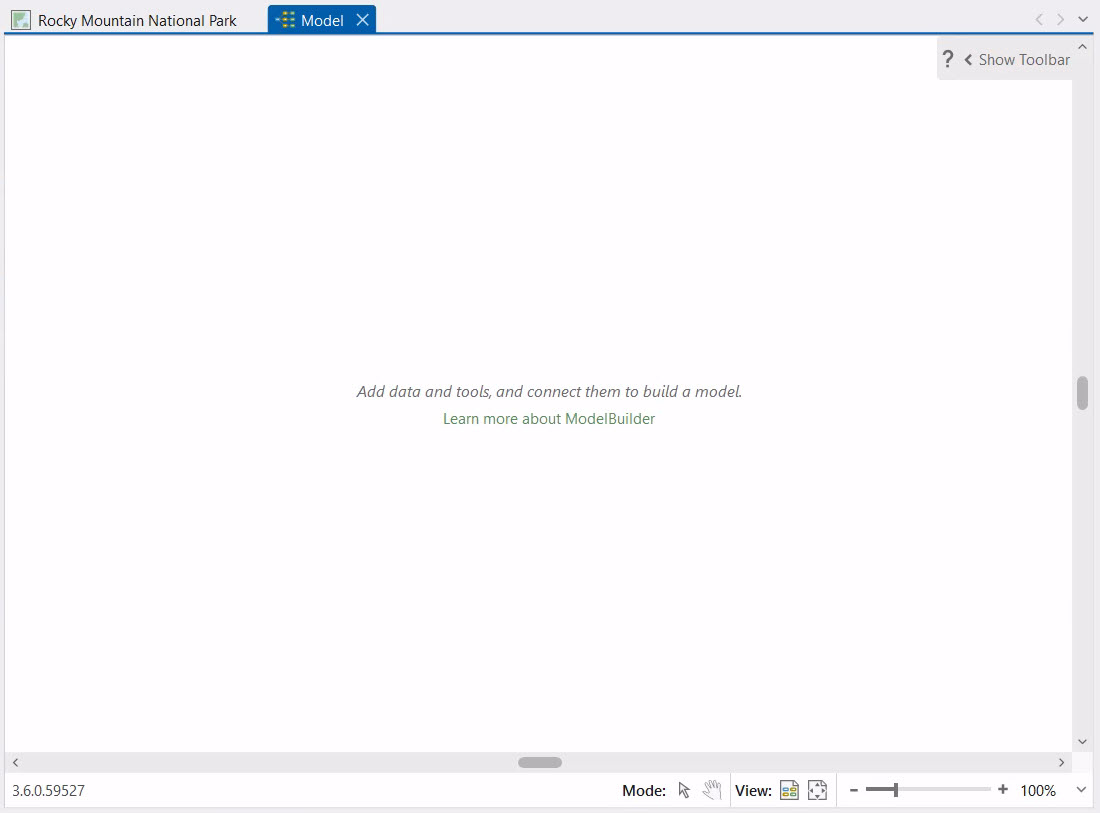
A model consists of one or more processes. A process consists of three elements: input data, a tool, and the tool’s output. Each output can become input for the next process.
When you add a tool to a model by dragging it from the Catalog or Geoprocessing pane, its output element is also added, and both elements are light gray. In model parlance, gray means not ready to run.
Double-click each tool and set its parameters. A red asterisk next to an item in a tool dialog box means the parameter is required. Set tool parameters and pay attention to red asterisks.
Tip: If your input data has selected features or records, models like individual ArcGIS geoprocessing tools will process only the selection.
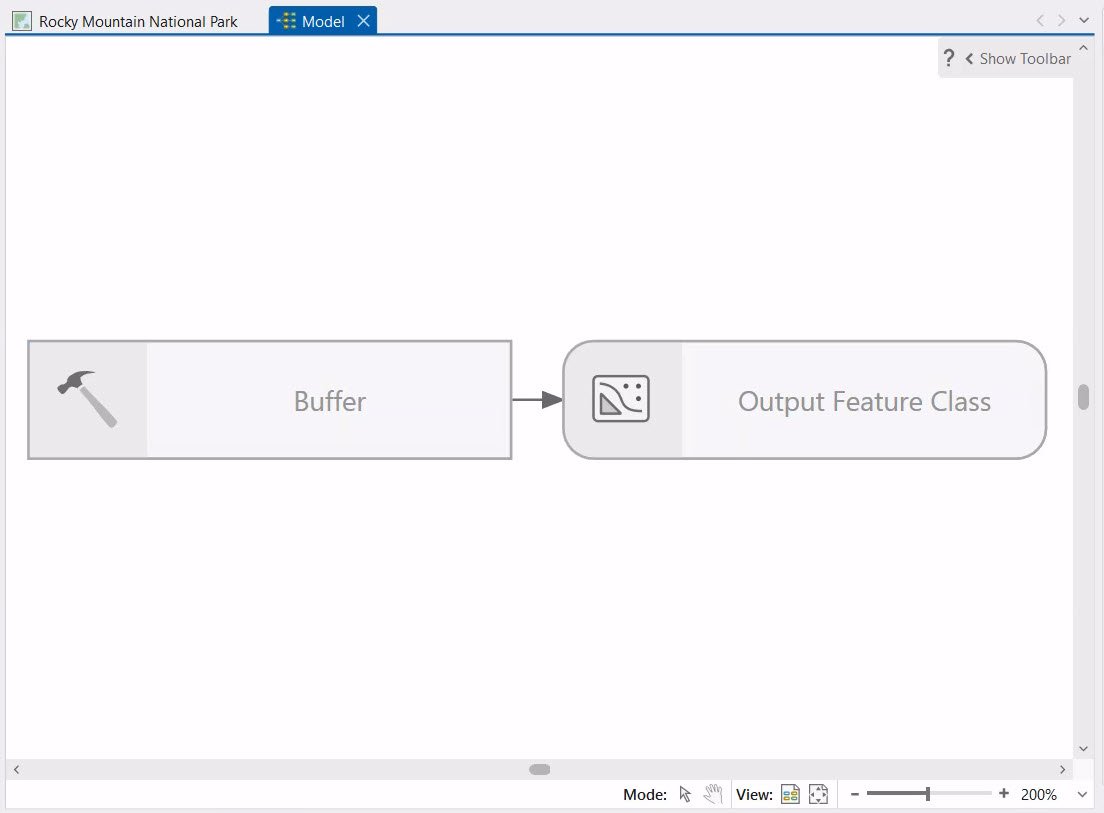
Once you click OK to set the tool parameters, the input element displays and the process colorizes.
Now that you have added your first tool to the model, add another, and use the output of the previous tool as input for the new one.
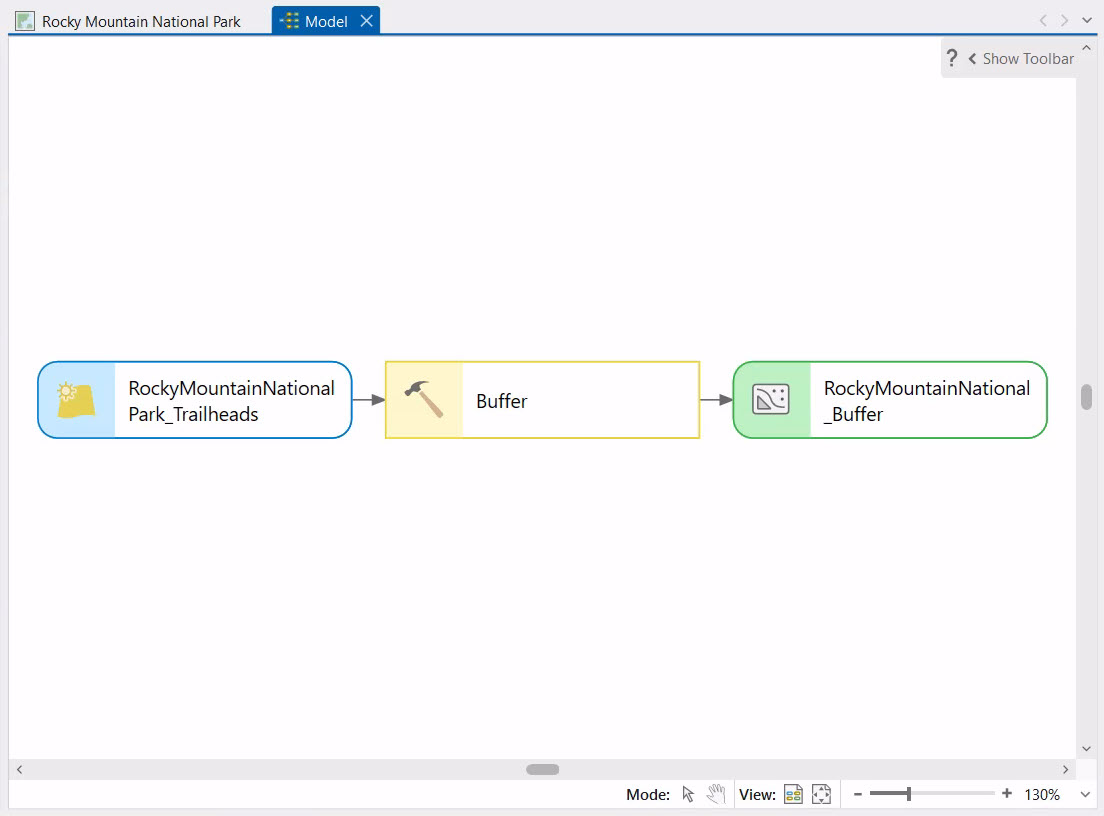
As you add processes, the model window may fill up. Use the Auto Layout and Fit to Window buttons to see the big-picture view and zoom in and out as needed.

Be sure to save periodically as you build the model by clicking Save on the ModelBuilder tab.
If you want to visualize the model’s final output on a map, right-click its model element and choose Add To Display. Otherwise, you will have to manually add the output as a layer to the map.
4. Validate the Model
After you have added all the tools and set their parameters, it is time to ensure the model will run properly by validating it. Validation is easy—just click the Validate button with the green check mark on the ModelBuilder tab. During validation, if there is an error, processing will cease at the process with the problem.
Figure out what is wrong, make the fix, then validate again. Once the model is validated, save the model. Then, save the ArcGIS Pro project.
5. Run the Model
You have two options for running a model: inside or outside ModelBuilder. Run a model inside ModelBuilder by clicking the Run button. As the model progresses, the tool shows a green progress bar. Once the model is run, each tool shows a green status bar and green checkmark. If a process turns gray, that means something needs to be fixed and the model stops running. If you have validated, this should not happen.
You can also run the model outside of ModelBuilder by running the model as a tool or service. Running a model as a tool or service has advantages for collaboration and sharing.
6. Run It Again (Optional)
A model’s final output may raise a question. For example, suppose a model process created a 50-meter buffer around a map feature. After examining the model output layer on the map, you wonder what the impact would be if you used a 100-meter buffer instead. To find out, you would simply open the Buffer tool from inside ModelBuilder, enter the new distance value, and run the model again starting at the buffer process (right-click the Buffer tool and choose Run). Because you are not altering preceding processes, you do not need to rerun the entire model. This is the beauty of a model.
Built for reuse, models are a perfect way to explore and test what-if scenarios. Like scripts, models are encapsulated workflows. Once created, they can be used over and over as a fast alternative to manually performing all the individual steps in a workflow. You can build a model to automate any geoprocessing workflow, whether it is complex, or simple and straightforward.
Now that you have learned the steps to create a simple model, get going and try it for yourself!
Want to Learn More?
If you are interested in a deeper dive into geoprocessing models or ArcGIS Pro, check out these online and instructor-led courses from Esri Training (esri.com/training):

Article Discussion: