Approximate Read Time: 7 Minutes
Web tools are geoprocessing tools that run as services on ArcGIS Server. They extend custom analysis to ArcGIS web, mobile, and desktop applications, including Map Viewer, Experience Builder, custom apps, and ArcGIS Pro. In many workflows, a web tool begins as a script tool, model tool, or Python toolbox authored in ArcGIS Pro.
Traditionally, publishing a web tool in ArcGIS Pro typically requires running the tool successfully first, then sharing it from History. That workflow remains the recommended approach for most users because it helps verify that the tool runs successfully and that the required data, scripts, and outputs are ready for publishing.
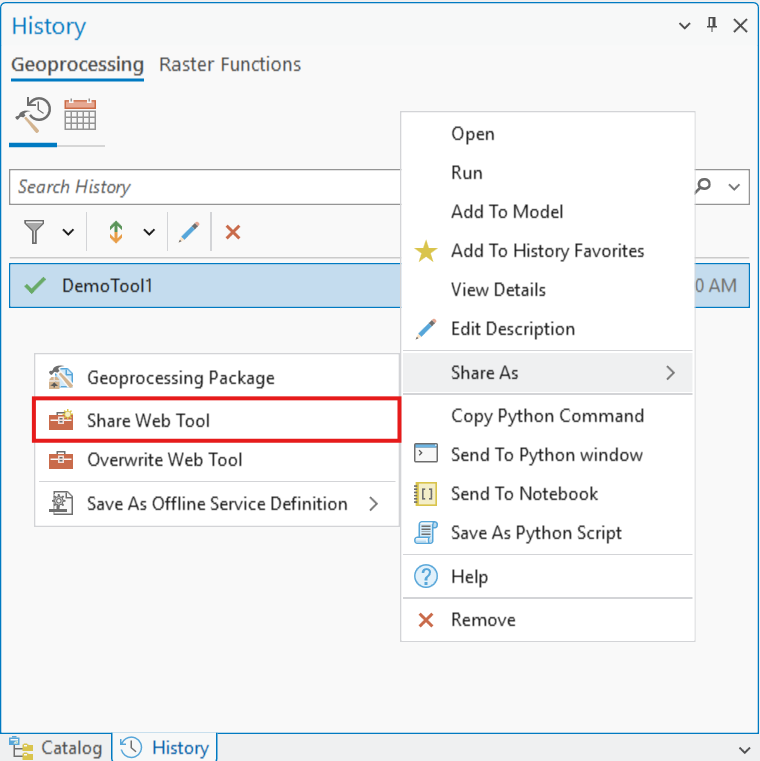
Share a tool as a web tool from History
In ArcGIS Pro 3.7, experienced publishers now have additional flexibility. New publishing options make it possible to share a web tool without first running the tool in the current session.
Why this matters
This enhancement addresses a common request from experienced web tool publishers: the ability to publish directly from a toolbox without first executing the tool locally.
This can be especially useful in workflows where the tool references data paths that are accessible to the server machine but not to the client machine. It can also help streamline publishing when you want to share multiple related tools together as part of the same service.
These new options are designed to improve flexibility and productivity for advanced publishing workflows.
Note: Publishing a web tool requires an active portal connection to ArcGIS Enterprise and an account with permissions to publish web tools.
New ways to publish a web tool
ArcGIS Pro 3.7 introduces two new ways to begin the web tool sharing workflow without running the tool first and using geoprocessing history.
Share directly from a toolbox
You can now right-click a toolbox and choose Share As > Share Web Tool.
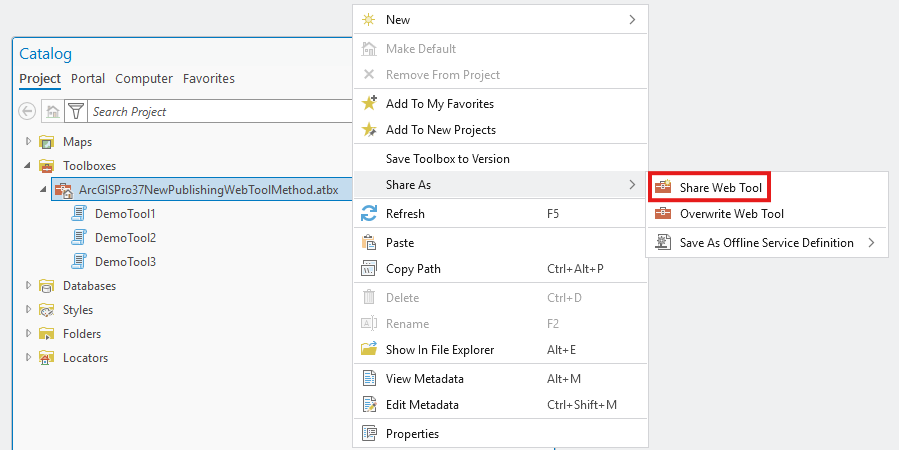
Share a toolbox directly as a web tool from the Catalog pane
When shared this way, all tools in the toolbox are included as tasks in a single web tool. This provides a convenient way to publish multiple related tools together as one service.
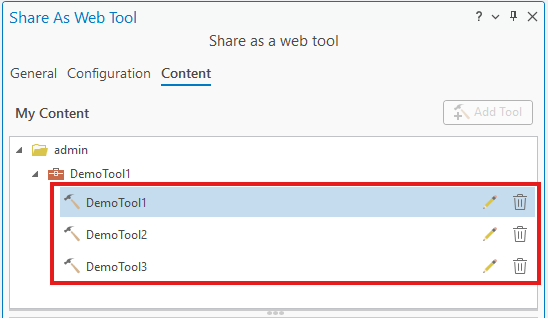
Multiple tools from a toolbox added as tasks in a single web tool
Share from the Share tab
You can also open the workflow from the Share tab by clicking Web Tool > Share Web Tool.
This opens a new interface where you can select tools from both:
- History
- Project toolboxes
Start sharing workflow from the Share tab
This makes it possible to publish tools directly from project toolboxes in addition to the traditional History-based workflow.
Best practice still matters
Although ArcGIS Pro 3.7 adds more flexibility, the standard workflow of publishing from a successfully run History item is still recommended for most users.
Sharing from History remains the most reliable workflow because it confirms that the tool has run successfully and helps ensure that the required data, scripts, and settings are included in the service definition that gets published to the server.
Additional options for advanced sharing scenarios
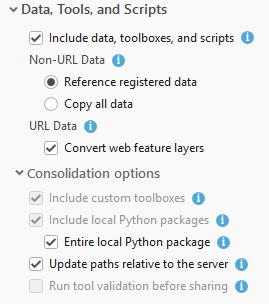
Configure Consolidation options for publishing
ArcGIS Pro 3.7 also introduces additional consolidation options in the Share As Web Tool pane that give experienced publishers more control over how web tools are prepared for ArcGIS Server. These settings are designed for advanced scenarios and specialized deployments. In typical publishing workflows, the default settings are still appropriate.
These options are especially useful in the following scenarios:
- When the server already has access to the required data. If you uncheck Include data, scripts, and toolboxes, no data is copied during publishing, and only registered data sources can be used. This can be useful when your server already has access to the needed data paths.
- When ArcGIS Pro and ArcGIS Server already share the same toolbox location. If Pro and Server are installed on the same machine, or the toolbox is stored in a shared location accessible to both, you may choose not to copy the toolbox again. This can help avoid duplicate resources on the server.
- When local Python package folders include extra files. If your Python package contains files the tool does not need, unchecking Entire local Python package allows publishing to copy only the files required by the tool. This can reduce consolidation time and help avoid packaging issues.
- When history items depend on temporary data. If a history item uses temporary data that is no longer available, such as data from the memory workspace after ArcGIS Pro has been closed, you can uncheck Run tool validation before sharing to avoid validation errors.
- When toolboxes or Python packages are already managed on the server. If those resources are already deployed and maintained on the server, you may choose not to copy them during publishing. In that case, you must ensure the published service can still access them correctly.
Summary
ArcGIS Pro 3.7 expands the publishing workflow for web tools by adding new ways to publish and consolidation options that support advanced sharing scenarios.
These enhancements give experienced publishers more control over how data, toolboxes, scripts, and Python resources are prepared in ArcGIS Pro when publishing services.
For most users, publishing from a successfully run History item with default handling of data, toolboxes, and scripts remains the best practice. For experienced publishers, however, ArcGIS Pro 3.7 provides a more flexible path from toolbox to web tool. To see these new publishing options and other web tools in action, check out this demo from Esri Developer & Technology Summit 2026.

Article Discussion: