Lillian Wang from the Delaware Geological Survey (DGS) and I developed an ArcGIS Tutorials lesson, Create a 3D subsurface visualization of aquifers. The lesson walks through building 3D aquifer models from aquifer top and base elevation surfaces, sharing them to ArcGIS Online, and exploring them in a web app.
To keep the lesson focused, we begin with pregenerated aquifer top and base surfaces. These surfaces are interpolated from borehole data using the Radial Basis Functions (RBF) method in ArcGIS Pro. We use the Completely Regularized Spline kernel function, a spline-based approach similar to the Spline tool in Spatial Analyst and 3D Analyst. Because method selection and parameter tuning depend on geological conditions, data density, and spatial distribution—and often require expert judgment—the interpolation is not included in the tutorial.
This blog article fills that gap. It explains how to perform aquifer interpolation in ArcGIS Pro using borehole data and the RBF method, including why RBF was selected, how parameters were set, and how geological knowledge guided the process.
Convert borehole records to elevation points
Geologists first interpreted each borehole record to identify the top and base of individual aquifers using geophysical logs and lithologic descriptions. These depth-to-contact values are then converted to elevation by subtracting depth from a high-resolution digital elevation model (DEM) referenced to NAVD88. The result is a set of point datasets representing aquifer top and base elevations.
Why we chose RBF
ArcGIS Pro provides several interpolation methods, including deterministic approaches such as RBF and geostatistical methods such as kriging and empirical bayesian kriging (EBK). The appropriate method depends on the modeling objective, data distribution, and geological context.
In this case, the goal is to model aquifer surfaces that reflect marine shelf deposits—units that are regionally extensive and gradually dipping.
Kriging-based methods explicitly model spatial autocorrelation and provide prediction uncertainty. They are well suited for complex variability or when quantifying uncertainty is critical. However, they require careful semivariogram modeling and assumptions about stationarity.
RBF, in contrast, provides a more direct and flexible approach. It produces smooth surfaces influenced by nearby data points. Therefore, for stratigraphically continuous aquifers with predictable regional dip, this approach performs well. It preserves regional smoothness while maintaining local control through neighborhood and anisotropy settings.
We evaluated universal kriging and EBK alongside RBF. While all methods captured the regional trend, kriging-based surfaces depend strongly on the variogram, search neighborhood, and anisotropy settings. In this case, we selected RBF to produce smooth, laterally continuous aquifer surfaces consistent with the underlying geology.
Overall, the final decision combined cross-validation results with geological plausibility. Interpolation generates a mathematical surface, but geology determines whether that surface is meaningful.
Interpolate surfaces with RBF
We use the Cheswold aquifer as an example to demonstrate how to interpolate its top surface from elevation points. The Geostatistical Wizard is used here for its interactive parameter tuning, although the RBF geoprocessing tool can produce equivalent results.
You can use the same workflow by completing the following steps:
Open the Geostatistical Wizard and select Radial Basis Functions.
- For Input Dataset, this example uses cheswold_top_pts.
- For Data Field, this example uses ElTop.
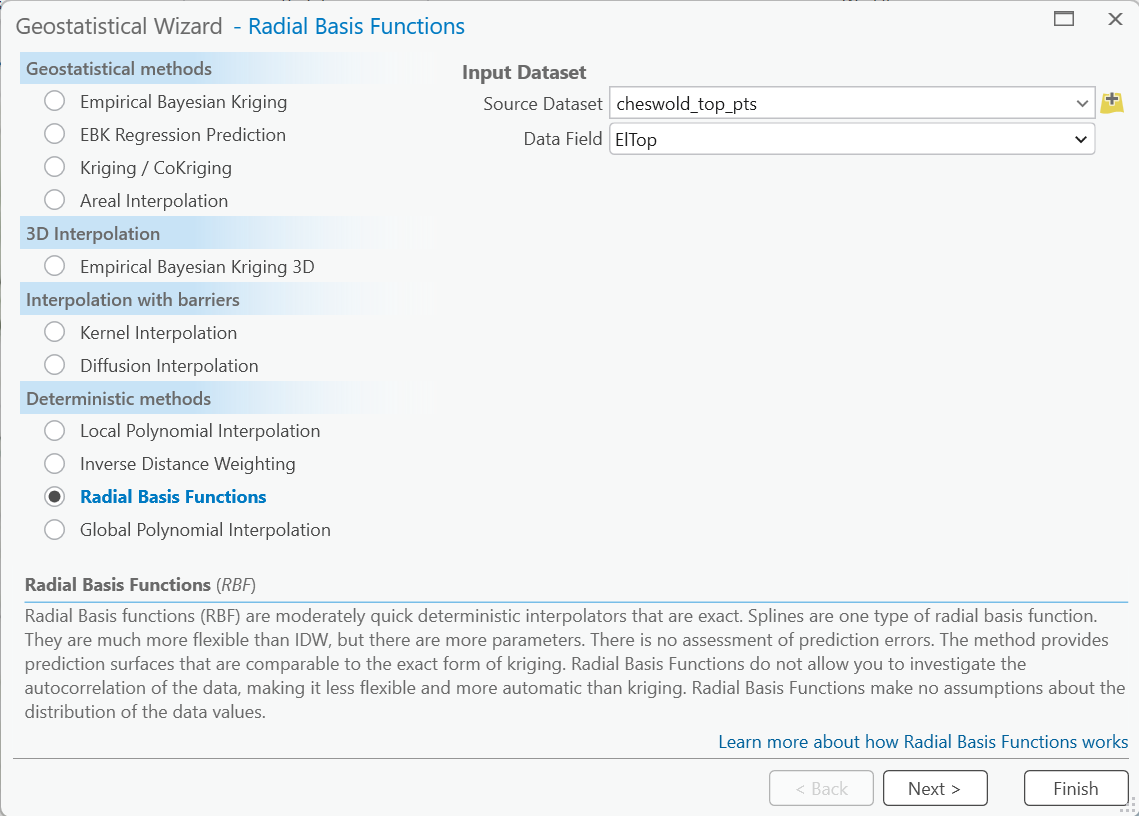
Click Next to continue and set the properties for the kernel.
- For Kernel Function, this example uses Completely Regularized, which is the smoothest option.
- For Kernel Parameter, use the automatically estimated value and adjust only if necessary.
To manage uneven data density, define a local neighborhood:
- For Maximum Neighbors, this example uses 15.
- For Minimum Neighbors, this example uses 10.
This configuration balances local control and regional smoothness. Too few neighbors may introduce noise, while too many may over-smooth geological features.
To honor the directional trend, define an anisotropic search neighborhood:
- For Sector Type, this example uses 4 Sectors.
- For Angle, this example uses 67 (WSW–ENE strike).
- For Major Semiaxis, this example uses 10,000.
- For Minor Semiaxis, this example uses 6,000.
The search neighborhood is oriented perpendicular to the data trend, emphasizing continuity along strike and reducing influence across dip.
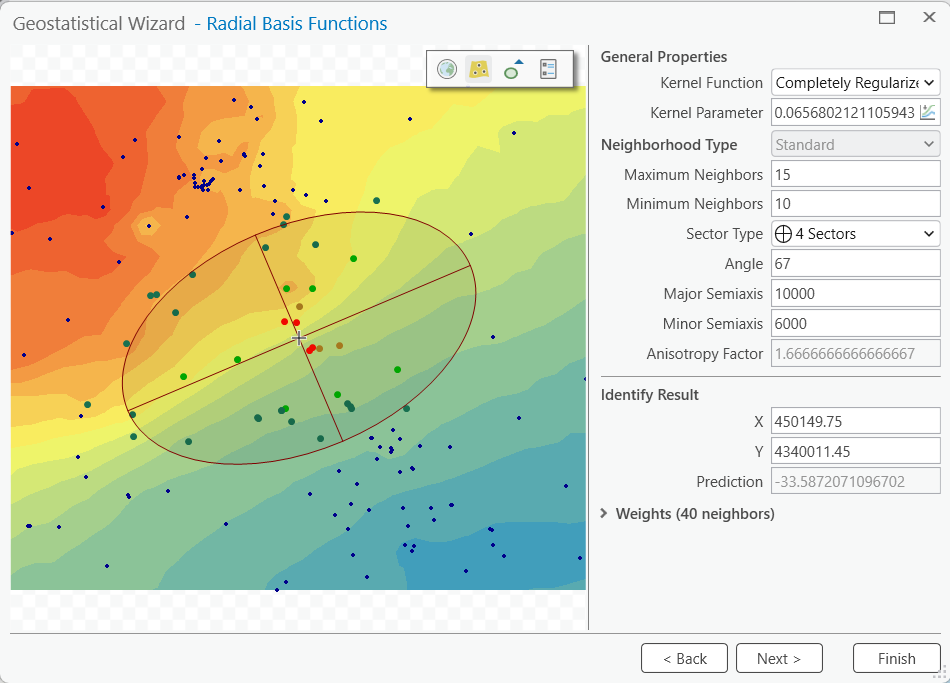
Click Next.
Evaluate the model
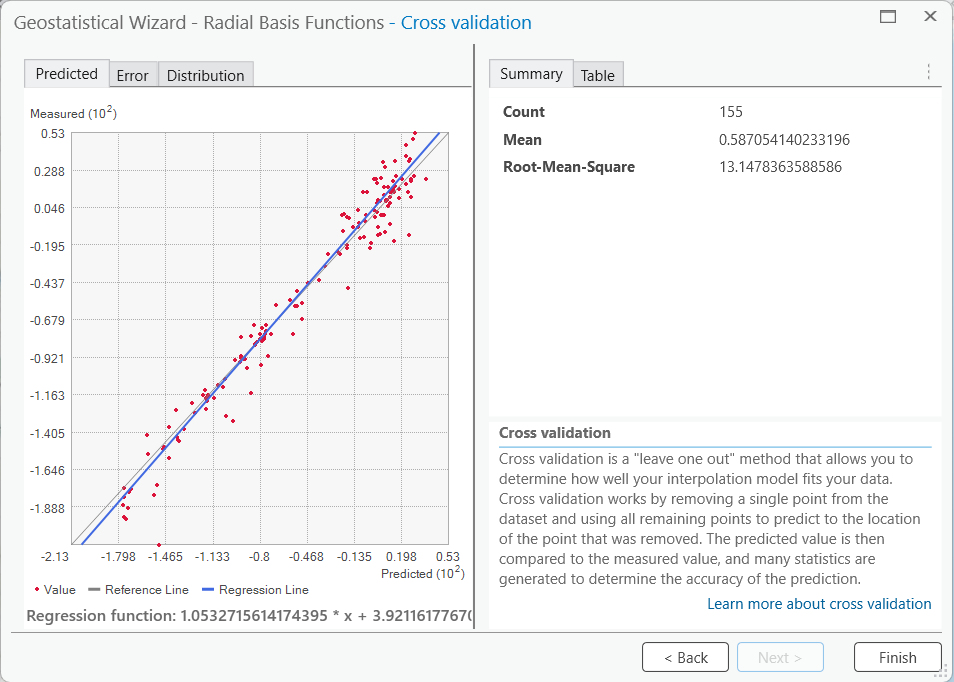
The model was evaluated using leave-one-out cross-validation and showed the following results:
- Comparing the predicted and measured plot shows strong alignment along the 1:1 line.
- The regression slope slightly greater than 1 indicates mild smoothing.
- The mean error of around 0.6 feet shows minimal bias.
- The root mean square error of around 13 feet is consistent with expected uncertainty.
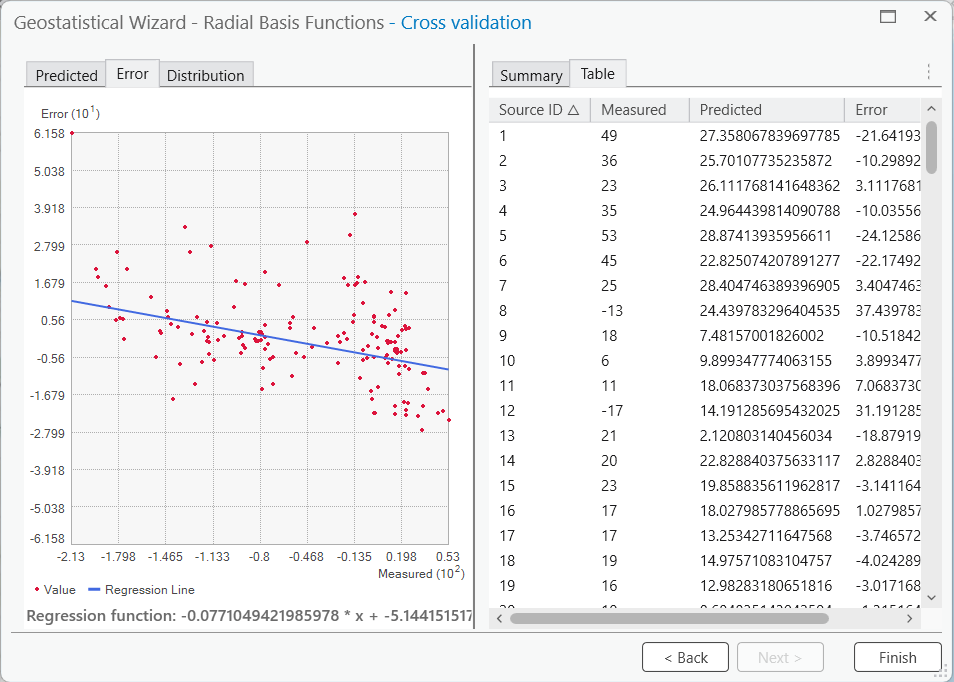
The residual plot shows errors centered near zero with a weak linear trend, indicating stable variance and no overfitting.
Overall, the selected parameters produce a stable, regionally consistent aquifer surface.
Click Finish and OK. A geostatistical layer is added to the map.
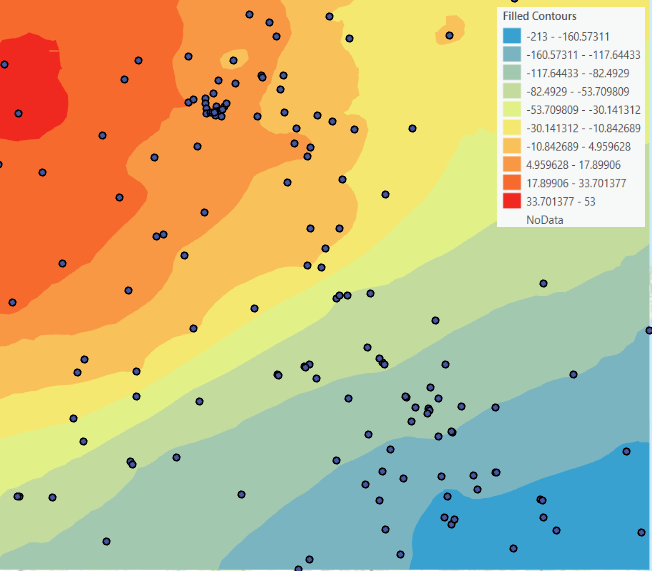
Export the geostatistical layer to a raster
To export the geostatistical layer to a raster, complete the following steps:
Right click the layer and select Export Layer > To Rasters.
- Set Output raster.
- Set Output cell size to 100.
- On the Environments tab, define the Mask value.
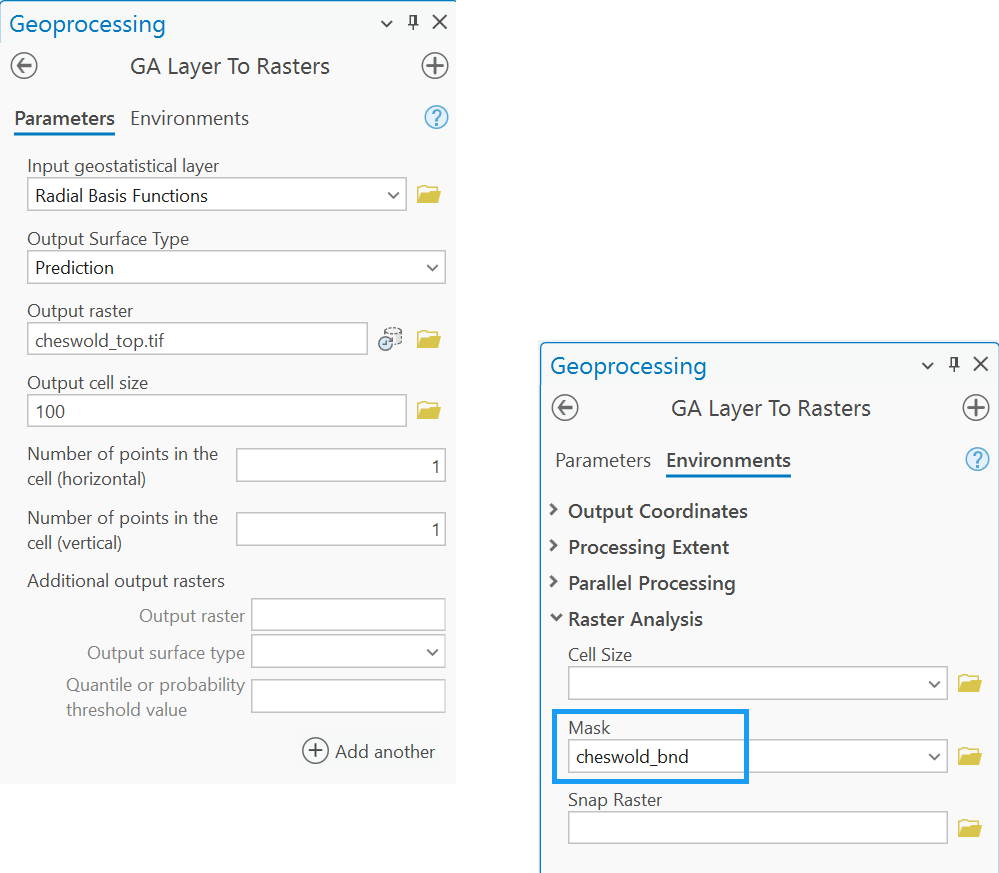
Click Run.
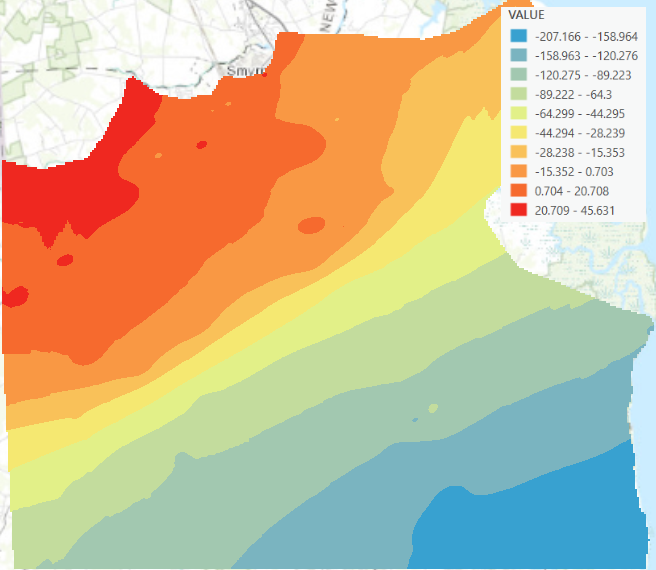
The resulting raster is clipped to the study boundary.
Postprocessing and validation
Interpolation produces a smooth mathematical surface, but geology follows physical rules. Postprocessing ensures stratigraphic consistency.
Core geologic constraints include the following:
- Topographic constraint—Keep aquifer below the ground surface and river bottoms.
- Superposition enforcement—Ensure older units remain below younger units.
- Lithostratigraphic buffering—Constrain aquifers within their parent formations.
- Lateral extent masking—Prevent extrapolation beyond known boundaries.
These steps can be implemented using the Raster Calculator and Clip Raster tools in ArcGIS Pro.
Afterward, perform residual analysis by comparing predicted raster values with observed borehole data. Residuals near zero indicate strong agreement, while larger residuals may indicate data noise, interpretation uncertainty, or unmodeled features such as faults or facies changes.
Summary
Interpolation provides the mathematical framework for transforming borehole data into continuous surfaces, but geological reasoning ensures those surfaces are meaningful.
In practice, aquifer interpolation in ArcGIS Pro combines anisotropic RBF with geologic constraints and residual validation. Together, these components ensure that the resulting models honor both data and stratigraphy.
As a result, this workflow turns scattered well records into a coherent, defensible 3D understanding of the subsurface.
Acknowledgments
Thanks to the Delaware Geological Survey for the data and workflow.
Thanks to Peter P. McLaughlin, director of DGS and Delaware state geologist, for his valuable insights and expertise. His perspective helps bridge geological practice and GIS workflows, providing GIS users with a clearer understanding of subsurface interpolation. We also thank Tom McKenna and Changming He (DGS), and Eric Krause (Esri) for their review and valuable feedback, which helped ensure the accuracy of the content.
References
Aquifers and groundwater withdrawals, Kent and Sussex counties, Delaware

Article Discussion: