As 2025 comes to a close, let’s explore the latest enhancements to oriented imagery across ArcGIS Online, ArcGIS Pro 3.6, and ArcGIS Enterprise 12.0.
Quick highlights
- New navigation and measurement tools available across ArcGIS: Directional navigation to explore an area of your map, sequential navigation to review image collections in a predefined order for QA/QC and faster browsing, and triangulated measurement to measure using two images for improved accuracy.
- ArcGIS Pro 3.6: Capture features in image space, add images from frames and cameras tables or mosaic datasets, manage oblique images with CameraOffset, and work offline.
- ArcGIS Enterprise 12.0: Update oriented imagery layer properties via REST API without republishing.
- ArcGIS Online: Triangulated measurement for 360° imagery, support for COG/MRF formats and improved map extent handling in Experience Builder.
New measurement and navigation tools
We’ve introduced powerful new tools for directional navigation, sequential navigation, and triangulated measurement in frame images. These capabilities are now available across ArcGIS Online, Pro 3.6, and Enterprise 12.0.
Explore an area in your map or scene
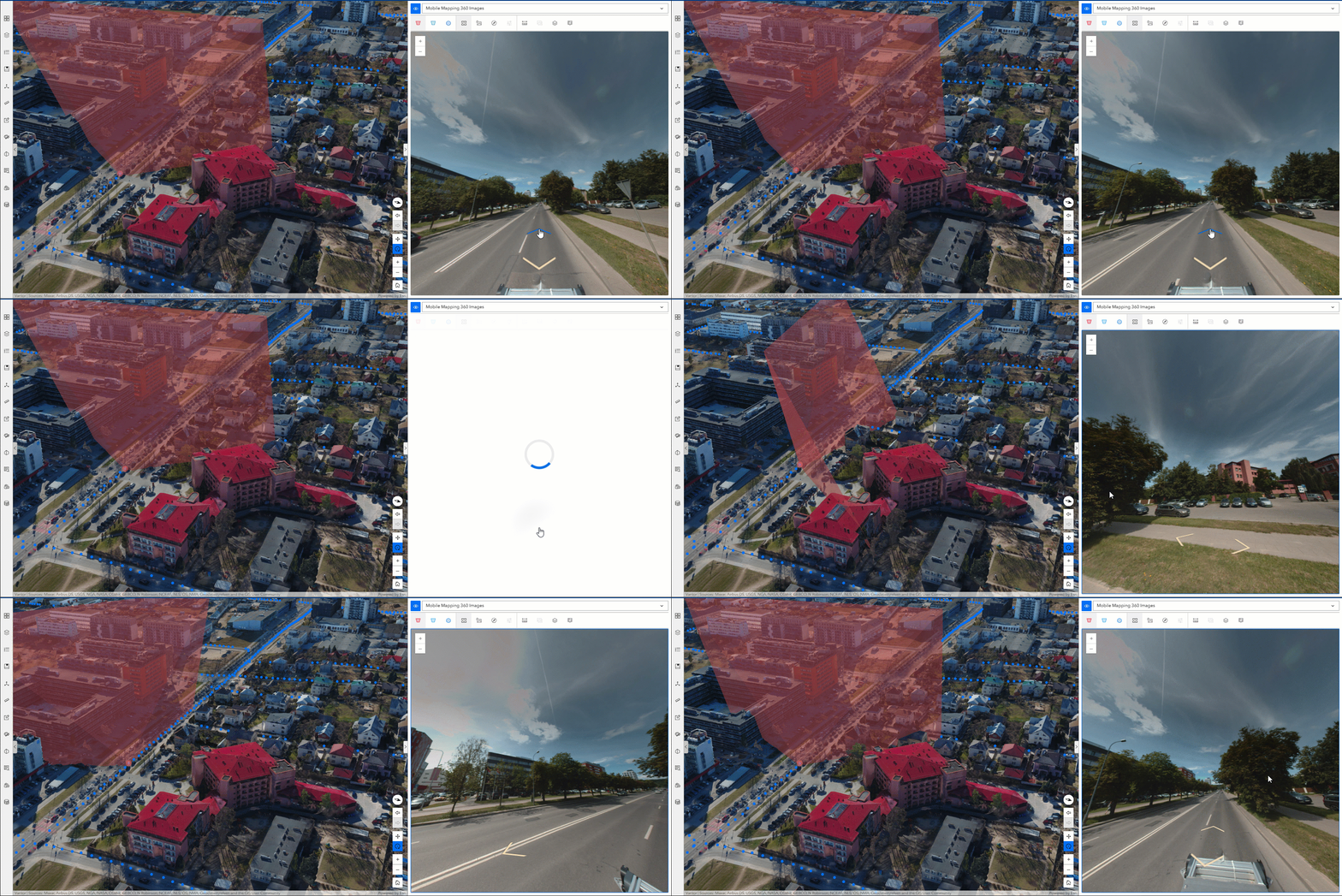
Directional navigation lets you explore a specific area in your map or scene. Use arrows in the oriented imagery viewer to navigate to adjacent images in cardinal directions—north, south, east, or west. This is especially useful for street-level exploration in both 2D and 3D.
Directional navigation is automatically available in the oriented imagery viewer. Once selected, you’ll see directional arrows you can use to navigate to available surrounding images.
- 360 imagery retains the camera angle as you move between images.
- Frame imagery offers configurable options to maintain camera angles during navigation for a smoother viewing experience.
Review images systematically
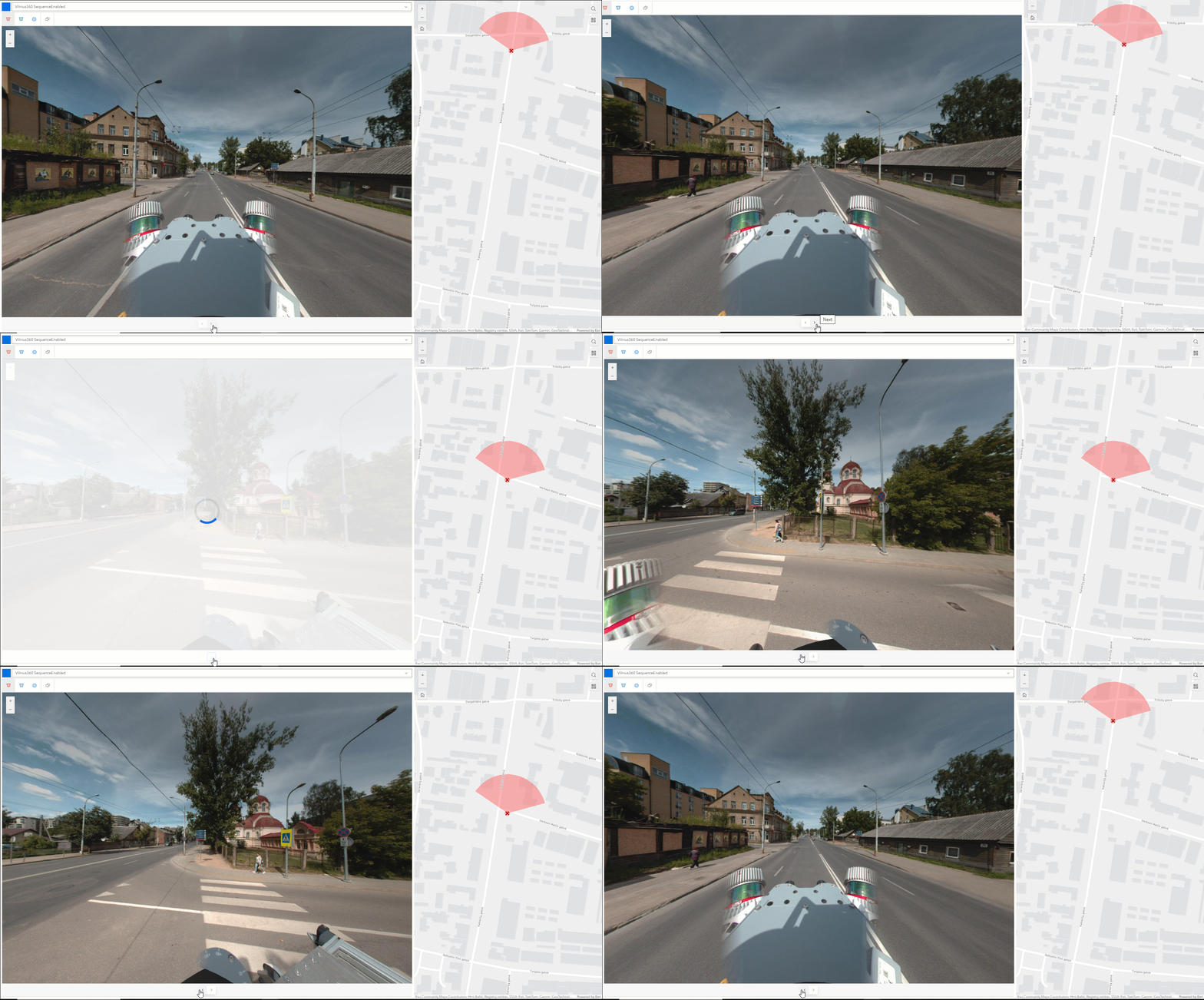
Sequential navigation helps you step through an image collection in a predefined order—ideal for QA/QC workflows, quickly skimming through your image collection, or providing a predetermined path through your image collection for your end users.
Sequential navigation requires a SequenceOrder field in your oriented imagery layer that contains a unique sequence of numbers or strings to drive navigation.
Once selected in the oriented imagery viewer, buttons in the viewer allow you to move forward or backward through the sequence.
Use two images to measure more accurately
Measuring accurately from a single oblique or ground-level image can be challenging, especially for features that aren’t on the ground. Triangulated measurement solves this by using two images taken from different angles to calculate a measurement’s true location and dimensions in 3D space. The process is similar to stereo viewing, which uses the differences between two perspectives to reveal depth.
Behind the scenes, the system starts with the first image, tracing rays from the camera location through each vertex in your measurement. Each ray represents the possible location of the feature along that line, but its exact position is unknown. The system then draws rays from the camera through the measurement vertices in the second image. By finding where the corresponding rays intersect, the system can estimate the measurement’s true position in 3D space for more accurate results.
Triangulated measurement supports frame imagery in Online, Pro 3.6, and Enterprise 12.0. 360° imagery is currently supported in Online only.
How to use:
Pro tip: triangulated measurement works best when the viewing angles differ significantly; aim for at least 90°.
- Click the feature you want to measure in the map and navigate to the image you want to measure in the oriented imagery viewer.
- Choose Triangulated Distance, Area, or Location from the Measurement dropdown.
- Use the compass navigation tool to find a second image from a different angle.
- Click to draw your measurement in the first image. Double-click to finish your area or distance measurement.
- The approximate measurement will be projected into the second image. Drag the vertices to the correct locations.
- Click anywhere in the viewer to see the calculated measurement.
Additional Tools in ArcGIS Pro 3.6
In addition to new navigation and measurement tools, there are also a handful of new management and visualization enhancements that went into Pro 3.6.
Capture features in the oriented imagery viewer
You can now digitize features directly in image space and project them into map space as a feature layer.
Feature capture requires an editable feature layer in your map or scene with two fields:
- ImageGeometry (Blob): Stores image pixel coordinates.
- OIObjectID (String): Stores the image’s Object ID.
If you use a line or polygon feature layer, any shape you draw in the image will be captured as that same feature type in your map or scene. For example, drawing a line in the image will project as a line on the map. If you use a point feature layer, you can draw a point, line, or polygon in the image, but the feature will always be stored as a point on the ground. For instance, if you draw a bounding box around a broken window in the image, the center of that box will be saved as a point on your map.
Get started with data capture in the oriented imagery viewer in ArcGIS Pro.
Add images from a frames & cameras table or a mosaic dataset
Users who have aligned their imagery using ArcGIS Reality or ortho mapping can now leverage refined metadata to enhance the accuracy of oriented imagery visualization and analysis. This improvement makes it easier to display and work with full-resolution aerial or drone imagery within your GIS, while benefiting from post-alignment accuracy.
The Add Images to Oriented Imagery Dataset tool now supports as input:
- A frames and cameras table (CSV) or
A mosaic dataset built with Aerial Imagery raster types.
Manage oblique aerial images with camera offset
Use the CameraOffset parameter (X;Y) to account for large differences between the camera location and point of interest on the ground. Defining CameraOffset helps the software select the correct image when oblique imagery creates a large horizontal separation between the image’s exposure point and its footprint.
Disconnected environment support
ArcGIS Pro now supports the oriented imagery viewer in offline environments. Define a local ArcGIS Maps SDK for JavaScript installation or use the Portal for ArcGIS instance via the JavaScriptSourcePath setting.
New in ArcGIS Enterprise 12.0
In addition to the new navigation and triangulated measurement tools discussed above:
Administrators can now update oriented imagery layer properties via the ArcGIS REST API without republishing the entire layer, streamlining service management and eliminating unnecessary republishing. (This is already an option in ArcGIS Online.)
ArcGIS Online updates
We also have a few new features that are only in ArcGIS Online for now (watch for triangulated measurement and COG/MRF support for 360° images in upcoming releases of Pro and Enterprise).
Triangulated measurement for 360° imagery
Previously limited to frame images, triangulated measurement now works with 360° and panoramic imagery. For best results, select images captured from significantly different directions (facing opposite directions driving down a road, for example).
Support for COG and MRF formats
The viewer now supports 360° images stored in COG and MRF formats, improving performance for large images.
These tiled file formats enable more efficient image storage and retrieval, improving loading and display performance for smoother interaction with large or high-resolution imagery.
Currently only MRF with Deflate compression and COG images with Deflate and JPEG compressions are supported.
Improved map extent handling in Experience Builder
App creators can now configure whether the map or scene automatically navigates to the layer extent or maintains the current map view when switching layers in the Oriented Imagery Viewer widget.
If “Navigate to layer extent” is turned on, the app automatically pans and zooms to the full extent of the selected oriented imagery layer. This is helpful when you have multiple layers covering different areas. When you select a new layer in the oriented imagery viewer, the app will zoom to that layer’s extent.
If “Navigate to layer extent” is turned off, the app keeps the current map extent, whether defined by the web map, customized in the app configuration, or set by the end user. This is useful when multiple layers cover the same area and you want to maintain your current perspective while switching between datasets.
Bringing it all together
The latest updates bring oriented imagery workflows a big step forward. With new navigation options, smarter measurement tools, and easier ways to manage imagery, exploring and analyzing your imagery is now more intuitive and accurate. Whether you’re reviewing image collections, capturing features, or fine-tuning how you manage your oriented imagery layer, these enhancements help you work faster and with greater confidence.

Article Discussion: