Okay, I am going to just put it out there. I’m not a big fan of the ArcGIS Business Analyst data browser. If you are a big fan, then please forgive me for what I’m about to write. But if you’re lukewarm on it, or feel intimidated by the organization of data and the challenges of finding just the data variables you want, let me show you some of the ways I short-circuit the experience to find what I want quickly for the work I need to do.
The secret to getting more value out of Business Analyst data analysis is to skip the data part of the data browser and build your own saved lists, also known as custom lists.
What are saved lists?
Saved lists can be created in the smart map search, suitability analysis, and benchmark comparisons workflows. A saved list is simply a list of variables that you want to use in each of these workflows. Smart map search allows for up to 10 variables in a list, suitability analysis 20, and benchmark comparison over 20.
With careful planning you can use any of these lists to create whole new views of Esri’s data in the types of categories and collection sets that make best sense to you. I don’t often use large custom lists (50+ variables) except for segmentation data and spending information. Lists between 10 and 20 variables are great for organizing things like jobs, commuting, income, home value, and more when you just want to get to the variables quickly.
Where do I find saved list?
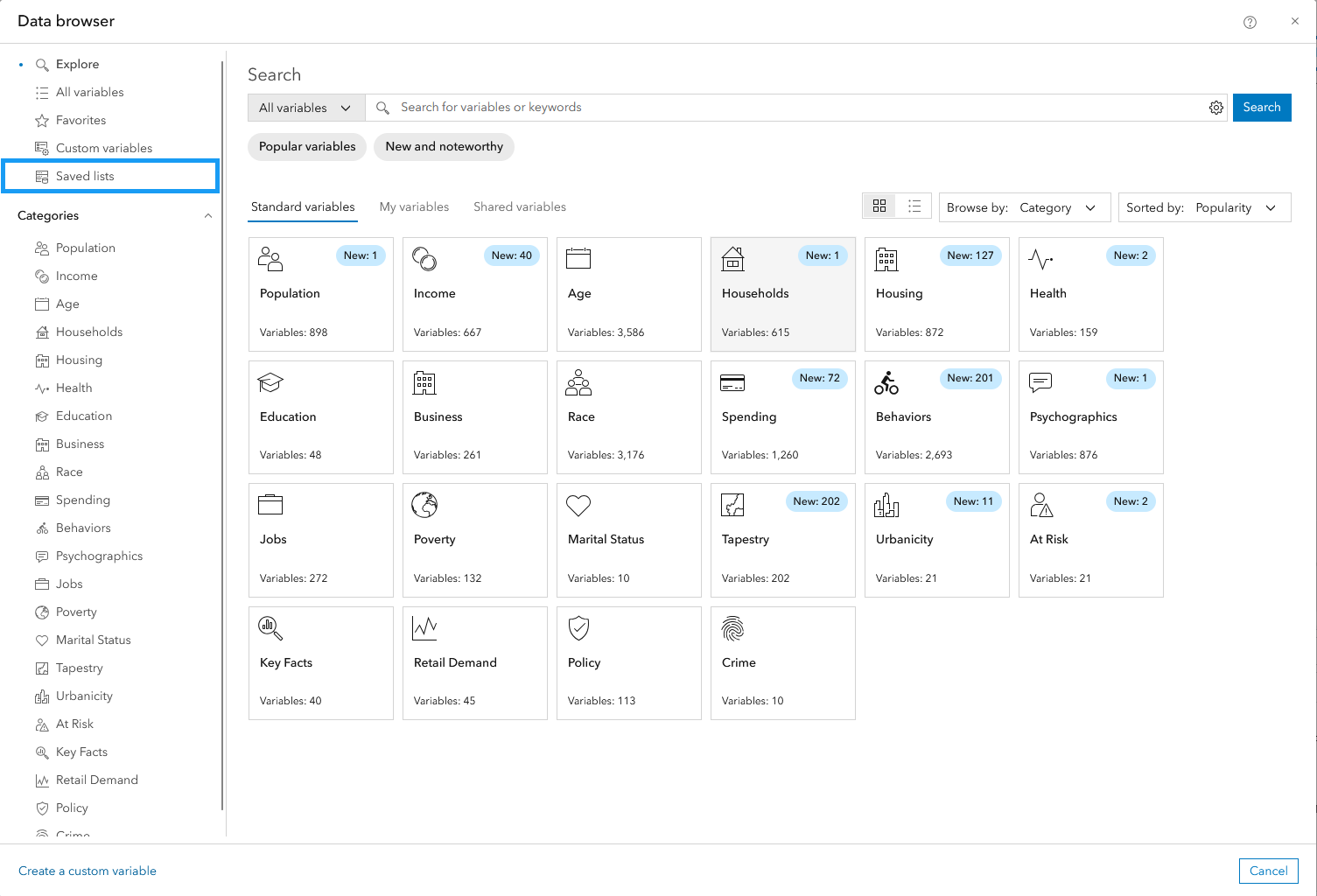
The most common place that users see saved lists is in the data browser itself. They are in the left hand navigation panel under the Explore subpanel. The lists themselves are organized by workflow and name, starting with smart map search, then suitability analysis and lastly benchmark comparison based lists.
You can also find, create, and edit your own lists within each of the three workflows listed above. Each workflow has a tab called My lists and when others in your organizations have shared their lists, they will show up under Shared lists associated with the author’s username.
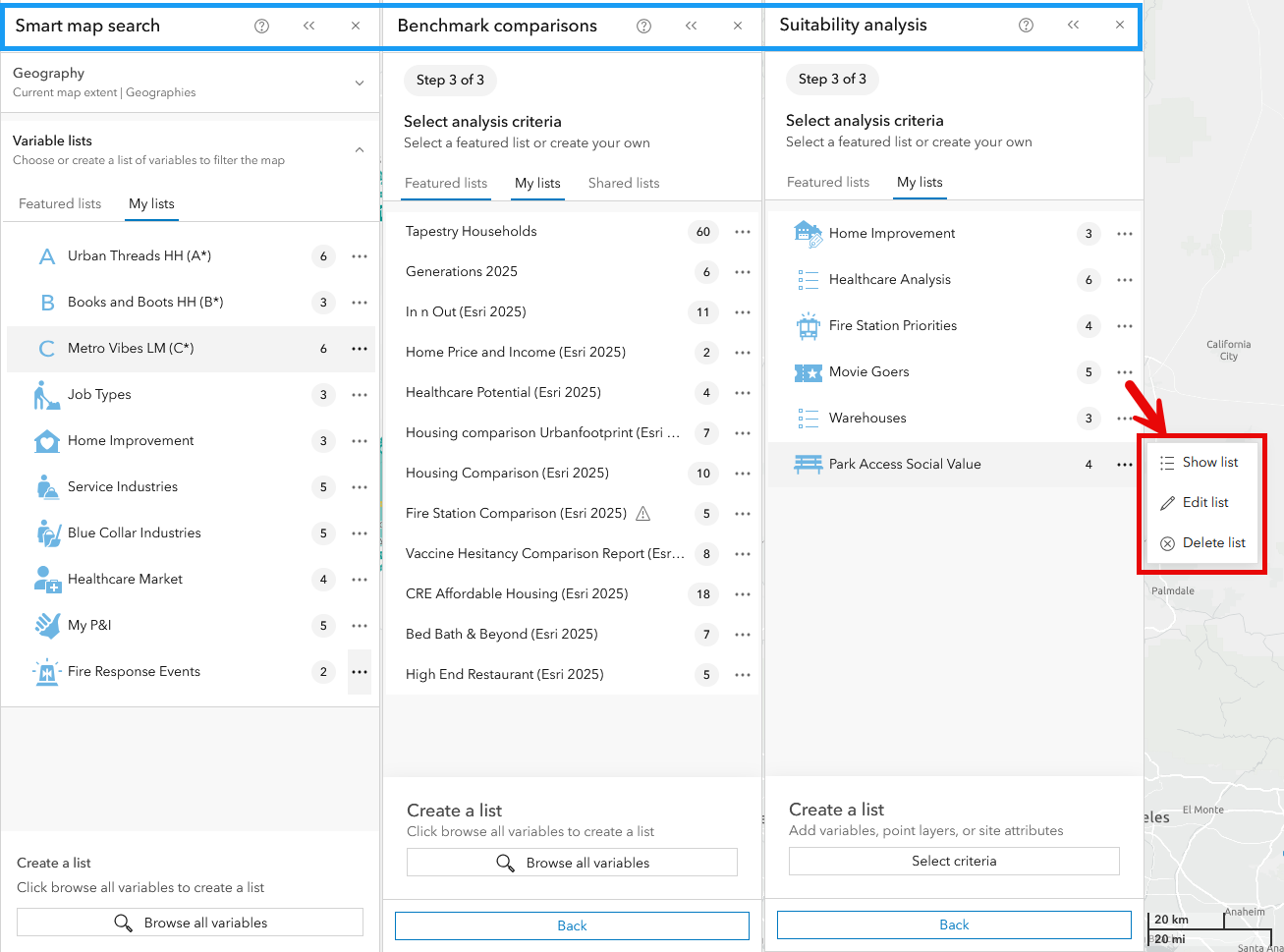
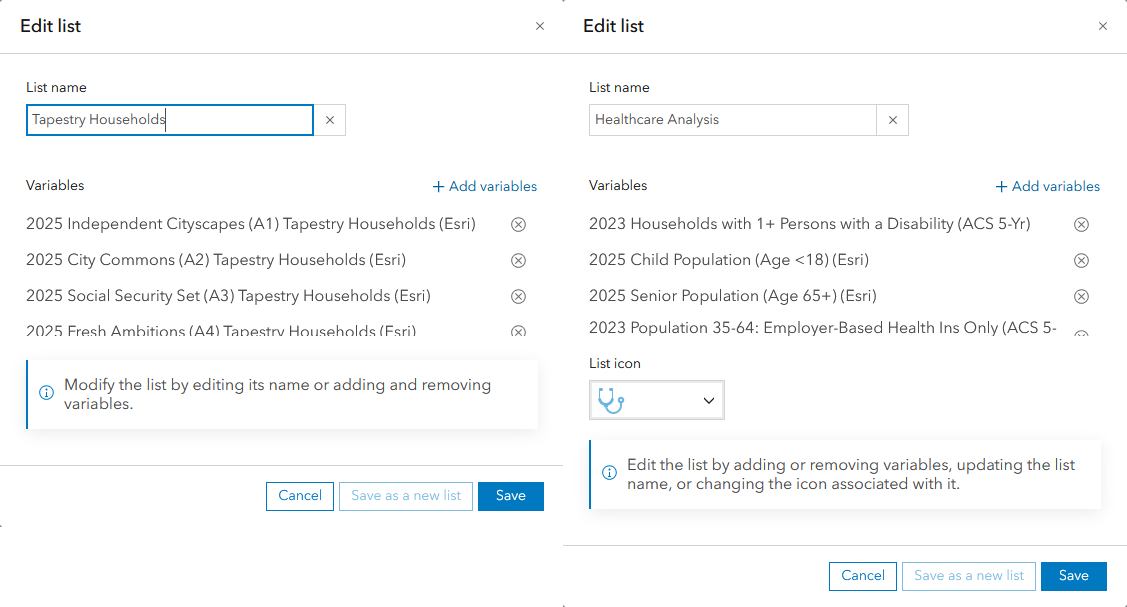
Within each workflow, when on the My lists tab, you can use the ellipsis (… icon) to edit the data variables, rename the list, and assign an icon to the list (if supported), as well as reorder the list order when in edit variable mode.
Using saved lists as a new data dictionary
Why do I dislike the data browser? For me, I don’t want to have to remember one structure for data where each variable is assigned to a single category. I don’t favor the favorites capability either. The default view of Favorites is a big unstructured list with your most recent favorites at the top, not your most used ones. Sorting by subcategory view breaks the variables down even further and you have to expand each subcategory to see the variables inside. Sorting by calculation (count, index, median, percentage, average, etc.) doesn’t help with my mental picture of how I want to see the data I most frequently use.
With saved lists, I get to organize data in a way that allows me to group data variables into multiple collections and categories, and easily see them using my own naming convention. I can also dynamically add to or edit groups of variables, delete my collections if they are no longer needed, and create my own taxonomy that is personal and aligned with how I want to work, how I think about data relationships, or the work topics and tasks I am focused on.
I get the benefit that my saved lists are automatically updated as the underlying data is updated annually for premium data or every two years for standard data. I can share my saved lists with others who might be less familiar with the data browser or who are working on topics related to mine. They can use my saved lists as the basis for organizing their own data dictionary, and I can add their saved lists to my structure or as the basis for customizing my data views further.
Saved lists are both a convenient way to quickly get to what I want and a powerful way to reorganize the 15,000-plus variables for the U.S. into my own view of the data, removing what I don’t want when in the workflows I use most.
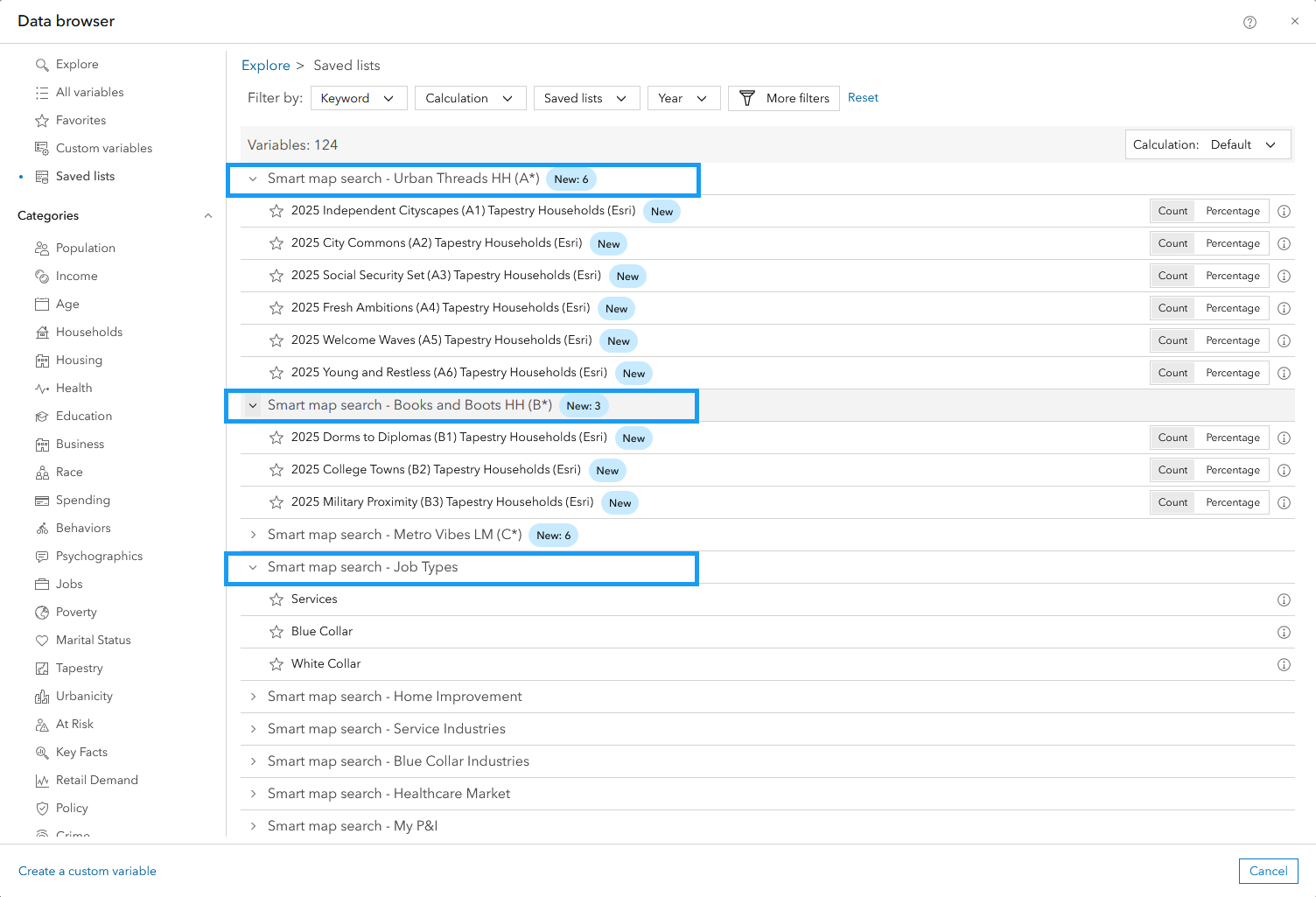
In the screenshot above, you can see my saved lists. I have a smart map search list for the Urban Threads LifeMode group, a group of six Tapestry segments based on households. If using the data browser in the traditional way, I would have to go to the Tapestry category, then households, then pick segments A1 through A6. I also need to explicitly know that Urban Threads contains segments whose segment code begins with A, because there is no Urban Threads subcategory in the data browser. I have also organized the Books and Boots and Metro Vibes LifeMode groups together to create a way for me to navigate through each of the groups represented as subcategories.
By using saved lists, I can save on the time spent navigating through multiple pages of categories and subcategories and having to apply filters or keyword selections.
Adding your own custom variables to saved lists
Another way to get the best from saved lists is to use them to manage your custom variables. In the above example, I have a list called Job Types. There are no Esri demographic variables which cover service, blue collar, and white collar occupations, so I made a set of custom variables for these, which you will find in various infographics and tabular reports.
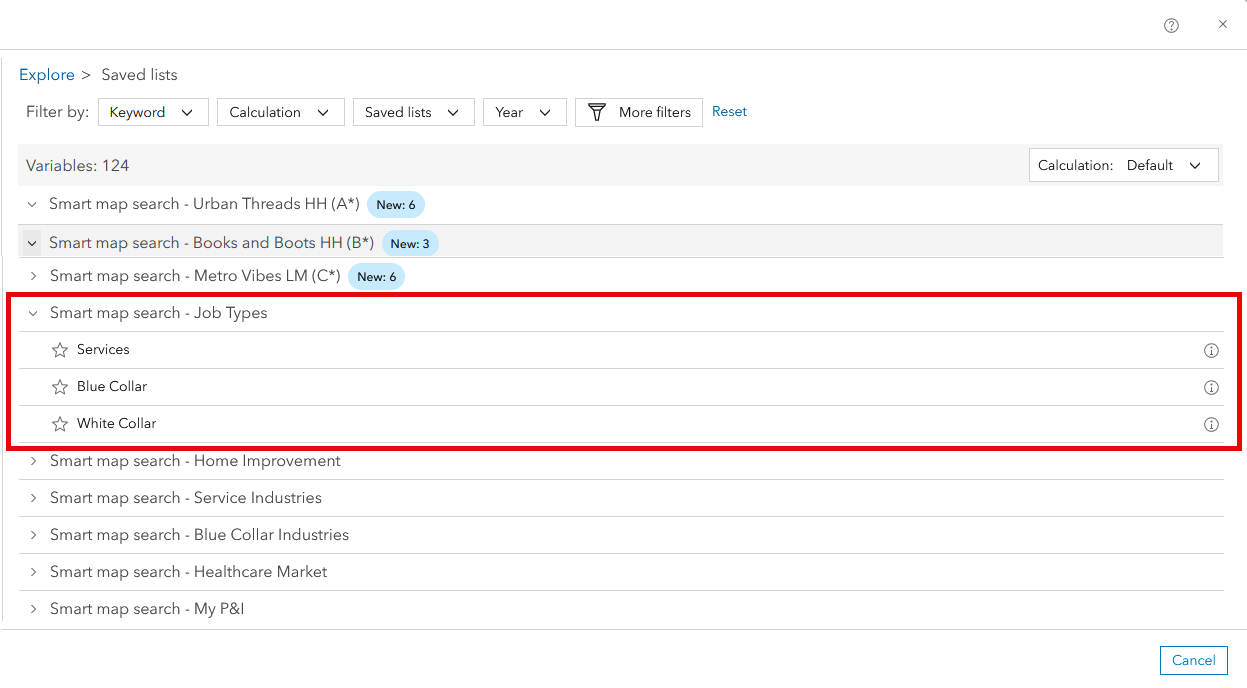
With a saved list of my three custom occupation variables, I can easily find them via a smart map search list without having to go through all my 200+ custom variables, which are not in any specific order. Using a saved list allows me to organize these in a more structured way, supports using keyword search, and are automatically updated when I update my custom variables or the data underlying them are updated.
Rather than having my most frequently used data variables in multiple areas of the data browser (favorites, custom variables, data categories), saved lists gives me a one-stop shop to access my preferred data from any of these locations using a directory system or organizational strategy of my own.
The wrap-up
By using saved lists, I can bring together a range of different data variables into thematic groups and organize them into categories and subcategories that make sense to me. I can create short lists via smart map search (under 10 variables), long lists (up to 20 variables) in suitability analysis, and very long lists (over 20 variables) via the benchmark comparison workflows.
This gives me maximum flexibility to create my own dictionary and data structure that includes Esri variables, shared variables, and custom variables and bring them together in exactly the way I want to see them.

Article Discussion: