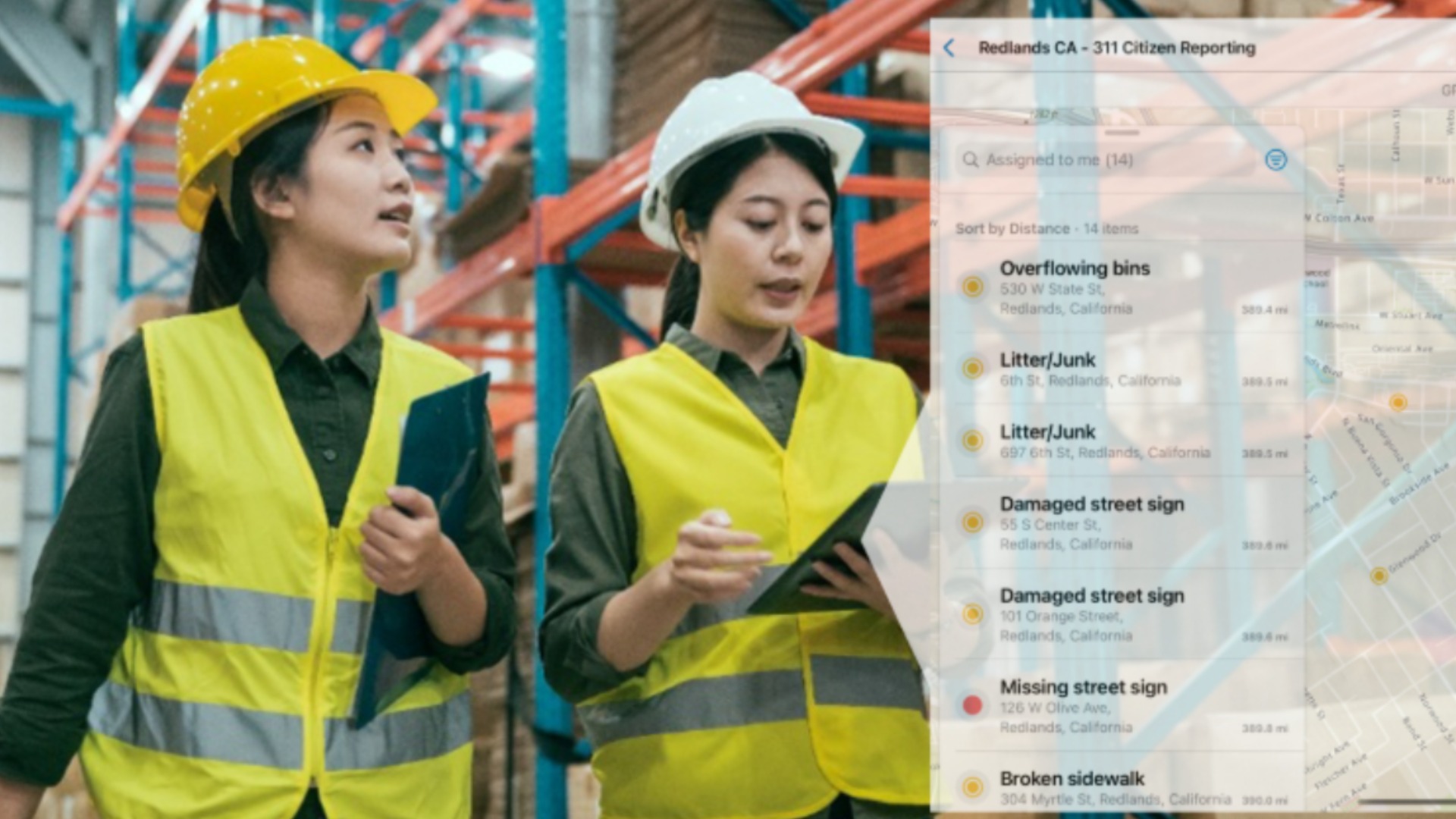
The Tasks capability in ArcGIS Field Maps helps you organize fieldwork so your team knows what needs to be done, where, and by whom. Tasks equips your mobile workforce with clear direction on what needs to be done and provides those in the office with a detailed view into the progress of the work.
The Tasks capability is built to be highly configurable so you can tailor them to your project requirements, but we’ve also made it really easy to get started. When you create a new task-enabled layer in Field Maps Designer, it is created with a set of default fields, values, and configurations that you can use out-of-the-box to get using Tasks with very little set up.
This blog article walks you through the simplest way to start using Tasks, with those default configurations, for your own field workflows.
By the end of this article, you will:
- Create a new task-enabled layer.
- Set up task types.
- Add assignees from your organization.
- Share the map so your mobile workers can begin using tasks in the field.
- Create a dispatching experience where office personnel create and manage tasks. (optional)
Before you follow the processes in this article, it helps to understand a few basics. A task layer is simply a feature layer that supports creating work assignments. Tasks can be points, lines, or polygons, allowing you to represent work at a location, a linear path, or across an area. Task types describe the kinds of work your team performs. Assignees determine which of your mobile workers can receive those tasks in the Field Maps mobile app.
If you are brand new, we recommend reading our Introducing Tasks blog article first to get more familiar with how tasks works.
Quick Start Guide for Tasks
Create a new layer for tasks
In preparation for this exercise, you will need to identify (or create) a web map you have permission to edit in order to follow along with the step-by-step instructions.
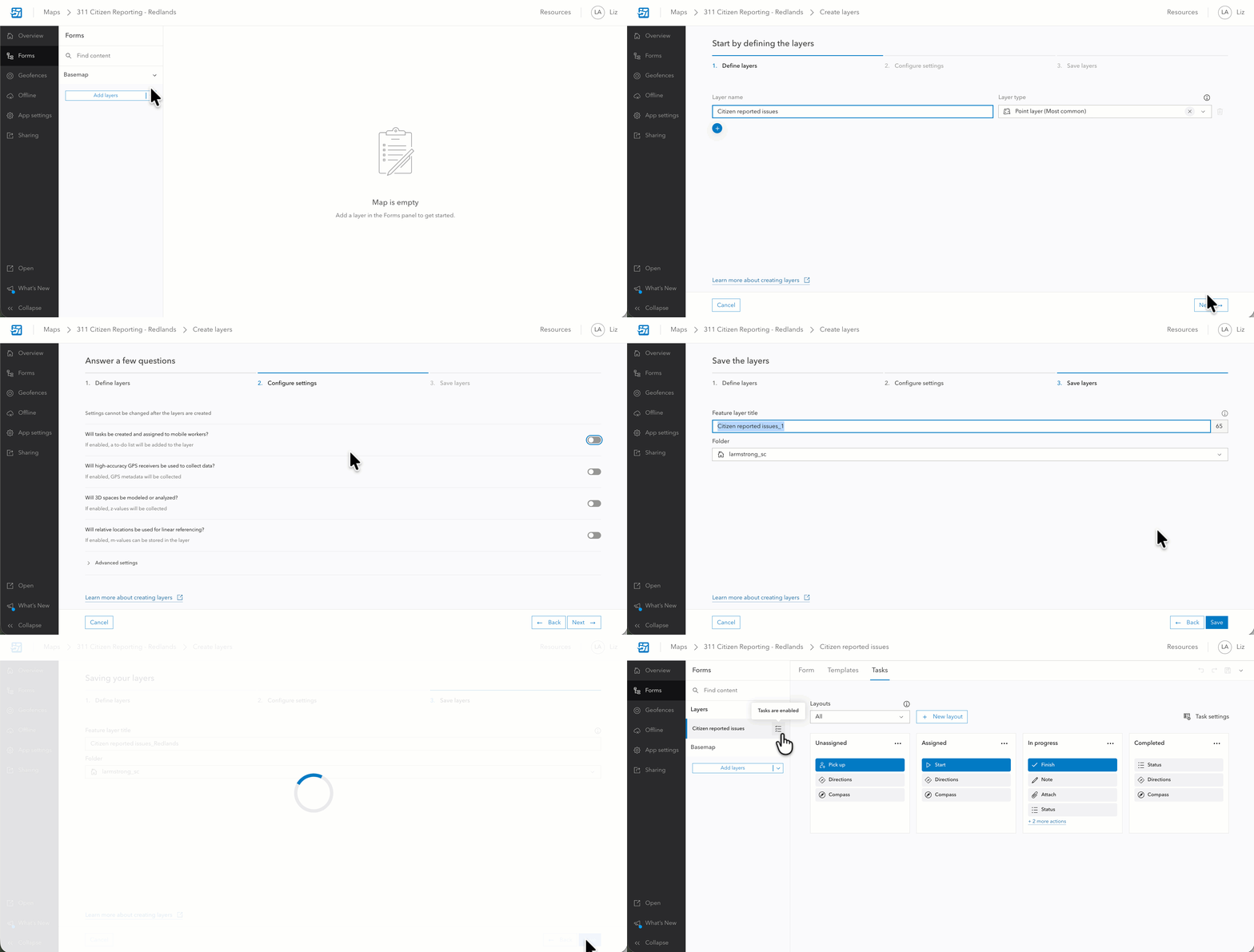
You will begin by adding a new layer to your map and enabling tasks on it.
- Open Field Maps Designer and choose the web map you want to work with.
- Go to the Forms tab.
- Select Add layer, then choose Create layers.
- Give your new layer a name that describes the type of work it will support.
- Choose point layer as the layer type.
- Continue to the next step in the workflow.
- Turn the toggle to on next to the question, “Will tasks be created and assigned to mobile workers?” and ensure the layer you want to contain tasks is selected in the drop down.
- Click on Next.
- On the next step, click Save to add the new task-enabled layer to your map.
With your new tasks-enabled layer created, next you will configure which tasks will be completed in this project and who they can be assigned to.
Configure task types
Task types help mobile workers understand what kind of work a task represents. The default configuration includes a general Task type as a placeholder. You will remove it and add the appropriate task types related to your fieldwork.
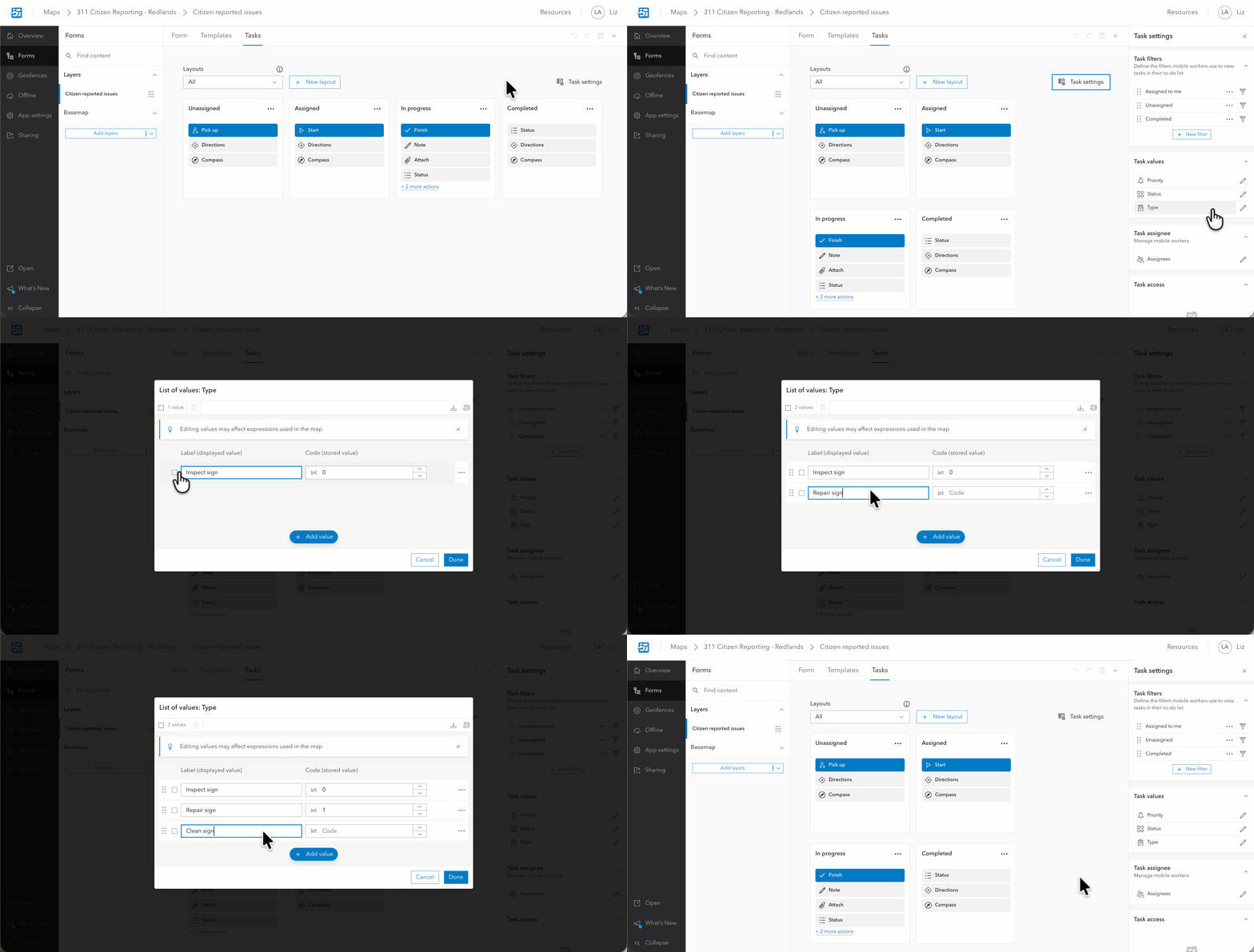
- In the Forms section in Field Maps Designer, on your new tasks-enabled layer, select the Tasks tab.
- Select Task settings to open the settings panel.
- Under Task values, click on the pencil icon next to Type.
- In the Type pop-up, replace the Task Type 1 with your first task type.
- To enter more tasks, click on the blue Add value button.
- Enter the rest of the task types relevant to this project and arrange them in the order you want them to display during task creation. For example, if you were building a map for a city maintenance, you might enter tasks like “Graffiti removal“, “Repair Sign“, etc.
- Click on Done to save your changes.
Workers will see these task types when tasks are created and assigned to them. This informs them on what work needs to be done and enables your organization to have a detailed view into the work that goes into each project.
Assign mobile workers
The Assignees field controls who can receive tasks in the Field Maps mobile app. Adding people here makes them available for task assignment.
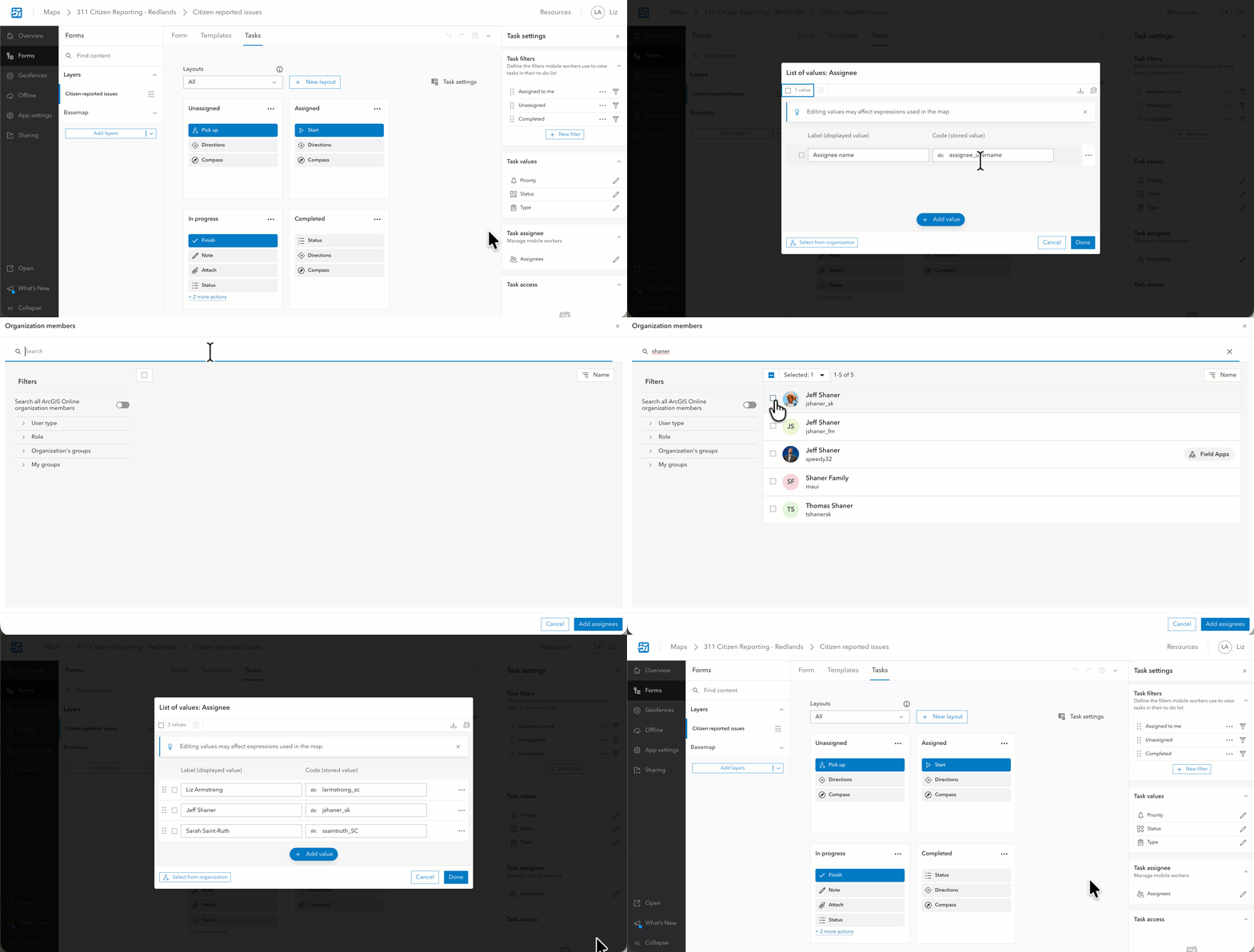
- In the same Tasks settings panel in the Tasks tab, click on the pencil icon next to Assignees.
- Click on the Select from organization button (bottom left).
- Select the groups or individuals from your organization who will be working in the field.
- Click Add assignees.
- Next to the first value, provided as default , click on the overflow menu and select Delete.
- Click on Done to save your changes.
The associates you add will now appear see their tasks in Field Maps when tasks are assigned to them.
Share your map
The final step is to share your map so your mobile workers can start using tasks.
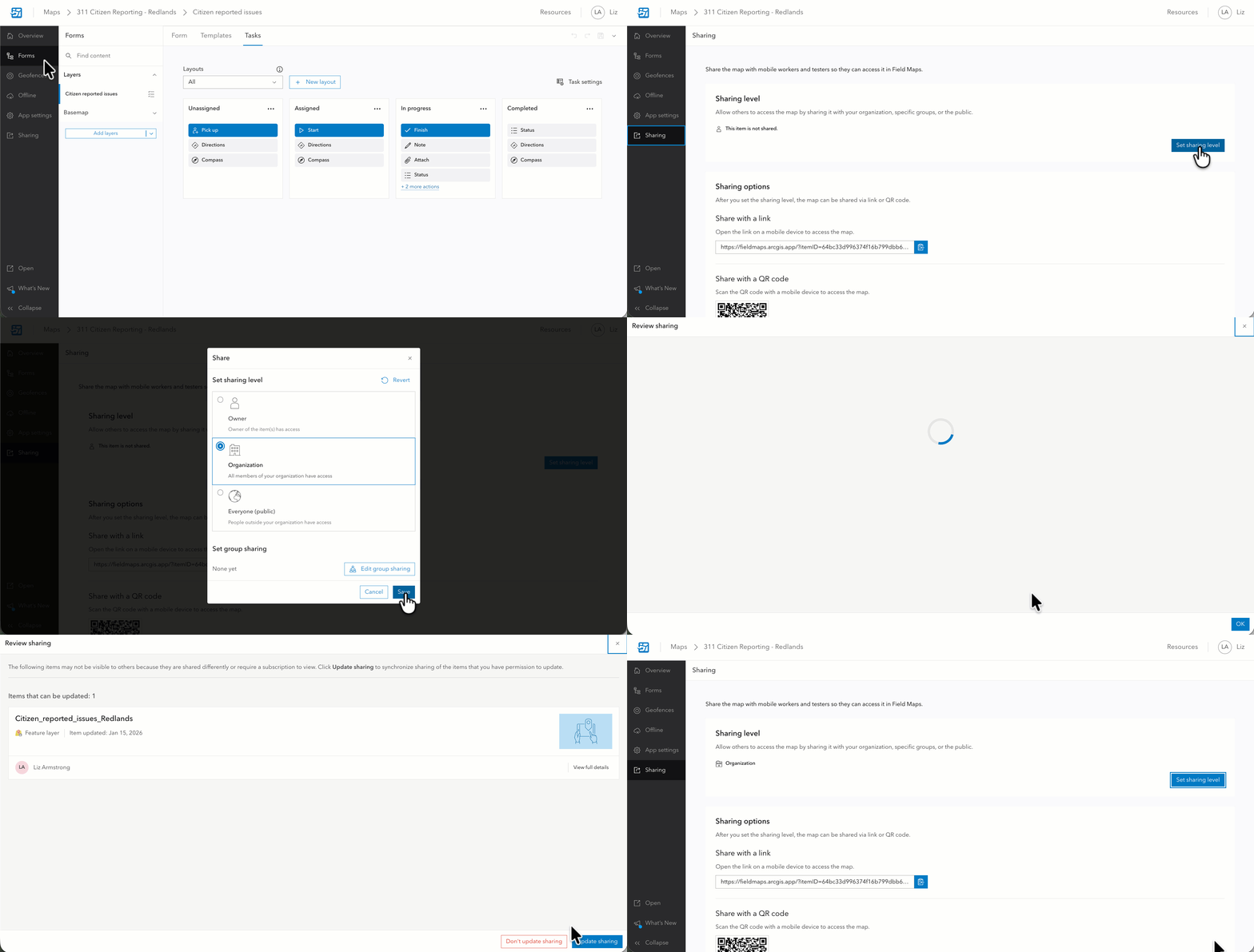
- Open the Sharing tab in Field Maps Designer.
- Click on the Set sharing level button.
- Share the map with your organization or the specific groups of users who need access.
- Click on Save.
With just a few straightforward steps, you have created a task-enabled layer, added task types, assigned mobile workers, and shared your map.
You are ready to start creating and managing the tasks for this project.
Create a dispatching experience
Tasks are features in a feature layer. You can create and manage them anywhere in the ArcGIS that you can do editing, like Map Viewer and Web Editor. Tasks can be created in the field. You could automate the management of tasks with scripts or automation software like ArcGIS Workflow Manager or Microsoft PowerAutomate. Some field operations have a dedicated associates responsible for dispatching work to the field. For those associates, you can create a dispatching experience using Instant Apps or Experience Builder.
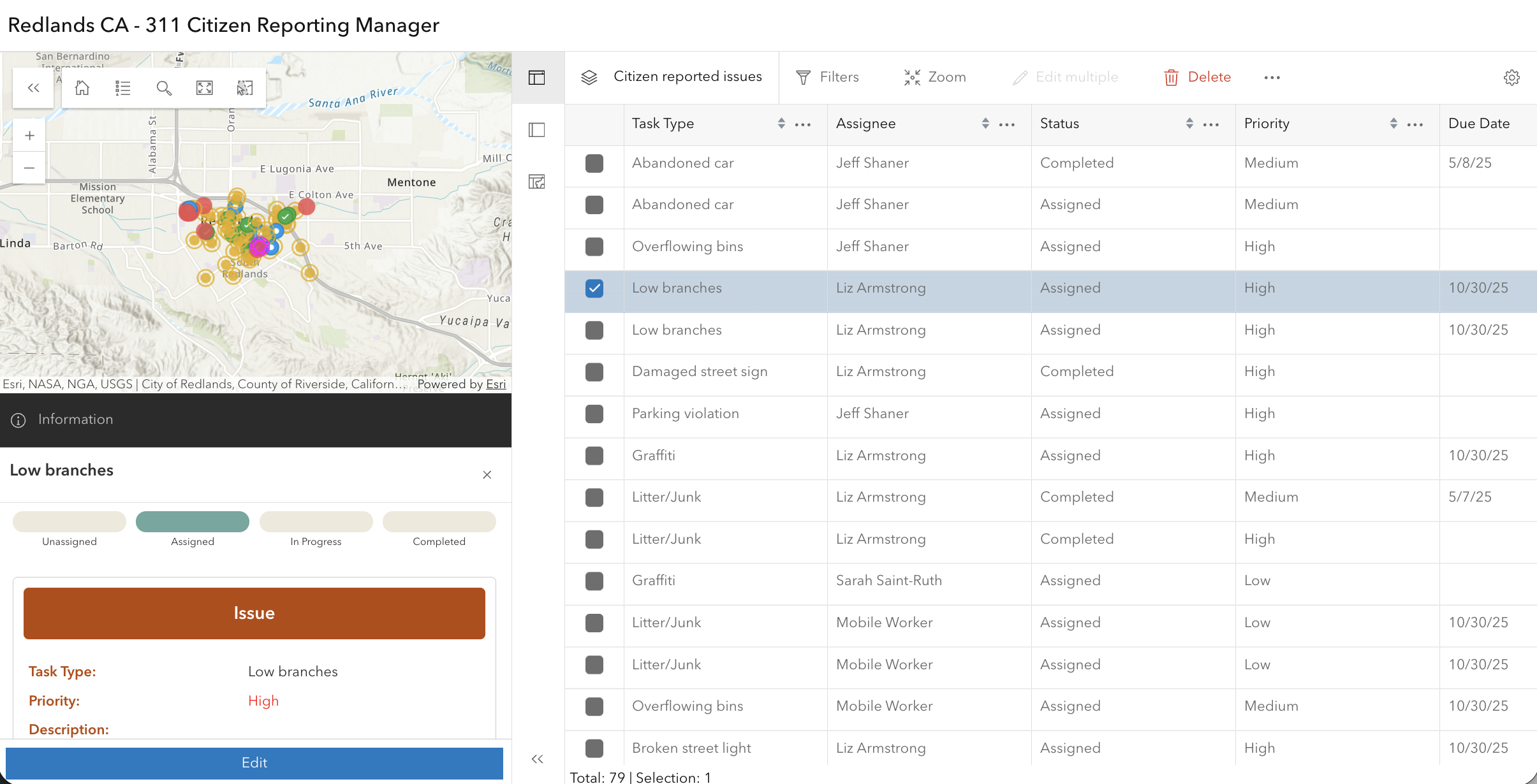
In this guide, we will provide you with the steps to create a dispatching experience in Instant Apps. The Manager template in Instant Apps provides a fast, configurable, and easy-to-deploy dispatching interface, enabling dispatchers to create, view, and manage tasks.
To create a dispatching experience in Instant Apps, follow these steps:
- Using the app switcher in ArcGIS Online or Portal and select Instant Apps to open it.
- Under the Create tab, locate the Manager template and click on Choose.
- In the pop up panel, name your app and select a folder where this will be stored (optional), then click Create app. Now that the app is created, you will configure, publish, and share it.
- In the Express configuration panel, click on Step 1 to select your web map to pull into the app.
- Click on Add new map.
- Click on Browse for maps.
- Search for your web map with the tasks layer and click on the Select map button to add it to your app.
- In the Step 1 map configuration area ensure the following boxes are checked for your tasks map to ensure your dispatchers can add and update tasks: Edit in table, Geometry edits, and Create new features.
- Click Done to save your configuration of your map in Step 1.
- Click Next to move to Step 2. Configure your app title, the header, and the legend here, as desired.
- Click Next to move to Step 3. Select which app tools will display for your dispatchers in this app.
- Click Next to move to Step 4. Configure the theme and layout of your app, as desired. Ensure that the App layout selected is Split view for the best dispatching experience.
- Click Publish.
- Once your new dispatching app is published, you can adjust the sharing level in the pop-up window to share it with your dispatchers.
- Click Close or Launch your app to review it.
Resources
To learn more about Tasks, see our resources documentation.
We want your feedback on tasks!
Once you’ve tried out the new tasks functionality, we’d love to get your feedback on it! Your feedback helps shape what’s next.
Take the survey!


Commenting is not enabled for this article.