You may have seen demonstrations or tried out data collection in the ArcGIS Field Maps mobile app, or perhaps you’ve collected data using maps in ArcGIS Collector. How are these maps and their associated forms created? Let’s make a Parks map and find out. Along the way, you’ll learn how to prepare a layer and make a map so you can try data collection in Field Maps. This workflow is supported on ArcGIS Online and ArcGIS Enterprise 12.0 and later.
First, think about how the Field Maps mobile app will work after you’ve created your Parks map—you’ll open your map of parks in the app, and that map will contain the layers you created of things to capture in the parks, such as single places (a picnic table), lengths (a sidewalk), and areas (a playground). Each layer defines the information that can be captured in the form.
Create a map and map layers
You can use Field Maps Designer to create the map and map layers needed for this project. We’ll only configure a Places layer and a Path layer. For extra credit, you can create an Areas layer by following the same steps.
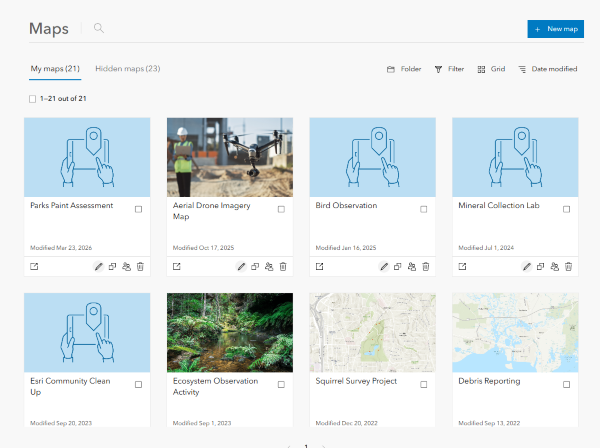
- Sign in to your ArcGIS account in a browser and open Field Maps Designer from the app launcher. The Maps page will appear, showing all the maps you have created.
- Click the +New Map button
The Create a new map window appears with options for creating a new map.
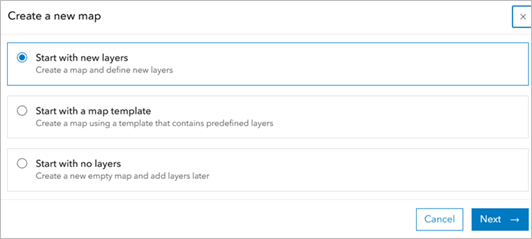
3. Select the Start with new layers option and click Next. The Start by creating a layer tab on the New map page will appear.
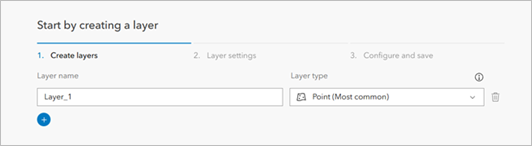
4. Under Layer name, replace Layer_1 with Places. Keep the default Point layer type.
5. Click the Add button to add a new layer.
6. For the new layer, replace Layer_1 with Path and change the Layer type to Line.
Your map should have two layers in total, as shown below:
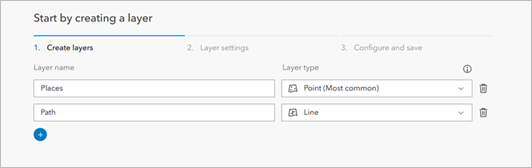
If you want to create an Areas layer, use the Add button to add a new layer, rename it to Areas, and change the Layer type to Polygon.
7. Click Next.
8. We will not change any map and layers settings on the Configure settings tab. Click Next.
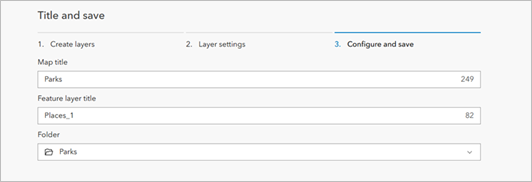
9. The Title and save tab opens. Title your map Parks and, optionally, change the Feature layer title.
10. Click the Folder drop-down menu to select what folder to save the map in or to create a new folder.
11. Once you’ve entered all the information, the Title and save tab should look like the following:
12. Click Create map.
The new map and layers are created, saved, and added as items to your organization. Once created, the map opens to the Form page where you can build the forms used for data collection.
Next steps
Now you’ve created a map with relevant layers in Field Maps. Next, try configuring your map in Field Maps Designer before you collect data in the Field Maps app.
This blog post was originally published by Jane Darbyshire in December 2020 and has been updated.


Commenting is not enabled for this article.