In Create a map for data collection in Field Maps, you created a map that allows you to capture information about your local park. Now, you’ll configure the map for data collection using Field Maps Designer. This workflow is supported on ArcGIS Online and ArcGIS Enterprise 12.0 and later.
You’ll use Field Maps Designer to complete the following tasks:
- Edit the map title, summary, and thumbnail.
- Author the form.
- Configure the feature templates.
- Configure the map settings.
- Share the map.
Edit the map title, summary, and thumbnail
Field Maps Designer allows you to edit the title, summary, and thumbnail of your map. Edit this information so the map is identifiable in the Field Maps mobile app.
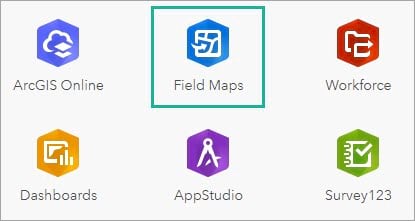
In a browser, sign in to your ArcGIS Online organization. In the app launcher, click Field Maps Designer.
The Maps page opens, displaying maps you own. Click the Parks map card to configure the map you created in the previous blog post. The Forms page opens. Click Overview to see information about the map.
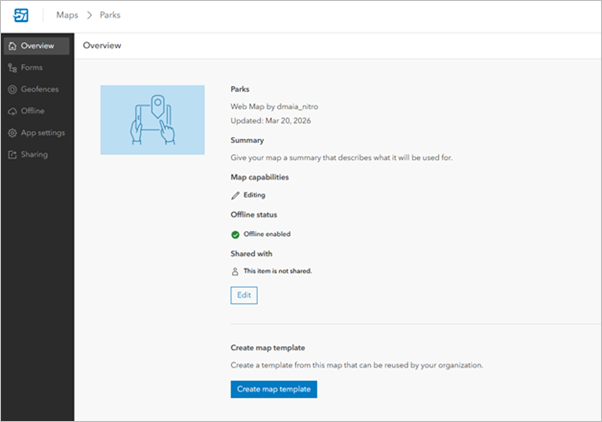
Click Edit and provide a title and summary specific to the project. For example:
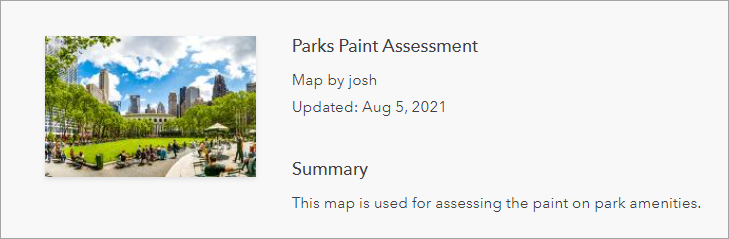
- Title: Parks Paint Assessment
- Summary: This map is used for assessing the paint on park amenities.
If you have an image of the park you want to use as the thumbnail, hover over the default thumbnail for the map and click Change Thumbnail. Click Save.
Configure the form
Configure the form used in the field to collect paint assessments. You’ll configure the form title, the order of form elements, and how the elements display in the Field Maps mobile app.
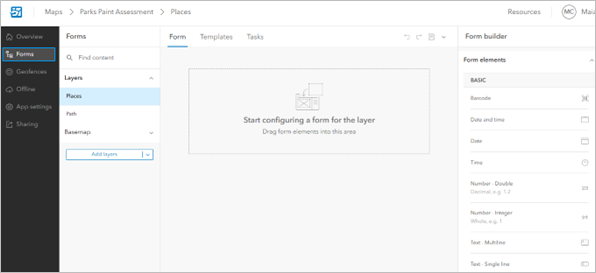
Click Forms to open the Form page. This page shows all the items in your map. Under Layers, click the Places layer. The form builder opens with a blank canvas and includes the elements and fields you can add to the form. To familiarize yourself with the Form page interface, see Configure the map.
First, we’ll add an amenity type field to the form. Mobile workers will use this field to select the types of amenities and structures they see in the park.
1.Double-click or drag and drop a Radio buttons element onto the form canvas.
2. In the formatting pane, under Display name, enter Type of Amenity.
3. Uncheck the box next to Include “No value” option.
4. Next, click Create list.
5. The List of values window opens. Under Label, type Water fountain.
6. Click the Add button add the following labels to the list: Restroom, Picnic table, Bench, Bike Rack, Light, Recycling Bin, Trash Bin, Tree.
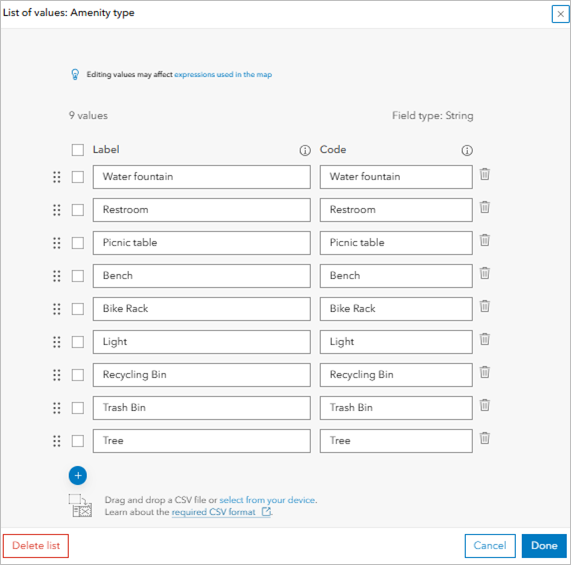
7. Click Done.
8. Next, double-click or drag and drop a Text – Multiline element onto the form canvas.
9. Under Display name, type Notes.
This map and form will be used to capture paint assessment data for amenities within a park. We will add form fields that mobile workers will use to record paint information.
1.Add a Text – Single line element to the form canvas. Under Display name, type Paint color.
2. Add a Text – Multiline element to the form canvas. Under Display name, type Paint notes.
3. Add a Text – Single line element to the form canvas. Under Display name, type Estimated paint time. Add a description to provide additional information about the data being collected. For this property, type In hours.
4. The final form element we will add is a needs paint field. Add a Switch element to the form canvas. Under Display name, type Does the amenity need to be painted?.
5. Under Switch values, replace the Off value with No and replace the On value with Yes.
6. For the Default value select No.
7. Under Logic, check the box next to Required.
Use a Group form element to group the paint elements together by doing the following:
8. In Form elements, click Group to add a group to the form (you can also drag it onto the form).
9. Drag the Paint color, Estimated paint time, and Paint notes elements into the group.
10. Select the group and change the Display name to Paint Information.
Next, we’ll provide a form title specific to the project:
1.Click the form title and the Formatting pane appears.
2. Under Form Title, type Amenity Paint Assessment.
3. Additionally, click Add field and add the Amenity Type field to the title. This will populate the form title with the type of amenity when the form is opened in the map.
The form should look like the following:
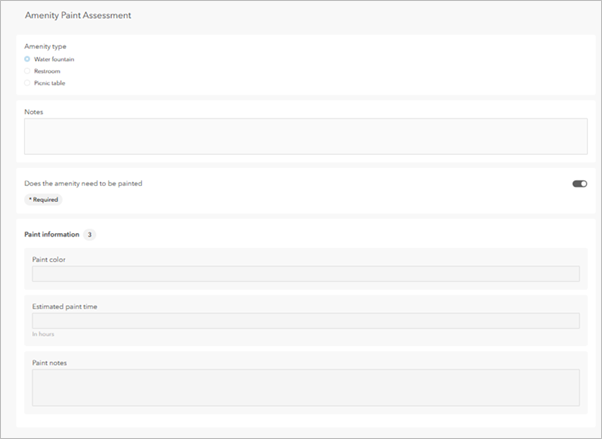
If a park amenity doesn’t need to be painted, then the Paint Information group doesn’t need to be filled out. Add a conditional visibility statement so this group only appears when the Does the amenity need to be painted? field equals Yes.
1.Click the Paint Information group, click Expression and click + New expression.
2. Title the expression Paint Information Expression.
3. Click the Launch Arcade editor
4. In the Arcade editor window, type the following expression:
$feature["needs_paint"] == "0"
The expression states that if the Does the amenity need to be painted? field equals ‘0’ (the coded value for ‘Yes’) then the Paint Information group will appear in the form.
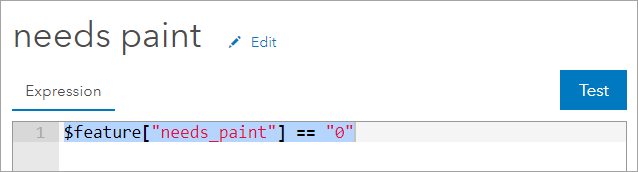
Click Done, then click Save to save the completed form.
To learn about more ways to customize the form, see Configure the form.
Next, we’ll configure the form for the Path layer.
1.Under Layers, click the Path layer. The form builder opens with a blank canvas and includes the elements and fields you can add to the form.
First, we’ll add an amenity type field to the form.
2. Double-click or drag and drop a Radio buttons element onto the form canvas.
3. In the Formatting pane, under Display name, enter Type of Amenity.
4. Uncheck the box next to Include “No value” option.
5. Next, click Create list.
6. The List of values window opens. Under Label, type Dirt.
7. Click the Add button add the following information to the list:
- Label: Gravel
- Label: Paved
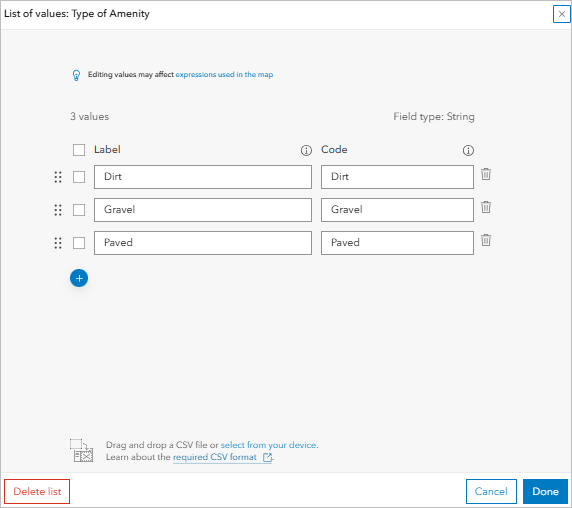
8. Click Done.
9. Next, double-click or drag and drop a Text – Multiline element onto the form canvas.
10. Under Display name, type Notes.
11. Click Save to save the form.
The form should look like the following:
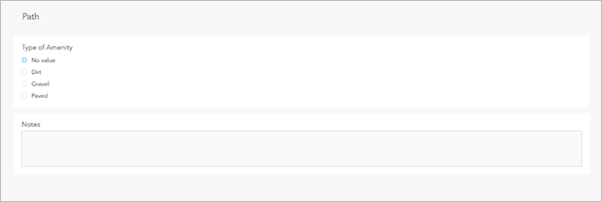
Optionally, if you added a polygon layer and renamed it to Areas when you built your map, you can configure the Areas layer by following the steps listed above for configuring the Places and Path layers. When you create your list of amenities field, consider adding Baseball diamond, Dog park, Playground, Sports field, and Tennis court to the list.
Configure feature templates
Feature templates categorize assets and observations in a layer and are based on a specific combination of attributes. To configure feature templates for your parks map, complete the following steps:
1.Click the Open tab and select Map Viewer.
2. Under Layers, click the Places layer and click Change Style .
3. Click + Field and select the Amenity type field.
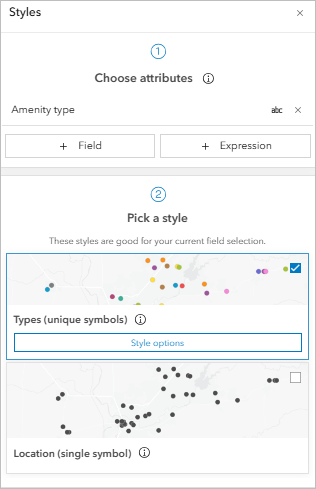
4. Click Style Options under the Types (Unique symbols) drawing style.
5. Click the symbol next to Picnic table, then click the box under Current symbol, choose the Government category, and click the picnic table symbol . Set the Symbol Size to 30 and close the window.
6. Configure the symbols for remaining Amenity type fields.
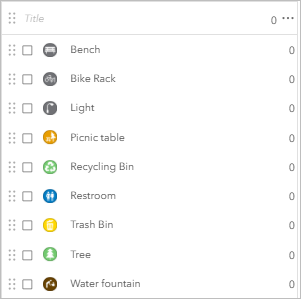
7. Click Done.
8. Repeat steps 2-7 with the Path layer and optionally, the Areas layer. Accept the default line colors for the Path layer, then click Done. If you chose to configure the Areas layer, accept the default area colors.
9. Choose the Places layer, Click Save and open and click Save. Then choose the Path layer, click Save and open and click Save. Choose the Areas layer and save your changes if you chose to configure it.This creates the feature templates that Field Maps will use as the types of assets you can add to the map. To create feature templates, you must own the layer or be an admin in your organization (you can’t create them for a layer someone has shared with you).
10. Close the Map Viewer window.
Next, we will configure the feature templates as they’ll appear in the mobile app. You can edit their description, default values, and order.
1. On the Forms page, click the Templates tab. The feature templates you created appear.
2. Select the Bike rack feature template. The Properties pane opens, allowing you to format the feature template and set default values. Default values can be used to ensure consistency during data collection. For example, if your park contains blue bike racks, set the default value for the paint color field to blue.
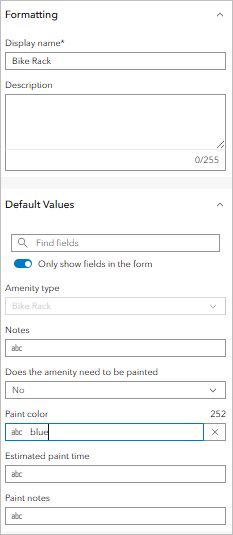
3. Click Save. Now, if you use the bike rack feature template to capture a new point, the paint color field is automatically set to blue.
Reorder the feature templates as you want them to appear in the mobile app, placing more commonly used templates at the top of the list. Since the map is being configured for paint assessments, move the Tree feature type and template to the bottom of the list. You can move feature templates by dragging and dropping them.
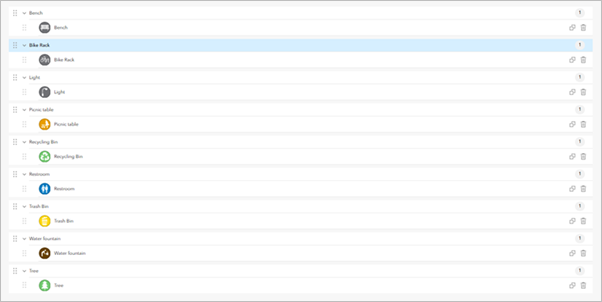
Click Save to save the feature templates. When mobile workers collect data in the Field Maps mobile app, the feature templates will appear just as they do on this page.
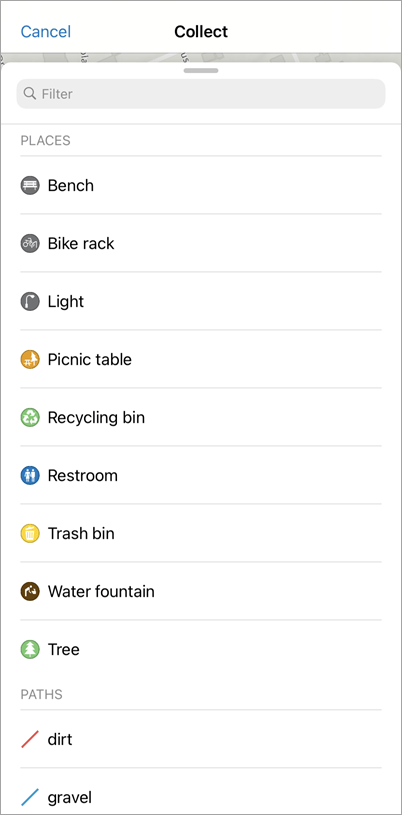
Configure the map settings
Next, you’ll configure the settings for the map. From the App Settings page, you can configure collection requirements, map tools, feature actions, and whether location tracking is required when using the map. For this exercise, you’ll configure the Copy feature action to allow a feature’s attributes and shape to be copied when creating a new feature. This will save time in the field by allowing mobile workers to copy similar amenities when collecting data.
Click the App Settings page and scroll down to the Feature Actions section. Under Copy, check the Copy All check box.
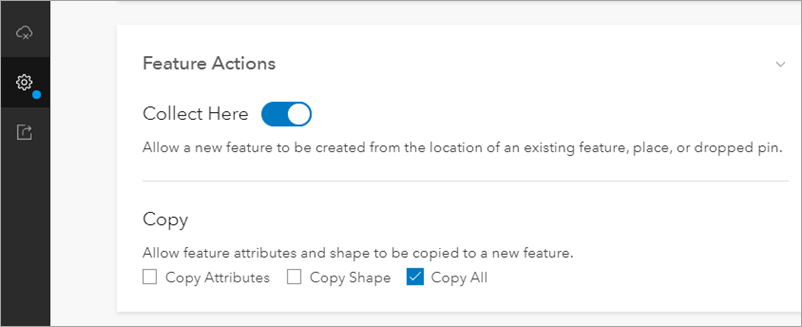
Click Save to save the map settings. To learn more about the settings you can configure on this page, see Configure the map.
Share the map
Finally, you’ll share the map so mobile workers can access it in the Field Maps mobile app. Click the Sharing page and then click Set sharing level. You can share the map with your organization, groups, or the public. Once you set the sharing level, mobile workers can access the map in the Field Maps mobile app. After you set the sharing level, you can share the map via link or QR code .
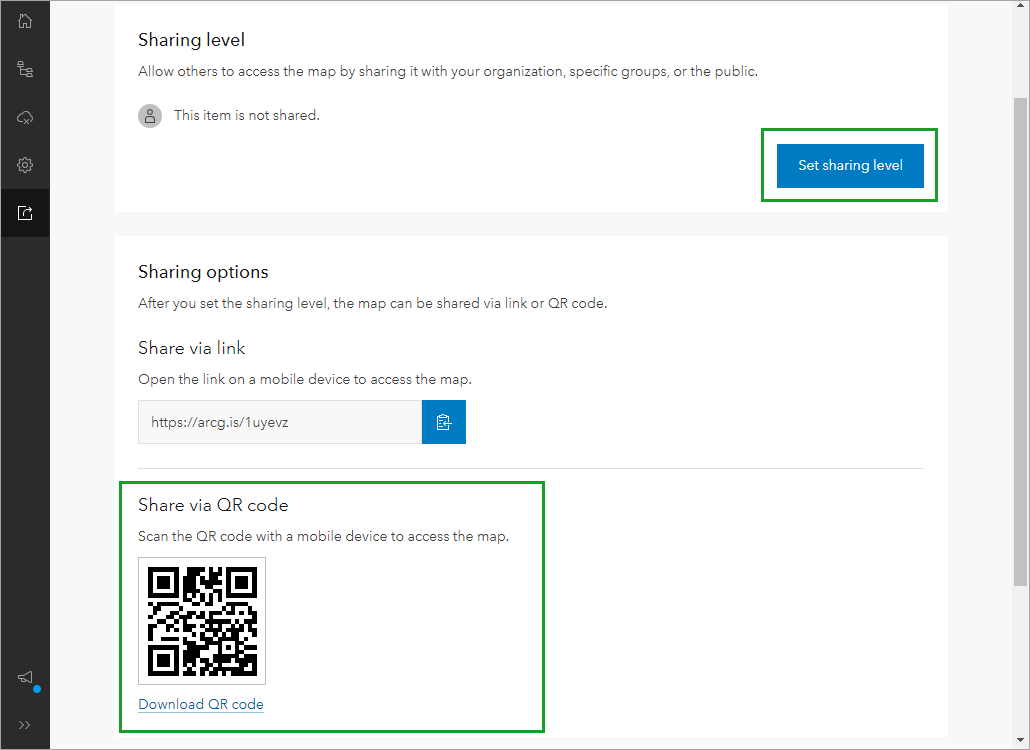
Your map is configured, shared, and ready for data collection on a mobile device! To learn how to collect data with your map, see the Try data collection in Field Maps blog post.
This blog post was originally published by Josh Clifford on December 9th, 2020, and has been updated.



Will there be an update allowing users to fill out configured forms via a browser, rather than the mobile Field Maps app? That would be a great addition for when the workflow is primarily about editing existing data, rather than adding new data.
Yes, absolutely. The form is stored within the web map itself and if you use the Map Viewer Beta, you’ll find the same form logic is used.
The Map Viewer Beta uses new form editing widgets that are a part of the 4.x JS API. As forms progress, you’ll see them appear in additional web apps moving forward.
There is a minor error in this walkthrough, the conditional visibility expression needs to be $feature[“needspaint”] == 0. So the zero is not surrounded by double quotes. Well that’s what I had to do to get it working.
Does Field Maps work with ProCore? Can the pictures and notes taken in the field be inputs into “Observations” in ProCore software?
Cool.
Based on my experience and my users’ feedback, the offline pipeline still has significant issues. Arcade does not yet function reliably in fully offline scenarios, which is a critical requirement.
Download errors also happen quite often. Normal internet instability can break large downloads, and the current app design does not handle this well. This is especially problematic since workers going offline usually means poor or unstable connectivity, particularly in remote offices.