ArcGIS Reality Server was recently released for public beta, bringing scalable, self-hosted reality mapping capabilities to ArcGIS Enterprise. Reality server tools enable organizations to optimize reality mapping projects across multi-machine configurations. Since the release, one of the most common questions we have received is: “How do I optimize processing across multiple machines?” In this blog, we’ll explain how to control Reality Server project distribution for optimal performance.
Understanding Distributed Processing in Reality Server
Reality Server distributes project processing in two key scenarios:
- Large project subdivision: A single large project can be broken into smaller sub-projects and distributed across multiple machines.
- Concurrent multi-user processing: Multiple jobs from different users can be distributed and run simultaneously across multiple machines.
These scenarios can be controlled differently as we’ll explore below.
Controlling distributed processing using Parallel Processing Factor (PPF)
Think of your multi-machine reality server configuration not as individual machines, but as a pool of available workers. Each machine in your cluster contributes service instances (workers) to this pool. The Parallel Processing Factor (PPF) controls how many worker services from this pool are allocated to process a reality mapping project. Setting PPF to 100% will use all the worker instances in your pool while 50% will use up to half of the total worker instances. More workers dedicated to a job means faster processing because when a project is split into subprojects, each worker can process a different subproject simultaneously— reducing overall processing time. However, the number of subprojects your project is subdivided or even if a project will be split at all is determined internally by the Reality Engine (RE).
Let’s say you want to process a large project on a 10 machines reality server site and RE splits the project to nine subprojects. If you set the PPF to 60%, up to six available workers will be assigned a subproject, leaving three subprojects in a queue. Whenever a subproject is completed, the next one in the queue looks for a free worker which could be the one that just finished or any of the other four unused workers. This process continues until all the subprojects are complete.
If PPF was set to 100%, there will be more than enough workers (10) to handle the nine subprojects concurrently, so no subproject waits for a worker to be free. Processing is faster because there’s no queuing. However, high PPF might result in resource competition in multi-user shared environments. With PPF at 100%, one user’s large project could occupy all available workers, forcing other users’ jobs to wait.
Configuration Best Practices
The key to optimal performance is understanding your usage scenario. For single or limited user dedicated environment where there is no concern for competition, you can set the PPF to 100% to maximize processing speed. For multi-user shared environment, the PPF should be based on expected concurrent users and number of machines in the cluster.
PPF and RealityMappingTools GP Service Settings
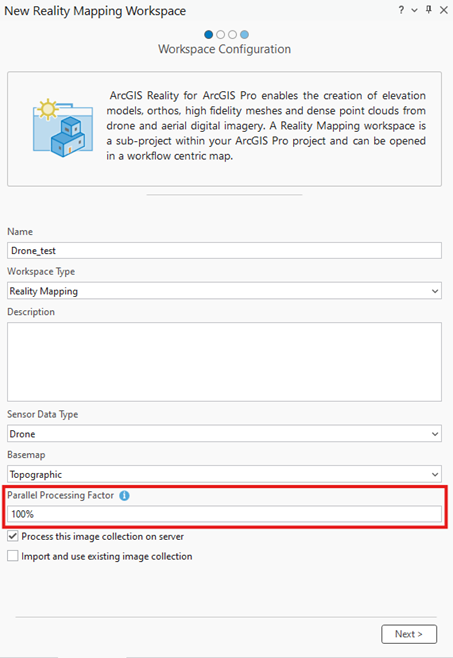
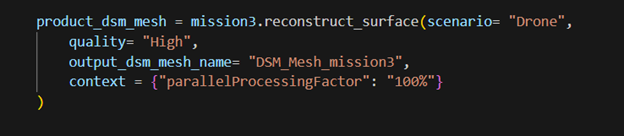
For ArcGIS Pro, you can set the PPF value on the workspace configuration page during workspace creation. When using ArcGIS API for python, you can set the PPF value through the context parameter of the appropriate reality mapping method.
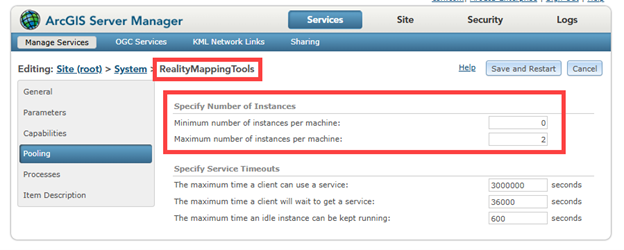
The support for running multiple concurrent jobs from different users is managed through the RealityMappingTools GP service’s instance configuration. To support more users processing simultaneously in your enterprise deployment, increase the maximum number of instances for the RealityMappingTools GP service:
- Sign in to ArcGIS Server Manager as an administrator
- Navigate to the RealityMappingTools service
- On the Pooling page, set the maximum number of instances to match the number of concurrent users you expect
Summary
Optimizing ArcGIS Reality Server performance across multiple machines requires understanding usage scenarios to appropriately balance processing speed with resource management. For single-user environments, maximize PPF to leverage all available resources. For multi-user environments, configure PPF appropriately and ensure your RealityMappingTools GP service supports the expected number of concurrent instances.

Article Discussion: