The November 2026 ArcGIS Online release brings a set of new updates to the Sidebar template in ArcGIS Instant Apps. Sidebar pairs a web map with a side panel of tools for app users to explore the data and interact with the map.
This release adds a new way to configure and reorder tools in the side panel, the addition of the Buffer and Print tools, enhancements to Sketch and Layer list, and theming updates extending to most app elements.
Organize your tools in one place
The side panel in Sidebar can host a variety of tools that allow app users to interact with the map. App authors can include tools like the Layer list, Legend, Bookmarks, Attribute filter, and Edit based on the purpose of the app. Until now, app authors could choose which tools to include in the side panel, and which tool would open first when the app launched. However, the order in which these tools appeared in the side panel could not be changed.
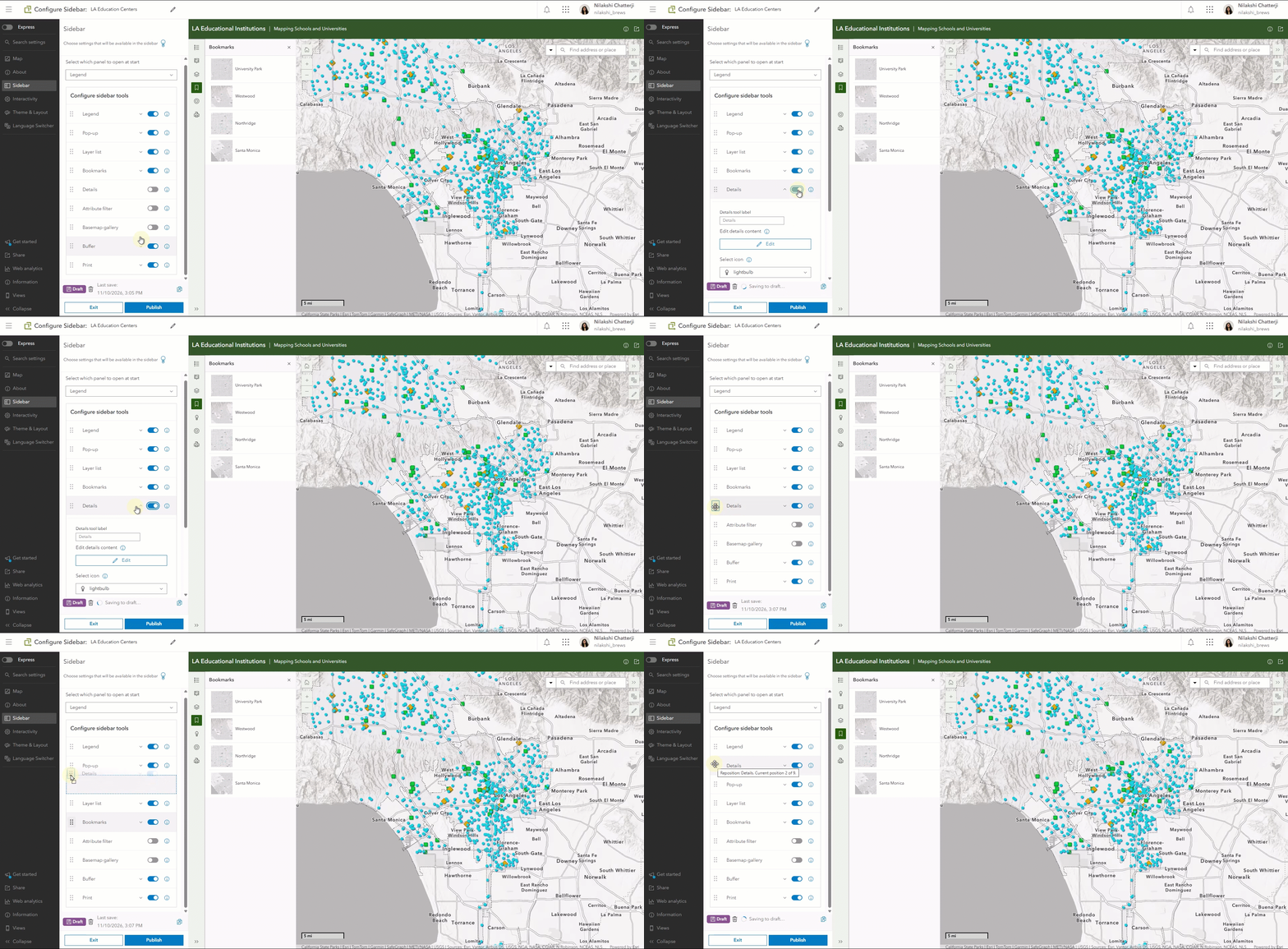
With the updates for this release, Sidebar’s configuration lets you configure and reorder the side panel tools from one central place. With this new update, you can:
- Enable or disable tools in the side panel
- Expand any tool to configure its settings
- Drag tools into the order that suits the purpose of the app
The app preview updates in real time as the tools are reordered and configured.
Build around the audience’s workflow
Think about what you want your app users to do first when they open the app. For example, if the app is built for editing data, you can reorder the side panel to put Edit at the top. If the app is built for exploring map content, you can prioritize the Attribute filter or Pop-up by placing them at the top. So, instead of adapting your workflow to a predefined order of sidebar tools, you can organize your Sidebar app around the experience you want to create for your users by reordering the tools and selecting which of those tools open first when the app launches.
This new configuration experience is available in both the Express and Full setup modes.
Buffer tool in Sidebar
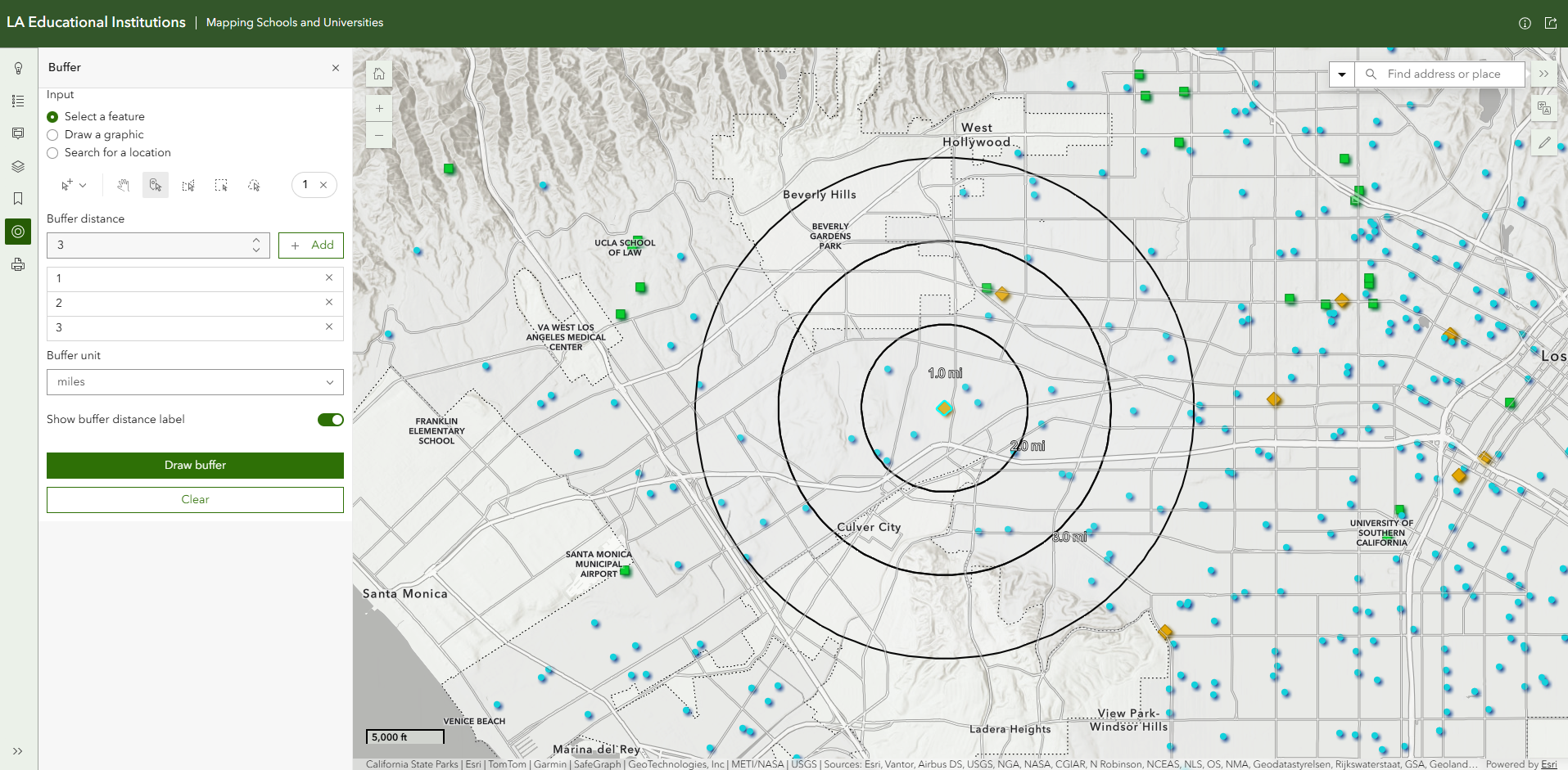
The Buffer tool is now available in Sidebar, adding proximity-based exploration to the template. With Buffer enabled, app users can draw single or multi-ring buffers on the map to understand a location and what surrounds it. They can build a buffer around a specific feature on the map, a hand-drawn graphic, or a searched location.
The Buffer tool fits a range of scenarios. For example, a planning app might use it to explore the area around a certain development, or an infrastructure app could show what sits within a certain distance of a facility.
Setting up the Buffer tool
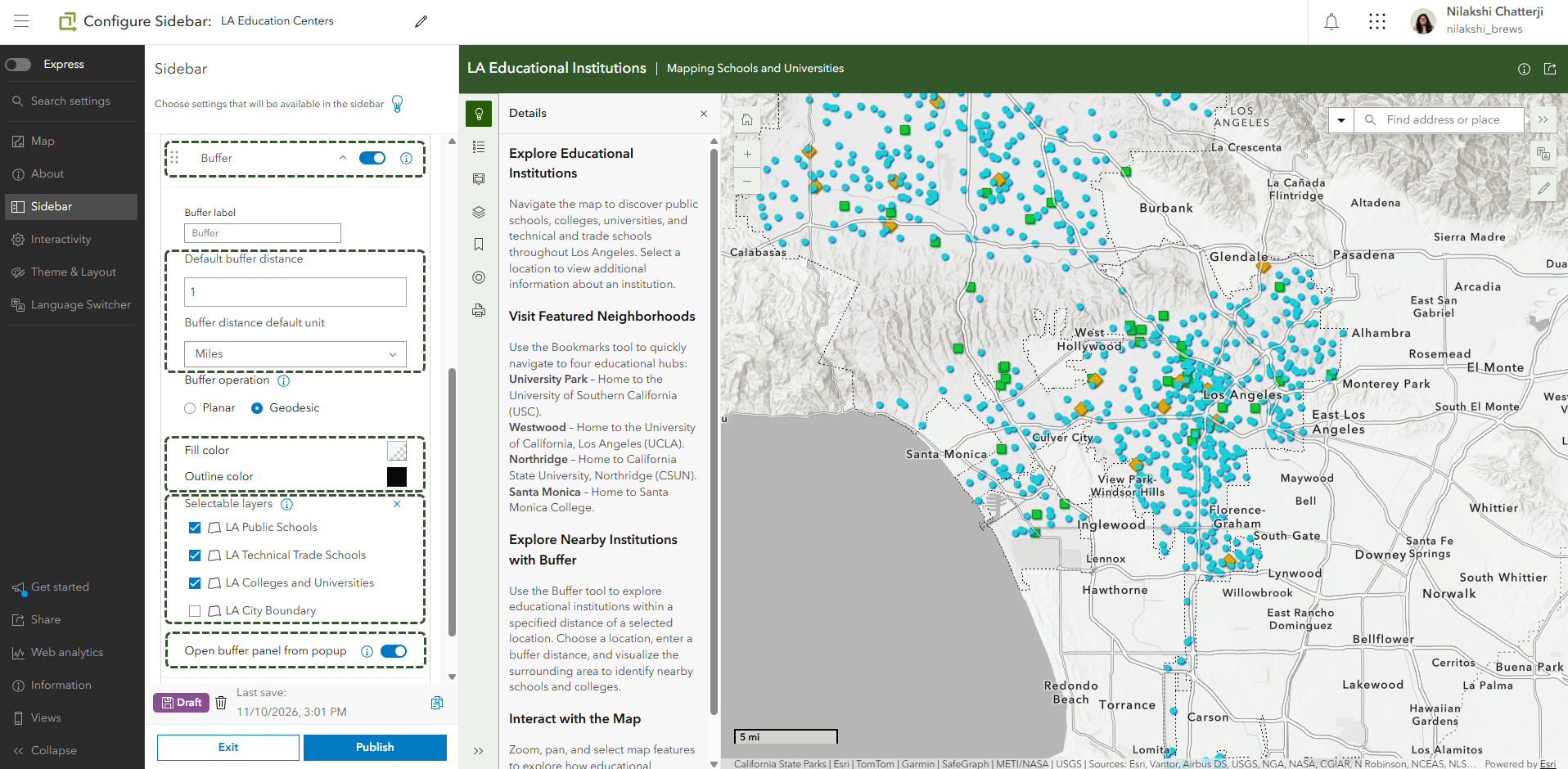
Go to Sidebar > Configure sidebar tools and enable Buffer, along with your other tools. From there you can drag it to a position on the side panel that fits your workflow. Enabling the tool also expands its configuration settings, such as fill and outline colors, which layers can be selected to draw buffers around, and whether the buffer panel can be opened directly from a feature pop-up.
You can set up a default distance and unit while in the app configuration. App users can change these in the app, adding up to three distance values, and switching the distance units. Note that the buffer drawn is a temporary graphic and not a new layer. It lasts for the app session and can be removed with the Clear button.
Other configuration updates
Print tool in Sidebar
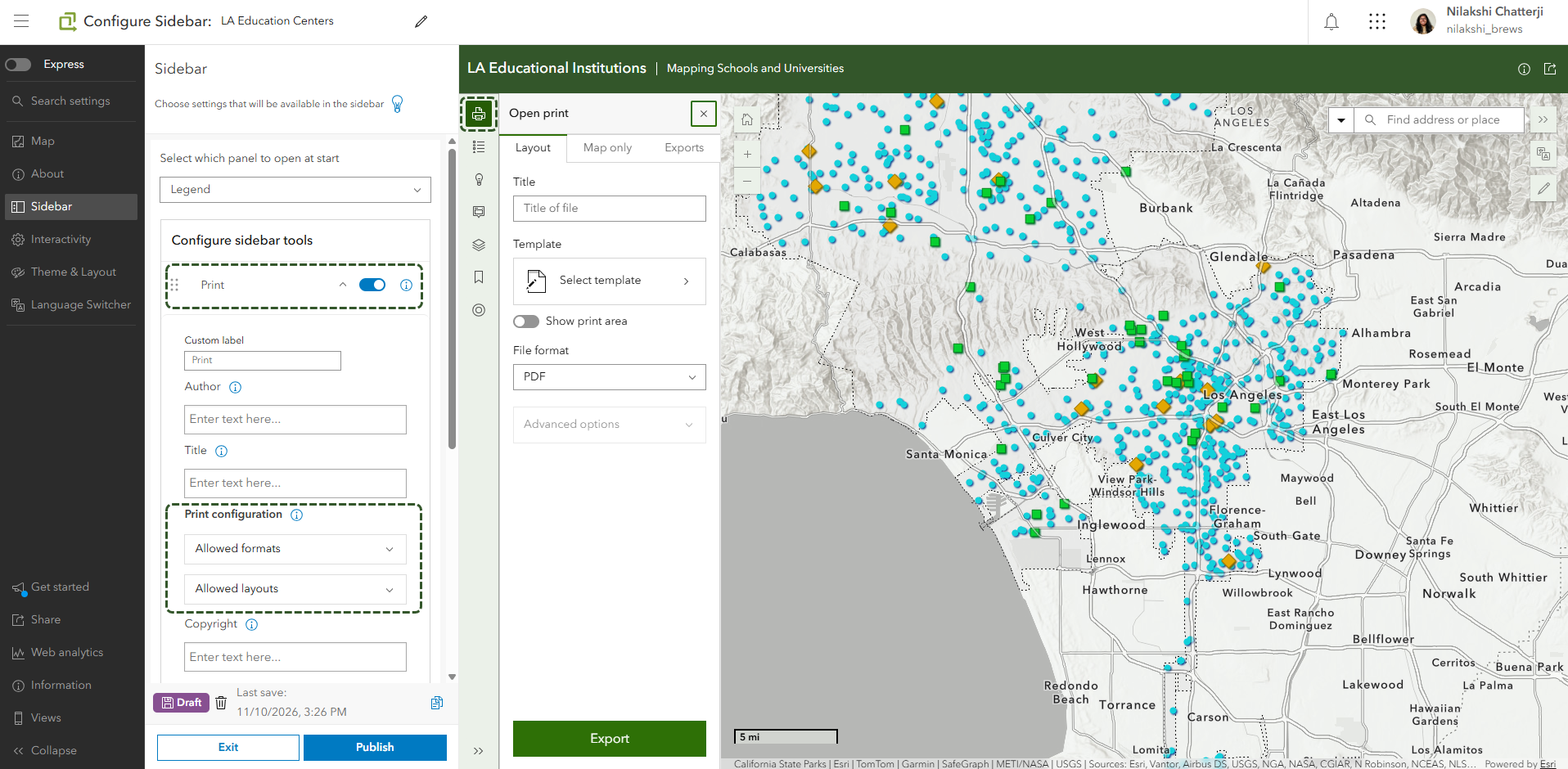
Print is now available as a sidebar tool. Just like Buffer, you can enable it in Sidebar > Configure sidebar tools and drag it to any position in the side panel that fits your app’s workflow.
Sketch enhancements
The Sketch tool lets app users add context to a map with temporary graphics, like marking a location or outlining an area. With enhancements made to the tool for this release, they can also add text and change the color of their graphics, making Sketch more useful across a wider range of Sidebar workflows. To enable it, go to Interactivity > Modify in the configuration and turn on Sketch tools.
Layer list configuration updates
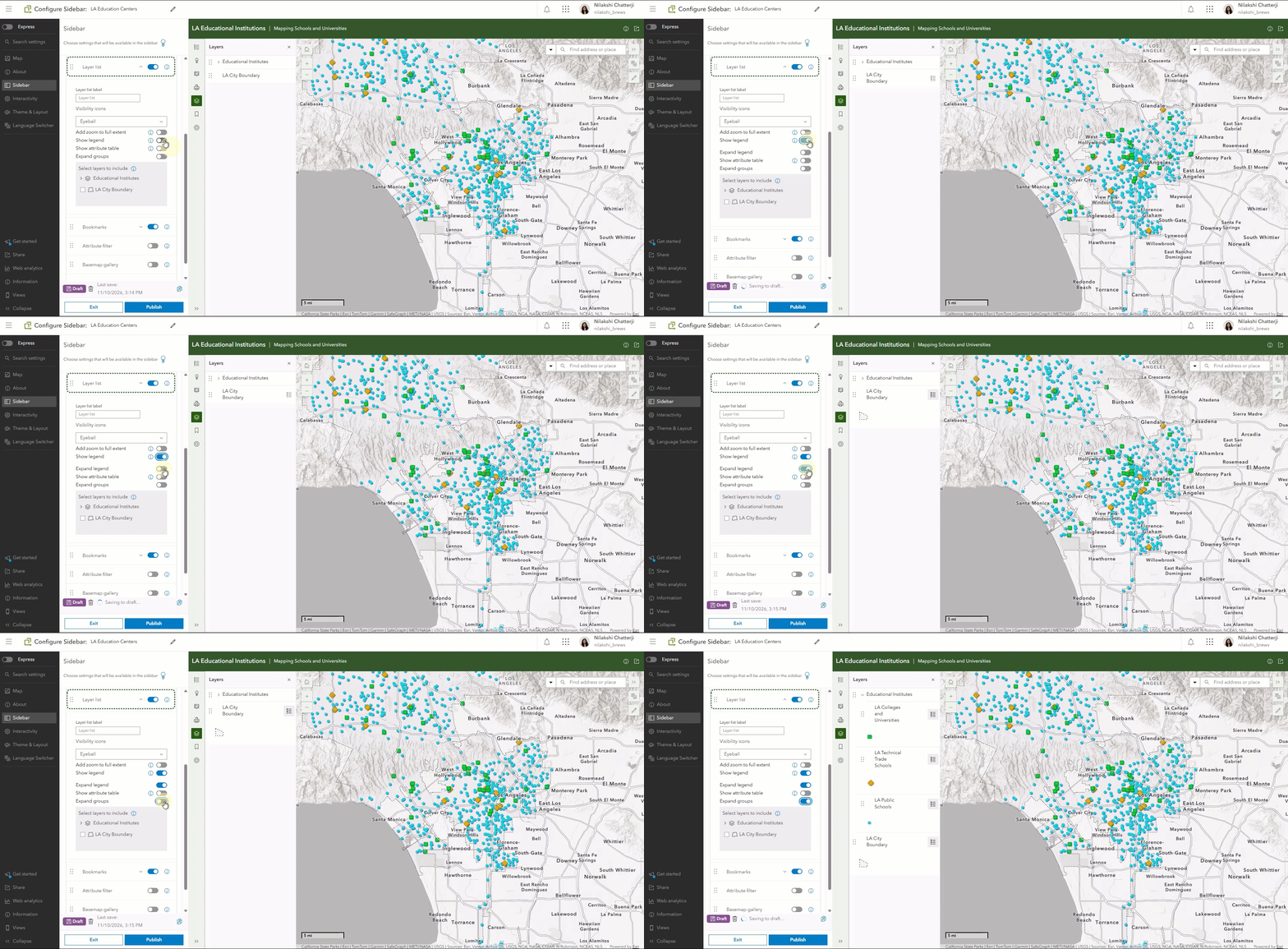
Layer list now has two new configuration settings that make it easier to find map content. If your web map includes group layers, you can choose to have the groups expand automatically either when the app launches or when app users open Layer list in the side panel, so they see the layers inside without expanding the drop-down. You can also have the legend open for active layers that have Show legend enabled in the Layer list.
To turn these on, go to Sidebar > Layer list, then enable Expand group and Show legend > Expand legend.
Theming updates
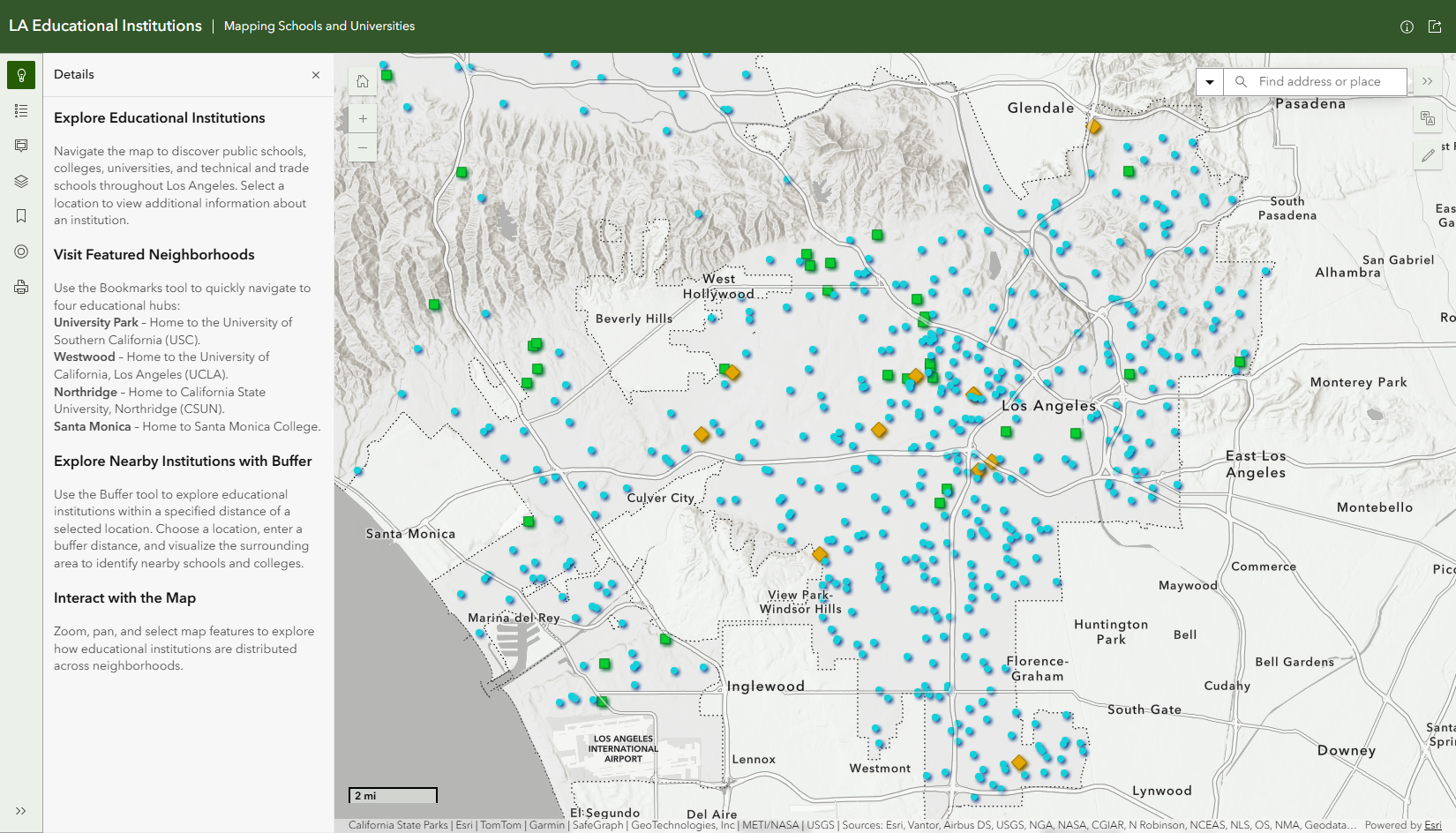
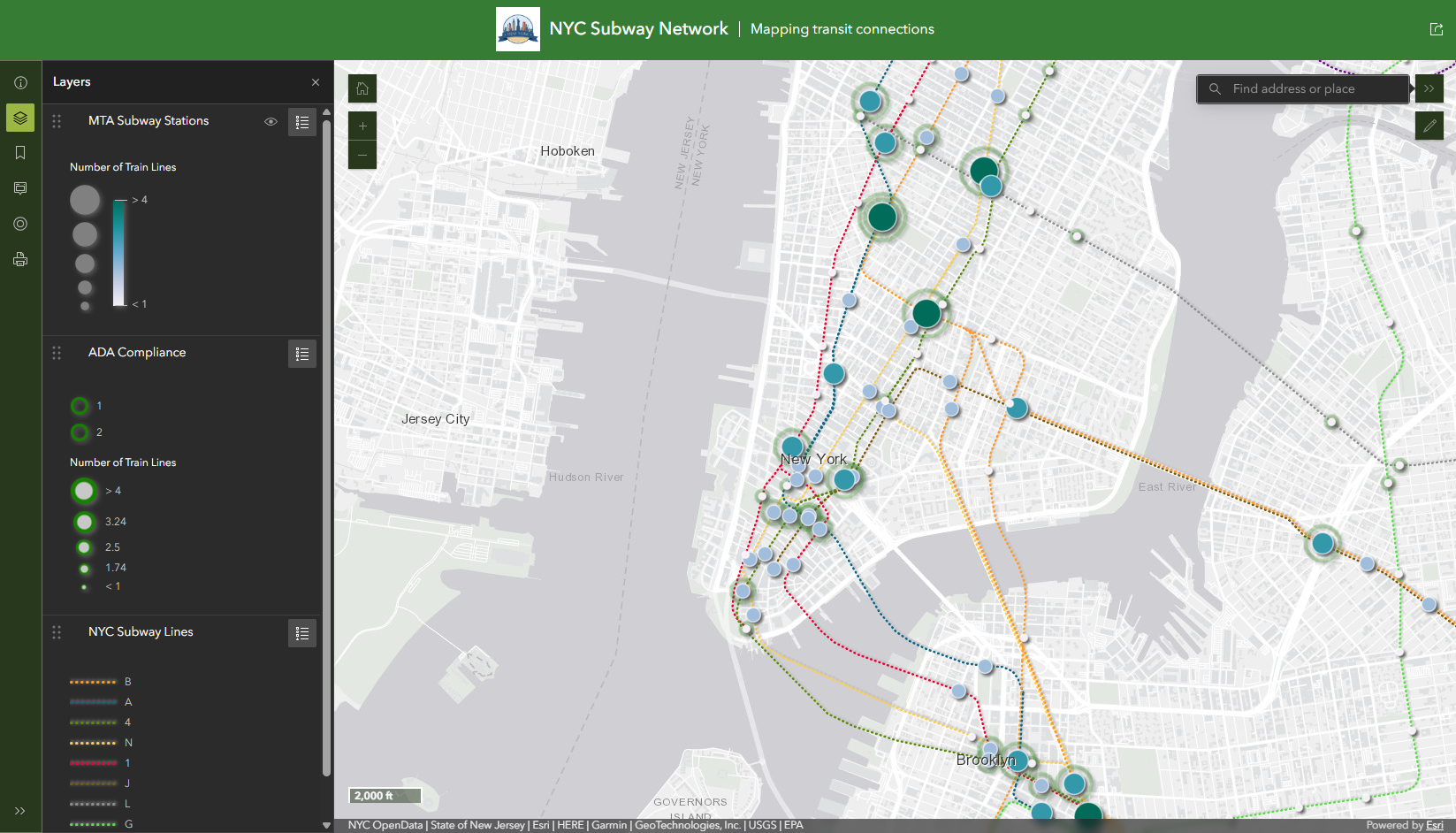
Theming in Sidebar now extends to the map tools, the widgets that sit on the map. Use the predefined set of colors offered by the preset themes or adjust the color options in Theme & Layout > Theme to customize the appearance of your Sidebar app to better match the content being presented.
Try the new Sidebar updates
The new Sidebar updates give more control over how your Sidebar app works and how it looks. Configure and organize the sidebar tools in the side panel around your audience’s workflow. Add Buffer when users need to understand proximity and the enhanced Sketch tool for more ways to draw or annotate on the map. Finally, use theming to bring it all together. Try out these updates in Sidebar with the latest release of ArcGIS Online.

Article Discussion: